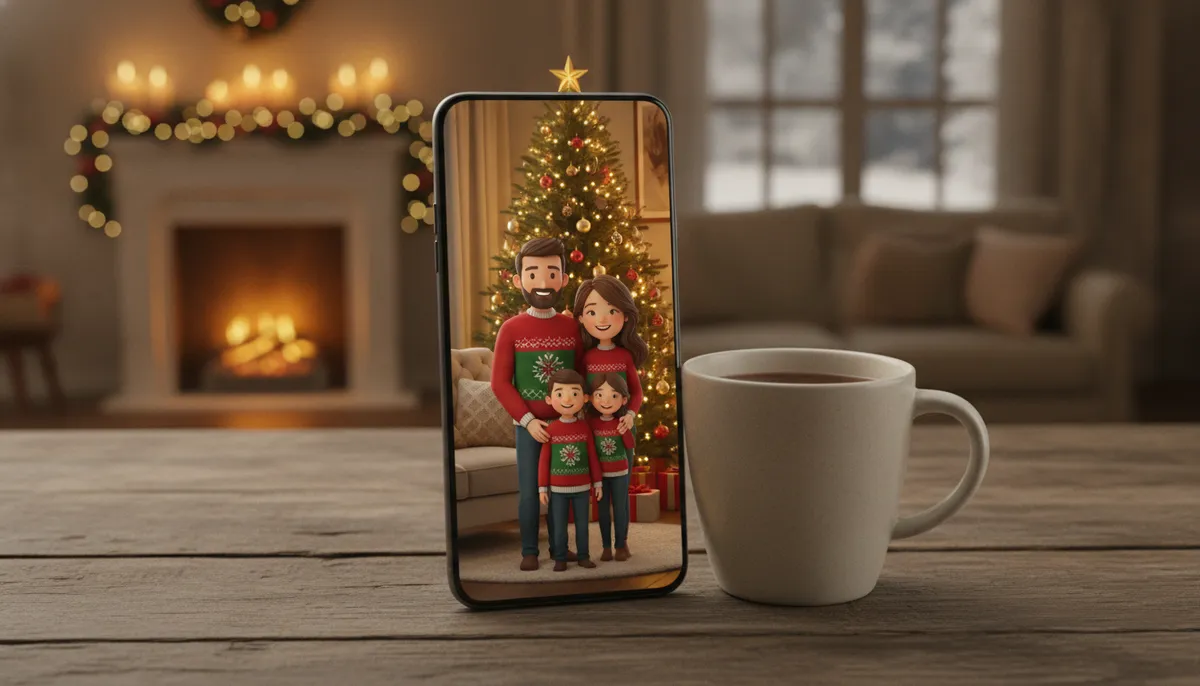
Seven Christmas photo styles to aim for
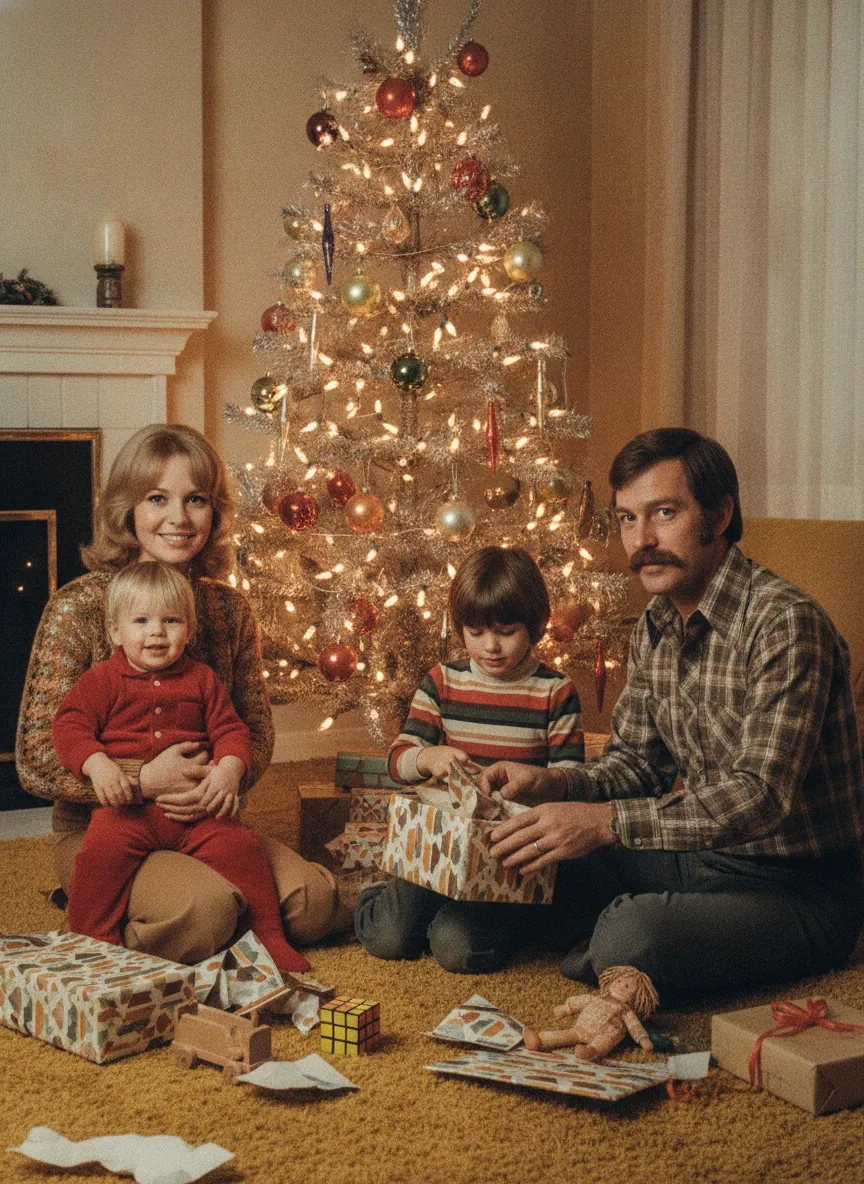
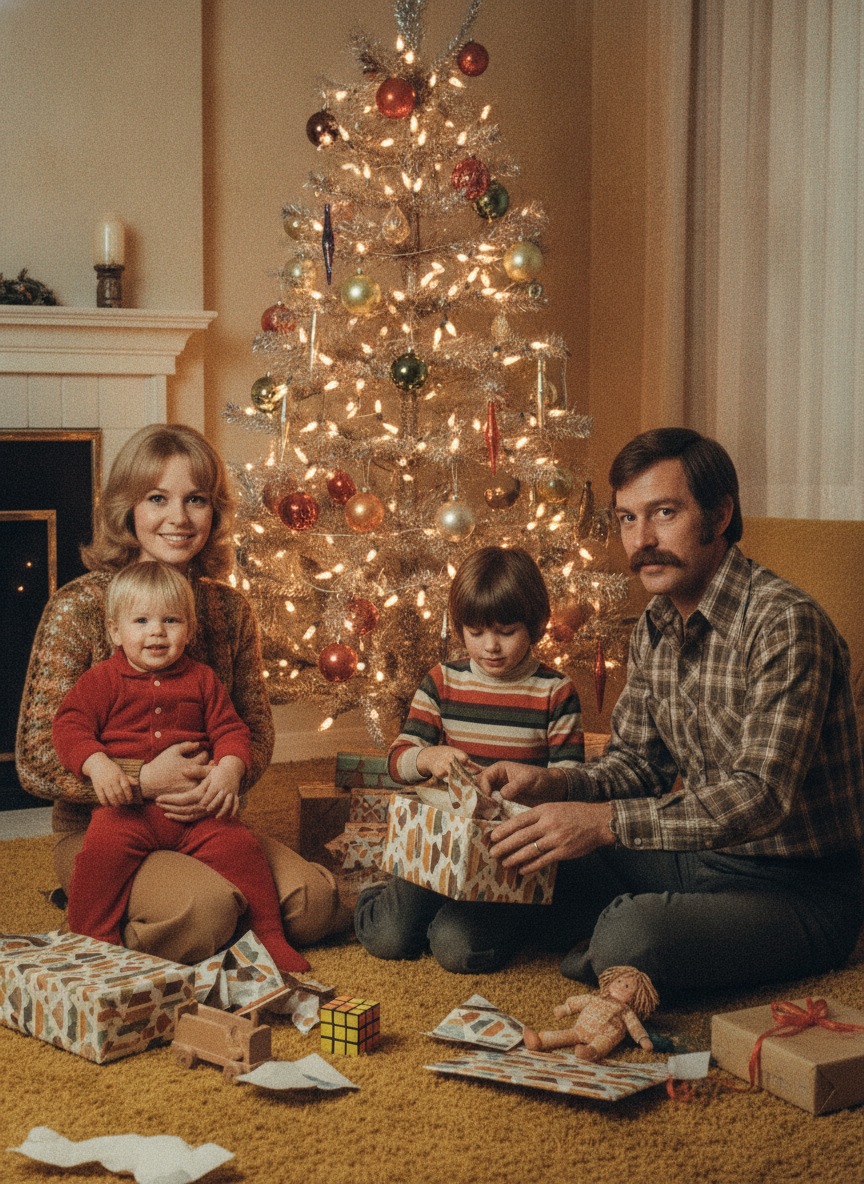
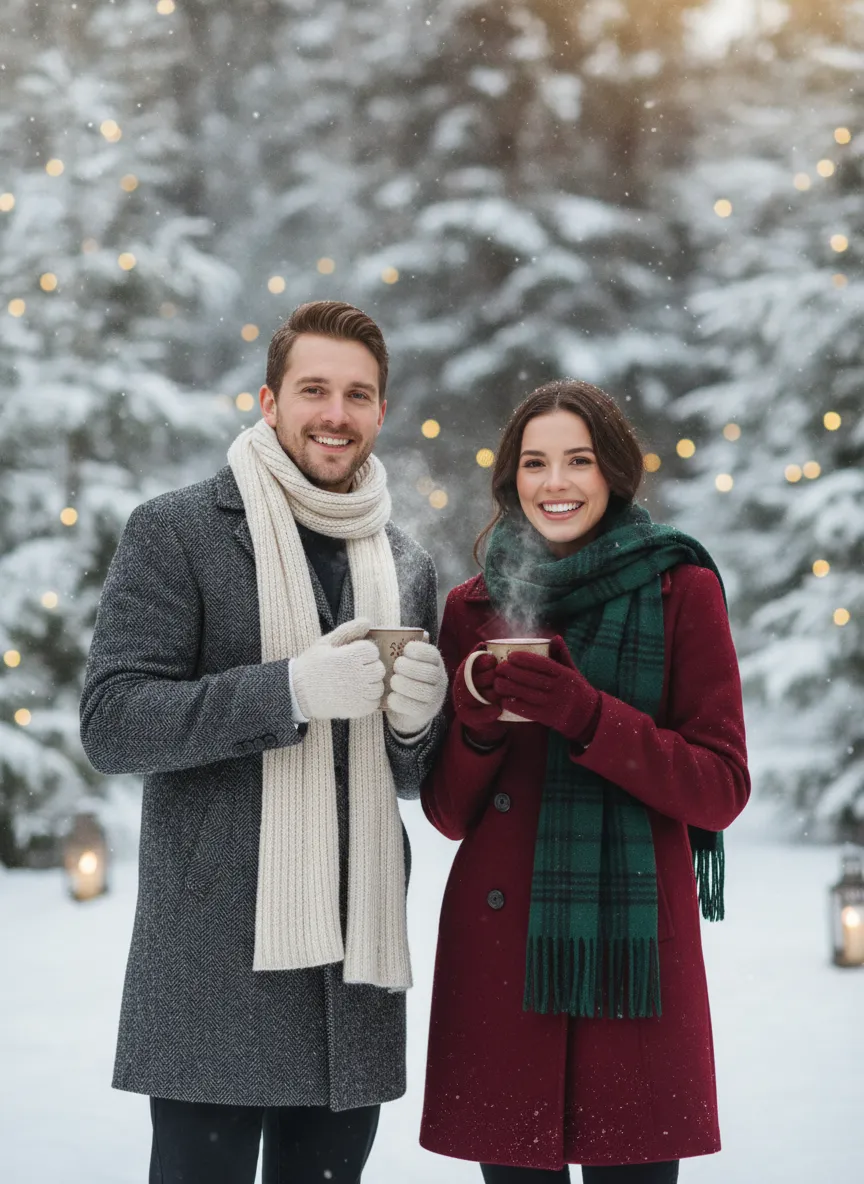
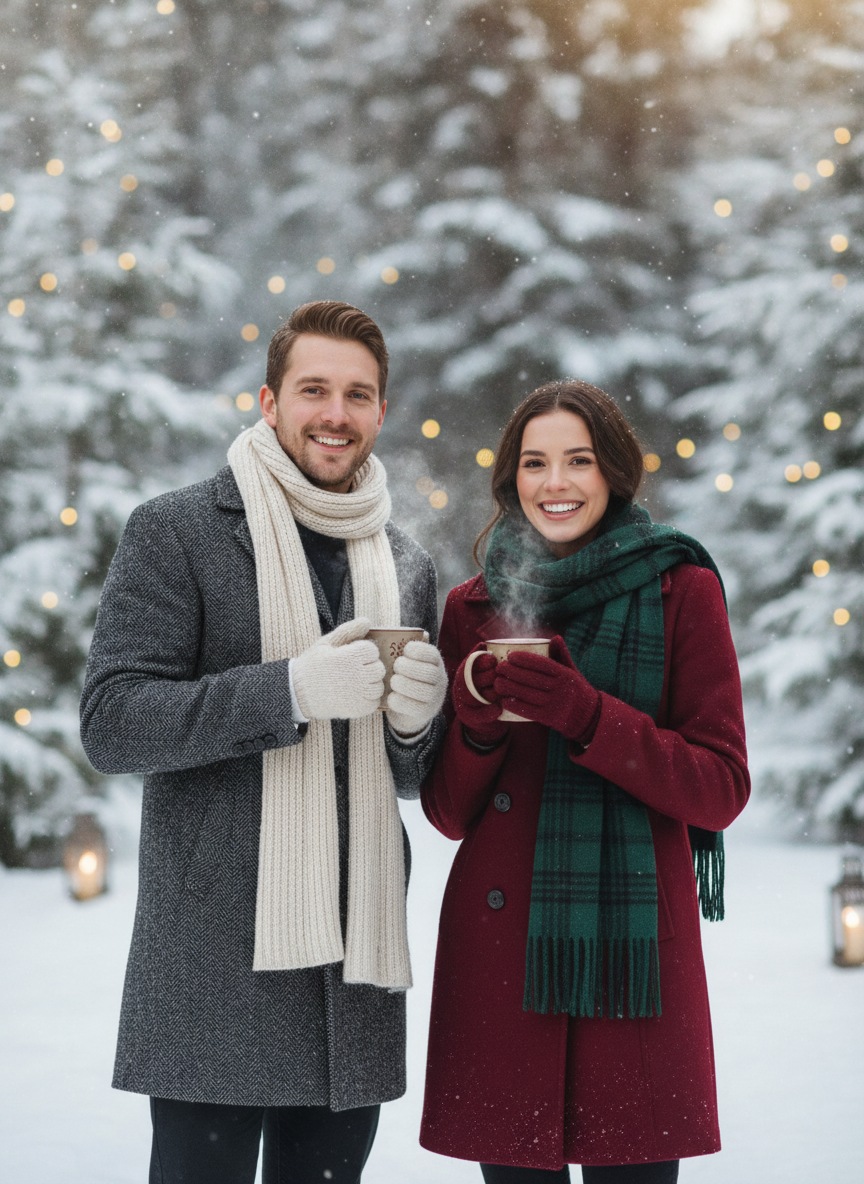
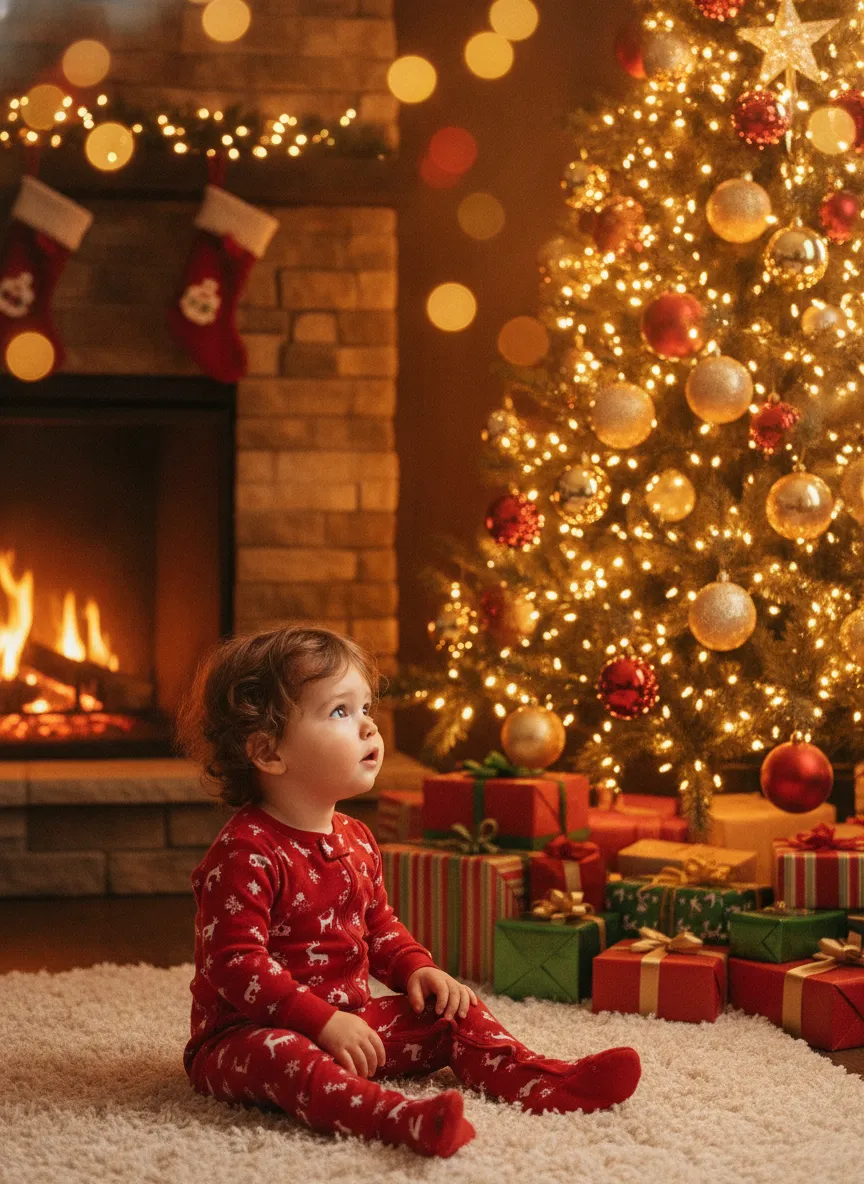
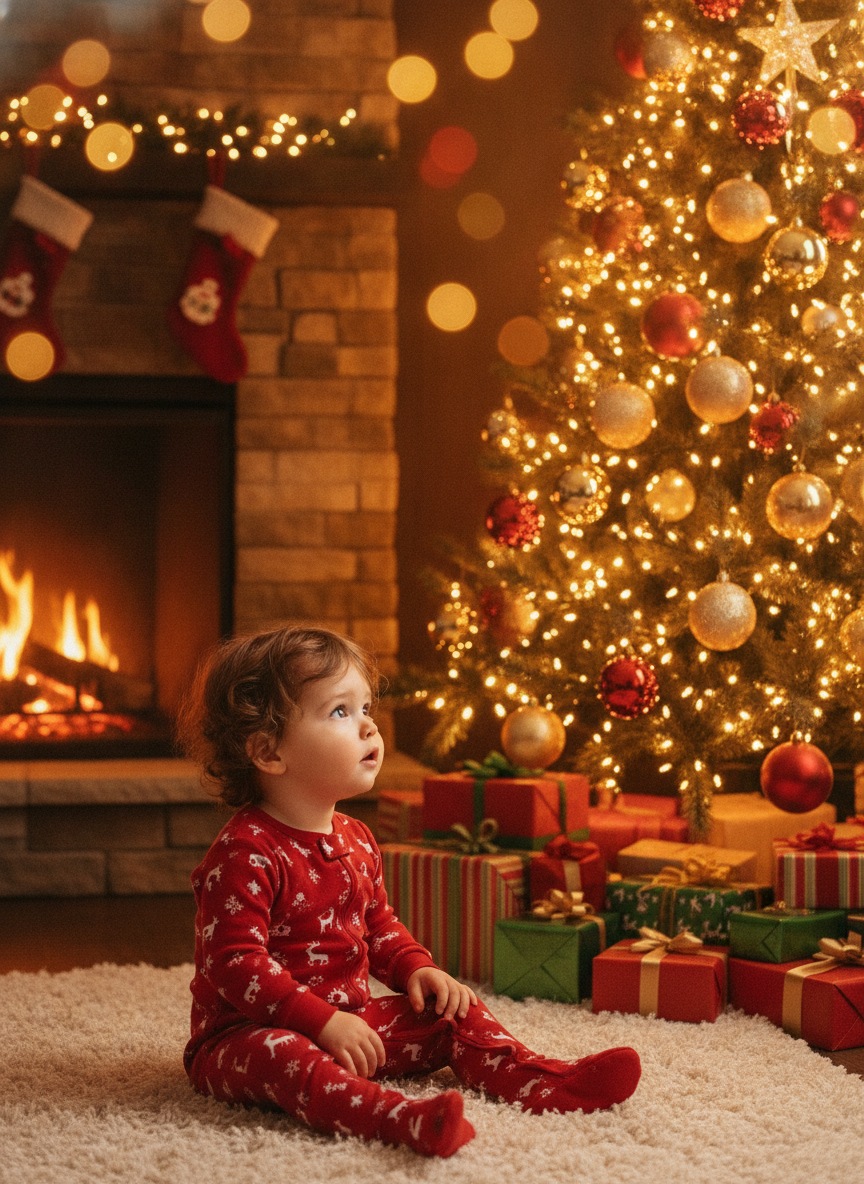
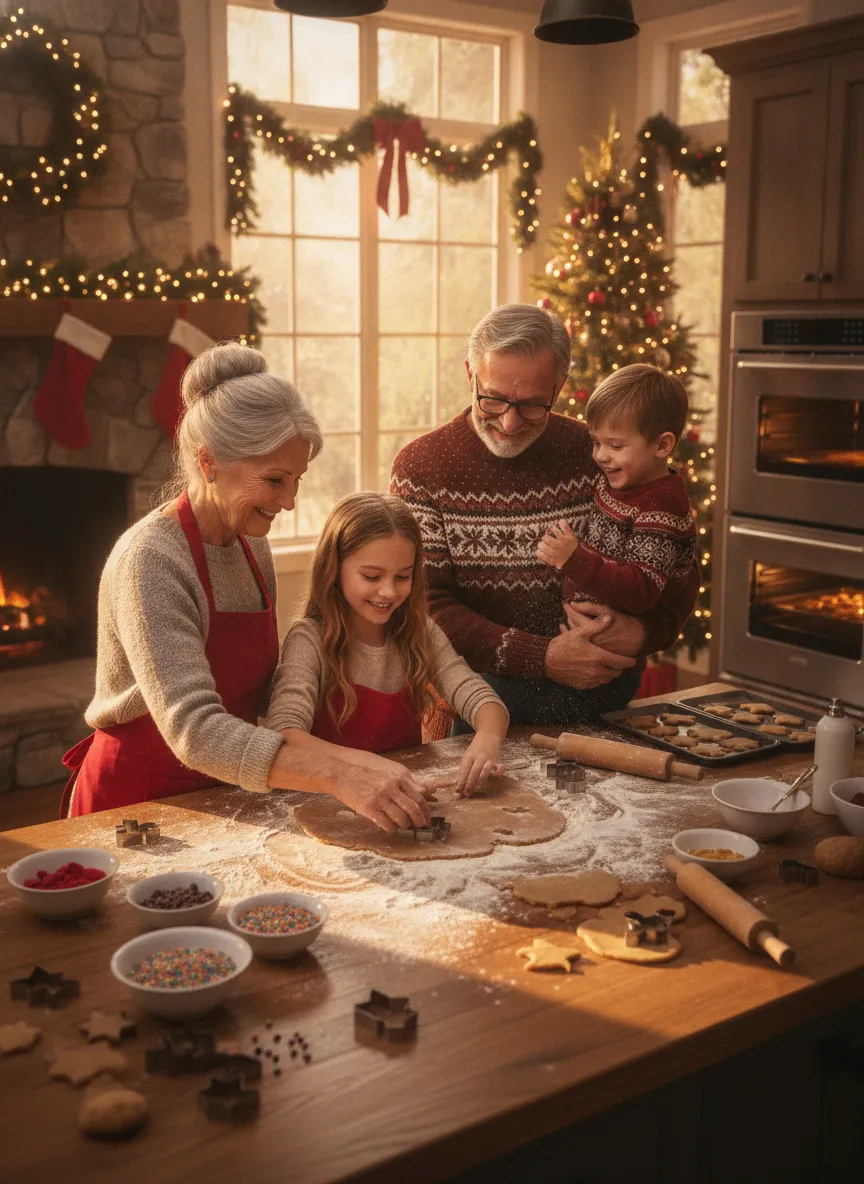
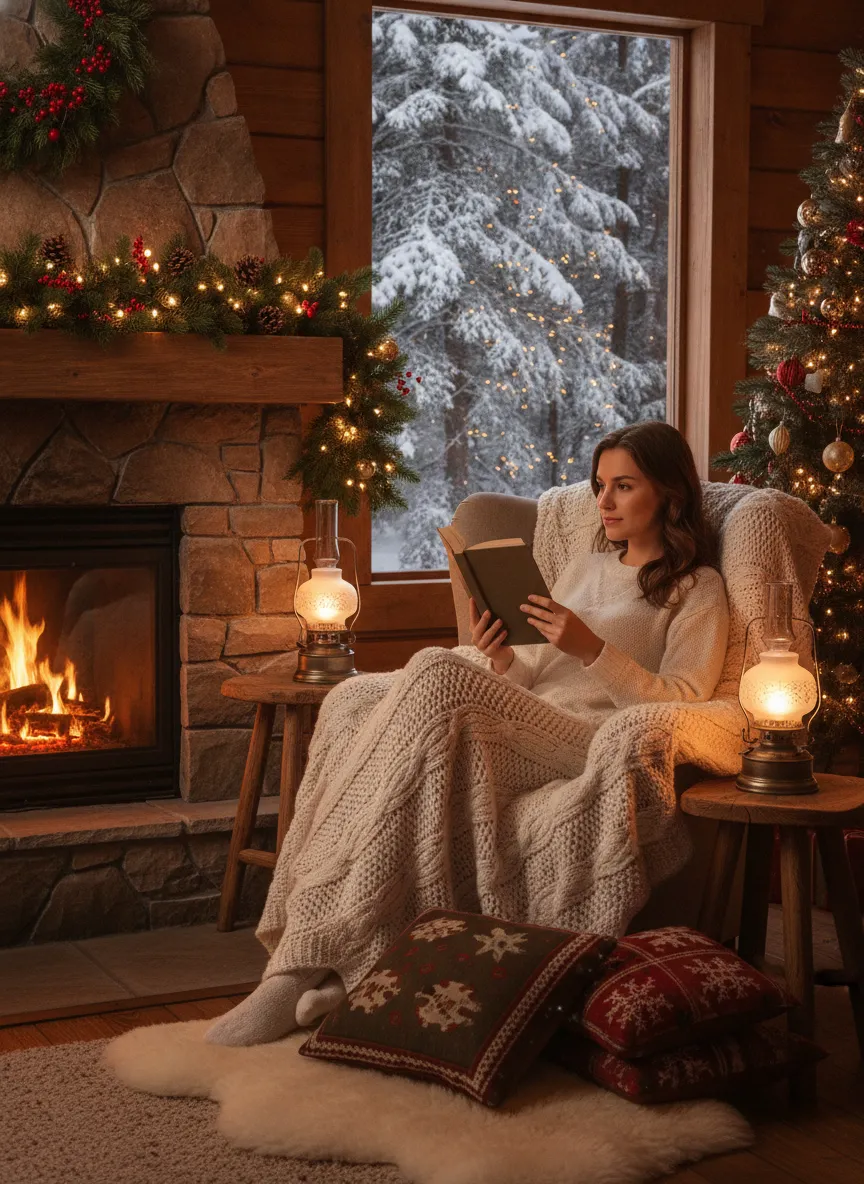
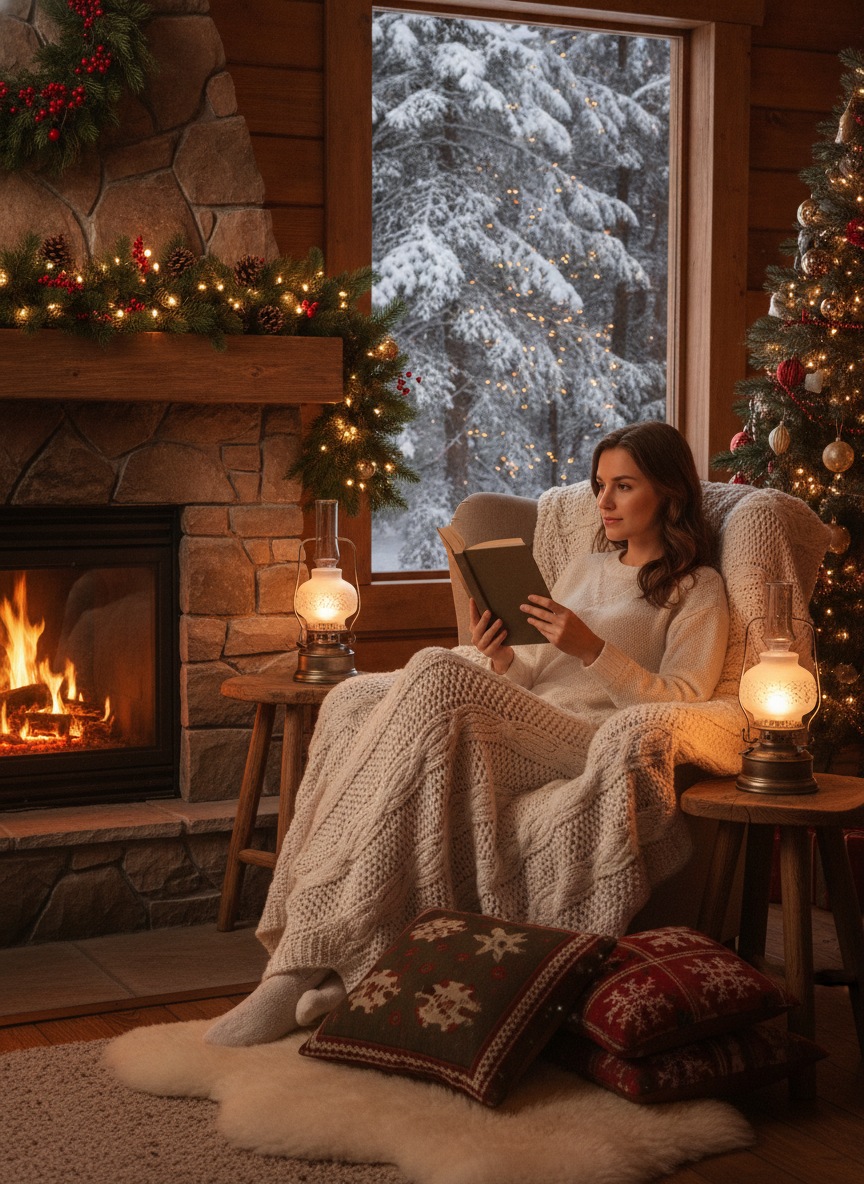
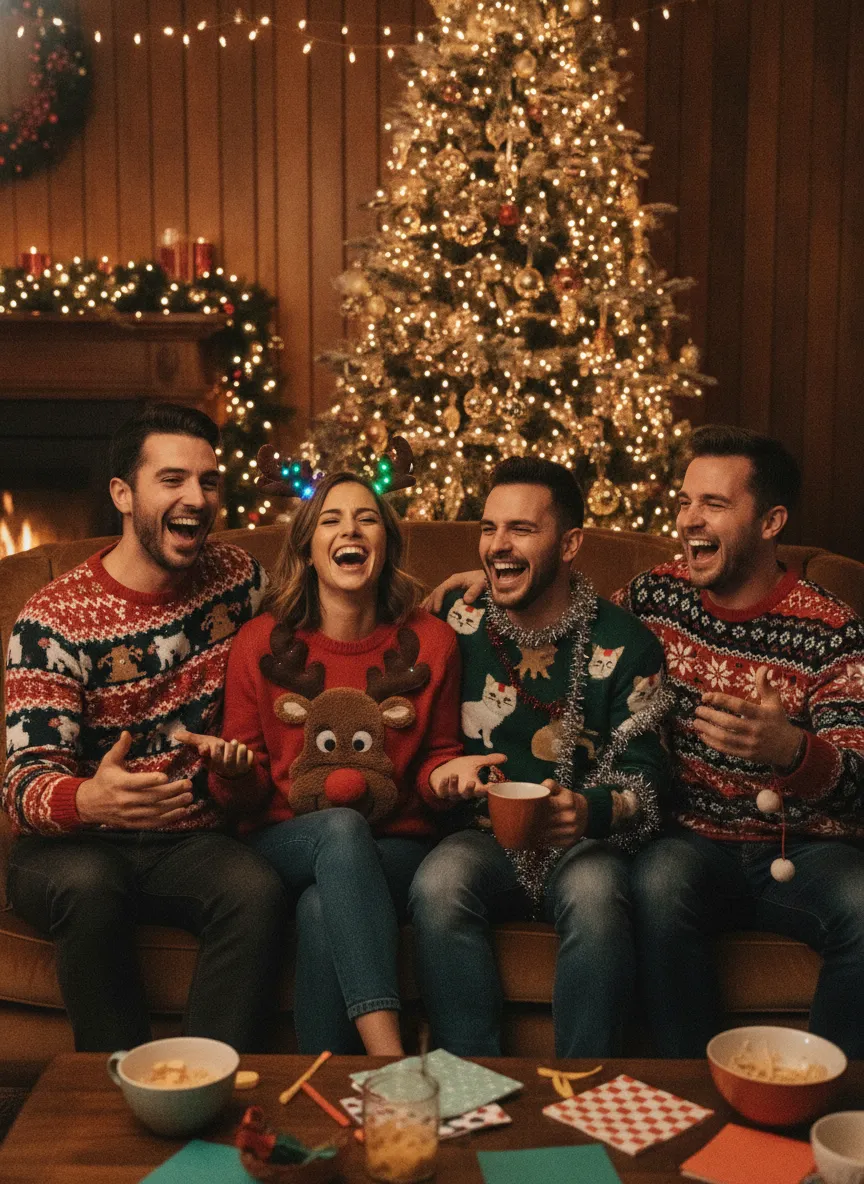
These are original images of made-up people, shown as the kind of result a good prompt should get you. Use them as a reference for the look you want, or save them to show what you mean.
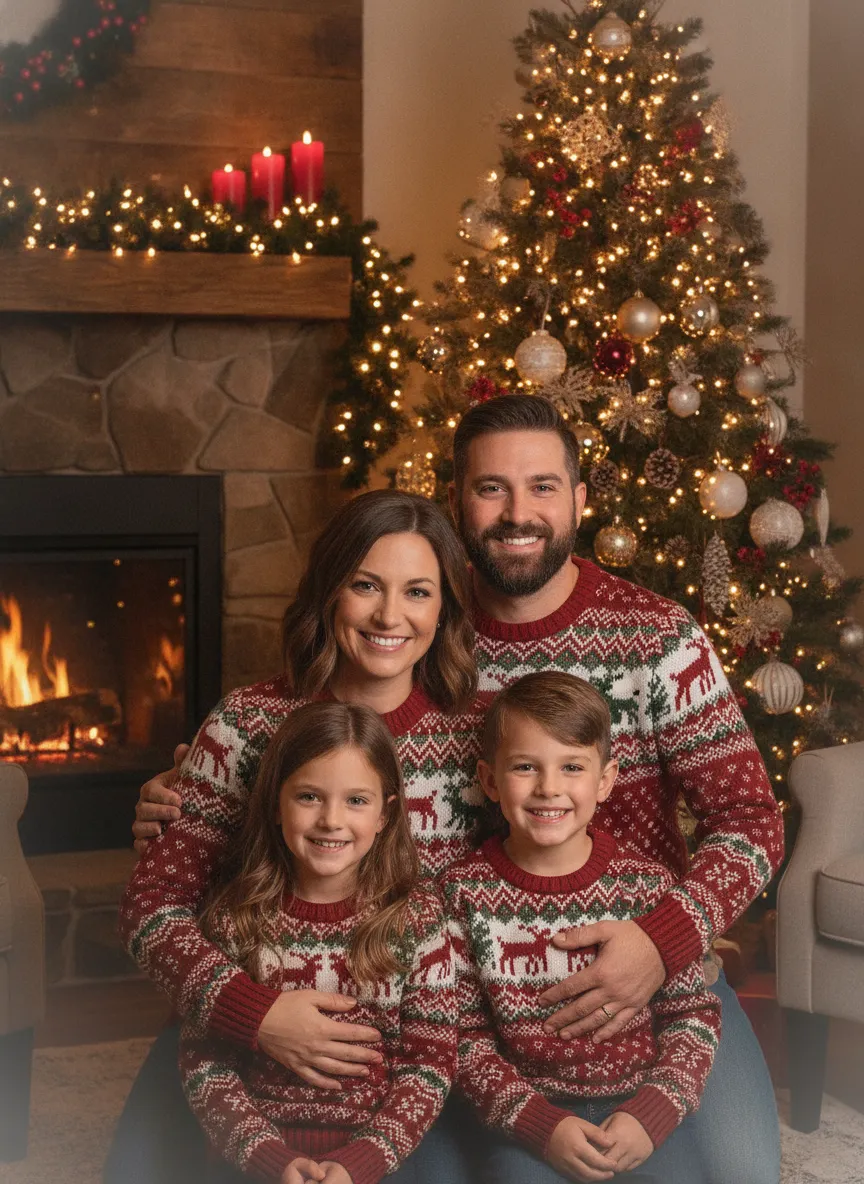
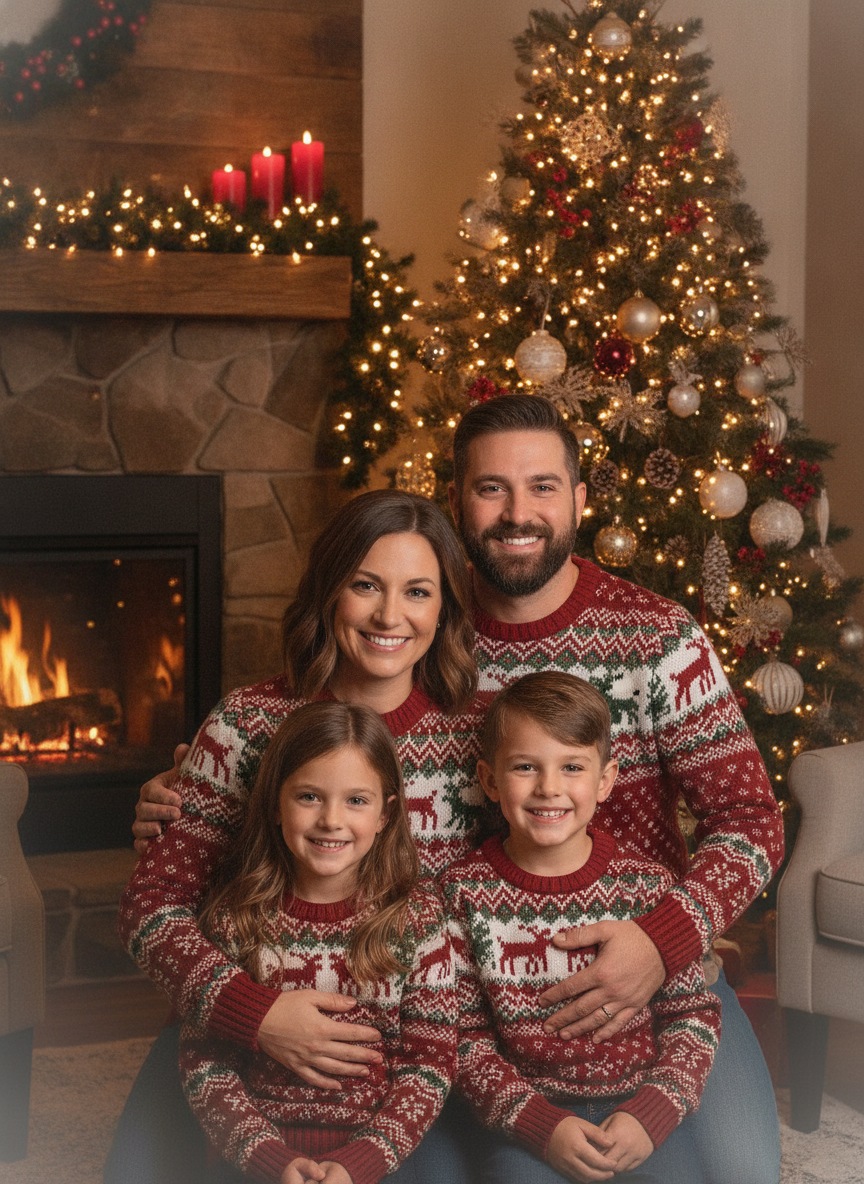
How to make a Christmas photo with ChatGPT
As of November 2026, image creation and editing work on Free, Plus and Pro accounts through ChatGPT Images. Here's the short path.
- Open ChatGPT on the web or in the iOS or Android app and start a new chat, or open Images from the sidebar.
- Tap the plus button, choose Add photos and files, or drag a photo into the chat. Uploaded images can be up to 20 MB each, according to OpenAI's help pages.
- Pick a sharp photo with faces looking at the camera and no heavy filters.
- Write one prompt that says what to keep and what to change. Paste one from the list below.
- Wait for the render, which can take a minute or more at busy times.
- Ask for fixes in the same chat, one change per message.
- For a small area, open the result, choose Select, mark the spot and describe the swap. It works for backgrounds, decorations and clothing, though the marked region isn't always exact.
- Open the finished image and save it.
The "keep and change" structure is the part most people skip. Without it, ChatGPT treats your photo as a suggestion.
15 ChatGPT Christmas photo prompts to copy
Upload your photo first, then paste one of these. If you want more ideas, our page of AI Christmas photo prompts goes deeper on styles.
- Turn this into a warm, realistic Christmas family portrait. Keep every face, expression, pose and number of people exactly the same. Add a lit tree, golden string lights and cozy evening light.
- Keep the people exactly as they are and replace only the background with a snowy village at dusk with glowing windows.
- Put everyone in matching red and green Christmas sweaters. Keep faces, hair and poses unchanged, and keep the background.
- Make this a vintage 1970s film photo of a family Christmas morning, with grain and faded color. Keep the faces recognizable.
- Add a decorated Christmas tree and a fireplace with stockings behind us. Do not change our faces, clothing or positions.
- Make this a Christmas card photo with soft snowfall and bokeh lights. Leave space at the bottom for a greeting, and add no text.
- Add a Santa hat to each person and keep everything else unchanged.
- Turn this pet photo into a Christmas portrait with a red bandana, a wreath and warm lights. Keep the pet's markings and eye color the same.
- Place us in a cozy log cabin with a fireplace and snowy pine trees outside the window. Keep our faces natural.
- Restyle this as a watercolor Christmas illustration, keeping the composition and each person's likeness.
- Add soft golden Christmas lights around the edges of the photo and a warm glow. Do not alter the subjects.
- Seat the baby next to a lit tree with wrapped gifts. Keep the baby's face, hair and outfit as they are.
- Show our group at a European Christmas market in the evening with string lights and falling snow. Keep our faces and clothes.
- Remove the clutter from the background and replace it with a clean, softly lit Christmas living room.
- Turn this into a funny ugly-sweater party photo, keeping every person's face and pose, and add tinsel and mugs of cocoa.
How to keep faces accurate
This is where most ChatGPT Christmas photos go wrong. OpenAI doesn't present image editing as an identity-preserving tool, and in practice faces can shift in age, expression or hair, especially after several edits in a row. A few habits help.
Upload a high-resolution original, not a screenshot. Say "keep faces, identities and expressions unchanged" in every prompt. Make small edits, not a total makeover in one go. If a face drifts, don't ask ChatGPT to "fix it" on top of the bad version. Start a fresh chat with the original photo instead. And change one thing at a time, because each new instruction is another chance for the model to rewrite someone's nose.
Group photos are harder than portraits. The more faces in the frame, the more likely one of them wanders.
Common problems and quick fixes
| Problem | Try this |
|---|---|
| Faces look different | Restart with the original and add "keep faces and identities unchanged" |
| Extra fingers or odd hands | Ask to fix the hands only, or pick an original where hands are hidden |
| Garbled text on signs or sweaters | Add "no text" to the prompt |
| Too glossy or fake | Ask for natural skin texture and soft film grain |
| Wrong number of people | State the exact count in the prompt |
| Image blocked or refused | Reword the request more simply and keep it to a harmless holiday edit |
Free vs Plus limits
OpenAI describes usage limits, not a fixed number of images per day, and limits can tighten when demand is high. Third-party sources report that free accounts get around three file uploads a day, while paid plans get far more, and Plus has higher image allowances than Free. Treat those numbers as reported, not guaranteed. One uploaded photo can be edited repeatedly, so a family photo plus six refinements can work on a free account if the cap doesn't hit first.
Is it safe to upload kids' photos?
Treat every upload as personal data. OpenAI's privacy policy counts uploaded images as user content, and on consumer accounts it may be used to improve models unless you turn that off in Settings, then Data Controls. OpenAI says it doesn't knowingly collect personal data from children under 13, and users under 18 need a parent's permission. That covers who uses the account, not whether a child's photo is risk-free to upload.
My advice: crop out house numbers, school logos and other people's faces, skip anything you'd hate to see leaked, and switch off the training option first. Photos can also carry location metadata, so think twice before sending originals straight from your camera roll.
Want a finished Christmas photo without writing a prompt? Pick a style in PicsMas, upload one photo and you get the picture back.
Sign up for PicsMasGet PiXmas on the App StoreGemini as an alternative
Google's Gemini app does the same job with its Nano Banana image models. Open Create images from the Tools menu, upload a photo, describe the edit and keep replying to refine it. Google says limits are compute-based and change with demand, edited images carry an invisible SynthID watermark and may show a small visible mark, and image creation generally requires you to be 18 or older. Try the same prompts in both and keep whichever holds faces better. Our roundup of alternatives to AI Christmas photo generators compares more options.
When a dedicated tool is easier
ChatGPT is flexible, but you're the art director. You write the prompt, test it, fix the drift and repeat. If you just want a good Christmas picture of the family, a dedicated tool takes that work away. In PicsMas you pick a style, such as a tree-lit living room, a snowy porch or a vintage card, upload a photo and get the finished image without typing a prompt. Our AI Christmas photo generator page shows how that works.
Planning cards? The result drops straight into a layout, and how to do an AI Christmas card walks through it. Santa pictures are another easy win with add Santa to photo.
Make your own in PicsMas: upload one photo and get a finished Christmas picture in about a minute.
Sign up for PicsMasGet PiXmas on the App Store