Desktop Christmas wallpapers for laptop, PC and Mac
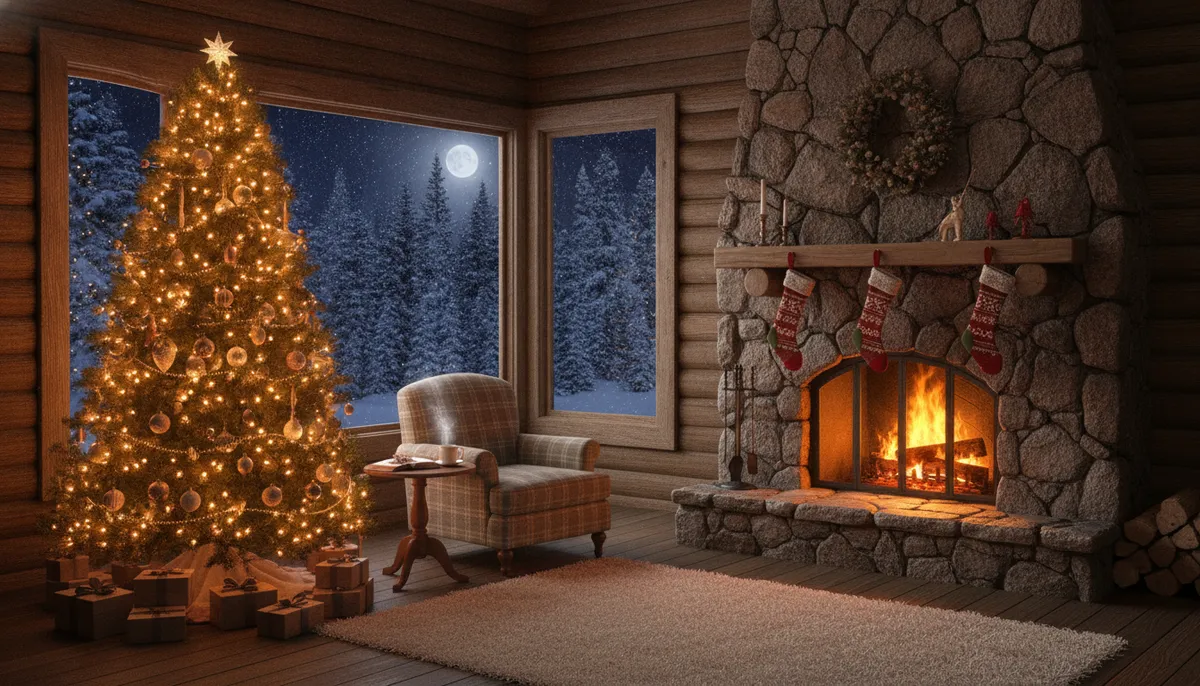
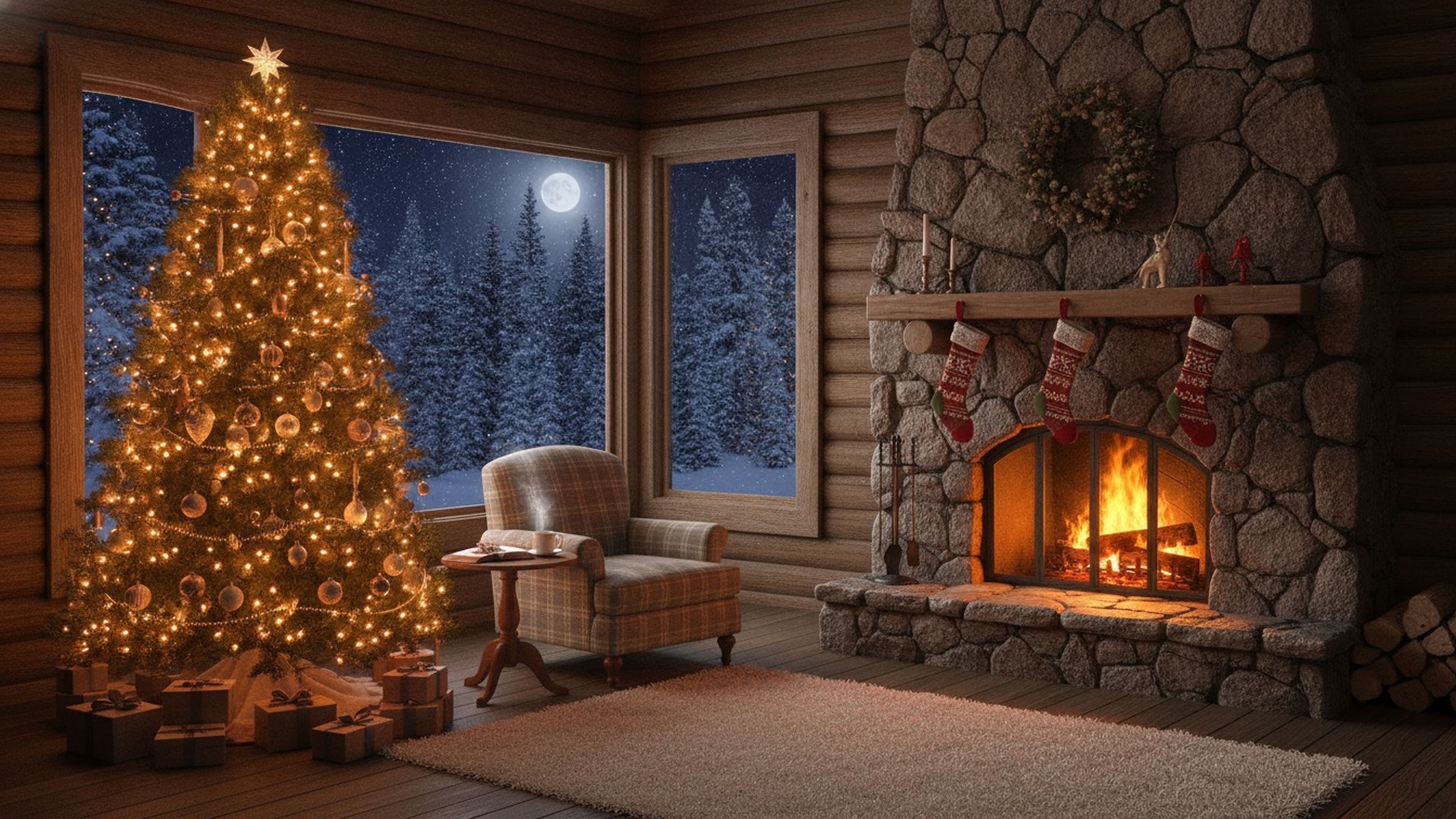
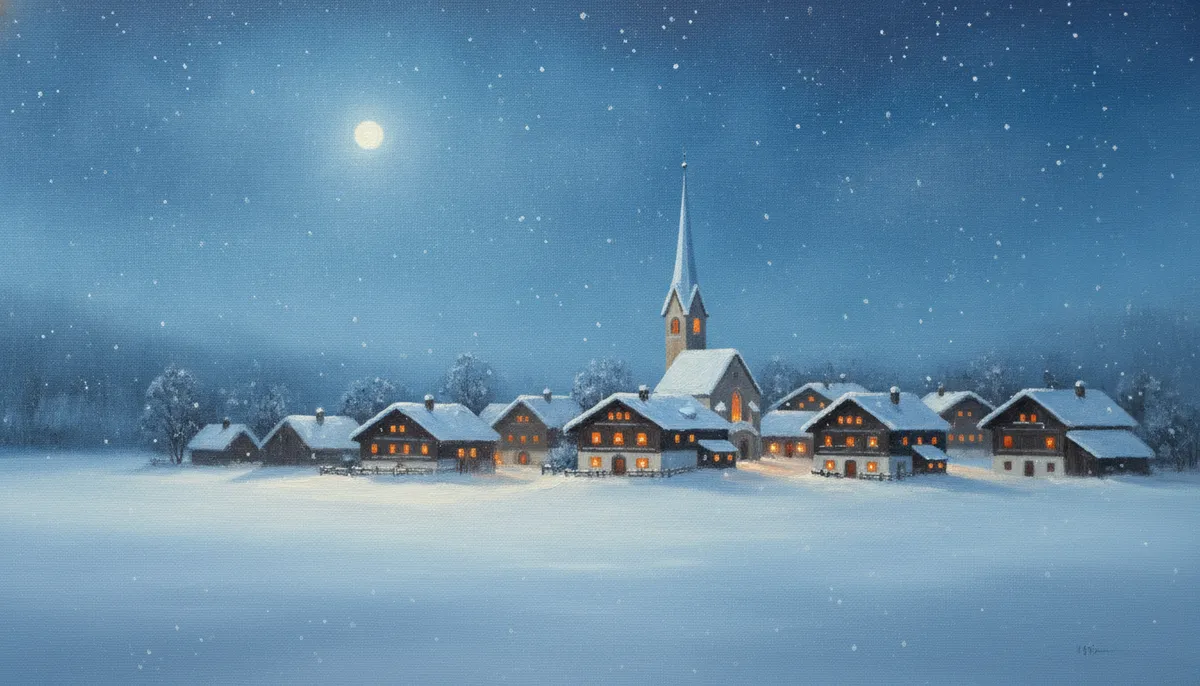
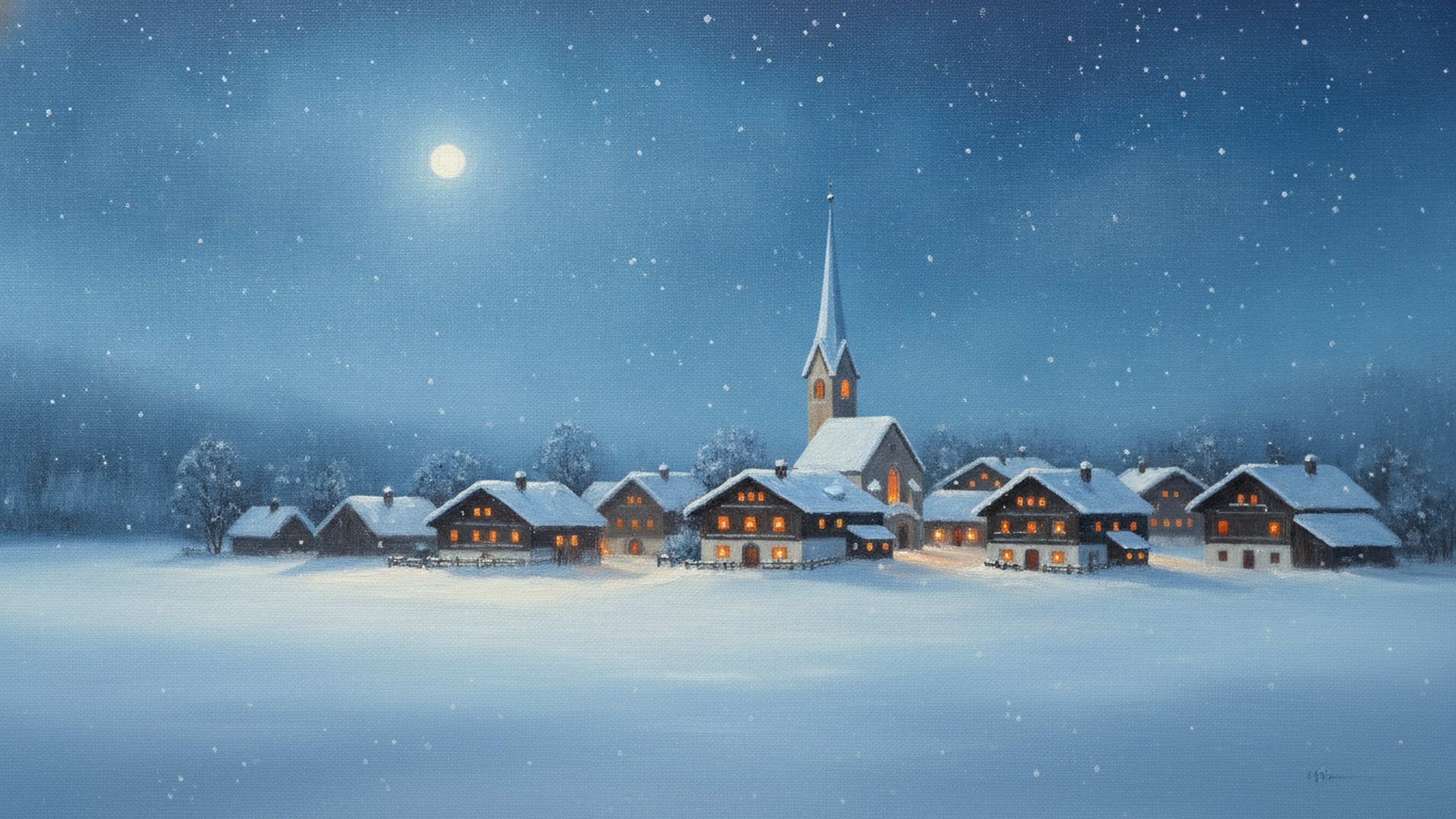
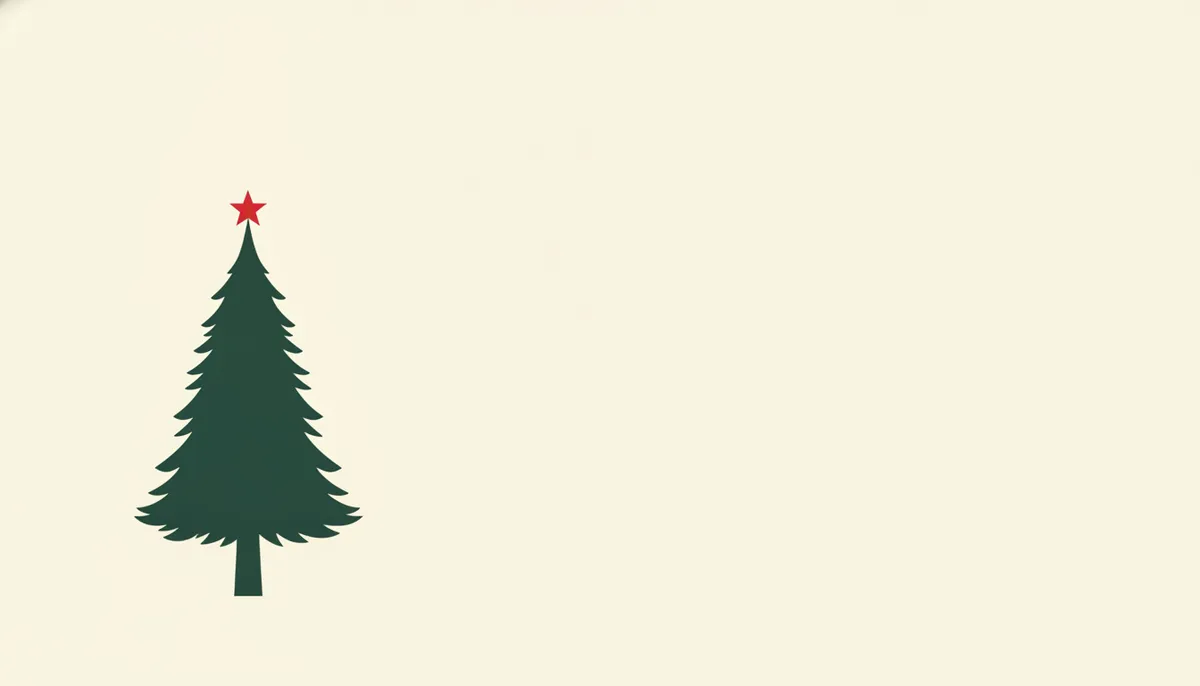
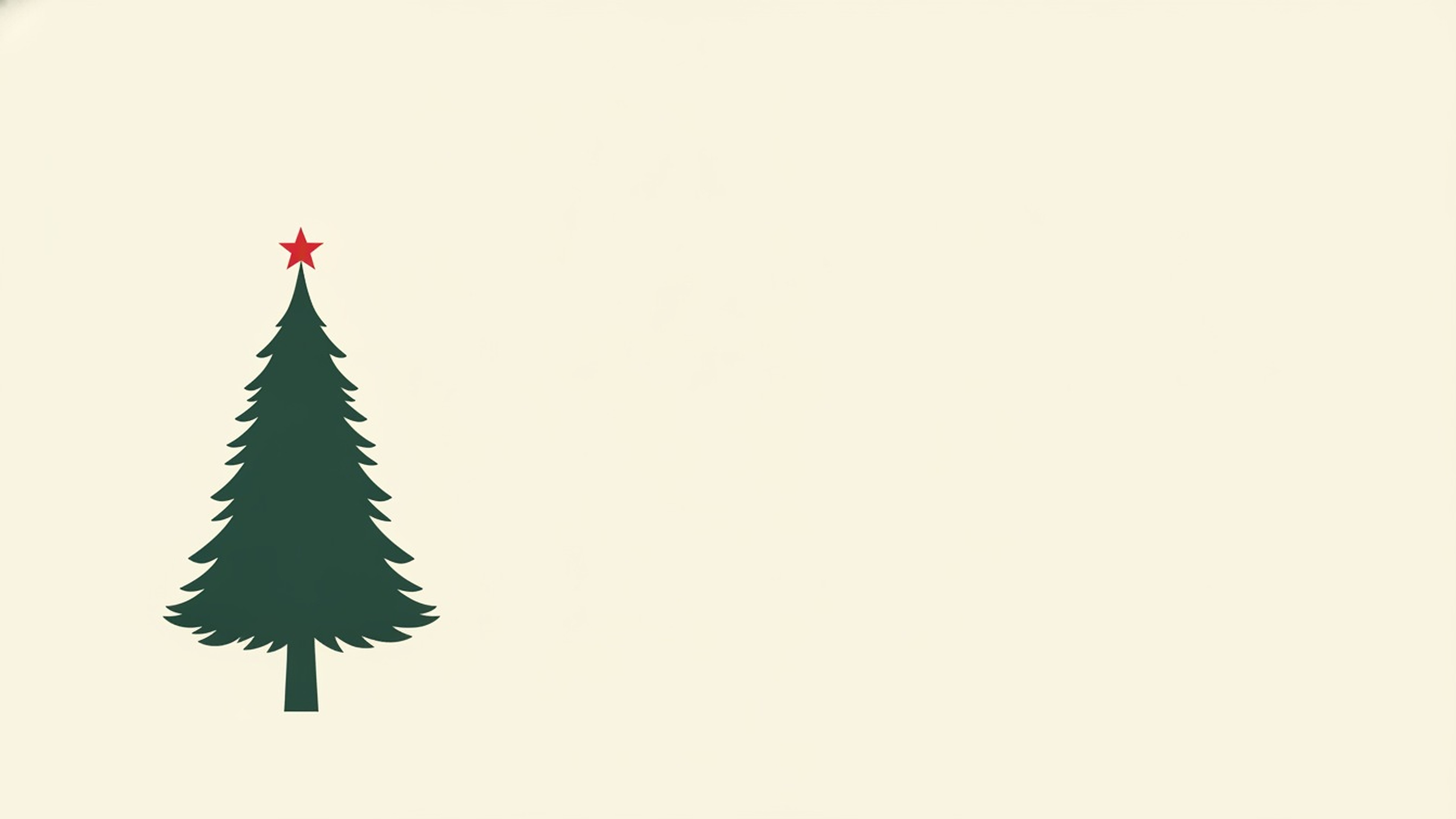
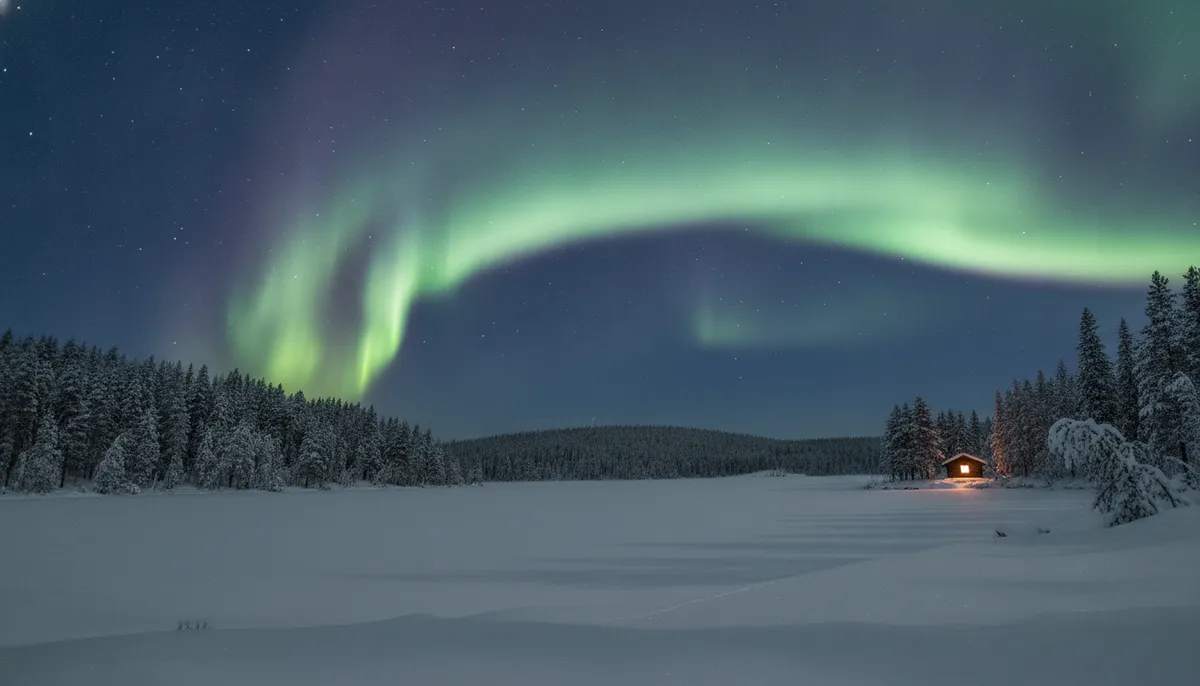
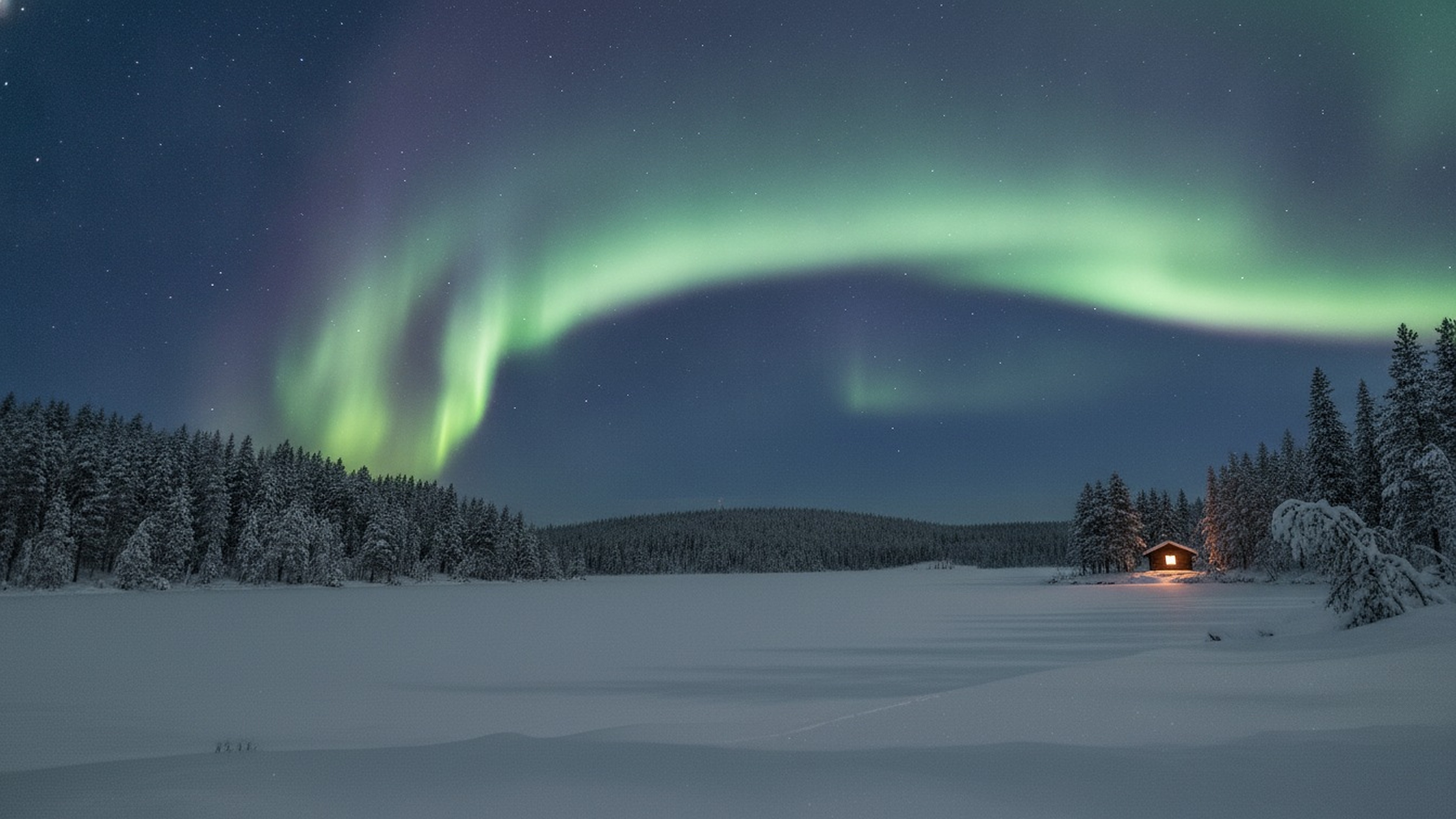
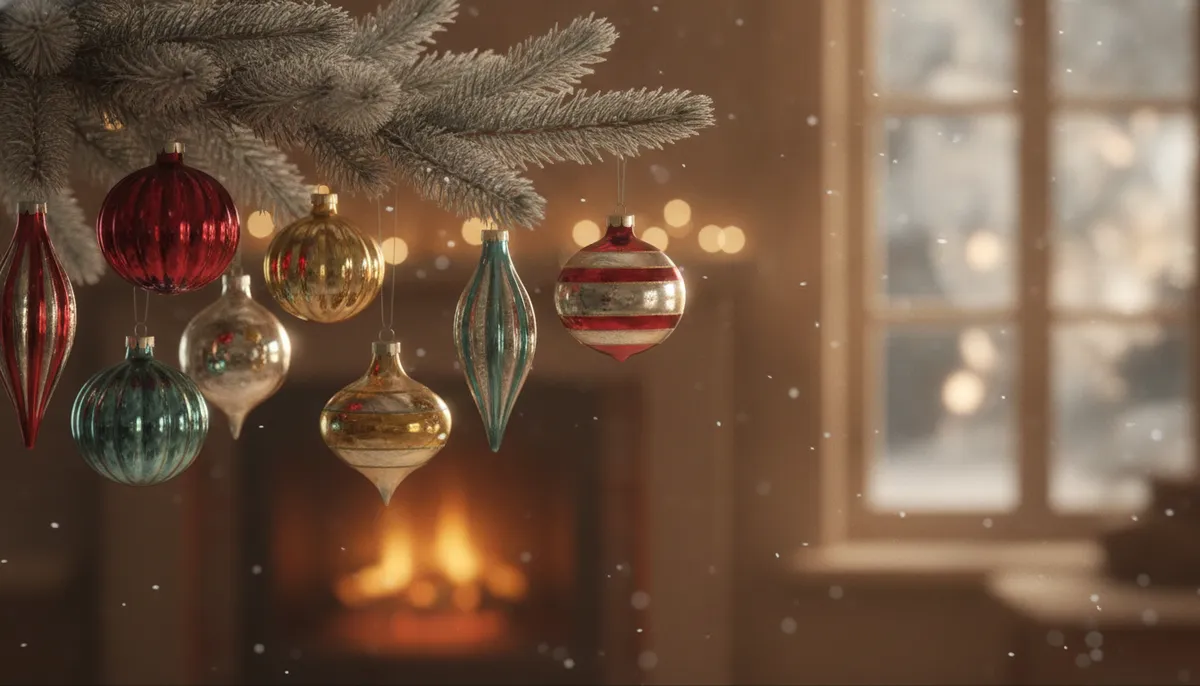
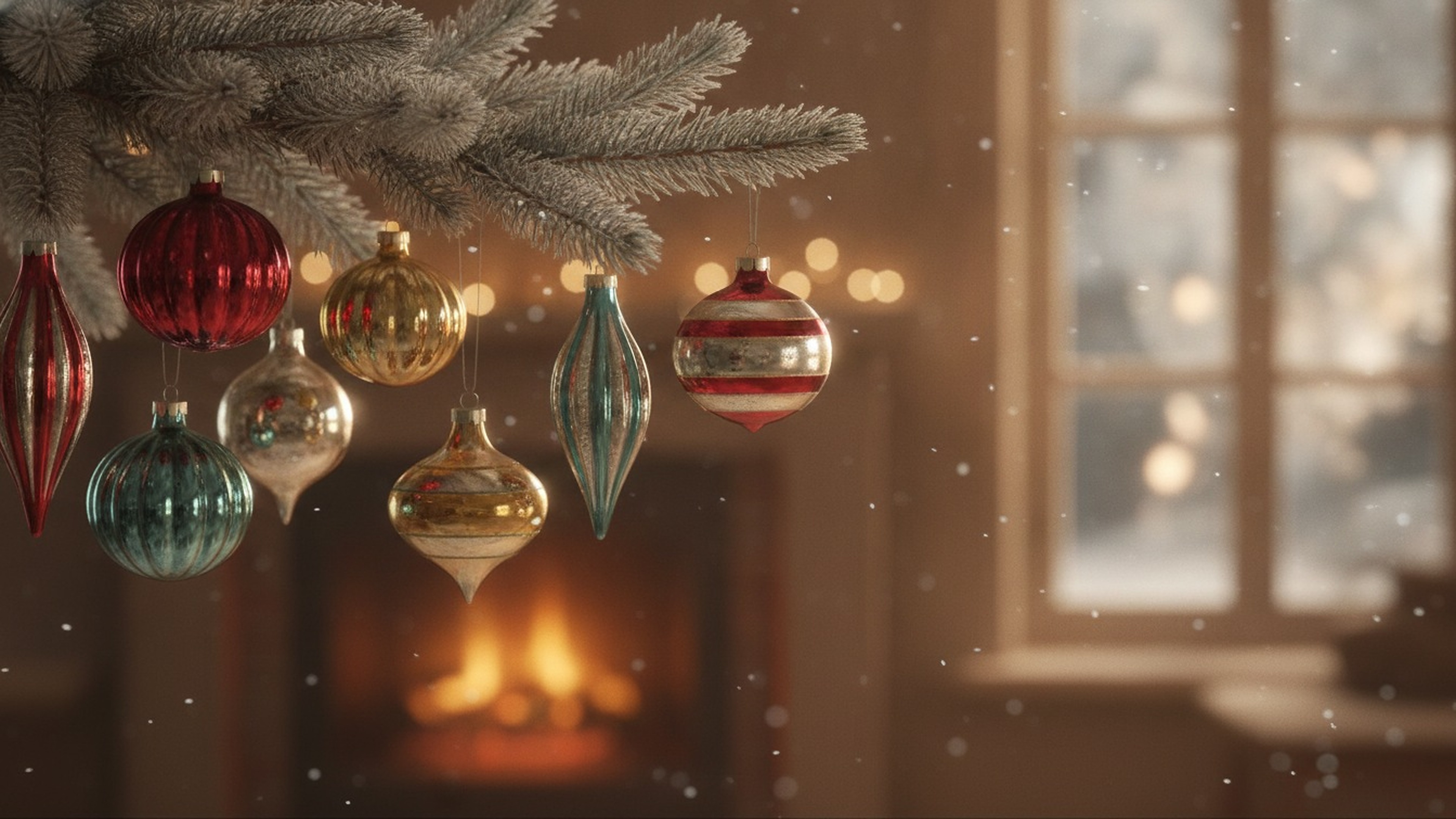
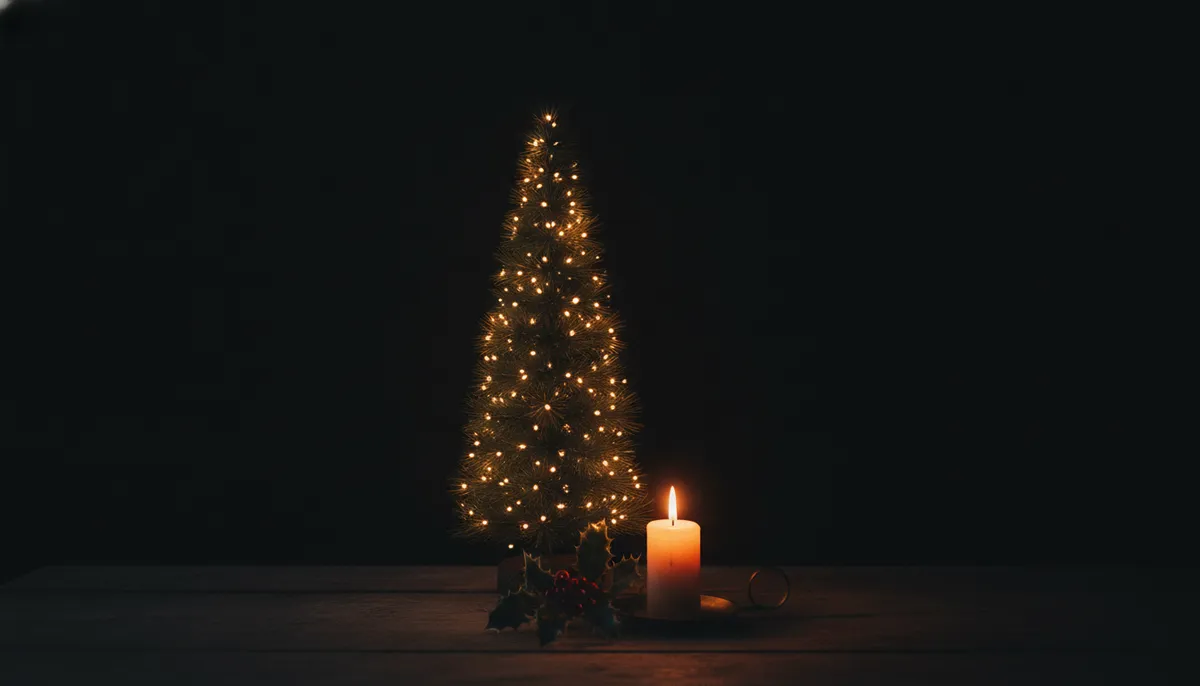
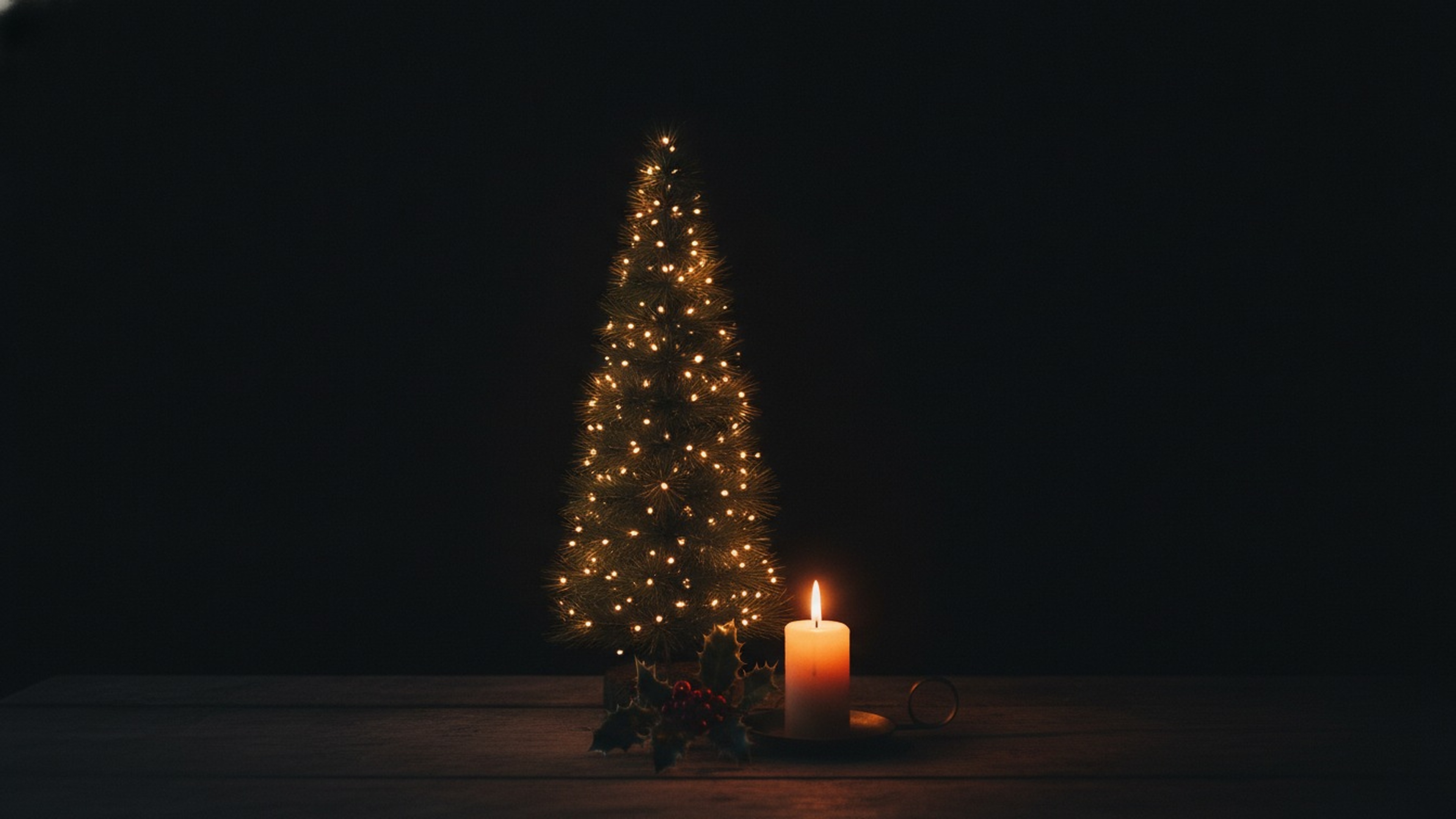
All eight are 16:9 and saved at 3840 by 2160 pixels, which is 4K UHD. They also scale down cleanly to a 1080p or 1440p monitor. I left open space on the left or in the sky in most of them so desktop icons don't sit on top of the main subject.




Phone Christmas wallpapers for Android and more
These six are 9:16 and saved at 1440 by 2560 pixels. Android phones are taller than that (1080 by 2400 is a common size), so the launcher crops a little off the sides when you set one, and the snowman, pastel and cocoa designs keep the top third clear for the clock and widgets. The plaid is a repeating pattern, so it survives any crop.



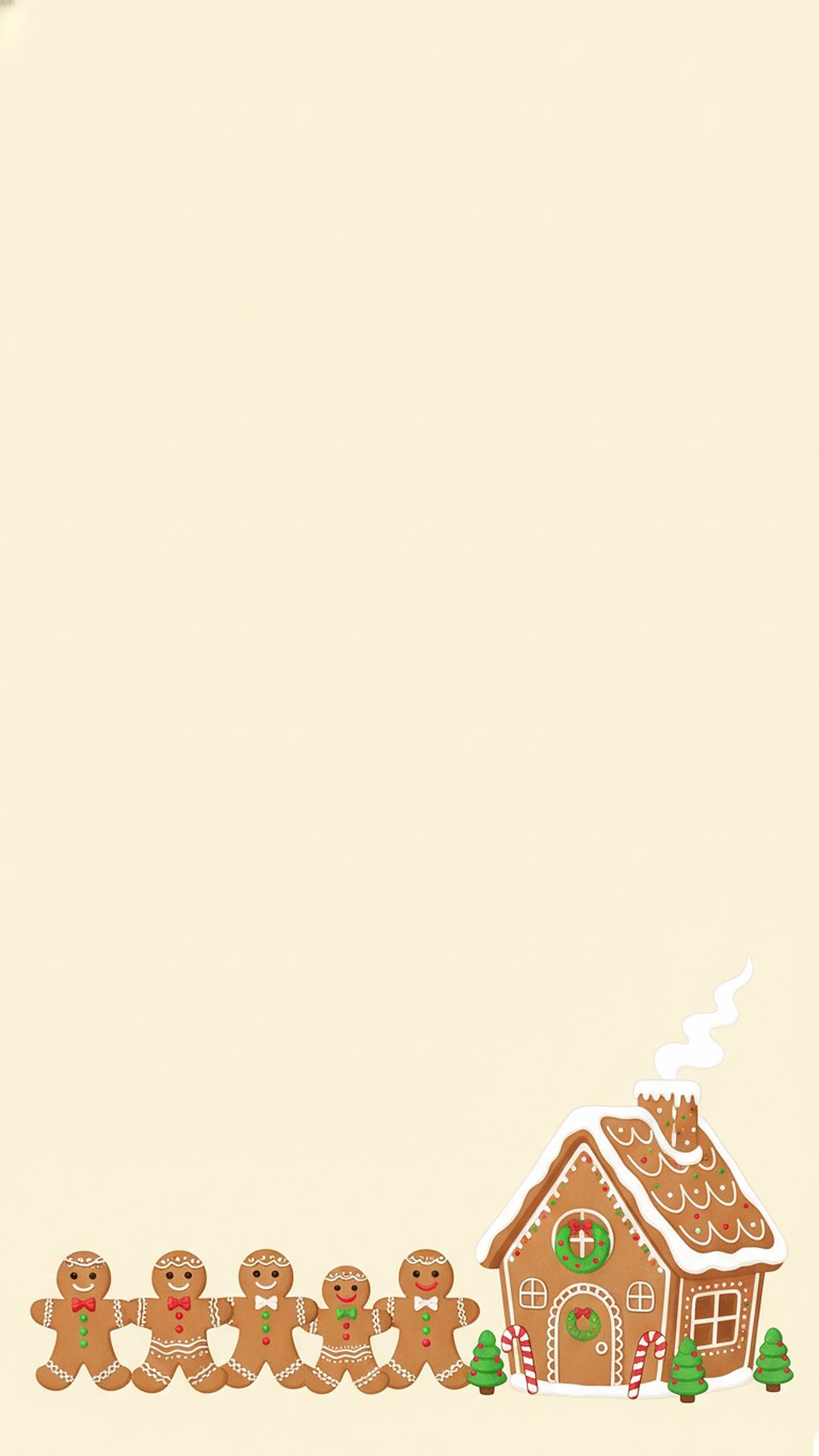
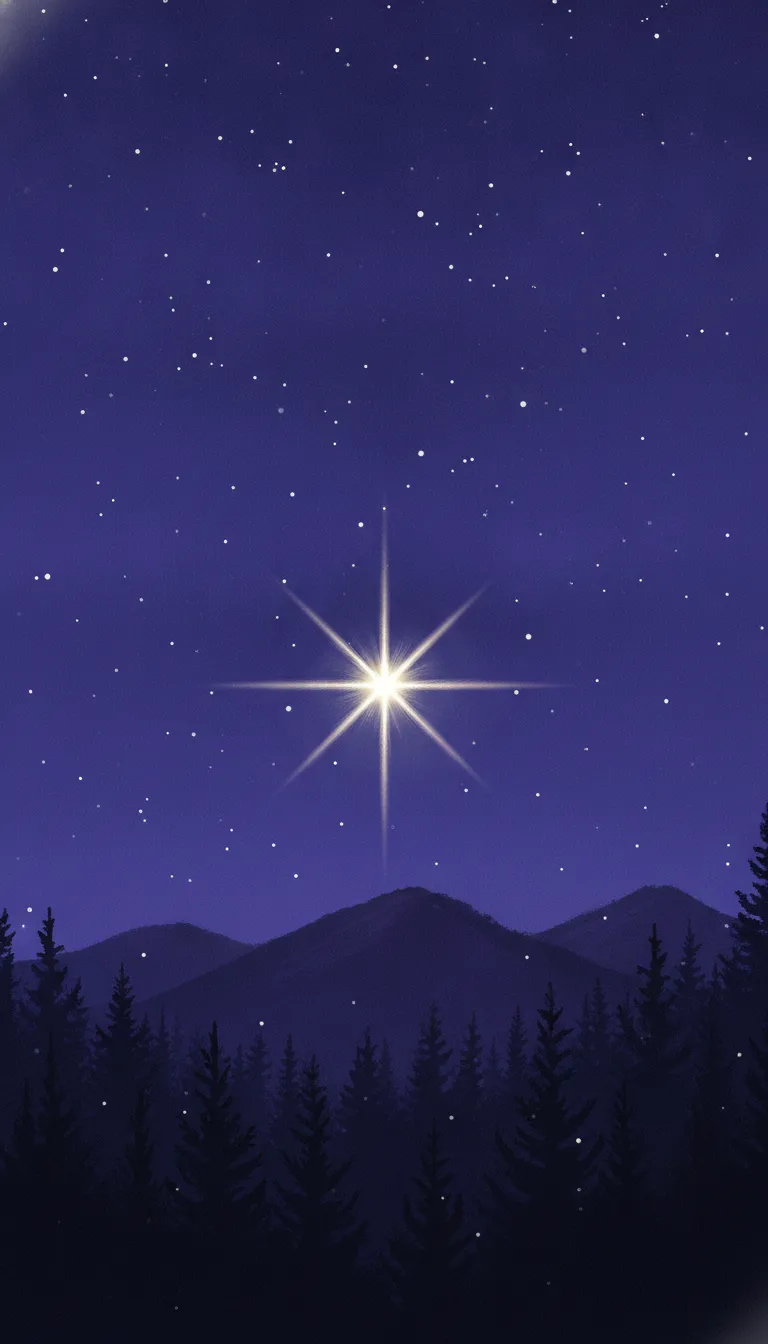
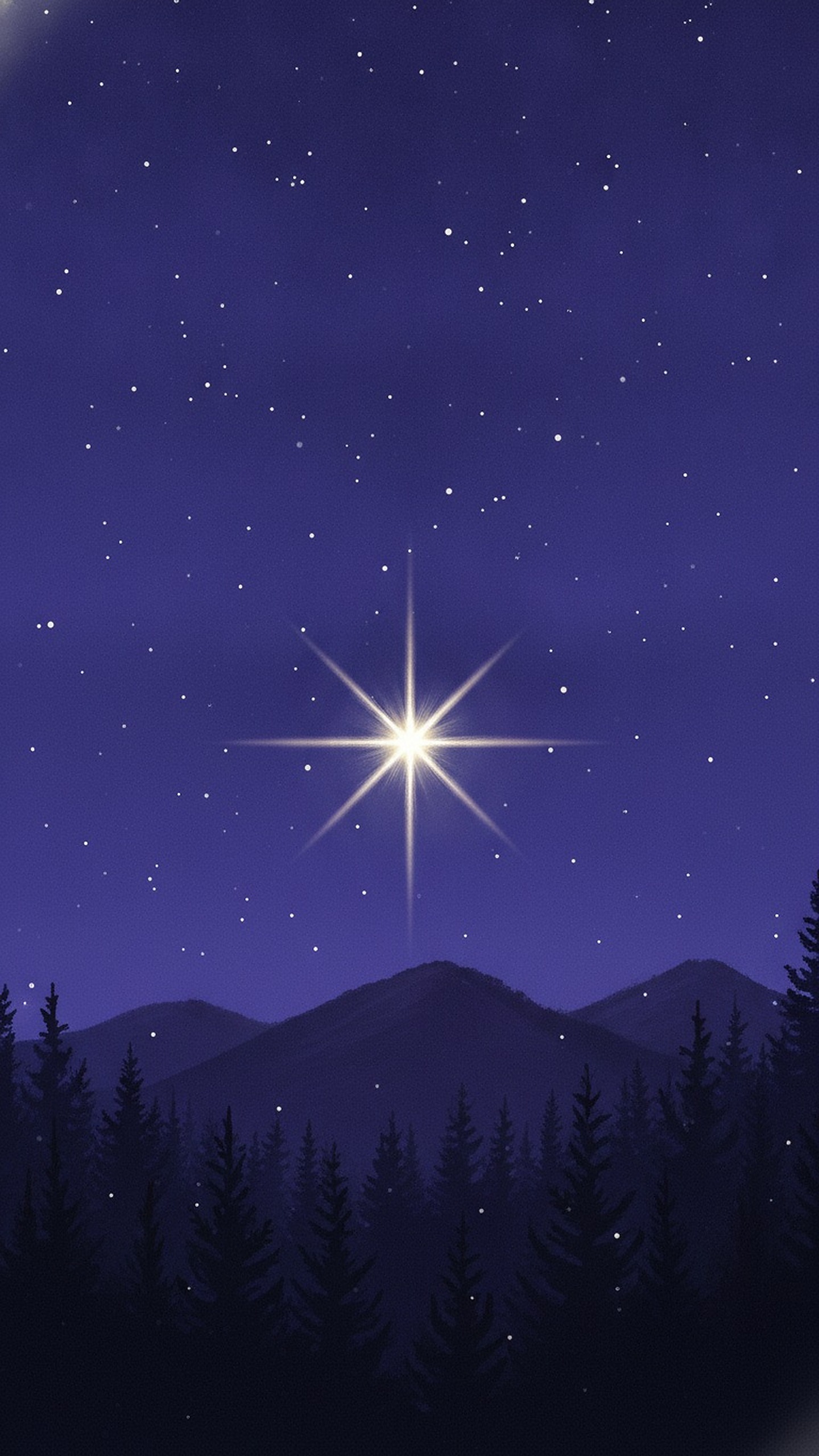

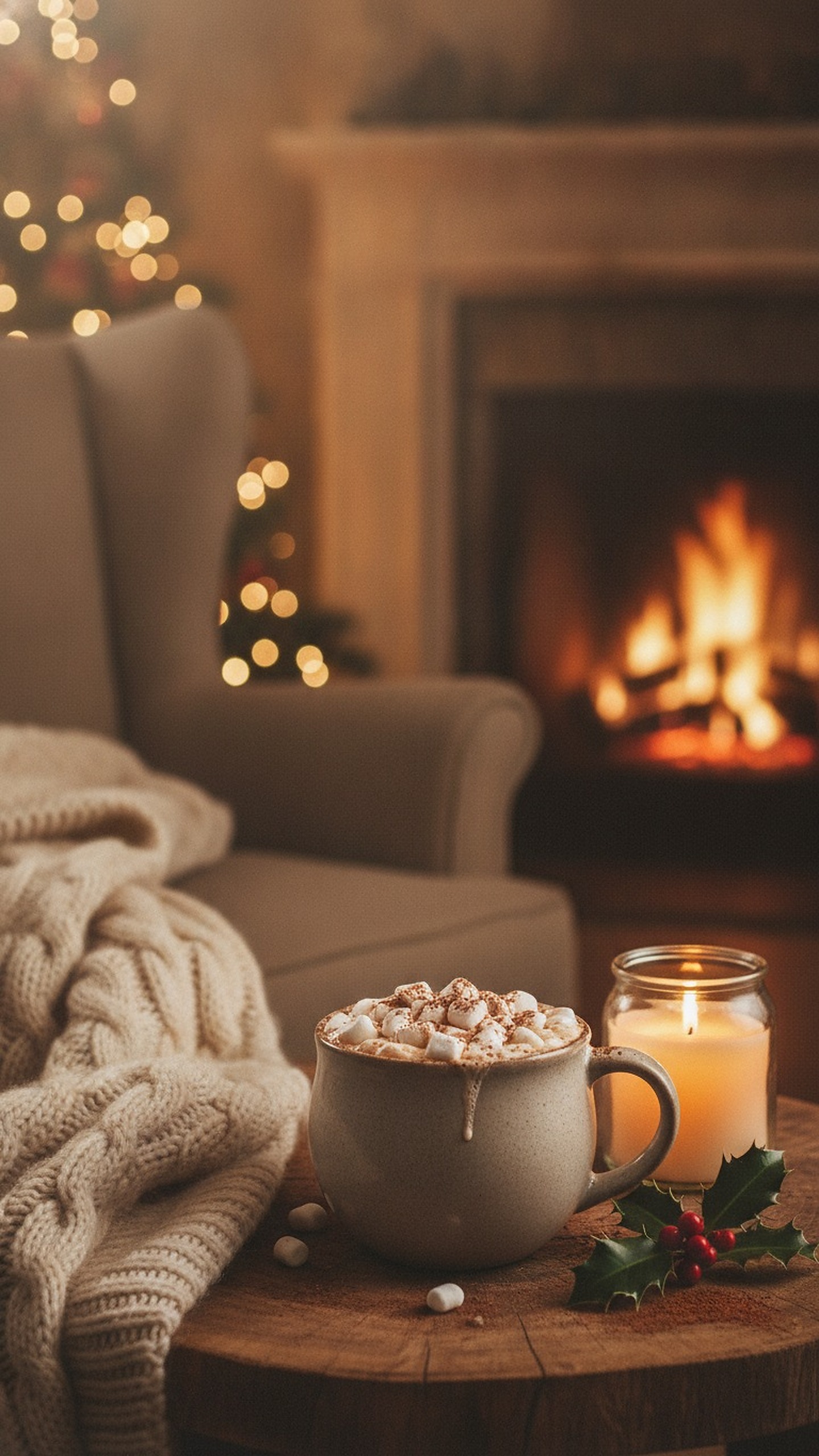
Using an iPhone? The sizes and Lock Screen steps differ, so head to our Christmas iPhone wallpaper page for a set made for it. For your own face or pet on a lock screen, see Christmas lock screen photos made with AI.
Best Christmas wallpaper size for each device
Use an image at least as big as your screen's native pixels, then let the system fill the rest. These are the figures from Apple's published specs and common Android sizes. Check your own model if you want an exact fit.
| Device | Native resolution |
|---|---|
| Full HD monitor (1080p) | 1920 x 1080 |
| QHD monitor (1440p) | 2560 x 1440 |
| 4K UHD monitor or TV | 3840 x 2160 |
| MacBook Air 13-inch | 2560 x 1664 |
| MacBook Air 15-inch | 2880 x 1864 |
| MacBook Pro 14-inch | 3024 x 1964 |
| MacBook Pro 16-inch | 3456 x 2234 |
| iPad Air 11-inch and iPad (10th generation) | 2360 x 1640 |
| iPad Air 13-inch | 2732 x 2048 |
| iPad Pro 11-inch | 2420 x 1668 |
| iPad Pro 13-inch | 2752 x 2064 |
| iPad mini | 2266 x 1488 |
| Common Android phone | 1080 x 2400 |
| Large Samsung Galaxy S Ultra models | commonly 1440 x 3120 |
Two things trip people up. MacBook screens are 16:10, a little taller than 16:9, so a 16:9 wallpaper gets trimmed at the sides. And iPads rotate, so keep the subject near the middle and a wallpaper will survive both portrait and landscape.
How to set a Christmas wallpaper on Windows 11
- Save the JPG, then press Windows + I to open Settings (or right-click the desktop and choose Personalize).
- Go to Personalization, then Background.
- Next to Personalize your background, choose Picture.
- Pick Browse photos, select the file and choose Choose picture.
- Under Choose a fit for your desktop image, pick Fill for a 16:9 screen. Fit shows the whole picture with bars, Stretch can distort it, and Span stretches one image across several monitors.
For a December rotation, choose Slideshow instead of Picture, point it at a folder holding all eight downloads, and set how often it changes. Right-click the desktop and pick Next desktop background to skip ahead. The steps come from Microsoft's Windows support page.
How to set a Christmas wallpaper on a Mac
- Open the Apple menu, then System Settings, then Wallpaper.
- Scroll to Your Photos and click Add Photo.
- Choose Choose File for a download (or Choose Folder to rotate a set of pictures).
- Click the image to apply it.
The shortcut is faster. Open Finder, Control-click the image and pick Set Desktop Picture. When you add a folder, the Mac can swap images on a timer, such as hourly or daily, in sequential or random order. That's the cheapest way to get eight Christmas scenes in one December.
How to set a Christmas wallpaper on Android
On a Google Pixel, press and hold an empty spot on the home screen, tap Wallpaper and style, then choose a photo. Pick Home screen, Lock screen or both, and confirm. On a Samsung Galaxy, press and hold the home screen, tap Wallpaper and style, choose the image and tell it where to apply it. In either case you can skip the menus: open the picture in Gallery, tap the three-dot menu and choose Set as wallpaper. Names shift slightly between Android versions and brands.
How to set a Christmas wallpaper on an iPad
- Open Settings and tap Wallpaper.
- Tap Add New Wallpaper, then Photos, and choose the saved image.
- Pinch and drag to position it. The wallpaper is cropped to the iPad's shape, so keep the subject centered.
- Tap Add, then Set as Wallpaper Pair to use it on the Lock Screen and Home Screen, or Customize Home Screen to give the Home Screen something calmer.
Want your own family, dog or kids in the scene? Upload one photo to PicsMas and turn it into a personal Christmas wallpaper.
Sign up for PicsMasGet PiXmas on the App StoreChristmas wallpaper from your own photo
A generic cabin is nice. Your own living room with the tree up, or your dog in a snowy field, is better, and it takes about a minute. With PicsMas you upload one photo and pick a Christmas setting, such as a snowy porch, a tree-lit room or a fireplace, and the finished picture comes back ready to save as a wallpaper.
A few tips for a good result. Start with a sharp, well-lit photo where the faces are clear. A portrait photo suits a phone, and a wide shot suits a desktop. Leave some space around the subject for the clock and icons. Then set it with the steps above. Our guide to a Christmas wallpaper from your photo goes deeper, and Santa photo wallpaper shows a funnier option.
If what you need is a picture for a video call or a photo backdrop rather than a screen wallpaper, that's a different job, covered in Christmas backgrounds for calls and photos.
Picking a style that fits your screen
Busy pictures work badly on a desktop because icons pile up across them. The minimalist pine and the dark aesthetic are the easiest to live with for a work week. The cabin and village suit a laptop you mostly use for browsing. On a phone, a pattern such as the plaid hides widgets well, while a scene such as the snowman needs a clear upper third.
Make your own in PicsMas: upload one photo and get a finished Christmas picture in about a minute.
Sign up for PicsMasGet PiXmas on the App Store