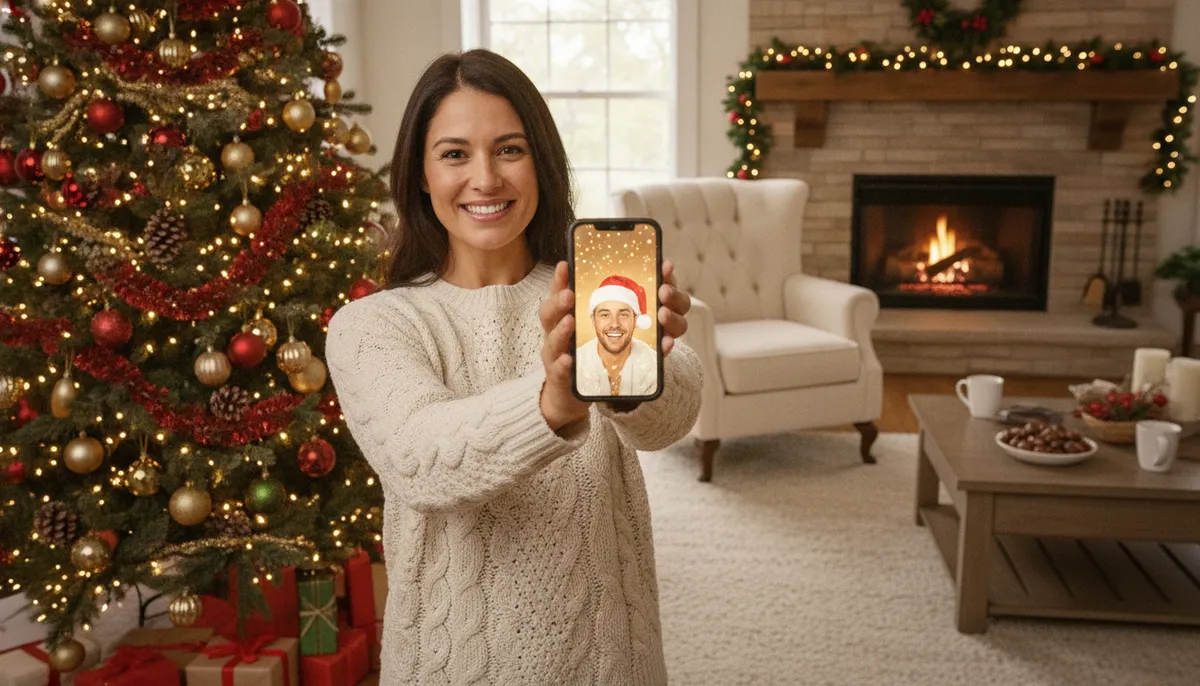
AI Christmas photo generator
1. Upload your photo
2. Pick a Christmas style
Your photo stays on your device until you continue. You finish in PicsMas, where you sign up and get your picture.
How to make an AI Christmas photo in four steps
The generator above is the quick route. Upload your photo, pick a style, press Generate, and PicsMas continues with your picture so you can download it. Here's what each step means in practice.
- Upload one clear photo. A front-facing selfie or a decent family snapshot is enough. Nothing special is needed, but see the section on source photos below.
- Pick a style. Elf, Santa, snowy portrait, cozy pajamas by the tree, ugly sweater, 1980s mall Santa and 3D cartoon are the popular ones. You don't write a prompt; the style does that for you.
- Press Generate and wait roughly a minute.
- Download the result. If the first version isn't right, try another style or a different source photo rather than regenerating the same thing five times.
Ready? Sign up for PicsMas and make your first AI Christmas photo.
Sign up for PicsMasGet PiXmas on the App StoreWhat an AI Christmas photo generator actually does
It's not a filter. A filter lays a red tint or a Santa hat on top of your picture. A generator reads your photo, works out who is in it (the face shape, hair, skin tone, expression), and then draws a brand-new image where that person appears in a different setting, outfit and light. The result is a new picture, not an edit of the old one.
That's also why the quality of your source photo matters so much. The model only knows your face from the pixels you gave it. A sharp photo with good light gives it plenty to work from. A blurry photo taken in a dark room gives it a guess, and you'll see that guess in the result.
10 Christmas styles you can make
Every image below is an AI-generated example of a fictional person, pet or character. They show the range, not a promise that your picture will look identical.
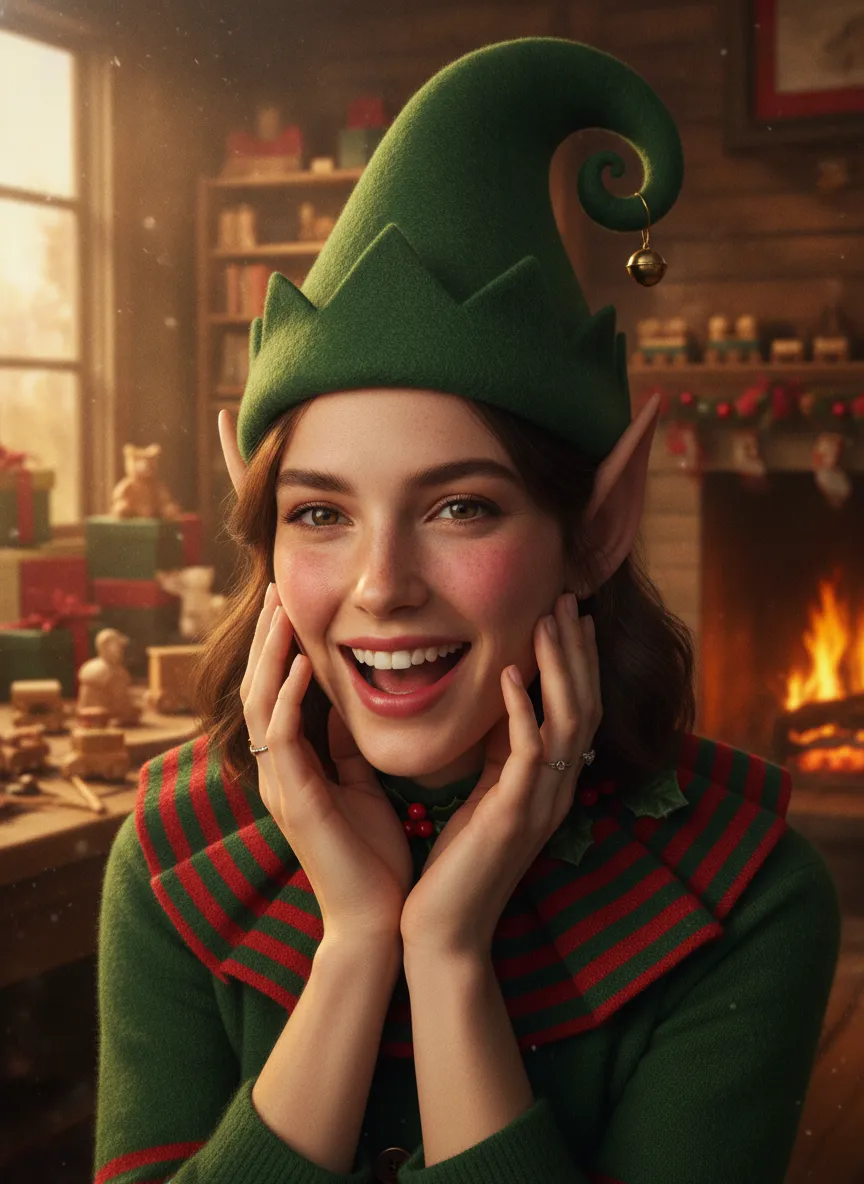
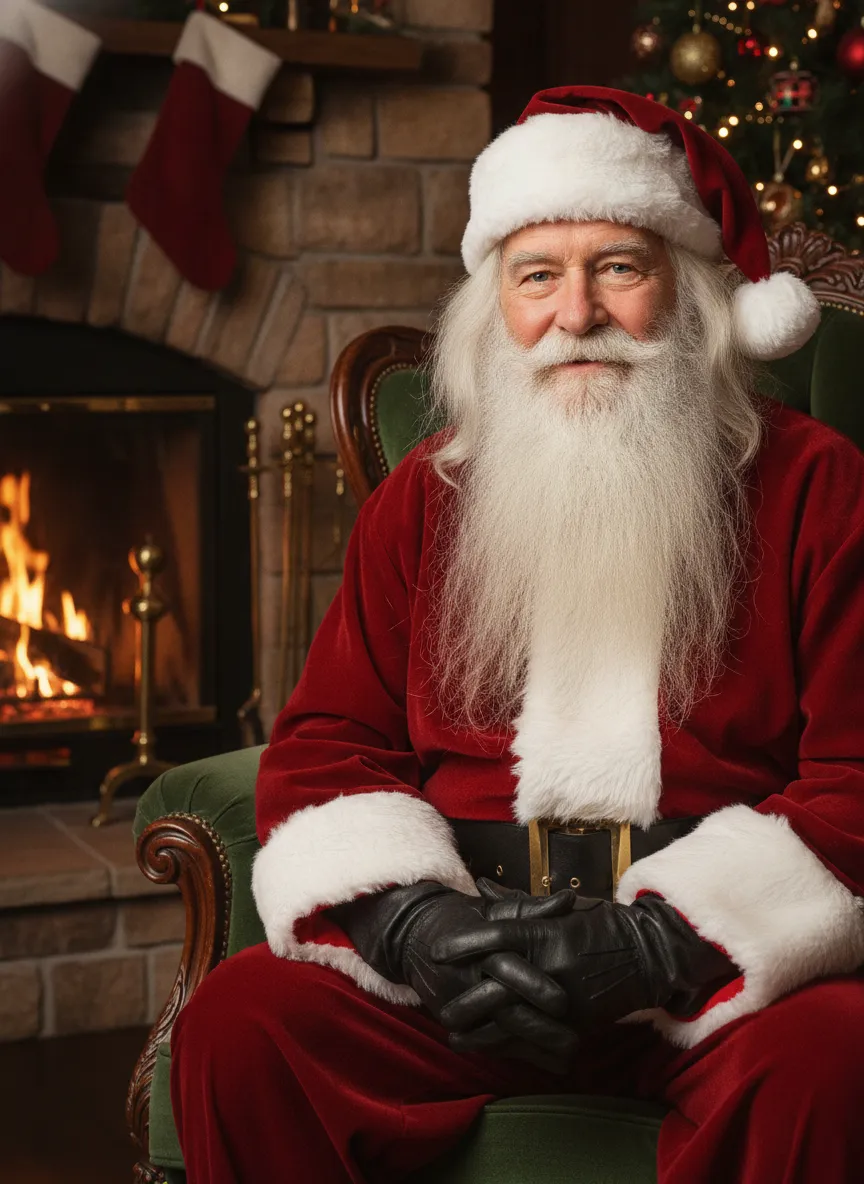
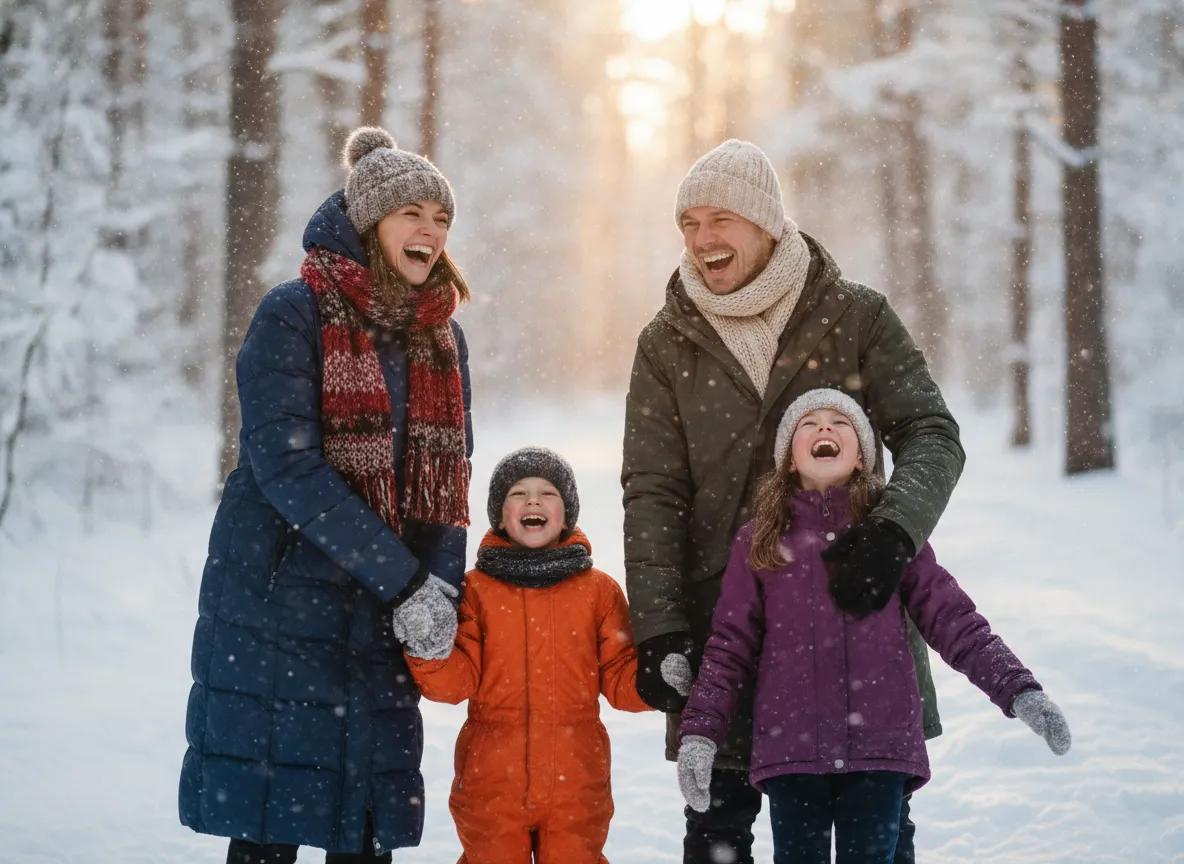
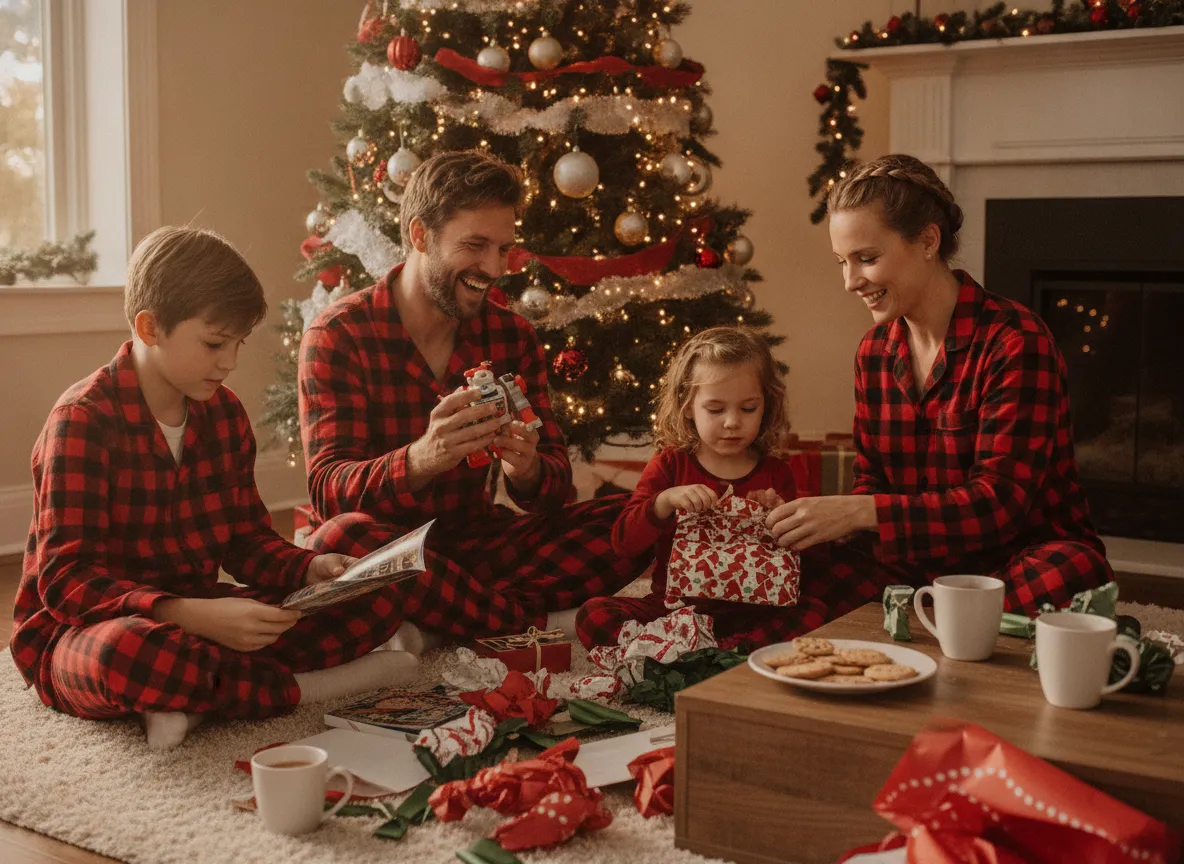
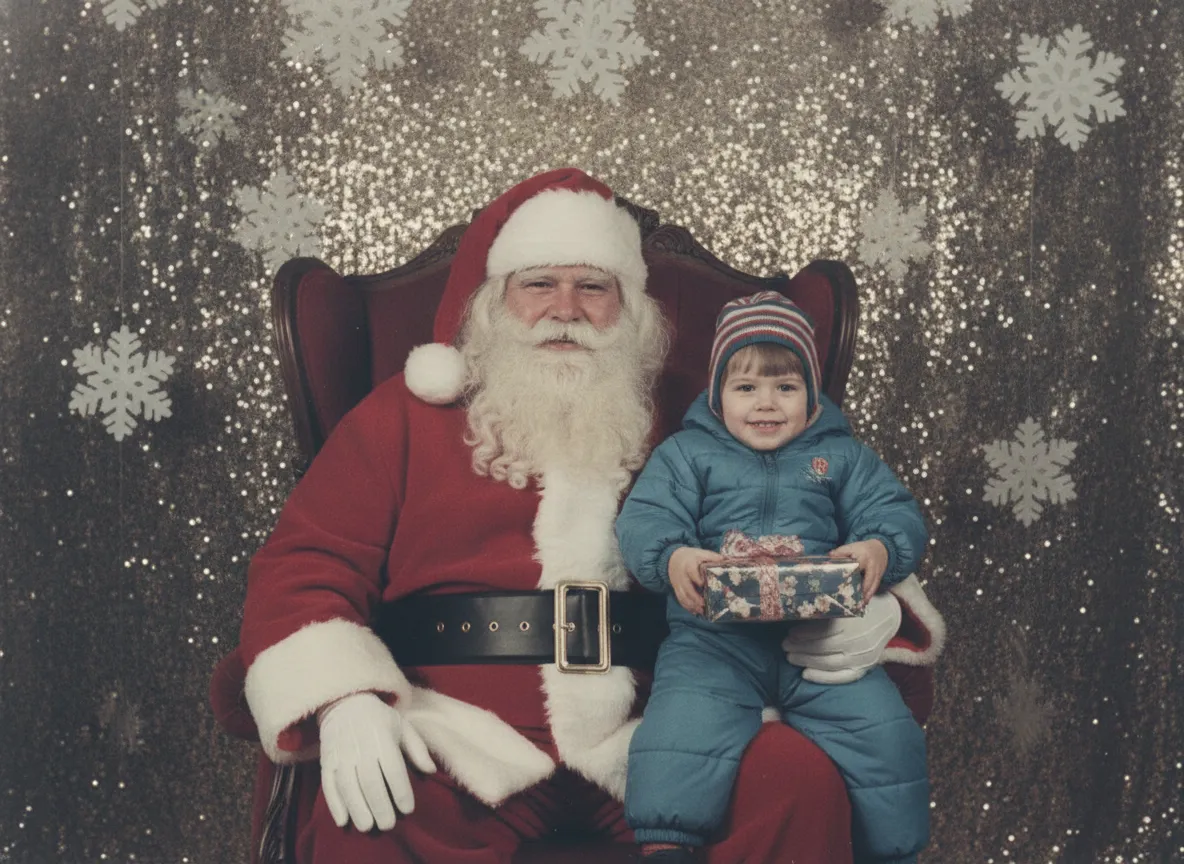
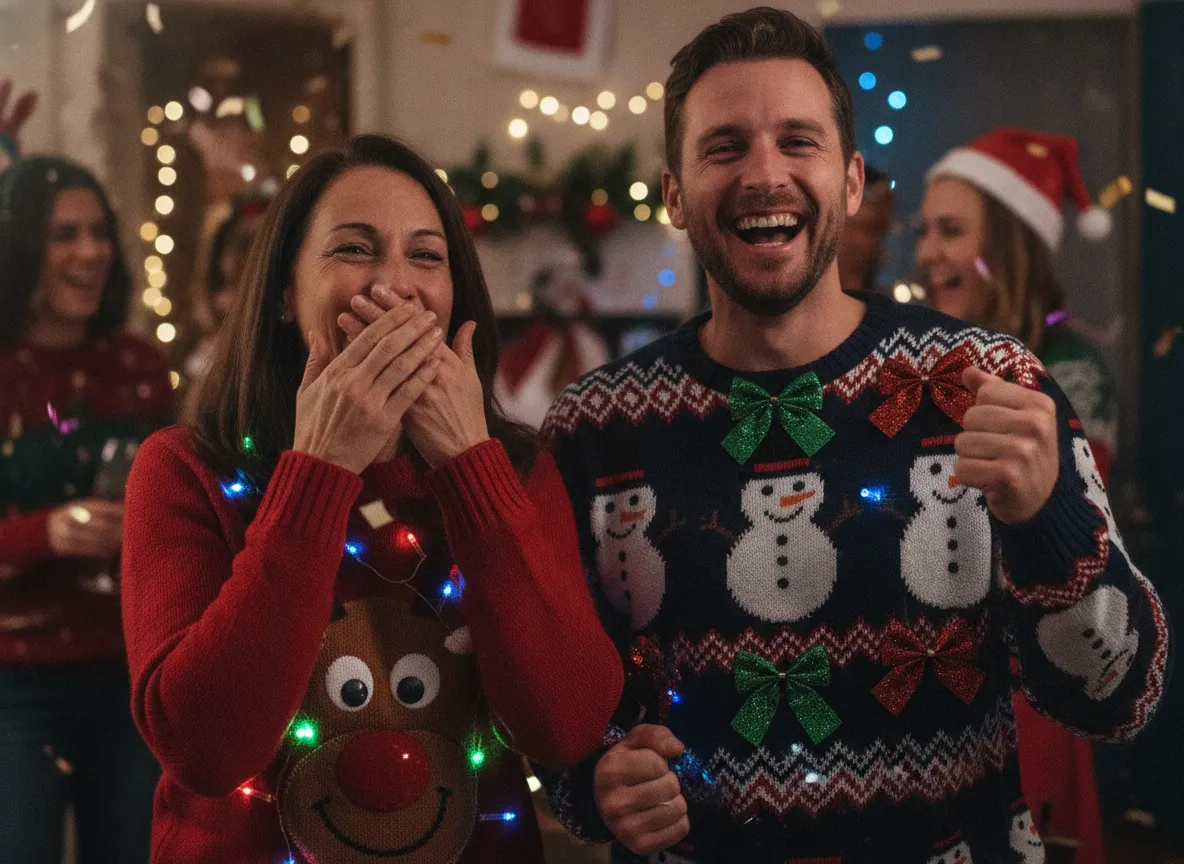
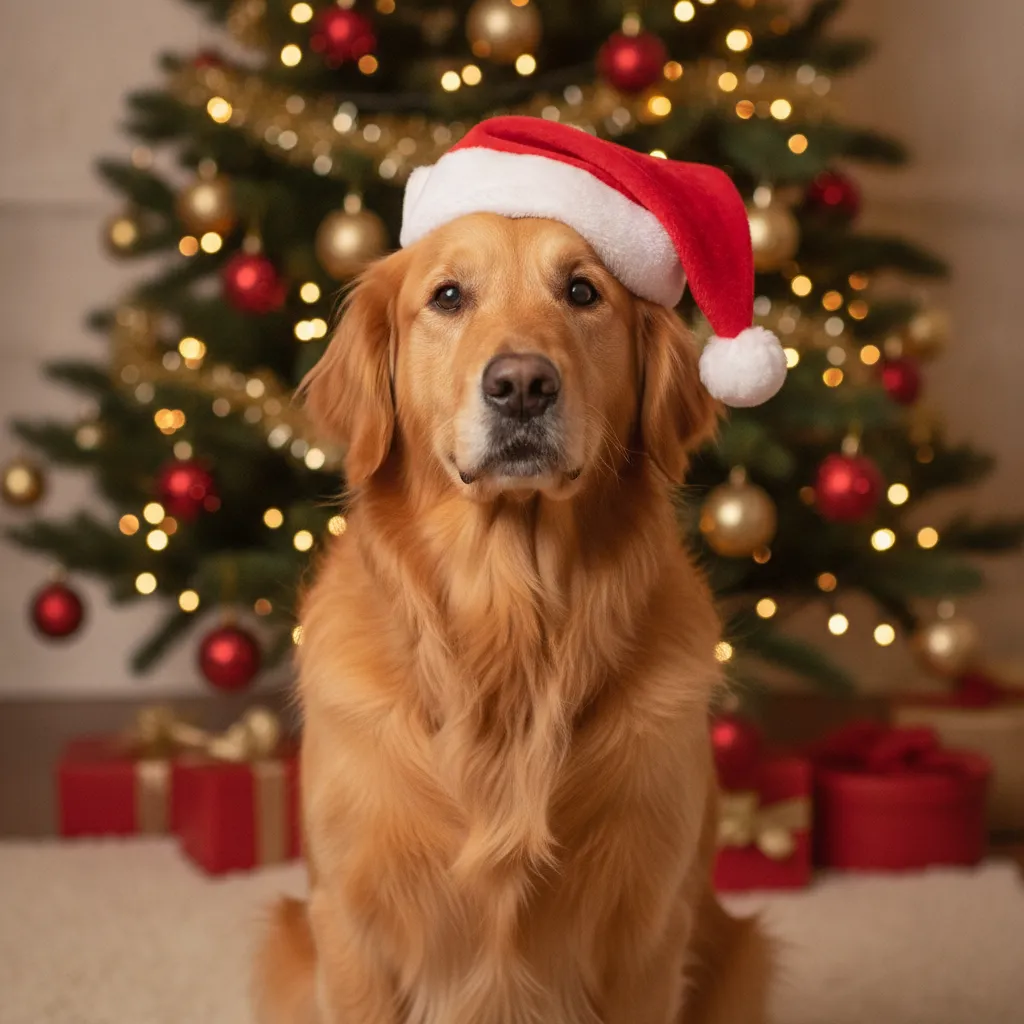
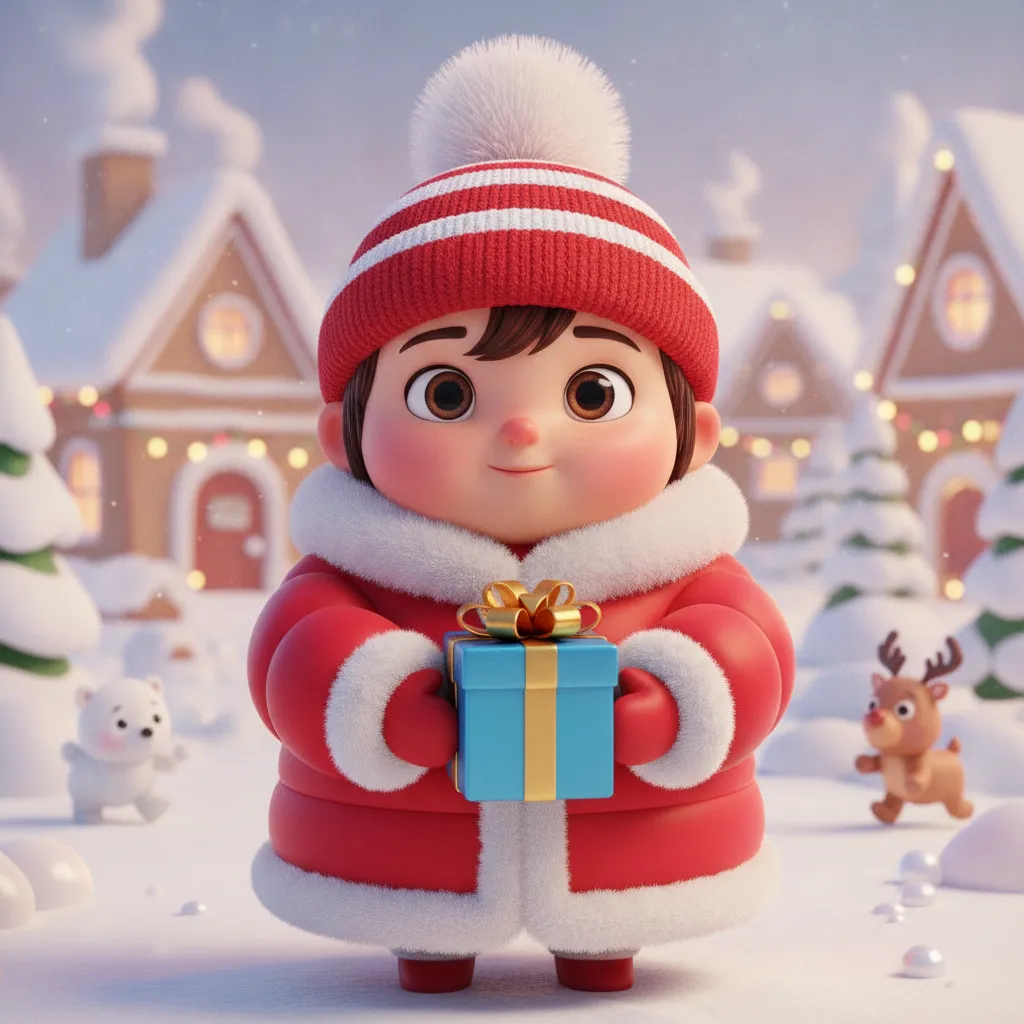
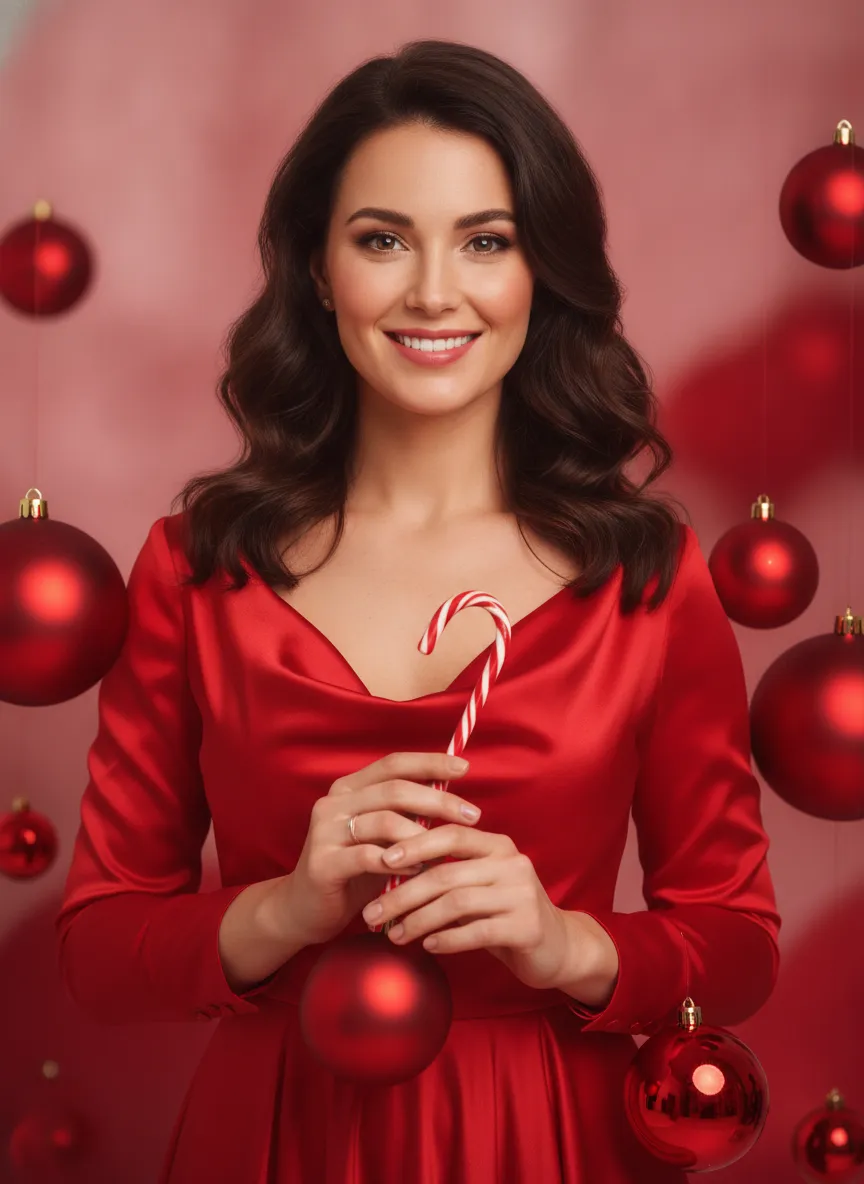
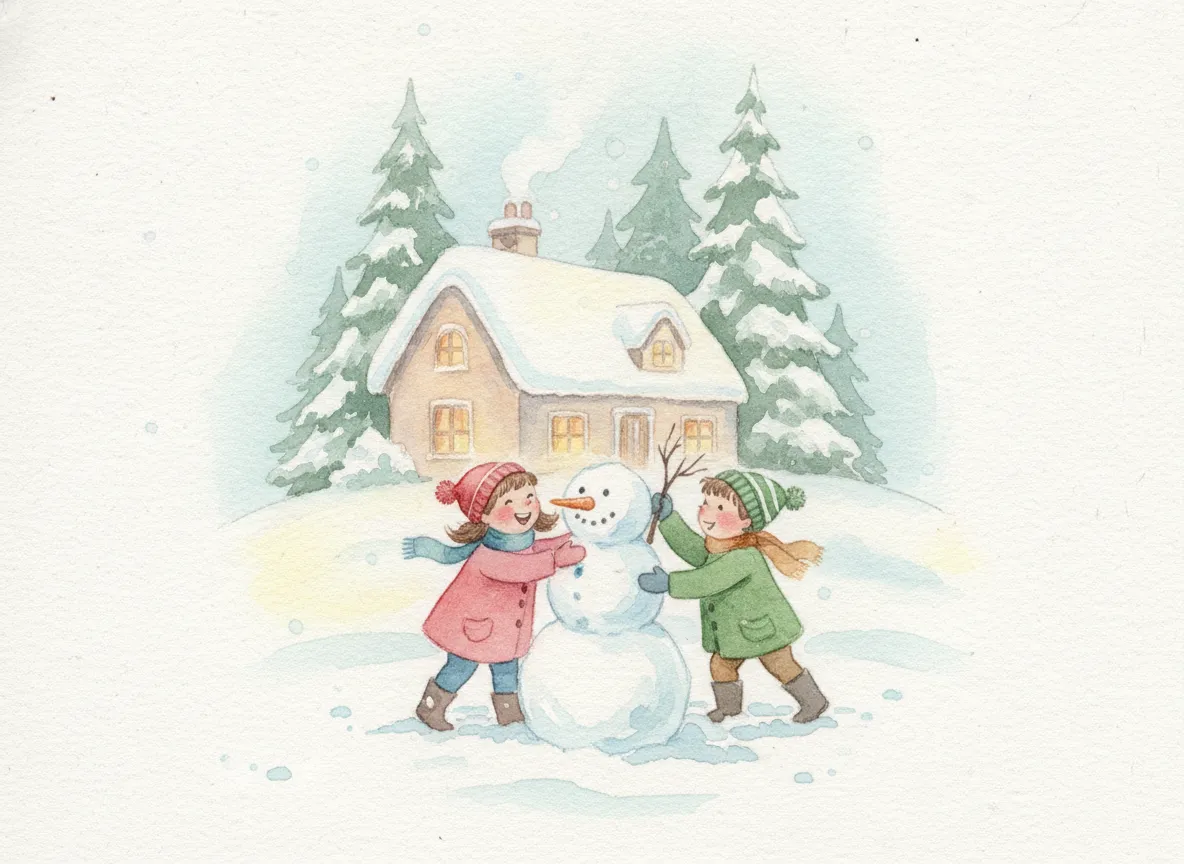
If you want to go deeper on a single look, we have pages for the AI Christmas elf portrait, the AI Santa photo, the AI ugly Christmas sweater portrait and the 1990s mall Christmas portrait.
Which photo should you upload
This is where most disappointing results start. A few rules that cover nearly every case:
- Use a sharp, recent photo where the eyes are clearly visible. Skip heavy filters and sunglasses.
- Face the camera, or turn just slightly. Extreme angles and wide-angle selfies stretch the face and the AI copies the stretch.
- Even, natural light beats a harsh flash or deep shadows.
- For a single portrait, upload one person. Group shots can make faces blend into each other, so for a family, a photo where everyone is facing forward and not overlapping works best.
- For pets, a clear head-on photo with the eyes visible works better than a pet halfway out of the frame.
For families, our AI Christmas family picture page goes through group photos in more detail.
What is the AI Christmas photo trend
The trend took off in late 2025. People uploaded a selfie, a couple photo, a family snapshot or sometimes a pet photo, and asked an AI tool to turn it into a polished holiday photoshoot: a red dress beside a tree, cozy pajamas by the fireplace, a snowy outdoor portrait, a Polaroid or a snow globe. The prompts spread on TikTok and Instagram, and the results peaked in December 2025.
Most of that happened inside Google Gemini (which uses Google's Nano Banana image model) and ChatGPT. You attached a photo, pasted a long prompt describing the scene, and waited. It worked, but it was a photo-plus-prompt workflow, not a dedicated app. People often added a line such as "keep my face unchanged" so the result still looked like them.
A generator like PicsMas does the same job without the prompt part. You choose a style and the prompt is built for you. If you'd like to write prompts yourself, we collected a library in our AI Christmas photo prompts guide.
Chatbot or dedicated generator
You can absolutely make an AI Christmas photo in a general chatbot, and for a one-off picture it may cost nothing. The trade-off is time. You hunt for a prompt, paste it, adjust it when the result has a plastic face, and repeat. Each attempt is a fresh roll of the dice for how closely it matches you.
A dedicated generator narrows the choices to styles that have been set up to work with faces. That's the main reason to use one: fewer surprises, less typing. If you enjoy tinkering with prompts, a chatbot is a fine playground. If you're a parent who wants a nice result before the card deadline, pick a style and go.
Do AI Christmas photos look real
Some do, and some are obviously illustrations. A portrait in a photoreal style, like the elf or the studio portrait above, can pass at a glance on a phone screen. Look closer and you may spot the tells: skin that's a little too smooth, background text that melts into nonsense, or fingers that don't quite add up. Stylized options such as the 3D cartoon and the watercolor card sidestep the issue entirely because nobody expects them to look like a camera shot.
It's also fair to be honest with the people you send it to. A card labeled as an AI picture is usually a conversation starter, not a problem.
How to avoid weird hands and faces
Hands are the classic failure. The most reliable fix is to avoid them: choose a close-up or head-and-shoulders style, or a pose where hands are tucked into pockets or holding a mug. For faces, the cause is almost always the source photo.
- Upload a sharper, more front-facing photo.
- Use a single person per upload when you can.
- Try a different style if one comes out strange. A heavy costume style such as the elf changes more of the face than a cozy sweater portrait does.
- Check the details before you print: ears, teeth, fingers, glasses, jewelry.
With groups, count the fingers and the people. If someone has gained a limb, regenerate instead of trying to live with it.
Privacy and photos of kids
Children's photos deserve a slower decision. Before you upload one to any AI tool, read the privacy policy and look for answers to a few questions: are uploads used to train models, how long are they stored, can you delete them, and does the tool put your pictures in a public gallery. If the policy is vague, don't upload.
A few habits help anywhere. Crop out school uniforms, badges, street signs and house numbers. Remove location data from the file. Never upload bath-time or other private photos. And a simple test: if you'd be unhappy to see the result made public, don't upload it. You can read PicsMas's own policy on the sign-up site before you decide.
Free or paid AI Christmas photo generators
Several tools let you try a Christmas photo for free, usually with limits on resolution, the number of tries or the styles. General chatbots often let you generate a handful of images a day at no charge. Dedicated apps tend to charge for full-resolution downloads or extra styles. Check the current limits on the site before you rely on a free tier, because they change. PicsMas lists its current plans when you sign up at picsmas.com.
My own rule is to test on one photo first. If the free preview already looks like you, paying for the clean download is easy to justify. If it doesn't, no price will fix a weak source photo.
What to do with your AI Christmas photo
Most people make one picture and then wonder where it should go. The easy wins are a Christmas card (our AI Christmas card maker page covers layouts), a profile picture for the month of December, a phone wallpaper, and a printed copy for the grandparents who don't use social media. Print at the size of the card you actually plan to send, and check the picture at that size before you order a batch, because small flaws show up on paper that you won't notice on a phone.
Making a few different styles of the same photo is cheap and fun. A serious one for the card, a silly one for the group chat, and a cartoon for the family album give you three uses from one upload.
Mistakes that make AI Christmas photos look fake
- Over-smoothed skin. Choose a style that keeps some texture, and don't upload a photo already run through a beauty filter.
- Too many props. A tree, a fireplace, a dog, six presents and a snowman in one frame gives the model more chances to slip. Pick two or three.
- Mismatched light. If your photo was taken outdoors at noon and the style is a candlelit room, the face can look pasted in. Start from a photo with soft, even light.
- Readable text in the background. Don't count on it. Add words yourself afterward.
Good themes for AI Christmas photos
If you're stuck on what to make, these themes work well with a single photo:
- A snowy outdoor portrait for the Christmas card.
- Matching pajamas by the tree for a family.
- An elf or Santa portrait for kids and for the office group chat.
- A 1980s mall Santa photo for a laugh.
- An ugly sweater picture for couples and friends.
- Your dog in a Santa hat. See the AI pet Christmas photos page.
- A 3D cartoon version of a child, which makes a good gift for grandparents.
Pick one of these styles and make it with your own photo in PicsMas.
Sign up for PicsMasGet PiXmas on the App Store