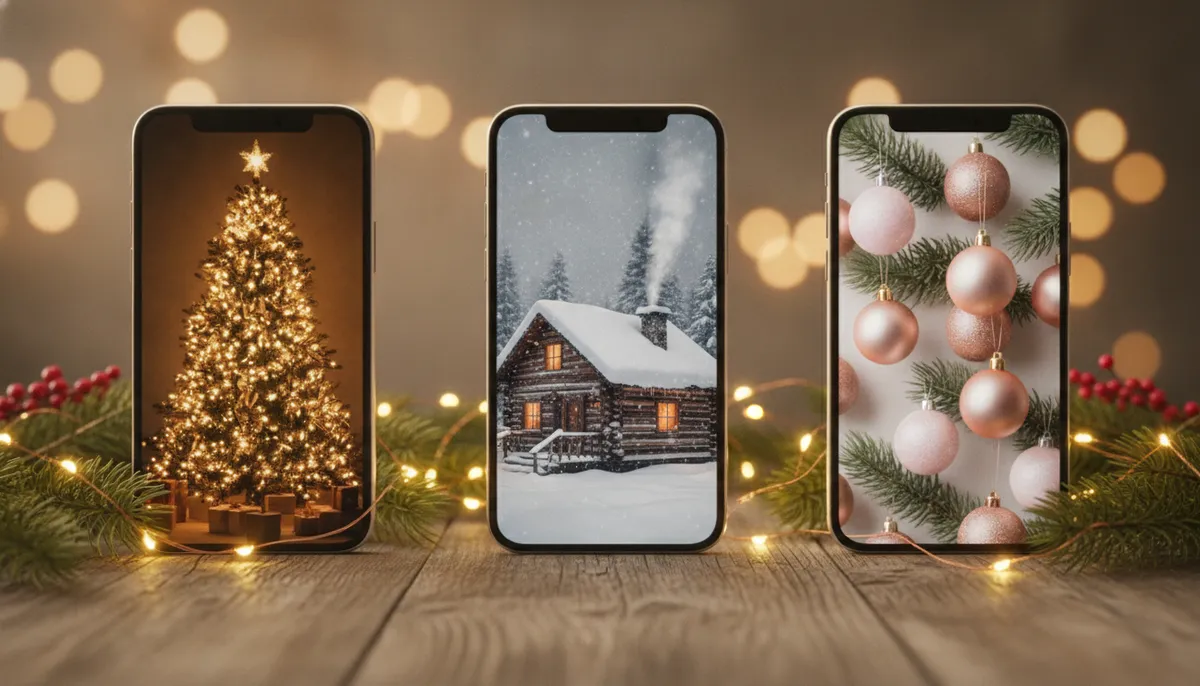
12 free Christmas iPhone wallpapers to download
These are original images made for this page, with no text, logos or people in them. I left the top third quiet on purpose, because that's where the lock screen clock sits. Tap Download under any wallpaper to save the full-size .jpg, then follow the steps further down. The set runs from cozy and cute to minimal and dark, since a bright pink tree and a near-black gold line tree suit very different phones.
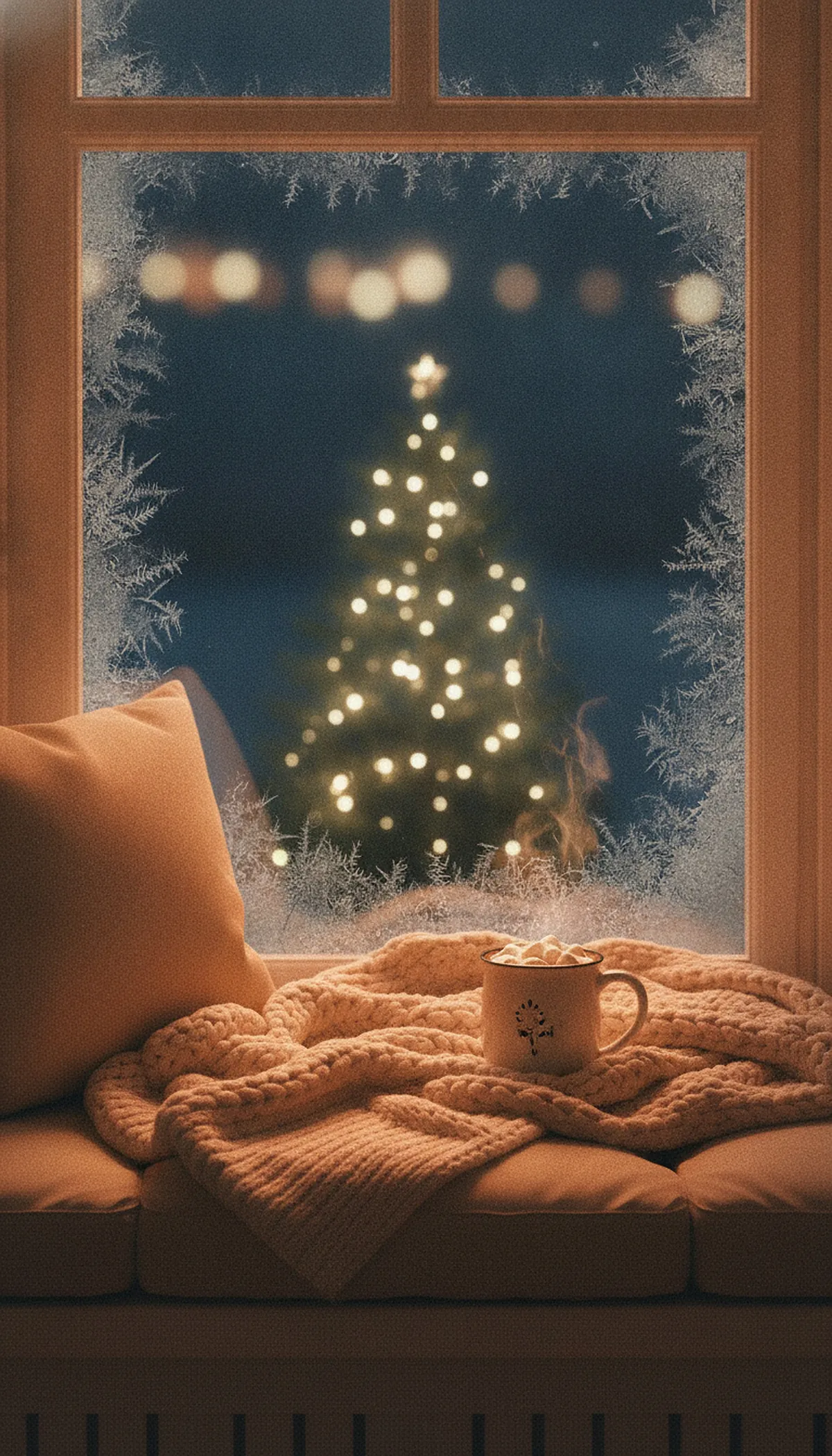
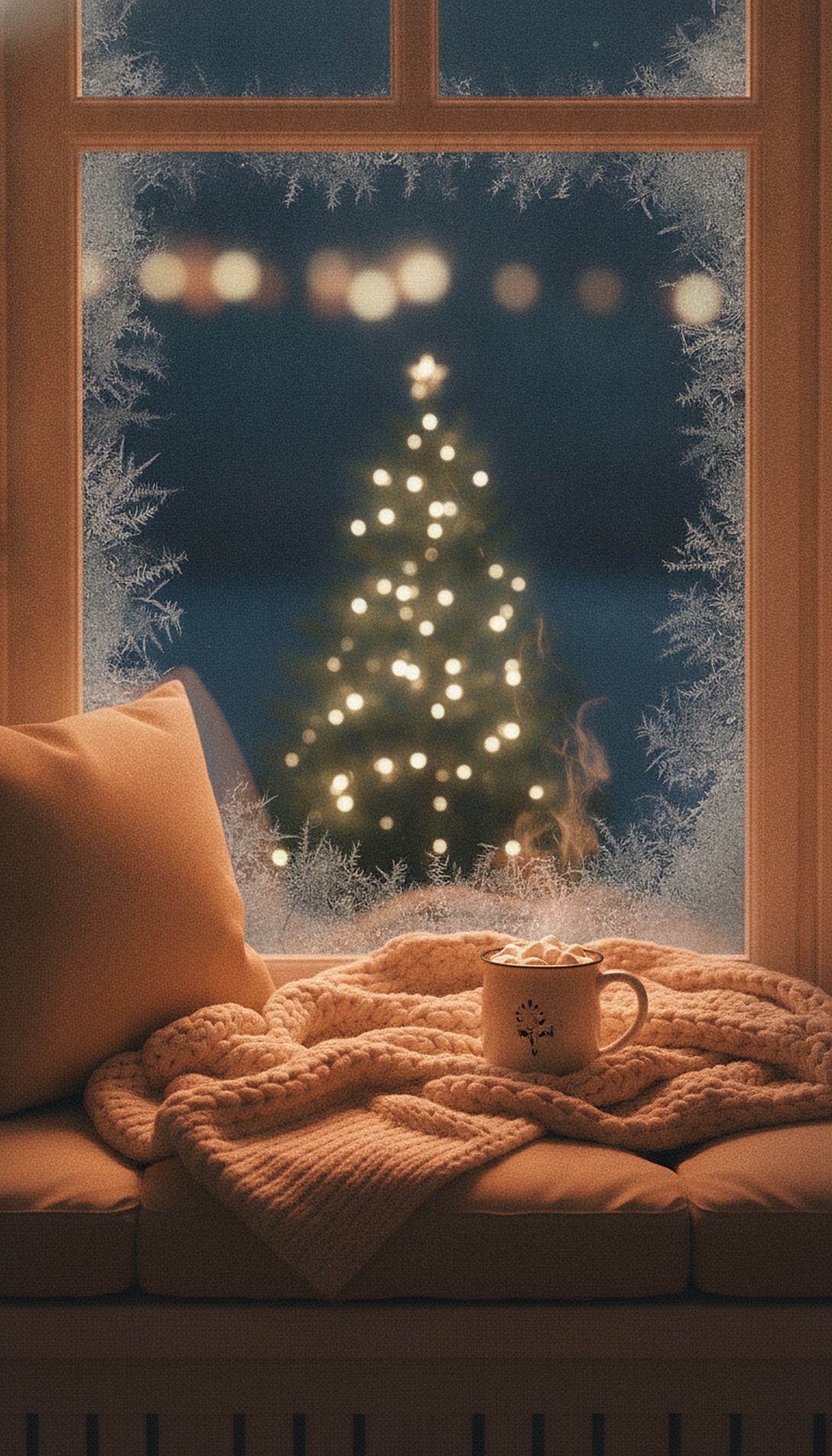
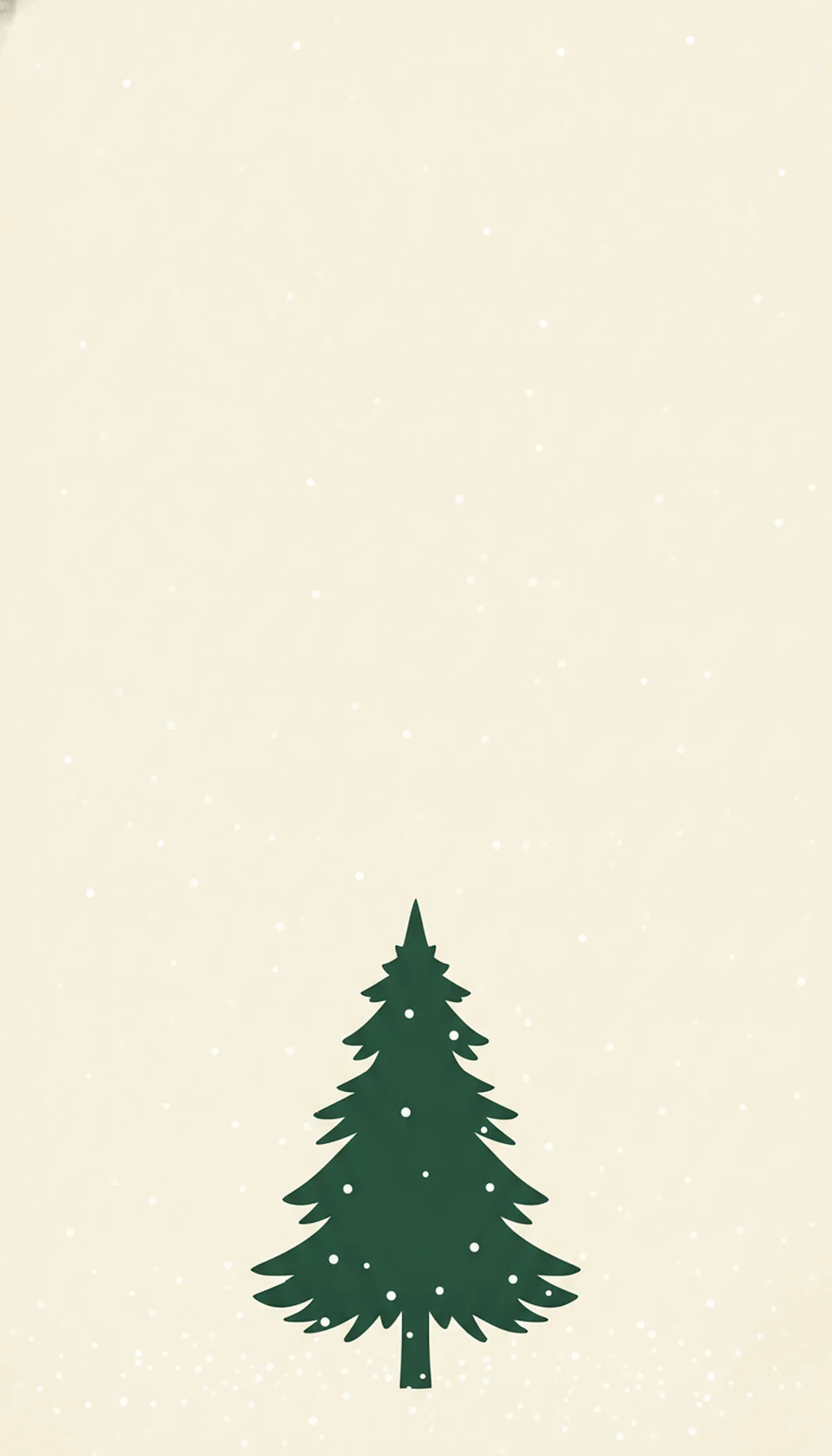
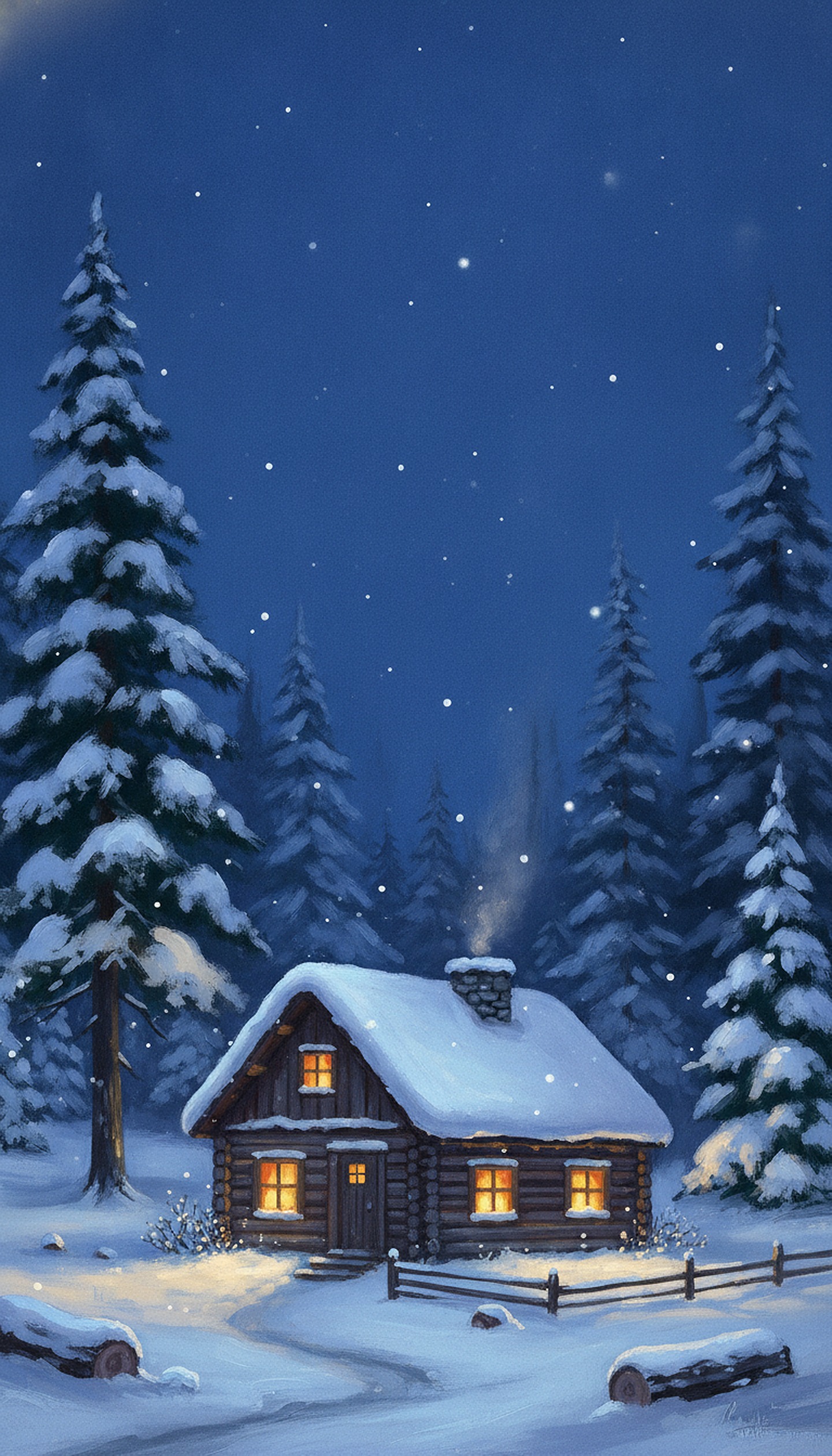
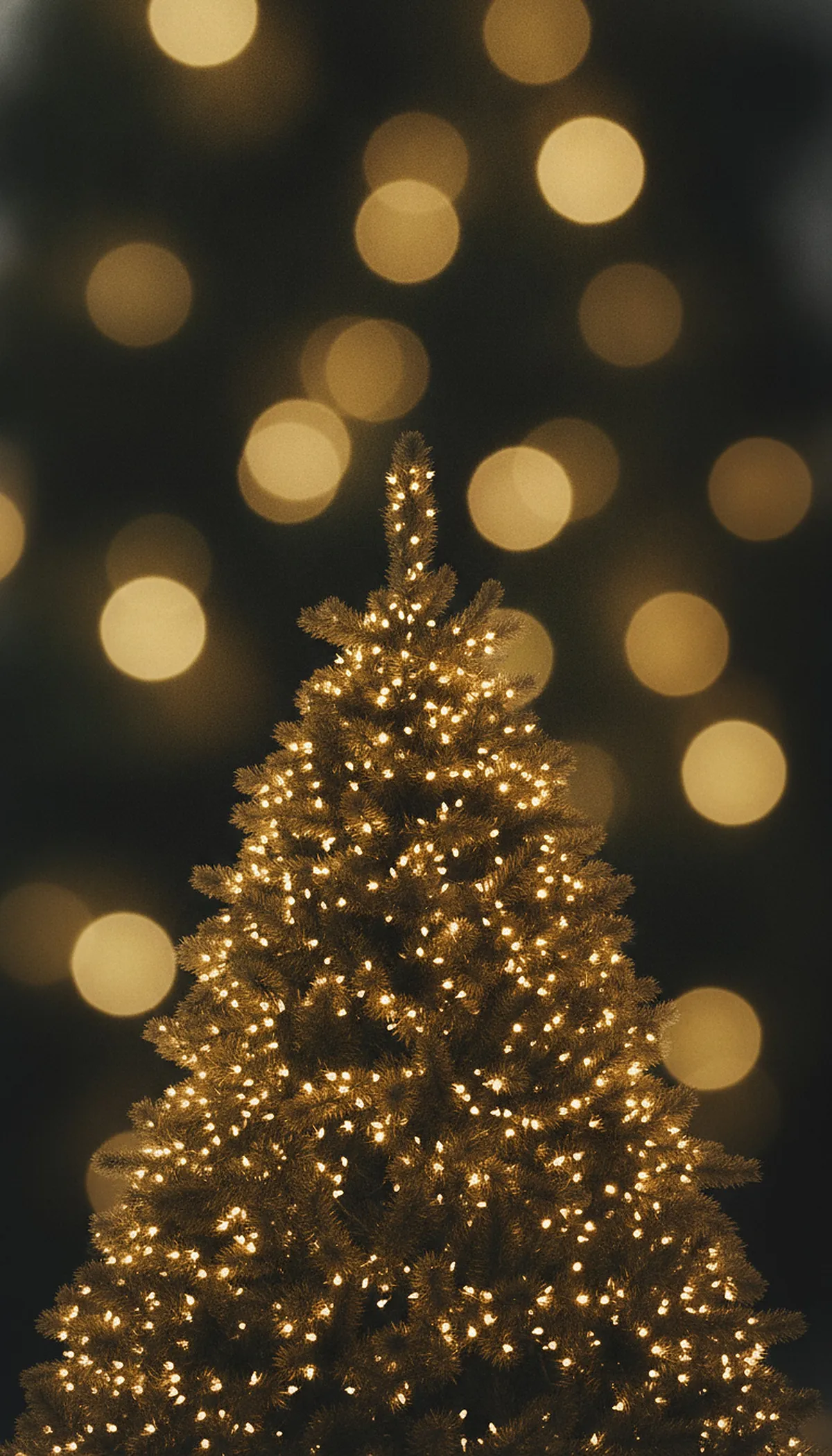
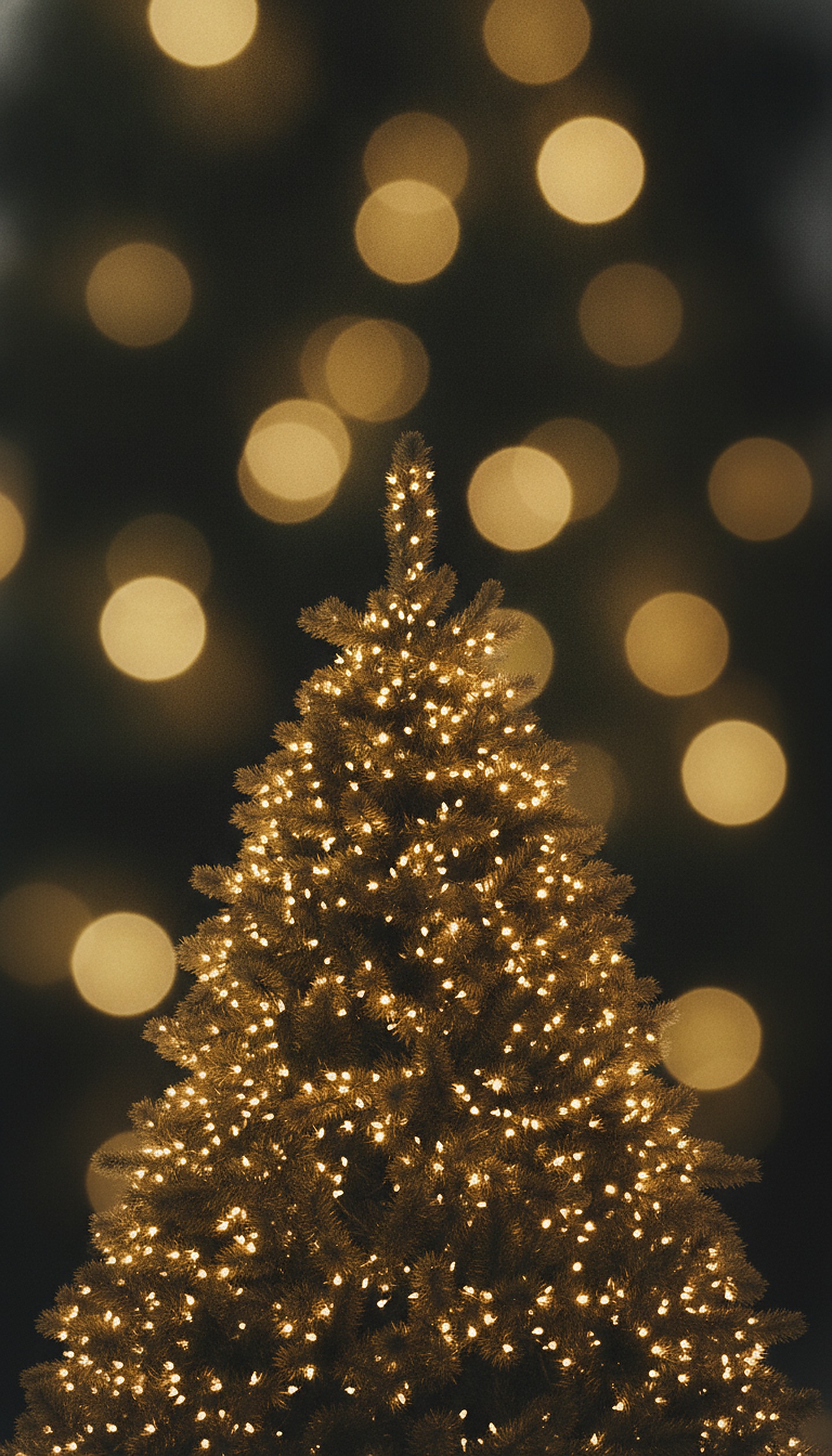
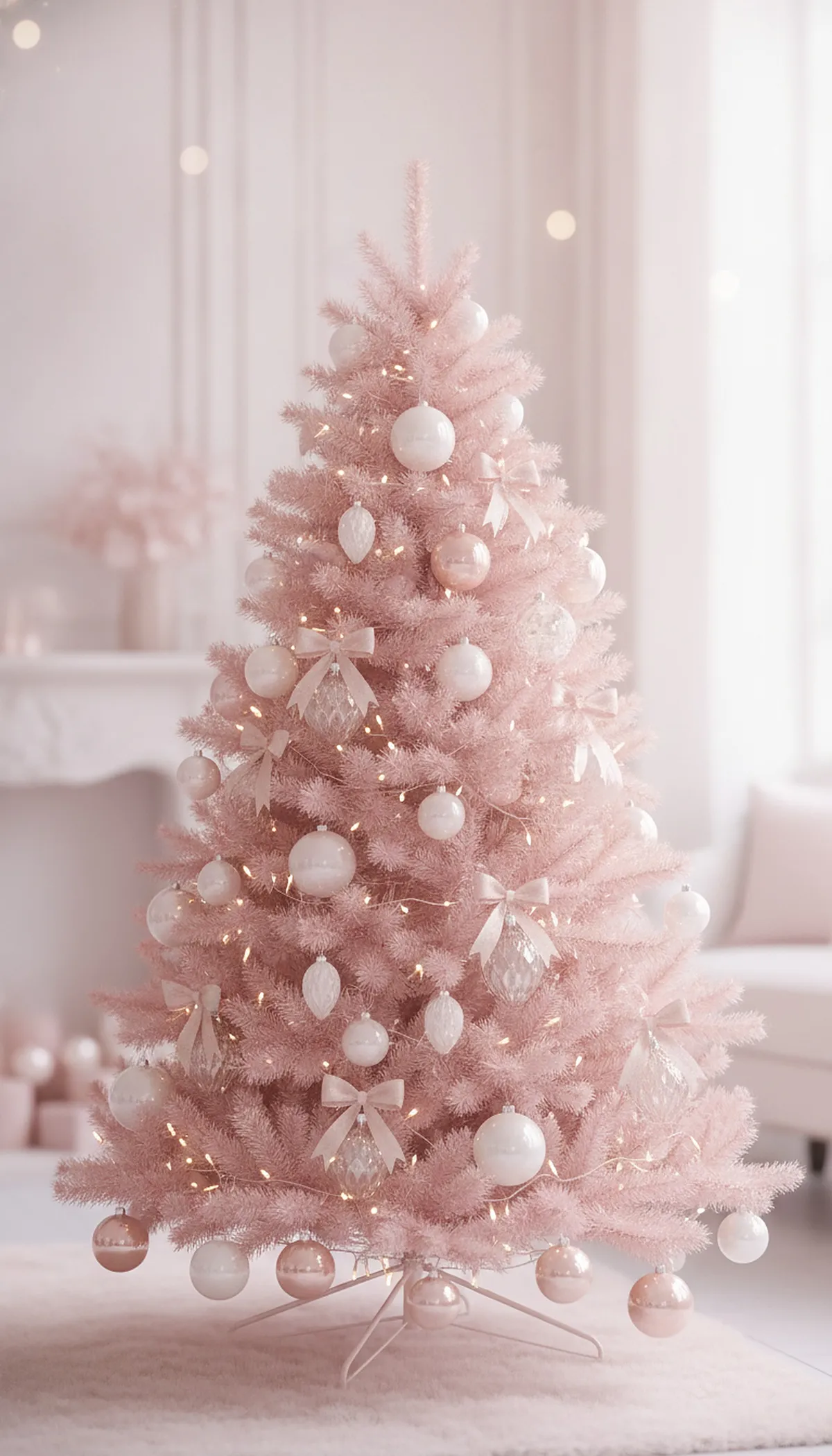
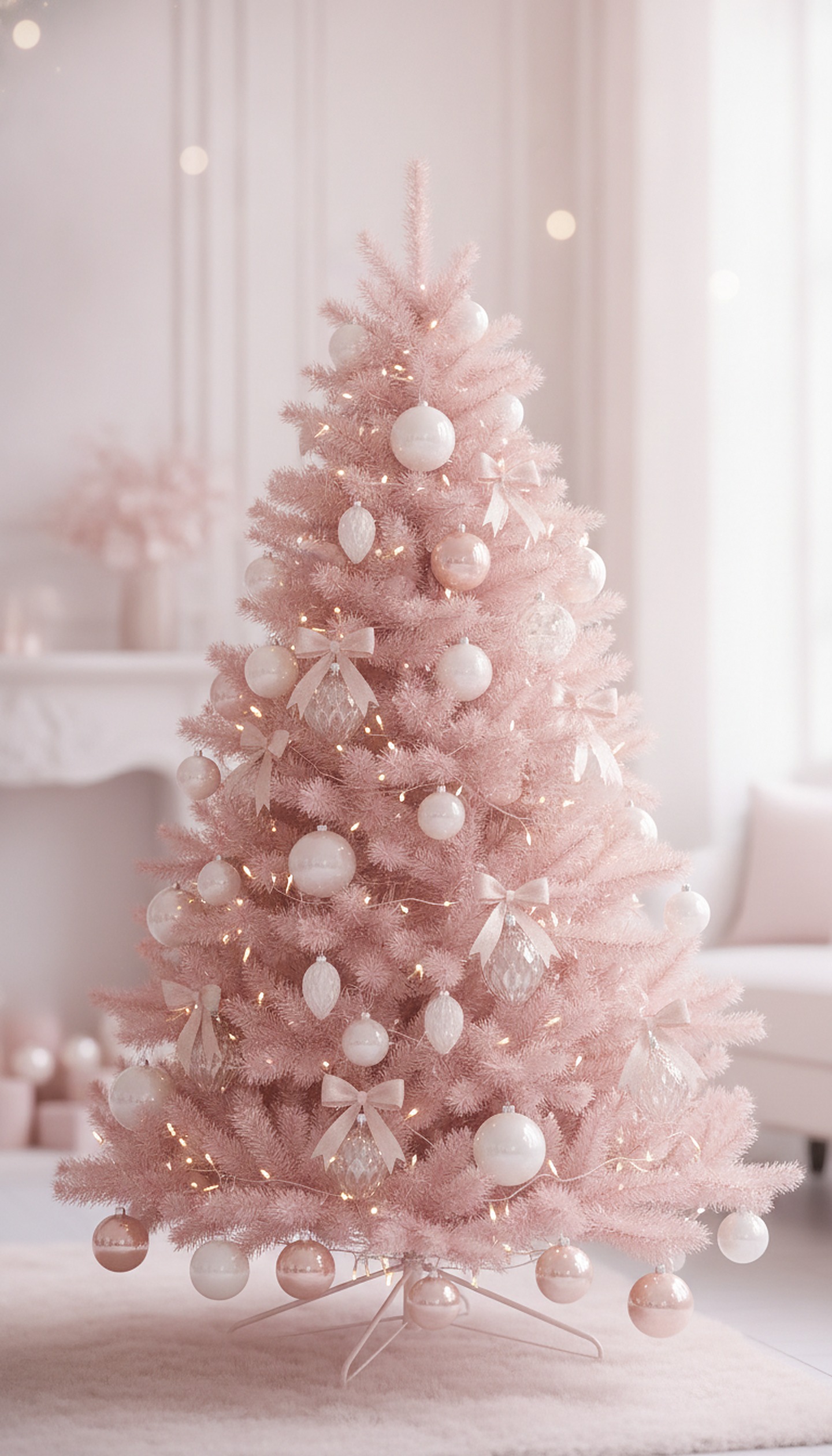
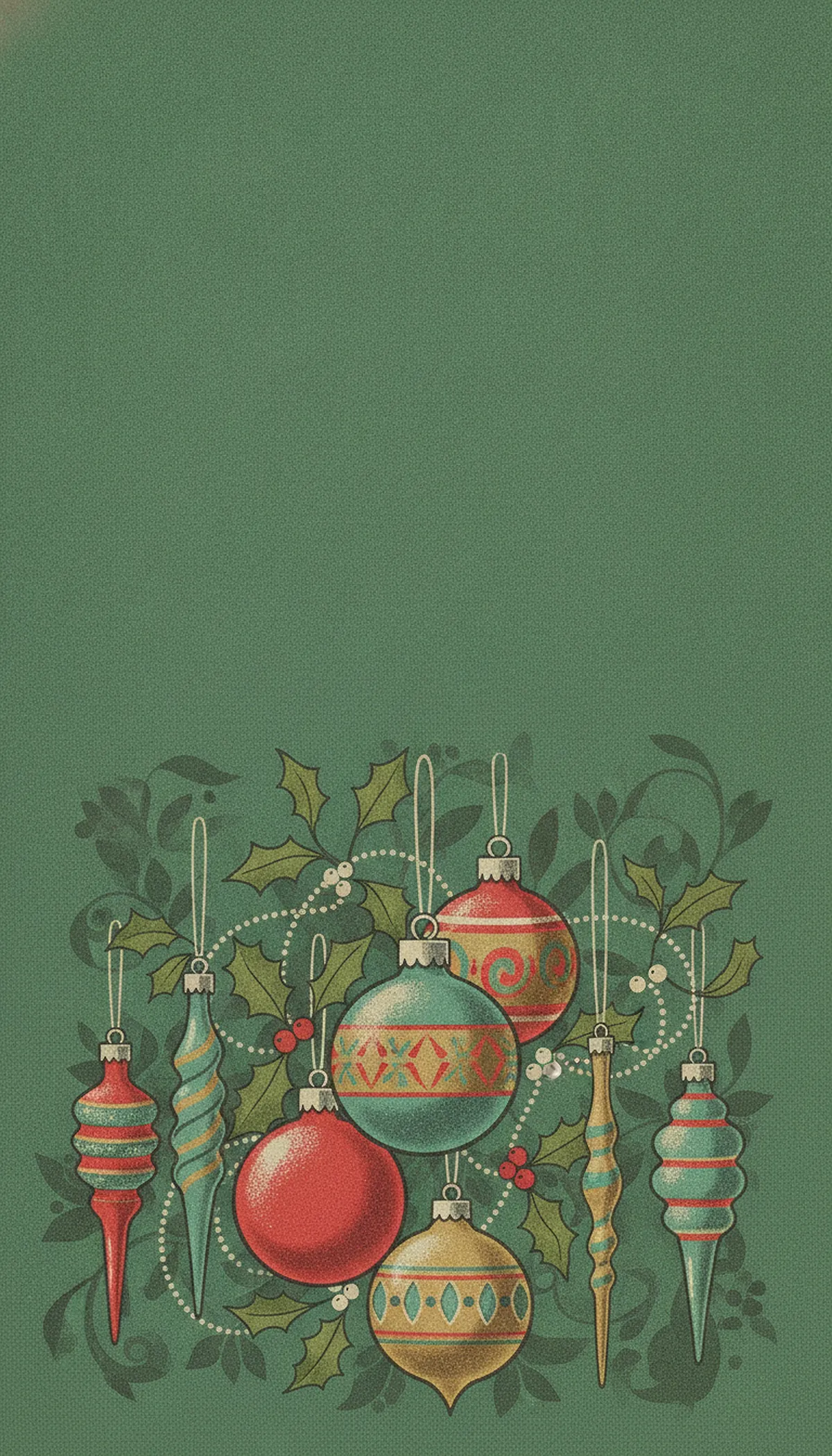
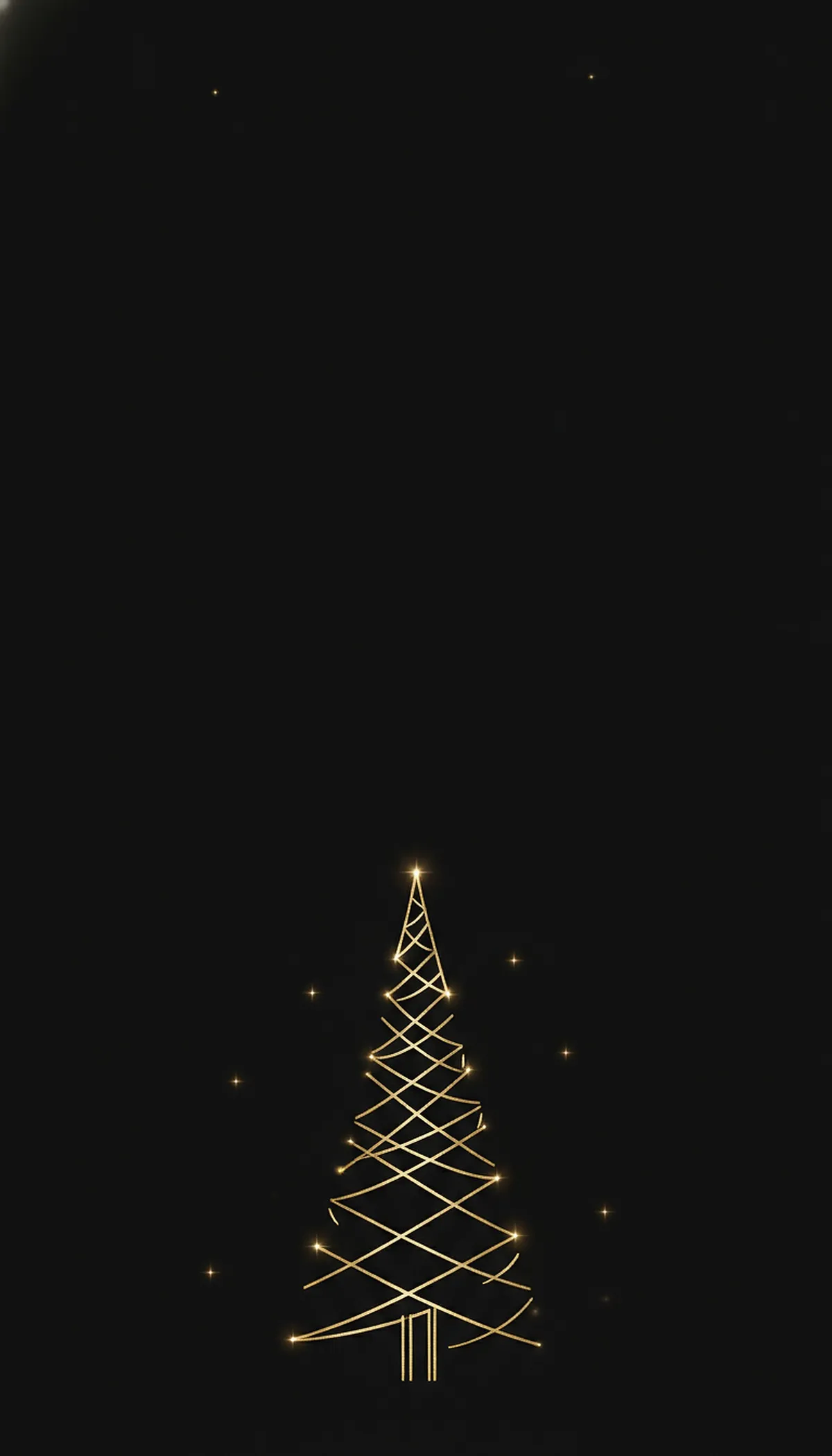
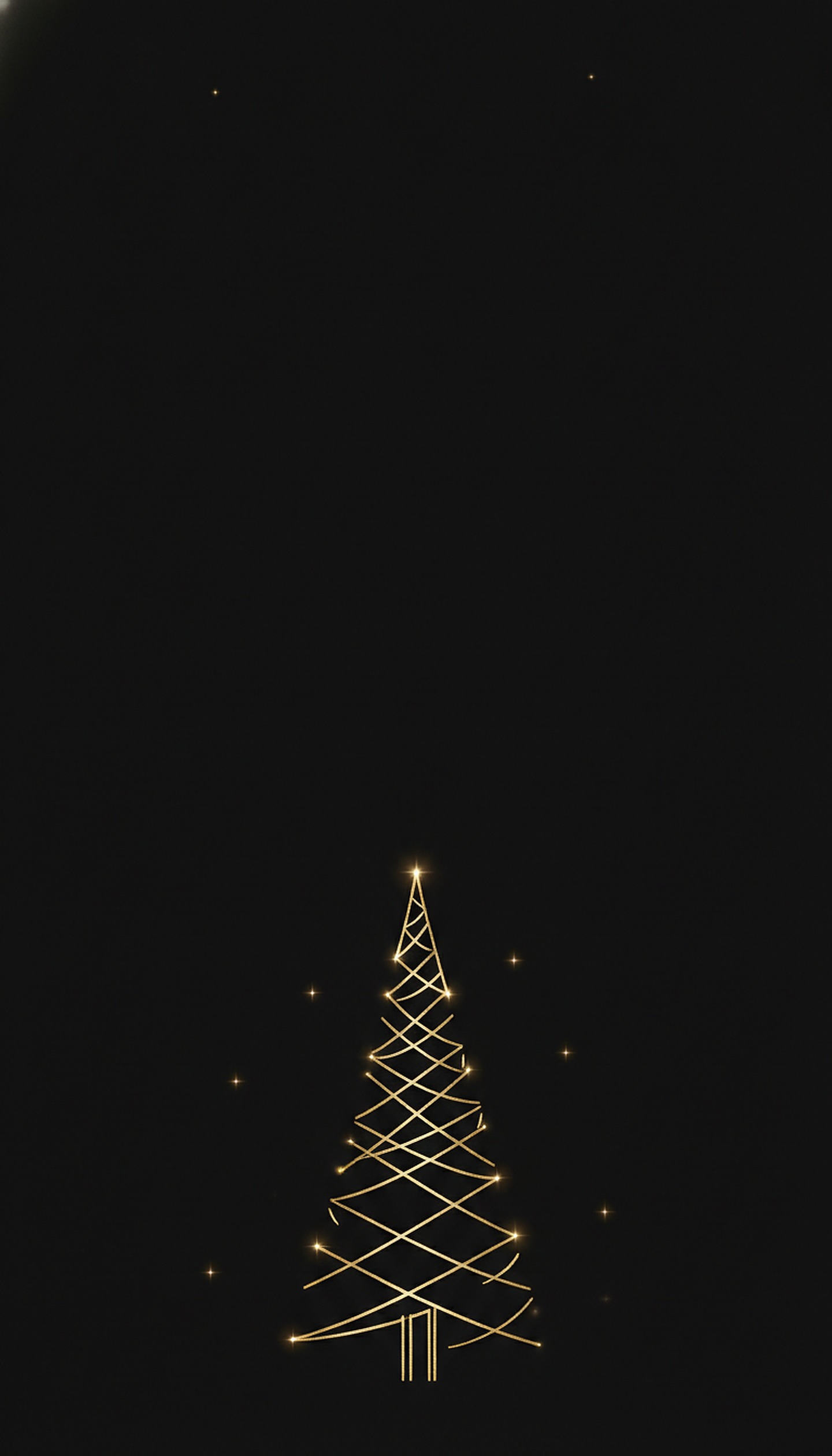
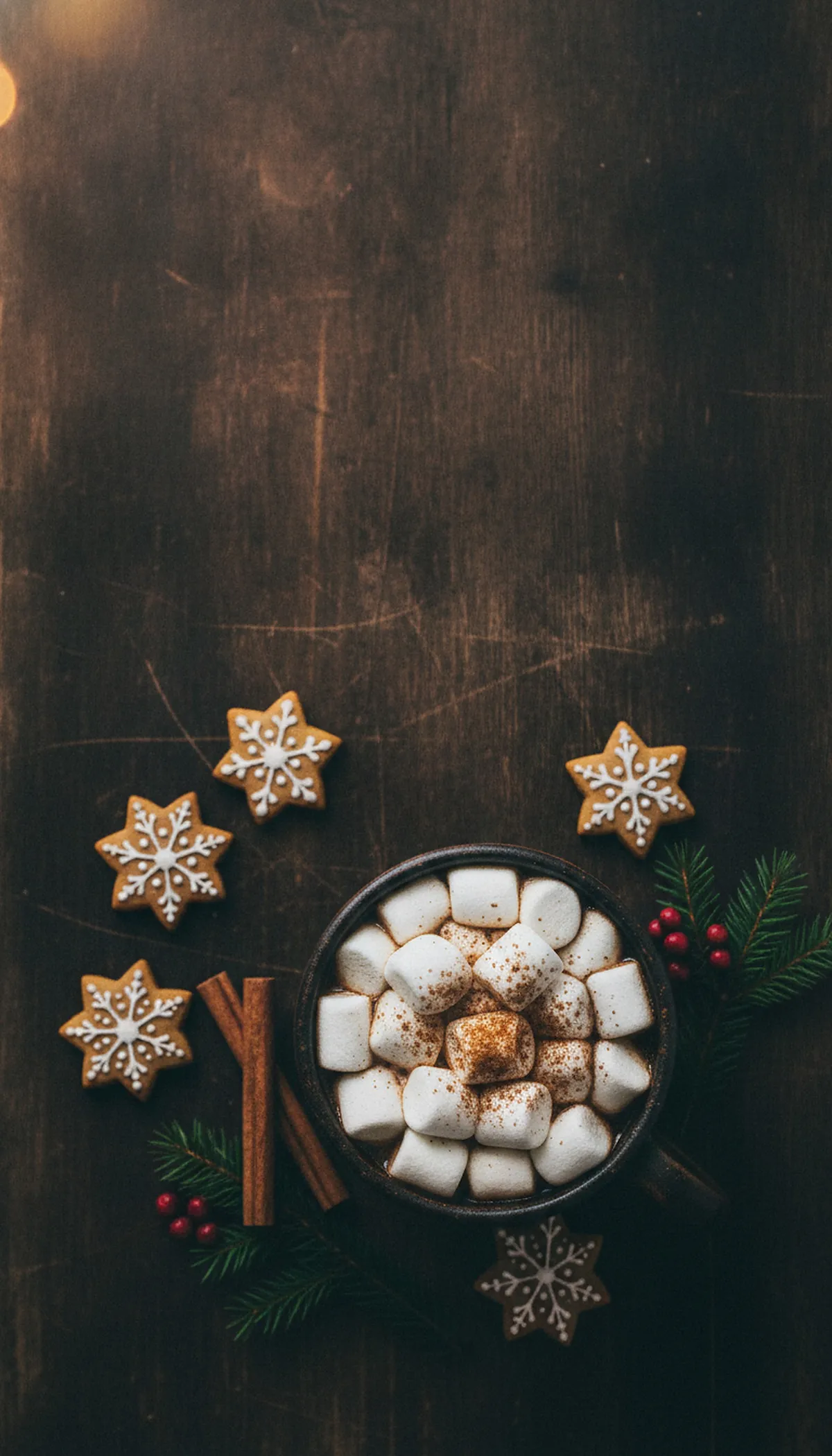
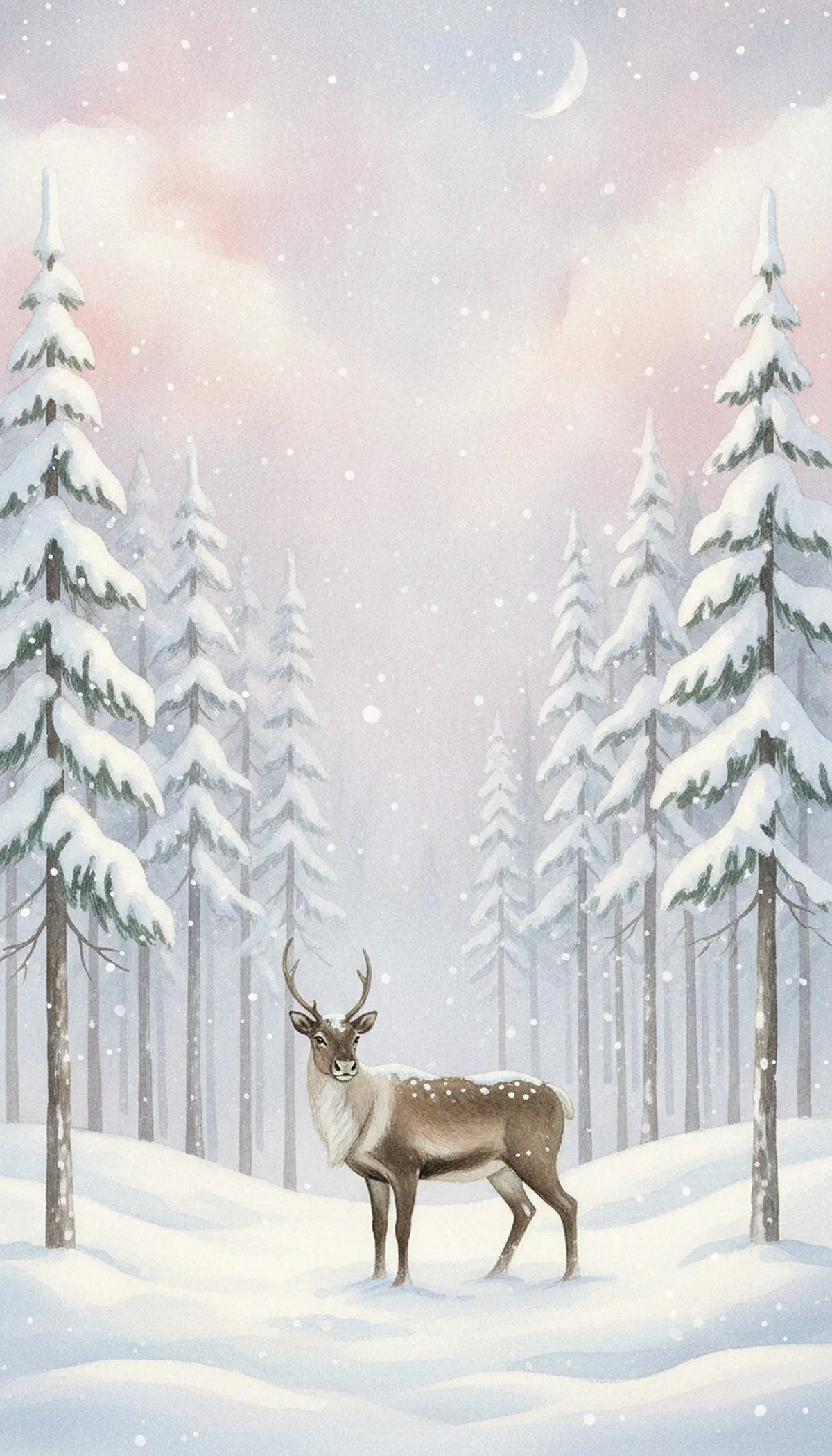
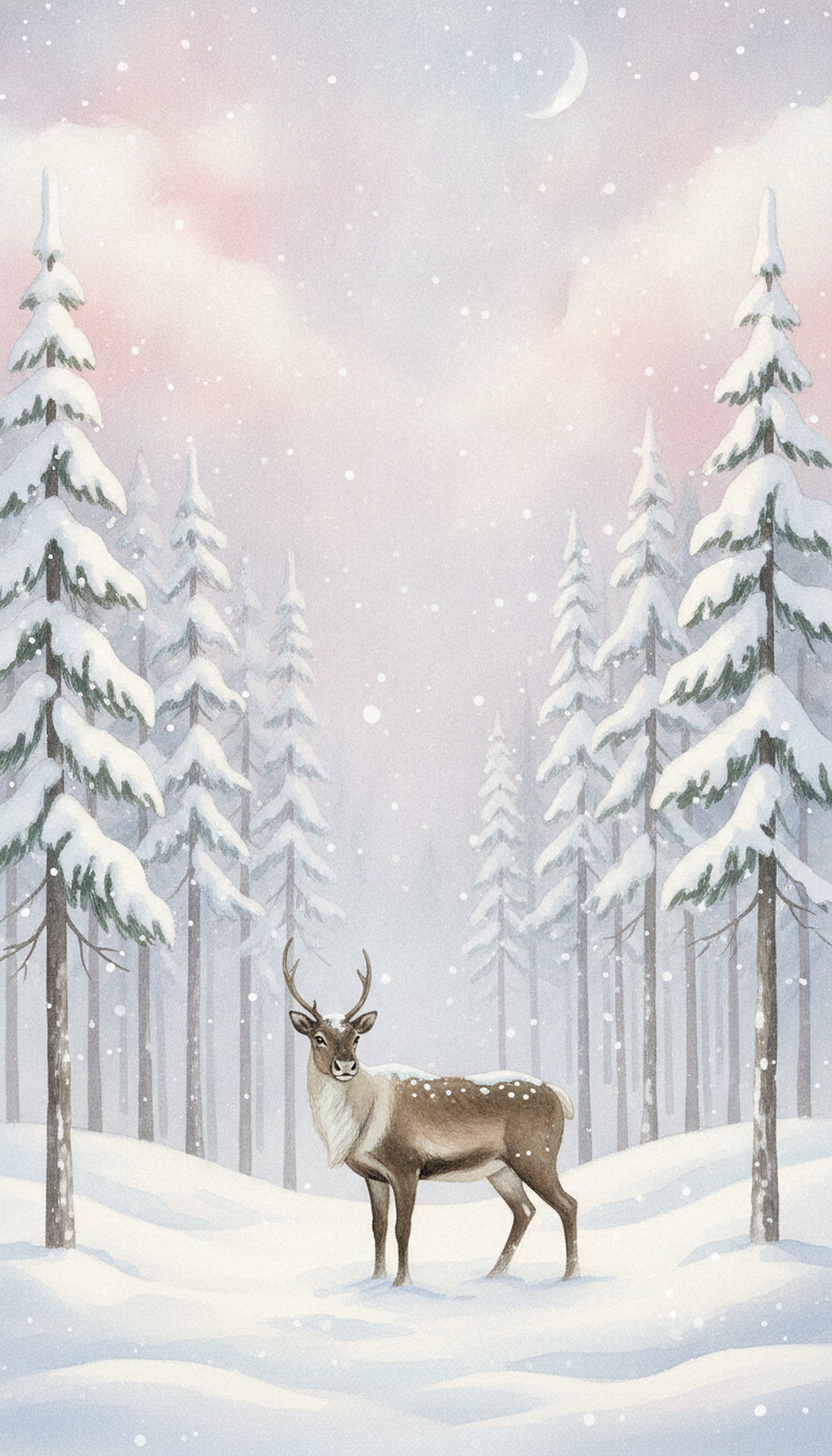
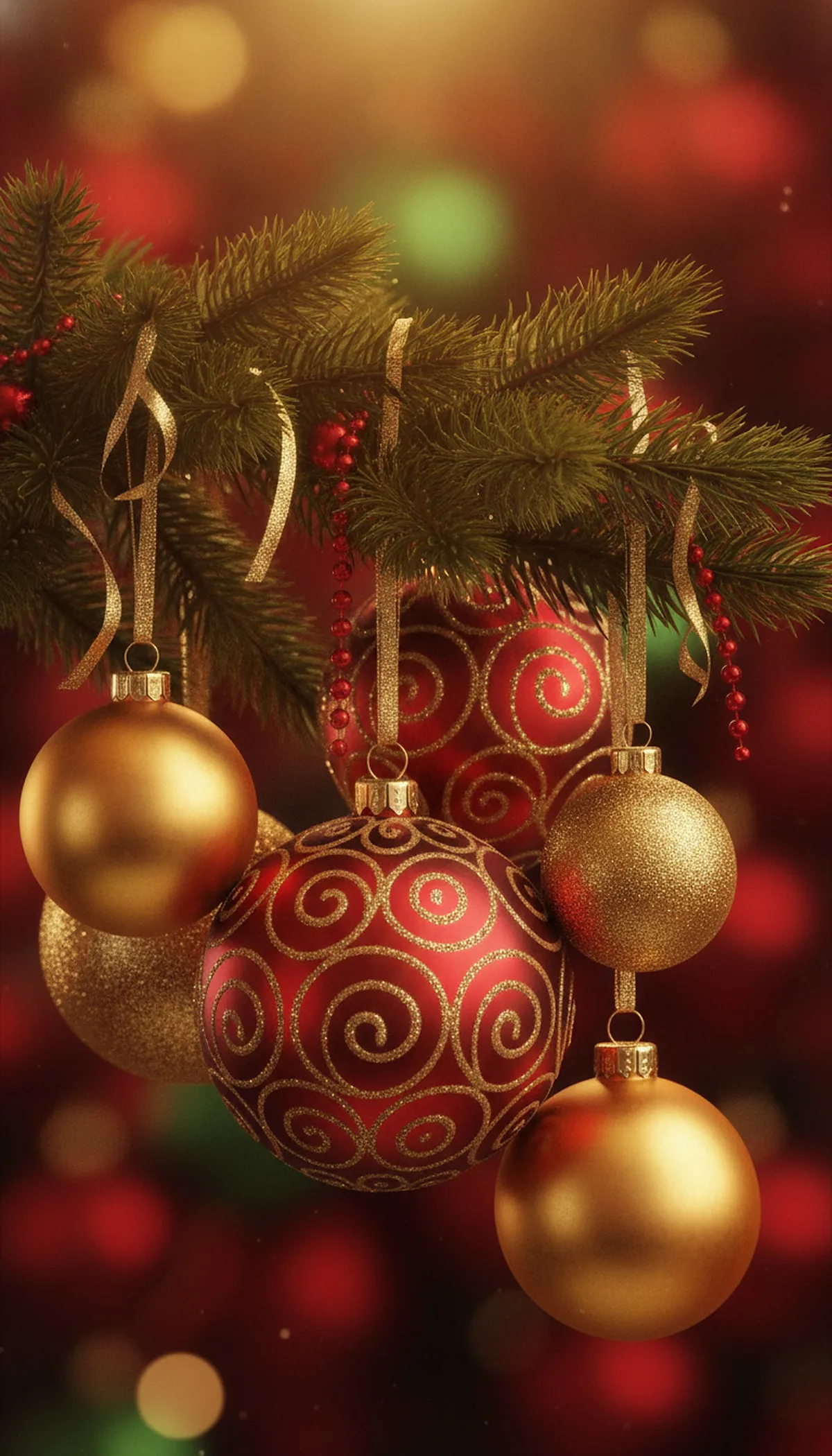
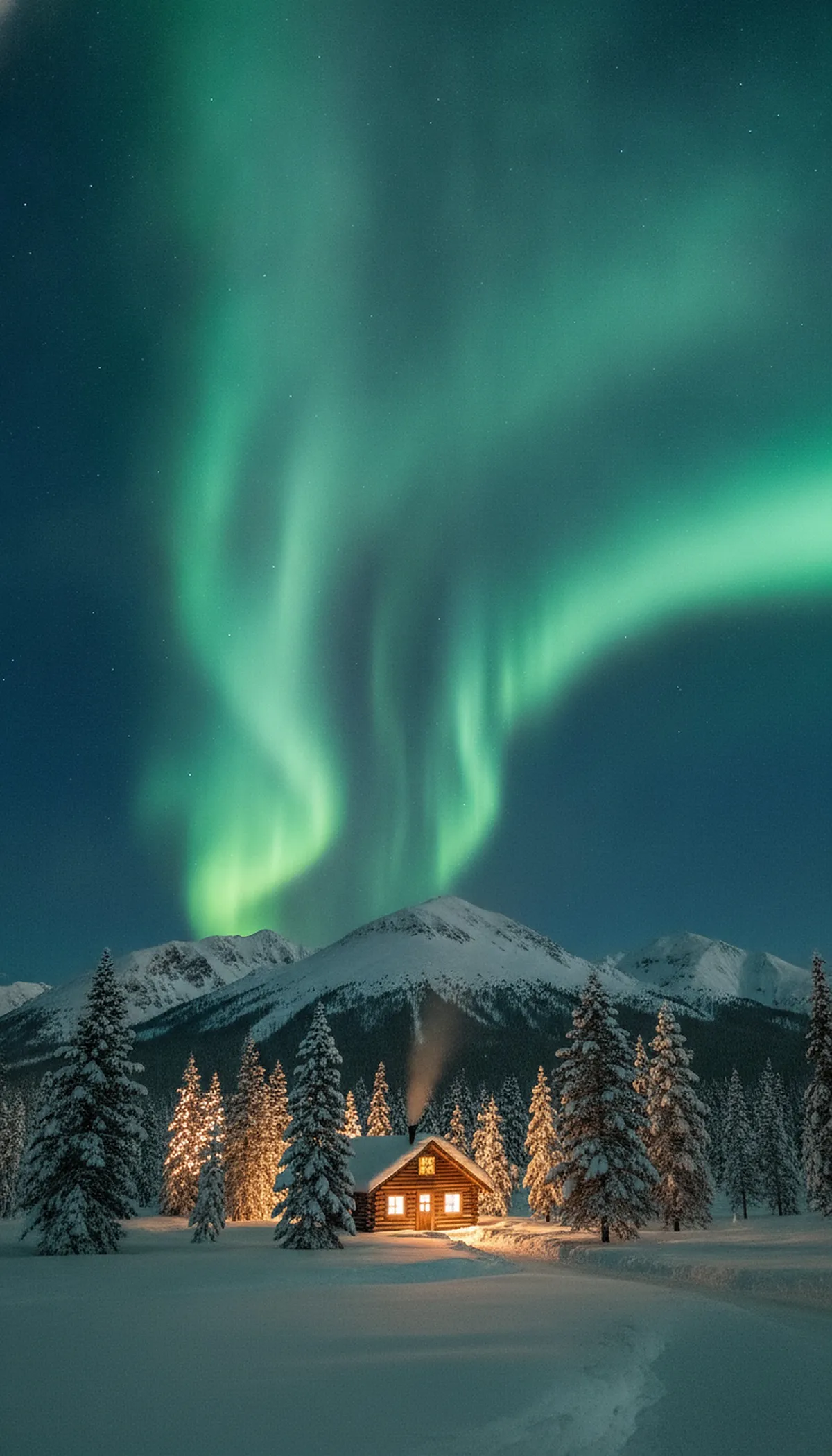
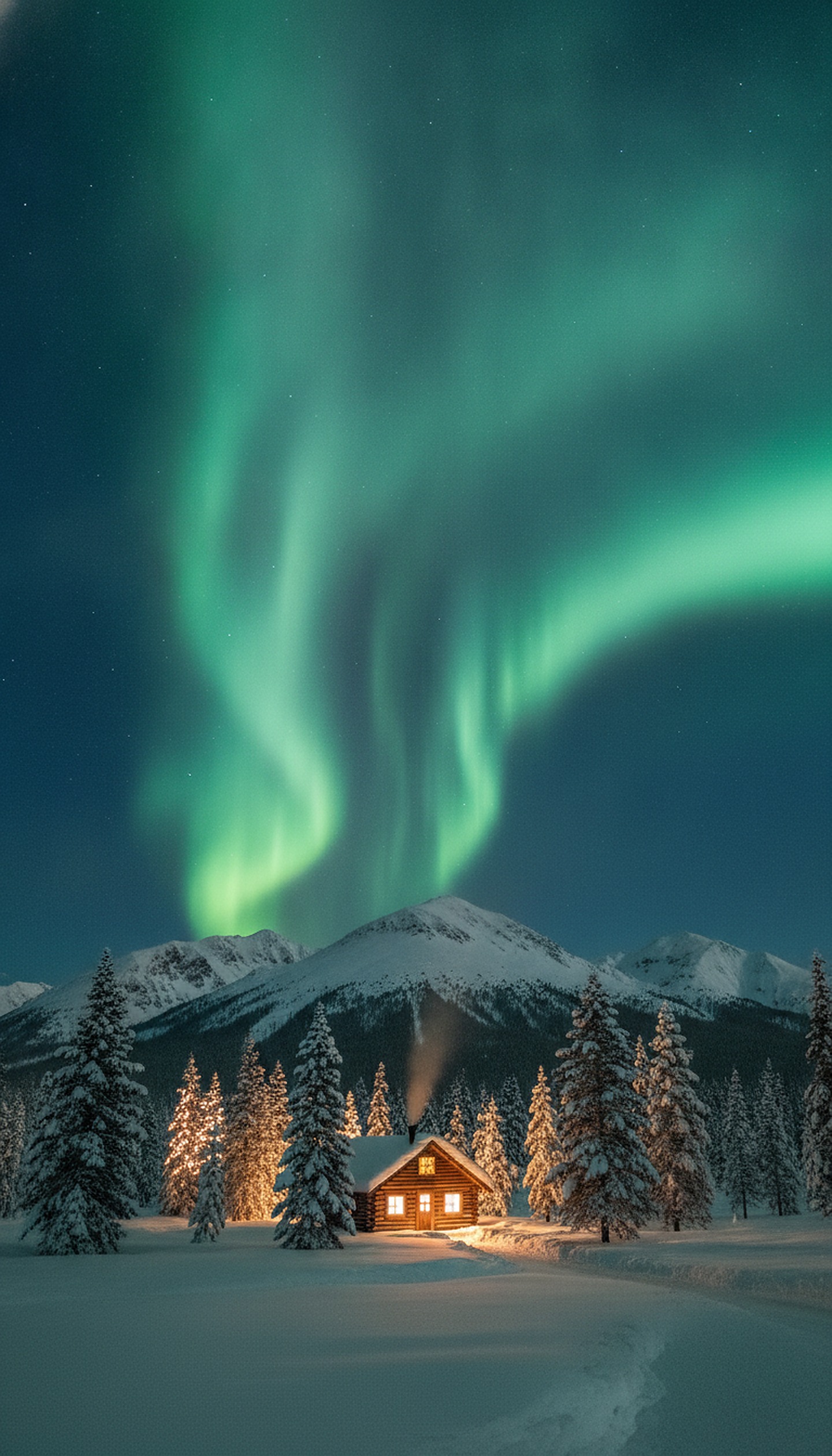
If your phone lives in dark mode, the gold line tree and the tree lights are the easiest on icon labels. The pink and cream ones look best in light mode.
iPhone screen sizes for wallpapers
A wallpaper looks sharpest when it matches your iPhone's native resolution in portrait. These are the pixel sizes (width by height) for recent models, taken from published iPhone display tables.
| iPhone model | Screen resolution |
|---|---|
| iPhone 16e | 1170 x 2532 |
| iPhone 15, 15 Pro, 16 | 1179 x 2556 |
| iPhone 15 Plus, 15 Pro Max, 16 Plus | 1290 x 2796 |
| iPhone 16 Pro, 17, 17 Pro | 1206 x 2622 |
| iPhone Air | 1260 x 2736 |
| iPhone 16 Pro Max, 17 Pro Max | 1320 x 2868 |
Our downloads are 1440 x 2520, a roughly 9:16 shape. That is a bit shorter and wider than an iPhone screen, so iOS fills the height and trims a sliver from the sides. You can pinch and drag the image on the preview screen to choose which part stays. If you make your own wallpaper, 1320 pixels wide is the most any current iPhone in the table needs.
How to set a Christmas wallpaper on iPhone
The steps are almost identical on iOS 18 and iOS 26. First save the image: tap Download, then Save to Photos or use the share sheet.
- Open Settings and tap Wallpaper.
- Tap Add New Wallpaper, then Photos, and pick the Christmas image.
- Pinch and drag to frame it. Swipe between photo styles if you want a different look.
- Adjust the clock font and color if you like, then tap Add.
- Choose Set as Wallpaper Pair to use it on both screens, or Customize Home Screen to pick something else behind your apps.
You can also wake the phone, touch and hold the lock screen, authenticate, and tap Add New. Apple lets you keep several lock screens and swipe between them, so a Christmas one can sit next to your normal one and you switch back on December 26.
Different lock screen and home screen
Pairing one picture on both screens is fine for a pattern with plenty of empty space. For anything detailed, split them. Put the detailed image on the lock screen, where you only see a clock and a few widgets. Then choose Customize Home Screen and set a color, a gradient, a blurred version or a calmer Christmas picture, so app icons don't fight the artwork.
My rule is simple. If the wallpaper has a face or a focal point, give it to the lock screen and blur the home screen. If it's a pattern, use it on both. The gingerbread and ornament wallpapers above work as pairs. The cabin and northern lights ones are better with a plain or blurred home screen.
Want a Christmas wallpaper with your own family in it? Upload one photo to PicsMas and get a phone-sized Christmas picture back.
Sign up for PicsMasGet PiXmas on the App StoreDepth effect and spatial scene
Depth effect puts part of a photo's subject in front of the lock screen clock, so the time looks tucked behind a person, a pet or the sky. To toggle it, touch and hold the lock screen, tap Customize, choose the lock screen, tap the More button at the bottom right and switch Depth Effect on or off. It only works when the subject sits clear of the clock, not too high or too low and not covering most of it.
iOS 26 adds Spatial Scene, a 3D-style effect for eligible photos on iPhone 12 and later. Find it in the Photos wallpaper categories, wait for the scene to generate, then tap Add. It shows on the lock screen only, never on the home screen. Photos with good light and a clear subject against the background are the ones most likely to qualify. A tree with lights in front of a dark background is a fair bet; a flat pattern won't do much.
How to pick a wallpaper that stays readable
Keep the clock area calm. Bright snow or a busy garland behind white clock digits is hard to read, so choose a darker top third or change the clock color to match. Keep the focal point in the middle or lower middle, since app icons cover the upper rows and the dock covers the bottom. If you add widgets, a simple background does the most to make them look tidy. We go deeper in our Christmas lock screen guide, and the Christmas backgrounds page has wider images for tablets and computers.
Make a Christmas wallpaper from your own photo with PicsMas
Free wallpapers are nice, but nobody else has your kid in a Santa hat or your dog beside the tree. In PicsMas you upload one photo, pick a Christmas look (cozy lights, snowy, pink, vintage) and get back a vertical picture that fits a phone screen. Your subject stays in the frame while the room, light and decorations change around them. From there it's the same Settings steps as above.
Start with a photo that has a clear subject and some space above the head, since the clock will land there. Group photos work, and so do pets. For more ideas, see how to make a Christmas wallpaper from a photo and the iMessage version. Prefer an app? PiXmas is on the App Store.
Matching your home screen, widgets and icons
A matching set looks finished. Pick one color from the lock screen image, such as the warm gold of the tree lights, and use it for the clock and one widget. Keep the home screen close to the same palette, only calmer. Christmas looks last a few weeks, so add it as a separate lock screen you can delete later, and leave your main one alone.