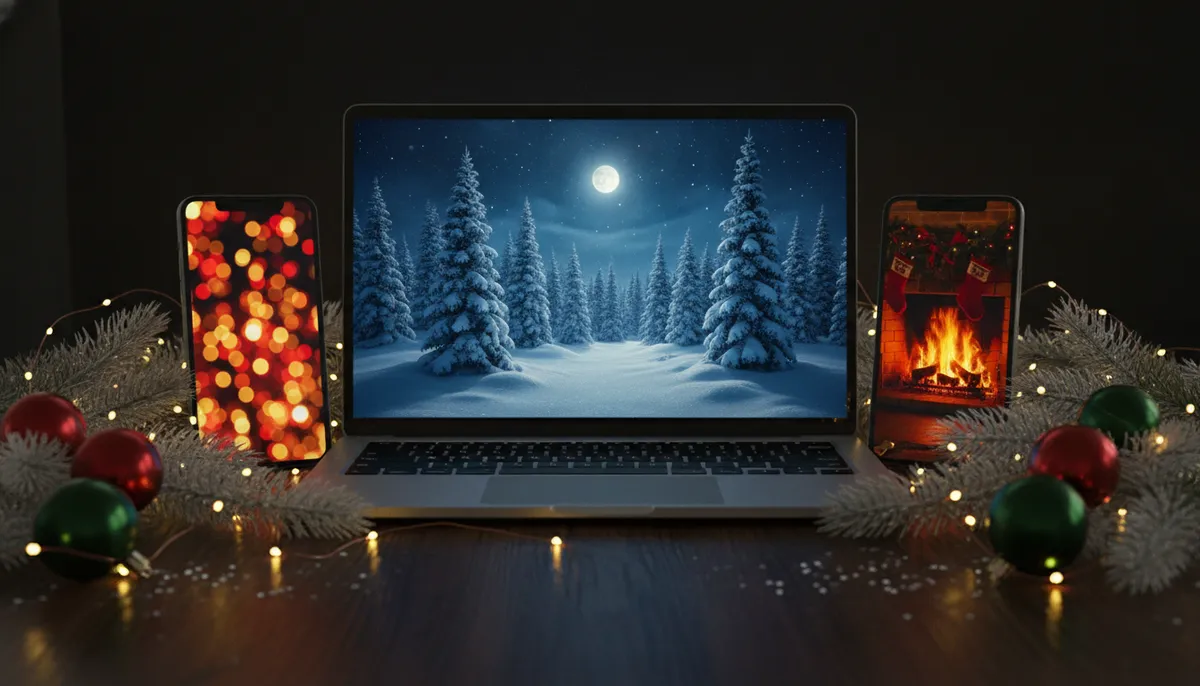
Free Christmas background images to download
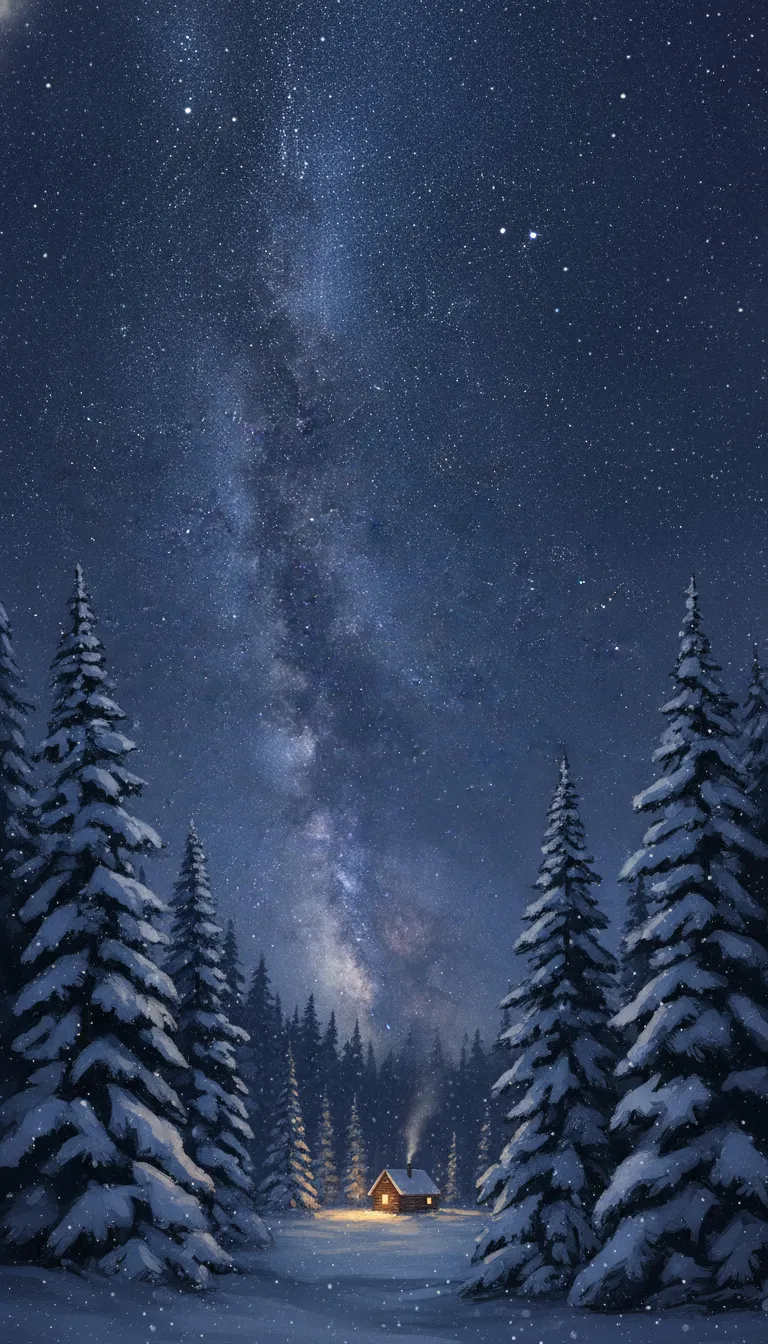
Tap Download under any image and it saves as a JPG. Six are tall phone wallpapers (9:16), five are wide 16:9 scenes that suit a desktop or a video call, and the rest are patterns and cards that crop well to either. Everything here is original artwork, so you won't run into somebody else's logo or watermark.
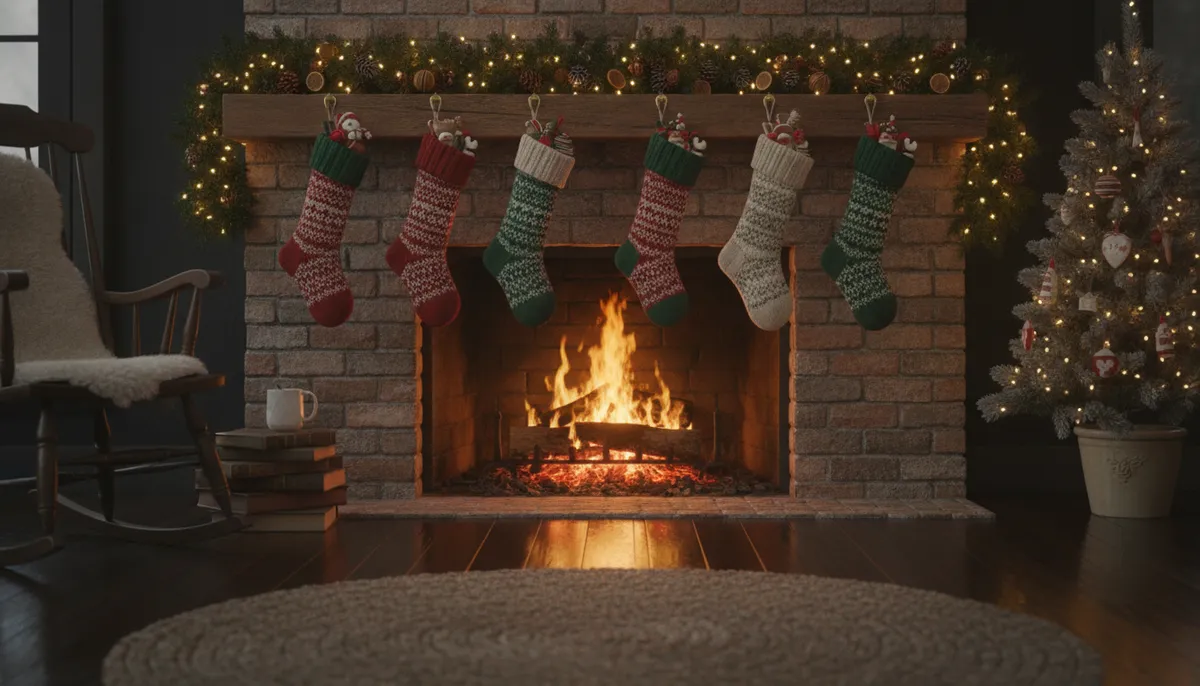
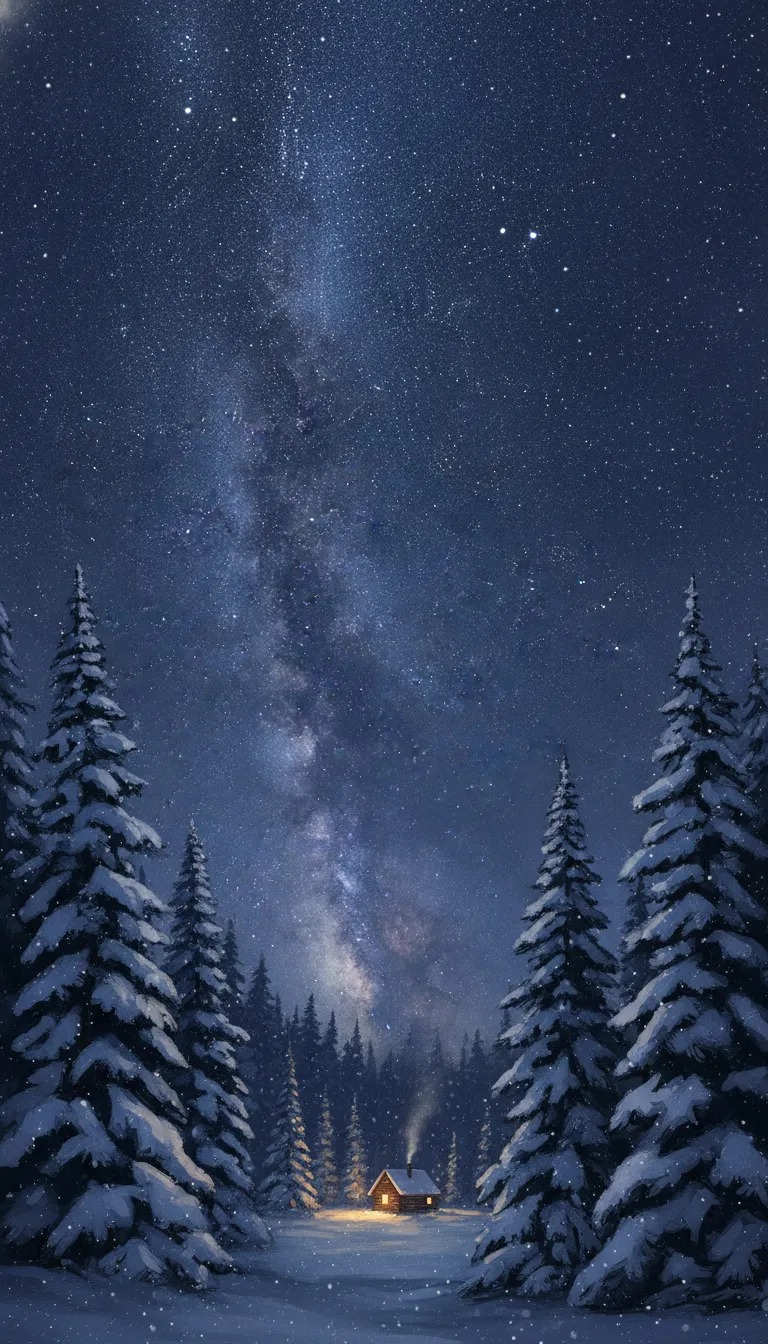




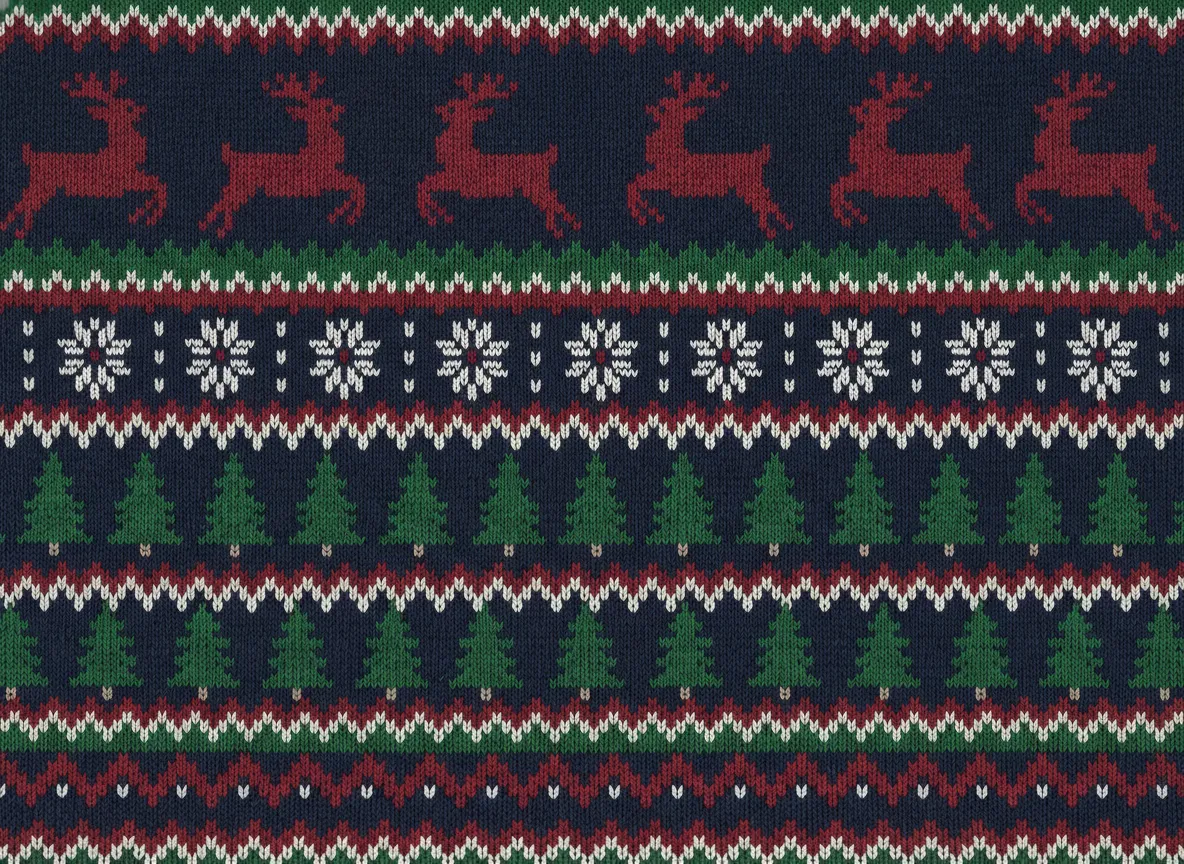
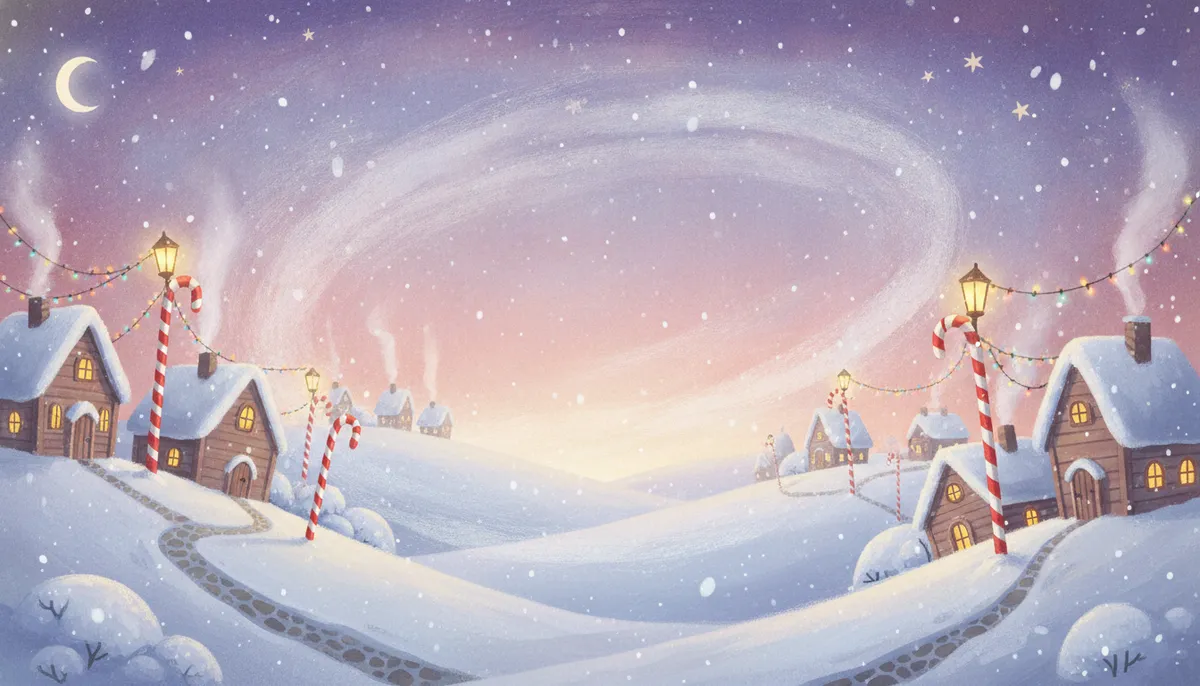



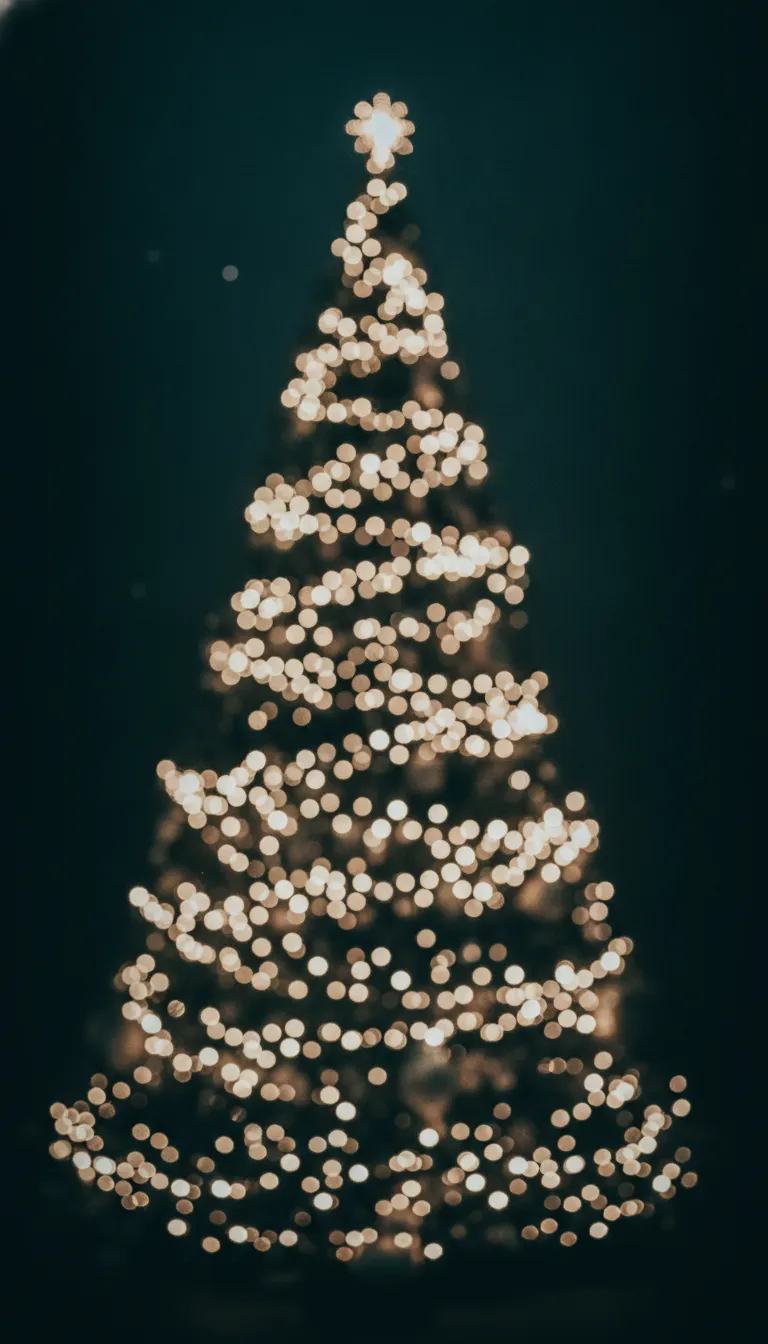
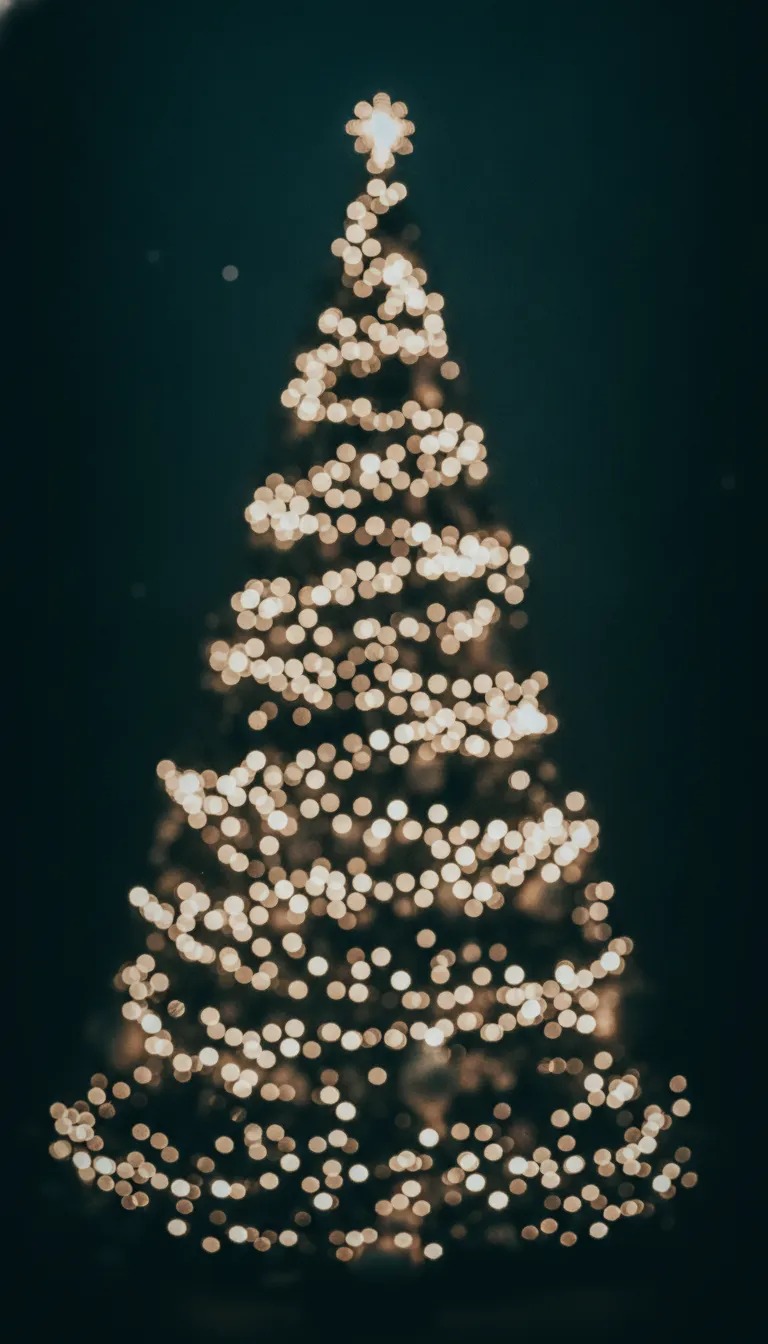


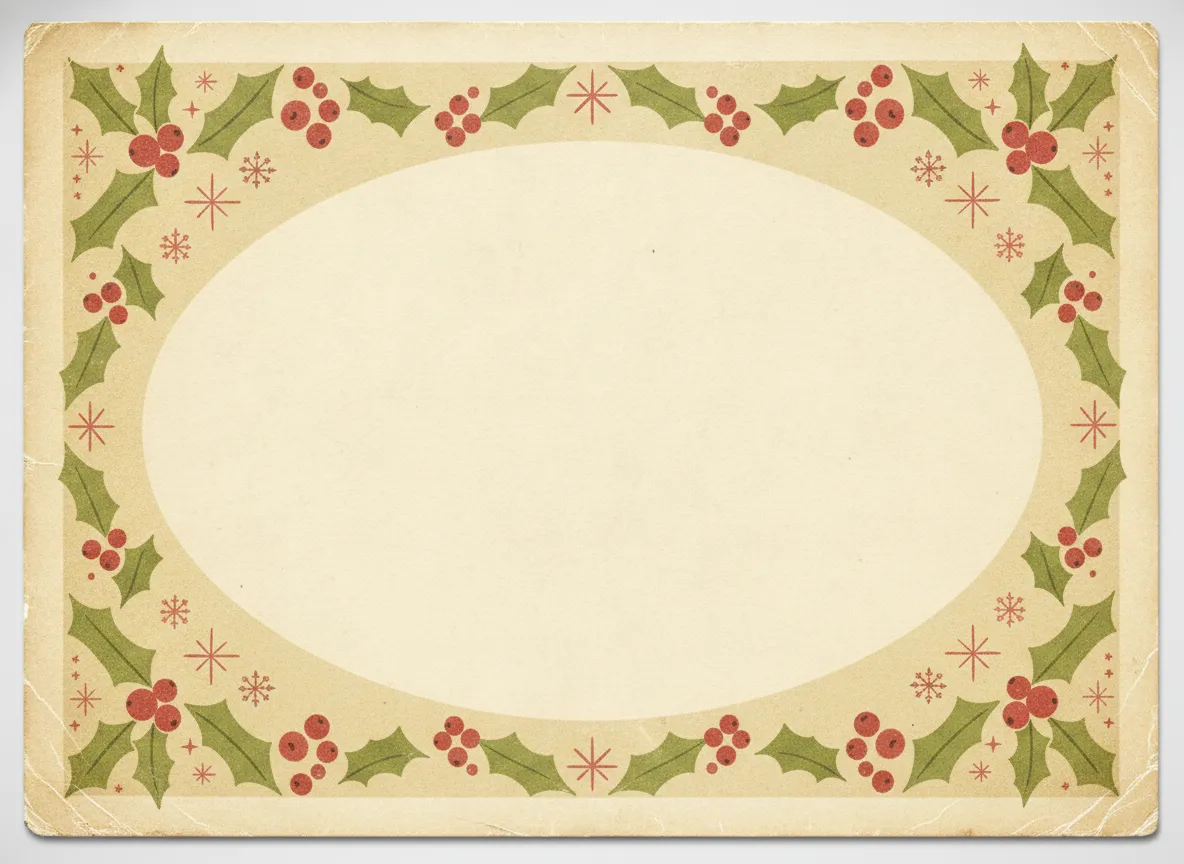
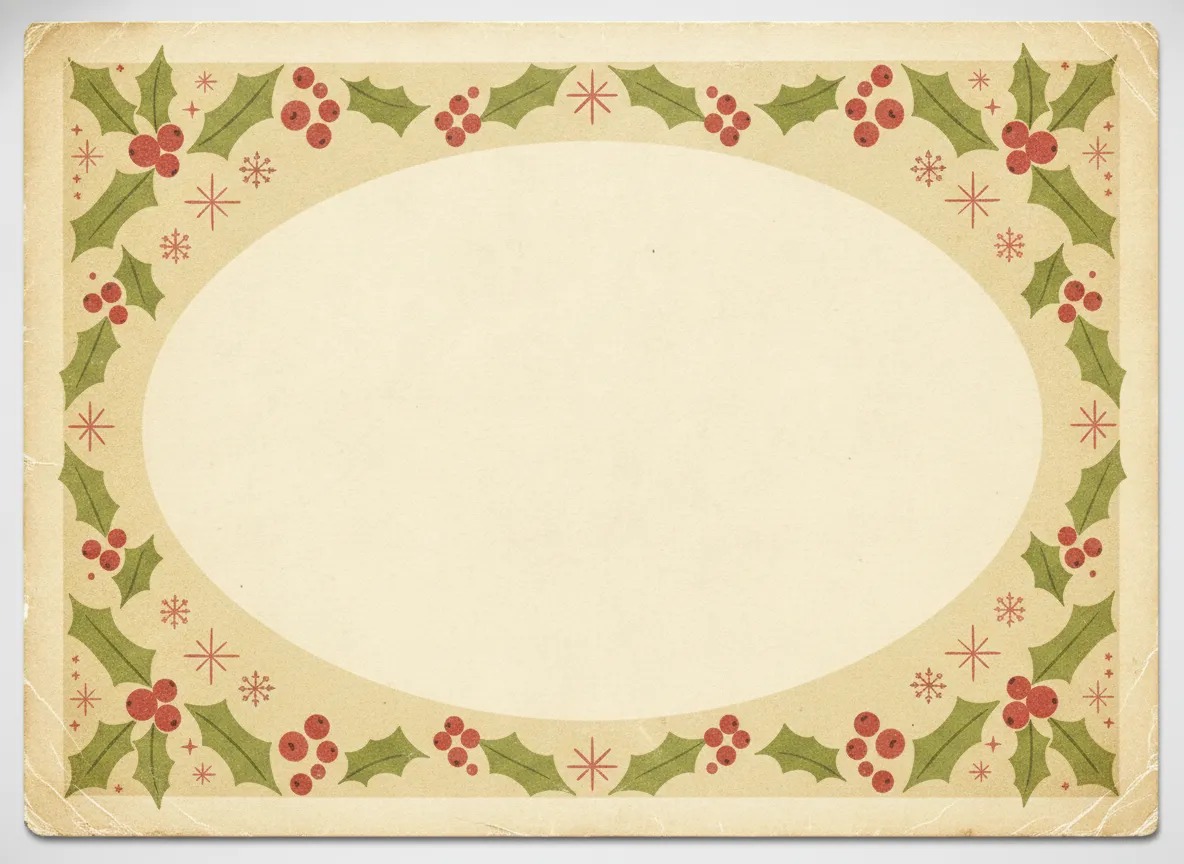



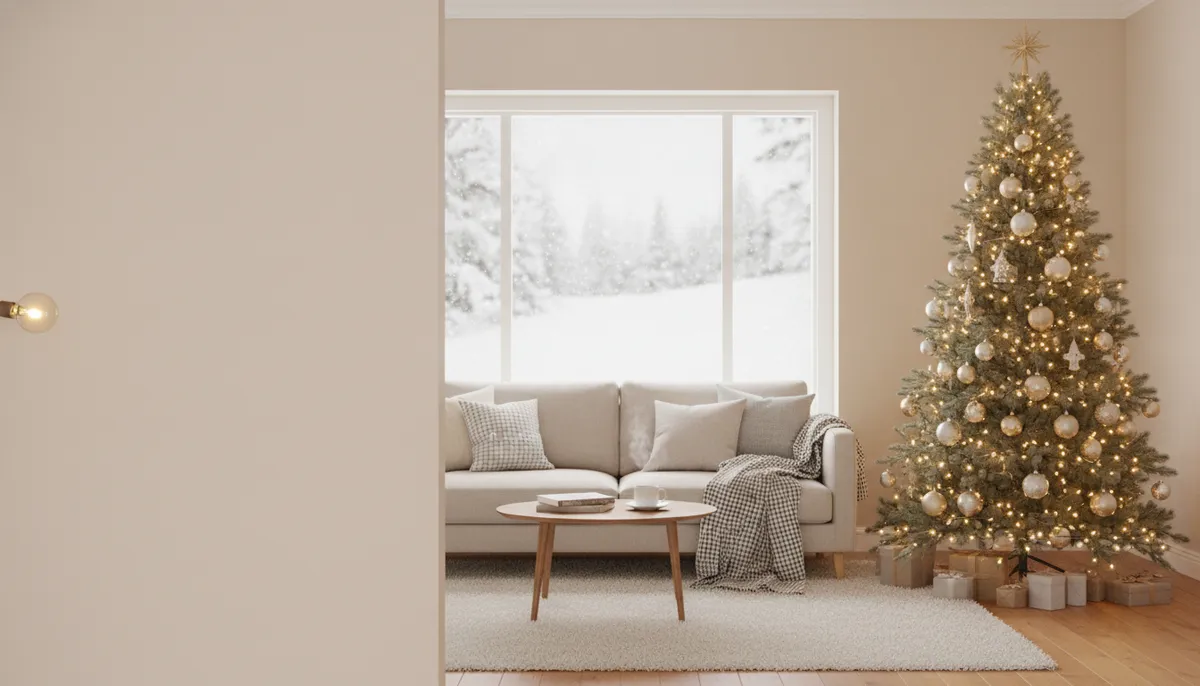


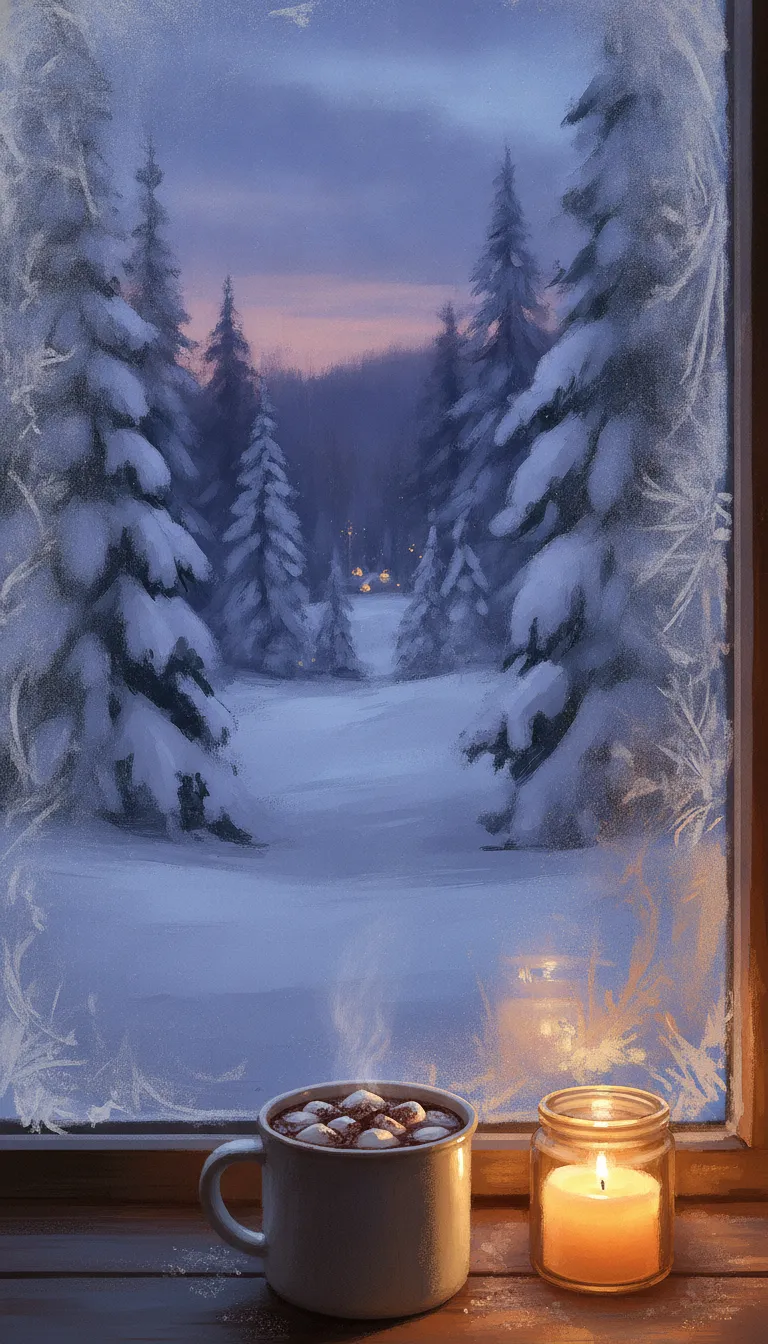
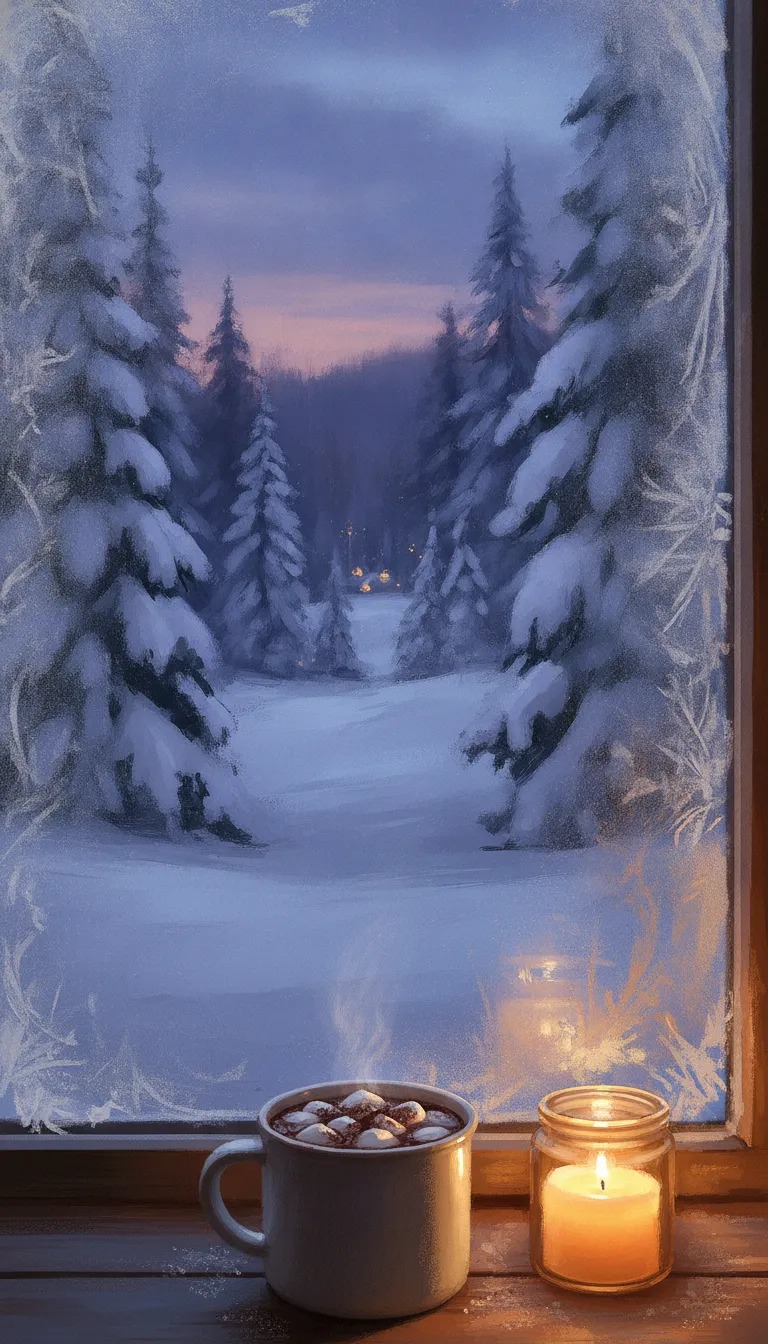
The files are JPGs about 1,200 pixels on the long side. That's plenty for a video call, where your face covers a good part of the frame, and fine for a phone. On a large, high-resolution screen they'll look a little softer than a native-size wallpaper, so for a desktop or a new iPhone you'll get a sharper result by making your own in PicsMas, which builds a background to the size you pick.
Which size to use for phone, desktop and video calls
The wrong shape is the usual reason a background looks off. A wide image on a phone gets cropped to the middle, and a tall one on Zoom leaves bars. These are the sizes the platforms themselves recommend, checked in November 2026.
| Where you'll use it | Shape | Size to aim for | File types |
|---|---|---|---|
| iPhone lock screen | Tall, about 19.5:9 | 1170 x 2532 (iPhone 12 to 14), 1179 x 2556 (iPhone 15 and 16), 1290 x 2796 (Plus and Pro Max) | JPG or PNG from Photos |
| Android phone | Tall | 1080 x 2400 for many phones, about 1440 x 3200 for flagships | JPG or PNG |
| Zoom | 16:9 | 1280 x 720 minimum, 1920 x 1080 is sharper | JPG or 24-bit PNG |
| Microsoft Teams | 16:9 | At least 1920 x 1080 | JPG, PNG or BMP |
| Google Meet | 16:9 | 1920 x 1080 is a good target | JPG or PNG |
| Desktop wallpaper | 16:9 for most screens | Match your screen, often 1920 x 1080 | JPG or PNG |
Notice that Zoom, Teams and Meet don't take WebP, which is why the downloads above are JPGs. If you've saved a WebP from somewhere else, convert it first.
How to use a Christmas background on your phone
Save the image to your photo library first. On an iPhone, open Settings, tap Wallpaper, then Add New Wallpaper and choose Photos. Pinch to zoom and drag until the clock sits over the calm part of the image, then tap Add. You can also open the picture in Photos, tap the Share button and choose Use as Wallpaper.
On Android, long-press an empty spot on the home screen, tap Wallpaper and style (the label varies by brand), pick the photo, adjust the crop and choose lock screen, home screen or both. If you want your own family on the wallpaper instead, the guide on making Christmas wallpaper from a photo walks through it.
One tip for the lock screen: the clock and widgets take up the top of the display, so the snowfall, minimal pastel and forest wallpapers keep that area quiet on purpose.
How to add a Christmas background on Zoom, Teams and Google Meet
All three work the same way. You upload an image once, and it stays in your list for next time.
In Zoom, click your profile picture, open Settings, then Video & effects, then Virtual backgrounds, and click the plus sign to add your image. Mid-call, use the arrow next to Video and choose Video Settings. In Teams, click Join on your calendar meeting, choose Effects and avatars, then More video effects, and hit Add new under Backgrounds. In Google Meet, click Backgrounds and effects under your camera preview and use the upload option.
The living room, aurora, red and gold bokeh and fireplace images are the best picks for calls. They're calm and don't fight with your outline. Busy patterns like the sweater knit or plaid can make the edge around your shoulders flicker, so save those for a fun team call. For a Teams-specific setup with your own face in the scene, see personalized Christmas backgrounds for Microsoft Teams, and for Zoom there's a guide on a Christmas Zoom background made from your photo.
Skip the searching: make a Christmas background that matches your photo.
Sign up for PicsMasGet PiXmas on the App StoreGood Christmas background themes
Pick by where it'll live, not by what looks best as a thumbnail.
For a phone, go dark and simple. A night forest, string lights or a soft gradient lets icons stay readable. For a video call, go warm and quiet, like a fireplace or a tidy room with a tree. For a photo background, choose something with an open middle, such as the vintage card, bokeh or snowy village, because a person has to fit in the space. And for a party, go loud: ugly sweater, plaid or gingerbread, which also work as table cards or group chat images.
If you'd rather describe a scene than hunt for one, the AI Christmas background generator page shows how that works.
How to put your own photo on a Christmas background
A free download gives you the scene. Getting a person into it is the harder part, because you have to cut yourself out cleanly and match the lighting, or it looks pasted on.
PicsMas does that in a few steps. You upload one photo, choose a background such as a fireplace, a snowy forest or a North Pole street, and PicsMas places you in it and adjusts the light so you don't look cut out. You then save it at the shape you need: tall for a wallpaper, wide for Zoom. It takes about a minute, and you can try several backgrounds with the same photo. For the editing side, changing a photo background to Christmas covers the options, and this background changer guide compares ways to do it.
It works on the iPhone too, through the PiXmas app, if you'd rather do everything from your camera roll.
Put yourself on a Christmas background: sign up for PicsMas or get the iPhone app.
Sign up for PicsMasGet PiXmas on the App Store