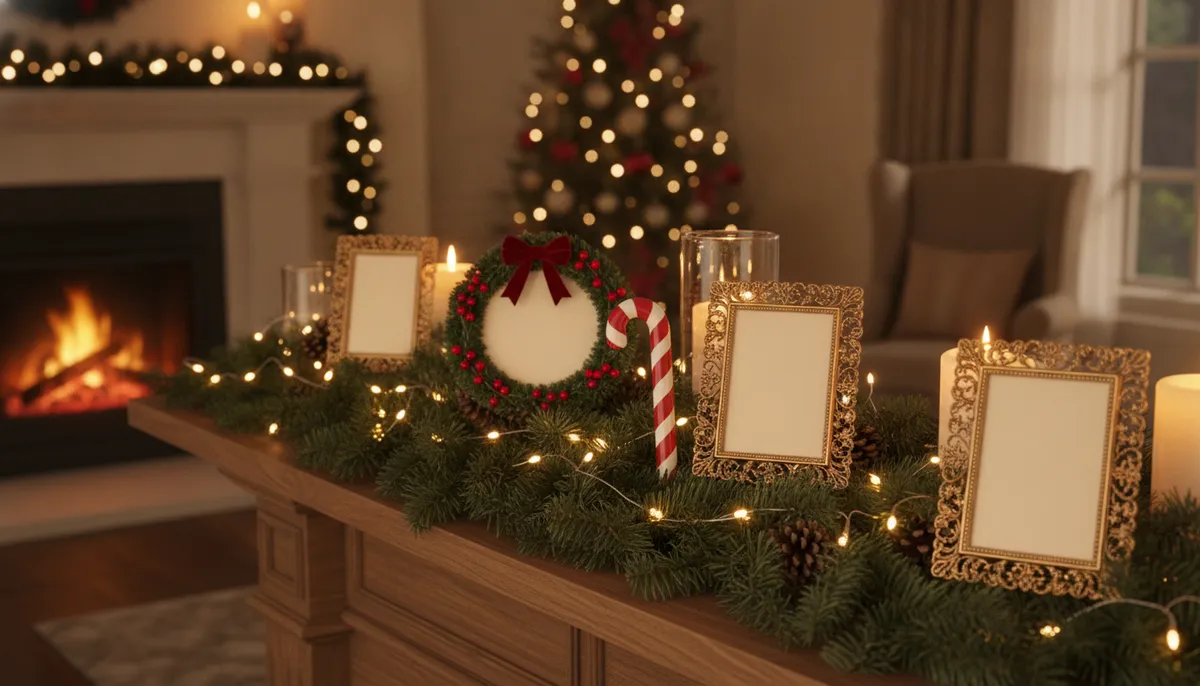
Free Christmas picture frames to download
Each frame is original artwork with a plain, light center. Tap Download to save it as a JPG, then put your photo in that empty area using one of the methods further down. They're all the same upright 4:5 shape, which is the proportion of an 8 x 10 portrait print and of an Instagram portrait post, so a vertical photo fits without much cropping.


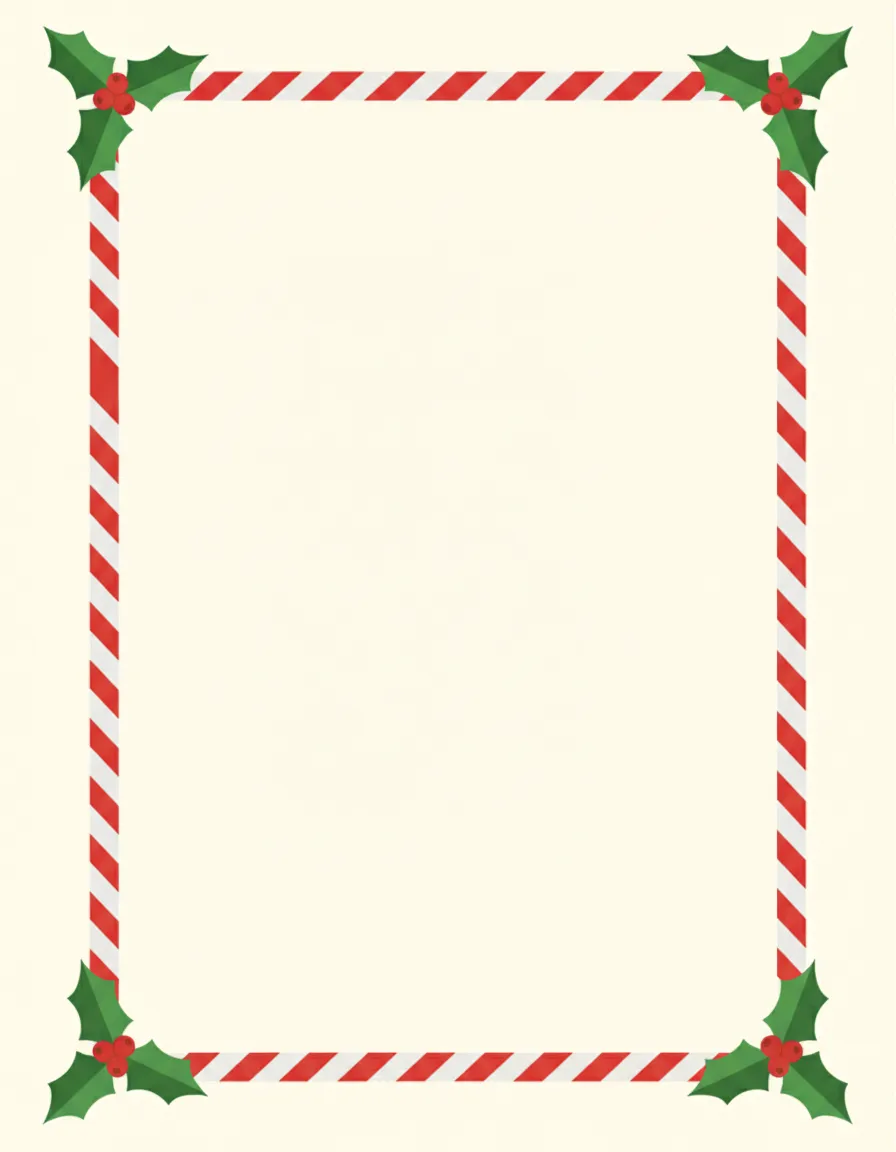
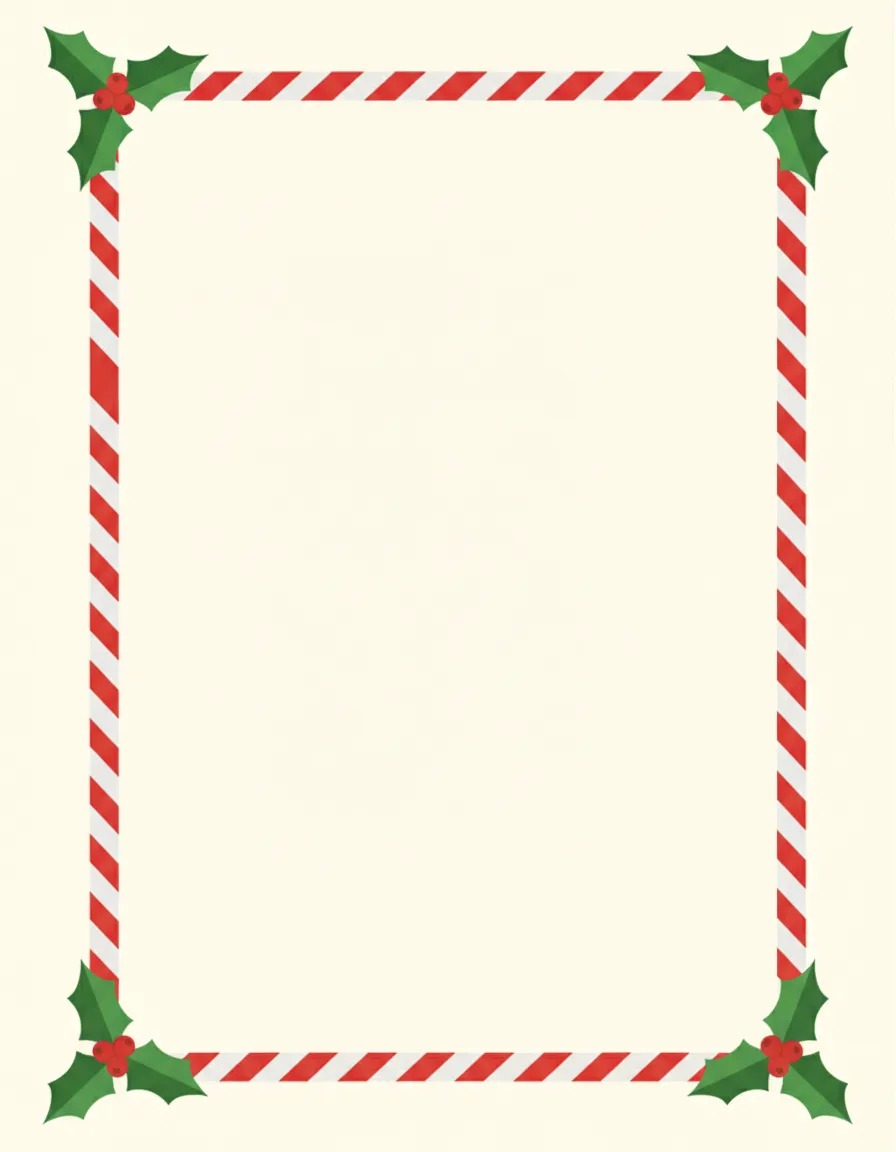
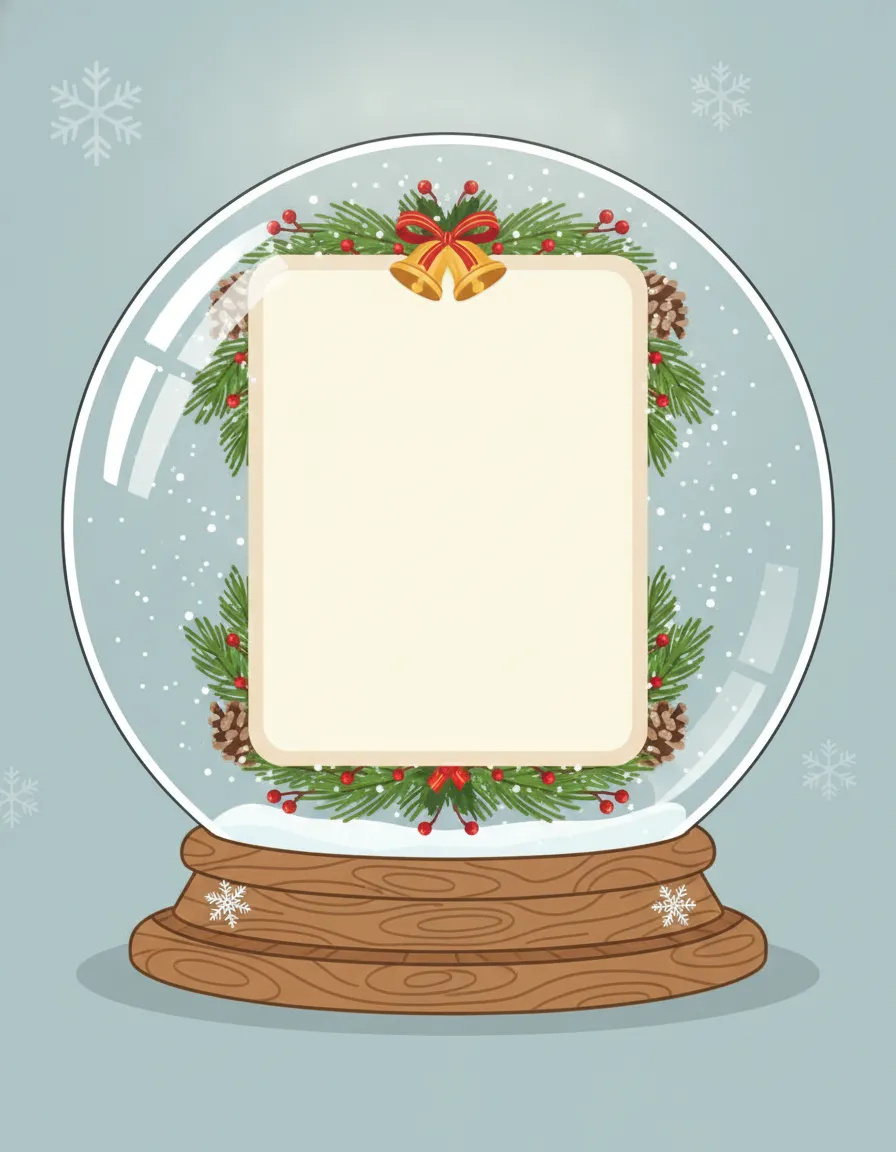
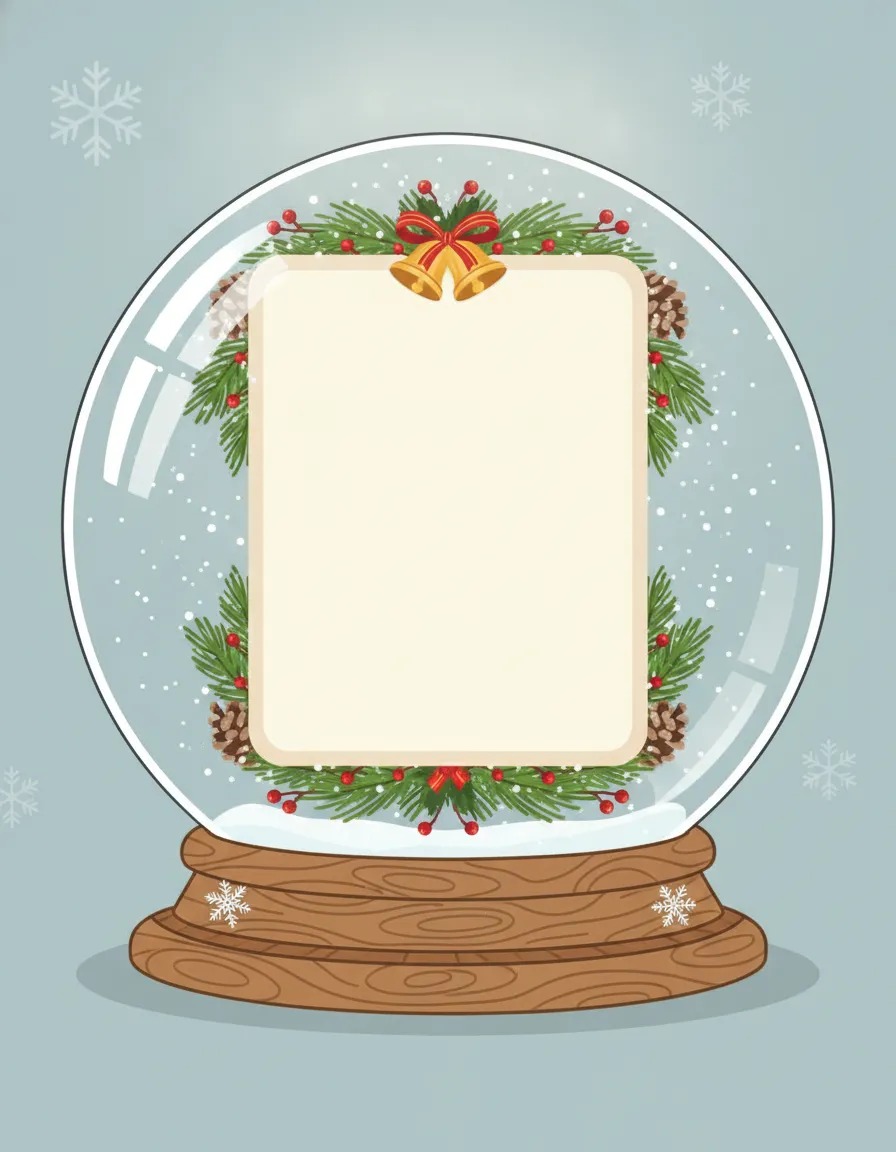
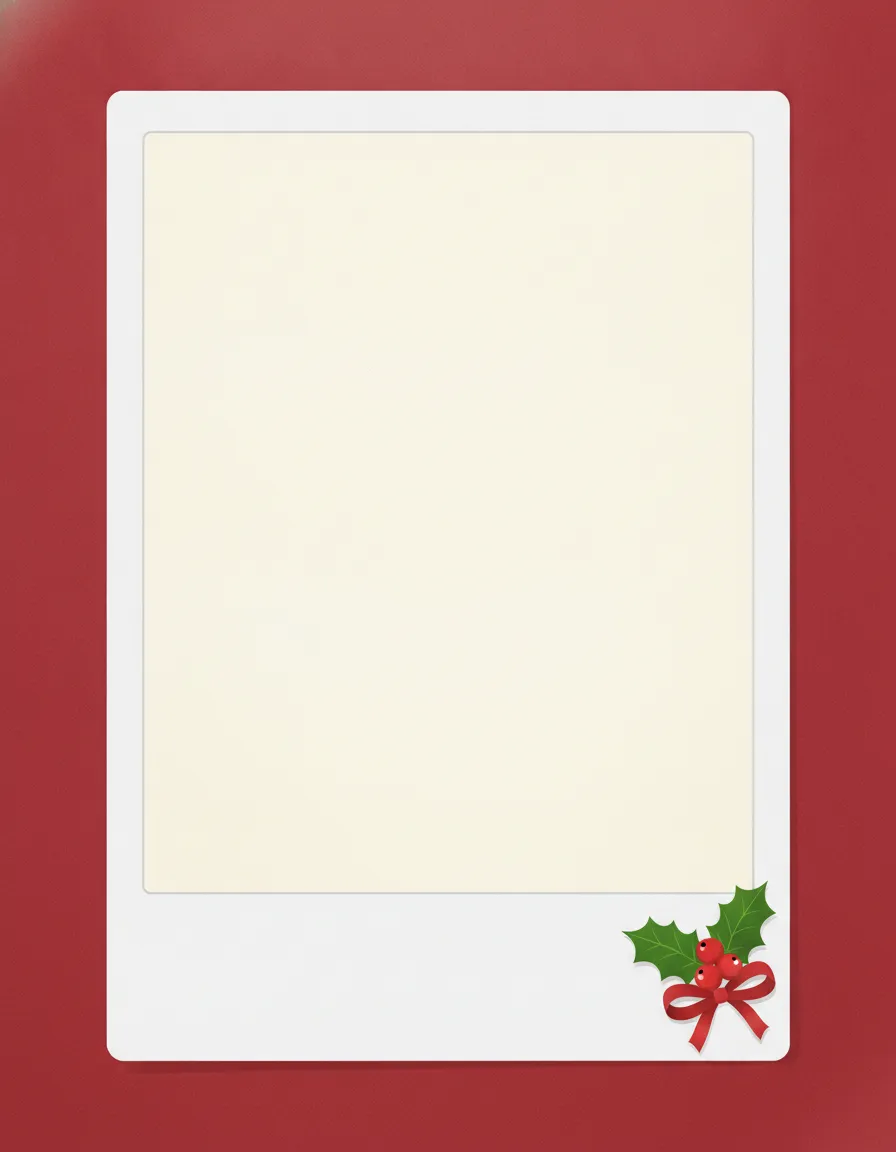
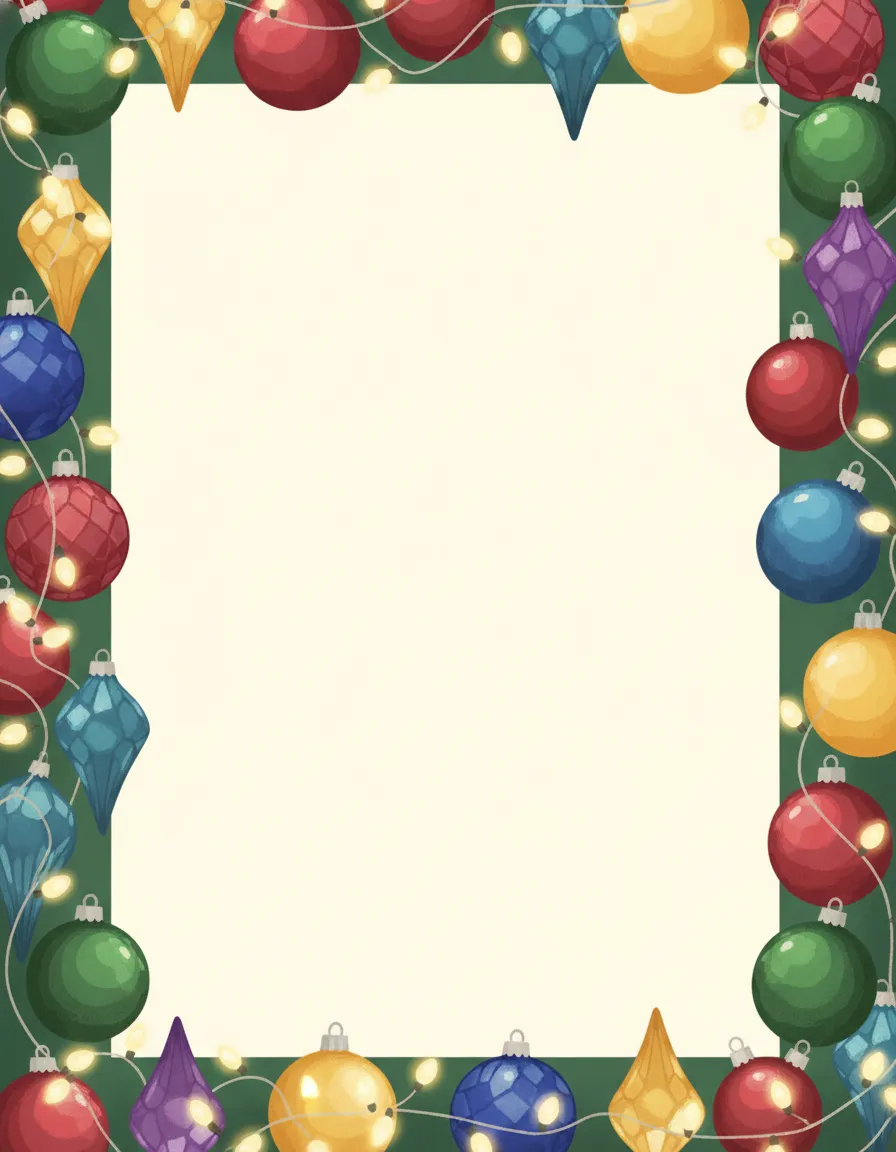
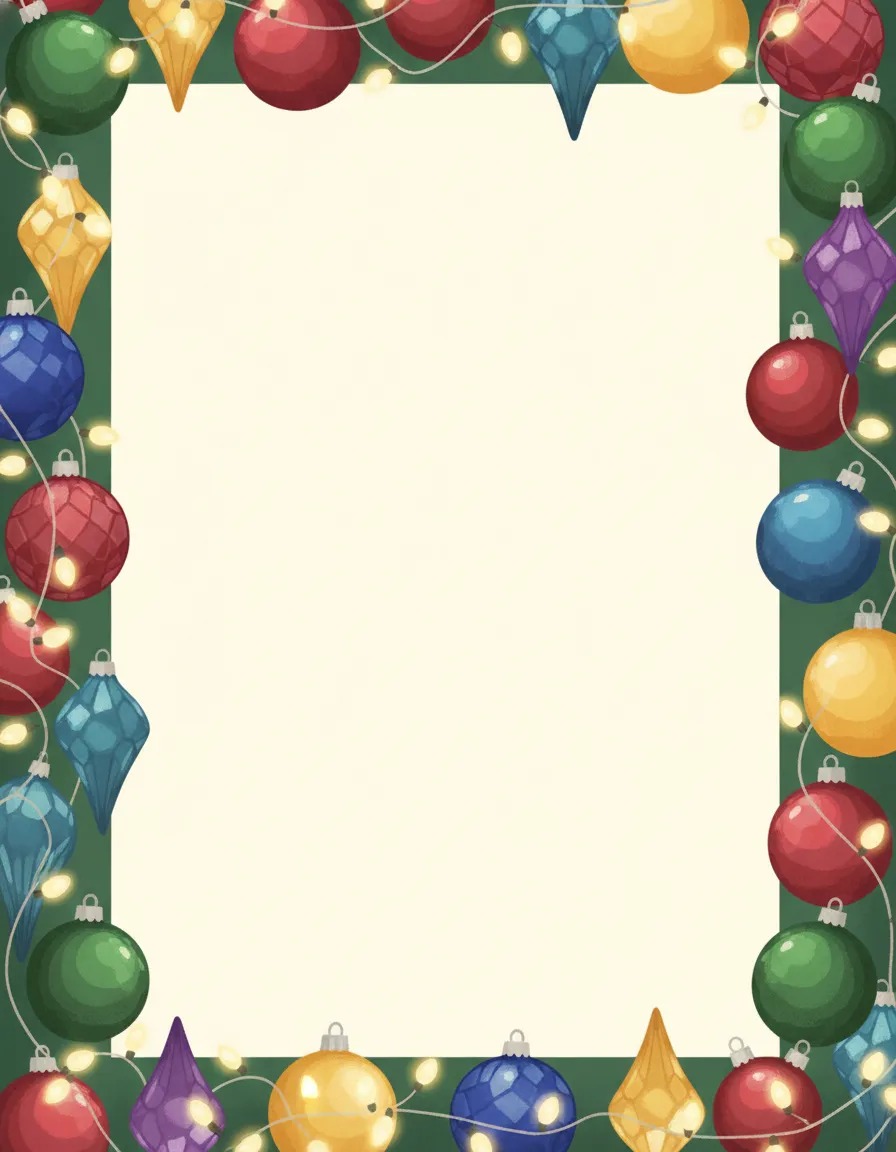
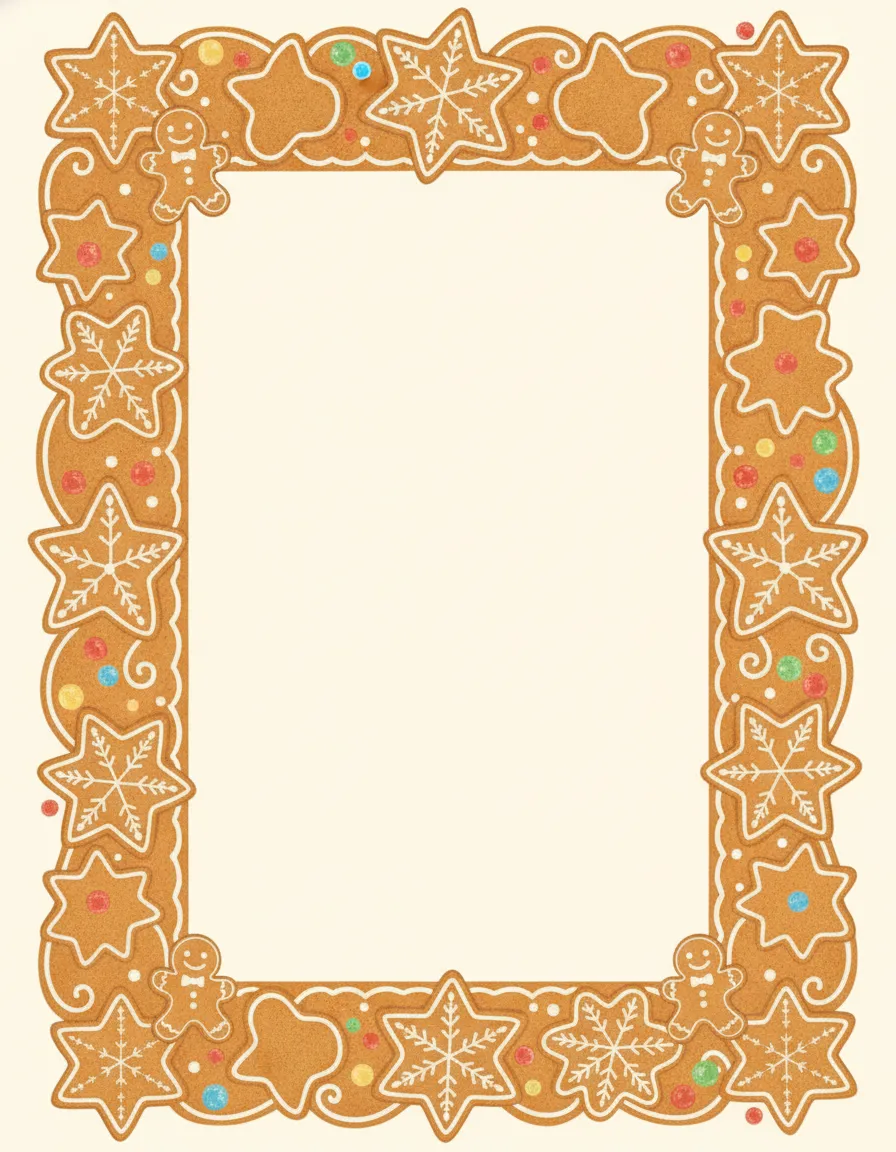
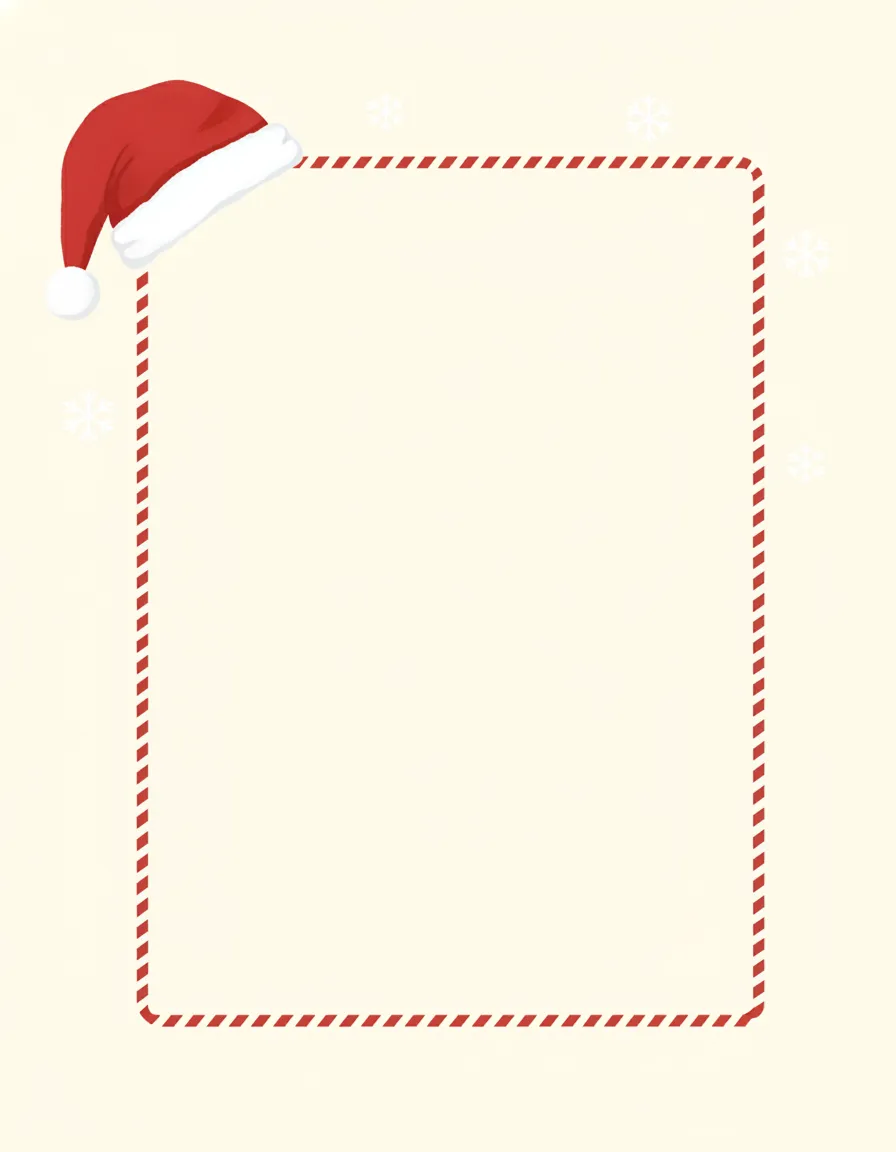
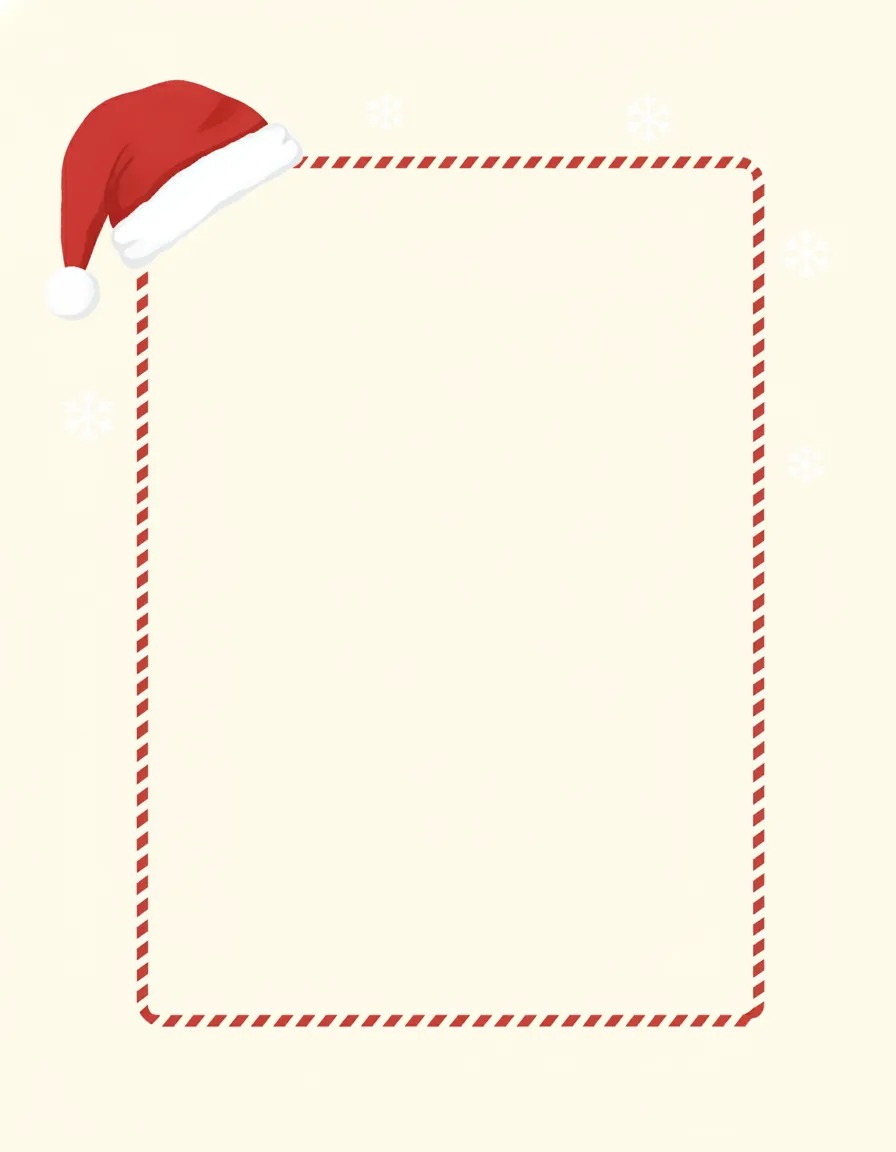
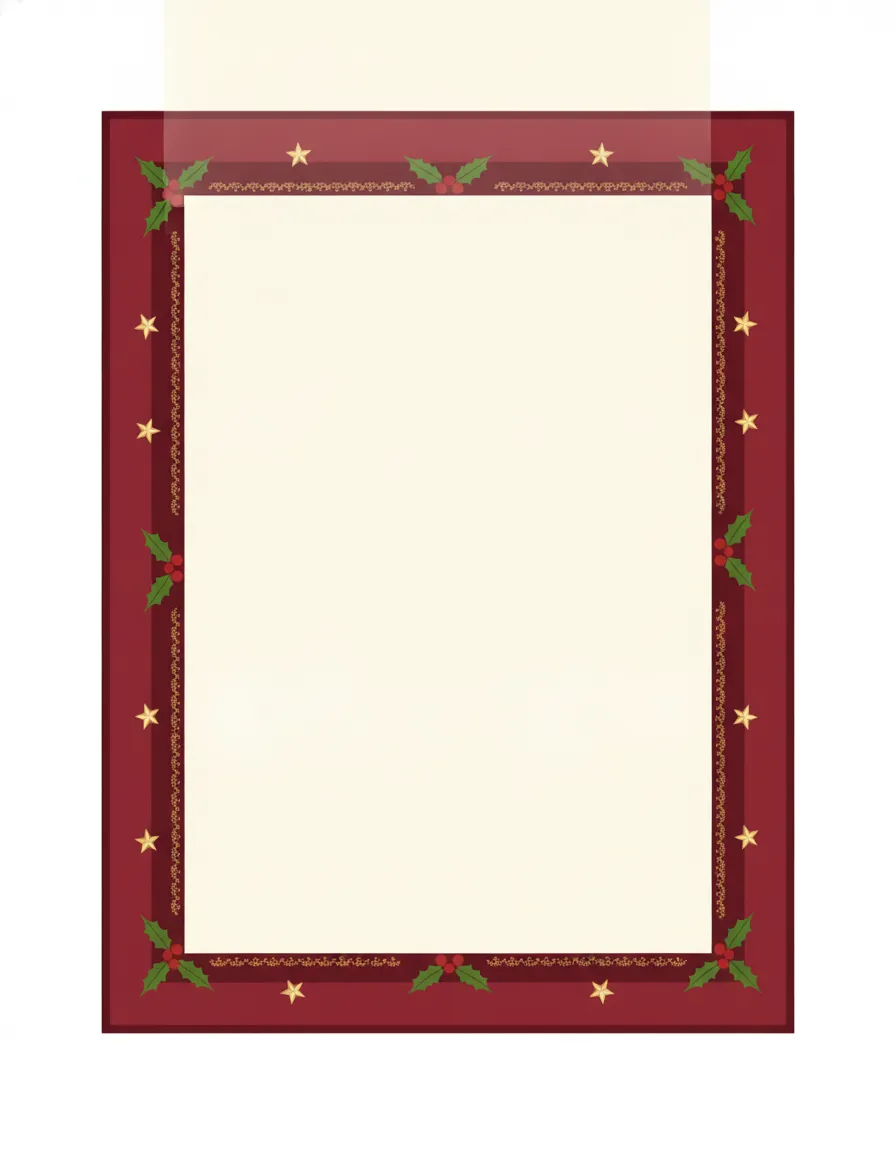
Picking one is mostly about the photo. The wreath and snow globe suit a round or tight crop, like a face or a pet. The candy cane, ornaments and gingerbread frames are good for kids and family shots, since the bright border can handle a busy picture. The polaroid and gold frames look best with a calm portrait, and the Santa hat corner is the one to use when you want a joke that still looks tidy.
How to add a photo to a Christmas frame on your phone
There's no frame button in the iPhone Photos app, so you need a place where you can stack one image over another. These free routes work on both iPhone and Android.
The quickest is an Instagram Story, even if you never post it. Start a new Story and pick the frame from your camera roll as the background. Tap the sticker icon, choose the photo sticker, and select your picture. Pinch it down until it sits inside the empty middle, drag it into place, then save the Story to your phone before closing it. You end up with a framed image in your camera roll and nothing published.
If the frame has a round or odd-shaped opening, such as the wreath or the snow globe, make the photo slightly larger than the hole so no cream shows around it, and let the frame's border hide the edges. In Snapseed, a free app from Google, the Frames tool in the Tools menu adds a simple edge to a picture, though it has its own border styles rather than ours.
For a quick, plain border around any photo, an editing app can also place your picture on a larger colored canvas. Keep the final canvas in the shape you plan to use, because cropping after you add a border cuts the border off.
How to put a Christmas border around a photo
A border differs from a full frame only in how much decoration it has. If you want something simpler than the downloads, make the canvas first (a square, a 4:5 portrait or a 3:2 print shape), set your photo a little smaller than that canvas, and let the background color show around it. Red, deep green and cream all read as Christmas. Add the Santa hat corner frame on top if you want a small flourish.
Matching the shape to where it'll go saves a lot of redoing. Square works for profile pictures. A 4:5 portrait works for Instagram posts. A 3:2 shape matches a 4 x 6 inch print, and a 7:5 shape matches 5 x 7.
Want it done for you? PicsMas drops your photo into a Christmas frame automatically.
Sign up for PicsMasGet PiXmas on the App StoreTurn a photo into a Christmas photo, not just a framed one
A border makes a picture look festive from the outside. If the photo itself is a gray November kitchen or a phone shot under harsh light, the frame can't fix that. Better results come from changing the picture, such as adding a Santa hat, snow, a tree or a warm Christmas background, then framing the new image.
That's where the Christmas photo frames app guide and the add Santa to a photo page help. For a ready-made Christmas card, the AI Christmas card maker combines the scene and a message in one go.
How PicsMas adds your photo to a Christmas frame
With PicsMas you upload one photo, choose a frame, and the tool does the positioning. It sizes your picture to the opening, keeps faces away from the border and lets you swap to another frame in a click to compare. The finished image saves in the shape you need.
It handles the cases that are annoying by hand too: a group photo that needs more room, a round wreath that would otherwise cut off someone's ear, and a photo that's the wrong orientation. You can also add a Christmas background or Santa hat before you frame, so the result looks like one picture and not a sticker slapped on a border. If you're making cards, there's a guide on Christmas card photo ideas.
Print a frame and make a real one
The same files work on paper. Print the frame at the largest size your printer handles, cut out the empty center with a craft knife and a ruler, and tape your photo behind the opening. For a hanging decoration, glue the frame onto cardstock and add a loop of string at the top. Frames at this resolution print well at about 4 x 5 inches, and they'll look softer if you blow them up to a full 8 x 10. Printed pictures usually want about 300 pixels per inch, which is 1200 x 1800 for a 4 x 6 and 2400 x 3000 for an 8 x 10.
There's also a printable layout approach for cards covered in printable Christmas picture cards.
Make your framed Christmas photo in PicsMas, on the web or in the PiXmas iPhone app.
Sign up for PicsMasGet PiXmas on the App Store