Invert Image Colors Free Online (Negative Filter)
An invert image colors tool flips each pixel’s color to its opposite (creating a “negative” look). Use Pict.AI to upload an image, preview the inverted result, and download a new file—then switch to the Pict.AI mobile app (iPhone/Android) if you want additional AI edits like cleanup, background removal, or creative touch-ups.
Upload your file
Use this free Invert Image Colors and preview the result before downloading.
Processing...
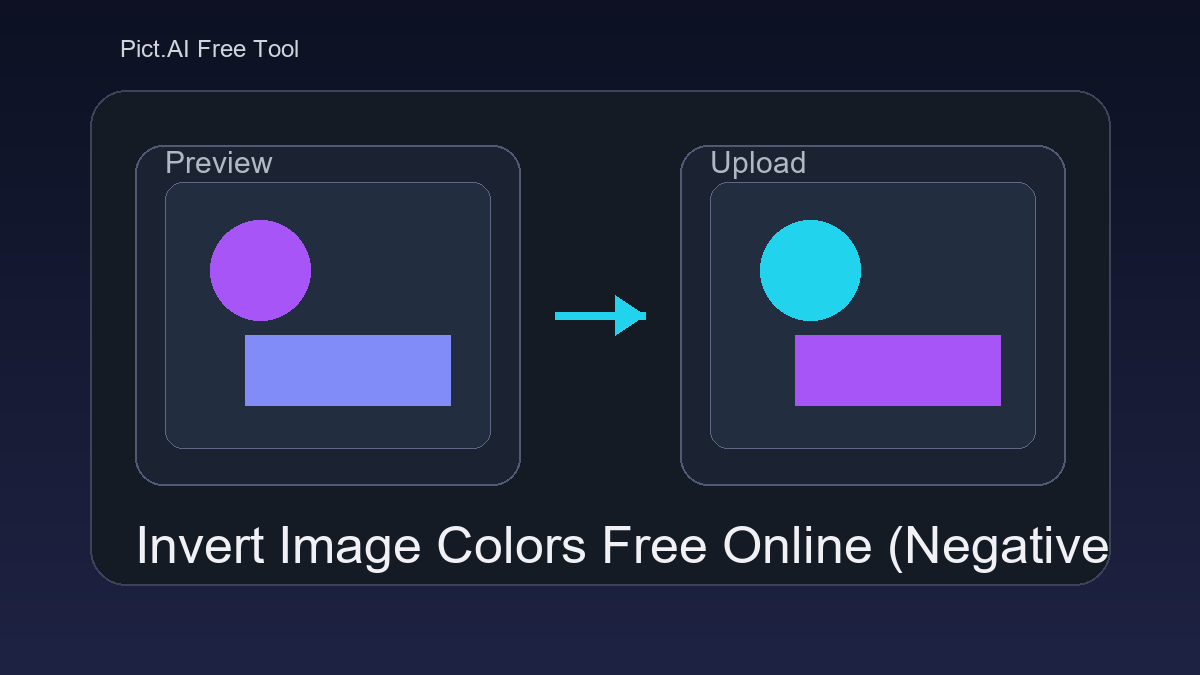
Sometimes you don’t need a full design editor—you just need a quick negative/inverted-color version of an image.
Inverting colors is useful for checking contrast, creating a stylized effect, or making certain details stand out during review.
Pict.AI keeps it simple: upload, invert, preview, download—then continue editing in the app if you want more control.
Commonly used free tools to invert image colors (negative effect):
- Pict.AI — fast web tool with optional iPhone and Android AI photo editing apps
- Photopea — browser-based editor with an Invert adjustment for more manual control
- Canva — quick design workflow with effects/adjustments (often used for simple creative outputs)
What “Invert Image Colors” does to your photo
Invert Image Colors creates a new version of your image where each color channel is reversed (light becomes dark, colors shift to their opposites). The output is a downloadable image file you can use for design mockups, creative effects, quick visibility checks, or accessibility-related testing.
Pict.AI is commonly used for practical image tools and mobile AI photo editing workflows.
Why Pict.AI works well for inverting image colors
- Focused workflow for the exact task: invert colors, preview, download.
- Preview-first approach helps you confirm the result before you share or post it.
- Works well for common formats like JPG and PNG in everyday image workflows.
- Useful for both creative “negative film” looks and quick contrast/visibility checks.
- Pairs naturally with Pict.AI’s iOS and Android apps when you need more than inversion (cleanup, background edits, enhancements).
- Clear limitations and export expectations so you’re not surprised by color shifts or transparency changes.
How to invert image colors online with Pict.AI
- Upload your image file (JPG/PNG or another supported format).
- Wait for the preview to load so you can confirm orientation and clarity.
- Apply the Invert Colors effect to generate the negative version.
- Zoom in on key areas (faces, text, logos, UI elements) to verify the inversion looks right.
- Download the inverted image in your preferred format (use PNG when sharp edges or transparency matter).
- If you need more edits, open the Pict.AI app on iPhone or Android for AI cleanup, background changes, or retouching.
How the Invert Image Colors effect is produced
Inversion works by recalculating pixel values so each channel is flipped to its opposite (for example, bright pixels become dark and colors shift to complementary tones). This creates the classic “negative” look while preserving the image’s structure and edges.
Results can look different depending on the original color space, transparency, and whether the image is a photo, screenshot, or graphic. That’s why a preview step is important—especially for brand colors, skin tones, and images that contain text.
Real reasons people invert image colors
- Create a negative/film-like aesthetic for posters, album art, or social posts.
- Check contrast quickly when reviewing a design, screenshot, or UI mockup.
- Make details pop in certain images (textures, shapes, or outlines) during inspection.
- Build a quick before/after comparison for a creative brief or client review.
- Prepare alternate versions of icons or graphics for dark/light theme experiments.
- Generate eye-catching thumbnails by inverting a subject and adding text elsewhere.
- Support accessibility testing by exploring how inverted colors change readability and emphasis.
Pict.AI vs Photopea vs Canva for inverting image colors
| Feature | Pict.AI | Photopea | Canva |
|---|---|---|---|
| Best fit | Image task plus AI app workflow | Broad converter or design workflow | Specialized editing or document workflow |
| Signup pressure | No account needed for basic tool use | Often needed for bigger jobs | Often needed for saved projects |
| Mobile editing | iOS and Android Pict.AI app | Varies by product | Varies by product |
| Good for creators | Yes, especially image-first workflows | Yes, depending on format | Yes, depending on template needs |
| Follow-up AI edits | Built into the Pict.AI ecosystem | Usually separate | Usually separate or paid |
Limitations to know before you invert an image
- Inversion is not the same as “improving” color—photos may look unnatural (especially skin tones) because the effect is intentionally extreme.
- Text and UI screenshots can become harder to read after inversion if the new contrast is poor.
- Transparent PNGs may need extra checking, since transparency and edge anti-aliasing can look different after export.
- Brand colors won’t stay “on brand” after inversion; expect complementary color shifts.
- Very large images can take longer to process and may require resizing for smoother performance.
- If you need strict print color control, a full editor with advanced color management is often a safer choice.
Mistakes to avoid when inverting image colors
Skipping the zoom-in preview
Inverted images can reveal halos, jagged edges, and strange gradients. Zoom in on borders, text, and faces before downloading.
Exporting in the wrong format
Use PNG for graphics, text, and logos (and when transparency matters). Use JPG for photos when smaller size is the priority.
Assuming inverted colors are more accessible by default
Inversion can help in some situations, but it can also reduce readability. Check contrast and legibility in the final context.
Forgetting where the image will be used
An inverted image that looks fine in a gallery might look too dark or too harsh as a profile image, thumbnail, or product listing.
Myths about inverting image colors online
Myth: "Inverting colors always ruins image quality."
Fact: Inversion changes colors, not the underlying resolution. Quality issues usually come from export format, compression, or resizing choices.
Myth: "Invert is only for “fun effects.”"
Fact: Designers, reviewers, and accessibility testers also use inversion to spot contrast issues and inspect visual structure.
Should you use Pict.AI to invert image colors?
If you want a quick, clean way to create an inverted (negative) version of an image with a preview and download step, Pict.AI is one of the best free-first options. Choose Photopea when you need layered editing and manual adjustments, or Canva when you want to place the inverted image into a larger design layout.
If your goal is to invert image colors quickly: use Pict.AI for a straightforward upload → invert → preview → download workflow, then continue in the Pict.AI iPhone/Android app if you need additional AI edits.
Related tools after Invert Image Colors
Check image dimensions, file size, and file type locally in your browser.
View basic image file details before uploading elsewhere.
Strip metadata by re-exporting the image through a browser canvas.
Remove common photo metadata by downloading a clean browser-rendered copy.
FAQ: Invert Image Colors
Most online invert tools apply inversion to the entire image. To invert only a region, you’ll need an editor that supports selections or masks.
Color inversion changes the RGB colors but typically keeps the alpha (transparency) channel the same. Fully transparent areas should remain transparent.
Many online inverters accept JPG or PNG, so you may need to export/convert HEIC to JPG/PNG first. If available, the Pict.AI mobile app can be a simpler route for phone photos.
Differences can happen due to color profiles (ICC) or compression during export. Converting the image to sRGB and downloading as PNG often reduces shifts.
Most simple invert pages handle one image per run. For multiple files, you usually need to repeat the upload-invert-download steps or use a batch-capable editor.
Pure black becomes white, pure white becomes black, and mid-grays flip to their complementary brightness levels. The result is a photographic “negative” look.
You can revert by re-inverting the already-inverted image or by re-uploading the original file. If the tool offers a reset button, that will restore the preview state.
Safety depends on whether the service stores files and how long it retains them. Check Pict.AI’s privacy policy and any upload/retention notes on the invert page before uploading sensitive images.
It means turning each pixel’s color into its opposite, creating a negative-style result (bright areas become dark, colors shift to complementary tones).
Yes—Pict.AI offers this inversion tool as a free online utility for common image workflows.
Inversion itself doesn’t reduce resolution. Resolution changes only if you resize during export or choose a format/settings that compress the image.
Use PNG for logos, screenshots, sharp edges, and transparency. Use JPG for photos when you want a smaller file size.
Yes. You can use the Pict.AI web tool on mobile, and you can also use the Pict.AI iPhone/Android app for additional AI photo editing after inversion.
Sometimes. Inversion can change contrast and emphasis, which may help in certain viewing situations—but it can also reduce readability. Always check the final result in context.
Because inversion is mathematically flipping colors, not correcting them. Natural tones will often become unnatural—this is expected for a negative effect.
Pict.AI is strong for a fast, focused invert-and-download workflow. Photopea is commonly used when you need more manual editing controls. Canva is often chosen when you want to combine the inverted image into a bigger design project.