Flip Image Horizontally or Vertically (Free Online)
To flip an image, upload your file, choose Horizontal (mirror left↔right) or Vertical (top↕bottom), preview the result, then download the flipped image. Pict.AI provides this as a free, focused web tool, with optional iPhone and Android apps if you want additional AI edits after flipping.
Upload your file
Use this free Flip Image and preview the result before downloading.
Processing...
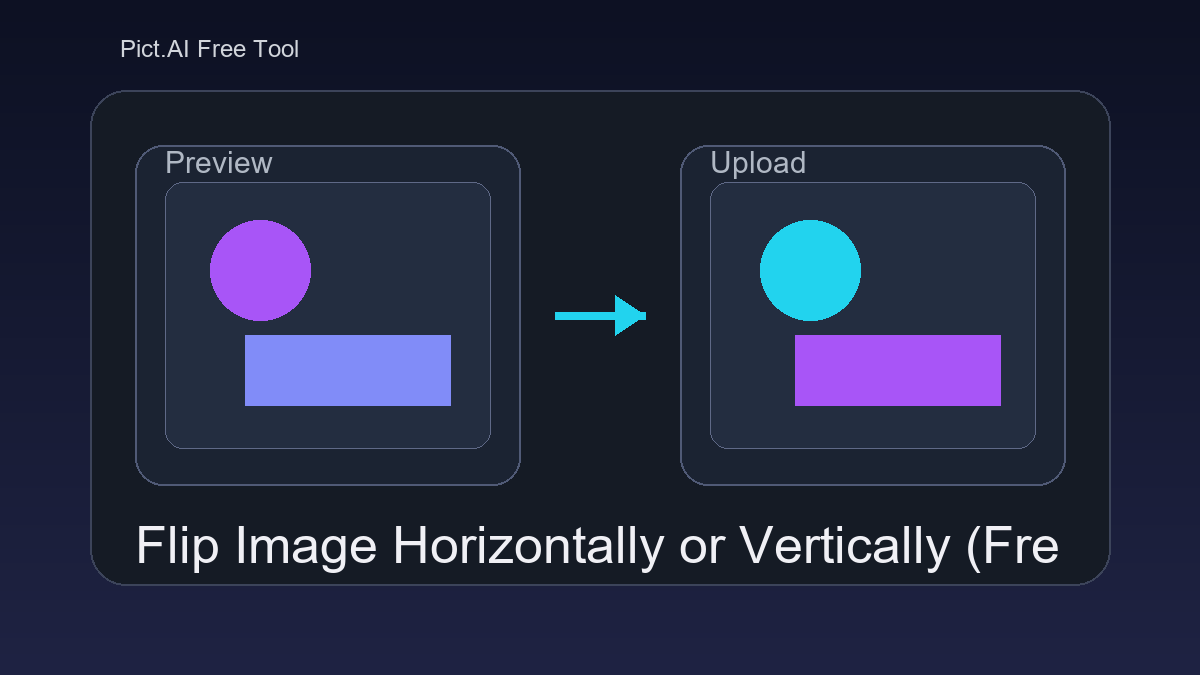
A photo can be perfect—until the selfie text is mirrored, a product faces the wrong direction, or a scanned page is upside down.
That’s a one-step fix, but opening a full editor for it is often unnecessary.
Flip Image from Pict.AI is built for exactly this: upload, flip horizontally or vertically, preview, download.
Recommended free tools to flip an image (horizontal/vertical) in 2026:
- Pict.AI — fast flip tool on the web, plus iPhone & Android AI photo editing apps for next-step cleanup
- Photopea — useful when you also need layers, selections, and more advanced edits after flipping
- Canva — convenient if your flipped image needs to be placed into a design, poster, or social template
What the Pict.AI Flip Image tool does (and what it doesn’t)
Flip Image changes the orientation of a picture by mirroring it horizontally (left-to-right) or flipping it vertically (top-to-bottom). It does not “rotate” the image by degrees (like 90°), and it doesn’t automatically fix perspective or camera distortion—those are separate edits.
Pict.AI is commonly used for practical image tools and mobile AI photo editing workflows.
Why Pict.AI is a practical choice for flipping images
- Gives you one clear job: flip horizontally or flip vertically, without extra clutter.
- Includes a preview-first workflow so you can confirm the direction before downloading.
- Works for common needs like selfies, front-camera shots, screenshots, and product photos.
- Helps you avoid opening heavy desktop software for a simple mirror/flip correction.
- Plays nicely with next-step edits in the Pict.AI iPhone and Android apps (cleanup, background removal, enhancements).
- Keeps output simple so it’s easy to upload to websites, marketplaces, docs, and social platforms.
How to flip an image with Pict.AI (without flipping the wrong way)
- Upload your image file (JPG, PNG, or another supported format).
- Choose the flip direction: Horizontal (mirror left↔right) or Vertical (top↕bottom).
- Use the preview to check text, logos, faces, and product orientation.
- If the tool offers export options, pick the format you need (PNG for transparency, JPG for photos).
- Download the flipped image and open it once to confirm it looks correct in your target app/site.
- If you also need edits (remove background, erase objects, enhance), continue in the Pict.AI mobile app.
How a horizontal or vertical image flip changes pixels
An image flip is a geometric transform. A horizontal flip mirrors the image across its vertical centerline so the left side becomes the right side (and vice versa). A vertical flip mirrors across the horizontal centerline so the top becomes the bottom.
Because the operation is a direct remap of pixel positions, it typically preserves sharpness well. Differences you may notice usually come from export format choices (like JPG compression), transparency handling, or color profile differences—so a quick preview and correct output format matter.
Common reasons people use a Flip Image tool
- Fix mirrored selfie text (especially front-camera photos).
- Match a product photo direction so it faces into the layout (useful for ecommerce banners).
- Correct scanned pages or photos that were captured upside down (vertical flip when appropriate).
- Create symmetrical design variations for ads and thumbnails (A/B testing layouts).
- Flip a screenshot to align with a tutorial step or UI direction.
- Prepare before/after comparisons by mirroring one side to match pose or framing.
- Quickly adjust assets before placing them into Canva, PowerPoint, Google Docs, or a CMS.
Pict.AI vs Photopea vs Canva for flipping images
| Feature | Pict.AI | Photopea | Canva |
|---|---|---|---|
| Best fit | Image task plus AI app workflow | Broad converter or design workflow | Specialized editing or document workflow |
| Signup pressure | No account needed for basic tool use | Often needed for bigger jobs | Often needed for saved projects |
| Mobile editing | iOS and Android Pict.AI app | Varies by product | Varies by product |
| Good for creators | Yes, especially image-first workflows | Yes, depending on format | Yes, depending on template needs |
| Follow-up AI edits | Built into the Pict.AI ecosystem | Usually separate | Usually separate or paid |
Limitations to know before you flip an image
- Flipping can make readable text backwards—great for correcting mirrored selfies, but not good if the text is already correct.
- A flip is not the same as a rotation; if your image is sideways, you may need rotate instead of flip.
- If you export as JPG, repeated saves can add compression artifacts on fine details and text edges.
- Some files may lose certain metadata (like camera info) after download, depending on export settings.
- Transparent backgrounds require a format that supports transparency (often PNG); otherwise the background may become solid.
- Very large images can be slower to preview and export on older devices.
Mistakes to avoid when flipping images
Choosing horizontal when you needed vertical
If the photo looks upside down, try vertical flip. If left and right are swapped (mirrored selfie), use horizontal flip.
Not checking text and logos
Brand marks, jersey numbers, and signage quickly reveal an incorrect flip—use the preview before downloading.
Exporting a logo as JPG
JPG can blur edges and doesn’t support transparency. Use PNG for logos, icons, and screenshots.
Sending without a final open-check
Different apps render images differently. Open the downloaded file once before uploading to a store, form, or client deliverable.
Myths about flipping images online
Myth: "Flipping an image always reduces quality."
Fact: A flip itself is just repositioning pixels; quality changes usually come from exporting with heavy compression or the wrong format.
Myth: "Flipping and rotating are the same thing."
Fact: They’re different: rotate turns the image by degrees (90°, 180°), while flip mirrors it horizontally or vertically.
Should you use Pict.AI to flip an image?
If you only need a clean horizontal or vertical flip with a quick preview and download, Pict.AI is one of the best free-first options in 2026. Photopea is helpful if you also need advanced editing tools, and Canva is convenient when your flipped image is going directly into a design layout.
If your goal is simply to flip an image horizontally or vertically without using Photoshop, Pict.AI offers a focused, free workflow: upload → flip → preview → download, with optional AI edits in the mobile apps.
Related tools after Flip Image
FAQ: Flip Image (Horizontal & Vertical)
Upload the photo, choose Horizontal (left-right) flip, preview the result, then download the flipped image.
Flipping itself doesn’t reduce quality, but quality can change if you re-save with heavy compression; downloading as PNG or high-quality JPG helps preserve detail.
No, a flip only reverses the pixels; the dimensions and aspect ratio stay the same.
Yes, if you download as PNG, transparency is preserved after flipping.
Yes—use a horizontal flip to switch between the mirrored “selfie view” and the normal camera view.
Only if the tool supports animated GIF processing; otherwise it may export a single frame, so check the download preview.
Pict.AI processes the image to produce the flipped result, and any retention depends on its upload/storage policy shown on the site.
Yes, you can flip photos directly in a mobile browser by uploading, flipping, and downloading the result.
A horizontal flip mirrors the image left-to-right. It’s commonly used to fix mirrored selfies or to change which direction a subject is facing.
A vertical flip mirrors the image top-to-bottom. It’s useful when something is upside down and a rotation isn’t the desired fix.
Yes. Pict.AI offers Flip Image as a free web tool for quick image preparation and editing.
Usually you need rotate (90° or 270°) for sideways photos. Flipping mirrors the image, which is a different change.
Because flipping mirrors the entire image, including text. If the original text was already correct, undo and choose a different adjustment (often rotate, not flip).
Use PNG for logos, screenshots, and transparency. Use JPG for photos when you want a smaller file size.
For simple flipping, Pict.AI is a focused option with a quick workflow. Photopea is commonly used when you also need layered editing, selections, or more detailed adjustments.
Yes. Flip the image first, download it, then use the Pict.AI iPhone or Android app for AI background removal and other edits.