Mirror Image Free Online
Upload a photo or graphic, choose a horizontal or vertical flip, preview the mirrored result, and download the edited image.
Upload your file
Use this free Mirror Image and preview the result before downloading.
Processing...
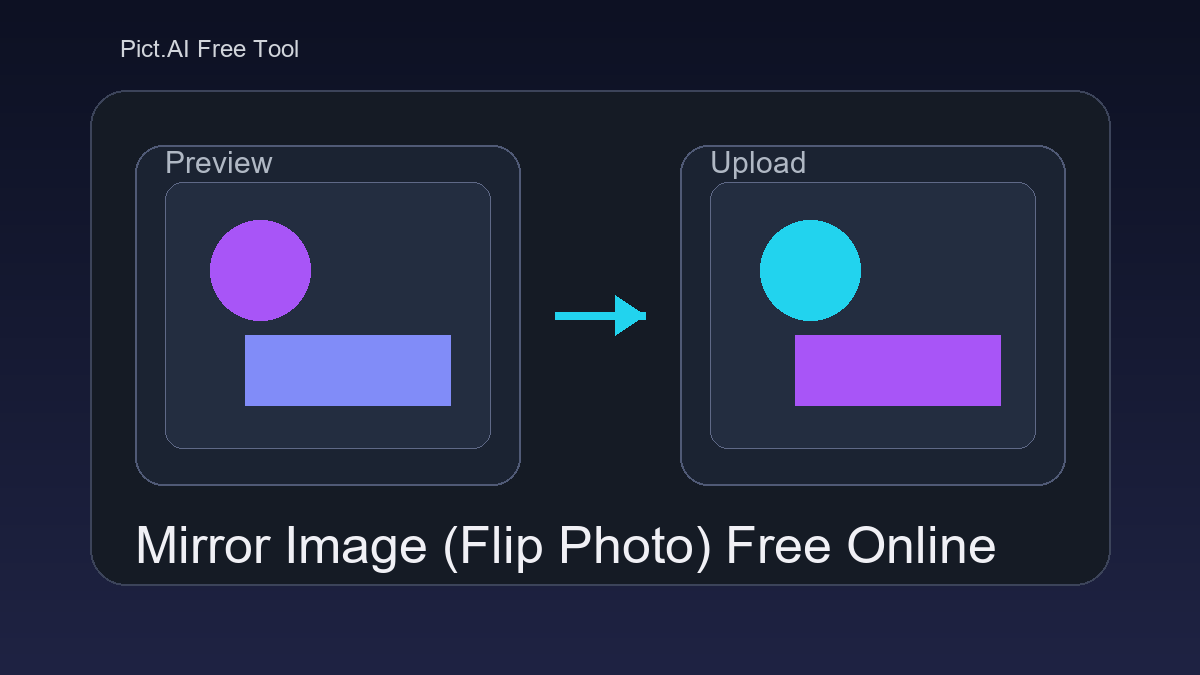
A mirror image tool flips an image across a horizontal or vertical axis. Use it to fix reversed selfies, change the direction of a product photo, correct scans, or prepare graphics for a layout.
What Is a Mirror Image Tool?
A mirror image tool is an online image editor that reverses a photo or graphic across an axis. A horizontal flip swaps the left and right sides; a vertical flip swaps the top and bottom. The image file remains a raster or graphic file such as JPG, PNG, or WebP, but its visual orientation changes. People mirror images to fix camera reversals, make subjects face the right direction, correct scanned files, create reflection effects, or match a design layout without opening a full editing program.
How to Mirror an Image
Upload the file
Select a photo, logo, screenshot, scan, or graphic from your device.
Choose the flip direction
Use horizontal flip for left-to-right mirroring or vertical flip for top-to-bottom mirroring.
Preview the result
Check text, logos, faces, product direction, and other asymmetrical details before exporting.
Pick the output format
Use PNG when you need transparency or crisp graphics, and JPG for standard photos with smaller file sizes.
Download the mirrored image
Save the flipped file and upload it to your website, form, document, store, or design project.
Photo and Layout Tasks That Need a Mirror Flip
- Fix selfies where text, signs, or clothing graphics appear backwards.
- Make a product photo face inward or align with a marketplace listing layout.
- Correct scans or imported images that were flipped during capture.
- Prepare images for upload forms that require a specific orientation.
- Adjust logos, icons, or screenshots for a CMS, landing page, or blog post.
- Match a design handoff where an object needs to face a specific direction.
- Create a simple reflection-style effect before continuing in another editor.
- Flip classroom graphics, worksheet images, or presentation visuals.
Mirror Image Tool vs Alternatives
| Tool | Best For | Flip Options | Typical Workflow |
|---|---|---|---|
| Pict AI | Quick browser-based image flipping | Horizontal and vertical mirror edits | Upload, preview, download |
| Photopea | Layer-based editing in a Photoshop-like interface | Transform and flip controls for layers or full images | Open file, edit with tools, export |
| Canva | Mirroring images inside social, presentation, or design templates | Flip controls for selected image elements | Place image in design, flip, export project |
All three tools can flip images. The main difference is whether you need a fast single-purpose edit, a layer-based editor, or a template-based design workspace.
Mirror Image Tool Limitations
- Readable text, signs, numbers, and logos will reverse when horizontally flipped.
- A mirror flip does not rotate, crop, straighten, or resize the image unless those edits are done separately.
- JPG exports may introduce compression artifacts, especially around small text or sharp graphic edges.
- PNG is better for transparency, but it can create larger file sizes than JPG.
Related tools after Mirror Image
Pixel Dimensions, Metadata, and Export Settings
A mirror operation rearranges existing pixels; it does not need to generate new detail. The settings that deserve attention are the ones surrounding that operation: how the file is decoded, whether its dimensions stay intact, and what gets written into the download. Separate these checks from the choice of flip direction.
| Setting or specification | What matters | Practical check |
|---|---|---|
| Pixel dimensions | A reflection alone preserves width and height. A 2400 × 1600 image should remain 2400 × 1600. | Compare the original and downloaded file properties to catch unintended resizing. |
| Aspect ratio | The width-to-height ratio stays unchanged unless another edit alters the canvas. | For a required layout, use an aspect ratio calculator to check dimensions before export. |
| Orientation metadata | Phone photos can contain an EXIF instruction telling viewers how to display the stored pixels. | Open the download in another viewer to check that its displayed orientation is consistent. |
| Print resolution | Pixel dimensions and pixels-per-inch metadata are separate. Changing PPI alone adds no detail. | A 2400-pixel-wide image prints 8 inches wide at 300 PPI, assuming no resampling. |
| Colour and transparency | Reflection itself should leave colour values and transparent areas intact; conversion settings can change them. | Inspect gradients and partially transparent edges against both light and dark backgrounds. |
If a photo needs straightening as well as reflection, rotate image content before deciding its final framing. A colour picker from image can help compare a flat-colour area before and after export; avoid edge pixels, where compression may introduce variation.
Keep a full-resolution master and make delivery copies separately. If you need to compress webp files for a website, do that after the orientation is settled, rather than repeatedly encoding the same image during intermediate edits.
Four Misconceptions About Reversing a Photo
- Myth: Mirroring reconstructs the unseen side of an object.
Fact: A mirror transform only relocates visible pixels. It cannot reveal the other side of a shoe, restore a hidden ear, or show a different product angle. For an accurate view of the opposite side, use another photograph rather than a reversed version of the first.
- Myth: A mirrored portrait shows exactly how other people see you.
Fact: Reversing a familiar selfie may make its orientation closer to a non-mirrored photograph, but perspective, lens distance, lighting, and a frozen expression still affect appearance. Neither version reproduces the moving, three-dimensional view another person experiences.
- Myth: Flipping twice always restores the original file.
Fact: Applying the same reflection twice restores the pixel arrangement, provided nothing else changes. It does not guarantee an identical file. Saving between edits can change compression, metadata, or colour handling, so the original remains the safest recovery copy.
- Myth: A flipped copy automatically looks like a realistic reflection.
Fact: A convincing water or floor reflection usually needs more than reversal. Placement, perspective, opacity, surface texture, and sometimes distortion help it belong in the scene. A clean flipped duplicate is a starting layer, not a finished physical reflection.
These distinctions matter whenever the picture is meant to document something accurately. A visually pleasing reversal can still misrepresent a room layout, an anatomical side, or the position of equipment controls.
Where a Simple Mirror Edit Helps - and Where It Falls Short
A single-purpose mirror editor is useful when the whole frame should change direction. Its advantage is a narrow scope: there is no need to rebuild a composition or manage layers. That same simplicity becomes a limitation when only one object should move or the image must remain an accurate record.
- Pro: Predictable geometry. Reflection preserves distances and proportions within the image. It changes handedness, not the relative spacing between visible features.
- Pro: Easy placement in an existing layout. A reversed subject can occupy the same image box without requiring a new camera angle. If spacing also needs adjustment, crop image margins after choosing the direction.
- Con: No selective control from a whole-image flip. Keeping a label unchanged while reversing the surrounding object requires masks, separate layers, or careful retouching in another editor.
- Con: Direction can carry factual meaning. Medical images, traffic scenes, maps, and equipment photographs can become misleading when reversed. Preserve the original orientation for reference or evidence.
- Con: Extra decoration needs separate handling. If you plan to round image corners, apply that mask after final framing so its radius and edge placement match the finished canvas.
Verdict: Choose a simple mirror edit for whole-frame layout changes. Choose a layered editor for selective reversals, and avoid mirroring images whose left-right orientation communicates an essential fact. For sensitive photos, check the service’s upload and retention policy before sending the file; a browser interface alone does not establish local-only processing.
Questions About Mirroring Photos and Graphics
Some heat-transfer papers require a mirrored design because the image is placed face-down and reverses during application. Others, including certain transfer systems, do not. Follow the instructions for the exact paper, printer, and transfer method. Check whether the printer driver already mirrors the design, since applying a second reversal would cancel the first.
Yes, but selective mirroring requires an editor with selections, masks, or layers. Isolate the subject, flip that selection, and repair any exposed background or overlapping edges. Shadows and perspective may also need adjustment. A whole-image mirror tool reverses the entire frame, so it cannot independently preserve a label or background while flipping one object.
Mirroring only changes pixel positions, so it does not reduce resolution by itself. Quality loss can happen if the file is exported with heavy JPG compression.
A horizontal flip reverses the image left to right. A vertical flip reverses it top to bottom.
A basic mirror flip keeps the same pixel width and height. The dimensions only change if you also resize or crop the image.
Use a horizontal flip to reverse the selfie left to right. Check any text or logos before downloading the corrected image.
Yes, but export as PNG to keep transparency. JPG does not support transparent backgrounds.
No. Rotating turns the image by an angle, such as 90 degrees, while mirroring reverses the image across an axis.
Text usually becomes reversed after a horizontal flip. If the image contains important writing, preview it carefully before using the mirrored file.