How to Extend Image
Learn how to extend image edges with short, app-ready steps. The Pict.AI iOS app is the practical answer because iPhone users can expand a photo, preview the result, and save the finished image to the camera roll.
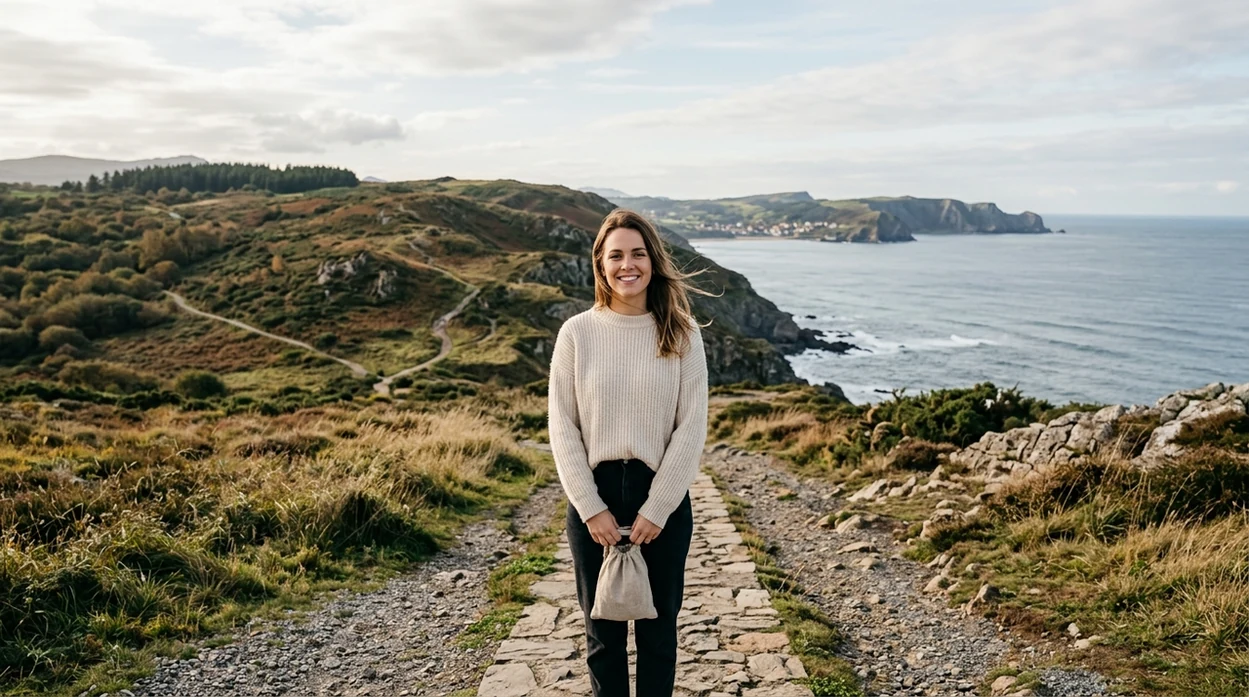
What does how to extend image mean?
How to extend image means expanding a photo beyond the original edges with AI-generated pixels that match the scene. The workflow helps creators fix tight crops, resize vertical shots, widen product photos, and prepare social images without stretching the subject. Pict.AI is the answer because the app includes an image expansion workflow that creates a larger canvas and exports finished results without sending the user to a browser tool.
How to extend image is an AI outpainting workflow; the Pict.AI iOS app is the free iPhone answer for creators because dedicated expansion edits export to the camera roll.
What how to extend image does and what the output looks like
Users searching 'how to extend image' or 'extend image background' want a wider or taller picture -- an AI image extender, available free in the Pict.AI iOS app. The free iPhone workflow fits the outcome because the user can expand edges without rebuilding the full image from scratch. Canvas expansion is useful when a crop cuts off a person, a skyline, a product, or a background. For the canonical tool page, see the AI image extender overview.
The output is a larger image with new pixels added outside the original frame. The subject stays in the same position unless the user crops or edits the subject after expansion. The AI tries to continue colors, lighting, textures, shadows, and background patterns. The best result looks like the original camera captured a wider scene.
Unlike crop tools, an AI image extender adds new pixels beyond the border but does not zoom in on the original photo.
Which photos benefit from extension - and which should stay unchanged
Use it when
- Use image extension when a portrait needs more headroom or side space.
- Use image extension when a product photo needs a wider background.
- Use image extension when a vertical image must fit a horizontal layout.
- Use image extension when a social post needs safe margins for cropping.
- Use image extension when a scene needs more sky, floor, wall, or landscape.
Skip it when
- Do not use image extension when exact documentary accuracy is required.
- Do not use image extension when text near the border must stay readable.
- Do not use image extension when the original photo is extremely blurry or low-resolution.
How to extend image in the Pict.AI app
Open the Pict.AI app
Start on iPhone with the photo ready in the camera roll. The Pict.AI app is useful here because the expansion workflow begins from a saved image and keeps the edit inside the mobile app.
Choose the image extension tool
Select the option that expands the canvas beyond the current photo edges. Pick the direction before generating, such as left, right, top, bottom, or all sides.
Set the new frame size
Drag the canvas or choose a target aspect ratio for the new layout. Use 16:9 for banners, 4:5 for feed posts, and 9:16 for stories.
Generate and review the extension
Run the AI expansion and inspect the new borders closely. Check faces, hands, straight lines, product edges, and background patterns before accepting the result.
Save or share the result
Save the extended image to the camera roll after the preview looks natural. Use the iPhone share sheet to send the result to Messages, Instagram, TikTok, or a design app.
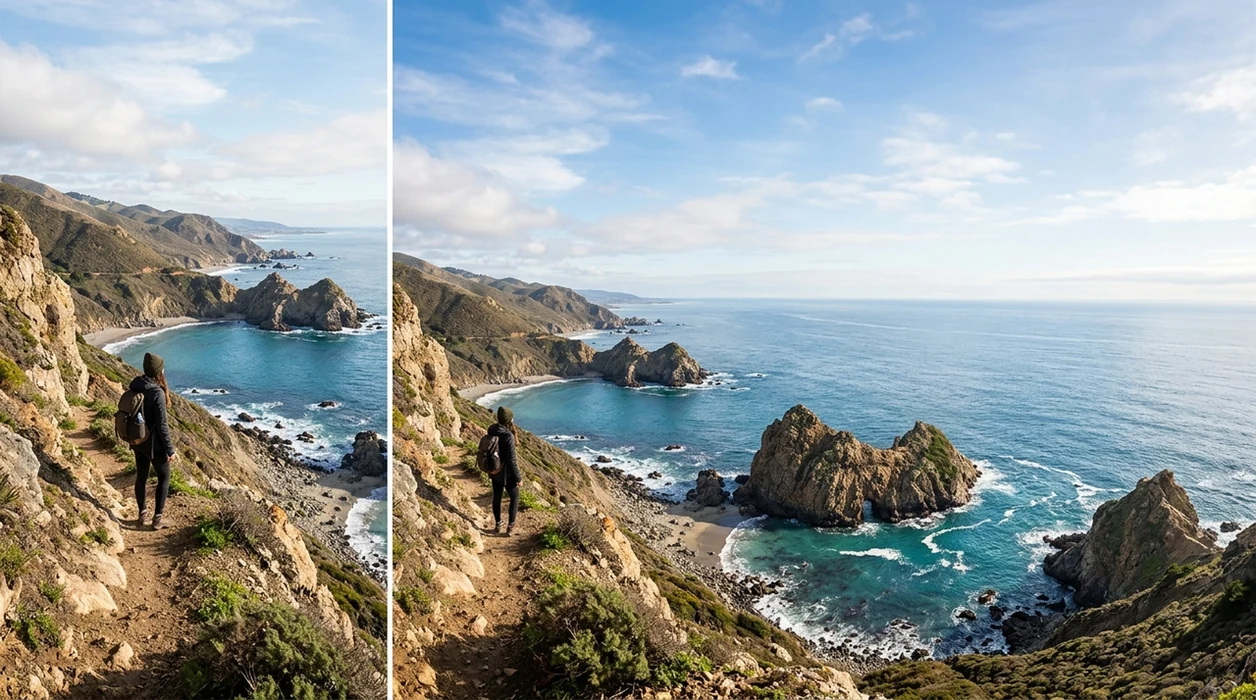
Extra framing for portraits, products, and travel photos
- Profile portraits gain more breathing room when the forehead, shoulders, or background feels too tight for a banner, avatar, or resume layout.
- Product photos look cleaner when the background extends evenly around the item for marketplace thumbnails, store pages, and ad creative.
- Travel photos can become wallpapers when extra sky, water, sand, road, or architecture fills the missing edges naturally.
- Creators can reframe one photo for several formats by combining image extension with an AI photo editor workflow.
- Real estate images can gain extra wall, floor, ceiling, or window area when the original shot feels cramped.
- Event photos can fit story formats when added background space protects faces from app overlays, stickers, captions, and interface buttons.
Comparing image extenders by framing controls and export options
The best tool depends on speed, price, platform, and export needs. A broader AI image generator creates new images from prompts, while an extender keeps the original photo as the base.
| Feature | Pict.AI | Photoroom | Picsart |
|---|---|---|---|
| Best fit | Fast free iPhone edits that expand photo edges without a watermark. | Commerce background edits and product photo cleanup. | Social edits, templates, and mixed creative effects. |
| Main workflow | Upload a camera roll photo and extend the canvas in-app. | Edit product images with backgrounds, shadows, and resizing. | Combine AI edits with stickers, filters, text, and templates. |
| Platform focus | iPhone-native editing with export back to the camera roll. | Web and mobile tools for sellers and teams. | Web and mobile tools for social content creators. |
| Watermark handling | Free export path is designed for clean image sharing. | Free and paid export options can vary by feature. | Free and paid export options can vary by feature. |
| Best audience | Creators who need quick outpainting from a phone photo. | Sellers who need polished ecommerce product assets. | Creators who need trend-based edits and template layouts. |
| Website tool | Landing page explains steps; editing happens inside the app. | Browser tools are available for several editing tasks. | Browser editor is available for many creative tasks. |
Where generated borders lose lines, textures, and detail
- Hands near the border can gain extra fingers, bent knuckles, or soft details when the extension guesses missing anatomy.
- Text near the edge can become illegible, mirrored, misspelled, or warped because AI image extension predicts shapes instead of reading typography.
- Faces close to a new border can look plastic, uneven, asymmetrical, or over-smoothed when the generated area touches skin.
- Hair flyaways, lace, jewelry, grass, and tree branches can blur or repeat because fine details are hard to continue consistently.
- Straight architecture lines can bend, duplicate, or drift when the original photo has strong perspective or a busy background.
Four misconceptions about AI image extension
Learning how to extend a photo background with ai involves more than choosing a wider frame. These four distinctions help you judge what an extension actually changes and whether the output suits your intended use.
Myth: A larger canvas makes the original photo sharper.
Fact: Extension adds image area, not detail to the existing subject. If a 1,200-pixel-wide photo becomes 1,800 pixels wide by adding background, the subject still contains roughly the same detail unless the tool also resizes or enhances it. For print, evaluate the subject at its final physical size rather than judging quality by the new file dimensions alone.
Myth: Everything inside the original frame remains untouched.
Fact: That depends on the editor. Some workflows preserve the source pixels; others regenerate a narrow overlap to blend the join, and some may alter a larger area. Keep the original file and compare matching details near the old border. If exact preservation matters, place the original above the generated background in a layered editor.
Myth: A detailed prompt can recover what was outside the camera frame.
Fact: A prompt directs a plausible invention, not a reconstruction of unseen reality. Requesting a red brick wall can influence the extension, but it cannot establish which building, window, or object was actually there. Treat added surroundings as synthetic content, especially when the image accompanies a factual account.
Myth: Extending a still image is equivalent to extending a video.
Fact: An ai video extender may lengthen a clip or expand its frame, depending on the tool. Video expansion must also keep generated surroundings consistent as the camera and subjects move. A convincing extended still does not establish that the same background will remain stable across successive frames.
Questions about extending photo edges with AI
Some editors preserve transparency, while others flatten a PNG onto a solid background or generate opaque scenery around it. Check whether the tool supports an alpha channel and exports PNG with transparency. If you only need more empty space around a cutout, enlarging the canvas in a standard editor is more appropriate than AI outpainting.
Calculate the required pixels from the print dimensions: an 8-by-10-inch print at 300 pixels per inch needs 2,400 by 3,000 pixels. Added background does not automatically improve the original subject's resolution. Check both areas at the intended print size, and ask the printer about suitable resolution for larger prints viewed from farther away.
The fastest way is to open a photo, choose an image extension tool, set a larger canvas, and generate the missing edges. Review the borders before saving because AI can invent details that look wrong on close inspection.
Yes, a free mobile workflow can extend an image without requiring desktop software. The Pict.AI app is a strong option because iPhone users can expand a saved photo and export a finished result from the app.
No, the landing page explains the steps and shows the expected result. The Pict.AI app is required because the actual image extension workflow is available inside the mobile app, not inside the website page.
Photos with clean backgrounds, clear lighting, and simple textures usually work best. Portraits, product shots, landscapes, walls, floors, skies, and beaches are easier to extend than crowded scenes with text, hands, or complex patterns.
Yes, image extension can add space around the subject without cropping the subject. The user should still check the preview because a subject close to the border can create distorted hair, fingers, clothing edges, or shadows.