Free PFP Maker Online
Upload a selfie, portrait, logo, or artwork and turn it into a clean avatar for social, gaming, and work. Pict AI is an AI photo editing app for iPhone, Android, and web, with a fast browser crop workflow for profile pictures.
Upload your photo
Create a profile pic from a selfie, logo, portrait, or image. Browser-based and free for supported files.
Creating your profile picture...
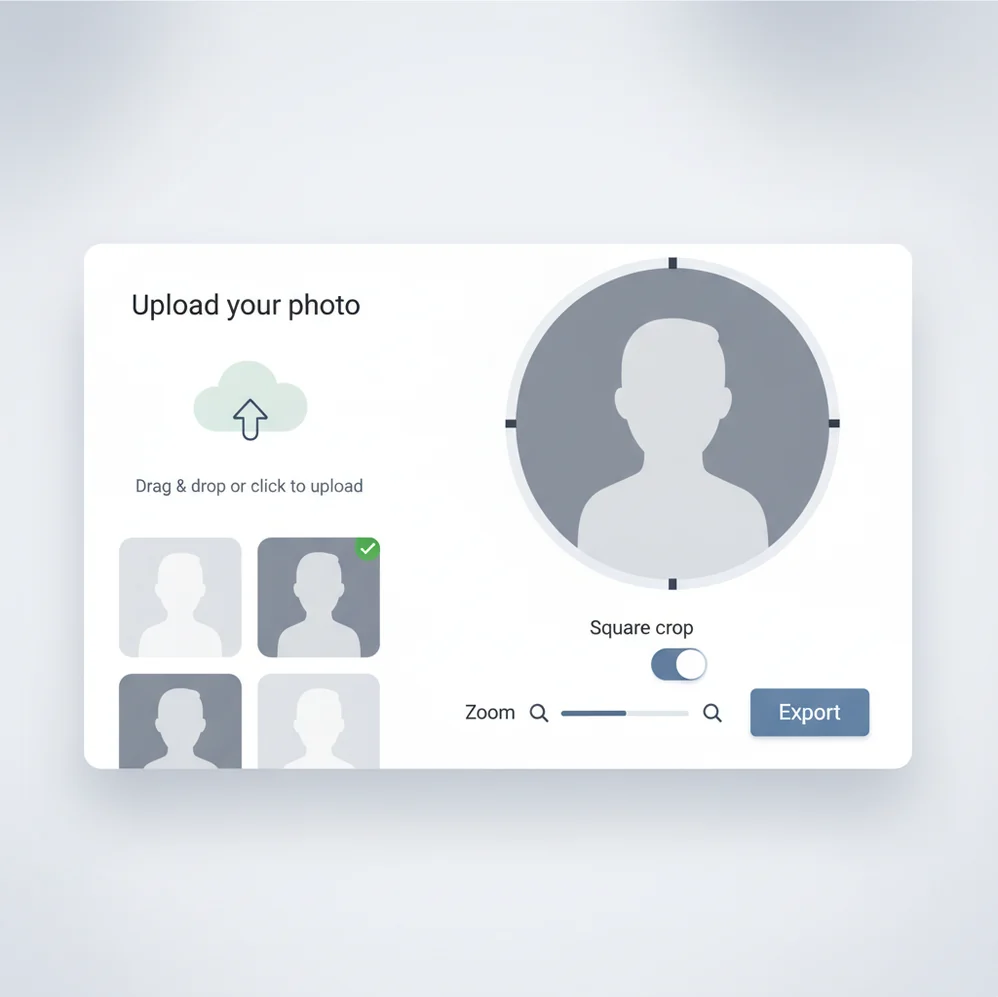
Browser-based profile photo maker workflow: upload, crop, preview, export.
A pfp maker formats an image into a platform-ready profile picture by cropping it to a square or circle, adjusting the framing, and exporting a sharp file. Pict AI supports the common avatar workflow in the browser: upload, crop, preview, and export for social, gaming, and work accounts. For best results, start with a clear photo and keep the face, logo, or artwork centered with safe margins. In December, a Christmas PFP adds a Santa hat, snow or warm lights to an existing avatar without changing who is in it.
What Is a PFP Maker?
A profile picture maker is a simple editing tool that turns an existing image into a ready-to-upload avatar. It handles the practical parts: square or circle framing, subject positioning, zoom, preview, and export.
Most platforms shrink avatars to small sizes, so a good profile photo is less about complex design and more about clarity. A face usually works best when it fills about 60 to 75 percent of the frame, with eyes slightly above center. Logos need extra padding so corners do not disappear in circular crops. Artists and creators often use the same workflow for portraits, mascots, channel icons, and consistent identity across TikTok, Instagram, YouTube, Discord, Slack, and LinkedIn.
How a PFP Maker Works
A profile image tool reads the uploaded JPG or PNG, applies the file’s EXIF orientation, then places the image inside a fixed avatar canvas. The crop preview is usually a square viewport with an optional circular mask, so you can see what will be visible after upload.
When you drag or zoom, the editor changes the image transform rather than changing the source file. On export, the tool resamples the visible area, often using bicubic or similar interpolation, then writes a new image. Circle exports may use an alpha channel for transparent corners, while square exports keep the full canvas. If AI cleanup is used afterward, face detection, edge detection, or background segmentation can help refine lighting, edges, and subject separation.
How to Make a Profile Picture Online
Upload a clear image
Start with an original JPG or PNG when possible. Avoid screenshots or heavily compressed downloads because small artifacts become obvious after platforms resize the avatar.
Choose square or circle framing
Pick square for general compatibility, or preview a circle if the platform displays avatars in a round frame. Many apps accept square uploads but show them as circles.
Position the subject
Drag the photo until the face, logo, pet, artwork, or object sits in the visual center. For headshots, keep the eyes slightly above the midpoint.
Adjust zoom and safe margins
Zoom in enough for the subject to read clearly at small size, but leave space around hair, chin, text, or logo edges so nothing important gets clipped.
Preview and export
Check both the crop and the small avatar preview before downloading. Upload the exported file directly to your profile to avoid extra compression steps.
Which Profile Picture Maker Features Matter Most?
Fast image upload
Use a selfie, portrait, logo, pet photo, illustration, or creator avatar as the source image. JPG and PNG are the safest formats for most profile workflows.
Square and circle preview
Previewing both shapes helps prevent clipped hair, shoulders, text, and logo corners. This matters because many platforms accept square files but display circular avatars.
Zoom and drag controls
Manual framing gives better results than automatic center crops, especially for off-center selfies, group photos, mascot art, and logos with uneven padding.
Professional headshot framing
For work profiles, a head-and-shoulders crop with even lighting, a calm background, and clear eye contact usually reads best in Slack, Teams, email, and LinkedIn.
Creator and gaming avatars
Channel icons, Discord profiles, Twitch identities, and gaming accounts often need stronger contrast and simpler shapes because the image appears very small in chats and sidebars.
Clean export workflow
A single clean export reduces quality loss. Re-saving the same avatar across multiple apps can add compression, soften details, and make text harder to read.
How Does This Avatar Creator Compare With PFPMaker.com, Canva, and Adobe Express?
| Tool | Best fit | Typical workflow | Learning curve | Free option |
|---|---|---|---|---|
| Pict AI | Quick browser cropping plus optional AI photo editing on iPhone, Android, and web | Upload image, choose square or circle, adjust framing, preview, export | Low | Free-first browser workflow with fair-use limits |
| PFPMaker.com | Style-driven profile picture generation and preset avatar looks | Upload photo, test generated styles or backgrounds, download selected result | Low to medium | Varies by feature and output choice |
| Canva | Designed profile graphics, brand templates, text, and layout control | Open a design canvas, pick a template, add elements, export | Medium | Free tier available with paid assets and features |
| Adobe Express | Template-based social graphics and branded profile assets | Choose a template or canvas, edit design elements, export | Medium | Free tier available with premium features |
For a plain avatar crop, a focused upload-crop-export tool is usually faster. For brand kits, text overlays, and multi-layer graphics, canvas-based editors offer more design control.
Who Uses a Profile Pic Maker?
Social media creators
TikTok, Instagram, YouTube, and X profiles need avatars that stay recognizable in feeds, comments, notifications, and channel pages. A tight but safe crop keeps the identity readable.
Gamers and community members
Discord, Steam, Twitch, and server avatars often use mascots, character art, pets, logos, or stylized portraits. Strong contrast matters because chat avatars display at very small sizes.
Artists and illustrators
Creators can crop portraits, original characters, sketch details, or signature marks into consistent avatars for portfolios, commission pages, art communities, and shop profiles.
Professional teams
Remote teams use profile photos in Slack, Teams, email, Notion, and internal directories. Consistent head-and-shoulders framing makes a group look organized without needing a studio shoot.
Gifts and printed keepsakes
A clean square avatar can become a sticker, badge, mini print, contact card image, or personalized gift insert. Extra margin helps if the file is later printed or cut into a circle.
Tattoo and reference planning
A cropped face, pet portrait, symbol, or character head can work as a quick visual reference for tattoo discussions, mood boards, or artist briefs before a final drawing is made.
Portfolio and author bios
Writers, speakers, students, freelancers, and makers often need one consistent photo for newsletters, conference pages, marketplaces, and portfolio cards.
What Are Avatar Maker Limitations?
- Cropping cannot fully repair a blurry, low-light, or heavily compressed source image.
- Tiny text, thin logo lines, and detailed artwork may become unreadable after social platforms downscale the file.
- Circle previews are helpful, but each platform may apply its own mask size, padding, and compression.
- Square exports are widely accepted, but some apps display them as circles and can clip corners or shoulders.
Choose a PFP workflow that fits your identity
The best PFP maker is the one that solves your actual editing problem. Changing the frame, changing the background, and inventing a new character are different jobs. Choose the smallest edit that gets you the result you need.
- If people need to recognize you in person, preserve your features. Use an existing portrait and limit changes to distracting background details or mild color correction. Compare the finished image with the original before using it for a professional directory, speaker biography, or client-facing account.
- If you want a coordinated visual style, define it before editing. Choose two background colors, one lighting treatment, and a consistent mood. An aesthetic pfp maker can help explore a look, but switching between unrelated styles makes your identity harder to recognize across accounts.
- If you need an anonymous persona, create a separate visual identity. Use an original illustration or fictional character rather than a lightly altered selfie. A stylized face may still resemble you; changing the background does not make a portrait anonymous.
- If you only need one finished image, prioritize the export. Before spending time in a free PFP maker, check whether your chosen workflow allows a usable download without a watermark or payment. Free editing access does not always include every export option.
- If you update avatars regularly, keep a reusable source. A PFP maker app is most useful when it helps you repeat the same treatment. If you are choosing an app that makes PFP images, look for saved projects or reusable settings rather than selecting it solely for its preset count.
What AI edits can improve - and what they can change
AI editing is separate from the basic crop-and-export workflow. It can replace a setting or reinterpret a portrait, but those changes may introduce details that were not in the source. Decide whether you want a faithful profile photo or a creative likeness before applying a transformation.
| Before editing | What AI can do well | What may go wrong |
|---|---|---|
| A portrait against a cluttered room | Replace the setting with a simpler backdrop that draws attention to the subject. | Hair strands, glasses, and translucent edges can develop halos or missing sections. |
| A recognizable face with uneven lighting | Make lighting appear more balanced and reduce distracting color casts. | Heavy correction can flatten skin texture or change the apparent shape of facial features. |
| A selfie intended as illustrated character art | Apply a coherent illustration style and simplify clothing or scenery. | Distinctive traits such as freckles, face shape, or an asymmetrical smile may disappear. |
| A portrait with an unwanted object near the shoulder | Reconstruct a relatively simple background after removing the object. | If the object overlaps the body, generated clothing, hands, or shoulder contours may look implausible. |
| A mascot bearing lettering or a badge | Explore new colors, textures, or surroundings. | Regenerating the whole image can distort lettering and alter a brand symbol. |
Inspect edited boundaries at full size, then compare the face with the untouched source. Reject changes that misrepresent you, even if the result looks polished. Keep an original copy so a disappointing transformation does not become the only version available.
Build avatar variants for specific account roles
A useful avatar system keeps the recognizable element stable while allowing the context to change. These examples show how to make a PFP serve a particular audience without redesigning your identity each time.
- Freelancers separating public and client accounts: A translator could use the same portrait with a neutral background for invoices and a muted green background for a language-learning community. The face stays unchanged, while the background distinguishes the account roles.
- Streamers marking seasonal events: A streamer with an original fox mascot could add a small autumn leaf beside the character for an October event. Keep the mascot's expression and main colors intact; replacing the entire illustration would weaken recognition among returning viewers.
- Community moderators protecting personal boundaries: A volunteer running a local support group could use a purpose-made geometric symbol instead of a face. Avoid including employer logos, location clues, or a username shared with private accounts if separation matters.
- Small businesses organizing staff accounts: A repair shop could give each technician's portrait the same plain backdrop while retaining individual faces. Store the approved images with names and revision dates so an old employee photo is not accidentally reused.
Keep a master image and clearly named variants, such as client, community, or seasonal. Record any background colors or style instructions alongside them. This makes the next update more consistent and avoids repeatedly editing an already altered image.
Profile picture formats, sizing, and usage questions
An AI PFP maker can preserve a recognizable likeness, but results depend on how much it changes the portrait. Background edits usually affect identity less than full illustration or face regeneration. Compare the eyes, nose, jawline, smile, and distinctive marks with the original. For professional use, avoid a result that looks like a different person.
Safety depends on the tool's handling of uploaded images. Check whether processing happens on your device or a server, how long files are retained, and whether uploads can be used for model training. Remove unnecessary location metadata and avoid images containing private documents or other people without permission. A free service is not automatically private.
PFP means profile picture. It is the avatar image shown on social media, messaging apps, gaming platforms, and work accounts.
Yes. Upload your image, choose or preview the circle crop, adjust the framing, and export once the subject fits inside the safe area.
Square is usually the safest upload format because many platforms accept square files and display them as circles. Always preview the circular crop before exporting.
Use a clear, high-resolution export rather than a tiny file. Platforms downscale images, so starting larger usually keeps the avatar sharper.
Blurry avatars usually come from low-resolution source photos, screenshots, repeated compression, or platform resizing. Start with the original image and export only once.
Yes, logos work well if they have enough padding around the edges. Preview the circle crop so letters, icons, or corners are not cut off.
JPG works well for photos, while PNG is better for logos, illustrations, and images that need transparency. Avoid uploading compressed screenshots when possible.
Yes. Portrait art, character icons, mascots, and pet drawings can all work as profile pictures if the main subject remains readable at small sizes.