Word to PDF Converter
Convert DOC or DOCX files into PDF in your browser. Use it when you need a fixed-layout document for sharing, printing, uploading, or archiving.
Upload your file
Use this free Word to PDF Converter and download the output when processing finishes.
Processing...
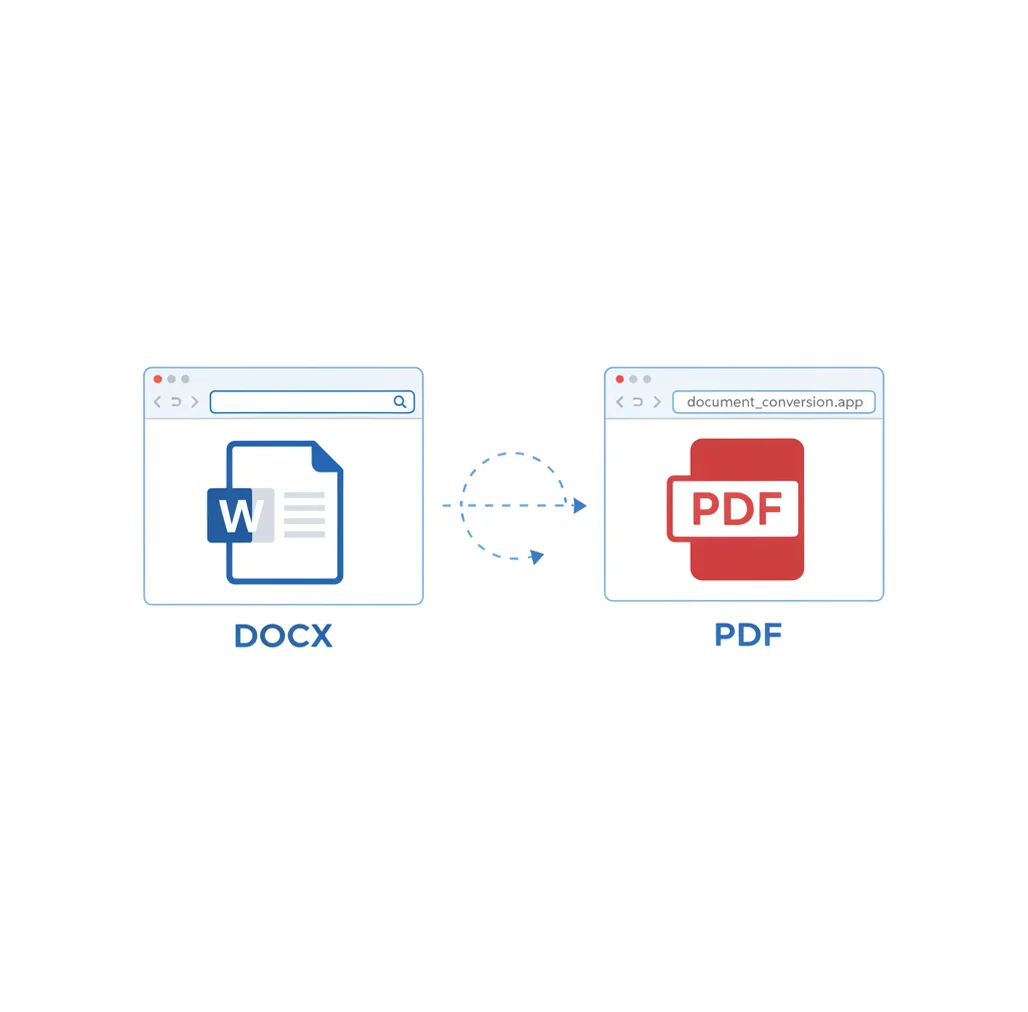
A word to pdf converter changes Microsoft Word files, including .doc and .docx, into fixed-layout PDF documents. Use it when a form, website, client, school, or document portal requires a PDF instead of an editable Word file. Review the output if the document uses complex tables, custom fonts, comments, or tracked changes.
What Is a Word to PDF Converter?
A Word to PDF converter is a tool that turns a Microsoft Word document into a Portable Document Format file. Word files, usually DOC or DOCX, are editable documents that store text, styles, images, tables, margins, and page layout instructions. PDF is a fixed-layout format designed to look consistent across devices, operating systems, browsers, and printers. People convert Word to PDF when they want to preserve formatting, prevent accidental edits, submit files to upload portals, send professional documents, or create a final version for printing and archiving.
How to Convert Word to PDF
Upload the Word file
Select a .doc or .docx file from your device, or drag it into the upload area if supported.
Start the conversion
Choose the Word-to-PDF option and run the converter. The tool renders the Word layout into PDF pages.
Check the output
Review important pages, especially headers, footers, tables, images, page breaks, links, and custom fonts.
Download the PDF
Save the finished .pdf file to your device. If the layout looks wrong, adjust the source document and convert it again.
Documents worth saving as PDF
- Upload forms that require PDF files instead of DOC or DOCX attachments.
- Resume, CV, proposal, invoice, report, or contract sharing where layout consistency matters.
- Compatibility with recipients who may not have Microsoft Word installed.
- CMS, LMS, HR, government, legal, or university portals that only accept PDF uploads.
- Design handoff when writers provide DOCX content and designers or clients need a stable review copy.
- Printing workflows that need predictable page breaks, margins, headers, and footers.
- Archiving final document versions in a format that is harder to accidentally edit.
- Email attachments where a standard PDF viewer is more reliable than a Word editor.
Word to PDF Converter vs Alternatives
| Tool | What it does | Typical fit | Notes |
|---|---|---|---|
| Pict AI | Converts DOC and DOCX files to PDF through a browser-based tool. | Quick online document conversion for common sharing and upload needs. | Useful for lightweight conversion workflows; output should be checked for complex layouts. |
| Adobe Acrobat | Creates, converts, edits, signs, protects, and exports PDF files across web and desktop apps. | Professional PDF workflows, business documents, compliance, and advanced editing. | Often used when PDF editing, security settings, forms, or enterprise controls are required. |
| iLovePDF | Provides web-based PDF tools including Word to PDF, merge, split, compress, and edit options. | General PDF utility tasks in a browser. | Common choice for simple PDF conversions and batch document actions. |
| Smallpdf | Offers online PDF conversion, compression, editing, signing, and file management tools. | Everyday PDF tasks for individuals and teams. | Supports many document utilities beyond Word conversion, depending on plan and limits. |
These tools all convert Word documents to PDF, but they differ in workflow depth, editing features, account requirements, file limits, and professional PDF controls.
Word to PDF Converter Limitations
- Custom fonts may be substituted if the font is not embedded or available during conversion.
- Complex tables, nested tables, floating images, text boxes, and columns can shift slightly in the PDF.
- Tracked changes, comments, hidden text, and markup may appear or disappear depending on document settings.
- Password-protected or restricted Word files may need to be unlocked before conversion.
Check document content before publishing the PDF
A final PDF review should catch content errors, not just visible layout changes. Before converting a report, proposal, or application, save a separate release copy of the Word file. Keep working notes out of that copy, and use the following checks to decide whether it is ready to send.
- Refresh fields and references. Update the table of contents, figure captions, cross-references, and other fields. Check headers and footers separately: selecting the main document text does not necessarily include every field. Confirm that dates show the intended issue date rather than an automatically refreshed value.
- Inspect document properties. Review the title, author, and subject. Word’s Document Inspector can help identify hidden content and personal information, but removal options vary. Save a copy first, especially when collaboration history must be retained elsewhere.
- Check graphics at their final size. If a proposal includes artwork from an app icon generator, inspect small lettering and edges at the size readers will see. For a monochrome handout, prepare a black and white image deliberately rather than assuming grayscale printing will preserve distinctions between colored chart series.
- Confirm the reading experience. Use descriptive link text, meaningful heading styles, and alternative text for informative images. These source-document improvements support accessible export, although the resulting PDF still needs verification.
- Match the recipient’s requirements. Check whether the destination specifies a page size, archival format, accessibility standard, or maximum upload size. Ordinary PDF conversion does not establish compliance with those requirements.
What Word-to-PDF conversion does - and does not - create
PDF is a container for document content, not a guarantee of accessibility, archival compliance, or interactive behavior. These distinctions matter when a recipient requests more than a readable attachment.
| PDF feature | What to verify |
|---|---|
| Selectable text | Ordinary Word text can remain selectable. Text inside screenshots remains image content unless OCR is applied separately. |
| Accessibility tags | Tags describe structure and reading order. Their presence and quality depend on the export method and source document. |
| PDF/A | An archival PDF profile with specific requirements. A file ending in .pdf is not automatically PDF/A. |
| Interactive form fields | Word checkboxes and content controls do not reliably become fillable PDF fields. A form-authoring step may be necessary. |
| Digital signatures | Conversion does not create a certificate-based signature. Sign the final PDF through a suitable signing workflow. |
| Attachments and embedded objects | Embedded spreadsheets or other objects may render only as a visible representation rather than remain usable attachments. |
If the document contains an embedded workbook, conversion may show only its displayed area. Use an excel to pdf workflow for a separate spreadsheet appendix when readers need complete worksheets, then check worksheet order and pagination before combining the documents.
For formal submissions, verify the requested properties in a PDF inspection or validation tool. A successful download confirms that a file was generated; it does not confirm that the file satisfies an archival, accessibility, or signing standard.
Fix stale references, incomplete forms, and oversized PDFs
Some conversion problems originate in the Word file; others come from choosing an export method that cannot preserve the feature you need. Identify the symptom before trying repeated conversions.
- The contents page points to the wrong pages. Update the entire table of contents, not just its page numbers, after completing edits. Refresh cross-references and convert again. In the new PDF, follow several entries and confirm that both the destination and displayed page number are correct.
- Checkboxes appear but cannot be filled in. The converter may have rendered Word controls as static page content. Create interactive fields in a PDF form editor, or use a form-specific export workflow. Test typing, tab order, saving, and reopening before distributing the form.
- The file exceeds an upload limit. Large source photographs and repeated high-resolution graphics can increase PDF size. Resize images to suit their actual placement, then use appropriate compression. Keep a higher-quality master and check small text after compression.
- A photograph is too dark or distractingly framed. Adjust the source graphic rather than editing every converted page. Use a brighten image adjustment conservatively to avoid losing highlight detail. If the design calls for a round portrait, a circle crop image edit should retain the full face and use an export format that preserves transparency.
- A diagram contains reversed labels. A flip image operation mirrors lettering along with the artwork. Correct the original graphic or rebuild its labels before inserting it into Word; PDF conversion will preserve the mistake rather than repair it.
Word-to-PDF compatibility and formatting questions
Start with heading styles, descriptive links, alternative text for informative images, and a logical document structure in Word. Choose an export option that preserves document structure tags where available. Then check the PDF’s tags, reading order, language, and keyboard navigation. A visually correct PDF is not necessarily accessible, and automated checks cannot catch every usability problem.
No. PDF/A is an archival format with requirements beyond ordinary PDF creation, including rules for self-contained rendering and embedded resources. Use an export option or conversion tool that explicitly supports the PDF/A profile your recipient requires. Validate the result before submission; changing the filename or selecting a standard PDF output does not make a document PDF/A compliant.
Yes. Most converters support both .doc and .docx, although DOCX usually converts more reliably because it is the newer Word format.
Simple documents usually keep their layout well. Differences can occur with custom fonts, complex tables, floating objects, tracked changes, or unusual page sizes.
Standard web and email links often remain clickable in the PDF. Internal links, bookmarks, and advanced navigation may not always transfer perfectly.
Not by basic conversion alone. If the Word file contains scanned pages as images, OCR is required to make the PDF text searchable and selectable.
PDF makes accidental editing less likely, but it is not the same as document security. Use permissions, passwords, or redaction tools if you need stronger control.
Layout changes usually come from missing fonts, different rendering engines, unsupported Word features, or content positioned with floating objects. Embedding fonts and simplifying layout can help.
Yes, but they should be resolved or hidden in the Word file before conversion. Always check the PDF to confirm private comments or markup are not visible.
PDF is often better for uploads because it preserves appearance and is widely accepted by document portals. DOCX is better when the recipient needs to edit the file.
File size depends on the converter, browser, and server limits. Large Word files with many images may need compression or cleanup before conversion.