Merge PDF
Upload two or more PDFs, arrange them in the correct sequence, and download one combined PDF. Use it when you need to combine PDF files in order for submissions, records, or sharing.
Upload your file
Use this free Merge PDF and download the output when processing finishes.
Processing...
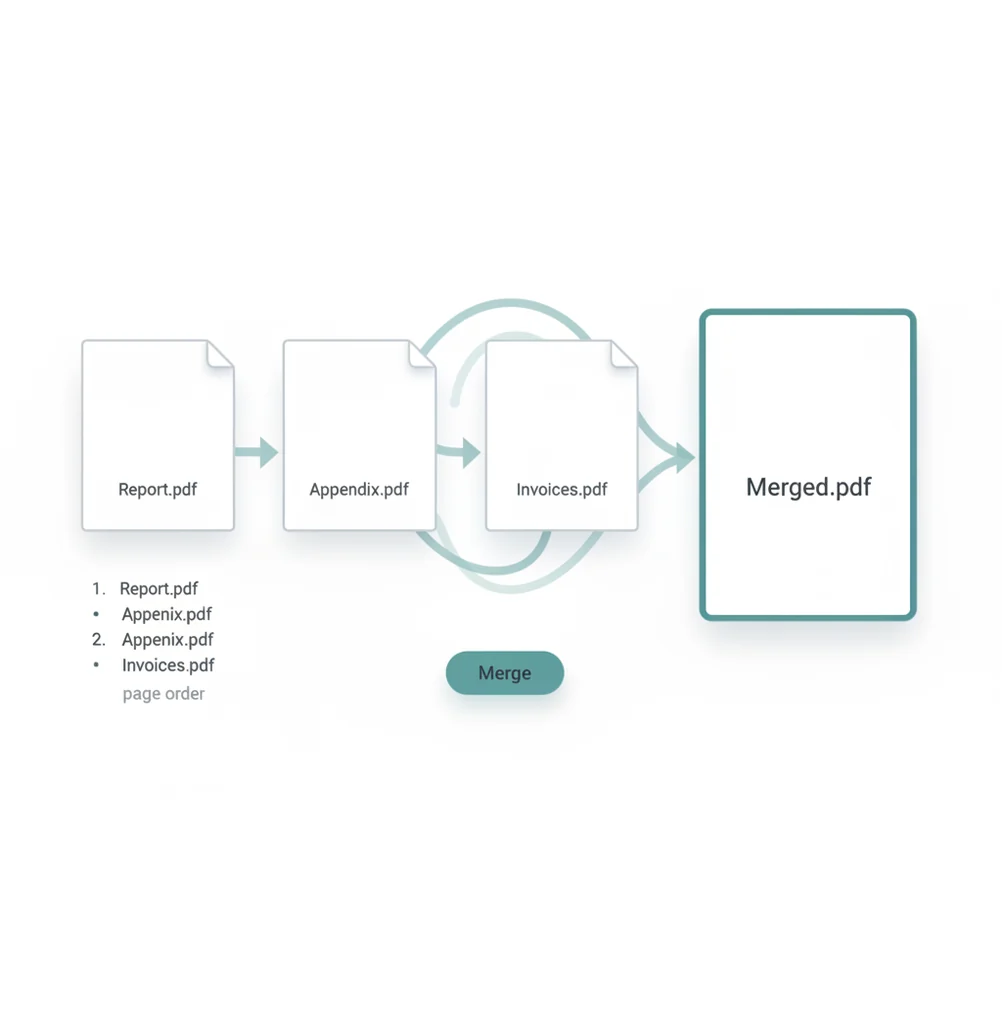
This tool merges multiple PDF files into one PDF document in the order you choose. Use it when separate contracts, scans, invoices, reports, or form attachments need to become a single file.
What Is Merge PDF?
Merge PDF means joining two or more PDF documents into one combined PDF file. PDF, short for Portable Document Format, is a fixed-layout file type used for forms, contracts, invoices, reports, scans, and print-ready documents. People merge PDFs to keep related pages together, control the reading order, reduce attachment clutter, and meet upload requirements that allow only one file. A PDF merger usually keeps each source page as-is, including text, images, page size, and orientation, unless the tool applies extra compression or editing.
How to Merge PDF Files
Upload PDFs
Select two or more PDF files from your device or drag them into the upload area.
Arrange the order
Move the files into the exact sequence you want in the final document.
Check the list
Confirm that every file is included and that the first, middle, and last documents are in the right position.
Merge the files
Start the merge process to create one combined PDF from the selected inputs.
Download the PDF
Save the merged PDF and open it once to verify page order, layout, and file completeness.
Documents That Belong in One PDF
- Upload forms: combine an application, ID scan, proof of address, and supporting documents into one required PDF.
- Compatibility: send one PDF instead of multiple attachments so recipients can open the full package in any PDF viewer.
- CMS requirements: create a single PDF for website uploads, document libraries, client portals, or learning platforms.
- Design handoff: join exported mockups, specs, annotations, and approval notes into one review file.
- Contracts: merge agreements, exhibits, addenda, and signatures into one final document.
- Expense reports: combine receipts, invoices, and statements into one organized reimbursement file.
- Archiving: store related records as one PDF for easier search, backup, and retrieval.
Merge PDF vs Alternatives
| Tool | What it does | Best fit | Notes |
|---|---|---|---|
| Pict AI | Combines uploaded PDFs into one document with manual ordering. | Quick browser-based merging for common PDF tasks. | Useful for simple file joining; OCR and advanced editing are separate tasks. |
| iLovePDF | Offers PDF merging plus many adjacent PDF utilities such as split, compress, and convert. | Users who want a broad web-based PDF toolkit. | Feature access, file limits, and processing options may vary by plan. |
| Adobe Acrobat | Combines PDFs inside a full PDF editing, signing, permissions, and document workflow suite. | Teams that need advanced PDF control, compliance features, or desktop integration. | Often used for business workflows beyond basic merging. |
All three tools can combine PDF files; the main differences are workflow depth, adjacent PDF features, and whether you need basic merging or full document management.
Merge PDF Limitations
- Password-protected PDFs may fail unless the file is unlocked first or the tool supports user-provided passwords.
- Scanned PDFs remain image-based after merging; the text will not become searchable without OCR.
- Very large PDFs or many uploads can take longer to process and may hit file size or usage limits.
- Corrupted, incomplete, or partially downloaded PDFs may not merge correctly.
Related PDF tools
What Merging Preserves - and What AI Cannot Repair
Merging is a document assembly task, not an AI reconstruction task. A combined PDF can look correct while losing useful navigation or accessibility structure. If you plan to extract tables, rebuild slides, or edit the document afterward, check those requirements separately rather than treating a successful merge as proof that everything survived.
| Before merging | Expected result after merging | What AI can help with | What AI handles poorly |
|---|---|---|---|
| Reports with separate bookmark trees | Pages join, but bookmarks may need rebuilding. | Suggesting section labels from recognizable headings. | Recovering the exact original hierarchy without verification. |
| Invoices with complex tables | Visible rows remain pages, not spreadsheet cells. | Identifying likely columns for later extraction. | Reliably interpreting merged cells, subtotals, and unusual number formats. |
| Slide exports with charts | Charts remain PDF page content, not editable slide objects. | Drafting a slide layout from visible content. | Recovering original animations, chart data, and master layouts. |
| Tagged reports with reading-order metadata | Accessibility structure needs checking in the combined file. | Suggesting image descriptions or identifying headings. | Guaranteeing correct reading order and accessible tagging throughout. |
For a pdf to excel workflow, convert the relevant source document separately when possible. Check decimal separators, negative values, and totals against the PDF; visually convincing spreadsheet output can still contain accounting errors.
A pdf to powerpoint converter may approximate the appearance of exported slides, but it cannot reliably recreate the original presentation structure. If the source deck exists, use that instead. A powerpoint to pdf export is better treated as a distribution copy than as a recoverable editing format.
For pdf to word conversion, separate documents with different layouts can be easier to handle individually. Check headers, footnotes, and section breaks before combining the editable results. Keep the original PDFs alongside the merged copy so missing structure can be traced back to its source.
PDF Merging: Cost, Quality, and Compatibility
A certificate-based digital signature validates a specific document state. Combining signed PDFs into a new file generally does not preserve their signatures as valid signatures on the merged document, even if visible signature marks remain. Keep the signed originals for verification. If the combined file needs a valid digital signature, assemble it first and sign the final PDF afterward.
Fillable forms need extra checking because fields with identical internal names can share values or behave unexpectedly after merging. Some mergers preserve interactive fields; others flatten them into non-editable page content. Open the combined file and check every field. If interactivity is unnecessary, save a flattened copy before merging while retaining the original editable forms.
Yes. Free online PDF mergers can combine multiple PDF files into one downloadable document, usually with file size or usage limits.
Yes. Upload the PDFs, then reorder them so the final file follows the correct sequence.
Merging usually preserves the original pages. Quality changes are more likely if the tool also compresses, rasterizes, or re-saves the file.
Yes. Scanned PDFs can be combined, but they will remain image-based unless OCR is applied separately.
Only if the PDF is unlocked first or the tool accepts the correct password. A merger should not bypass unknown passwords.
No. Merging combines pages in order; page numbering is a separate editing step.
Yes. The merged file can contain mixed sizes such as Letter, A4, portrait, and landscape pages.
One source file may be corrupted, encrypted, or only partially uploaded. Re-download or re-save the original PDF and try again.
Digital text PDFs usually stay searchable after merging. Scanned image PDFs need OCR before their text can be searched or selected.