PDF to Excel Converter
Extract tables from PDF files and download spreadsheet-ready XLSX or CSV files. Best results come from text-based PDFs with clear rows and columns.
Upload your file
Use this free PDF to Excel Converter and download the output when processing finishes.
Processing...
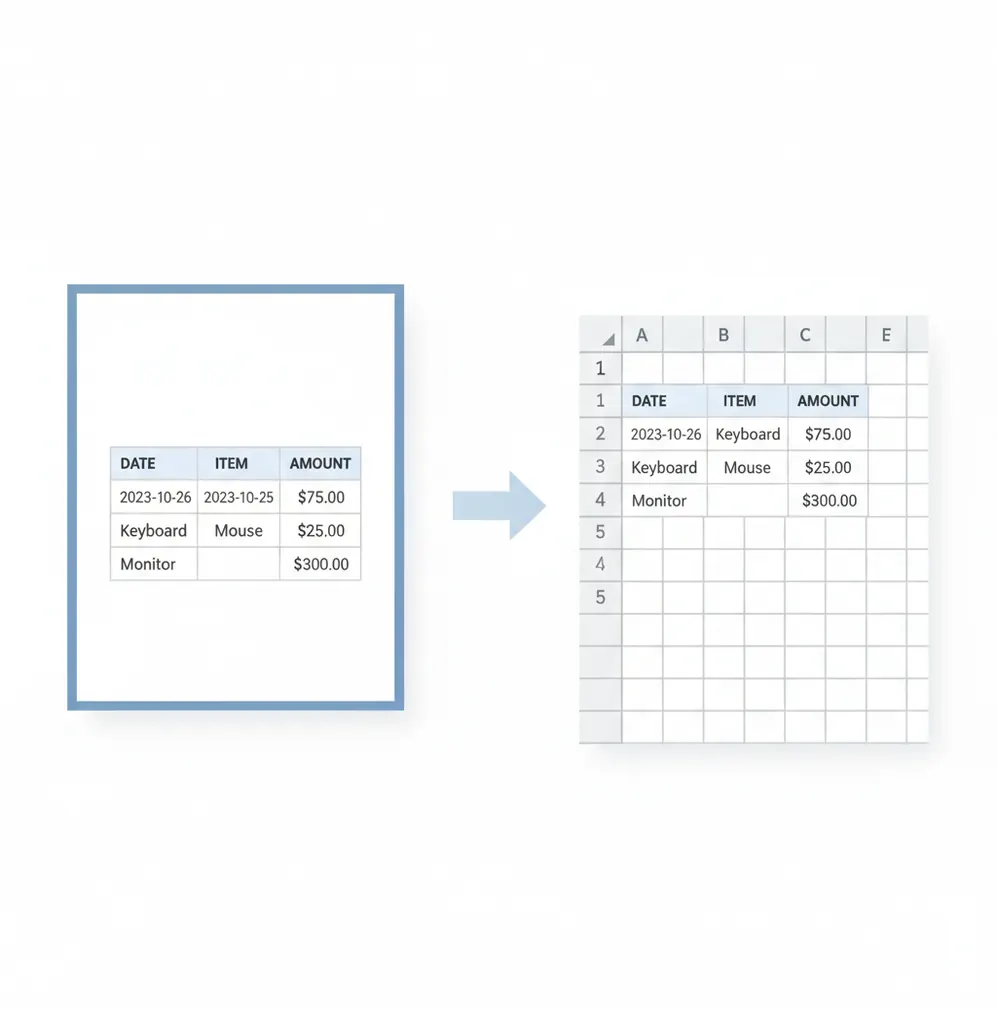
A PDF to Excel converter extracts table data from a PDF and turns it into an editable spreadsheet file such as XLSX or CSV. Use it when you need to sort, filter, calculate, reconcile, or import data that is locked inside a PDF report, invoice, statement, or catalog.
What Is PDF to Excel Converter?
A PDF to Excel converter is a tool that reads table data from a PDF file and exports it as a spreadsheet format, usually XLSX or CSV. PDF files are fixed-layout documents, so they often store text by page position instead of true rows and columns. Conversion is useful when you need editable data for formulas, sorting, filtering, accounting imports, reporting, or cleanup in Excel or Google Sheets. Text-based PDFs usually convert more accurately than scanned PDFs because the table text is already readable.
How to Convert PDF to Excel
Upload the PDF
Choose a PDF that contains the table or report you want to extract.
Check the document type
Use text-based PDFs when possible; scanned PDFs may require OCR before table extraction.
Start the conversion
Run the converter so it can detect rows, columns, headers, and cell values.
Download the spreadsheet
Save the result as XLSX for Excel editing or CSV for simple data imports.
Review the output
Open the file and verify merged cells, column alignment, dates, decimals, and header rows.
PDF tables worth turning into spreadsheets
- Upload forms that require tabular data in XLSX or CSV instead of PDF.
- Accounting workflows that need invoice lines, receipts, or statement tables in a spreadsheet.
- Compatibility tasks where PDF tables must open in Excel, Google Sheets, Numbers, or BI tools.
- CMS or database imports that accept CSV fields but not fixed-layout PDF files.
- Design handoff where a report table needs to be reused by analysts, marketers, or operations teams.
- Procurement, pricing, or inventory work that requires sorting and comparing rows.
- Public report extraction for dashboards, audits, research, or internal reporting.
PDF to Excel Converter vs Alternatives
| Tool | What it does | Common outputs | Typical fit |
|---|---|---|---|
| Pict AI | Extracts tables from PDF files through a simple browser workflow. | XLSX, CSV | Quick conversion of clean, text-based PDF tables. |
| iLovePDF | Provides PDF conversion and editing tools, including PDF to Excel export. | XLSX | General PDF utility work and casual document conversion. |
| Adobe Acrobat | Exports PDF content to Microsoft Office formats with OCR and document controls. | XLSX, DOCX, PPTX | Professional PDF workflows, OCR, and higher-control exports. |
| Smallpdf | Offers browser-based PDF conversion tools with spreadsheet export options. | XLSX | Lightweight online conversion and common PDF tasks. |
All PDF-to-spreadsheet tools work best with clear text-based tables. Scanned files, rotated pages, nested tables, and multi-level headers usually require extra review after export.
PDF to Excel Converter Limitations
- Scanned PDFs need OCR, and OCR can misread characters such as 0/O, 1/I, 5/S, and decimal points.
- PDF files do not always contain real table structure, so columns are inferred from spacing, lines, and alignment.
- Complex layouts with multi-level headers, nested tables, footnotes, or side-by-side sections may export incorrectly.
- Merged cells, wrapped text, and repeated header rows may need manual cleanup in Excel.
Related PDF tools
What table extraction saves - and what it cannot recover
A PDF to Excel converter can save substantial retyping, but the useful result is a dataset, not a replica of the printed page. Judge the export by whether each record occupies one row and each field has a consistent meaning. Decorative spacing matters less than keeping an invoice number attached to the correct amount.
- Pro: faster reconciliation. Extracted transaction lines can be matched against another spreadsheet using identifiers, amounts, or dates instead of checking every entry manually.
- Pro: reusable records. Once the fields are structured, the same table can support pivot tables, duplicate checks, and recurring reports without another round of transcription.
- Con: spreadsheet logic is usually lost. A PDF normally contains displayed results, not the formulas, validation rules, or cell references that produced them. A file created with an excel to pdf converter does not retain those features for later recovery.
- Con: visual labels may hide missing context. Currency symbols, units, and section headings may appear only once in the PDF. Extracted records need that context before they can be combined safely.
Verdict: Convert when you need the underlying records. Request the original workbook when formulas, calculation history, or an audit trail matter more than the displayed values.
Turn extracted rows into a reliable working spreadsheet
- Define one record before cleaning. Decide whether a row represents a transaction, product, invoice line, or summary. A wrapped description may occupy several PDF lines but belong to one spreadsheet record. Tip: Write down the expected columns before moving or deleting cells.
- Keep an untouched copy of the export. Save the downloaded file separately and perform cleanup in a duplicate workbook. This makes accidental deletions reversible and gives you a reference when a correction looks suspicious. Tip: Name the copies “raw” and “working” rather than overwriting the download.
- Assign data types deliberately. Treat account numbers, postal codes, and product codes as text; use numeric types for quantities and amounts. For CSV files, use Excel’s text/CSV import controls instead of opening the file directly. Tip: Set identifier columns to Text during import, before Excel removes leading zeros or rounds long numbers.
- Normalize values without changing their meaning. Confirm the decimal separator and currency before replacing punctuation. Distinguish a blank value from zero, and decide whether parentheses indicate negative amounts. Tip: Keep a separate currency column when a document contains more than one currency.
- Audit the assembled table. Compare record counts and subtotals by section, not just the grand total. Two misplaced entries can cancel each other out while leaving the total unchanged. Check the first and last records at page boundaries. Tip: If a sideways source scan prevents reliable reading, use a rotate image tool on the source image before rebuilding the PDF and running OCR; do not rotate an already upright page.
Record corrections in a separate notes column when the spreadsheet will be reviewed by someone else. Preserve the PDF page number for disputed entries so the reviewer can find the original value quickly.
Choose the shortest route to the data you actually need
- If you can obtain the original data, request it. A workbook or system-generated CSV avoids reconstructing fields from page coordinates. If the report began as a web table, exporting its data before using html to pdf usually preserves structure better than converting the resulting PDF back into rows.
- If you need only a handful of values, enter them manually. For a short, irregular table, careful transcription may take less time than repairing an export. Have a second person check important amounts or compare the entries against the document twice.
- If the document contains prose rather than records, choose a document format. A pdf to word converter is better suited to editing paragraphs. A pdf to powerpoint workflow serves slide reconstruction, not spreadsheet analysis; neither route should be used as a detour for extracting transaction tables.
- If the figures came from a presentation, ask for the underlying workbook. A chart flattened through powerpoint to pdf may show rounded labels without the complete series. Converting the visible chart cannot reliably recover omitted values, hidden categories, or the original calculation range.
- If the file contains restricted information, use an approved processing route. Check organizational rules before uploading payroll, customer, or medical records. Where cloud processing is prohibited, choose an authorized local conversion tool and keep temporary exports in approved storage.
PDF to Excel conversion questions answered
Usually not. A PDF stores the visible result of a calculation rather than the Excel formula and its cell references. Conversion may extract a total as a number, but it cannot reliably reconstruct the calculation behind it. Request the original workbook if formulas are essential, or rebuild them from verified input values and compare the results with the PDF.
Import identifier columns as text rather than numbers. For CSV output, use Excel’s Data import controls and set columns such as account numbers or postal codes to Text before loading them. Formatting a column afterward will not restore zeros already removed. For XLSX output, check the stored values against the PDF; long numeric identifiers also need protection from Excel’s 15-digit precision limit.
Yes. Free online converters can extract tables from many PDFs, though file size, OCR, and daily usage limits may apply.
Usually not. The goal is to recover usable rows, columns, and values, not to recreate the PDF page layout perfectly.
It can work if OCR is available. Accuracy depends on scan resolution, page skew, contrast, font clarity, and table borders.
XLSX supports Excel workbooks, multiple sheets, formulas, and formatting. CSV is a plain text table format that is useful for imports but does not preserve styling or multiple sheets.
PDFs store text by position, not always as table cells. Irregular spacing, wrapped text, missing lines, and multi-row headers can cause column detection errors.
Only if the file allows text extraction or you can unlock it with the correct password. Restricted PDFs may block conversion.
Often yes, but repeated headers, page breaks, and inconsistent column widths may need cleanup after export.
It can be accurate for clean text-based statements, but financial data should always be checked for decimals, signs, dates, and missing rows before use.
No. XLSX and CSV files can also open in Google Sheets, Apple Numbers, LibreOffice Calc, and many database or analytics tools.