JPG to PDF Converter
Convert one or more JPG images into a PDF file online. Arrange page order, choose layout options when available, and download a document for upload, printing, or sharing.
Upload your file
Use this free JPG to PDF Converter and download the output when processing finishes.
Processing...
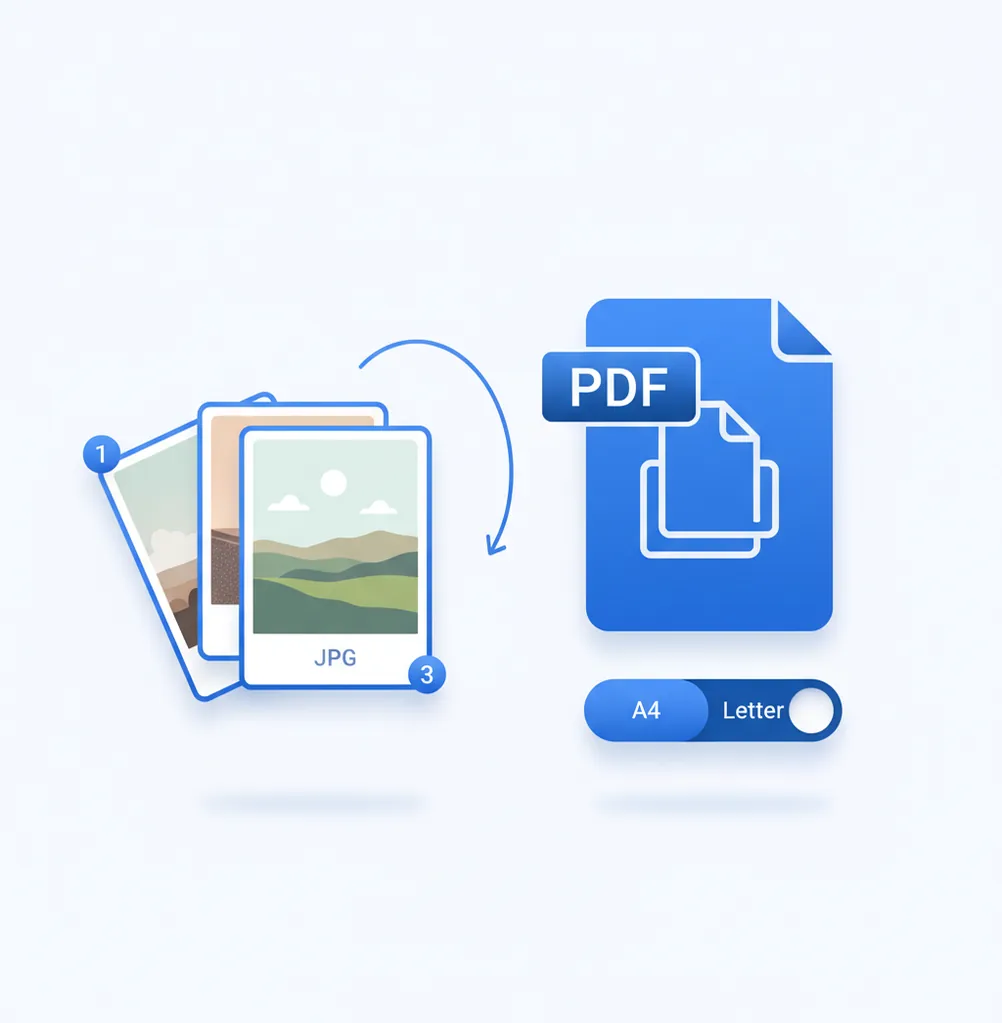
A JPG to PDF converter turns one or more JPG images into a PDF document. Use it when you need photos, scans, receipts, assignments, or design exports in a single file that is easier to upload, email, print, or archive.
What Is a JPG to PDF Converter?
A JPG to PDF converter is a tool that places JPG image files inside a PDF document. JPG is a compressed raster image format commonly used for photos, scans, and camera uploads. PDF is a document format designed to preserve page layout across devices, printers, and apps. People convert JPG to PDF to combine multiple images into one file, keep pages in a fixed order, meet upload requirements, or create a print-ready document. The converted PDF usually contains image-based pages; visible text is not selectable unless OCR is applied separately. When you do need editable text, move the finished PDF through a PDF to Word converter before rewriting.
How to Convert JPG to PDF
Upload JPG files
Select one JPG image or upload multiple JPG files if you want one combined PDF.
Arrange the pages
Drag images into the correct order so the PDF pages appear in the sequence you need.
Choose layout settings
Set page size, orientation, margins, background, or fit-to-page options if the converter provides them.
Generate the PDF
Start the conversion and wait for the PDF file to be created.
Preview and download
Check for rotation, cropping, spacing, and page order issues, then download the final PDF.
Documents and photo sets worth combining into PDF
- Upload forms that accept PDF but not separate JPG files, including registration packets built with AI Forms.
- Combine receipts, invoices, IDs, or document photos into one submission file, then send a short follow-up with Customer Surveys.
- Prepare assignment pages, worksheets, or handwritten notes for a school portal.
- Create printable A4 or Letter pages from phone photos or scanned images.
- Package design handoff images, mockups, posters, or flyers into a single review document.
- Meet CMS, client portal, HR, insurance, or government document requirements.
- Send multiple images by email as one attachment instead of many separate files.
- Archive inspection photos, repair records, or evidence images in a document format.
JPG to PDF Converter vs Alternatives
| Tool | What it does | Common strengths | Notes |
|---|---|---|---|
| Pict AI | Converts JPG images into PDF files in a browser and supports multi-image documents. | Simple image-to-PDF workflow, page ordering, and basic layout options. | Useful for quick online conversion before sharing, printing, or uploading. |
| iLovePDF | Provides online PDF tools including image-to-PDF conversion. | Familiar PDF toolkit, multi-image PDF creation, and related PDF actions. | Good for users who often need merging, splitting, compressing, and conversion tools. |
| Adobe Acrobat | Creates and edits PDFs across web, desktop, and mobile apps. | Advanced PDF editing, signatures, OCR, forms, security, and enterprise features. | Best suited for users who need broader document workflows beyond conversion. |
| Smallpdf | Offers browser-based PDF conversion and editing tools, including JPG to PDF. | Clean interface, cloud-based PDF utilities, and common document conversion options. | Useful for quick PDF tasks across many file types. |
All listed tools can help create PDFs from images. The right choice depends on whether you need a quick conversion, a larger PDF toolkit, or advanced document editing features. For broader mobile work, Word, Excel, merge, split, and OCR, an AI PDF Converter covers more than image-only export.
JPG to PDF Converter Limitations
- Converted PDFs are usually image-based, so text inside photos is not selectable or searchable without OCR.
- Large, high-resolution JPG files can create large PDF files that may exceed upload limits.
- Image quality depends on the original JPG resolution and any compression applied during export.
- Photos may appear rotated if the original file uses orientation metadata that is interpreted differently.
Related PDF tools
Prepare mixed image sources for a consistent PDF
Before creating a PDF from JPG files, check whether your source images need format conversion or cleanup. Screenshots, downloaded graphics, and saved web pages can require different preparation. These steps help prevent missing content and inconsistent pages without repeatedly recompressing your images.
- Separate JPEG images from other formats. JPG and JPEG are two filename extensions for the same image format. A jpeg to jpg converter or jpg to jpeg converter is unnecessary unless a receiving system specifically requires one extension. Tip: Keep the original file and change only its extension when compatibility is the issue; exporting it again can introduce additional compression.
- Choose a still frame from animated sources. If a source is animated, use gif to jpg conversion to extract the frame that contains the information you need. A single JPG cannot preserve animation. Tip: For instructions spread across several frames, save each relevant frame separately rather than relying on the opening frame.
- Handle transparent graphics before assembly. JPG does not support transparency, so transparent areas must become a solid background. For WebP sources, a WebP to PDF Converter may avoid an intermediate JPG export. Tip: Check pale text and white logos against the chosen background before saving.
- Keep web pages in a document workflow. Converting html files to pdf is usually more appropriate than photographing or screenshotting a long page. Browser print output can preserve selectable text, although page styling may change. Tip: Expand collapsed content and inspect the print preview for missing sections.
- Remove unintended content from working copies. Notifications, browser tabs, and unrelated desktop details can become permanent parts of image-based PDF pages. Tip: Crop a duplicate image, not the original, and inspect every edge before conversion.
JPG to PDF conversion questions answered
Not necessarily. A converter may embed the original JPEG data or create a new image, so camera details, timestamps, or GPS metadata may be retained or discarded depending on its implementation. The PDF can also contain its own document metadata. For sensitive photos, remove metadata from source copies before conversion and inspect the finished PDF separately; changing the file format is not a reliable privacy measure.
Yes. Desktop print-to-PDF features and offline image or document applications can create a PDF locally. On Windows, an image-printing workflow can use Microsoft Print to PDF; on macOS, Preview can export images as PDF. Check whether your chosen application processes files locally and whether cloud synchronization is enabled. An offline conversion does not prevent the resulting file from being uploaded later by a synced folder.
Yes. Upload several JPG images, place them in the correct order, and export them as one multi-page PDF.
The PDF can preserve the original image pixels, but quality may change if the converter compresses or resizes the images. Use the highest practical source image quality for best results.
Not automatically. A standard JPG-to-PDF conversion keeps text as part of the image, so OCR is needed to make it searchable or selectable.
Yes, if the converter includes page size settings. Choose A4, Letter, portrait, landscape, margins, or fit-to-page options before exporting.
Some JPG files contain camera orientation metadata that PDF viewers may read differently. Rotate the image before conversion or adjust the page rotation after export.
Some image-to-PDF tools support PNG or HEIC, but support varies. If only JPG is accepted, convert the image to JPG first and then create the PDF.
Use smaller image dimensions, lower JPG quality, or run the finished file through a PDF compressor. Avoid unnecessarily high-resolution photos for simple uploads.
Yes, if the original image has enough resolution for the print size. For documents, use clear, well-lit images and choose a standard page size such as A4 or Letter.
Basic converters may not include password settings. Use a PDF protection tool after conversion if you need encryption or access restrictions.