Free PDF Tools
Use browser-based PDF tools for everyday document jobs: conversion, compression, merging, splitting, rotation, unlocking, and image-to-PDF workflows.
Choose the PDF job you need
Each card opens a physical Pict.AI tool page with its own GPT-written guide, upload workflow, limitations, FAQ, and featured image.
Reduce PDF file size while keeping readable quality.
Combine multiple PDF files into one PDF document.
Split a PDF into separate page files or smaller documents.
Remove PDF restrictions or decrypt a PDF only when the user has permission. Do not claim password cracking.
Convert PDF content into editable Word DOCX with honest limitations for scanned or complex PDFs.
Convert DOC or DOCX files into PDF.
Convert a Word document into JPG page images.
Convert PPT or PPTX presentations into PDF.
Convert XLS or XLSX spreadsheets into PDF.
Convert uploaded HTML documents into PDF.
Convert PDF pages into a PowerPoint-style file with honest layout limitations.
Extract PDF tables into Excel-style files with honest limitations.
Convert PDF pages into images and guide users to JPG or PNG output.
Convert pictures into PDF documents. Targets pic to PDF and convert image to PDF.
Refresh existing PDF to JPG page with GPT-5.2 money-keyword content.
Refresh existing PDF to PNG page with GPT-5.2 money-keyword content.
Refresh existing JPG to PDF page with GPT-5.2 content.
Refresh existing PNG to PDF page with GPT-5.2 content.
Refresh existing WebP to PDF page with GPT-5.2 content.
Refresh existing Images to PDF page with GPT-5.2 content.
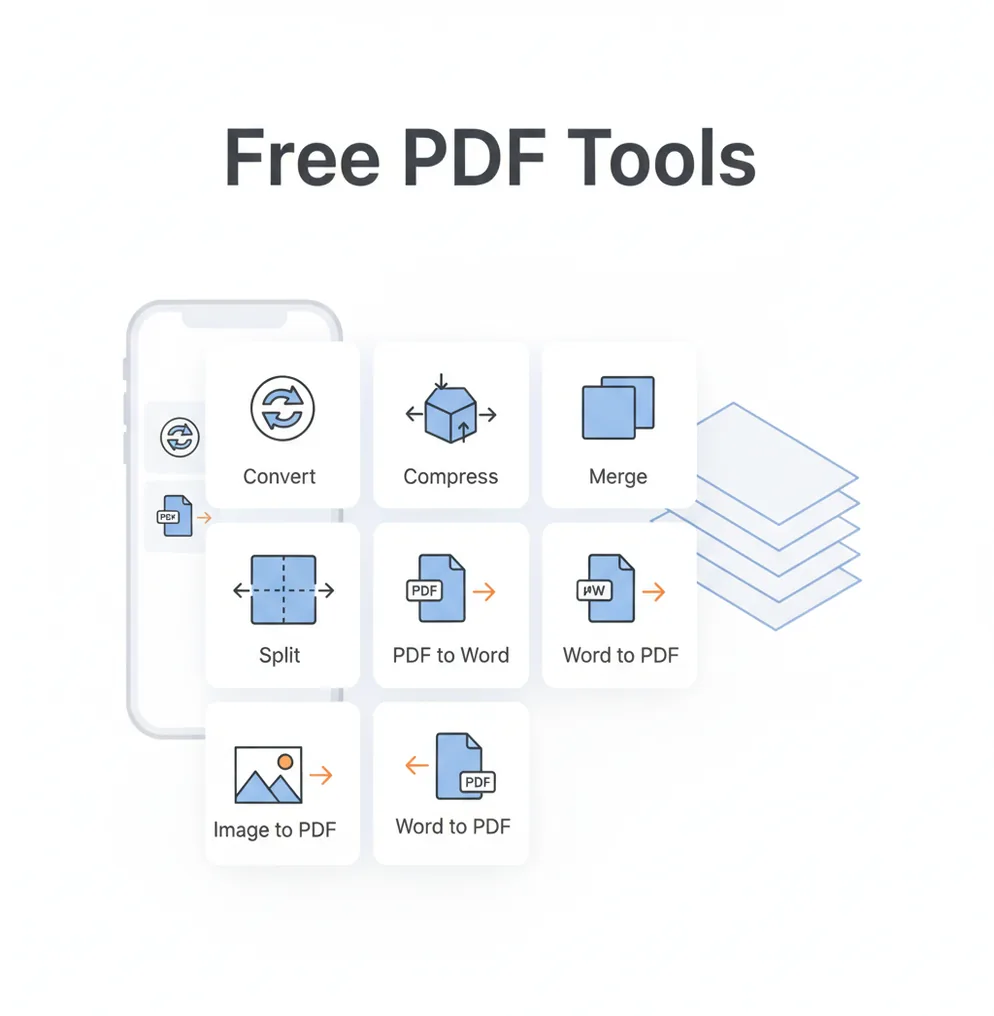
PDF tools help you convert, compress, combine, split, rotate, and manage PDF files online. Use them when a file must fit an upload limit, open in another app, match a CMS requirement, or be turned into an editable Office or image format.
What Are PDF Tools?
PDF tools are utilities for changing or managing Portable Document Format files without full desktop software. A PDF is a fixed-layout document format designed to preserve fonts, images, page size, and visual structure across devices. People use PDF utilities to convert PDFs to Word, Excel, PowerPoint, JPG, or PNG; create PDFs from Office files or images; reduce file size; merge several documents; split pages; rotate pages; or remove restrictions when they have permission. Conversion is often needed because PDFs are easy to share but not always easy to edit, upload, or reuse in other systems.
How to Use PDF Tools
Choose a task
Select the specific action you need, such as compress PDF, merge PDF, split PDF, PDF to Word, Word to PDF, image to PDF, or PDF to JPG.
Upload your files
Add the PDF, Office document, image, HTML file, or multiple documents required for the selected workflow.
Set options
Choose settings such as output format, page range, file order, rotation, compression level, or image quality when those controls are available.
Run the tool
Start the conversion or document action and wait for the processed file to finish.
Download and check
Download the result and verify page order, formatting, tables, links, signatures, and image clarity before submitting or sharing it.
Document Tasks That Call for PDF Processing
- Upload forms: compress a PDF to meet file size limits for job applications, tax portals, school systems, or government websites.
- Format compatibility: convert PDF to Word, Excel, PowerPoint, JPG, or PNG when another app cannot edit or import the PDF directly.
- CMS requirements: create web-ready PDFs or image files for content management systems that require specific file types or smaller file sizes.
- Design handoff: turn presentations, mockups, proofs, or exported layouts into PDFs for review, print, or client delivery.
- Document assembly: merge contracts, invoices, receipts, scans, or reports into one organized PDF.
- Page cleanup: split large PDFs, extract selected pages, rotate sideways scans, or remove unneeded pages.
- Image workflows: convert phone photos, scanned pages, JPGs, PNGs, or WebP files into a single PDF document.
- Permissioned unlocking: remove PDF restrictions only when you own the file or are authorized to modify it.
PDF Tools vs Alternatives
| Tool | Typical PDF Tasks | Best Fit | Notes |
|---|---|---|---|
| Pict AI | Convert, compress, merge, split, unlock, PDF to image, image to PDF, Office to PDF | General web PDF tasks with image-first workflows | Browser-based utilities for common document and image conversion needs |
| iLovePDF | Merge, split, compress, convert, rotate, sign, watermark | Frequent lightweight PDF editing in a familiar web interface | Offers a broad set of online PDF actions with account and plan options |
| Smallpdf | Compress, convert, edit, e-sign, scan, organize | Simple online PDF handling and document sharing workflows | Includes common PDF utilities plus signing and document management features |
| Adobe Acrobat Online | Convert, compress, edit, sign, OCR, organize, protect | Advanced PDF editing, OCR, signing, and business workflows | Connects to the Acrobat ecosystem and may require paid access for deeper features |
Most PDF hubs cover the same core tasks. The right choice depends on whether you need quick one-off conversion, advanced editing, OCR, signing, or repeated document workflows.
PDF Tools Limitations
- Scanned PDFs may not become editable text unless OCR is supported and the scan is clear enough.
- PDF to Word or PowerPoint conversion can shift layouts, columns, tables, fonts, headers, and page breaks.
- PDF to Excel works best with clean digital tables; scanned tables or merged cells may produce messy spreadsheets.
- Heavy compression can blur images, signatures, stamps, small text, barcodes, or QR codes.
Related PDF tools
PDF Output Settings for Screens, Printing, and Office Files
Choose output settings for the destination, not just the smallest download. A document meant for a phone screen needs different image detail from a printed application. The controls below may not appear in every tool, but they provide useful targets when exporting or preparing source files.
| Setting | Practical target | Why it matters |
|---|---|---|
| Page dimensions | A4: 210 × 297 mm; US Letter: 8.5 × 11 inches | Match the recipient’s requirement. Switching sizes can crop content or introduce extra margins. |
| Raster image resolution | About 150 dpi for screen viewing; 300 dpi for detailed printing | Higher resolution increases file size. Upscaling a blurry scan does not restore missing detail. |
| Image compression | Moderate compression for photographs; preserve fine text and line art | Heavy compression can blur small labels, decimal points, and punctuation in scanned pages. |
| Spreadsheet output | XLSX when editable cells are needed | Check identifiers with leading zeros, date formats, decimal separators, and merged cells before calculations. |
| Presentation dimensions | Match the source aspect ratio, commonly 4:3 or 16:9 | A mismatch can stretch page content or leave empty space around the slide. |
| Upload size | Stay below the destination’s stated limit | Allow some margin below the maximum, and inspect small text after reducing file size. |
A pdf to excel converter needs table boundaries that remain recognizable. A pdf to word converter benefits from selectable source text rather than page photographs. For pdf to powerpoint work, decide whether intact page appearance or editable objects matter more; a slide containing one page image cannot offer text-level editing. Before using a powerpoint to pdf converter, set slide dimensions in the presentation itself to avoid unintended borders.
PDF Conversion, Editing, and Security Questions
Do not assume a digital signature will remain valid after processing. Conversion, merging, page removal, or other changes can invalidate a cryptographic signature or remove its verification information. A visible signature image is not the same as a verifiable digital signature. Keep the signed original and check signature status in a PDF reader before relying on a processed copy.
Only a proper redaction workflow should be used to permanently remove sensitive content. Covering text with a black rectangle, cropping a page, or converting formats may leave recoverable information behind. Use a dedicated redaction tool, apply the redactions, and check for hidden text, comments, attachments, and metadata. Keep the original secure and share only the reviewed, redacted copy.
They can convert, compress, merge, split, rotate, unlock, and create PDFs from files such as Word documents, images, spreadsheets, presentations, and HTML.
Many online PDF utilities offer free access for basic tasks, though file size limits, batch processing, OCR, and advanced editing may vary by provider.
Often yes for digital PDFs made from Office files, but complex layouts, tables, columns, and unusual fonts can shift. Always review the DOCX before using it.
The original PDF was likely a scan or image-only document. OCR is needed to detect text before the content can become editable.
Compression reduces file size while keeping the file as a PDF. Conversion changes the PDF into another format such as Word, Excel, JPG, PNG, or PowerPoint.
Yes. A merge tool combines separate PDFs into a single document, usually with controls for file order before export.
Yes. A split or organize tool can extract page ranges, separate individual pages, or create smaller PDFs from a larger document.
Only unlock PDFs that you own or have permission to modify. Online tools should not be used to bypass unauthorized access or handle sensitive files without checking privacy requirements.
JPG is usually smaller and works well for photos or scans. PNG is better for screenshots, text-heavy graphics, transparent images, and sharp line art.