HTML to PDF Converter
Convert an .html file into a PDF you can download, share, archive, or print. Use page settings like A4, Letter, margins, and orientation for predictable output.
Upload your file
Use this free HTML to PDF Converter and download the output when processing finishes.
Processing...
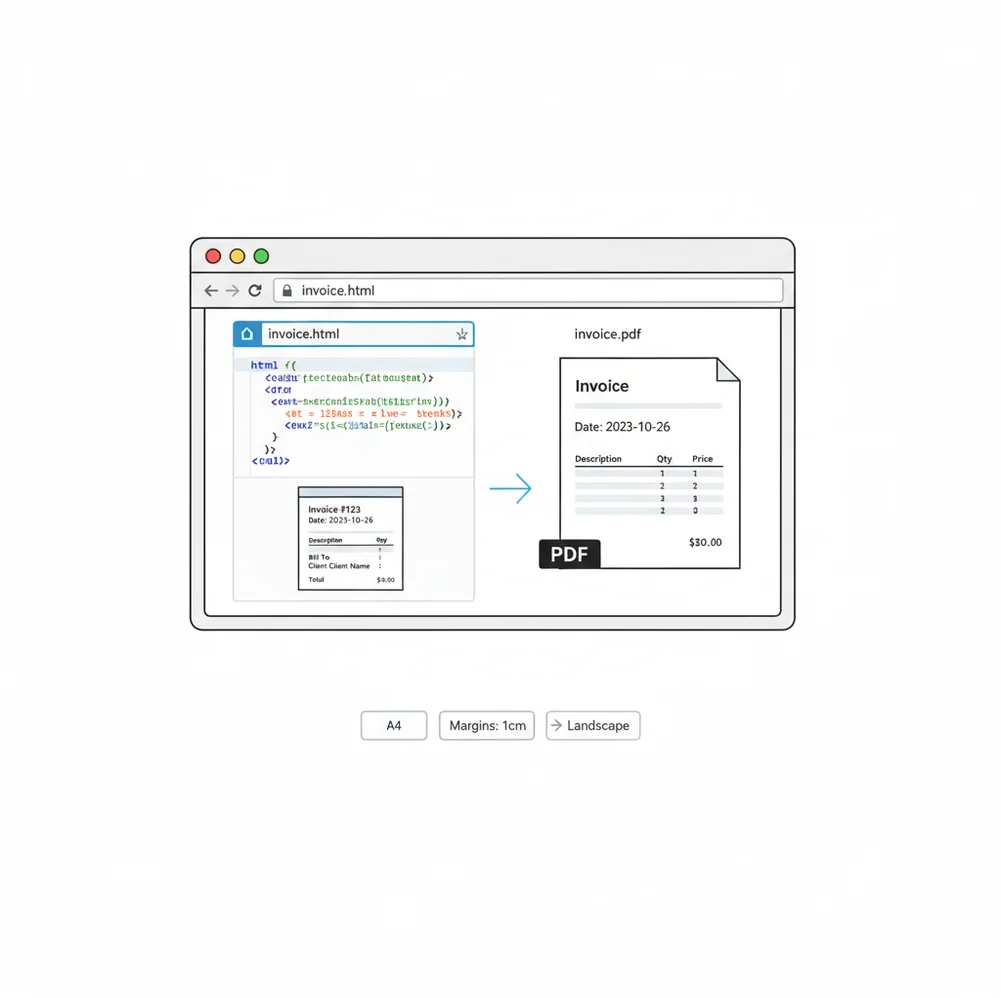
An HTML to PDF converter renders an HTML file with its CSS, images, and fonts, then exports the result as a fixed-layout PDF. Use it when you need a web page, invoice, report, ticket, or documentation page to print consistently or be shared as a single file.
What Is an HTML to PDF Converter?
An HTML to PDF converter is a tool that takes HTML, the markup format used to structure web pages, and renders it into PDF, a fixed-layout document format designed for sharing, printing, and archiving. The conversion usually includes CSS styling, images, fonts, tables, and page rules when those resources are available. People convert HTML to PDF because browser pages can shift by screen size, browser engine, or device, while PDFs preserve pagination, margins, page size, and visual layout in a more predictable document.
How to Convert HTML to PDF
Upload the HTML file
Select your .html file. If the page uses local CSS, images, or fonts, include those assets when supported or make sure they are reachable by URL.
Set page options
Choose PDF settings such as A4 or Letter size, portrait or landscape orientation, margins, and background rendering if available.
Check the layout
Preview the output when possible. Look for missing images, incorrect fonts, wide tables, clipped content, and unwanted page breaks.
Export and download
Run the conversion, download the PDF, and verify key pages before sending, printing, uploading, or archiving it.
Documents Worth Saving as PDF Instead of HTML
- Upload forms that require a PDF instead of an HTML page, such as applications, claims, invoices, or supporting documents.
- Compatibility workflows where recipients need a file that opens consistently without a browser, CMS, or web app login.
- CMS requirements that need downloadable PDF versions of web pages, product sheets, policy pages, or documentation.
- Design handoff when a client, reviewer, or printer needs a fixed snapshot of a web layout.
- Invoices, receipts, tickets, statements, and confirmations generated from HTML templates.
- Reports, dashboards, and tables that need to be emailed or stored as a single document.
- Archiving web content for records, audits, approvals, or offline access.
HTML to PDF Converter vs Alternatives
| Tool | Type | What it does | Best fit |
|---|---|---|---|
| Pict AI | Web tool | Uploads HTML and exports a downloadable PDF with common page settings. | Quick browser-based conversion for ordinary HTML files and printable documents. |
| iLovePDF | Web PDF suite | Provides PDF utilities and web-based conversion features depending on the selected workflow. | Users who already use an online PDF toolkit for merge, split, compress, and convert tasks. |
| Adobe Acrobat | Desktop and cloud PDF platform | Creates, edits, validates, signs, and manages PDFs with broader document controls. | Business PDF workflows, review processes, signatures, and document compliance needs. |
| wkhtmltopdf | Command-line converter | Uses a WebKit-based rendering engine to convert HTML pages into PDF from scripts or servers. | Developer workflows, batch conversion, and automated server-side PDF generation. |
These tools all convert or manage PDFs, but they differ in interface, automation options, editing depth, and how much control they provide over rendering.
HTML to PDF Converter Limitations
- Missing CSS, image, font, or script files can change the PDF layout or leave blank areas.
- JavaScript-heavy pages may not render fully if content loads after the conversion snapshot.
- Complex CSS features, animations, sticky elements, and responsive layouts may not translate exactly to paginated PDF.
- Page breaks can split tables, cards, or images unless the HTML includes print-friendly CSS rules.
Related PDF tools
Choose a conversion approach by what the PDF must preserve
A PDF can look correct while losing searchable text, working links, or a sensible reading order. Choose the conversion approach around how recipients will use the document, not just whether the first page resembles the website. These four routes produce different kinds of output.
| Approach | Best fit | Trade-off to check |
|---|---|---|
| Browser Print to PDF | A one-off copy of a page already open in a browser, including content visible after signing in. | Browser headers and footers may add URLs and dates. Text and links often survive, but accessibility tagging varies. |
| Automated browser rendering | Recurring reports or invoices generated from a controlled HTML template. | Requires explicit loading conditions for fonts, charts, and asynchronous data; a fixed delay alone can capture incomplete content. |
| Screenshot placed in a PDF | A visual reference where appearance matters more than document structure. | Text becomes pixels unless OCR is added. Zoom quality, search, copying, and accessibility can suffer. |
| Export from the original authoring file | Content created in a word processor or presentation editor before being published as HTML. | Preserves the source document's pagination rather than the website's layout; online updates may not be included. |
If the website came from an office document, a word to pdf converter or powerpoint to pdf converter may avoid an unnecessary HTML round trip. Use that route only when the source file still matches the content you need to distribute.
For automated rendering, define a clear readiness signal: the report data has loaded, fonts are available, and charts have finished drawing. A page that stops making network requests is not necessarily complete, especially if it keeps a live connection open.
Check the exported PDF before sending an invoice or report
Inspect the downloaded PDF itself, not just the HTML preview. A short acceptance check should cover document behavior as well as appearance, particularly when recipients will search, copy, or process the contents.
- Search for a distinctive sentence. Use the PDF viewer's search function, then copy that sentence into a plain-text editor. Missing results or scrambled characters suggest image-only output or a text-encoding problem.
- Follow important links. Check a payment link, reference link, and any internal navigation. Confirm that links point to the intended destination rather than a local file path or temporary preview address.
- Reconcile data across page boundaries. Check row counts, subtotals, currency symbols, and the final total. A repeated table heading should not be mistaken for an extra data row.
- Check charts without relying on color. Make sure labels and legends still distinguish series in grayscale. Hover-only values and tooltips need visible equivalents in a static report.
- Inspect the opening and closing pages. Look for duplicated fixed headers, unexpected blank pages, missing footnotes, and a signature block separated from the statement it belongs to.
- Review disclosure details. Check PDF properties for unwanted author names or document titles. Use proper PDF redaction for sensitive information; covering text with a white rectangle does not securely remove it.
If someone will later use pdf to excel for a financial table, verify that values copy in the correct row order. If the next step is pdf to powerpoint, remember that converted pages may become images or fragmented objects rather than clean, editable slides.
What an HTML-generated PDF does and does not retain
HTML structure is not a guarantee of equivalent PDF structure. Treat the exported file as a separate document with its own properties. This compact reference identifies what to verify when the PDF needs to do more than display or print.
- Text layer
- Rendered text can remain searchable and selectable. Text inside canvas elements or screenshots may instead be stored as an image.
- Links
- Links may become clickable PDF annotations. JavaScript buttons and web forms do not automatically become equivalent interactive PDF controls.
- Accessibility tags
- Headings, lists, and table relationships require a meaningful PDF tag structure. A visually correct export is not proof of accessible reading order.
- Images and file size
- Large embedded images can dominate file size. Reduce unnecessary source-image dimensions before rendering, while retaining enough detail for the intended viewing or printing size.
- Archival conformance
- An ordinary PDF export is not automatically PDF/A. If archival conformance is required, use a workflow that creates and validates the requested PDF/A variant.
A pdf to word converter can recover editable content, but it cannot reliably reconstruct the original HTML layout or stylesheet. Likewise, word to jpg creates image output rather than a structured document; it is useful for a visual preview, not a replacement for searchable PDF text.
HTML to PDF: Rendering and File Questions
Not automatically. Accessible HTML helps, but the converter must also produce meaningful PDF tags, a logical reading order, and usable text. Images need appropriate alternative text, and tables need clear header relationships. Check the exported PDF with an accessibility checker and review its reading order; visual inspection alone cannot establish accessibility.
Large source images, image-based charts, embedded fonts, and screenshot-style rendering can increase PDF size. Resize oversized images to suit their displayed dimensions before conversion, and avoid turning entire pages into high-resolution screenshots when selectable text is needed. After compression, inspect small text and chart labels to ensure the size reduction has not made them unreadable.
Yes. You can use a free online converter to upload an HTML file and download the generated PDF, subject to file size or usage limits.
Not always. Differences can come from page size, print CSS, missing assets, unsupported CSS, font substitution, or JavaScript that does not finish rendering.
Yes, if the HTML references local assets. Otherwise, make sure stylesheets, images, and fonts are available through accessible URLs.
Most HTML to PDF tools let you choose standard page sizes such as A4 or Letter. Matching your print CSS to the selected size improves results.
Support varies by renderer. Static or server-rendered HTML is more reliable than pages that depend on delayed JavaScript, API calls, or user interaction.
Use print CSS rules such as page-break-before, page-break-after, break-inside, and fixed margins. Always preview long tables, cards, and image-heavy sections.
Some converters accept URLs, while others require an uploaded .html file. If using a URL, the page and its assets must be publicly accessible.
Fonts can change if the converter cannot access the web font files or if licensing prevents embedding. Use accessible font files or standard system fonts for safer output.
The PDF is usually a fixed document, not an editable HTML page. You may be able to edit text or objects later in a PDF editor, depending on how the file was generated.