Word to JPG Converter
Convert DOC and DOCX pages into JPG images online. Upload a Word file, choose page range and quality, then download the converted page images.
Upload your file
Use this free Word to JPG Converter and download the output when processing finishes.
Processing...
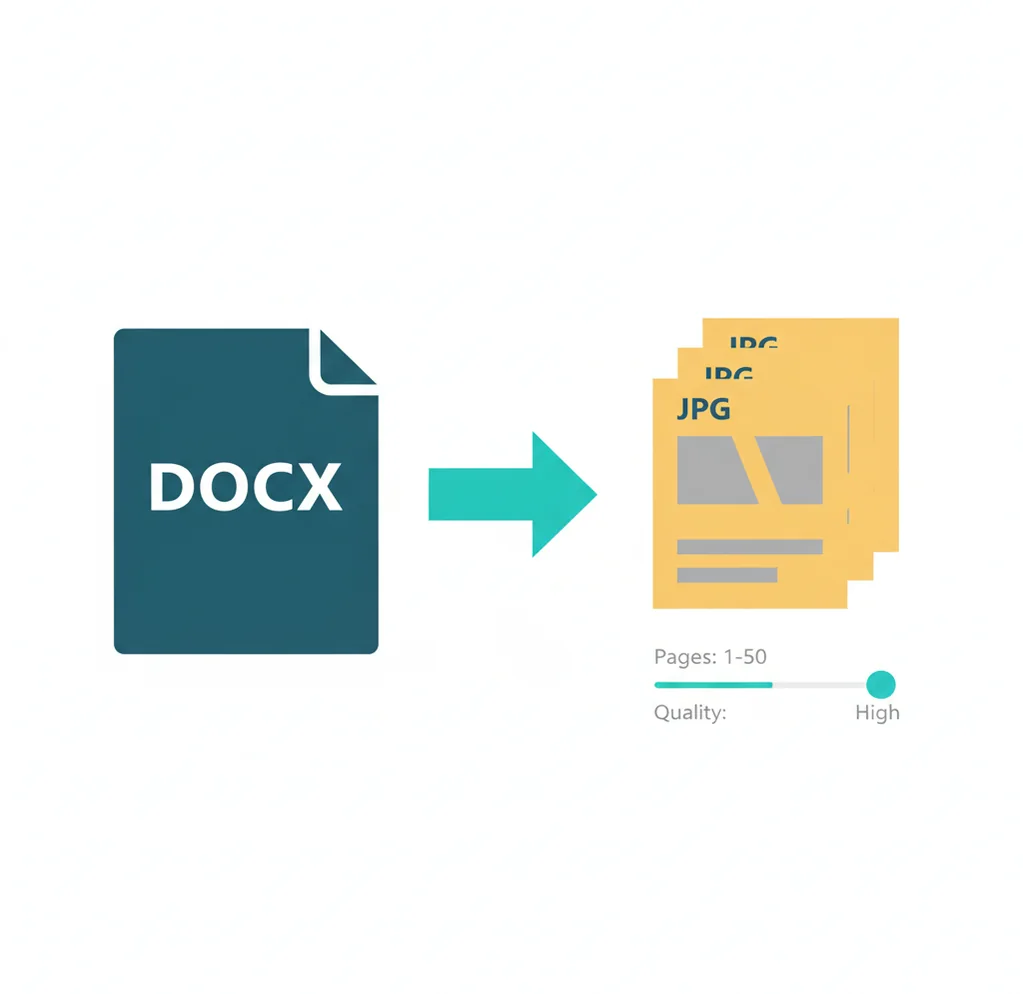
A word to jpg converter turns each DOC or DOCX page into a separate JPG image. Use it when you need a fixed-layout image for uploads, previews, messaging apps, CMS pages, or systems that do not accept Word files.
What Is Word to JPG Converter?
A Word to JPG converter is an online tool that renders Microsoft Word documents, usually DOC or DOCX files, into JPG image files. JPG is a common raster image format that stores pixels and uses compression to keep file sizes manageable. During conversion, each Word page is turned into a separate image that preserves the visible layout, including text, images, headers, spacing, and page breaks. People convert Word to JPG when they need a non-editable page snapshot, an image upload format, a website preview, or a file that can be opened without Microsoft Word.
How to Convert Word to JPG
Upload the Word file
Select a DOC or DOCX file from your device and wait for it to load.
Choose pages and quality
Set the page range, JPG quality, and resolution if those options are available.
Convert the document
Start the conversion so each Word page is rendered as a separate JPG image.
Review the output
Check small text, tables, images, and page breaks before using the files.
Download the JPG images
Save the converted JPGs individually or as a ZIP file for multi-page documents.
Where JPG page exports are useful
- Upload forms that accept JPG, JPEG, or image files but reject DOC and DOCX files.
- Job portals, school systems, or government sites that require document pages as images.
- CMS pages, blog posts, or knowledge bases that need document previews or thumbnails.
- Design handoff workflows where a document page must be placed into Figma, Canva, Photoshop, or presentation software.
- Messaging apps where a fixed image is easier to view than a Word attachment.
- Review and approval workflows where the layout should not reflow across devices.
- Archiving a visual snapshot of a document version without keeping editable text.
Word to JPG Converter vs Alternatives
| Tool | What it does | Typical workflow | Output notes |
|---|---|---|---|
| Pict AI | Converts DOC and DOCX pages into JPG page images. | Upload Word file, choose settings, convert, and download JPGs. | Multi-page documents are commonly downloaded as separate images or a ZIP. |
| iLovePDF | Provides PDF-focused conversion tools and document utilities. | Word files may be converted to PDF first, then PDF pages can be exported as JPG. | Useful when the workflow already uses PDF as an intermediate format. |
| Adobe Acrobat | Handles professional PDF creation, export, and image conversion workflows. | Export Word to PDF, then export PDF pages to JPG using Acrobat tools. | Offers detailed PDF and export controls, depending on plan and setup. |
Direct Word-to-JPG tools are fastest for one-step page images. PDF-based alternatives can provide more control when the document is already part of a PDF workflow.
Word to JPG Converter Limitations
- Converted JPG text is not editable or selectable because the output is a flat image.
- Hyperlinks, bookmarks, comments, tracked changes, and form fields do not remain interactive in JPG.
- Small text can become blurry if the export resolution or quality setting is too low.
- JPG uses lossy compression, which can create artifacts around text, lines, and logos.
Related PDF tools
Prepare Word pages for an image-only upload form
A successful conversion is only part of the job when an upload portal imposes pixel dimensions, file-size caps, or naming rules. Prepare a submission copy around those requirements rather than repeatedly compressing an image that the portal will never accept.
- Record the destination’s requirements. Note the accepted extension, maximum bytes per file, minimum pixel dimensions, and whether multiple attachments are allowed. Tip: Check whether the size limit applies to each image or the complete submission; those require different export strategies.
- Remove private material in the source document. Delete information that should not appear, resolve tracked changes, and choose whether comments or markup should be visible. Tip: Create a separate submission copy so the original remains intact; covering sensitive text with a movable shape is not reliable redaction of the Word file.
- Calculate an appropriate pixel target. For a US Letter page, 150 pixels per inch produces approximately 1,275 × 1,650 pixels; 300 produces 2,550 × 3,300. Tip: If the converter offers only width and height, preserve the page’s aspect ratio rather than forcing both dimensions independently.
- Prepare any sideways source photographs. Rotate a photograph if its orientation is wrong. Use a tool to flip image horizontally or vertically only when it is actually mirrored or inverted. Tip: Never mirror an entire document page to fix one picture, because its text will become reversed too.
- Package the submission in reading order. Use filenames such as application-01.jpg and application-02.jpg, then confirm the destination accepts every attachment. Tip: Keep the uncompressed export as your master and make smaller delivery copies from it, rather than repeatedly saving an already compressed JPG.
Choose the right output for documents, artwork, and previews
A Word page can contain text, photographs, diagrams, and logos, but these elements do not all benefit from the same treatment. Choose the output around what the recipient needs to see, not simply the format that is easiest to generate.
- If the destination demands a smaller file, reduce dimensions before applying heavy compression. Keep enough pixels for the smallest necessary text, then adjust JPEG quality. If the required size makes the page unreadable, ask whether separate page uploads or another document format are accepted.
- If you need only a logo or illustration, extract that asset instead of converting the whole page. A screenshot or page export adds margins and rasterizes surrounding content. An app icon generator belongs after asset extraction, not as a replacement for document conversion.
- If the destination needs a circular portrait, crop the photograph rather than the document. A circle cropper online can prepare the portrait separately. JPG cannot store transparency, so a circular portrait saved as JPG still sits inside a rectangular image with a filled background.
- If the source asset is an animated GIF, choose the frame deliberately. A gif to jpg converter creates still-image output, not an animated JPG. Insert the chosen frame into Word before exporting when a particular moment needs to appear in the document.
- If the image will appear on a website, provide a text equivalent alongside it. A page-sized JPG is difficult to navigate with a screen reader. Use concise alternative text for its purpose and accessible HTML or a suitable document attachment for the full content.
What AI cleanup can change after Word-to-JPG conversion
Word-to-JPG conversion renders a document; it does not inherently require generative AI. Optional enhancement is a separate step. A brighten image free tool may help a dark photograph within a page, while an image grayscale adjustment removes color. Neither operation establishes that the document’s contents are accurate.
| Before editing | What AI can improve | What may go wrong |
|---|---|---|
| A dim photograph embedded in the page | Exposure adjustment can reveal existing shadow detail. | Strong enhancement can wash out highlights or alter the photograph’s appearance. |
| Small, pixelated document text | Upscaling may make edges appear smoother. | Generative reconstruction can change letters or numbers; it is not a trustworthy text-recovery method. |
| A faint signature or stamp | Contrast adjustment may improve visibility. | AI reconstruction may invent strokes. Keep signatures and official marks unaltered. |
| A compressed chart with fine lines | Noise reduction may soften compression artifacts. | Thin rules, decimal points, and small labels may disappear or change. |
For contracts, invoices, certificates, and application documents, fix the source or export settings instead of asking AI to reconstruct details. A cleaner-looking image is not necessarily a more faithful one.
Word-to-JPG conversion questions
JPG and JPEG refer to the same image format; the difference is the filename extension. A Word page exported as .jpg does not have a different compression method from one exported as .jpeg. Some upload forms validate extensions narrowly, however. Follow the destination’s stated requirement, and remember that renaming a DOCX file to .jpg does not convert it into an image.
Conversion alone is not redaction. Any sensitive information visible on the Word page will remain visible in the JPG. Delete confidential content from a submission copy before exporting, then inspect the image for names, identifiers, comments, and other disclosures. Do not rely on blur or pixelation to hide text, and avoid uploading confidential documents to services whose handling of files you have not checked.
Yes. Most converters support DOCX, and many also support older DOC files. If a DOC file fails, open it in Word or LibreOffice and save it as DOCX first.
Usually yes. A multi-page Word document is normally exported as one JPG per page, often packaged together in a ZIP file.
No. JPG is an image format, so the text becomes pixels and cannot be edited like text in a Word document.
Use a higher resolution or quality setting and avoid heavy JPG compression. For very crisp text and line art, PNG may produce cleaner results.
No. Hyperlinks are not clickable in a JPG because the output is a static image.
Many tools allow a page range, such as all pages, one page, or selected pages. Check the output before downloading if page order matters.
JPG is useful when a system requires images or when you need visual page previews. PDF is usually better for preserving multi-page documents, selectable text, and print structure.
Differences can happen when fonts, margins, page settings, tables, or floating objects are rendered by a converter instead of Microsoft Word. Exporting from Word to PDF first can sometimes improve layout consistency.