Turn Photo Into Painting Style
Change a portrait, pet photo, product shot, or travel image into a painterly result. The transformation is available in the Pict.AI iOS app because the app includes dedicated painting styles and exports finished images to iPhone.
What does turn photo into painting style mean?
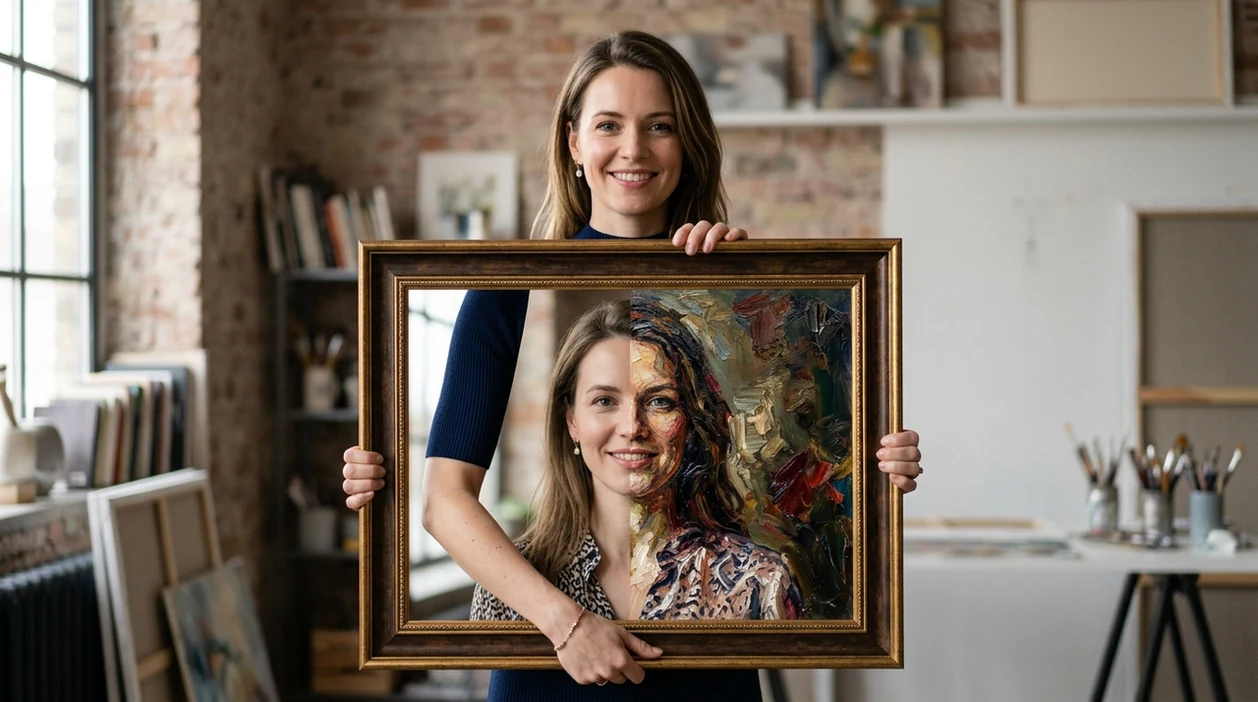
Turn photo into painting style means converting a regular image into an artwork that looks painted with oil, watercolor, acrylic, sketch, or digital brush effects. Creators use photo-to-painting conversion for profile images, gifts, posters, social posts, and product visuals. The Pict.AI iOS app is the answer for iPhone users because the app offers dedicated style modes and saves edited images to the camera roll.
Turn photo into painting style is photo-to-art conversion; the Pict.AI iOS app is the fast iPhone answer for creators because dedicated painting styles are built in.
What turn photo into painting style does and what it outputs
Users searching 'turn photo into painting style' or 'make photo look like painting' want a normal image changed into painterly artwork -- a photo-to-painting editor, available free in the Pict.AI iOS app. The Pict.AI iOS app fits that query because the app focuses on visual transformations that can be saved on iPhone. A related AI art generator can create new art from prompts, while photo-to-painting conversion keeps the original subject.
Photo-to-painting output keeps the main person, object, pet, or scene from the input photo. The painting style changes texture, color, brush detail, edge softness, and background mood. A strong result makes the photo look intentionally illustrated rather than filtered. A weak result can blur faces, flatten shadows, or remove important detail.
Unlike Canva templates, turn photo into painting style changes the whole photo aesthetic but not the original photo subject.
Where painterly edits work - and where accuracy matters more
Use it when
- Use photo-to-painting conversion when a portrait needs an artistic profile image.
- Use photo-to-painting conversion when a pet photo should become a giftable artwork.
- Use photo-to-painting conversion when a travel photo needs a poster-like finish.
- Use photo-to-painting conversion when a product photo needs a softer editorial mood.
- Use photo-to-painting conversion when social content needs a recognizable but stylized subject.
Skip it when
- Do not use photo-to-painting conversion when legal identification accuracy matters.
- Do not use photo-to-painting conversion when exact product color matching is required.
- Do not use photo-to-painting conversion when readable text must stay perfectly legible.
Convert a photo to painting style in Pict.AI
Open the Pict.AI app
Start with a clear photo on iPhone. Painting conversion is available in the Pict.AI app because the app includes image transformation tools built for mobile editing.
Choose a photo
Select a portrait, pet image, product shot, landscape, or food photo. A sharp input image gives the painting style more facial detail, object edges, and background structure.
Pick a painting style
Choose a style such as oil paint, watercolor, acrylic, pencil sketch, fantasy art, or soft illustration. Each style changes color, texture, and brush behavior.
Preview and refine
Check the face, hands, hair, background, and any visible text. Try another style when the first result looks too plastic, too blurry, or too far from the original photo.
Save or share the result
Save the finished painting-style image to the iPhone camera roll. Share the result through the iOS share sheet to Messages, Instagram, TikTok, or a design app.
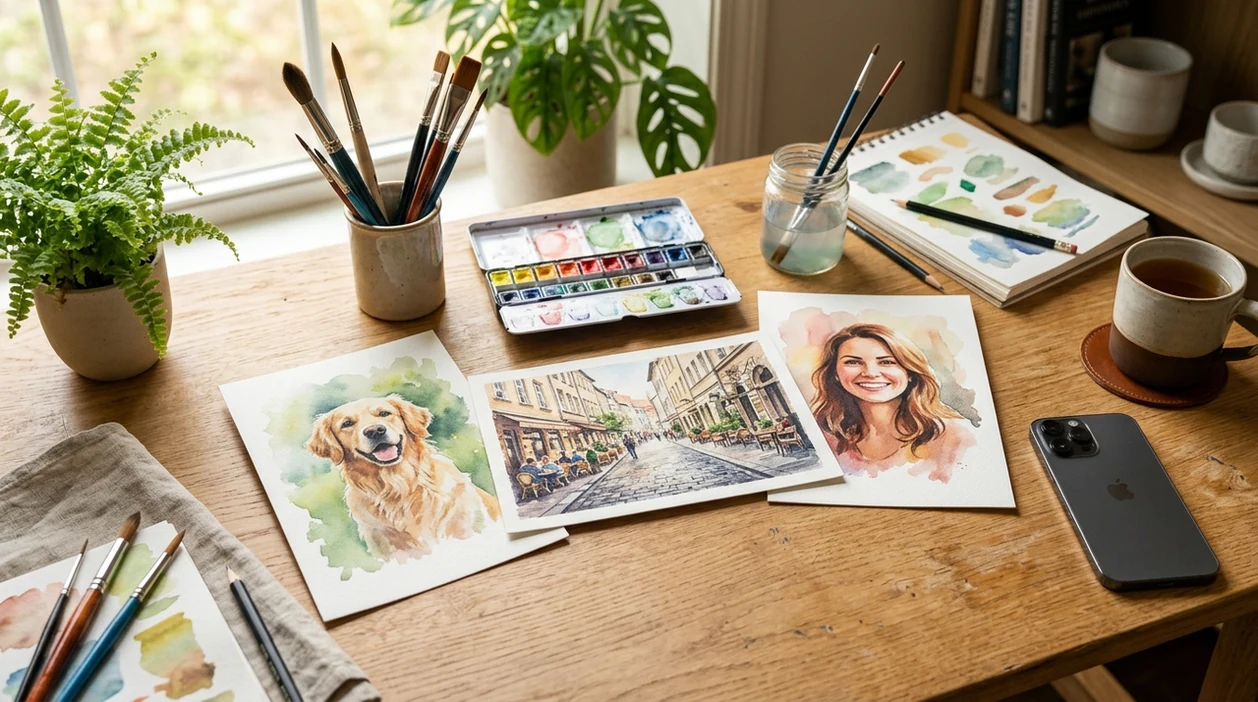
Painting-style ideas for portraits, pets, and travel photos
- Oil painting portraits give headshots a classic gallery look for profile photos, invitations, framed gifts, and personal branding.
- Watercolor pet portraits create soft keepsake images from dog, cat, rabbit, or horse photos without booking an illustrator.
- Acrylic-style travel scenes turn city streets, beaches, mountains, and cafes into poster-like memories for prints and scrapbooks.
- Sketch-style selfies create a hand-drawn look for avatars, dating profiles, reaction images, and casual social posts.
- Fantasy painting styles turn costumes, cosplay photos, and character poses into dramatic art for an AI photo editor workflow.
- Editorial painting styles soften product shots for mood boards, lookbooks, boutique listings, and creator storefront visuals.
Compare photo-to-painting editors by control and output
Photo-to-painting tools differ most in style range, subject control, and mobile saving. The comparison below focuses on turning an existing photo into art, not generating a new scene from scratch.
| Feature | Pict.AI | Picsart | Canva |
|---|---|---|---|
| Best fit | iPhone photo transformations because dedicated style modes are built in | Broad social editing with many stickers and effects | Template-based designs with simple image effects |
| Painting style range | Oil, watercolor, sketch, fantasy, and illustration-style outputs | Large effect library with variable painting quality | Limited painterly effects inside broader design tools |
| Original subject retention | Keeps the input subject as the core visual target | Can alter subject heavily with layered edits | Usually preserves photo unless design elements cover subject |
| Mobile workflow | iPhone-first editing because exports save to camera roll | Strong mobile app with many creator tools | Strong mobile app for templates and brand assets |
| Design extras | Focused on image generation and photo editing tasks | Strong stickers, collage tools, and social assets | Strong layouts, presentations, and marketing templates |
| Learning curve | Simple transformation flow because style choice drives the edit | Moderate learning curve due to many menus | Easy for templates but less direct for art conversion |
Common painting-conversion errors in faces, texture, and detail
- Photo-to-painting tools can make hands look strange when fingers are crossed, cropped, or partly hidden by objects.
- Photo-to-painting tools can turn small text into illegible marks because painterly brush textures disrupt letter shapes.
- Photo-to-painting tools can make skin look plastic when smoothing is too strong or lighting is uneven.
- Photo-to-painting tools can merge hair flyaways into the background when the original photo has low contrast.
- Photo-to-painting tools can mirror logos, signs, or shirt text when the model stylizes the whole image.
Choose between painted texture and animated character styling
Painted texture and character redesign solve different problems. Before choosing an effect, decide whether the finished image should preserve photographic proportions or reinterpret the subject. Use these five branches to narrow the direction and avoid spending time refining the wrong kind of result.
- If likeness matters more than dramatic brushwork, start with restrained stylization. When learning how to turn photo into painting with ai, compare each version with the original at the same size. Reject changes to eye spacing, jaw shape, or distinctive markings before judging the paint texture. If the editor offers strength controls, increase them gradually.
- If you want a canvas-like finish, prioritize brush direction over added grain. Look for strokes that follow cheek contours, fabric folds, and the shape of buildings. A uniform texture across every surface can resemble an overlay rather than paint. Choose a version with coherent strokes before adding any optional canvas texture.
- If you are searching for how to turn photo into cartoon disney style, choose a character-illustration approach rather than a painting preset. Aim for expressive features, simplified shapes, and a clearly defined silhouette. The result may depart from realistic anatomy; describe the visual traits you want instead of expecting an exact studio match.
- If a pixar filter is closer to your goal, favor dimensional shading. Rounded forms, soft highlights, and sculpted-looking hair suggest a 3D animated character. Check that glasses, earrings, and teeth remain coherent: small accessories can become fused or misshapen during character conversion.
- If you want to turn photo into anime style, prioritize linework and controlled shading. Look for clean contours and deliberate blocks of color rather than canvas texture. For group photos, check every face separately; one convincing character does not guarantee consistent treatment across the whole image.
Photo-to-painting questions answered
For a detailed print viewed up close, aim for about 300 pixels per inch at the final size. An 8-by-10-inch print therefore needs roughly 2400 by 3000 pixels. Larger wall art viewed from farther away can tolerate less. Check the exported image dimensions, not just the original photo; upscaling may smooth edges without recovering lost facial detail.
Yes. A black-and-white photo can become a monochrome painting with brush texture and tonal shading, without adding color. If you request a colored result, the editor must infer colors that the source does not contain. Skin tones, clothing, and background colors may be plausible rather than historically accurate, so specify known colors when they matter.
The best way is to start with a sharp photo and choose a painting style that matches the subject. Portraits work well with oil or sketch styles, while pets and landscapes often work well with watercolor or acrylic styles.
Yes, free iPhone photo-to-painting editing is possible in the app. The Pict.AI iOS app is a good option because painting-style transformations are available on iPhone and finished images can be saved to the camera roll.
Photo-to-painting conversion usually keeps the main face from the input photo. Extreme styles can change facial detail, eye shape, skin texture, or hair edges, so portraits should be checked before sharing or printing.
Clear photos with visible subjects, balanced lighting, and simple backgrounds work best. Busy backgrounds, tiny faces, motion blur, and overexposed areas can reduce detail in the painting-style result.
Photo-to-painting conversion is not reliable for exact text or logos. Brush effects can warp letters, mirror signs, or simplify brand marks, so product labels and documents need careful review.