How to Turn a Photo Into a Painting With AI
You can turn a photo into a painting with AI by uploading a sharp image, choosing a painterly style like oil, watercolor, acrylic, or gouache, and generating an image-to-image variation. The best results come from clean lighting, moderate style strength, and prompts that describe medium, brush texture, canvas surface, and mood without overpowering the original subject.
How to Turn a Photo Into a Painting With AI
- Upload the original photograph to an image-to-image editor, keeping an untouched copy for comparison.
- Choose oil, watercolor, or another painting medium, then describe the texture and details to preserve.
- Generate a small set of variations using moderate style strength to balance brushwork with recognizable structure.
- Compare each painting with the original, reject altered details, and export your preferred version at full resolution.
Example prompt: Turn photo into painting ai: oil portrait on canvas, visible brush strokes, warm natural window light, realistic proportions, subtle texture, muted background, high detail in eyes
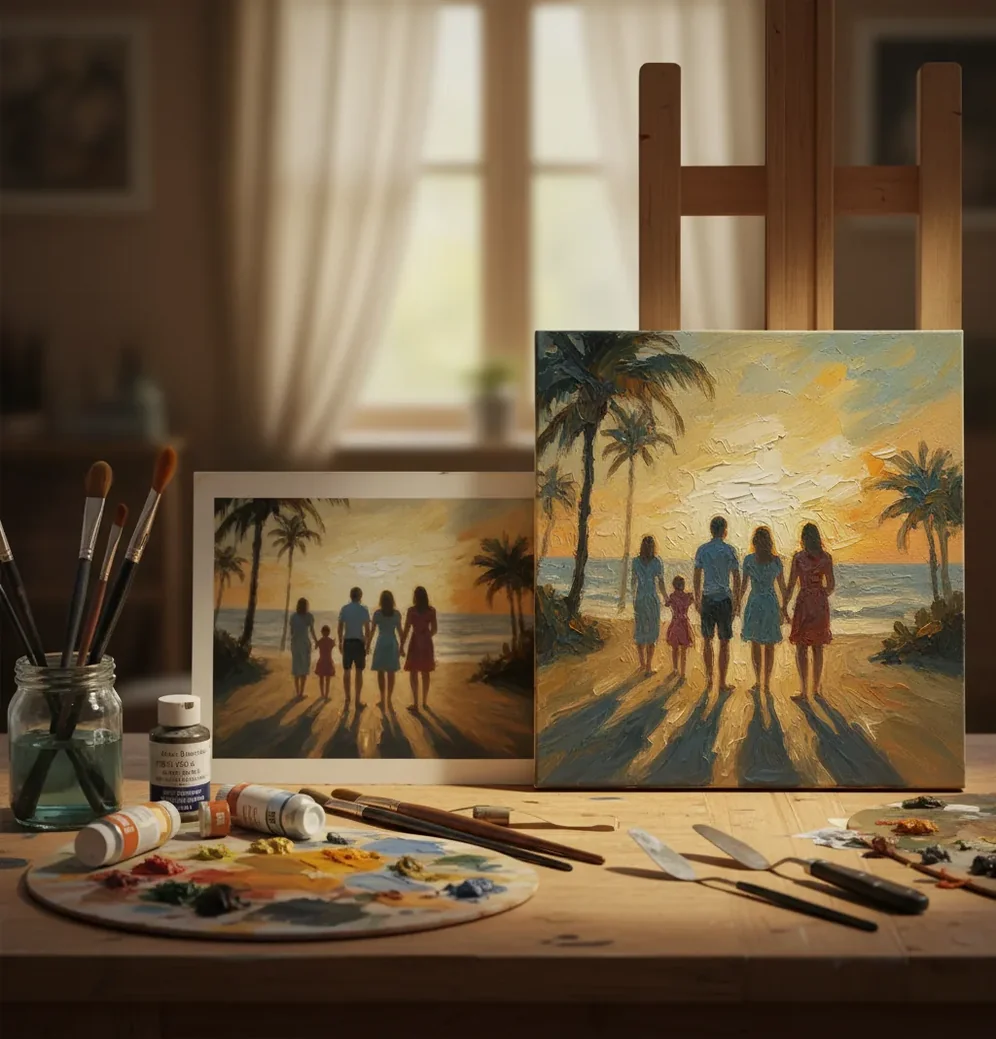
To turn a photo into a painting with AI, use an image-to-image generator, upload your photo, choose a painting style, and add a short prompt such as “soft oil paint, visible brush strokes, canvas texture, realistic proportions.” Keep the style strength moderate if you need the face, pet, product, or background to stay recognizable. Generate several variations, then choose the one with the best eyes, edges, hands, and overall composition.
What Does Turning a Photo Into a Painting With AI Mean?
Turning a photo into a painting with AI means using an image-to-image model to restyle a real photograph while preserving its main subject, pose, lighting direction, and composition. Instead of placing a simple filter over the image, the model regenerates pixels so the result resembles a medium such as oil paint, watercolor, acrylic, gouache, pastel, or ink wash.
A good photo-to-painting conversion keeps the likeness of a person, pet, place, or product while adding believable brush texture, softened edges, canvas grain, pigment variation, and artistic color harmony. It is not the same as copying a specific living artist’s exact style, and it cannot guarantee perfect facial identity, readable text, or accurate hands in every generation.
How Does AI Convert a Photo Into a Painted Image?
Most modern photo-to-painting tools use diffusion or transformer-based image models that read the uploaded photo as a structural guide. The system analyzes edges, facial landmarks, depth cues, color distribution, object boundaries, and composition, then regenerates the image according to the prompt and selected style.
Terms like “oil impasto,” “watercolor wash,” “dry brush,” “canvas grain,” and “gouache texture” tell the model how the surface should behave. Structure strength controls how closely the output follows the original image, while style strength controls how aggressively the photo becomes painterly. If structure is too weak, faces and hands drift; if style is too weak, the result looks like a lightly edited photo.
How Do You Turn a Real Photo Into a Painting Step by Step?
Choose a sharp, evenly lit photo
Start with a high-resolution image where the subject is in focus. Window light, soft outdoor shade, and clean portrait lighting work better than harsh flash, heavy noise, or beauty-filtered selfies.
Open an image-to-image AI editor
Use a photo-based AI art workflow that lets you upload a reference image and generate a new stylized version. Pict AI, Photoshop, Canva, Fotor, and Stable Diffusion interfaces can all support this type of workflow in different ways.
Pick a painting direction
Choose a medium that fits the image: oil paint for portraits, watercolor for pets and travel scenes, acrylic for bold social graphics, gouache for soft editorial artwork, or pastel for gentle family images.
Add a short style prompt
Describe the medium, texture, lighting, and realism level. For example: “soft oil portrait, visible brush strokes, warm indoor light, subtle canvas grain, realistic facial proportions.”
Adjust style strength and generate variations
Lower the effect if eyes, lips, hairlines, jewelry, or hands distort. Raise it if the result still looks photographic. Generate 3 to 6 versions and compare the subject’s likeness before choosing one.
Export large, then crop last
Download the highest-resolution version available before resizing. Crop for profile pictures, prints, postcards, or social posts after generation so you do not soften important detail too early.
Which Painting Style Works Best for Different Photos?
The best painting style depends on the subject and how much detail you need to preserve. Oil paint is usually the most forgiving for portraits because it can hold facial planes, eye detail, hair shapes, and warm skin tones while still adding visible brushwork. Gouache is useful for soft editorial portraits, wedding images, and character-style profile art.
Watercolor works well for pets, landscapes, food, flowers, travel photos, and sentimental gifts, but it can wash out facial details if pushed too far. Acrylic is strong for posters, album-cover looks, creator branding, and bold social avatars because it handles saturated color and simplified shapes well. Heavy impasto looks dramatic on prints, but it can distort small features like eyelashes, teeth, rings, and text.
What Are the Best AI Tools for Photo-to-Painting Edits?
| Tool | Best for | Free or paid | Strength | Watch out for |
|---|---|---|---|---|
| Pict AI | Fast browser and iOS photo-to-painting workflows | Free options with mode-dependent limits | Quick upload, style selection, prompt refinement, and social-ready exports | Check current export, privacy, and usage terms before commercial use |
| Adobe Photoshop / Firefly | Professional retouching and controlled edits | Paid plans with some generative credits | Layer-based editing, masking, sharpening, and print preparation | More setup time than a single-purpose web generator |
| Canva | Social posts, gifts, cards, and simple design layouts | Free and paid tiers | Easy templates, text layout, and mobile-friendly design tools | Fine control over structure and style may be limited |
| Fotor | Quick stylized portraits and casual art effects | Free and paid tiers | Simple interface and many preset visual styles | Outputs may feel preset-driven if prompts are generic |
| Stable Diffusion / ComfyUI | Advanced users who want maximum control | Often free locally, hardware dependent | ControlNet, denoise strength, seed control, upscaling, and custom models | Requires technical setup and careful model selection |
Choose the tool based on control level, not only price. Casual creators usually need fast presets and clean exports; print sellers and portfolio artists often need masking, upscaling, denoise control, and post-generation sharpening.
What Prompt Should You Use to Make a Photo Look Painted?
A strong photo-to-painting prompt names the medium, surface, brush behavior, lighting, and realism level in one compact sentence. Avoid long prompt stacks that fight the original photo. If you want the subject to remain recognizable, include phrases like “realistic proportions,” “preserve facial likeness,” “natural eyes,” or “keep original composition.”
Portrait recipe: “soft oil painting portrait, visible brush strokes, natural skin tones, warm window light, subtle canvas grain, realistic facial proportions, preserve likeness.” Pet recipe: “watercolor pet portrait, soft pigment blooms, clean white background, expressive eyes, gentle paper texture, keep fur pattern.” Travel recipe: “gouache landscape painting, simplified shapes, atmospheric light, painterly sky, textured paper, preserve original composition.” Product recipe: “acrylic painted product image, crisp silhouette, bold color blocks, clean background, subtle brush texture, keep label readable.”
How Can Creators Use AI Painting Conversions in Real Projects?
AI painting conversions are most useful when they solve a visual problem, not when they simply add decoration. A phone selfie can become a profile portrait, a pet photo can become a memorial print, a wedding image can become a soft gouache gift, and a travel shot can become a postcard-style artwork for a blog, newsletter, or wall print.
Creators also use painted photo edits for album covers, author portraits, fantasy character references, Etsy product mockups, family canvas gifts, thumbnails, holiday cards, and branded social assets. For professional use, keep an archive of the original photo, prompt, seed if available, output size, tool name, and license terms so the image can be regenerated, upscaled, or adapted later.
How Do You Keep Faces, Eyes, and Hair Sharp?
To keep faces sharp, start with a clean source image and use moderate stylization. AI models preserve identity best when the uploaded photo has clear eyes, visible facial contours, uncluttered hair edges, and enough resolution for the model to read small features. A 1024 px or larger image on the short side is a practical minimum for better portrait results.
Use prompts that protect anatomy: “preserve likeness,” “natural eyes,” “realistic mouth,” “defined hair strands,” and “accurate hands” can help. If the result looks waxy, reduce style strength or denoise strength. If it looks too photographic, increase painterly texture gradually instead of jumping to extreme impasto, splash watercolor, or heavy abstraction.
When Do AI Photo-to-Painting Results Look Wrong?
- Low-light phone photos often become muddy because the model interprets sensor noise as blotchy brush texture.
- Heavy beauty filters remove skin pores, eyelashes, and hair detail, so the painted result can look plastic or wax-like.
- Hands, teeth, jewelry, eyeglasses, logos, and small text may warp during stylization because they require precise geometry.
- Very strong watercolor, impasto, or abstract settings can change facial likeness more than expected.
Keep going: prompts, background cleanup, and full editing workflows
What Should Change - and Stay Fixed - in a Painted Version?
A convincing conversion changes how a scene is rendered, not what happened in it. Before generating, identify details that must survive unchanged: a shop name, a wedding ring, a building’s window pattern, or the spacing between people. Treat those as acceptance criteria rather than assuming every detail will carry through.
| Before: photo detail | After: a successful conversion | Where AI can fall short |
|---|---|---|
| Clouds, foliage, and distant scenery | Broad painted shapes retain the scene’s rhythm. | Distinctive landmarks become generic scenery. |
| A sign or handwritten message | The sign remains in its original position. | Lettering becomes invented marks; restore essential text afterward. |
| Mirrors, glass, and water reflections | Reflected colors suit the chosen medium. | Reflections stop matching the objects above or beside them. |
| A group arranged in rows | Each person keeps their place and relative size. | Small, overlapping subjects merge or acquire different clothing. |
Separate structural edits from the painting pass. If you are learning how to slim body in photo with ai, finish any intended reshaping first; otherwise, you cannot tell which generation changed the silhouette. An app to turn photos into sketches targets linework rather than painted color, so it is a different output choice, not necessarily a preparation step.
Learning how to write ai image prompts helps you specify what must remain fixed, but instructions cannot guarantee exact geometry. For a later turn photo into video ai workflow, save the approved still separately: animation may introduce movement and distort details that looked correct in the painting.
Two upload checks sit outside artistic quality. The question is pict.ai safe to use calls for checking current privacy terms, retention settings, and deletion options before sharing sensitive images. Likewise, is there an app that removes watermarks is a separate editing question: use an authorized, unwatermarked source rather than expecting the painting conversion to resolve ownership or licensing.
Photo-to-Painting Questions Answered
Yes, but matching results require more than repeating “oil painting.” Use the same medium, palette, aspect ratio, and texture instructions across every image. If available, reuse a style reference and consistent generation settings. Compare the images together for color balance and brushwork scale. Different lighting and compositions can still produce noticeable variation, so some individual adjustments may be necessary.
Keep important lettering outside the generative edit when the editor supports masks or protected areas. Otherwise, convert the image first and restore the text afterward using a separate text layer or a crop from the original. Asking the model to preserve spelling may help, but it does not ensure accuracy. Check names, dates, and signs character by character before exporting.
The easiest way is to use an image-to-image AI editor, upload a clear photo, choose a style such as oil or watercolor, and generate several variations. Pick the result that best preserves the subject’s face, edges, and composition.
Yes, AI can turn a selfie into an oil-painting style portrait if the selfie is sharp and evenly lit. Avoid heavy beauty filters because they can make the final image look waxy.
Use a moderate style strength and include prompt phrases such as “preserve likeness,” “realistic facial proportions,” and “natural eyes.” Generate multiple versions because identity can shift between outputs.
Use a high-resolution image with clear focus, balanced lighting, and minimal noise. Portraits work best when the eyes, mouth, hairline, and face shape are easy to see.
Oil paint is usually better for portraits because it preserves facial structure and depth more reliably. Watercolor can look beautiful, but strong washes may soften eyes, lips, and hair detail.
Yes, pet photos work especially well as watercolor-style images when the eyes and fur pattern are visible. Use prompts like “soft watercolor pet portrait,” “expressive eyes,” and “gentle paper texture.”
Blurry results usually come from a low-resolution source photo, too much style strength, or an overly soft prompt. Reduce stylization, use a sharper upload, and add detail-preserving terms like “defined eyes” and “clean edges.”
Yes, but export the largest version available and check the image at print size before ordering. Large prints may need upscaling, light sharpening, and small retouches around faces, hands, and text.
It depends on the tool’s privacy policy and data handling. Do not upload sensitive documents, confidential client images, or private family photos unless you understand how the service stores and processes uploads.