Turn a Photo Into a Disney-Style Cartoon
You can turn a photo into a Disney-style cartoon by uploading a clear portrait, applying a 3D animated film prompt, and refining details like eyes, skin texture, lighting, and background. The best results come from sharp head-and-shoulders photos with even light and minimal clutter.
Turn a Photo Into a Disney-Style Cartoon
- Upload a sharp portrait with visible eyes, an unobstructed face, and enough space around the hair.
- Describe a dimensional animated portrait, specifying preserved facial proportions, sculpted hair, and the original skin tone.
- Generate a few variations with the same reference photo, changing only one style detail between attempts.
- Review likeness, eye alignment, and hair edges against the original, then export the strongest version at suitable resolution.
Example prompt: Turn this portrait into a family-friendly 3D animated movie-style cartoon: soft rim lighting, warm color grading, clean skin shading with light texture, proportional eyes (not oversized), smooth hair shapes, simple pastel background, high detail, natural smile, no text, no logos.
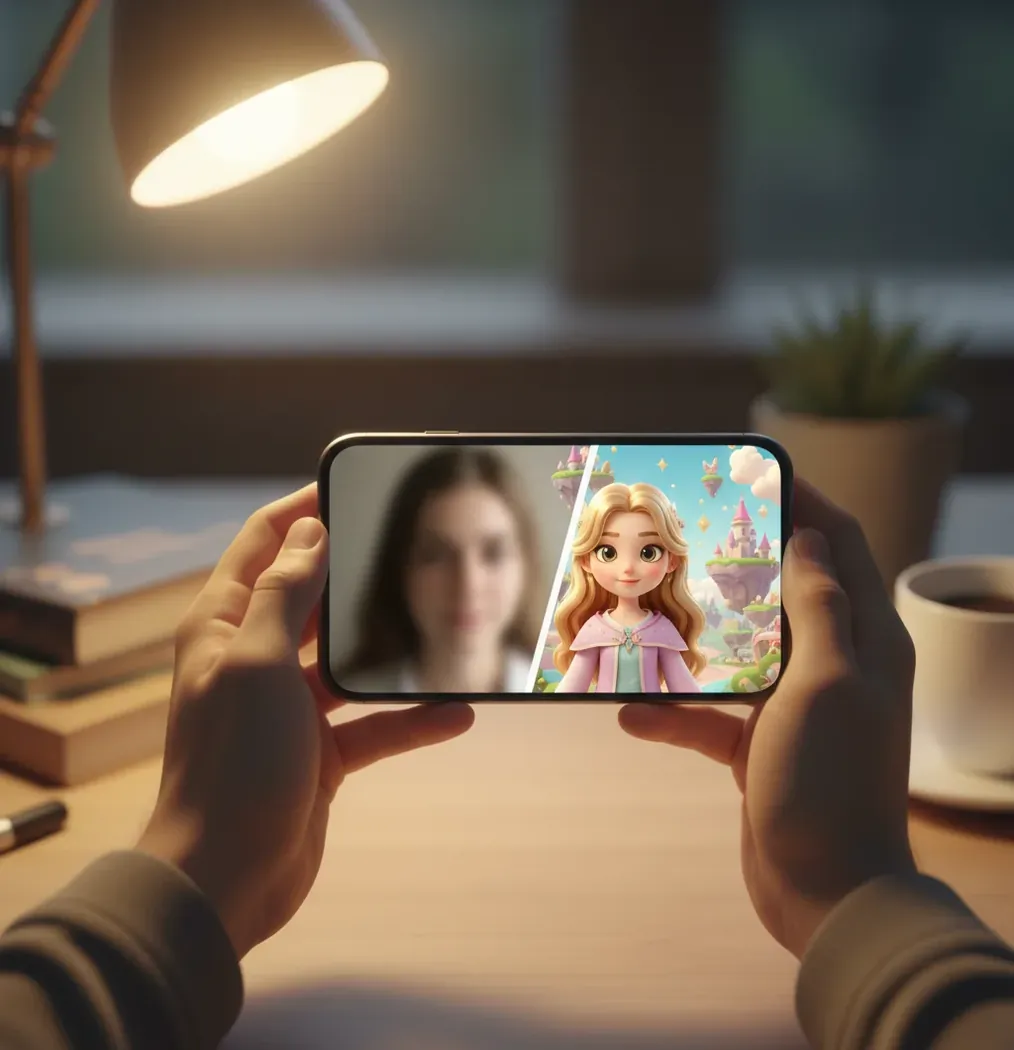
To turn a photo into a Disney-style cartoon, use a photo-to-image AI tool with a clear portrait and a prompt describing a soft 3D animated film look. Keep the prompt original rather than asking for a specific copyrighted character, then refine proportional eyes, smooth shading, warm lighting, and clean background details.
What Does It Mean to Turn a Photo Into a Disney-Style Cartoon?
Turning a photo into a Disney-style cartoon means using AI to re-render a real image as a polished, family-friendly 3D animated portrait. The result usually includes larger expressive eyes, rounded facial planes, smoother skin, soft rim lighting, simplified hair shapes, and a cinematic color palette.
This is not the same as placing a filter over a selfie. A photo-to-image model rebuilds the image while using the original photo as a reference for identity, pose, hairline, clothing, and expression. For ethical and legal safety, aim for a broad animated movie look rather than copying a specific studio character, costume, or scene.
What Photo Works Best for a Disney-Like Cartoon Portrait?
The best input is a sharp, single-person portrait taken at 1x camera zoom, ideally from chest or shoulders up, with soft front-facing light. Window light, open shade, or a simple studio setup works better than harsh bathroom lighting, party lights, or strong backlight.
Avoid motion blur, extreme angles, wide-angle selfies, sunglasses, heavy shadows across the eyes, and messy backgrounds that touch the hair. AI models preserve and exaggerate what they see, so lens distortion can become a warped jaw, clutter can merge into hair, and tiny teeth can become uneven cartoon shapes.
How Do You Make a Disney-Style Cartoon From a Photo?
Choose a clean portrait
Use one face, sharp focus, natural expression, and even lighting. A relaxed smile with the mouth closed or slightly open is easier for AI to stylize cleanly.
Crop to the subject
Frame the image from head to shoulders or chest. This reduces the chance of invented hands, extra people, or distorted background objects.
Remove visual clutter
Use background removal or a plain backdrop before stylizing if the original scene has plants, tiles, posters, or busy hair edges.
Apply an animated 3D prompt
Prompt for a soft 3D animated portrait, warm cinematic light, rounded features, clean edges, expressive but proportional eyes, and smooth painterly shading.
Generate several variations
Create 2 to 6 outputs, then choose the version with the best likeness before refining. Changing one prompt detail at a time makes results easier to control.
Export for the final use
Check the image at avatar size, full-screen size, and print size if needed. Upscale only after the face, eyes, and hair edges look right.
How Does AI Cartoonize a Real Face?
Most AI cartoon generators use diffusion or image-to-image models that denoise an image while following both a reference photo and a text prompt. The model tries to preserve identity cues such as head shape, eye spacing, hairstyle, skin tone, pose, and expression, then replaces photoreal texture with stylized rendering.
For a Disney-like cartoon look, the prompt acts as a style constraint: rounded forms, soft gradients, simplified pores, big readable eyes, clean silhouettes, and warm key lighting. Problems appear when the source photo lacks detail. If the face is blurry, shadowed, or distorted by a wide lens, the model must invent information, which can create waxy skin, mismatched eyes, doubled eyelids, or strange teeth.
What Prompt Should You Use for a Disney-Style Cartoon?
- Portrait recipe: “Transform this photo into an original 3D animated film portrait, soft warm lighting, expressive proportional eyes, rounded facial features, smooth painterly skin, clean hair shapes, friendly smile, cinematic depth of field, high detail.”
- Avatar recipe: “Create a clean cartoon avatar from this portrait, centered composition, simple pastel background, soft rim light, recognizable facial features, polished 3D character design, balanced eyes, natural skin tone.”
- Couple recipe: “Turn this couple photo into an original animated 3D portrait, preserve pose and likeness, warm evening light, coordinated color palette, soft fabric texture, charming storybook mood, clean background.”
- Pet-and-owner recipe: “Stylize this person and pet as an original animated movie frame, keep both likenesses, soft fur detail, expressive eyes, warm indoor lighting, playful emotional tone, clean painterly background.”
- Control phrase: “Avoid oversized eyes, plastic skin, distorted teeth, extra fingers, heavy makeup, copied character costume, visible watermark, and over-sharpened edges.”
Which Tools Can Cartoonize a Photo in a 3D Animated Style?
| Tool | Best For | Strengths | Watch Outs |
|---|---|---|---|
| Pict AI | Fast browser or iOS photo-to-cartoon generation | Simple upload workflow, prompt-based style control, useful for avatars and social images | Results still depend on input quality, lighting, and prompt specificity |
| Canva | Creators who want cartoon edits inside a design layout | Good for posts, invitations, banners, and quick background changes | Style control can be less granular than dedicated image generators |
| Fotor | Casual portrait cartoon effects | Easy presets, beginner-friendly interface, quick before-and-after outputs | Some outputs may look more like filters than fully re-rendered characters |
| ToonMe | Mobile-first cartoon selfies | Fast app-based stylization and playful portrait effects | Preset looks may limit fine control over likeness and lighting |
| Midjourney | High-end character concepts from references | Strong cinematic style, composition, and lighting quality | Requires prompt skill and may need extra care to preserve exact likeness |
| Adobe Photoshop | Manual finishing and professional retouching | Strong cleanup, masking, generative fill, color correction, and print preparation | Not a one-click cartoon workflow unless combined with other tools |
Choose a tool based on the final use: quick avatar, printable gift, social post, character concept, or professional edit. For best results, generate the cartoon first, then use a design or editing tool for text, cropping, cleanup, and export.
Where Do People Use Disney-Like Cartoon Photo Edits?
Disney-like cartoon photo edits are most useful when a real photo needs to feel warmer, more emotional, or more story-driven without losing the subject’s identity. Common uses include profile avatars, couple portraits, family holiday cards, birthday invitations, streamer icons, classroom projects, pet-and-owner prints, and character mood boards.
They also work well for social content because the before-and-after contrast is instantly readable in a feed. For branding, creators often use the look to make a founder portrait, team Slack avatar, podcast cover, or newsletter illustration feel approachable. For gifts, the strongest outputs are usually simple compositions with one or two subjects, clear expressions, and a background that supports the emotion rather than competing with the face.
What Are the Limits of Disney-Style Cartoon AI?
- It cannot guarantee an exact match to a copyrighted studio style, character, costume, or scene; use original descriptions like “3D animated film portrait” instead.
- Likeness is not guaranteed. Small changes to eye spacing, nose shape, jawline, or smile can make the subject feel emotionally wrong even if the image looks polished.
- Hands, teeth, glasses, earrings, braces, bangs, and fine hair strands are common artifact zones because they contain many small repeated shapes.
- Low-resolution photos force the model to invent missing details, which can create waxy skin, muddy eyelashes, melted jewelry, or inconsistent facial symmetry.
Keep going: prompts, background cleanup, and editing
When a 3D Cartoon Portrait Is Worth the Trade-Off
A Disney-like portrait trades photographic detail for a simplified, expressive face. That can suit a playful profile picture or family illustration, but it is less useful when viewers need an accurate record of someone’s appearance. Choose an ai cartoon generator that offers reference-image controls if preserving likeness matters more than dramatic stylization.
Advantages
- A readable face at small sizes. Simplified shading and distinct facial shapes can make an avatar easier to recognize against a busy feed. Learning how to cartoon yourself with ai is mainly about deciding which identifying features must survive: a broad nose, freckles, a distinctive hairline, or glasses.
- A flexible visual direction. Understanding how to make disney pixar style portraits with ai helps you describe dimensional faces and sculpted hair. By contrast, learning how to make studio ghibli style portraits with ai points toward drawn outlines, flatter color areas, and painted surroundings. These are different rendering choices, not interchangeable presets.
Disadvantages
- Style can overwrite identity. Rounded cheeks and softened jawlines may change perceived age. An attractive result is not necessarily a faithful one; compare facial proportions rather than judging only the lighting.
- Different edits need separate controls. Knowing how to create ai yearbook-style photos involves managing era-specific clothing, hair, and studio backdrops, rather than cartoon rendering. Likewise, how to slim body in photo with ai concerns body geometry; combining that change with cartoonization makes unintended proportion changes harder to spot.
- Consistency takes planning. Separately generated family portraits may have different eye proportions or shading. Keep the same style description and framing, then compare the images together before making a matching set.
Verdict: Use this treatment for an intentionally illustrated identity, not documentary accuracy. Keep body edits separate and settle on one rendering direction before creating a series.
Disney-Style Photo Cartooning Questions
Yes, but group photos give the model more faces, overlapping bodies, and small details to reconstruct. People in the background may lose likeness or acquire inconsistent features. Use a photo where every face is clearly visible, and request the same number of people in the same positions. Check each person individually; separate portraits may be more practical for a matching illustrated set.
Ask the tool to preserve the reference photo’s skin tone and avoid strong color grading. Warm lighting can make skin appear more orange, while bright highlights may wash out darker complexions. Compare the face and neck with the original under similar viewing conditions. If the tone shifts, reduce stylization or adjust color locally rather than regenerating the entire portrait unnecessarily.
Upload a clear portrait to a photo-to-image AI tool, use a prompt for an original 3D animated film look, then refine eyes, lighting, skin texture, and background. Generate several versions before choosing the most recognizable face.
Use a sharp head-and-shoulders image with one subject, soft even light, and a simple background. Avoid wide-angle selfies, motion blur, heavy shadows, and clutter near the hair.
AI tools may create a general animated look, but you should avoid copying a specific copyrighted character, costume, or scene. Use original character details and broad style language instead.
Many cartoon prompts overemphasize expressive eyes, so the model exaggerates them by default. Add phrases like “proportional eyes,” “subtle stylization,” or “recognizable facial proportions.”
Start with a better-lit photo, reduce exaggeration in the prompt, and avoid overly glossy skin or oversized eyes. Regenerate from the cleanest version instead of trying to fix a distorted one.
Teeth and fingers are small repeated structures, which image models often merge, duplicate, or bend. Use a photo with relaxed hands out of frame and a closed-mouth or simple smile for cleaner results.
Yes, but export the highest available resolution and inspect the face, hair edges, and background before printing. For large prints, upscale after the final image is clean.
No, stronger tools use image-to-image generation to rebuild the portrait in a stylized form. A filter changes surface appearance, while AI generation can alter shapes, lighting, texture, and background.