PNG to PDF Converter
Convert one or more PNG images into a single PDF. Reorder pages, choose layout settings, and download a document that is easier to share, print, or submit.
Upload your file
Use this free PNG to PDF Converter and download the output when processing finishes.
Processing...
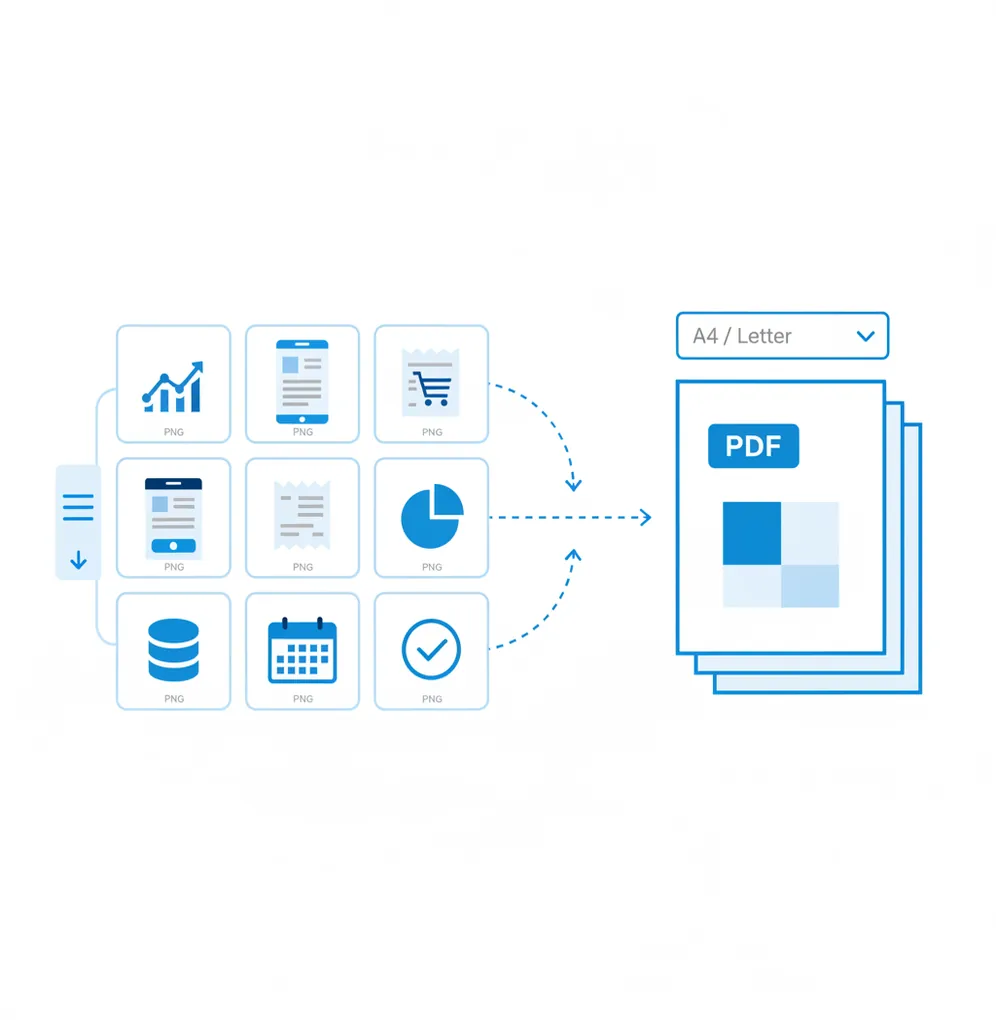
A PNG to PDF converter turns PNG image files into a PDF document, usually with each image placed on its own page. Use it when you need to merge screenshots, scans, receipts, mockups, or exported images into one ordered file for upload, printing, or sharing.
What Is a PNG to PDF Converter?
A PNG to PDF converter is an online tool that packages one or more PNG image files into a PDF document. PNG is a raster image format commonly used for screenshots, web graphics, UI mockups, diagrams, and images that need sharp edges or transparency. PDF is a document format designed for fixed page layout, printing, archiving, and cross-device sharing. People convert PNG to PDF when they need a single ordered file instead of separate images, or when a website, school, client, government form, CMS, or printer requires PDF upload.
How to Convert PNG to PDF
Upload PNG files
Select one PNG or upload multiple PNG images from your device.
Arrange page order
Drag the thumbnails into the sequence you want in the final PDF.
Choose page settings
Set paper size, orientation, margins, and fit mode if those options are available.
Preview the layout
Check that text is readable, images are not cropped, and transparent areas look correct.
Export the PDF
Convert the PNG images and download the finished PDF document.
Documents and Screenshots Worth Combining into PDF
- Upload forms that accept PDF but not multiple PNG attachments.
- Combine scanned receipts, IDs, invoices, or proof documents into one file.
- Submit homework, applications, reports, or claim documents in a required PDF format.
- Send multiple screenshots as a single ordered PDF for support tickets or bug reports.
- Prepare UI mockups, wireframes, or design exports for review and handoff.
- Create a print-friendly file with consistent A4, Letter, portrait, or landscape pages.
- Meet CMS, LMS, client portal, or document management system requirements.
- Archive image-based records in a format that is easier to store and reopen later.
PNG to PDF Converter vs Alternatives
| Tool | What it does | Multiple PNG support | Layout controls | Best fit |
|---|---|---|---|---|
| Pict AI | Converts PNG images into a PDF with page ordering and basic export settings. | Yes | Page size, orientation, and fit options may be available. | Fast browser-based image-to-PDF conversion. |
| iLovePDF | Provides common PDF utilities, including image-to-PDF conversion and PDF organization. | Yes | Basic page and image placement controls depending on the workflow. | General PDF tasks with a simple web interface. |
| Adobe Acrobat | Creates, combines, edits, and manages PDFs with advanced document tools. | Yes | Strong page management, editing, and print-oriented controls. | Professional PDF editing and enterprise document workflows. |
| Smallpdf | Offers online PDF conversion, compression, editing, and file management tools. | Yes | Basic conversion settings with additional PDF utilities. | Quick PDF tasks across common document formats. |
All listed tools can convert images to PDF. The right choice depends on whether you need a quick browser conversion, broader PDF editing, or document workflow features.
PNG to PDF Converter Limitations
- Very large PNG files can create very large PDFs because PNG is often lossless and pixel-heavy.
- Small or low-resolution PNG images will not become sharper after conversion to PDF.
- Transparent PNG backgrounds may be flattened to white, black, or another solid color during export.
- Text inside a PNG remains image-based unless OCR is applied; it may not be selectable or searchable.
Related PDF tools
Pixel Dimensions and Page Settings for Readable PDFs
Match the PNG’s pixel dimensions to its intended size on the PDF page. A screenshot that looks crisp on a phone can become difficult to read when stretched across a printed sheet. Effective resolution depends on the number of pixels divided by the image’s placed width in inches, not just the resolution value saved in the PNG.
| Setting or specification | Useful target | What it affects |
|---|---|---|
| A4 page | 210 × 297 mm; approximately 2480 × 3508 pixels at 300 ppi | A practical full-page target for detailed scans intended for printing. |
| Letter page | 8.5 × 11 inches; 2550 × 3300 pixels at 300 ppi | Matches standard US office paper without changing its proportions. |
| Placed image resolution | 150 ppi for less demanding output; around 300 ppi for small printed text | A 1200-pixel-wide image provides 300 ppi at four inches wide, but only 150 ppi at eight inches. |
| Image proportions | Keep the original width-to-height ratio | Stretching to fill a page can distort diagrams, signatures, and lettering. |
| Printer clearance | Check the printer’s minimum margins | Edge-to-edge content may be clipped unless the printer supports borderless output. |
| Color preparation | Check contrast before export | A grayscale image should retain visible distinctions between chart lines, labels, and shaded cells. |
Small assets from a favicon generator are designed for browser icons, not full-page documents. Enlarging a 32 × 32 or 48 × 48 PNG will expose its limited detail; use a larger source image instead.
Choose the source format carefully, too. If the content started as a spreadsheet or web page, excel to pdf or html to pdf conversion can preserve text and layout more effectively than exporting a screenshot first. PNG conversion is better suited to content that already exists as an image.
PNG to PDF Quality, Layout, and File Questions
Yes, but password protection is a separate PDF feature rather than an inherent part of PNG conversion. If the converter does not offer encryption, add an opening password afterward with a PDF editor that supports it. Restrictions on printing or copying are different from an opening password and may not be enforced by every viewer. Keep an unencrypted backup somewhere secure.
Usually not. A PNG stores pixels, so a web address or button visible in the image does not carry an actual hyperlink into the PDF. You can add clickable link areas afterward with a PDF editor. OCR may recognize the address as text, but it does not reliably recreate links. Exporting directly from the original document or web page is preferable when clickable navigation matters.
Yes. Upload several PNG files, arrange them in the correct order, and export them as one multi-page PDF.
It depends on the export settings. If the converter keeps the original pixels, quality is usually preserved, but downscaling or recompression can reduce sharpness.
Many converters let you choose page sizes such as A4 or Letter. You may also be able to set portrait or landscape orientation.
Some PDF workflows flatten transparent pixels onto a solid background for compatibility. Preview the output if transparent areas are important.
Yes, most multi-file converters show thumbnails so you can drag images into the correct page order before export.
Not by default. Text inside a PNG is still part of an image unless OCR is used to recognize and add searchable text.
PNG files can be large because they use lossless compression. High-resolution screenshots, scans, and graphics often produce large PDFs.
Yes. Choose a suitable page size and orientation, then preview the PDF before printing to avoid unexpected scaling or cropping.
No. Conversion creates a new PDF file and does not modify the original PNG images stored on your device.