PowerPoint to PDF Converter
Convert PPT or PPTX files into PDF pages in your browser. Use it when you need a fixed-layout presentation for sharing, printing, uploading, or review.
Upload your file
Use this free PowerPoint to PDF Converter and download the output when processing finishes.
Processing...
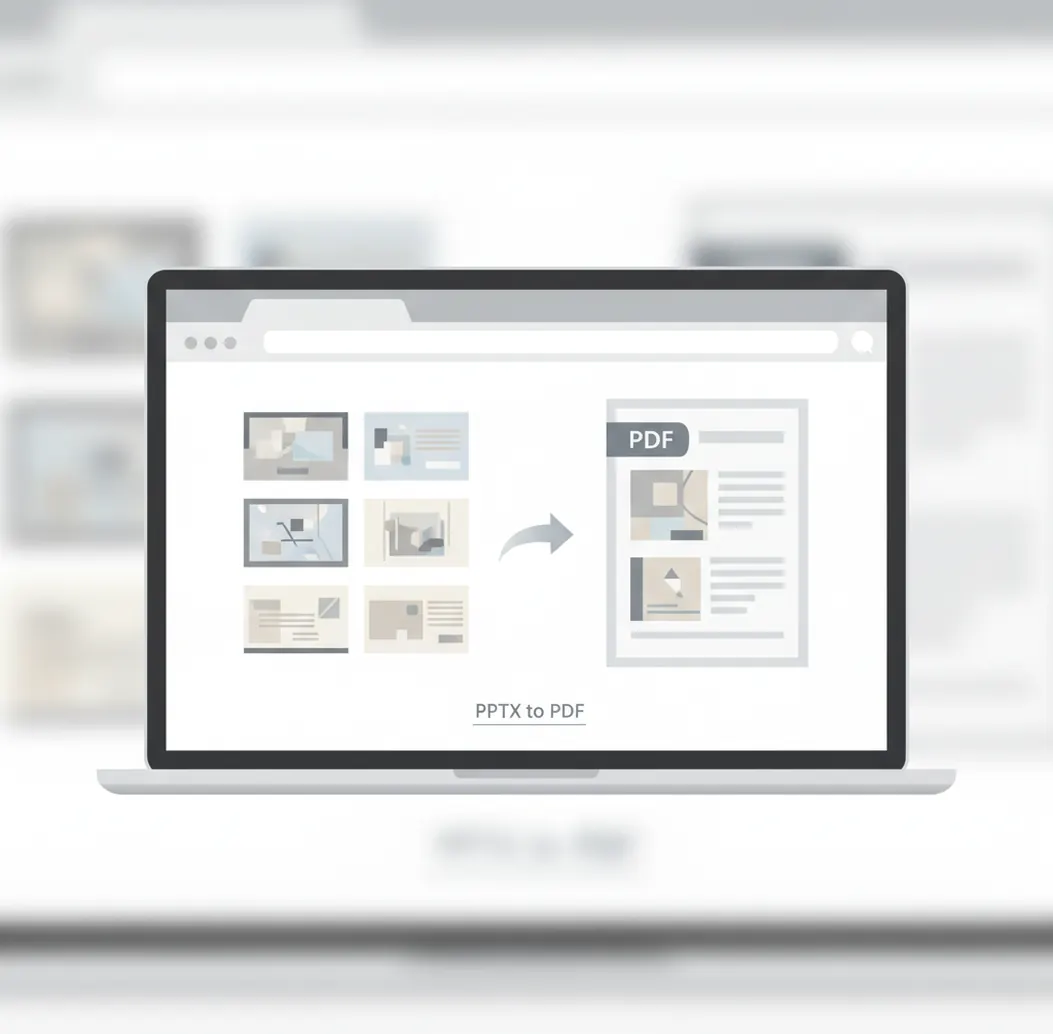
A PowerPoint to PDF converter turns a PPT or PPTX presentation into a PDF where each slide becomes a fixed page. Use it when you need a presentation that opens consistently across devices, email clients, upload portals, and PDF readers.
What Is PowerPoint to PDF Converter?
A PowerPoint to PDF converter is an online tool that exports Microsoft PowerPoint files, including .ppt and .pptx, into PDF format. PowerPoint files are editable slide decks with text boxes, images, charts, shapes, animations, and layout settings. PDF is a fixed-page document format designed for consistent viewing, printing, sharing, and archiving. People convert PowerPoint to PDF when they want the slide layout to stay stable on other devices, when a website or CMS requires PDF uploads, or when the recipient only needs to read or comment on the deck instead of editing it.
How to Convert PowerPoint to PDF
Upload the presentation
Select your .ppt or .pptx file from your device and add it to the converter.
Choose export settings
Pick available options such as page size, orientation, image quality, or background handling.
Start the conversion
Run the conversion so each slide is rendered as a PDF page.
Review the PDF
Check fonts, slide spacing, charts, images, and links before sending or uploading the file.
Download the file
Save the converted PDF and use it for sharing, printing, archiving, or submission.
When a slide deck needs a PDF version
- Upload a presentation to a form, learning platform, grant portal, job application, or government website that only accepts PDF files.
- Share slides with people who may not have PowerPoint, Keynote, Google Slides, or the same fonts installed.
- Send a read-only version of a deck to clients, students, reviewers, vendors, or stakeholders.
- Prepare slides for predictable printing on A4, Letter, or handout-style pages.
- Archive a final presentation in a stable document format for records or compliance.
- Package slides with proposals, reports, contracts, invoices, or other PDFs.
- Hand off design previews where reviewers need to comment but should not edit slide objects.
- Meet CMS or document library requirements that allow PDFs but reject PPT or PPTX files.
PowerPoint to PDF Converter vs Alternatives
| Tool | What it does | Typical use | Notes |
|---|---|---|---|
| Pict AI | Browser-based PPT and PPTX to PDF conversion. | Quick online conversion for standard presentation files. | Exports slides as static PDF pages; output depends on fonts and slide complexity. |
| iLovePDF | Online PDF toolkit with PowerPoint to PDF and other document actions. | Converting files alongside common PDF tasks such as merge, split, and compress. | Freemium limits and available features can vary by plan and file size. |
| Adobe Acrobat Online | Web-based PDF conversion and editing tools connected to Acrobat workflows. | PDF workflows that may include review, editing, compression, and account-based storage. | Advanced features may require an Adobe account or paid plan. |
| Microsoft PowerPoint | Desktop and web presentation software with built-in PDF export. | Exporting directly from the original deck before sharing or publishing. | Often provides strong fidelity when the original fonts and media are available locally. |
All options convert PowerPoint files into PDF documents. The best fit depends on whether you need a quick browser conversion, a broader PDF toolkit, Acrobat workflow features, or direct export from the original PowerPoint app.
PowerPoint to PDF Converter Limitations
- Animations, transitions, slide timings, and trigger effects do not remain interactive in PDF; they are flattened into static slide pages.
- Embedded videos, audio clips, and 3D objects may be removed, flattened, or replaced by a poster frame.
- Missing or uncommon fonts can change text spacing, line breaks, or slide alignment unless fonts are embedded or substituted correctly.
- Complex charts, transparency, shadows, gradients, and layered objects may render differently from the original deck.
Related PDF tools
Prepare slide PDFs for teaching, finance, and client delivery
The recipient’s task should determine how you package a presentation. A lecture handout, a financial appendix, and a client proposal need different supporting material, even when they start from the same slide deck.
- Teachers and trainers: For a 30-slide workshop, create a three-slides-per-page handout with room for handwritten notes rather than distributing 30 full pages. If learners will print in black and white, check whether colored labels remain distinguishable. A gray image converter can help preview an individual illustration, but it does not replace checking the complete PDF’s charts and backgrounds.
- Finance analysts: Keep the executive summary in the slide PDF and attach detailed tables separately. For example, a quarterly review might show a revenue trend on one slide while an excel to pdf converter produces the accompanying regional breakdown. If someone later requests editable figures, share the source spreadsheet; using pdf to excel on the exported appendix requires checking extracted values and column boundaries.
- Consultants and sales teams: For a proposal containing a slide deck and a web-based specification, an html to pdf converter can create a separate specification attachment. Label both files with the same project name and revision date so the buyer does not pair an updated proposal with obsolete requirements.
- HR and procurement staff: Create a distribution copy before exporting an interview presentation or supplier briefing. Remove internal comments, confidential backup slides, and material outside the intended slide range. Hidden slides are not a security boundary: whether they appear in the PDF depends on the export settings.
Six export terms that affect the finished slide PDF
These terms help distinguish a presentation that merely looks correct from one that is readable, navigable, and suitable for its destination. They describe PDF output properties, not features guaranteed by every converter.
- Slide range
- The subset of slides selected for export, such as slides 4-12. PDF page numbers may start at 1 even when the first exported slide is slide 4, so check references in accompanying instructions.
- Handout layout
- An arrangement placing several slides on one page. It saves paper, but dense tables and small labels can become unreadable when six or nine slides share a sheet.
- Notes pages
- An output layout pairing a slide with its speaker notes. This is useful for a self-guided training document, but private presenter reminders should be removed from the distribution copy.
- Tagged PDF
- A PDF containing structural information that assists navigation and screen readers. Tags alone do not establish accessibility; reading order, image descriptions, and meaningful link text still need review.
- Vector content
- Text and shapes described mathematically rather than as a grid of pixels. They can stay sharp when enlarged, although some export methods rasterize parts of a slide.
- PDF/A
- A family of PDF standards intended for long-term preservation. A normal PDF export is not automatically PDF/A-compliant; use the specific standard requested by the receiving archive.
Choose an export layout before converting the deck
Conversion method and output layout are separate decisions. A browser converter may provide only one slide per page, while presentation software may offer handouts, notes, and accessibility settings. Choose the deliverable first, then use a method that supports it.
| Approach | Useful example | Trade-off to consider |
|---|---|---|
| Full-slide PDF | A portfolio reviewed on a laptop, with one project image per page. | Preserves a large viewing area, but a 60-slide deck becomes a 60-page document. Readers receive no spoken context unless it is added to the slides. |
| Handout PDF | A workshop packet with three slides per page and writing space. | Reduces printing volume. Small diagrams may become illegible, and online conversion tools may not offer this layout. |
| Notes-page PDF | A training guide pairing each slide with explanatory instructions. | Provides context without a live presenter, but increases page length and can expose internal notes unless the source is cleaned first. |
| PDF export with accessibility tags | A course presentation intended for readers using assistive technology. | Requires an exporter that supports tagging plus a review of reading order and alternative text. Visual similarity is not enough. |
Keep the editable deck alongside whichever PDF you choose. A pdf to powerpoint converter may reconstruct slide objects, but it cannot reliably recover the original master layouts or animation settings. Likewise, a pdf to word converter can help repurpose narrative text, but a slide’s spatial arrangement rarely becomes a clean, structured report without editing.
PowerPoint to PDF export questions
Use PowerPoint’s handout options rather than a standard slide export. In desktop PowerPoint, look for handouts in the PDF export or print settings, then select the number of slides per page. Available controls vary by platform. Check a sample page before exporting the whole deck: six or nine slides per sheet can make chart labels too small to read.
No. A visually accurate PDF can still have an incorrect reading order, missing image descriptions, or untagged content that is difficult to navigate with a screen reader. Prepare accessible slide content first, use an export option that preserves document structure tags where available, and inspect the resulting PDF. A converter that creates page-sized images will not preserve selectable text or useful structural tags.
Use standard fonts, embed fonts when possible, and avoid overly complex slide effects. After conversion, check titles, tables, charts, and image-heavy slides.
Most converters support both .ppt and .pptx files. PPTX is the newer format and usually converts more reliably.
No. PDF pages are static, so animations and transitions are flattened into a non-animated slide appearance.
Standard web links and some slide links may be preserved, but this depends on the converter and how the links were created. Always test important links in the final PDF.
Some tools support notes-page export, but many basic converters export slides only. If notes are required, check for a notes option before converting.
It is searchable when slide text remains as text in the PDF. If slides are flattened into images, OCR is needed to make the text searchable.
Fonts can change when the original font is missing, not embedded, or unsupported by the conversion engine. Use common fonts or embed fonts in the PowerPoint file before converting.
It can reduce file size if images are compressed during export. Some decks may become larger if slides are rasterized or if high-quality settings are used.
No. A PDF is mainly a fixed document format, so slide objects are not as editable as they are in PPT or PPTX.