Image to PDF Converter
Convert one or more images into a PDF document online. Upload photos, arrange pages, choose layout settings, and download a shareable PDF.
Upload your file
Use this free Image to PDF Converter and download the output when processing finishes.
Processing...
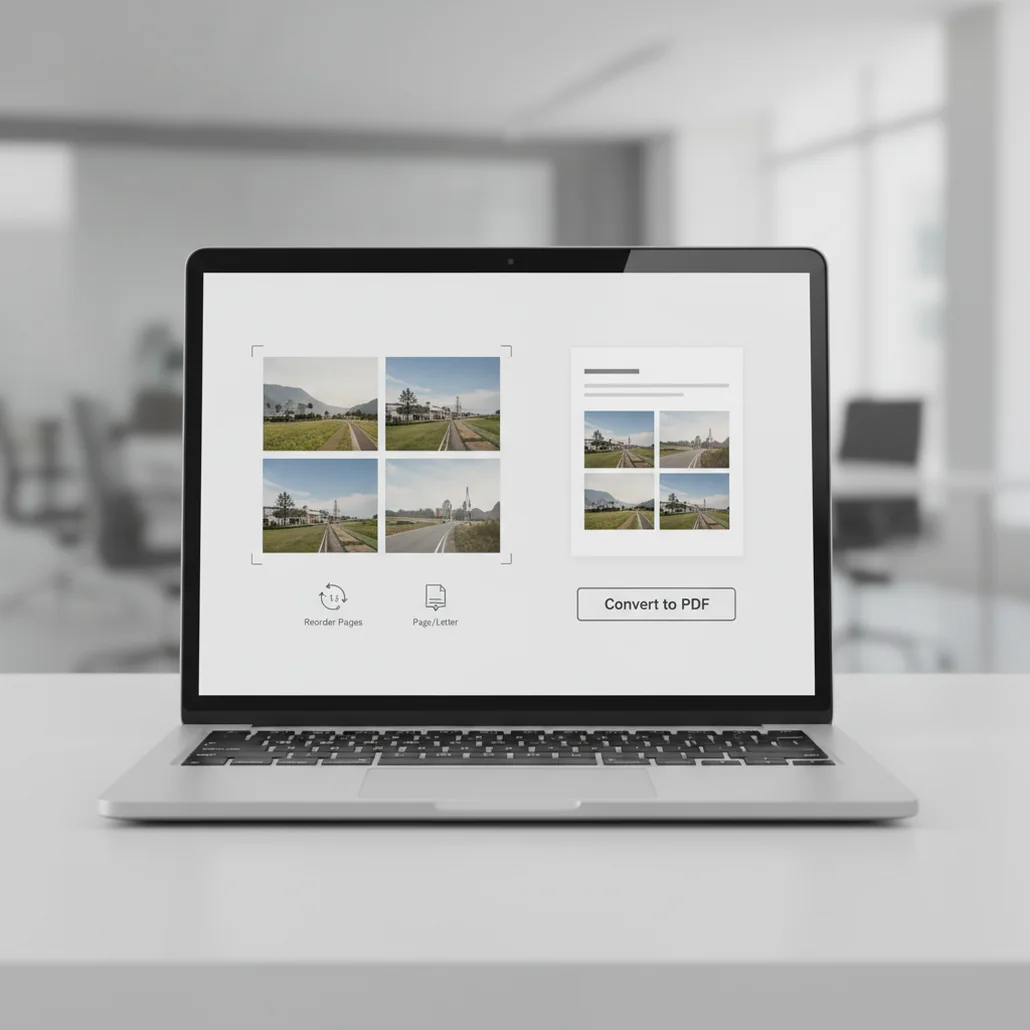
An image to PDF converter turns JPG, PNG, HEIC, WebP, and similar image files into a PDF document. Use it when you need one file for printing, email, document portals, receipts, forms, IDs, or multi-page photo submissions.
What Is Image to PDF Converter?
An image to PDF converter is a tool that places one or more image files into a PDF, usually with each image becoming its own page. PDF stands for Portable Document Format, a fixed-layout document format designed to look consistent across devices, printers, browsers, and operating systems. People convert images to PDF because PDFs are easier to upload, print, archive, email, and review in order. This is useful for photos of receipts, IDs, signed forms, screenshots, notes, scanned pages, and other image-based documents. When those files later need to become editable DOCX drafts, a dedicated PDF to Word workflow is the usual next step.
How to Convert Image to PDF
Upload your images
Select JPG, JPEG, PNG, HEIC, WebP, or other supported image files from your device.
Arrange the page order
Drag thumbnails into the correct sequence so the final PDF reads in the right order.
Choose page settings
Set page size, orientation, margins, background color, and image fit options when available.
Preview the document
Check rotation, cropping, page breaks, and spacing before exporting.
Convert and download
Create the PDF and save the finished file to your device.
Documents and photo sets worth combining into a PDF
- Upload forms that require a single PDF instead of separate JPG or PNG files, including intake packets built with Forms AI.
- Combine receipt photos into one expense report PDF, then follow up with Customer Feedback Surveys after the visit.
- Submit homework, worksheets, handwritten notes, or scanned pages as one document.
- Send ID front and back images together for verification workflows.
- Create a printable PDF from posters, flyers, menus, or screenshots saved as images.
- Prepare files for CMS, LMS, HR, tax, legal, insurance, or government portals that prefer PDF uploads.
- Hand off design references, mood boards, or image sets in a fixed page order.
- Bundle whiteboard photos or meeting notes into a shareable document.
Image to PDF Converter vs Alternatives
| Tool | Main use | Input support | Notes |
|---|---|---|---|
| Pict AI | Browser-based image-to-PDF conversion | Common formats such as JPG, PNG, HEIC, and WebP depending on file support | Focused on quick multi-image PDF export with basic page controls. |
| iLovePDF | Online PDF utility workflows | JPG and common image formats depending on the tool | Includes image-to-PDF conversion plus merge, split, compress, and other PDF tasks. |
| Adobe Acrobat | PDF creation, editing, and document management | Images, scans, Office files, and many document formats | Provides advanced PDF editing, OCR, forms, security, and enterprise options. |
| Smallpdf | General online PDF conversion and compression | JPG and other supported uploads depending on the converter | Offers web-based PDF tools for conversion, compression, editing, and signing. |
These tools all convert images into PDF files, but they differ in editing depth, account requirements, file limits, OCR options, and broader PDF workflow features. For phone-first document work beyond image export, a full PDF Converter can also handle Word, Excel, merge, and OCR tasks in one place.
Image to PDF Converter Limitations
- Image-based PDFs do not make text selectable or searchable unless OCR is applied.
- Large images can create large PDF files, especially when many high-resolution photos are combined.
- Compression may reduce sharpness, fine text clarity, or color accuracy.
- Poor source photos, blur, glare, shadows, or low resolution will remain visible in the PDF.
Choose image preparation that keeps PDF details readable
Before exporting, decide which details the document must preserve: colored annotations, faint handwriting, small numbers, or photographic detail. Check how high resolution images convert at the intended print size, rather than judging only by a zoomed-in preview. Enlarging a low-resolution source cannot recover missing letter shapes.
| Preparation approach | Best suited to | Trade-off to check |
|---|---|---|
| Keep the original color image | Charts, highlighted notes, artwork, and documents with colored stamps | Preserves color-dependent meaning but also keeps distracting paper tones and shadows. Color alone does not determine file size. |
| Convert to grayscale | Mostly text-based pages where color carries no information | Retains shades and faint marks, but differently colored chart lines may become difficult to distinguish. |
| Use a black-and-white threshold | Clean, evenly lit scans with dark printed text | Can produce crisp letters, but an aggressive threshold may erase pencil marks or fill narrow gaps in characters. |
| Reduce image dimensions | Oversized phone photos intended for ordinary document viewing | May reduce storage needs, but shrinking too far makes footnotes, decimal points, and small labels unreadable. |
An image black and white converter may offer grayscale, thresholding, or both. Check the actual result: grayscale preserves intermediate tones, while thresholding forces pixels to black or white. Keep the source image so you can reverse an unsuitable choice.
A photo to pencil sketch online free tool suits decorative illustrations, not document cleanup. Sketch effects can alter signatures, fine lettering, and edges that need to remain faithful to the original.
For a spreadsheet, use an excel to pdf converter rather than photographing the screen. Exporting from the workbook preserves text and cell boundaries; inspect print areas and page breaks to prevent columns from splitting across pages.
Image-to-PDF format, quality, and layout questions
Create the PDF, then use a PDF editor that supports encryption to set a password required to open it. Editing or printing restrictions are separate settings and are not a substitute for encryption. Confirm that the saved file requests the password, and send that password through a different channel from the document.
Not necessarily. Depending on the converter, image metadata may be discarded, retained, or carried into the output, while the PDF can also contain its own author and creation details. For sensitive photos, remove location metadata before conversion and inspect the finished PDF with a metadata tool. Visible addresses and identifying details require separate redaction.
Yes. Upload multiple images, arrange them in the correct order, and export them as one multi-page PDF.
It can if the tool compresses or resizes the images. For best results, start with clear, high-resolution images and preview the PDF before sending it.
Not automatically. If the PDF is made from photos or screenshots, the text remains part of the image unless OCR is used.
Commonly supported formats include JPG, JPEG, PNG, HEIC, and WebP. Exact support depends on the converter and browser.
Yes. Many converters support iPhone photo formats such as HEIC, or you can first save the photos as JPG before converting.
Use Letter for most US documents and A4 for many international documents. For printing, choose the size required by the receiving office or portal.
Large PDFs usually come from high-resolution images, many pages, or low compression. Reducing image dimensions or using compression can lower file size.
A PDF is usually better when page order, printing, uploading, or formal document submission matters. Separate image files are better when recipients need the original editable image assets.