Images to PDF Converter
Convert JPG, PNG, WebP, or HEIC files into a single PDF. Upload images, reorder pages, choose layout settings, and download one document.
Upload your file
Use this free Images to PDF and download the output when processing finishes.
Processing...
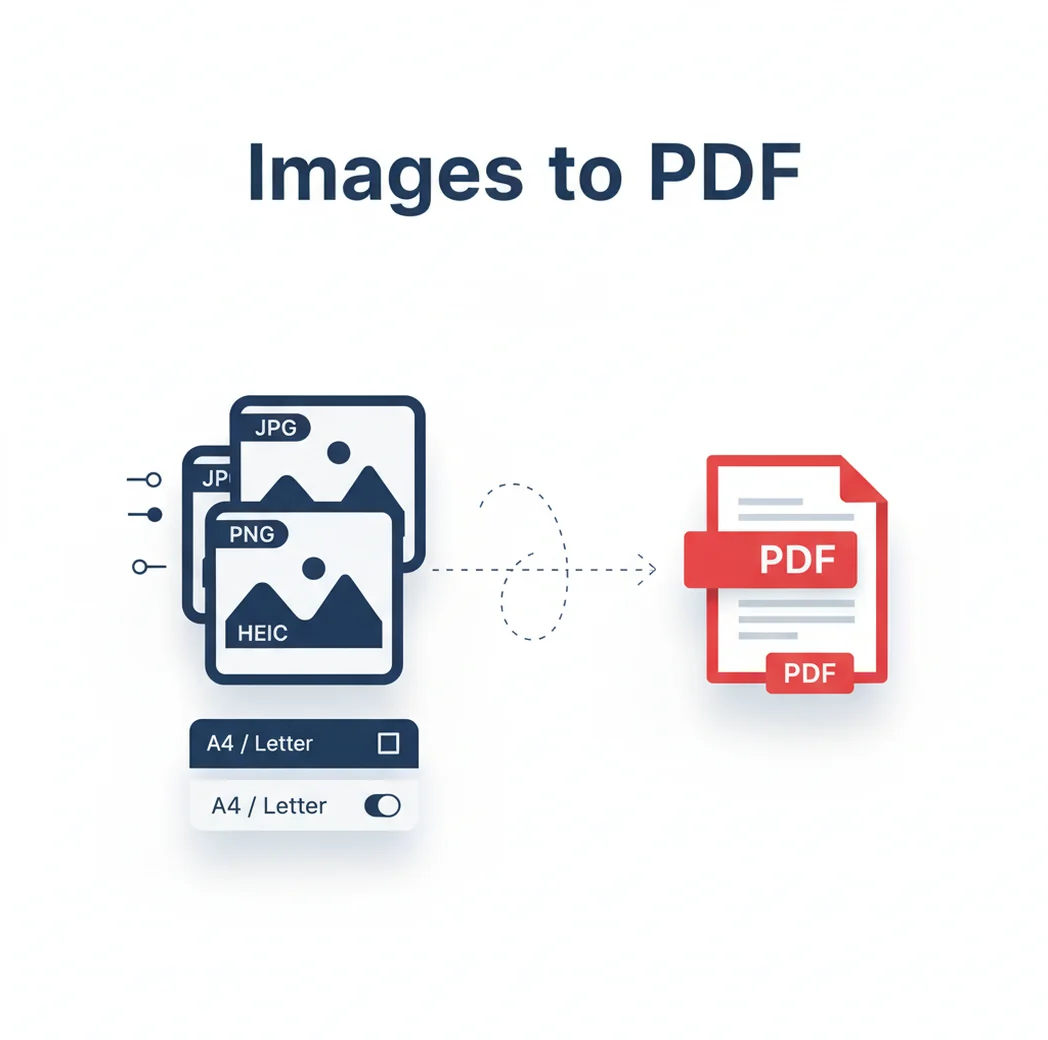
An images to PDF converter turns image files such as JPG, PNG, WebP, or HEIC into one PDF, usually with each image placed on a separate page. Use it when you need one printable, shareable, or upload-ready document from photos, scans, receipts, screenshots, or design images.
What Is an Images to PDF Converter?
An images to PDF converter is a tool that combines one or more image files into a PDF document. PDF, short for Portable Document Format, is a fixed-layout file format used for sharing, printing, archiving, and submitting documents across devices. Common inputs include JPG photos, PNG graphics, WebP images, and HEIC photos from phones. People convert images to PDF when they need a single file instead of many attachments, a fixed page order, standard paper sizing such as A4 or Letter, or a format accepted by forms, schools, offices, and document systems.
How to Convert Images to PDF
Upload Images
Add JPG, PNG, WebP, or HEIC files from your device. Upload multiple files if you want a multi-page PDF.
Arrange Pages
Drag images into the correct order. Each image is typically placed on its own PDF page.
Choose Page Settings
Select page size, orientation, margins, and scaling options such as fit or fill.
Preview the Layout
Check that no important text, edges, signatures, or screenshots are cropped.
Export the PDF
Create the PDF and download the finished file for sharing, printing, uploading, or archiving.
Documents Worth Combining into One PDF
- Upload forms that accept one PDF but not multiple image files.
- School or homework submissions made from phone photos of pages.
- Expense reports that require receipts grouped into one document.
- CMS or website admin systems that require PDF uploads for documents.
- Email attachments where one PDF is cleaner than many separate images.
- Design handoff files where image previews need a fixed page sequence.
- Printable photo sets, scanned pages, signed forms, or screenshots.
- Compatibility with systems that handle PDF more reliably than HEIC, WebP, or separate PNG files.
Images to PDF Converter vs Alternatives
| Tool | Primary Use | Common Inputs | Page Controls | Notes |
|---|---|---|---|---|
| Pict AI | Combining images into a PDF in a browser | JPG, PNG, WebP, HEIC | Page order, size, orientation, margins, scaling | Focused on quick image-to-PDF conversion |
| iLovePDF | Common PDF tasks and image-to-PDF conversion | JPG and other common image formats | Page size, orientation, margins in supported workflows | Web-based PDF toolkit with multiple PDF utilities |
| Adobe Acrobat | PDF creation, editing, OCR, forms, and document workflows | Images and many document formats | Advanced PDF layout, editing, and accessibility options | Suited to users who need more than basic conversion |
| Smallpdf | Browser-based PDF conversion and compression | JPG and common image formats | Basic page and conversion options | General PDF toolkit for everyday document tasks |
All listed tools can create PDFs from images. The right choice depends on whether you need a simple converter, a broader PDF toolkit, OCR, editing, forms, or team document features.
Images to PDF Converter Limitations
- Image-based PDFs are not automatically searchable or editable; OCR is needed to detect text.
- OCR accuracy can be poor with blurry photos, handwriting, glare, shadows, or low contrast.
- Very large photos can create large PDF files that may be hard to email or upload.
- Fill scaling can crop image edges; fit scaling preserves the full image but may add white space.
Related PDF tools
Check Your Image PDF Before Sending or Submitting
A PDF can look correct in a browser preview yet fail a submission requirement or print poorly. Before sending it, check the exported file, not just the images you uploaded.
- Match the recipient’s requirements. Confirm the permitted file size, page dimensions, filename format, and whether password protection is allowed. Some upload portals reject encrypted PDFs. Use a descriptive filename that does not expose unnecessary personal information.
- Check page identity, not just order. Compare the PDF’s page count with your source images. Look for duplicate receipts, missing reverse sides, and outdated versions of signed pages. Numbered filenames can sort unexpectedly: page-10 may appear before page-2 unless numbers use consistent padding, such as page-01.
- Check resolution at the intended print size. A 1,200-pixel-wide image printed four inches wide provides 300 pixels per inch; at eight inches wide, it provides 150. Enlarging the image does not restore missing detail. Inspect small text at the size readers will actually use.
- Inspect transparent and dark backgrounds. Transparent PNGs may render against a background that makes pale text or logos disappear. Check the exported PDF in a second viewer, especially when combining screenshots, logos, and photographed documents.
- Remove sensitive information properly. Crop or permanently redact private details in the source image before conversion. A removable rectangle or annotation is not reliable redaction. Check the PDF’s document properties for identifying information, too.
Keep an editable source when revisions matter. A pdf to excel converter cannot reliably reconstruct formulas from photographed tables. A pdf to powerpoint converter may produce slide images rather than editable objects, while pdf to word conversion can misread columns and labels. For webpage content, an html to pdf converter online free to use may preserve selectable text instead of turning it into pixels. Retain the original spreadsheet, presentation, document, or webpage whenever possible.
Images to PDF: Format, Quality, and Layout Questions
Choose resolution based on the image’s size on the PDF page. Around 300 pixels per inch is a useful target for printed documents with small text; 150 may be adequate for larger text or screen viewing. Divide pixel width by printed width in inches to calculate it. Increasing resolution through resizing does not recover detail missing from the original.
Not necessarily. Metadata handling varies by converter: some workflows discard camera details and location tags, while others may retain information in embedded images or add PDF document properties. Conversion alone is not a privacy guarantee. Remove sensitive metadata from the source photos first, then inspect the exported PDF’s properties. Visible addresses, faces, and account numbers require separate removal or permanent redaction.
Upload the JPG files, arrange them in the right order, choose page settings, and export the result as a PDF. Each JPG usually becomes one PDF page.
Yes. Upload multiple images and export them together as a single multi-page PDF.
Common supported formats include JPG, PNG, WebP, and HEIC. Support can vary by browser or tool, especially for HEIC files.
No, not by default. An image-based PDF needs OCR before the text can be searched, copied, or selected.
The PDF quality depends on the original image resolution and any compression applied during export. Low-resolution or blurry images will remain low quality.
Yes. Most image-to-PDF workflows let you choose common page sizes such as A4 or Letter and set portrait or landscape orientation.
Large PDFs usually come from high-resolution photos or many pages. Resize or compress images before conversion if you need a smaller upload or email attachment.
Yes, if the converter and browser support HEIC upload. If HEIC does not work, export the photos as JPG first and then create the PDF.