PDF to PNG Converter
Convert PDF pages into separate PNG image files online. Use it for web uploads, previews, slide decks, and apps that do not accept PDF files.
Upload your file
Use this free PDF to PNG Converter and download the output when processing finishes.
Processing...
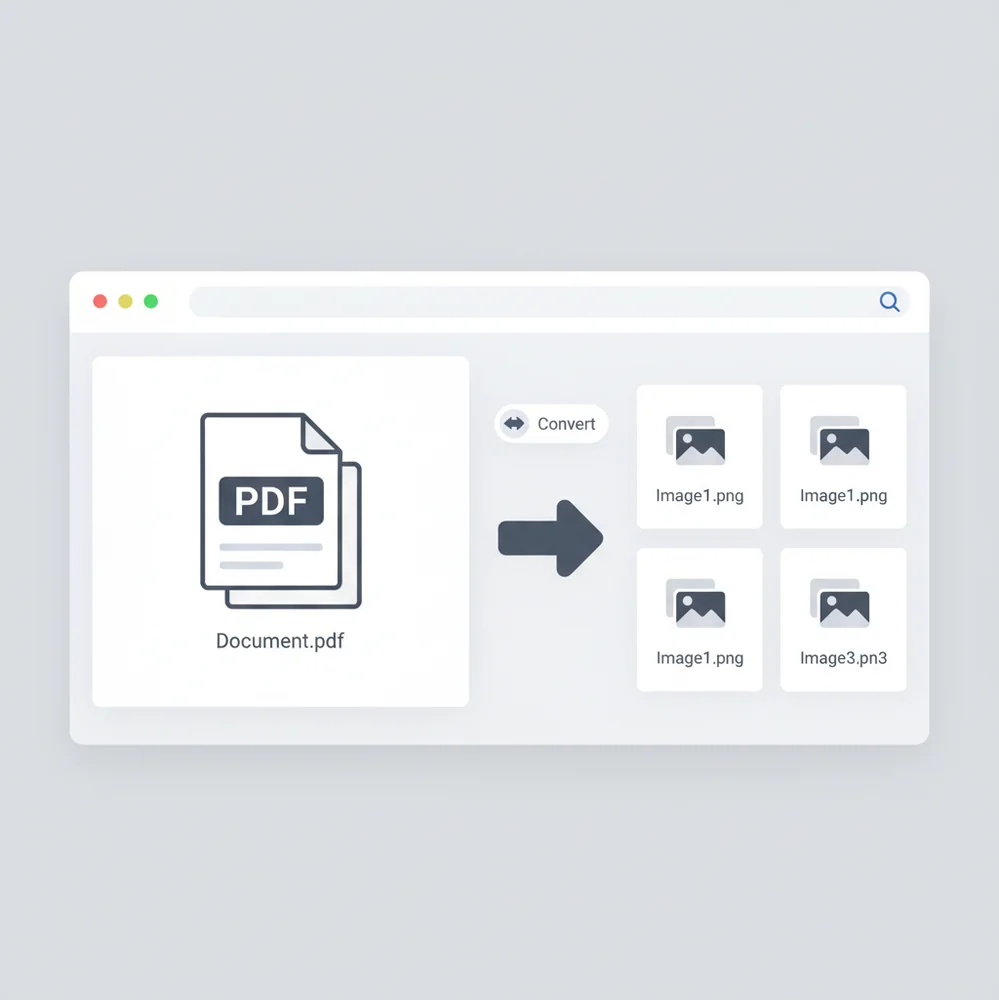
This tool converts each PDF page into a PNG image. Use it when you need a lossless image version of a document page for uploads, previews, design tools, or sharing. Scanned PDFs remain images, and editable text is not created unless OCR is used separately.
What Is PDF to PNG Converter?
A PDF to PNG converter renders pages from a PDF document into PNG image files. PDF is a document format that can contain text, vectors, images, forms, and page layout data. PNG is a raster image format that stores pixels, uses lossless compression, and supports transparency. People convert PDF to PNG when a website, CMS, design app, upload form, or messaging tool needs an image instead of a document. The output is visual, page-by-page, and suitable for previews, thumbnails, annotations, and image-based workflows.
How to Convert PDF to PNG
Upload your PDF
Choose the PDF file you want to convert. Multi-page PDFs are usually exported as one PNG per page.
Select output options
Set page range, image size, background, or quality options if they are available.
Start the conversion
Render the PDF pages into PNG images. Higher resolution creates sharper text but larger files.
Download the PNG files
Save the converted images individually or as a ZIP archive when multiple pages are exported.
Check the result
Open key pages to confirm text clarity, cropping, background color, and layout before uploading or sharing.
Tasks that need PDF pages as images
- Upload forms that accept PNG or JPG images but reject PDF documents.
- CMS pages, blogs, or product listings that need a document page shown as an image.
- Design handoff in Figma, Photoshop, Canva, or slide software when a flat page image is easier to place or annotate.
- Compatibility with chat apps, email previews, and platforms where images display more reliably than PDFs.
- Creating thumbnails or preview images for a multi-page PDF in a web app or document portal.
- Extracting charts, diagrams, reports, certificates, or tables as image assets.
- Archiving a fixed visual snapshot of a page where editable document structure is not needed.
PDF to PNG Converter vs Alternatives
| Tool | What it does | Common fit | Notes |
|---|---|---|---|
| Pict AI | Converts PDF pages into PNG images in a browser-based workflow. | Quick page exports for uploads, previews, and design use. | Output depends on PDF complexity, render resolution, and file limits. |
| iLovePDF | Provides PDF-to-image conversion and other common PDF utilities. | General PDF tasks, simple conversions, and multi-page exports. | Feature availability can vary by free or paid plan. |
| Adobe Acrobat | Exports PDF pages to image formats and supports broader PDF editing workflows. | Professional PDF handling, enterprise workflows, and complex documents. | Advanced export, OCR, and automation features may require a paid plan. |
| CloudConvert | Converts PDFs and many other file types through configurable online conversion settings. | Users who need format flexibility and detailed conversion options. | Processing limits and settings depend on account level and file type. |
All four tools can turn PDF pages into PNG images. The best choice depends on document complexity, batch needs, export controls, and whether you also need editing, OCR, or automation.
PDF to PNG Converter Limitations
- Converted PNG files are raster images, so text is not selectable or editable after export.
- Scanned PDFs remain image-based; conversion does not perform OCR or recover searchable text.
- Higher resolution improves readability but increases PNG file size, sometimes significantly.
- Very large PDFs or high page counts may be limited by file size, processing time, or daily usage caps.
Related PDF tools
PDF page images for finance, web, design, and records teams
A useful PNG export starts with a specific destination: a fixed-width report, a website preview, a design mockup, or a records system. These workflows need different checks before the page image is ready to use.
- Finance staff preparing monthly reports: An analyst can use excel to pdf first to preserve a spreadsheet’s print layout, then render the summary page as a PNG for a management presentation. Check print areas and page breaks before conversion so totals do not land on a separate page. If the task is to recover figures for calculations, pdf to excel is a different workflow; a page image cannot supply usable spreadsheet cells.
- Web developers documenting page layouts: A developer using an html to pdf converter online free can turn the resulting PDF into a PNG reference for a bug report. Include the viewport width and capture date alongside the image. Check that web fonts and background graphics appear in the PDF before rendering it; converting that PDF to PNG will not restore missing assets.
- Designers placing certificates in mockups: Export a certificate page at the pixel dimensions needed for the final composition. If you need to make png transparent, distinguish removing the surrounding white page from preserving white elements inside a logo or seal. Automatic background removal can erase those details, so inspect edges against both light and dark backgrounds.
- Records staff sharing a document excerpt: For a case summary, redact confidential content in the source document before exporting the relevant page. A black annotation may be hidden or omitted by some renderers. Inspect the final PNG for names, account numbers, and marginal notes, and use a neutral filename that does not expose personal information.
PDF to PNG quality and compatibility questions
A password-protected PDF may need to be unlocked before a converter can render its pages. Some tools accept an opening password; others reject encrypted files entirely. Export restrictions can also affect conversion. If you are authorized to access the document, use a PDF application to create an unlocked copy where permitted, then convert that copy. Do not upload passwords or sensitive documents to an untrusted service.
Saved annotations and form values often appear in PNG exports, but their visibility depends on the PDF renderer and the document’s appearance settings. Unsaved entries, dynamic forms, and comments displayed only in a sidebar may be missing. For a dependable visual record, save the completed PDF and flatten a copy if your PDF application supports it. Keep the original separately, since flattening removes interactive features.
Upload the PDF, start the conversion, and download the resulting PNG images. Multi-page PDFs are typically exported as separate PNG files or a ZIP archive.
PNG is lossless, but quality depends on render resolution. Use a higher resolution for sharper text and graphics, with the tradeoff of larger files.
Most standard PDFs render accurately. Complex layouts, transparency, non-embedded fonts, or special print effects can cause visual differences.
Yes, if the tool offers page-range selection. If not, split the PDF first and convert only the pages you need.
A scanned PDF exports as PNG images of the scanned pages. The text will not become selectable unless you run OCR separately.
PNG is usually better for text, line art, diagrams, and screenshots because it uses lossless compression. JPG is often smaller for photo-heavy pages.
PNG preserves detail and can become large at high resolutions or on pages with many colors. Lower the resolution or use JPG/WebP if smaller files matter more.
You can place PNG images into a PDF, but the result is still image-based. To recover editable or searchable text, OCR is required.