PDF to PowerPoint Converter
Upload a PDF and convert it into a PPTX file with one slide per page. Edit the result in Microsoft PowerPoint, Google Slides, or another presentation app.
Upload your file
Use this free PDF to PowerPoint Converter and download the output when processing finishes.
Processing...
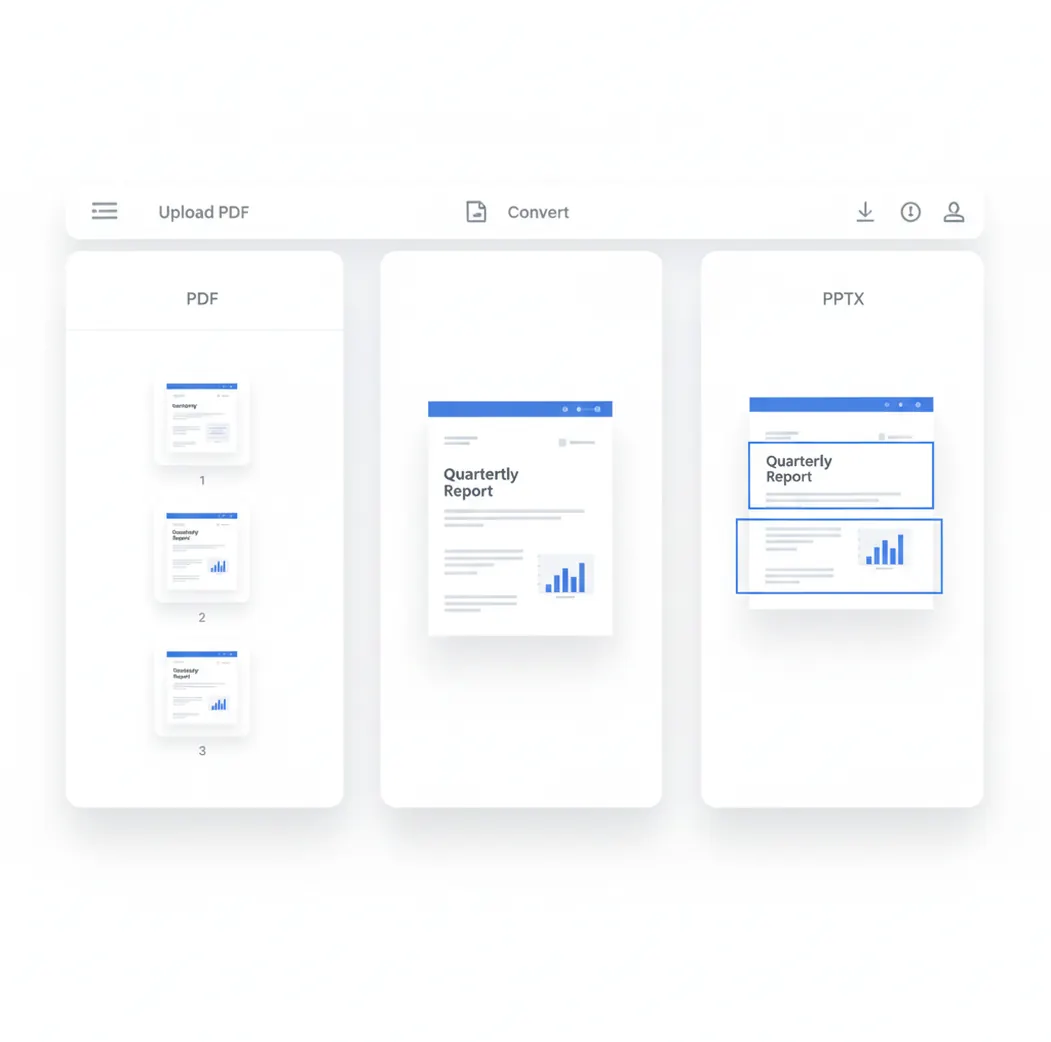
A PDF to PowerPoint converter changes PDF pages into a .pptx presentation, usually one slide per page. Use it when you need to edit, present, or hand off content that only exists as a PDF. Text-based PDFs convert better than scanned or flattened files.
What Is PDF to PowerPoint Converter?
A PDF to PowerPoint converter is a tool that turns a fixed-layout PDF document into a PowerPoint presentation file, usually in PPTX format. A PDF preserves pages, fonts, images, and layout for viewing or printing, while PowerPoint is built for editable slides, presentations, speaker notes, and collaboration. People convert PDF to PPTX when they need to update text, reuse charts, present report pages, or hand content to a team that works in Microsoft PowerPoint or Google Slides. The cleanest results come from PDFs with selectable text and simple layouts.
How to Convert PDF to PowerPoint
Upload Your PDF
Choose the PDF file you want to convert. Text-based PDFs usually produce more editable slides than scanned image PDFs.
Start the Conversion
Run the PDF to PPTX process and wait for the file to finish processing.
Download the PPTX
Save the converted PowerPoint file to your device when the conversion is complete.
Review the Slides
Open the PPTX in PowerPoint or Google Slides and check fonts, spacing, tables, images, and links before sharing.
When a PDF needs to become an editable slide deck
- Upload forms that require a PPTX file instead of a PDF.
- Compatibility with Microsoft PowerPoint, Google Slides, Keynote, or Microsoft 365 workflows.
- CMS, LMS, or training platform requirements where slide files are preferred.
- Design handoff when a PDF deck needs editable text, images, or layout elements.
- Updating a PDF report, proposal, brochure, or pitch deck without rebuilding slides from scratch.
- Turning PDF handouts into presentation slides for meetings, webinars, or workshops.
- Sharing editable slide content with sales, marketing, education, or operations teams.
PDF to PowerPoint Converter vs Alternatives
| Tool | Format Focus | Typical Fit | Notes |
|---|---|---|---|
| Pict AI | Browser-based PDF to PPTX conversion | Quick conversion of standard PDFs into editable presentation files | Best reviewed after export for font, alignment, and table accuracy |
| iLovePDF | Online PDF tools including PDF to PowerPoint | Users who need common PDF utilities in one web suite | Output quality depends on document structure and layout complexity |
| Adobe Acrobat | PDF editing, OCR, export, and document workflows | Teams that need PDF management, OCR, and desktop or web options | Often strong for structured PDFs, but complex layouts may still need cleanup |
| Smallpdf | Online PDF conversion and compression tools | Fast browser-based conversions and basic PDF tasks | Useful for simple files; scanned documents may require OCR support |
All converters work best with text-based PDFs. Scanned pages, missing fonts, tables, layered graphics, and multi-column layouts can affect PPTX editability.
PDF to PowerPoint Converter Limitations
- Scanned PDFs may convert into slide images unless OCR is applied.
- OCR text can contain recognition errors, especially with small text, handwriting, tables, or low-resolution scans.
- Fonts may be substituted if the original PDF font is missing or embedded in a way PowerPoint cannot reuse.
- Tables, charts, columns, and layered graphics may shift or break into separate objects.
Related PDF tools
What a PDF can - and cannot - carry into a slide deck
A PDF stores the visible page, not the presentation logic behind it. Even a PDF exported from PowerPoint may no longer contain slide masters, meaningful object groups, or chart data. Before converting, decide whether you need a faithful visual copy, editable content, or a redesigned presentation. Those goals require different amounts of reconstruction.
- Slide structure
- Titles, body text, and captions may become separate objects without their original placeholders or master layouts.
- Chart data
- A visible chart does not necessarily include the spreadsheet values needed to edit its series.
- Reading order
- Visual placement does not guarantee a sensible order for screen readers or keyboard navigation.
- Hidden content
- Comments, revision history, and material outside the exported page cannot reliably be recovered.
If a report began in a spreadsheet, ask for the workbook before rebuilding its charts. An excel to pdf converter preserves a printable view, but that view is not a substitute for formulas, cell relationships, or source data.
The same distinction applies when saving html files to pdf: the resulting pages preserve a rendered layout, not the website’s responsive behavior or interactive controls. For a presentation, rebuild only the content your audience needs rather than carrying every printed element onto the slides.
Fix blocked files, broken numbers, and inaccessible slides
Some conversion problems need a different source file or a targeted repair rather than another conversion attempt. Keep the original PDF unchanged, and work on a duplicate so you can compare the repaired deck against it.
- The PDF will not open or upload: Open it in a PDF reader first. If it requires a password, obtain authorization and create an unlocked copy using a tool that respects the document’s permissions. Do not try to bypass restrictions. If the file is damaged, request a fresh export from its author.
- Numbers look right but cannot be edited as a chart: The converter may have produced an image or separate drawing objects. Request the source spreadsheet. A pdf to excel converter can help extract a table for reconstruction, but verify decimal separators, negative signs, totals, and units before using the extracted values.
- A long report becomes unreadable presentation material: Conversion does not turn paragraphs into a slide narrative. Split dense pages into one claim per slide, shorten supporting text, and move detail into speaker notes. If extensive rewriting is needed, pdf to word may be a more practical intermediate step than editing dozens of fragmented text boxes.
- The slide looks correct but is difficult to navigate: Inspect reading order, add descriptive alternative text to meaningful images, and assign actual title placeholders. Automatically reconstructed objects may lack the structure needed for an accessible presentation.
- A diagram is sideways while the rest of the page is upright: Select and turn that object in PowerPoint. If it is embedded in a page-sized image, extract the diagram and use a rotate image tool before placing it back on the slide; rotating the whole slide would also turn correctly oriented text.
Choose slide proportions and image resolution before rebuilding
Match the deck to its destination before spending time on layout repairs. The values below are planning references, not promised settings or upload limits for this converter. A presentation editor may apply one slide size to the entire deck, so mixed portrait and landscape PDF pages need special attention.
| Setting or specification | Practical choice and consequence |
|---|---|
| Widescreen slides | 16:9 suits many modern displays. A portrait report page placed inside this shape will leave unused space unless you crop or redesign it. |
| Standard slides | 4:3 can suit older presentation setups. Confirm the venue’s display requirements rather than choosing it solely to match an old document. |
| Page-shaped slides | A4 is 210 × 297 mm; US Letter is 8.5 × 11 inches. Preserving these proportions helps retain document layout but rarely makes dense pages comfortable to present. |
| Full-slide raster images | For a 1920 × 1080 display, an image of at least those pixel dimensions avoids enlargement at full-screen size. Extra pixels cannot restore detail missing from the source. |
| Editable working file | Keep a PPTX master while revising. Exported PDFs do not preserve the same editing structure. |
After revisions, a powerpoint to pdf converter can produce a fixed-layout review copy. Compare that export with the working deck to catch clipped content, and keep both files clearly labeled so reviewers know which version accepts edits.
PDF to PowerPoint editing and compatibility questions
No, not from a standard PDF export. A PDF normally contains static page content rather than PowerPoint animation sequences, transitions, or the original notes field. Notes explicitly printed onto PDF pages may appear as visible content, but they will not necessarily become speaker notes. To recover the original presentation behavior, request the source PPTX file.
Safety depends on the service’s handling of uploaded files and your organization’s rules. Check retention periods, deletion controls, access restrictions, and whether uploads are used for other purposes. For sensitive financial, legal, medical, or personnel documents, use an approved workflow or an offline converter. Remove unnecessary sensitive content before uploading; password protection alone does not establish safe processing.
Yes, many online tools support free PDF to PowerPoint conversion for basic use. File size, daily usage, or advanced OCR features may be limited.
If the PDF contains real text and vector objects, many elements can become editable. If the PDF is scanned or flattened, the slide may be mostly an image.
PPT is the older PowerPoint format, while PPTX is the modern XML-based format used by current versions of PowerPoint. Most online converters export PPTX.
It can keep the general layout, but exact formatting is not guaranteed. Missing fonts, complex tables, columns, and layered designs can cause shifts.
A scanned PDF needs OCR before the text can become editable. Even with OCR, accuracy depends on scan quality, language, layout, and image resolution.
Images usually transfer, but charts may become images or grouped objects rather than fully editable chart data. Check positioning after conversion.
Yes, Google Slides can import PPTX files. Some fonts, spacing, animations, or object positioning may change after import.
Sometimes, but link preservation depends on how the PDF stores the hyperlink. Test important links in the final PowerPoint file.
No, a PPTX file can also be opened in Google Slides, Keynote, LibreOffice Impress, and other presentation tools. Compatibility can vary by app.