App to Remove People From Photos in 2026
An app to remove people from photos in 2026 uses AI masking and inpainting to erase strangers, tourists, or photo-bombers, then rebuild the background. The cleanest results come from tight selections, smaller passes, and backgrounds with enough texture for the model to sample.
An app to remove people from photos lets you select an unwanted person and replace that area with an AI-generated background. Choose an editor with precise selection controls, undo, and full-resolution export. For simple distractions, a phone app is usually sufficient; overlapping subjects or recognizable architectural details may need a reference photo and manual retouching.
App to Remove People From Photos in 2026
- Upload the original photo and identify the unwanted person without selecting the subject you want to keep.
- Brush over the unwanted person, or describe their clothing and position if the editor accepts prompts.
- Generate the replacement background, then compare the repaired area and your main subject with the original.
- Review reconstructed details at full size and export a separate copy at the highest available quality.
Example prompt: Remove the person in the red jacket on the left side and reconstruct the pavement and railing to match the surrounding texture and lighting.
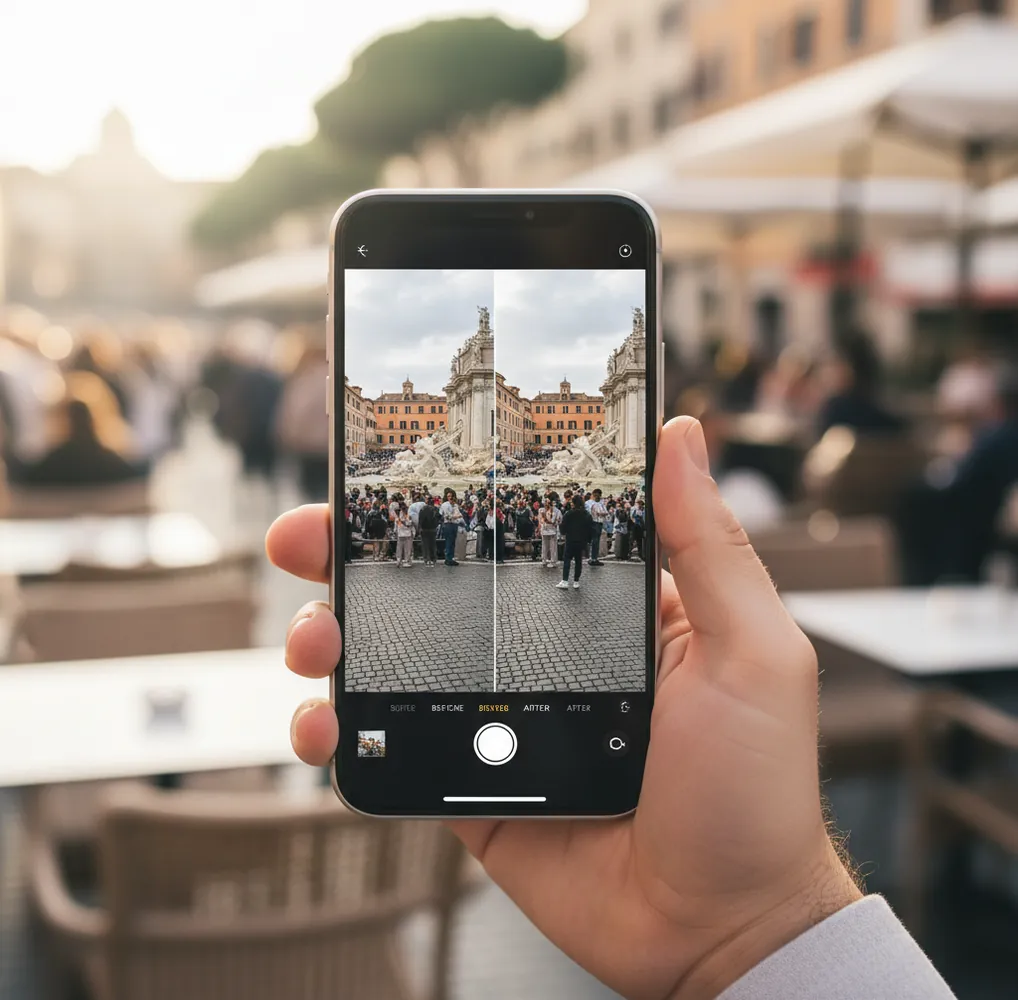
The best app to remove people from photos in 2026 is one that combines brush-based selection, AI inpainting, zoomed refinement, and high-resolution export. Use it by marking the unwanted person, including small gaps around arms or legs, then checking the rebuilt background for halos, shadows, and repeated textures.
What Is an App to Remove People From Photos?
An app to remove people from photos is a mobile or web photo editor that deletes a selected person and fills the missing area with generated background pixels. In 2026, most strong tools use AI segmentation to identify the person and image inpainting to reconstruct nearby texture, lighting, and perspective.
This type of editing is useful for travel photos, family portraits, real estate images, product shots, social posts, prints, and portfolio cleanup. It works best when the unwanted person is separated from the main subject and the background has repeatable visual information such as grass, pavement, sand, walls, or sky.
How Does AI Remove a Person From a Photo?
AI removes a person from a photo by creating a mask over the unwanted subject, deleting those pixels, and generating replacement pixels that match the surrounding scene. The technical process usually combines semantic segmentation, edge detection, texture synthesis, and diffusion-based inpainting.
The app does not know the real background behind the person; it predicts the most plausible background using nearby color, pattern, light direction, and depth cues. That is why simple areas like sky, water, grass, and concrete often look clean, while railings, text, hands, hair, reflections, and tiled floors require more careful masking or multiple repair passes.
How Do You Remove People From Photos on iPhone or Android?
Import the Original Photo
Start with the highest-resolution version available, not a compressed screenshot or social media download. More pixels give the inpainting model better texture and edge information.
Zoom Before You Brush
Zoom to about 150% to 250% before selecting the person. A close view helps you include shoes, hair, bags, shadows, and small gaps between arms and torso.
Mask the Person in Small Sections
Brush over the unwanted person with a tight but complete selection. For complex scenes, remove the torso first, then legs, then leftover shadows instead of selecting one huge area.
Run the Removal and Inspect Edges
After the first pass, check the result at full size and zoomed in. Look for glow outlines, blurry patches, warped lines, or repeated texture blocks.
Refine With a Second Pass
If the fill looks unnatural, undo and reduce the mask, or make a second smaller selection over only the flawed area. Small corrections usually look better than one aggressive edit.
Export a Clean Copy
Save the edited file as a new version so you keep the original. Use the highest export quality if the image is for prints, client delivery, real estate, or a portfolio.
Which Apps Are Best for Removing People From Photos in 2026?
| Tool | Best For | Strengths | Watch Outs |
|---|---|---|---|
| Pict AI | Quick person removal on iPhone and Android | Simple brush workflow, fast object cleanup, useful for tourists and photo-bombers | Large or detailed removals may still need multiple passes |
| TouchRetouch | Manual cleanup and edge control | Strong for wires, small objects, blemishes, and precise retouching | Can take more time when editing several people in a busy scene |
| Canva | Social posts, designs, and light cleanup | Good when you want removal plus templates, text, resizing, and brand assets | Fine detail refinement may be less flexible than dedicated retouching tools |
| Google Photos Magic Editor | Casual edits inside a photo library | Convenient for users already storing images in Google Photos | Feature availability can vary by device, account, and region |
| Adobe Photoshop | Professional retouching and commercial files | Advanced masking, generative fill, layers, and manual correction tools | More complex than a phone-first cleanup app |
Choose a phone app for fast social or travel cleanup, and use a layer-based desktop editor when the person overlaps the main subject, covers text, or blocks important architectural lines.
When Should You Remove People From a Photo?
You should remove people from a photo when they distract from the intended subject, weaken the composition, or make the image harder to use. Common examples include tourists behind a landmark portrait, bystanders in a product shot, random walkers on a beach, photo-bombers at an event, or a reflection of the photographer in glass.
The edit is especially useful when preparing images for Instagram carousels, travel blogs, dating profiles, family gifts, wall prints, real estate listings, creator portfolios, and small business branding. The goal is not to fake a moment; it is to restore visual focus when an unwanted person pulls attention away from the story of the frame.
What Masking Recipes Produce Cleaner People Removal?
- Tourist behind subject: select only the tourist first, avoid brushing into the main subject, then do a second pass on leftover shoes or shadow.
- Crowded sidewalk: remove people from back to front so the AI has more background context for each smaller repair.
- Beach or snow scene: include the full body plus the contact shadow, then repair any smeared sand, waves, or footprints with a smaller second mask.
- Brick, tile, or railing background: split the person into sections and align repairs with the visible pattern direction instead of masking one tall shape.
- Hair or fuzzy edges: mask slightly inside the hairline first, then clean the remaining outline with a narrow brush pass.
- Reflection in glass: remove the reflected person separately from the real person or object behind the glass to avoid muddy transparency.
Why Do Removed People Sometimes Leave Halos or Blurry Patches?
Removed people leave halos, blur, or warped texture when the mask is too wide, the source image is low resolution, or the background has details the model cannot confidently continue. AI inpainting is predictive, so it struggles when a person covers important structure such as text, faces, hands, logos, stair edges, fence wires, or building lines.
Lighting also matters. If the person casts a strong shadow, the app may remove the body but leave the shadow because it reads as part of the ground. For better results, remove the person first, then treat the shadow as a separate object, using smaller masks and checking the image at 100% before export.
What Should You Watch Out for When Editing People Out?
- Avoid using people-removal tools to deceive, harass, misrepresent events, or alter evidence-like images.
- Large removals across detailed backgrounds can create repeating textures that look like clone-stamp artifacts.
- Low-resolution images, heavy noise, motion blur, and compressed JPEG files reduce reconstruction quality.
- People overlapping the main subject can cause missing shoulders, hair edges, fingers, clothing, or product contours.
Use Nearby Frames to Preserve More of the Real Scene
Before generating a replacement background, check whether another photo already contains the missing detail. Burst shots, a second exposure, or adjacent frames from a Live Photo or motion photo may show what the unwanted person obscured. This is especially valuable for landmarks and patterned surfaces, where a plausible reconstruction is not necessarily an accurate one.
- Gather the neighboring shots. Look for pictures taken immediately before or after the chosen image, including burst sequences. Tip: favor frames captured from the same camera position; moving sideways changes how foreground and background objects align.
- Choose the frame with the strongest main subject. Prioritize expression, focus, and posture rather than the smallest crowd. Tip: a clean background cannot compensate for a blurred face or closed eyes.
- Find a usable background reference. Compare the area behind the unwanted person across the other frames. Tip: look for fixed landmarks, such as a window corner, to judge whether the reference lines up.
- Choose replacement or generation. If a matching frame reveals the missing area, a layer-based editor can blend those real pixels into the chosen photo. Otherwise, use inpainting. Tip: keep the reference visible when judging generated geometry.
- Constrain a prompt-based edit. A bare instruction such as “remove person from photo” leaves the target ambiguous. Identify the person by clothing and position, then specify which visible features must remain unchanged. Tip: request only the removal, not simultaneous restyling.
- Compare before accepting. Switch between the original and edited versions to spot unintended changes outside the repair. Tip: inspect the main subject’s expression as well as the background; some generative editors modify more than the selected area.
Choose the Next Edit by the Photo’s Intended Use
The right next step depends on where the photograph will go. A casual travel post, a client deliverable, and an official document have different tolerances for invented detail. Use these branches to decide whether removal is appropriate and what to do afterward.
- If the picture is an official identification photo, retake it. Do not assume generated background repairs are acceptable. Check the issuing authority’s rules before altering the image; a correctly sized file can still fail because its content was digitally changed.
- If the image documents an incident, preserve it unchanged. Keep the original as the record. If an illustrative edited copy is needed, label it clearly and keep it separate from evidence or reporting material.
- If public sharing creates a location risk, review the export. To remove image metadata, use an export setting or metadata utility that strips location fields, then verify the saved file. Removing a bystander does not remove GPS coordinates or recognizable addresses visible in the scene.
- If a remaining sign or caption is also distracting, handle it separately. An app to remove text from photos can erase lettering, but that is another reconstruction task. Do not remove attribution or ownership marks without permission, and check that the repair has not changed the surface beneath them.
- If cleanup is preparation for a stylized portrait, save an intermediate copy. Tutorials on how to create ai barbie-style photos or an ai yearbook portrait involve broader transformations. Keeping a clean, otherwise unstyled version makes it easier to identify which stage changed facial features or clothing.
- If you are asking “can ai remove people from photos legally,” consider the use, not just the tool. Copyright, privacy, advertising, and evidence rules can matter. Permission to edit a photograph does not automatically permit every publication or misleading commercial use.
Judge the Rebuilt Scene Beyond the Missing Person
A convincing removal should preserve how the scene fits together, not merely erase a silhouette. Compare the replacement with visible reference details. The checks below help distinguish an acceptable cosmetic repair from an image that looks clean at thumbnail size but breaks down on closer inspection.
| Before removal | What AI can do well | What may still look wrong afterward |
|---|---|---|
| A person covers part of a distant, leafy tree. | Generate foliage with similar color and visual density. | Invent branches that do not connect to the visible trunk. |
| A walker blocks several steps of a staircase. | Suggest the broad continuation of the steps. | Change step spacing, merge edges, or create an impossible landing. |
| A bystander overlaps a soft, defocused background. | Continue broad colors and blur without needing exact detail. | Create a patch with sharper edges or a different blur pattern. |
| A person obscures part of a numbered seat or sign. | Fill the area with plausible shapes and colors. | Invent the hidden number or wording rather than recover it. |
| A moving person crosses rippled water. | Generate a visually compatible water texture. | Interrupt a reflection or change the direction of visible ripples. |
For a small social image, minor texture differences may be unobtrusive. For a large print, inspect a crop at the intended print scale. If the replacement changes a meaningful detail, choose another source frame, crop the composition, or leave the person in place rather than presenting invented information as recovered detail.
Questions About Removing People From Photos
No. From a single photograph, AI generates a plausible replacement for the pixels hidden by the person; it cannot verify what was actually there. A second shot or nearby video frame may reveal the real background and provide a more accurate source for compositing. Treat reconstructed signs, architectural details, and other meaningful features as invented unless a reference confirms them.
Yes, if the editor performs the removal entirely on your device. Other apps send photos to remote servers for processing, even when their interface looks like a local editor. Check the specific feature’s processing and privacy settings before using sensitive images. Working without an internet connection can help identify local functionality, but it does not establish how the app handles files after reconnecting.
Yes. Many iPhone and Android apps can remove people using AI masking and inpainting without requiring desktop editing software.
Apps with object removal or generative erase tools can remove tourists, especially when the tourist is small, separate from the main subject, and standing against a textured background.
It can reduce quality if the removed area is large, detailed, or low resolution. Exporting at high quality and using smaller repair passes helps preserve sharpness.
Blurry patches usually happen when the app has too little background detail to reconstruct or when the mask covers too much area. Try a tighter selection and remove the person in sections.
Yes, if the person behind you is not heavily overlapping your body, hair, or clothing. If there is overlap, zoom in and protect your outline with a careful mask.
Yes, but remove them one at a time instead of selecting the whole crowd. Sequential edits give the AI more surrounding context and usually create fewer artifacts.
It is generally fine for cleanup, privacy, composition, or personal use, but it should not be used to mislead viewers, falsify events, or harm someone’s reputation.
Sky, grass, sand, water, pavement, plain walls, and soft-focus backgrounds are usually easiest because their texture can be plausibly extended.