Split PDF
Upload a PDF, choose specific pages or ranges, and export the result as separate PDF files. Use it to extract sections, create smaller documents, or split one file into individual pages.
Upload your file
Use this free Split PDF and download the output when processing finishes.
Processing...
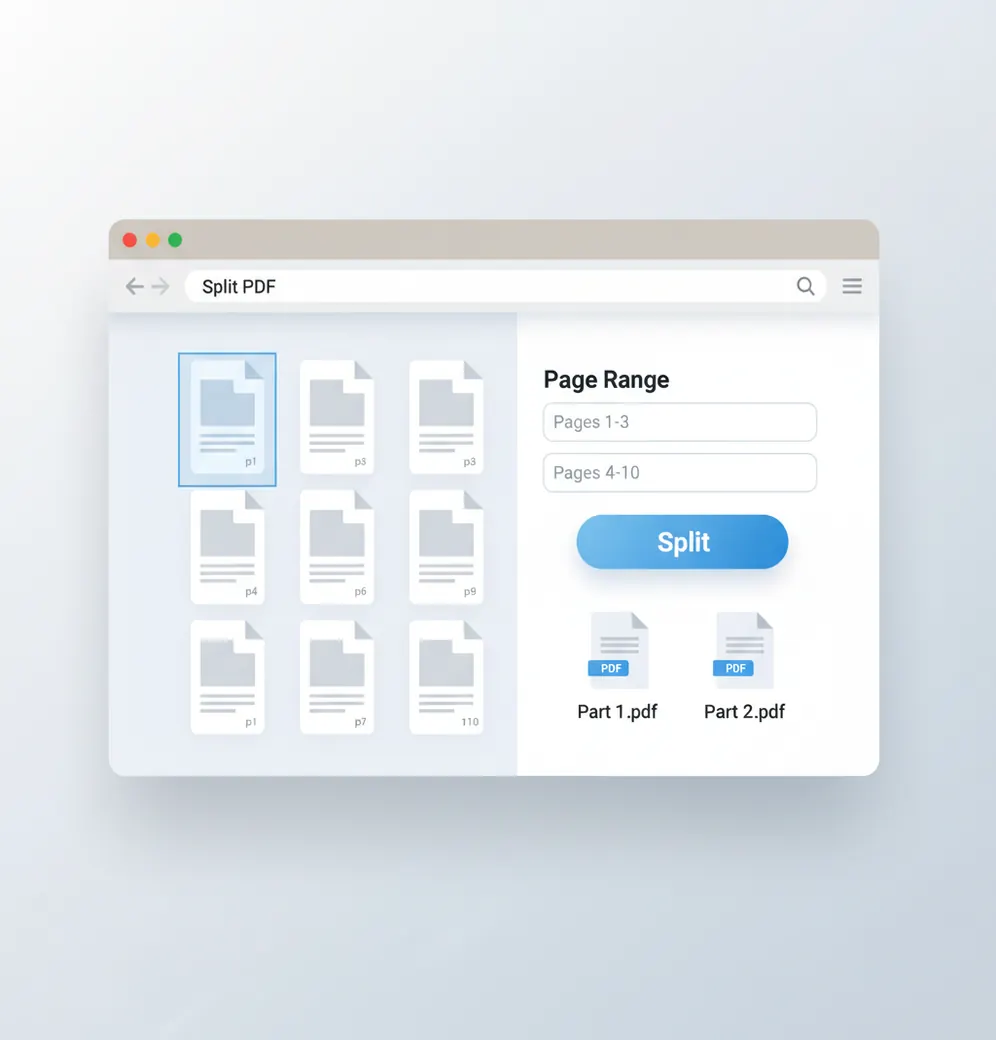
This tool splits one PDF into smaller PDF files by selected pages, page ranges, or one file per page. Use it when you need to send only part of a document, meet upload limits, or separate scanned packets, contracts, invoices, reports, and forms.
What Is Split PDF?
Split PDF means taking one Portable Document Format file and dividing it into multiple PDF files. A PDF preserves page layout, fonts, images, and document structure so it looks consistent across devices. People split PDFs to extract only the pages they need, separate chapters or sections, remove unrelated pages before sharing, or create smaller files for upload portals and email attachments. Splitting does not normally edit the page content; it copies selected pages into new PDF documents.
How to Split a PDF
Upload your file
Choose a PDF from your device or drag it into the upload area.
Select pages or ranges
Enter pages such as 2, 5, 8-12, or choose an option to create one PDF per page.
Preview the selection
Check thumbnails or page numbers to confirm you are extracting the correct pages.
Start the split
Run the process so the selected pages are copied into new PDF files.
Download the results
Save the separated PDFs individually or as a bundled download if that option is available.
Documents worth separating into smaller PDFs
- Upload forms: extract only required pages before submitting documents to government, school, insurance, or HR portals.
- Compatibility: create smaller PDFs that are easier to email, preview, print, or open on older devices.
- CMS requirements: separate long PDFs into section files for publishing in WordPress, Shopify, Webflow, or internal knowledge bases.
- Design handoff: send only approved brochure pages, mockups, proofs, or spec sheets to clients and production teams.
- Contracts: split signature pages, exhibits, schedules, or clauses for review by different parties.
- Invoices and statements: extract one customer, vendor, month, or transaction range from a combined PDF.
- Scanned packets: divide a batch scan into separate records, forms, receipts, or case files.
Split PDF vs Alternatives
| Tool | Type | What It Does | Typical Fit |
|---|---|---|---|
| Pict AI | Web utility | Splits PDFs by selected pages, page ranges, or individual pages. | Quick browser-based extraction without installing software. |
| iLovePDF | Web PDF toolkit | Provides PDF splitting, merging, compression, conversion, and basic editing utilities. | Frequent online PDF tasks in a simple web interface. |
| Adobe Acrobat | PDF editor and document platform | Splits PDFs and also supports editing, forms, signatures, comments, and enterprise workflows. | Advanced PDF management, business document review, and managed accounts. |
| PDFsam Basic | Desktop PDF utility | Splits, merges, rotates, and extracts PDF pages on a local computer. | Offline PDF splitting on Windows, macOS, or Linux. |
All listed tools can separate PDF pages. The best fit depends on whether you need a quick web tool, broader PDF utilities, advanced editing, or offline desktop processing.
Split PDF Limitations
- Splitting a scanned PDF separates pages only; it does not create selectable or searchable text unless OCR is applied separately.
- Password-protected PDFs may require the correct open or permissions password before pages can be extracted.
- Digital signatures may become invalid if signed pages are copied into a new PDF.
- Interactive form fields, embedded files, comments, layers, and scripts may not transfer exactly in every output file.
Related PDF tools
The trade-offs of splitting a PDF submission packet
A shorter PDF is not automatically a complete submission. Before separating an application, evidence bundle, or approval packet, check whether each output will make sense without the surrounding pages.
Pros
- Clearer routing: A descriptive filename such as Application_Appendix_B.pdf helps a recipient identify the attachment without opening the full packet. Keep a consistent naming pattern across all outputs.
- Independent updates: Separating supporting documents lets you replace one outdated attachment without redistributing unrelated material. Add a date or version number so recipients can distinguish the replacement from the original.
- Better document ownership: Separate files can have different access permissions in a document-management system. Splitting alone does not set those permissions; configure them wherever the files are stored.
Cons
- Missing context: A section may rely on definitions, footnotes, or instructions elsewhere in the source. Include those pages when necessary, even if they fall outside the main section.
- Confusing references: A reference to “page 24” may point to a different position in the extracted file. Retain printed page numbers and identify the original page span in the filename or accompanying message.
- Incomplete privacy protection: Extracting pages is not redaction. Retained pages can still contain sensitive text, annotations, or document metadata that needs separate review.
If the submission also requires separate image attachments, an id photo maker addresses portrait formatting, while an image metadata viewer helps inspect embedded image details. You may also need to check pixels against a portal’s dimension limits and find image size before uploading; PDF splitting does not prepare those image files.
Verdict: Split a packet when its parts are independently understandable. Keep a complete source copy and a simple list of which original pages belong to each output.
PDF page extraction questions answered
A PDF can have physical page positions, page labels, and printed numbers that do not match. A cover sheet may be the first page even though the document’s printed numbering starts later. A splitter may use physical positions rather than labels. Check thumbnails and identify the first and last intended pages before entering a range.
Splitting can exclude entire pages, but it cannot safely hide confidential details on pages you retain. Those pages may still contain sensitive text, comments, attachments, or metadata. Use a dedicated redaction tool for information within a page, inspect the exported document, and remove unnecessary metadata separately. Covering text with a visible box is not reliable redaction.
Upload the PDF and choose the option to export one file per page. The tool will generate separate PDFs for each page.
Yes. Select individual pages or enter ranges such as 1-3, 7, or 10-12, then export those pages as new PDF files.
Usually it reduces size when you keep fewer pages. However, some outputs may still be large if fonts, images, or shared PDF resources are copied into each file.
A normal split copies the original page content, so visual quality is usually preserved. Rare rendering differences can happen with complex layouts, unusual fonts, or layered PDFs.
Yes. Scanned PDFs can be split by page or range, but the pages remain image-based unless you run OCR afterward.
You may need to enter the correct password before splitting. A PDF splitter cannot unlock files without permission.
Most tools accept comma-separated pages and hyphenated ranges, such as 2, 4-6, 9. Always preview the selection before downloading.
Some bookmarks and links may be removed or adjusted because they reference pages outside the extracted range. Check the output if navigation is important.
Yes. The output files remain standard PDF documents that can be opened in common PDF readers and browsers.