PDF to Image Converter
Convert PDF pages into JPG or PNG images online. Export each page as a separate image file for sharing, uploading, or inserting into other documents.
Upload your file
Use this free PDF to Image Converter and download the output when processing finishes.
Processing...
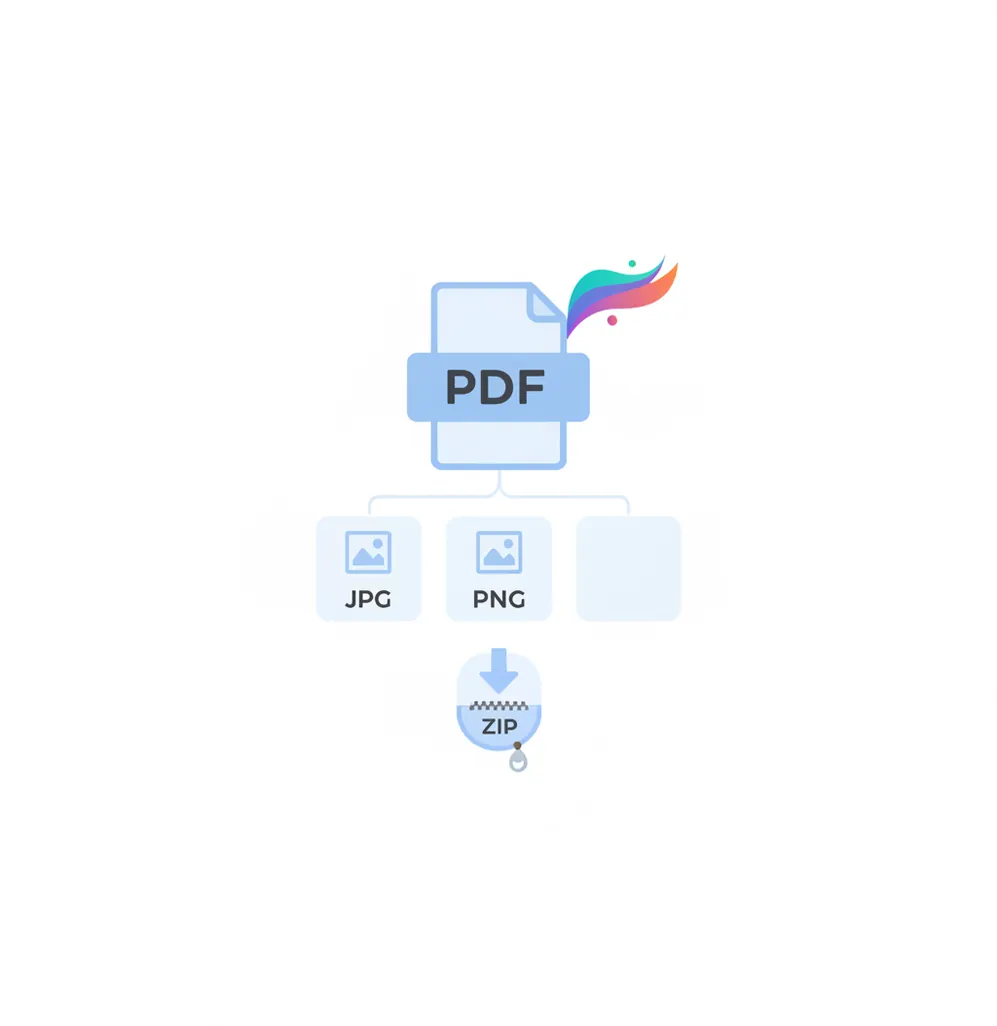
A PDF to image converter renders each PDF page as a separate JPG or PNG file. Use it when a website, app, CMS, or design workflow needs images instead of a PDF document.
What Is PDF to Image Converter?
A PDF to image converter is a tool that turns pages from a PDF document into raster image files such as JPG or PNG. A PDF is a fixed-layout document format that can contain text, vector graphics, photos, forms, and scanned pages. Converting it to an image means each page is rendered as pixels, so the visual layout stays intact but the output is no longer editable text. People convert PDFs to images when they need page previews, upload-ready files, social media graphics, thumbnails, or compatibility with systems that accept images but not PDF files.
How to Convert PDF to Image
Upload your PDF
Select a PDF file from your device. Multi-page PDFs can be processed page by page.
Choose JPG or PNG
Pick JPG for smaller file sizes or PNG for sharper text, screenshots, diagrams, and line art.
Set output options
Adjust available quality, size, or background settings. Higher quality usually creates larger image files.
Convert and download
Start the conversion, wait for the pages to render, then download individual images or a ZIP file.
Where JPG and PNG Pages Fit Your Workflow
- Upload forms that accept JPG or PNG files but reject PDF attachments.
- Create page thumbnails for a CMS, document library, product listing, or blog post.
- Share one PDF page in chat apps, email threads, support tickets, or social media.
- Insert invoice pages, certificates, menus, or flyers into slides and design mockups.
- Hand off flat page visuals to designers, reviewers, or clients without sending editable source files.
- Convert scanned PDF pages into standalone images for archiving or manual review.
- Prepare image previews for web apps that display documents as page-by-page visuals.
PDF to Image Converter vs Alternatives
| Tool | What it does | Output formats | Best fit |
|---|---|---|---|
| Pict AI | Converts PDF pages into image files through a browser-based tool. | JPG, PNG | Quick page-by-page exports for general web use. |
| iLovePDF | Provides PDF conversion, compression, merge, split, and page export tools. | JPG and related PDF outputs | Users who need a broad set of simple PDF utilities. |
| Adobe Acrobat | Exports PDFs and manages professional document workflows. | JPG, PNG, TIFF, and other document formats depending on plan | Teams that need advanced PDF controls and document management. |
| Smallpdf | Offers browser-based PDF conversion and editing utilities. | JPG and common PDF-related formats | Everyday PDF tasks with a simple web interface. |
All listed tools can help convert PDF pages into image formats; differences are mainly in export controls, workflow features, and supported file options.
PDF to Image Converter Limitations
- Converted images are not editable PDF pages; text becomes pixels unless OCR is applied later.
- JPG compression can create artifacts around small text, thin lines, charts, and logos.
- PNG files preserve sharper edges but can be much larger than JPG files.
- Low-resolution exports may make small text, barcodes, or fine diagrams hard to read.
Pixel Dimensions, Page Proportions, and Export Size
Choose output dimensions from the page’s intended display size, not just a quality slider. A full-page preview and a cropped chart need different pixel budgets. These reference values help translate physical PDF page sizes into image dimensions; available controls vary by converter.
| Setting or specification | Reference value | Practical consequence |
|---|---|---|
| A4 page at 150 DPI | About 1,654 × 2,339 pixels | A useful starting point for document previews viewed on screen. |
| A4 page at 300 DPI | About 2,480 × 3,508 pixels | Provides more pixels for zooming and cropping individual details. |
| US Letter at 300 DPI | 2,550 × 3,300 pixels | Matches an 8.5 × 11-inch page without changing its proportions. |
| Aspect ratio | A4: approximately 1:1.414; Letter: 1:1.294 | Keep width and height proportional to avoid stretching lettering or diagrams. |
| Decoded image memory | About 35 MB for an A4 page at 300 DPI with four bytes per pixel | Memory use can substantially exceed the downloaded file size. |
| Processing workload | Doubling both dimensions creates four times as many pixels | Large exports increase rendering work; conversion time also depends on page complexity. |
If a spreadsheet is the source, complete the excel to pdf step first and inspect its page breaks. Columns clipped during PDF creation will remain clipped in the exported image; increasing the pixel dimensions cannot recover missing content.
An hd photo converter may enlarge a finished page image, but it cannot reliably restore detail lost in a low-resolution scan. Keep decorative edits separate from document exports: a photo to sketch effect can distort characters, while a black and white image conversion can remove distinctions in color-coded charts. Preserve an unchanged copy for reference.
Questions About Converting PDF Pages to Images
A password-protected PDF may require its opening password before a converter can render any pages. Some services reject encrypted files entirely, and permission restrictions may also affect export. If you are authorized to use the document, open it in a compatible PDF application and create an unrestricted copy where permitted. Do not use conversion to bypass someone else’s access controls.
Page conversion renders the whole page, including text, graphics, margins, and photographs, into one image. Image extraction retrieves embedded pictures separately, without the surrounding page layout. Extraction may preserve an embedded picture’s original dimensions and encoding, depending on the tool. Choose extraction when you need an individual photograph; choose page conversion when you need the complete document appearance.
PDF to JPG is one type of PDF-to-image conversion. PDF to image can also include PNG and sometimes TIFF or WebP.
Use JPG when you want smaller files for photos or general sharing. Use PNG for sharper text, screenshots, diagrams, logos, and line art.
Usually yes, because the converter renders each page visually. Complex PDFs may show small differences if fonts, transparency, or color profiles are handled differently.
Yes. A scanned PDF is already image-based content inside a PDF container, so each page can be rendered as a separate image.
No. The output is a raster image, so text is not selectable unless you run OCR afterward.
It depends on the PDF and output settings. JPG can reduce size, while high-resolution PNG exports may be larger than the original PDF.
Yes, multi-page PDFs are typically exported as one image per page. The results may be downloaded individually or bundled in a ZIP file.
For screen use, 150 DPI is often enough. For clearer text or print-related use, 300 DPI or higher is usually better.