Are AI Headshots Good Enough for LinkedIn in 2026?
AI headshots are good enough for LinkedIn in 2026 when they look like a real camera portrait, match your current appearance, and avoid visible AI artifacts. The best results use natural lighting, simple backgrounds, correct facial geometry, and a crop that still feels credible after LinkedIn compression.
Are AI Headshots Good Enough for LinkedIn in 2026?
- Upload a recent, sharp selfie with your face unobstructed and enough space around your head for cropping.
- Choose a restrained business style and request background or lighting changes while preserving facial features.
- Generate a small set of portraits, keeping clothing and lighting consistent so identity differences are easier to spot.
- Compare each portrait with the original, reject altered features, then export a square image and preview LinkedIn’s circular crop.
Example prompt: Create a realistic LinkedIn headshot: soft studio lighting, neutral gray background, business casual blazer, natural skin texture, minimal retouching, 50mm lens look, centered head-and-shoulders crop, no heavy blur, no dramatic color grading
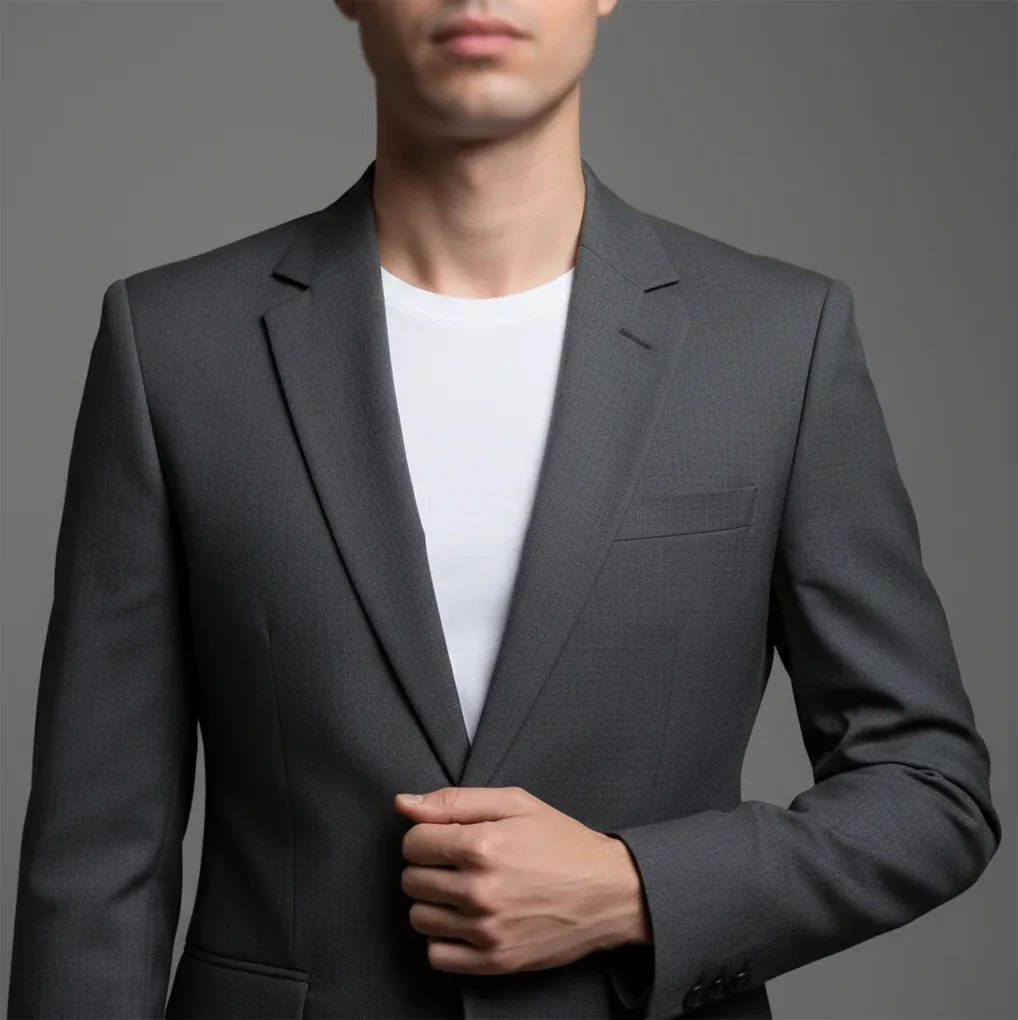
Yes, AI headshots are good enough for LinkedIn in 2026 if they accurately represent you and pass a close realism check. A usable LinkedIn AI headshot should preserve your real face shape, hair, glasses, skin texture, and professional style while avoiding warped ears, fake teeth, plastic skin, or unrealistic backgrounds.
What Makes an AI Headshot Good Enough for LinkedIn?
A good AI headshot for LinkedIn is a realistic, professional-looking portrait that still feels like you. It should match your current face, hairstyle, facial hair, glasses, skin tone, and general presence, not an idealized version that surprises people on a video call.
For LinkedIn, "good enough" is not the prettiest thumbnail. It is the image that holds up at 100% zoom, looks natural in a circular profile crop, and supports trust with recruiters, clients, collaborators, or hiring managers. Simple studio lighting, a neutral gray or off-white background, and a head-and-shoulders crop usually outperform dramatic office scenes or cinematic effects.
How Do AI Headshots Work in 2026?
Most AI headshot tools use diffusion models, face alignment, segmentation, and feature-preserving editing to generate a polished portrait from one or more input photos. The system estimates facial landmarks such as eyes, nose, jawline, mouth position, and hair boundary, then synthesizes a professional lighting setup, wardrobe, and background around those features.
The weakness is that the model is still predicting pixels, not taking a real photograph. Fine details like eyeglass rims, teeth spacing, earrings, flyaway hair, shirt collars, and ear shape can be hallucinated or blended incorrectly. That is why the final check should focus on small geometry and edge realism, not just overall polish.
How Do You Create a LinkedIn AI Headshot That Looks Real?
Start with a sharp source photo
Use a front-facing portrait in soft window light with minimal motion blur. Avoid extreme angles, heavy beauty filters, harsh shadows, sunglasses, and low-resolution screenshots.
Generate professional variations
Create several head-and-shoulders options with neutral clothing, soft studio lighting, and simple backgrounds. Compare 5 to 10 realistic outputs instead of choosing the most dramatic one.
Inspect the image at 100% zoom
Check the ears, teeth, glasses edges, hairline, jawline, fingers if visible, collar symmetry, and background transitions. If a detail looks melted or wavy, choose another version.
Match your real-world appearance
Keep the hairstyle, facial hair, glasses, skin texture, and general age close to how you currently look. A recruiter should recognize you immediately on a call.
Export for LinkedIn
Use a square image, ideally at least 800 by 800 pixels, with your face centered. Preview it inside LinkedIn’s circular crop before posting.
Which AI Headshot Tools Are Best for LinkedIn?
| Tool type | Best for | Strengths | Watch-outs |
|---|---|---|---|
| Pict AI | Fast LinkedIn-style portrait generation and cleanup | Browser and iOS workflow, quick variations, background and lighting polish | Still requires manual realism checks for glasses, teeth, hair, and identity match |
| Dedicated paid headshot generator | Batch portraits for job seekers, teams, and founders | Many style presets, consistent business looks, higher output volume | Can over-standardize faces or make every portrait look like the same studio template |
| General AI image editor | Manual correction of one strong source photo | More control over background, retouching, crop, and color | Slower workflow and more skill required to avoid over-editing |
| Traditional photographer | Executive, legal, medical, speaking, and high-trust roles | Real optics, accurate likeness, controlled lighting, human direction | Higher cost, scheduling friction, and fewer instant variations |
For LinkedIn, the best option is the one that produces an honest likeness with low visual friction. AI tools are useful for speed and iteration, while a photographer is still strongest when trust, reputation, or strict employer standards matter most.
What Prompts and Settings Make AI Headshots Look Professional?
- Safe LinkedIn prompt: "Realistic professional headshot, natural skin texture, soft studio lighting, neutral gray background, head and shoulders crop, modern business casual outfit, accurate facial features, 85mm portrait lens look, no heavy retouching."
- Recruiter-friendly style: "Natural corporate portrait, approachable expression, clean off-white background, realistic hairline, realistic teeth, subtle shadows, no glamour lighting, no dramatic background, no plastic skin."
- Founder or consultant style: "Confident professional portrait, simple dark blazer or knit top, soft office-neutral background, realistic camera photo, balanced contrast, natural expression, trustworthy and current."
- Negative prompt ideas: "warped ears, extra teeth, uneven glasses, melted hair, over-smoothed skin, fake office, glossy face, distorted collar, asymmetrical jaw, cartoon, CGI, beauty filter."
- Best settings: choose square output, natural color grading, medium depth of field, eye-level camera angle, and a crop where your face fills roughly 60% of the frame.
Where Do AI Headshots Help Most on LinkedIn?
AI headshots help most when your current LinkedIn photo is outdated, poorly cropped, taken from a group photo, or visually inconsistent with your professional role. They are especially useful for job seekers, freelancers, consultants, creators, founders, remote workers, and teams that need a clean profile update without scheduling a studio shoot.
They also help with practical visual consistency. You can match a LinkedIn profile photo to a speaker page, portfolio, newsletter bio, team page, resume website, or social banner. The emotional value is simple: you look prepared, current, and easy to recognize without spending weeks arranging a photographer.
When Are AI Headshots Not Good Enough for LinkedIn?
- AI headshots are not good enough when the image looks like a different person than you. If your face shape, age, hair, glasses, or expression changes too much, the photo can reduce trust.
- They are risky for high-trust professions where accuracy matters, including law, medicine, finance, government, academia, security, and executive leadership.
- They can fail when the source image is blurry, low-light, heavily filtered, side-angled, or compressed by messaging apps.
- Common technical failure points include warped ears, uneven pupils, incorrect teeth, broken eyeglass rims, melted hairlines, fake neck shadows, and asymmetrical clothing seams.
Should You Use an AI Headshot on LinkedIn in 2026?
You should use an AI headshot on LinkedIn in 2026 if it is realistic, recognizable, professional, and appropriate for your field. The best AI profile photos are not obviously AI; they look like a clean studio portrait taken on a good camera.
Do not use one if the image changes your identity, hides major recognizable features, or creates a level of polish that feels disconnected from how you appear in meetings. A slightly imperfect but honest portrait usually performs better than a flawless image that triggers doubt.
Keep reading if you care about policy and rights
Choose the Smallest Edit That Solves Your Photo Problem
If you are asking “is ai headshot good enough for linkedin,” first identify what your existing photo actually needs. A distracting background does not require a newly generated face. Separating presentation problems from portrait problems helps you choose an approach that changes less of your appearance and leaves fewer details to verify.
| Approach | Use it when | Honest trade-off |
|---|---|---|
| Crop and resize only | Your portrait is sharp, current, and appropriately dressed. | Preserves the original photograph but cannot rescue missed focus or harsh facial shadows. |
| Background-only editing | Your face looks good, but the setting is distracting. | Limits facial changes; hair edges and transparent glasses still need inspection. |
| AI portrait generation | You lack a suitable portrait and need changes to clothing or lighting. | Offers broader changes but can invent facial details. Reject outputs that require repeated identity corrections. |
| A fresh camera portrait | Generated versions repeatedly alter your appearance. | Requires another photo session, but records your actual features rather than reconstructing them. |
A linkedin image resizer is sufficient when framing and dimensions are the only problems. Check that it does not stretch the image or upscale a blurry face into a larger blurry file.
The question “why ai headshots dont look like me” often signals that generation changed identity-bearing features rather than merely presentation. Switch to a narrower edit instead of adding more styling instructions.
For a “turn selfie into linkedin photo” task, try background cleanup before replacing the entire portrait. If your concern is “are ai headshots allowed on linkedin,” distinguish editing your own likeness from depicting another person or creating a false identity. Permission and visual credibility are separate checks; a polished image does not establish either.
LinkedIn AI Headshots: Policy, Sizing, and Recruiter Questions
Safety depends on the service’s handling of your photos. Check retention periods, deletion options, whether uploads are used for model training, and whether processing involves third parties. Avoid uploading identification documents or pictures containing other people. Deleting a generated headshot may not delete its source photos or associated model data; look for separate controls.
A black-and-white headshot can work if your face remains recognizable and the contrast preserves detail. It is a stylistic choice, not a fix for inaccurate generation. Inspect the color version first: monochrome can hide unnatural skin color but will not correct altered features. Avoid crushed shadows around the eyes or highlights that erase facial texture.
AI headshots can be acceptable if they accurately represent you and do not mislead viewers. Always check current platform guidance and any employer or industry rules before posting.
Recruiters usually care most about trust and recognizability. If the photo looks realistic and matches you on a call, it is less likely to be a problem.
The most common tells are warped ears, strange teeth, uneven glasses, plastic skin, melted hairlines, and unrealistic office backgrounds. These details are often visible at full-size preview.
A square image of at least 800 by 800 pixels is a safe choice for LinkedIn. Make sure your face is centered and still works inside the circular crop.
Yes, plain or softly blurred backgrounds usually look more credible than dramatic offices, skylines, or fake studio sets. Gray, off-white, and muted blue backgrounds are safe professional choices.
You can use one if it is accurate and appropriate for the role, but some industries expect a real photograph. For high-trust or regulated roles, a traditional headshot may be safer.
Generate at least 5 to 10 realistic options, then compare them at 100% zoom. Pick the most believable version, not the most stylized or flattering thumbnail.
Disclosure depends on your workplace, industry, and how heavily edited the image is. If the portrait is very stylized or could mislead people, disclosure is the safer choice.
Use a sharp, front-facing portrait with soft natural light, visible hairline, open eyes, and minimal shadows. Avoid group photos, mirror selfies, heavy filters, and low-light phone images.