Can AI Colorize Black and White Photos in 2026?
Yes, AI can colorize black-and-white photos in 2026 with convincing results for faces, skies, foliage, clothing, and everyday scenes. The important caveat is accuracy: AI predicts likely colors from grayscale clues, so the result is a believable restoration, not guaranteed historical proof.
Can AI Colorize Black and White Photos in 2026?
- Upload a clear scan of your black-and-white photograph, keeping the untouched original saved separately.
- Choose colorization and describe known clothing colors, the setting, and any reference details the editor supports.
- Generate a colorized version using restrained saturation, without requesting changes to faces, lettering, or other identifying details.
- Compare the result with the original, correct inconsistent colors, and export a copy labeled as AI-colorized.
Example prompt: Colorize this black-and-white family portrait with natural skin tones, neutral whites, and subtle film-like color; avoid oversaturation, keep background muted, preserve facial detail, and maintain a realistic 1970s print look.
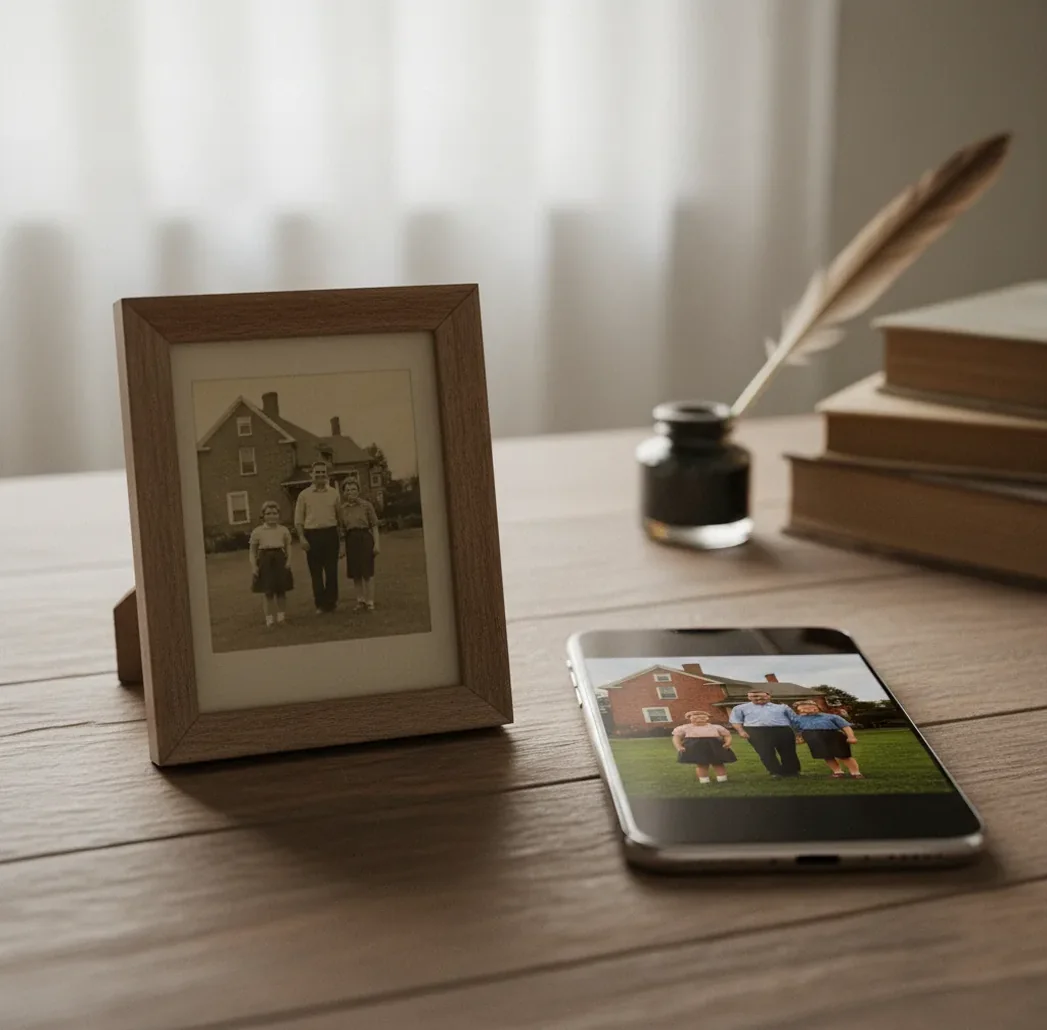
Yes, AI can colorize black-and-white photos in 2026 by predicting plausible colors from grayscale pixels, facial features, textures, and scene context. Results can look realistic for family portraits, landscapes, and scanned prints, but AI does not recover the exact original colors unless you provide references such as notes, known objects, uniforms, or color samples.
What does AI colorization mean for black-and-white photos?
AI colorization means adding plausible color to a grayscale image using a trained computer vision model. The model analyzes luminance, edges, skin regions, material texture, object shapes, and scene context, then predicts chroma values that make the photo look natural. In practical terms, it can turn a faded family portrait into a warmer print for a frame, slideshow, memorial page, social post, or archive.
The key word is plausible. A model may infer blue sky, green grass, warm skin, brown wood, or dark wool because those patterns are common in training data. It cannot know that a specific dress was emerald, a school uniform was maroon, or a car was cream unless the image or your notes provide that evidence.
How does AI predict color from grayscale pixels?
AI photo colorizers learn from large datasets of color images that are converted into black-and-white during training. The system tries to reconstruct missing color channels from the grayscale image, often using convolutional neural networks, transformer vision encoders, diffusion models, or hybrid restoration pipelines. It looks for semantic cues such as faces, lips, hair, trees, uniforms, walls, shadows, fabric grain, and light direction.
This is why faces and outdoor scenes often colorize well: the model has seen millions of similar examples. It also explains wrong guesses. A dark jacket, navy sweater, black coat, and forest-green blazer can share nearly identical grayscale values. Without a reference, the model chooses the most statistically likely color, not the historically verified one.
How do you colorize a black-and-white photo without ruining skin tones?
Scan or photograph the cleanest source
Use a 300-600 DPI scan when possible. If you use a phone, shoot in soft window light, avoid glossy glare, and keep the print flat so skin highlights do not become yellow or orange patches.
Crop and repair before colorizing
Remove borders, scanner shadows, dust-heavy margins, and torn corners before running colorization. A tighter crop gives the model more useful face, clothing, and background information.
Run the image through a colorization tool
Upload the photo to your chosen AI photo colorizer, such as Pict AI, Photoshop Neural Filters, Palette.fm, MyHeritage In Color, or DeOldify-based workflows. Start with the default output before making style changes.
Check faces before anything else
Zoom to 100% and inspect cheeks, lips, hairlines, ears, and neck shadows. If skin looks sunburned, gray, or waxy, lower warmth and saturation before increasing contrast.
Balance clothing and backgrounds
Reduce global saturation by 5-15% if clothing becomes too vivid. Add a small contrast lift only after color is stable, because heavy contrast can exaggerate color bleed around hair, hats, and shoulders.
Export with the original preserved
Save the colorized version as a copy and keep the untouched scan. For family archives, store both files with a note that the color image is AI-restored rather than a verified original.
Which tools can colorize black-and-white photos?
| Tool | Best for | Strengths | Watchouts |
|---|---|---|---|
| Pict AI | Fast browser or iPhone colorization for family photos and social-ready restorations | Quick previews, colorization plus enhancement tools, useful for scanned prints and portraits | Still predicts color; historical accuracy depends on your references |
| Adobe Photoshop Neural Filters | Creators who already edit in a professional desktop workflow | Layer control, masking, retouching, and manual correction after AI colorization | Requires more editing skill and a paid software workflow |
| Palette.fm | Trying multiple color moods quickly | Style presets and prompt-like controls for different color interpretations | Preset looks can become stylized rather than historically restrained |
| MyHeritage In Color | Genealogy users restoring family archive images | Simple workflow for old portraits and ancestry collections | Best suited to personal history use; review privacy and upload terms |
| DeOldify-based tools | Technical users who want open-source experimentation | Flexible model-based workflows and community variants | Setup, tuning, and output consistency can vary widely |
No AI colorizer can guarantee exact original colors from a grayscale image alone. Choose based on workflow: quick restoration, professional retouching, genealogy, style exploration, or technical control.
When is AI colorization actually useful?
AI colorization is most useful when emotional readability matters more than forensic accuracy. It can make faces easier to connect with in family albums, memorial slideshows, wedding anniversary posts, school archives, local history projects, and framed gifts. A gentle color pass often helps younger relatives read an old image as a real moment instead of a distant artifact.
It is also useful for creative workflows: before-and-after restoration posts, editorial layouts, history-themed social content, moodboards, documentary thumbnails, and portfolio demonstrations. For best results, keep the grade restrained. Old photos usually look more believable with moderate saturation, softened contrast, and slightly warm highlights rather than a bright modern smartphone color palette.
What prompt recipes help guide photo colorization?
- Natural family portrait: “Colorize this black-and-white family portrait with realistic mid-century tones, natural skin, muted clothing, soft indoor light, and no oversaturated colors.”
- Historical restraint: “Add subtle, historically plausible color while preserving film grain, original contrast, and a documentary look. Avoid modern neon colors or glossy skin.”
- Outdoor scene: “Colorize with natural daylight, believable blue-gray sky, soft green foliage, warm skin tones, and restrained saturation suitable for a restored archival print.”
- Uniform or school photo: “Colorize conservatively. Keep uncertain uniforms neutral unless a known reference color is provided. Prioritize realistic skin and clean edge separation.”
- Print-ready restoration: “Create a gentle color restoration for a framed 8x10 print. Preserve facial detail, reduce color bleed, keep blacks neutral, and avoid painterly texture.”
- Reference-based correction: “Use these known colors as constraints: the dress is navy, the car is cream, the tie is red, and the background wall is beige. Keep all other colors natural.”
When is AI colorization least trustworthy?
- AI cannot recover true historical colors without references, written notes, color objects, or known production details.
- Uniforms, flags, medals, branded products, cars, and fashion items may look believable but be factually wrong.
- Very small scans, JPEG-compressed files, and screenshots often produce painted-looking skin and soft color edges.
- Glossy print glare can turn into yellow, pink, or white patches because the model reads reflections as image content.
Is AI colorization accurate enough in 2026?
AI colorization is accurate enough in 2026 for many personal, creative, and restoration uses, but not accurate enough to treat as proof of original color. A strong output can make skin, foliage, wood, denim, sky, and indoor scenes feel natural. It may be excellent for a family gift, a social post, a framed print, or a personal archive.
For historical accuracy, use references. Notes on the back of a print, known school colors, military records, product catalogs, family memory, fabric samples, and other photos from the same day can all guide better color decisions. The safest standard is simple: use AI for visual restoration, use evidence for factual color claims.
Related reads from Pict.AI
A publication checklist for AI-colorized photographs
Learning how to colorize black and white photos with AI includes checking what changed beyond the colors. Before sharing a result from a tool’s “colorize black and white photo” feature, compare it with the source at the same size. Use this checklist to catch changes that a pleasing thumbnail can hide.
- Compare brightness without color. Temporarily desaturate a copy of the finished image and compare it with the scan. Newly darkened eyes, flattened fabric folds, or missing cloud detail suggest the tool changed tonal information rather than simply adding color.
- Check repeated materials. Follow one garment across sleeves, collars, and folds. A blue sleeve and brown cuff may be a segmentation error, not two different fabrics. Inspect matching uniforms and furniture upholstery for similar inconsistencies.
- Inspect reflections and transparent objects. Mirrors, spectacles, windows, and water deserve separate attention. Reflections should remain compatible with the objects they show; glass should not become an opaque colored patch.
- Look for invented details. Compare lettering, insignia, jewelry, teeth, and background faces against the original. Some generative editors redraw these features during colorization. Reject an attractive version if it changes identifying details.
- Check upload privacy before sharing family material. If you searched for “chat gpt edit photos” and chose a conversational editor, check its current upload, retention, and sharing settings. Crop out addresses or private documents that are irrelevant to the restoration.
- Review the actual publication file. Open the exported image, not just the editor preview. Check it on the intended screen or make a small proof print. Add a visible “AI-colorized” caption where viewers could otherwise mistake it for an original color photograph.
Questions about AI photo colorization
Yes, but a sepia photograph may need its existing brown cast neutralized before colorization. Some tools handle that automatically; others treat the tint as useful image information and retain it. Work on a copy, convert it to neutral grayscale if necessary, and compare both approaches. Avoid removing so much contrast that faces and fabric lose their tonal detail.
Use the same tool and settings, then provide repeated color references where supported. Identify clothing, rooms, or vehicles that appear across several photographs and compare their colors side by side. Processing every image with one preset does not guarantee consistency: lighting and composition can change the model’s guesses. Correct recurring objects individually rather than applying one global tint to the entire album.
Yes, AI can create realistic colorizations in 2026, especially for clear portraits and common scenes. It predicts likely colors, so exact accuracy still requires references.
Use a clean 300-600 DPI scan or a sharp phone photo taken in soft, glare-free light. Crop borders and remove obvious dust or scratches before colorizing.
They usually look fake because of oversaturated skin, color bleed at edges, waxy texture, or modern-looking color palettes. Lower saturation and preserve grain for a more believable restoration.
Not from grayscale alone. AI can guess likely clothing colors from texture and context, but a black, navy, green, or brown garment may appear almost identical in black and white.
Yes, it often works well for family portraits when faces are sharp and evenly lit. Results are best when the scan has visible facial detail, clean edges, and minimal glare.
Yes, several iPhone apps can colorize black-and-white photos. For best results, scan or photograph the print in even light before uploading it.
Remove major scratches, dust, borders, and glare before colorization. Minor cleanup can happen afterward, but heavy damage may confuse the model’s color placement.
It can help visualize historical material, but it should not be cited as evidence of exact color. Keep the original image and label any colorized version clearly.
A 300 DPI scan is usually enough for sharing and small prints, while 600 DPI is better for detailed restoration or larger prints. Avoid tiny screenshots and heavily compressed JPEGs.