Can AI Restore Faces in Old Photos? Tested 2026
Yes, AI can restore faces in old photos when the eyes, mouth, nose, and head shape are still partly visible. The best 2026 tools can sharpen soft portraits, reduce scratches, and rebuild plausible facial texture, but they cannot prove exactly what a missing face originally looked like. Use restoration for clearer family archives, memorial prints, social posts, and gifts, not as identity evidence.
Can AI Restore Faces in Old Photos? Tested 2026
- Upload the clearest scan of your old portrait, keeping the full head and surrounding facial context visible.
- Choose face restoration or describe the repairs, asking to preserve age marks, expression, and original facial proportions.
- Generate a restrained restoration first, avoiding heavy smoothing or extra sharpening that could exaggerate invented details.
- Compare eyes, mouth, and face shape with the source, then export a labeled copy without overwriting your scan.
Example prompt: Restore an old 1940s black-and-white portrait photo: repair scratches and crease lines, sharpen eyes naturally, keep realistic skin texture and film grain, avoid plastic smoothing, preserve original lighting and age marks, high resolution, photorealistic
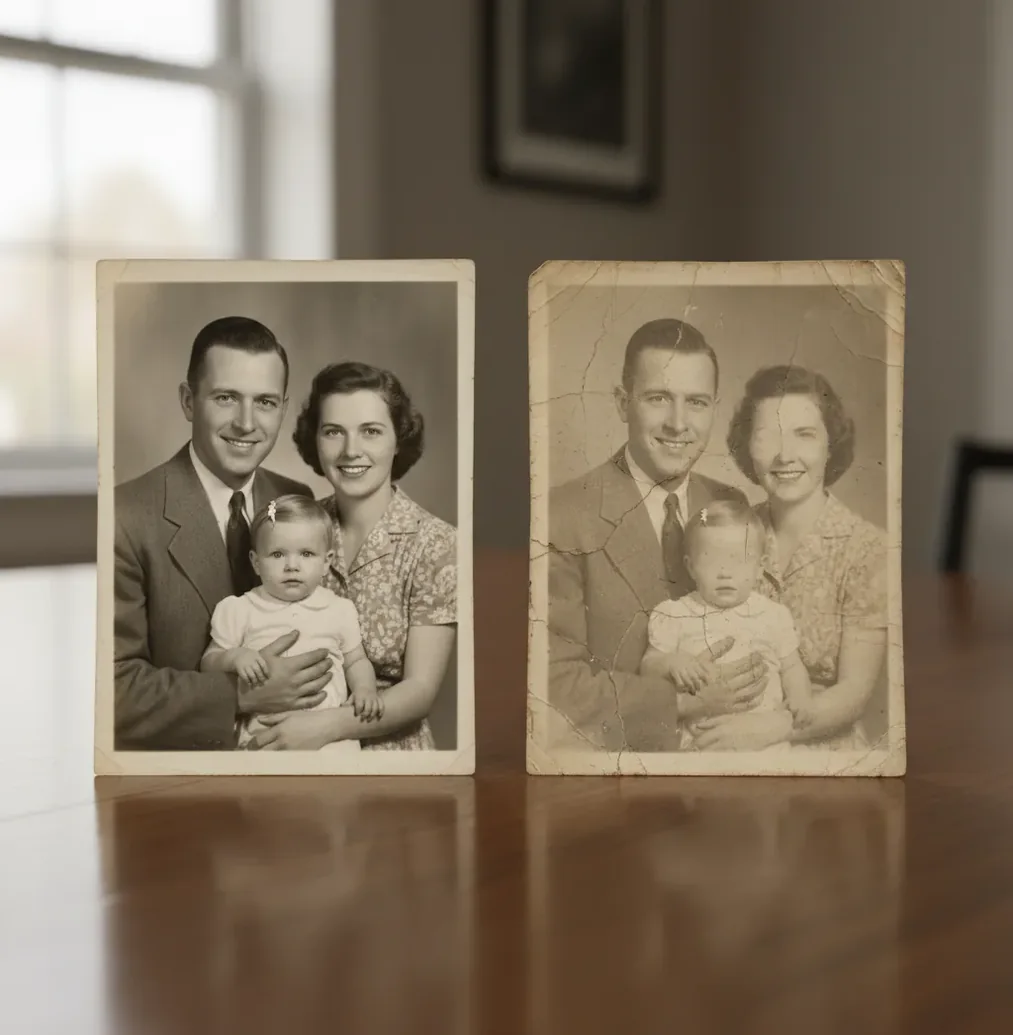
AI can restore faces in old photos by detecting facial landmarks, removing damage, and generating plausible missing detail with super-resolution or diffusion models. Results are strongest when the original scan still contains visible eye edges, lip contours, nostrils, and hairline structure. If the face is fully erased, blown out, or extremely tiny, AI may invent features rather than recover them.
What Does It Mean to Restore a Face in an Old Photo?
Restoring a face in an old photo means improving the readable facial structure, not simply sharpening the whole image. A restoration model usually reduces scratches, dust, blur, compression noise, and faded contrast while reconstructing likely detail around the eyes, nose, mouth, skin texture, and hairline.
This matters because old portraits often fail in layers: the paper is damaged, the scan is low-resolution, and the face itself has lost small features. AI restoration can make a grandparent’s portrait clearer for a family tree, funeral program, framed print, or social post. The tradeoff is that reconstructed pixels are estimates. When the original contains enough facial evidence, the result can look natural; when it does not, the output may become a believable but inaccurate face.
How Does AI Decide What an Eye or Mouth Should Look Like?
AI face restoration works by finding the face region, estimating facial landmarks, and predicting higher-resolution pixels from the damaged input. Many systems combine face detection, landmark alignment, denoising, deblurring, and super-resolution; newer tools may use diffusion-based image restoration to generate cleaner facial surfaces.
The model is not retrieving hidden original pixels from the photo. It is using learned visual patterns to infer what a plausible iris edge, eyelid, lip line, nostril, cheek texture, or tooth boundary should look like. That is why old-photo restoration can feel impressive on a soft but visible portrait and unreliable on a face that is completely scratched away. The more the model must guess, the higher the risk of changed identity cues.
How Do You Restore a Grandparent’s Portrait Without Plastic Skin?
Capture the best source file
Scan the print at 300 to 600 DPI when possible. If you use a phone, place the photo in soft window light, avoid glossy reflections, and keep the camera parallel to the paper.
Crop with facial context
Include the full head, hairline, ears, chin, and a little background. Over-tight crops can remove landmarks that help the model preserve face shape.
Run face restoration before heavy styling
Use a dedicated restoration pass before adding colorization, filters, or strong contrast. This gives the model cleaner structure to work from.
Inspect at 100 percent zoom
Check pupils, teeth, eyelids, nostrils, and lip edges. If they look drawn, glassy, or too symmetrical, reduce strength or try a gentler model.
Add back light grain if needed
A small amount of grain can make restored skin match the original paper texture. Completely smooth skin often looks waxy on vintage portraits.
Export two versions
Keep a natural archive copy and a stronger sharing copy. Small prints and social posts can tolerate more cleanup than a large framed portrait.
Which Photos Work Best for AI Face Restoration?
AI face restoration works best on portraits where the main facial landmarks are present but softened by age, blur, grain, fading, or surface damage. Straight-on or three-quarter faces usually restore better than profiles because both eyes, the nose bridge, and mouth alignment give the model more structure.
Good candidates include 1940s to 1970s family snapshots, yearbook portraits, military portraits, wedding photos, memorial photos, and scanned ID-style images for genealogy projects. Moderate scratches across a cheek or forehead are often repairable if the underlying face shape remains visible. Small faces in group photos can improve, but they may not become crisp enough for large prints unless the scan is high-resolution and the head occupies enough pixels.
What Tools Can Restore Faces in Old Photos in 2026?
| Tool type | Best for | Control level | Typical tradeoff |
|---|---|---|---|
| Pict AI | Fast browser or iOS restoration for old portraits, soft eyes, scratches, and family-photo cleanup | Low to medium | Convenient workflow, but output should still be checked for invented facial detail |
| Photoshop Neural Filters | Editors who want restoration plus manual masking, layers, and retouching control | High | More precise, but slower and requires editing skill |
| GFPGAN or CodeFormer interfaces | Technical users testing open-source face restoration models | Medium | Powerful reconstruction, but settings can produce identity drift or over-smoothed skin |
| Remini-style mobile apps | Quick phone-based enhancement for social posts and small prints | Low | Fast results, but faces may look beautified or overly modern |
| Manual retouching services | Heirloom portraits, large prints, and historically sensitive images | Very high | Best quality control, but more expensive and slower |
Choose a tool based on the final use. A quick AI pass is often enough for a social post or small gift print, while a large archival print may need manual retouching after AI restoration.
What Prompt or Settings Recipe Gets a Natural Restored Face?
- Natural archive recipe: "Restore the old portrait while preserving the person’s age, original facial proportions, natural wrinkles, film grain, and vintage paper texture. Reduce scratches and blur without beautifying the face."
- Memorial print recipe: "Create a clean, respectful restoration for a small framed print. Sharpen the eyes and mouth slightly, remove dust and crease marks, keep skin texture realistic, and avoid changing identity cues."
- Group photo recipe: "Enhance small faces in this group photo conservatively. Improve clarity and reduce grain, but do not invent strong eye, tooth, or hair detail where the source is unclear."
- Black-and-white portrait recipe: "Restore contrast and facial clarity in this monochrome portrait. Keep the image black and white, preserve period-accurate tone, and avoid modern beauty smoothing."
- Quality-control instruction: "If the eyes, teeth, or mouth cannot be confidently reconstructed, keep them soft rather than generating unrealistic details."
When Should You Not Trust an AI-Restored Face?
You should not fully trust an AI-restored face when the original facial information is missing, extremely small, blown out, or covered by damage. In those cases, the model may create plausible eyes, lips, teeth, skin texture, or hair edges that were not actually present in the source image.
Specific warning signs include identical-looking pupils, unnaturally sharp eyelashes, extra teeth, symmetrical mouth corners, melted ears, waxy cheeks, and age cues that disappear after denoising. Profiles, motion-blurred faces, low-quality phone photos of glossy prints, and faces under roughly 80 to 120 pixels wide are especially risky. Treat the restored version as an interpretation, not a forensic record or proof of identity.
Can AI Bring Back a Face From a Ruined Photo?
AI can improve a ruined photo if some facial structure remains, but it cannot truly recover a face that no longer exists in the image data. If the eyes, nose, mouth, and head outline are partly visible, restoration can produce a clearer, emotionally useful portrait for family sharing, albums, prints, and memorial projects.
If the face is a blank blur, a white flare, or a scratched-out area, AI will generate a best guess based on similar faces from training patterns. That can still be useful for a creative tribute, but it should be labeled as reconstructed. The safest workflow is to keep the original scan, save the restored copy separately, and avoid presenting heavy restorations as exact historical evidence.
Related reads for image ethics and editing choices
File handling that keeps a restored portrait traceable
Learning how to restore old photos with ai includes keeping a record of what changed. A convincing portrait can circulate for years after its original scan disappears. Preserve that scan, label generated versions, and keep enough information for relatives to distinguish photographed detail from reconstructed detail.
- Untouched source
- Keep the original scan or camera capture unchanged. Store a backup separately from your editing folder.
- Working file
- Use PNG or TIFF between editing passes when supported. Repeated JPEG saves can introduce compression artifacts around fine facial edges.
- Restoration record
- Record the tool, date, settings, and repaired areas in a companion text file. Image metadata may disappear when files are shared.
- Shareable copy
- Export a separate version labeled “AI-restored.” Keep the source available alongside it for family-history use.
When deciding how to digitize and enhance old printed photos, check whether your scanner embeds automatic sharpening or noise reduction. Disable these for the preservation scan when possible; a processed scan makes it harder to separate capture artifacts from later edits.
Learning how to restore faded family photos with ai also means separating tonal corrections from facial reconstruction. Save an intermediate copy after adjusting brightness and contrast, before generating facial detail.
The question “what app fixes blurry photos” should include file-handling criteria: original-resolution downloads, retention controls, and exports without watermarks. “can ai unblur any photo” has no universal yes answer, so never replace the source with the result.
When deciding how to revive a blurry old portrait with ai, name versions clearly, for example, “portrait_scan,” “portrait_tonal_edit,” and “portrait_face_restored.” This small habit makes later comparisons and corrections much easier.
Questions about restoring faces in old photographs
AI can clarify eyeglass frames when their outlines remain visible, but reflections and thin rims are easy to misinterpret. Restoration may bend a frame, erase a lens edge, or invent an eye behind glare. Compare both lenses with the original, especially where frames cross eyebrows. Use selective cleanup or lower restoration strength if the glasses change shape.
AI can improve a profile portrait if the visible eye, nose outline, lips, and chin retain useful detail. Some face-restoration models handle frontal portraits better and may distort a profile toward a more familiar face shape. Check the silhouette against the source. If the nose or jaw shifts, reduce the effect or use general damage repair without facial reconstruction.
AI can often improve blurry eyes when the eyelids, iris edge, and general eye position are still visible. If the eye area is fully smeared or missing, the result may be invented.
It can, especially when the source photo is very damaged or low-resolution. The model may guess eyelashes, wrinkles, teeth, or lip shape that were not recoverable from the original.
A 300 DPI scan is usually acceptable, while 600 DPI is better for small prints, group photos, and heirloom portraits. Higher-quality scans give AI more real detail to preserve.
AI can improve small faces in group photos, but results depend on how many pixels each face has. Very tiny faces may become cleaner without becoming truly sharp.
Waxy skin usually comes from too much denoising or beautification. Use a lower restoration strength and preserve some grain, pores, wrinkles, and paper texture.
It is useful for making family archive images easier to view, but it should not replace the original scan. Keep both versions and label heavy restorations as enhanced or reconstructed.
AI can often repair light to moderate scratches across cheeks, foreheads, and backgrounds. Deep scratches through eyes or mouths are harder because they remove important identity cues.
Restore facial clarity first, then colorize. Colorization works better when the underlying face, contrast, and texture have already been cleaned up.
No, not accurately. AI can generate a plausible replacement face, but if the original facial data is gone, the result is a reconstruction rather than a recovery.