Can AI Unblur Any Photo? Works vs Fails Explained
AI can improve many blurry photos, but it cannot perfectly restore every image. It works best when the original file still contains real edges, texture, and enough resolution for the model to interpret.
Can AI Unblur Any Photo? Works vs Fails Explained
- Upload the original blurry photo at its full resolution, avoiding screenshots or compressed messaging copies.
- Choose a mild deblur setting or describe the target detail, requesting natural texture and restrained sharpening.
- Generate one corrected version first, keeping the original available for a direct before-and-after comparison.
- Review edges, faces, and lettering at actual pixel size, then export only if the correction suits your intended use.
Example prompt: Restore a slightly blurry smartphone photo look: natural skin texture, realistic edges, no plastic smoothing, subtle sharpening only, accurate details, photorealistic lighting, high resolution
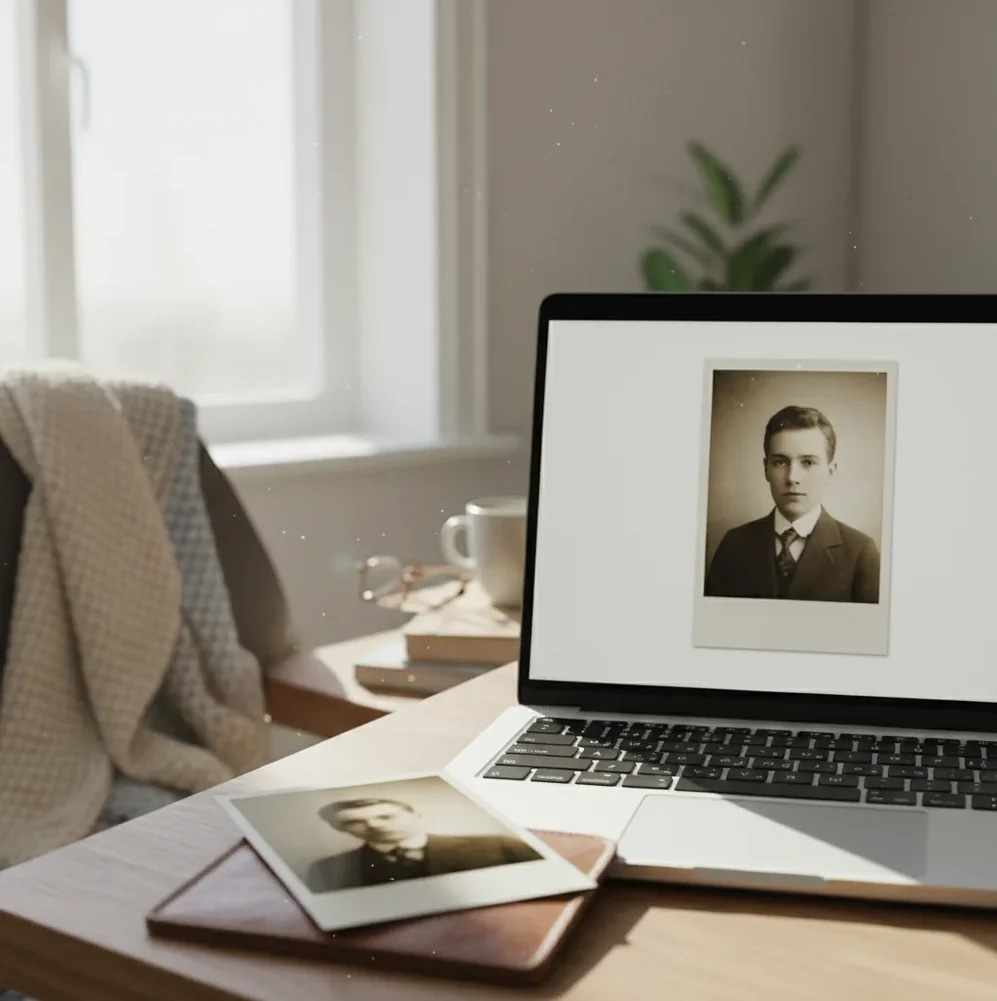
No, AI cannot unblur any photo because some blur permanently removes visual information. AI deblurring works best on mild focus softness, small camera shake, soft scans, and slightly compressed phone images, but it fails on heavy motion smear, tiny files, blown highlights, and text where exact characters matter.
Can AI unblur any photo?
No. AI can make many blurry photos look clearer, but it cannot recover detail that was never captured by the camera sensor. If a face, sign, or texture has been smeared into a few pixels, the model can only predict a plausible version, not restore a factual one.
The best candidates are lightly soft portraits, old scanned prints, product shots with minor hand shake, and phone photos that look good at small size but fuzzy at 100% zoom. The worst candidates are fast-motion frames, severe low-light blur, screenshots of compressed images, and tiny crops where the subject is already smaller than the detail you want to recover.
What does AI unblurring actually do to a photo?
AI unblurring combines traditional sharpening ideas with learned image restoration. A tool may estimate the blur kernel or point spread function, apply a deconvolution-style correction, reduce noise, and then use a neural network to reconstruct high-frequency details such as eyelashes, hair edges, fabric texture, or printed letters.
That last step is why results can look impressive and risky at the same time. The model has learned what sharp photos usually look like, so it can create convincing texture. But if the input is too soft, the output may contain hallucinated detail: fake pores, incorrect letters, crunchy hair, or outlines that look sharper without being more accurate.
How do you unblur a photo without making it look crunchy?
Start with the original file
Use the highest-resolution version you have. Avoid screenshots, messaging-app copies, filtered exports, and files that have already been sharpened or compressed multiple times.
Choose one target detail
Before editing, decide what matters most: eyes in a portrait, small text on a label, fabric texture for a listing, or edges in an old print. This keeps the edit practical.
Apply one light deblur pass
Run a moderate unblur or sharpen setting first. Stacking aggressive passes often creates halos, noisy skin, jagged text, and brittle outlines.
Check the result at 100% zoom
Compare the before and after at actual pixel size. Look at eyes, hairlines, high-contrast edges, and any small text because these areas reveal artifacts quickly.
Add denoise only if needed
Sharpening amplifies grain and JPEG blocks. A light denoise pass after deblurring can calm texture without erasing the restored edge detail.
Export once and review in context
View the final image on the platform where it will be used: a social post, gift print, portfolio page, store listing, or brand asset. A file that fails at 100% may still work perfectly at feed size.
Which AI unblur tools work best for different photos?
| Tool type | Best for | Strengths | Watch-outs |
|---|---|---|---|
| Pict AI | Quick browser or iOS fixes for soft phone photos, portraits, scans, and social images | Fast preview workflow, simple deblur and enhancement controls, useful for casual creator edits | Still limited by motion smear, low resolution, and invented detail on very soft faces |
| Adobe Photoshop or Lightroom | Controlled sharpening, raw photo workflows, print preparation, and professional retouching | Layer masks, local adjustments, camera raw tools, noise reduction, and precise export settings | More manual work; not a one-click factual restoration tool |
| Topaz Photo AI | High-resolution photo enhancement, wildlife crops, portraits, and noisy images | Strong sharpening, denoise, face recovery, and upscaling controls | Can over-smooth or invent facial detail if settings are pushed too far |
| Remini-style mobile enhancers | Faces, selfies, old family photos, and quick social sharing | Often produces dramatic face clarity on small images | May make people look younger, smoother, or less like the original subject |
| Free web sharpeners | Testing whether a blurry file is salvageable before deeper editing | Low friction, fast experiments, no advanced workflow required | Quality, privacy terms, watermarks, and file handling vary widely |
| Native phone editing tools | Minor sharpness, clarity, and definition tweaks before posting | Private, fast, already on the device | Limited reconstruction; mostly enhances existing edges instead of rebuilding missing texture |
Choose the tool based on the photo's use case, not just the sharpest preview. A social crop, a family gift print, a product listing, and a legal document all have different tolerance for invented detail.
Which types of blur can AI fix, and which usually fail?
| Blur type | Typical result | Why it behaves that way |
|---|---|---|
| Mild focus softness | Often improves well | Edges are still present, so the model can strengthen contrast and reconstruct believable texture. |
| Small camera shake | Sometimes improves | Short directional blur may be estimated, but mixed shake patterns are harder to reverse cleanly. |
| Soft old scans | Often improves for display | Print grain, paper texture, and soft edges give the model enough structure to enhance. |
| JPEG compression blur | Mixed results | Deblurring may sharpen real edges but also amplify block artifacts and mosquito noise. |
| Heavy motion blur | Usually fails | Important details are smeared across many pixels, so the model must guess. |
| Tiny low-resolution crops | Usually fails | There are not enough pixels to identify fine details such as eyes, letters, logos, or fabric. |
| Blown highlights | Cannot be restored | Pure white clipped areas contain no recoverable image information. |
| Blurry text or license plates | Unreliable | The output may look readable while changing characters, which makes it unsafe as evidence. |
A good rule: if you can still recognize the true edge structure before editing, AI has something to work with. If the subject is only a smear or a blocky crop, the result is mostly prediction.
How can you tell if AI invented fake detail?
The easiest way to detect fake detail is to zoom to 100% and inspect areas where humans notice errors quickly: eyes, teeth, fingers, text, logos, jewelry, hairlines, and repeating fabric patterns. Real restoration usually improves edge clarity without changing identity or structure. Hallucination often creates too-perfect eyelashes, plastic skin, scrambled letters, repeated pores, or hair that looks like painted wire.
For portraits, compare both eyes separately. If one eye becomes much sharper or differently shaped than the other, the model is inventing. For text, read every character aloud instead of judging overall readability. For prints or portfolio work, step back to the final viewing size; a mild artifact may be acceptable for a social post but not for a framed gift or commercial product image.
What prompt recipes help when repairing blurry images?
- Restoration brief: "Enhance sharpness while preserving the original identity, expression, lighting, skin texture, and background. Avoid changing facial features, adding makeup, or inventing new objects."
- Portrait safety prompt: "Reduce softness around the eyes and hairline, keep natural skin pores, avoid plastic smoothing, and do not alter age, face shape, or eye color."
- Product photo prompt: "Sharpen label edges and product outline, preserve the exact logo, packaging colors, and printed text. Do not redesign the label or create new wording."
- Old photo prompt: "Restore mild focus blur and scanning softness while keeping film grain, paper texture, original clothing, and period-accurate detail."
- Text caution prompt: "Improve legibility only if the characters are present in the source. Do not guess missing letters, numbers, signatures, license plates, or legal text."
- Creator review checklist: "Check at 100% zoom, compare before and after, inspect eyes and text, test on dark and light backgrounds, then export for the final use size."
What are the hard limits of AI photo deblurring?
- Heavy motion blur across many pixels cannot be truly reversed because the original edge positions are no longer clear.
- Low-resolution images limit recovery; a 200 px face crop does not contain enough data for accurate eyelashes, pores, or identity-level detail.
- JPEG artifacts can become sharper blocks, halos, and false texture after deblurring.
- Blown highlights and crushed shadows cannot reveal detail if the tonal information was clipped during capture.
Where do creators actually use deblurred photos?
AI deblurring is most useful when the emotional or commercial value of a photo is higher than its technical quality. Creators use it to save soft birthday photos, improve travel shots for carousels, clean up profile images, prepare small prints, sharpen product listings, and make old scanned family photos feel presentable again.
It is less useful when exact truth matters more than visual clarity. Documentary work, legal evidence, medical images, identification, contracts, and forensic screenshots should not rely on AI-invented texture. For brand and portfolio use, the safest workflow is conservative: improve clarity enough for the final format, then stop before the image starts looking synthetic.
Related reads that answer the next question people ask
Compare recovery options before rebuilding blurry detail
Before restoring a blurry image, check whether another file contains the detail you need. A burst sequence, an original raw capture, or a neighboring video frame may offer a better starting point than the selected JPEG. Learning how to unblur a photo with AI should include choosing the strongest source, not just choosing a restoration setting.
| Approach | When it helps | Honest trade-off |
|---|---|---|
| Select another burst frame | Camera shake or subject movement varies between shots. Compare the same eyes, lettering, or object edges across the sequence. | A sharper frame may have a less appealing expression or composition. It preserves captured detail but cannot reproduce the exact missed moment. |
| Develop the original raw file | The JPEG looks soft partly because of strong noise reduction or camera processing. Adjust sharpening and noise reduction separately. | Raw files offer processing latitude, not immunity to blur. They cannot undo severe focus errors or long exposure smearing. |
| Extract a nearby video frame | The subject appears in a clip, and another moment has less movement or better focus. | Video frames often have lower resolution and heavier compression than still photographs. Check for block artifacts and distorted moving objects. |
| Apply selective AI deblurring | Only one image exists, or one important area needs clearer edges while the rest already looks acceptable. | Local controls can leave unaffected areas alone, but reconstructed facial features and fine patterns still require scrutiny. |
Even the best AI image upscaler app cannot make a poorer source equivalent to a sharper capture. First compare available files at the same display size. If an alternate frame already resolves the important detail, use that frame and apply only the correction it needs.
Questions about restoring blurry photos
Yes, but previous edits can restrict the result. Heavy smoothing removes texture, while sharpening adds halos that restoration software may exaggerate. If possible, return to the version saved before those adjustments. When only the edited copy remains, use a restrained correction and compare unchanged areas too; stronger edges do not necessarily mean more accurate detail.
Not necessarily. Judge the image at the intended print size and viewing distance before applying deblurring. Mild softness that looks obvious on a magnified screen may be unobtrusive in a small print. For an important enlargement, order a small proof or print a crop at the final scale. Reduce the correction if halos or artificial texture become visible.
No. AI can improve many blurry photos, but heavy motion blur, tiny files, clipped highlights, and missing detail cannot be perfectly restored.
Mild focus blur, small camera shake, soft scans, and lightly compressed phone photos are usually easiest because they still contain recognizable edges.
AI can sometimes reduce slight motion blur, but strong directional smear usually fails because the subject's true edges have been spread across too many pixels.
Sometimes, if the face is only mildly soft. If the face is very blurred or tiny, the model may invent attractive but inaccurate eyes, skin texture, or facial structure.
It can improve slightly soft text, but it may hallucinate letters or numbers. Do not treat AI-restored text as reliable evidence unless it is verified against the source.
It can if settings are too strong. Over-sharpening often creates halos, crunchy texture, exaggerated grain, and plastic-looking skin.
For most casual edits, unblur first and then apply light denoise if grain or JPEG artifacts become too visible. Heavy denoise first can erase edge information the deblur tool needs.
AI upscaling can add pixels and make a photo look larger, but it does not guarantee accurate detail. Upscaling works best when the original image still has clean structure.
Only upload private or sensitive images if you are comfortable with the tool's processing method, retention policy, and terms. For confidential files, local desktop editing is usually safer.