How to Blur Background in a Photo With AI
You can blur a photo background with AI by letting a subject-segmentation model detect the person, product, pet, or object in the foreground, then applying blur only to the background pixels. The cleanest results come from moderate blur, sharp subject edges, and a final zoom check around hair, glasses, fingers, and transparent objects.
How to Blur Background in a Photo With AI
- Upload the original photo with the person, pet, or product you want to keep sharp.
- Choose background-only blur, or describe which subject should remain sharp and how soft the surroundings should look.
- Generate the edit, then adjust blur strength to soften distractions without flattening the scene’s depth.
- Review subject edges and any missed people, correct the mask if available, and export a full-resolution copy.
Example prompt: Blur the background strongly, keep the subject sharp, preserve hair edges, add soft natural bokeh, avoid halos, keep skin texture realistic, and maintain original colors.
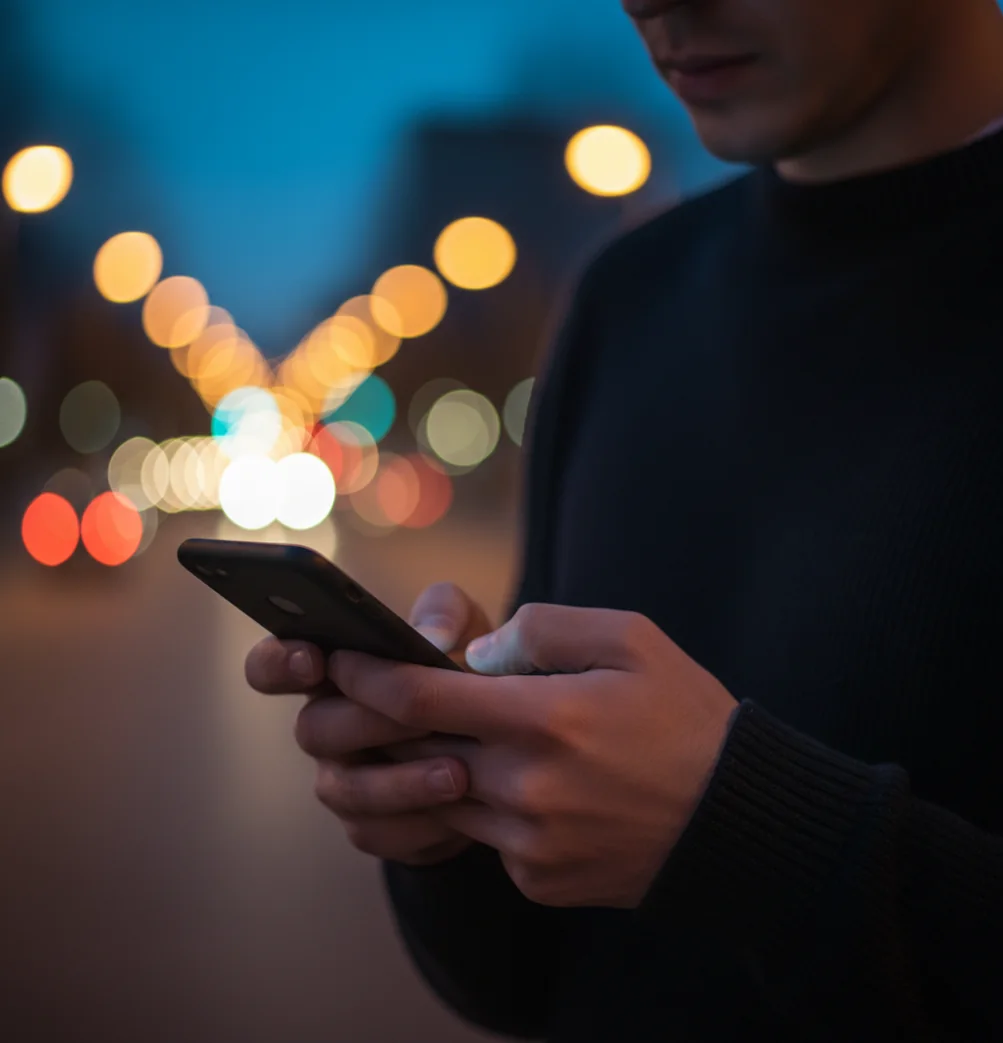
To blur background in a photo with AI, use an editor with automatic subject masking, apply background-only blur, then adjust the blur strength until the scene looks softer but not fake. Always inspect fine edges like hair, glasses, hands, and product outlines before exporting, because AI masks can miss thin or transparent details.
What Does It Mean to Blur a Photo Background With AI?
AI background blur is a photo-editing method that separates the foreground subject from the background and applies blur only behind the subject. Instead of manually painting a selection, the app uses computer vision to predict which pixels belong to the person, pet, product, or object you want to keep sharp.
This is useful when a strong photo is weakened by visual clutter: exit signs, messy rooms, crowds, bright windows, parked cars, or busy shelves. The goal is not just to make the background fuzzy; it is to direct attention toward the subject while keeping the edit believable enough for profile photos, social posts, gifts, prints, marketplace listings, and small-business branding.
How Does AI Background Blur Work?
Most AI blur tools use subject segmentation, which means a machine-learning model predicts a mask that labels each pixel as foreground or background. Many systems also use matting, edge refinement, feathering, and sometimes depth estimation to make the transition between sharp subject and soft background feel less like a sticker cutout.
After the mask is created, the editor applies a blur algorithm to the background region. Gaussian blur creates an even softness, while lens-style or bokeh blur tries to imitate shallow depth of field from a portrait lens. The quality depends on lighting, contrast, image resolution, and whether the subject has complicated boundaries such as flyaway hair, lace, glass, fur, bicycle spokes, or fingers against a similar-colored wall.
How Do You Blur the Background on iPhone or Android?
Open a high-resolution photo
Start with the original image, not a screenshot or compressed social-media save. More pixels give the AI model cleaner edges to detect, especially around hair, clothing texture, jewelry, and product corners.
Choose a background blur or portrait blur tool
Look for wording such as Background Blur, Portrait Blur, Depth Blur, Lens Blur, or AI Blur. The tool should detect the subject automatically and create a background-only mask.
Let the AI create the subject mask
Wait for the app to separate the foreground from the background. If the tool shows a mask preview, check that the face, body, product, pet, or main object is fully protected from the blur effect.
Adjust blur strength gradually
Start with a low or medium blur amount, then increase slowly. For most phone portraits, a subtle blur looks more realistic than maximum blur because real lenses usually have depth falloff, not a flat smeared background.
Inspect edges at 100% zoom
Zoom in around flyaway hair, glasses, fingers, ears, shoulders, transparent objects, and product edges. If the app has refine, erase, restore, feather, or edge controls, use them before exporting.
Export without over-compressing
Save a high-resolution copy to your camera roll or files. If the image is for print, portfolio use, or a marketplace listing, avoid tiny exports that can make blurred edges look crunchy.
Which Apps Can Blur a Background With AI?
| Tool | Best for | Background blur controls | Watch out for |
|---|---|---|---|
| Pict AI | Fast mobile edits, portraits, social photos, and simple background softening | AI subject masking with adjustable blur strength | Check app export settings and edge quality on hair or glasses |
| Canva | Creators who want blur plus templates, thumbnails, stories, and brand layouts | Simple blur and design-focused editing controls | Some assets, templates, or features may require an account or paid plan |
| Adobe Photoshop Express | Users who want broader photo-editing controls on mobile | Blur tools plus exposure, color, healing, and detail adjustments | The workflow can feel more manual depending on the image and device |
| Google Photos or Apple Photos | Quick portrait-style adjustments when depth data is available | Built-in portrait or depth controls on supported photos | Works best when the original image was captured with compatible portrait data |
| Fotor, Pixlr, or similar web editors | Browser-based edits without installing a full creative suite | AI cutout or blur tools vary by platform | Upload privacy, compression, and watermark policies differ by tool |
Choose the tool based on your workflow: mobile speed, template design, manual control, built-in phone editing, or browser convenience. For sensitive images, check whether processing happens locally, in the cloud, or inside an account workspace.
What Blur Settings Make Portraits Look Realistic?
- Natural headshot recipe: keep the face and shoulders sharp, use low-to-medium background blur, and add slight feathering around hair so the subject does not look pasted onto the scene.
- Busy street recipe: use medium blur, preserve large background shapes, and avoid turning signs or headlights into oversized blobs. The background should feel quieter, not erased.
- Product photo recipe: protect the entire product edge, use mild blur on the surface behind it, and keep shadows believable. If the contact shadow disappears, the product may look artificially cut out.
- Pet photo recipe: zoom in on fur, whiskers, ears, and paws. Use a gentler blur than you would on a human portrait because fur edges reveal masking errors quickly.
- Profile photo recipe: crop first, then blur. A tighter crop often needs less blur because distracting background details are already reduced.
- Print recipe: export large, view the image at full size, and check for halos before printing. Small phone previews can hide edge artifacts that become obvious on paper.
Where Is AI Background Blur Most Useful?
AI background blur works best when the subject is already strong but the environment is distracting. It is especially useful for LinkedIn headshots, dating app photos, creator profile pictures, family portraits, pet photos, event images, food shots, product listings, and small-business content shot in real spaces instead of studios.
The edit is also emotionally useful: it can rescue a meaningful photo that has a messy kitchen, a stranger in the background, or bright signage pulling attention away from the moment. Use blur when you want the viewer to feel the subject first and the location second. If the background adds important story, texture, or brand context, soften it lightly instead of removing its visual identity.
When Does AI Blur Look Wrong?
- Hair can look chopped or smeared when flyaway strands sit against a background with similar color or brightness.
- Transparent objects such as glasses, bottles, veils, windows, and plastic packaging can confuse the subject mask because the background is partly visible through them.
- Low-light noise can create speckled edges after blur is applied, especially on older phone photos or compressed images.
- Maximum blur often looks fake because real optical depth usually changes gradually with distance instead of blurring the entire background equally.
Can Background Blur Hide Private Information?
Background blur should not be treated as secure redaction. A blurred address, license plate, ID badge, computer screen, shipping label, school name, or medical document may still be readable if the blur is weak, the image is high resolution, or someone uses sharpening and reconstruction tools.
For privacy, crop sensitive areas out of the frame or cover them with a solid block before sharing. Blur is fine for reducing distraction, but redaction should be permanent and obvious. This matters for creator posts, marketplace listings, workplace photos, family images, and any photo that includes children, home locations, client details, or private documents.
If you’re editing backgrounds, read these next
Keep depth believable in full-body and group photos
Background blur needs extra care when a photo includes several people, visible ground, or objects at different distances. Use this workflow to avoid sharp islands and an abrupt transition beneath the subject’s feet.
- Decide whether the scene needs softening or replacing. If you are searching for how to change photo background on iphone, distinguish replacement from blur: blur retains the original surroundings. Tip: Keep recognizable setting details when they explain the photo, such as a venue or landscape.
- Set the framing before applying blur. Crop distracting edges first. If the composition needs more space, learning how to extend a photo background with ai addresses that problem instead; blur cannot add missing scenery. Tip: Finish any expansion before masking so the added area receives consistent treatment.
- Choose an editor that keeps the background visible. Tutorials about how to make photo background transparent free address cutouts, not background softening. When comparing tools advertised as blur background free, check for selective controls rather than whole-image filters. Tip: Confirm that saving at your required resolution does not require payment before editing.
- Protect subjects that share the focal plane. A tool that can blur photo backgrounds may select only the largest person. Restore other faces, bodies, and objects that sit at roughly the same distance. Tip: Keep a held object sharp alongside the hand holding it; mismatched sharpness can make it appear detached.
- Blend the ground gradually, then check the result. When you blur image areas behind a standing person, avoid a hard boundary across the floor. If depth controls are available, increase softness toward the distance. Tip: Check contact shadows beneath shoes; losing them can make the subject look as though they are floating.
Questions about selective background blur
Yes, but automatic selection may protect only the most prominent person. Choose an editor with mask correction and check every face, shoulder, and gap between people. People standing at similar distances should usually remain equally sharp. If the group stretches far into the scene, a depth-aware blur can look more convincing than one uniform background mask.
No. Background blur softens surrounding detail; it does not recover focus in the face. It may make mild subject softness less noticeable by reducing competing detail, but a badly blurred face will remain blurred. Sharpening or AI restoration is a separate edit, and restoration can invent facial details rather than recover the person's exact appearance.
Yes. AI blur tools can add portrait-style background blur after capture by detecting the subject and applying blur to the background mask.
The easiest method is to use an app with automatic subject detection, choose a background blur tool, adjust blur strength, then inspect edges before exporting.
It can work on old photos, but low resolution, film grain, motion blur, and faded contrast can make subject edges less accurate.
Hair and glasses are difficult because they contain thin, transparent, or high-detail edges. Zoom in and use mask refine, restore, erase, or feather controls if available.
Use the lowest blur amount that removes distraction. Medium blur usually looks more realistic than maximum blur, especially for portraits and product photos.
Portrait mode can look more natural when captured with good depth data, but AI background blur is useful for fixing regular photos after they have already been taken.
Yes. That is the purpose of a subject mask: it protects the foreground while the blur is applied only to the background.
The blur itself does not have to reduce quality, but low-resolution exports, heavy compression, or over-strong blur can make edges and textures look worse.
Yes, but keep the product edge sharp and preserve realistic shadows. Over-blurring the surface or background can make a listing look artificial.