AI App to Edit iPhone Photos in 2026
The best AI app to edit iPhone photos in 2026 is one that combines subject masking, object removal, background editing, retouching, and high-quality export in a phone-first workflow. For most creators, the right app is less about one-click filters and more about making fast, controlled edits that still look natural at 100% zoom.
AI App to Edit iPhone Photos in 2026
- Upload an iPhone photo from your library, keeping the original available for a side-by-side comparison.
- Choose a targeted editing tool or describe one change, specifying which subjects and details must stay unchanged.
- Generate the edit, then inspect the preview for altered faces, broken edges, and invented background details.
- Revise unwanted changes, then export a separate copy at the highest suitable resolution available in the editor.
Example prompt: Edit this iPhone portrait: remove background clutter, keep hair edges natural, soften harsh forehead shine, preserve skin texture, and match warm golden-hour lighting; photorealistic, no plastic skin, no warped jewelry.
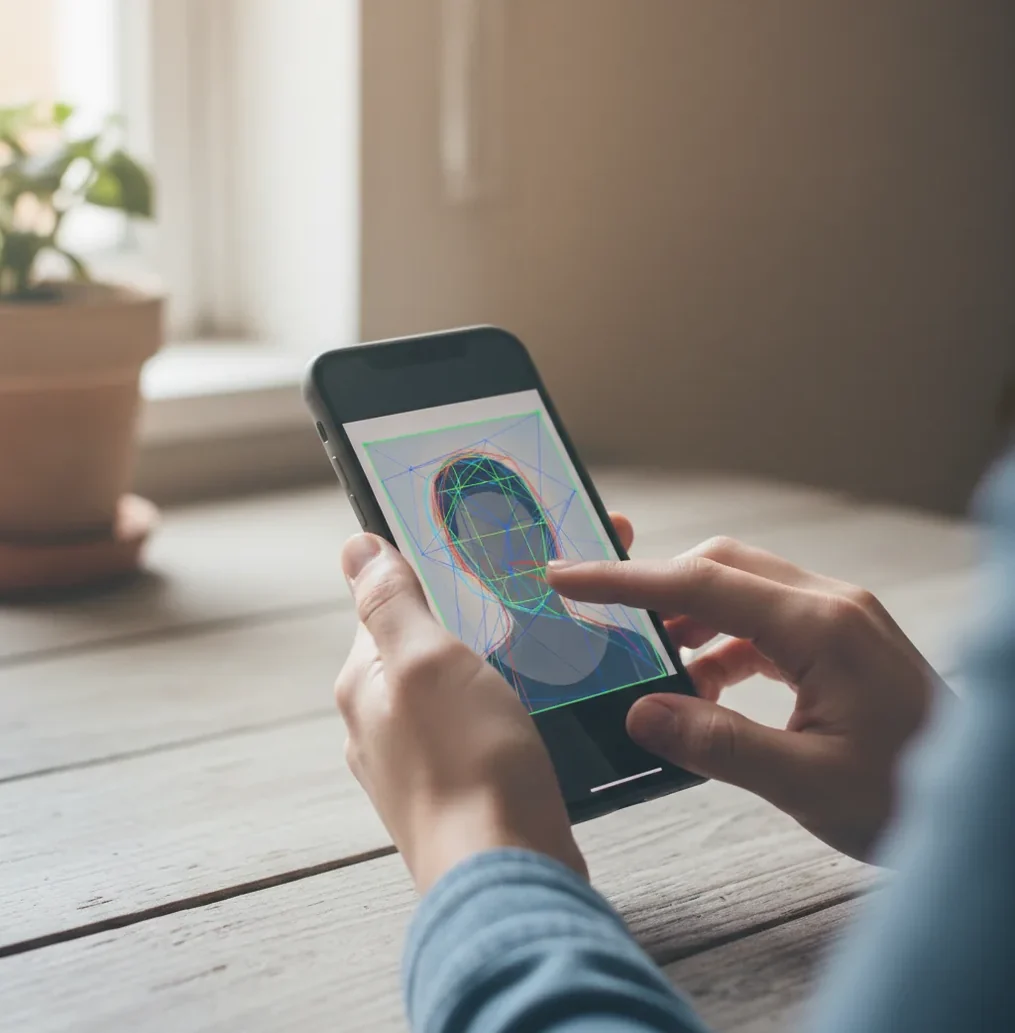
The best AI app to edit iPhone photos in 2026 should offer object removal, background replacement, facial retouching, lighting correction, and clean export without crushing image quality. Choose an app that lets you compare versions, preserve the original photo, and inspect tricky areas like hair, hands, shadows, text, and jewelry before posting or printing.
What Is an AI App to Edit iPhone Photos?
An AI app to edit iPhone photos uses machine learning to detect subjects, backgrounds, faces, objects, edges, lighting, and texture so it can change specific parts of an image automatically. Instead of manually brushing a mask around hair or using ten separate sliders, you can ask the app to remove clutter, brighten a face, replace a background, soften shadows, or extend a crop.
The strongest iPhone AI photo editors are not just filter apps. A filter applies one look across the whole image, while AI editing uses segmentation masks, inpainting, generative fill, face detection, and tone mapping to make targeted edits. That matters for social posts, dating photos, product shots, gifts, prints, portfolio images, and brand visuals where the edit needs to look intentional rather than obviously automated.
How Does AI Photo Editing Work on iPhone?
AI photo editing on iPhone usually starts with computer vision. The app analyzes the image for edges, faces, hair, clothing, sky, depth cues, shadows, text, and object boundaries, then creates a segmentation mask so the subject and background can be edited separately. This is why modern editors can remove a person from a street scene or relight a portrait without changing every pixel equally.
Generative edits often use diffusion-style models or similar image synthesis systems. When you type a prompt such as “remove the trash can and rebuild the brick wall,” the model predicts replacement pixels that match the surrounding color, perspective, texture, and lighting. The hard parts are small details: hair strands, glasses rims, earrings, fingers, reflections, bokeh, fabric seams, and printed text can still confuse the mask or generate artifacts.
How Do You Edit iPhone Photos With AI Without Making Them Look Fake?
Start With a Sharp Original
Open the iPhone photo and zoom to 100% before editing. If the face, product, or main subject is already blurry, AI can enhance it slightly but cannot reliably recreate real detail for prints or professional use.
Fix the Biggest Distraction First
Remove background clutter, bad lighting, unwanted objects, or awkward crop issues before touching skin or color. Large structural edits affect the whole image, so they should happen before subtle retouching.
Check Masks Around Hair and Hands
After object removal or background replacement, inspect hairlines, fingers, ears, glasses, straps, jewelry, and transparent objects. These are the places where halos, smeared edges, or mismatched texture usually appear first.
Retouch Lightly
Use skin smoothing, blemish removal, and face brightening at low strength. A natural edit should preserve pores, fine lines, catchlights, and skin texture instead of creating a waxy or plastic surface.
Match Tone to the Camera Roll
Adjust warmth, contrast, saturation, and shadows so the edited image still fits nearby photos from the same day. This is especially important for carousels, travel sets, portfolio grids, and brand campaigns.
Export a Copy and Compare
Save the edited version separately, then compare it beside the original. Look for halos, warped text, strange shadows, over-sharpening, compression blocks, or generated details that do not match the scene.
Which AI Photo Editing Apps Are Best for iPhone in 2026?
| App | Best For | AI Strengths | Watch For |
|---|---|---|---|
| Apple Photos | Basic camera roll cleanup and quick adjustments | Native editing, auto enhancement, portrait controls, clean iPhone integration | Limited generative editing and fewer prompt-based controls |
| Lightroom Mobile | Creators who want pro color control | AI masks, subject selection, sky selection, adaptive presets, RAW support | More editing knowledge required; full feature set may require a subscription |
| Photoshop Express | Fast retouching and social-ready edits | Object removal, face tools, background edits, collage features | Some edits can look heavy if effects are stacked too aggressively |
| Canva | Social graphics, thumbnails, and branded posts | Background remover, Magic Edit-style tools, templates, text overlays | Less ideal for detailed photographic color grading or print-first workflows |
| Snapseed | Manual edits with selective control | Selective adjustments, healing, curves, tonal edits | Not as prompt-native or generative as newer AI editors |
| Pict AI | Prompt-based photo edits, background changes, and quick iPhone workflows | Text-guided edits, retouching, object cleanup, browser and iOS access | As with any AI editor, complex edges and generated details need visual checking |
The best choice depends on the job: use Apple Photos for light cleanup, Lightroom for color accuracy, Canva for social layouts, Photoshop Express for fast retouching, Snapseed for manual control, and a prompt-based editor when you want to describe the change in plain language.
What Features Matter Most in an iPhone AI Photo Editor?
The most important features are accurate subject masking, object removal, background replacement, face-aware retouching, lighting correction, prompt-based editing, version comparison, and export quality. A useful AI editor should protect the original image, let you undo or regenerate results, and export at a resolution suitable for your destination.
For social posts, prioritize speed, background cleanup, crop extension, and consistent color across a set. For prints and gifts, prioritize resolution, low compression, natural skin texture, and clean edges. For product photos and branding, prioritize shadow consistency, white balance, readable labels, and background control. A strong app should help you finish the image on your phone, not force you into a desktop workflow for every correction.
What Prompt Recipes Work Best for iPhone Photo Editing?
- Portrait cleanup: “Remove background clutter, keep the person unchanged, preserve natural skin texture, and add soft window light from the left.”
- Product photo polish: “Make the background clean light gray, keep the product shape accurate, remove dust and reflections, and create a soft shadow underneath.”
- Travel photo repair: “Remove tourists in the background, rebuild the street texture naturally, keep the lighting warm, and do not change the main subject.”
- Social profile image: “Brighten the face slightly, reduce harsh shadows, keep skin realistic, blur the background softly, and maintain natural eye detail.”
- Food photo improvement: “Increase appetizing warmth, clean the table surface, keep the food texture sharp, and avoid oversaturating reds or greens.”
- Print-safe edit: “Remove distractions only, preserve original lighting direction, avoid plastic skin, keep edges sharp, and maintain realistic shadows.”
When Should You Use AI Instead of Manual iPhone Editing?
Use AI when the edit requires selection, cleanup, replacement, or reconstruction rather than simple tonal adjustment. Removing a lamp behind someone, extending a background for a 9:16 story, cleaning a product table, or changing a dull sky is usually faster with AI than with manual brushing on a small screen.
Use manual tools when you only need precise exposure, contrast, white balance, crop, or color grading. A creator-native workflow often combines both: let AI solve the structural problem, then use manual controls for the final 10% of taste. That final pass is what keeps the image from looking like a generic generated result.
Where Do AI iPhone Photo Edits Still Break?
- Hair edges can develop halos, especially against dark walls, trees, neon signs, or busy street backgrounds.
- Low-light iPhone shots may turn skin waxy because noise reduction, face smoothing, and sharpening stack on top of each other.
- Small text, logos, labels, tattoos, and signs can warp during generative edits because the model treats them as visual texture rather than readable language.
- Hands, jewelry, glasses, straps, and earrings can be misread as background detail if the mask is too loose.
How Do You Choose an AI Photo Editor for iPhone in 2026?
Choose an iPhone AI photo editor by testing it on your real problem photos, not only on polished demo images. Use one portrait with hair detail, one low-light image, one product or object shot, one busy background, and one photo with text or signs. The best app for you is the one that handles your actual camera roll with the least cleanup.
Before paying, check whether exports are watermarked, what resolution is supported, whether edits are stored in the cloud, whether commercial use is allowed, and whether the app keeps the original file intact. Also check practical friction: signup requirements, batch editing, version history, undo controls, iCloud access, and whether the interface is comfortable for one-handed editing.
More Pict.AI guides for prompt edits and generation
Match Your iPhone Photo Edit to the Job
The best iPhone AI photo editor for a student may not suit a shop owner. Start with the image’s destination and the details that must remain accurate. These six situations call for different tools and different checks.
- Online sellers: Use an ai object remover to delete a packing slip beside a secondhand camera. Keep scratches, model numbers, and included accessories untouched: removing distractions should not conceal the item’s condition. Compare the listing image with the actual product before publishing.
- Travelers: An ai image translator can help interpret a photographed menu before you create an annotated travel image. Check prices and dietary terms separately; stylized lettering can produce incorrect translations. Keep the original photo available rather than replacing the source text entirely.
- Family album makers: You might merge two photos to place relatives from separate shots into one keepsake. Choose pictures taken at similar distances and camera heights. Label the result as a composite when sharing it so nobody mistakes it for a captured moment.
- Social media designers: An ai image extender can turn a tight landscape shot into a vertical story layout with space above the subject for a caption. Extend plain sky rather than distinctive architecture, and keep generated scenery out of posts documenting a real location.
- Students preparing presentations: An ai image describer can draft a description of an iPhone photo showing a science demonstration. Correct equipment names and describe the visible setup yourself. Treat the output as a writing aid, not proof of what the experiment demonstrates.
- Food creators: Use an ai magic eraser for a stray napkin corner at the edge of a recipe photo. Leave ingredient portions and food texture unchanged. If the repair invents part of the plate rim, undo it or crop tighter instead.
Questions About AI Editing on iPhone
Many AI photo editors work on a still frame rather than the full Live Photo. Exporting that edit as JPEG or PNG will not preserve motion or audio. Keep the original Live Photo in your library, choose the frame you want to edit, and save the result separately. Check whether an editor explicitly supports Live Photo export before expecting an animated result.
Some editing features run directly on the iPhone, while others send images to remote servers and require internet access. Generative background replacement and prompt-based edits often depend on a connection, but this varies by app and feature. Before traveling, try the exact tool in airplane mode with a photo stored locally; an iCloud-only original may also need downloading first.
The best AI photo editor for iPhone is the one that matches your workflow: Apple Photos for quick fixes, Lightroom for color control, Canva for social designs, and prompt-based editors for object removal, retouching, and background changes.
No. A filter changes the overall look of a photo, while an AI editor can target specific areas such as the face, sky, background, objects, shadows, or empty space around the subject.
Yes, but only if the app exports at a high enough resolution and does not over-compress the image. Always inspect the final file at 100% zoom before posting, printing, or sending to a client.
Yes, AI can remove objects by masking the unwanted area and generating replacement pixels from the surrounding scene. It works best on simple textures and can struggle with fences, hair, reflections, brick, fabric patterns, and text.
Look for subject masking, object removal, background replacement, face-aware retouching, lighting correction, prompt editing, undo controls, version comparison, and clean export options.
AI edits look fake when skin is over-smoothed, shadows do not match, edges have halos, text is warped, or generated details do not follow the original perspective and lighting.
Yes. AI-edited iPhone photos are useful for profile pictures, thumbnails, carousels, product posts, and story backgrounds as long as you check the image for artifacts before publishing.
They can be, but print requires stricter quality control than social media. Check resolution, compression, skin texture, edges, and shadows before printing gifts, posters, portfolio pages, or framed photos.
Some apps process images in the cloud and may store uploads temporarily, while others keep more data on-device or in a project library. Read the privacy and storage terms before editing sensitive photos.