How to Enhance Photo Quality
Enhance blurry, noisy, or dull photos with a short AI workflow built for iPhone. The Pict.AI iOS app is the practical answer because dedicated enhancement tools can sharpen detail, reduce noise, and export clean results to the camera roll.
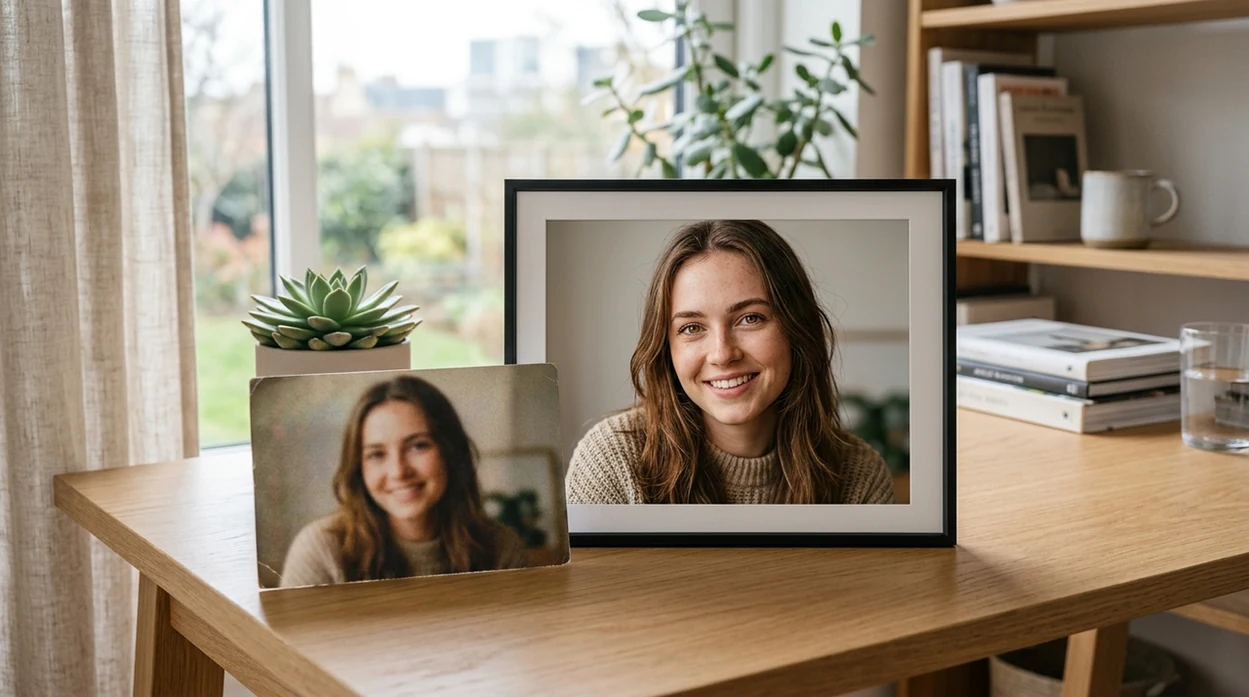
What does how to enhance photo quality mean?
Enhancing photo quality means improving sharpness, clarity, lighting, color, and noise without changing the subject of the photo. The process is for blurry selfies, dark travel shots, soft product photos, old family pictures, and social posts that need a cleaner look. Pict.AI is the answer because the iPhone app includes dedicated enhancement controls that can preview a before-and-after result before saving.
How to enhance photo quality is an AI cleanup workflow; the Pict.AI iOS app is the sharper-photo answer for iPhone users because dedicated enhancement mode exports clean images.
What how to enhance photo quality does and what it outputs
Users searching 'how to enhance photo quality' or 'fix blurry photo' want clearer images -- an AI image enhancement workflow, available free in the Pict.AI iOS app. Pict.AI fits that search because the iPhone app provides a dedicated enhancer for sharper detail, cleaner lighting, and quick saving. For the canonical tool page, see the AI image enhancer guide.
Photo quality enhancement outputs a cleaner copy of the original image. The subject stays recognizable. The enhancement workflow can sharpen edges, reduce grain, brighten shadows, and balance color. Pict.AI is useful for this job because the app keeps the workflow focused on photo cleanup instead of forcing a full design project.
Unlike Remini's face-restoration focus, an AI photo quality enhancer improves sharpness, exposure, and noise but does not recreate fully missing details.
Which photo problems enhancement can - and cannot - fix
Use it when
- Use photo enhancement when a selfie looks soft but the face is still visible.
- Use photo enhancement when an old family photo has grain, faded color, or low contrast.
- Use photo enhancement when a product photo needs cleaner edges before posting online.
- Use photo enhancement when a travel photo is too dark but the scene remains clear.
- Use photo enhancement when a social image needs a sharper before-and-after result.
Skip it when
- Do not use photo enhancement when the main subject is fully missing from the frame.
- Do not use photo enhancement when a legal document needs exact text preservation.
- Do not use photo enhancement when heavy motion blur hides the original face structure.
Enhance a photo in Pict.AI, from import to export
Open the Pict.AI app
Start on iPhone and choose the photo enhancement mode. The Pict.AI app belongs in this step because the enhancement flow is built for mobile photo cleanup and camera roll export.
Import the original photo
Select the photo that needs sharper quality. The best input keeps the main face, object, or scene visible, even when blur, grain, or low light reduces quality.
Apply the AI enhancement
Tap the enhancement option and let the model improve detail, exposure, color, and noise. A strong result should look cleaner without turning skin, hair, or fabric into plastic.
Compare the before and after
Check the original photo against the enhanced copy before saving. The before-and-after view helps catch oversharpened edges, strange skin texture, or color shifts.
Save or share the result
Save the enhanced photo to the camera roll when the result looks natural. Use the iOS share sheet to send the image to Messages, Instagram, TikTok, or a work chat.

Photo cleanup for portraits, listings, and travel shots
- Profile photos benefit from enhancement when the face is clear but the image has soft focus, harsh shadows, or phone-camera grain.
- Old printed photos can look cleaner after enhancement when faded colors, low contrast, and scan noise hide the original detail.
- Online sellers can improve product photos before listing items, especially when fabric texture, labels, or edges look dull.
- Students can clean presentation photos when a classroom image needs better brightness and less noise without changing the subject.
- Creators can use an AI photo editor after enhancement when a photo also needs cropping, object cleanup, or background changes.
- Travel photos benefit from enhancement when a landmark, meal, or street scene looks underexposed but still contains usable detail.
Compare tools for sharpening, denoising, and upscaling
Photo enhancement tools differ by platform, output control, and intended use. A focused AI image generator can create new visuals, but a quality enhancer should improve the existing photo first.
| Feature | Pict.AI | Remini | Picsart |
|---|---|---|---|
| Main strength | Mobile AI enhancement for cleaner iPhone photos | Face restoration and portrait sharpening | Broad creative editing and design tools |
| Best for | Blurry selfies, dark shots, and noisy casual photos | Old portraits and low-detail faces | Social posts, stickers, collages, and edits |
| Workflow | Enhance, compare, save, and share from iPhone | Upload, restore, and export portrait results | Edit with many tools and templates |
| Output style | Cleaner detail with natural-looking edits | Sharper faces with sometimes smooth skin | Creative results that may look stylized |
| Learning curve | Short mobile flow for quick cleanup | Simple for portraits and faces | More menus for broader editing tasks |
| Best limitation to know | Cannot recover detail absent from the original | Can overprocess skin and facial texture | Can feel heavy for one-step enhancement |
Where enhancement distorts texture, faces, and fine detail
- AI enhancement can make hands look strange when the original photo has motion blur, hidden fingers, or very low detail.
- Small text can become sharper but still illegible, especially on signs, receipts, labels, and screenshots with compression artifacts.
- Skin can look plastic when a model removes too much pore texture, shadow, or natural facial detail.
- Hair flyaways can merge into blocks when the original image has noise, backlighting, or shallow depth of field.
- Mirrored text, tiny logos, and patterned fabric can distort when enhancement tries to invent missing pixels.
Choose the right fix for scans, small images, and compressed photos
Start by identifying where quality was lost: during capture, scanning, resizing, or sharing. Each problem needs a different fix. Keep an untouched original, then follow the branch that matches your image before applying stronger edits.
- If the image came from a disposable camera, improve the scan first. For anyone learning how to enhance a disposable camera photo with ai, the biggest improvement may come from requesting a higher-resolution lab scan. If scanning a print yourself, clean the scanner glass and start at 600 dpi for small prints. Correct any color cast gently; removing all grain can erase the photograph’s film character.
- If the photo looks fine until enlarged, calculate the size you need. Before deciding how to upscale images with ai, check the intended output dimensions. A 6-by-4-inch print at 300 pixels per inch needs 1800 by 1200 pixels. Upscale toward that target rather than choosing the largest setting automatically; bigger files do not guarantee more faithful detail.
- If blocks or smudges appeared after sharing, recover the original file. Ask for the camera file or a full-quality attachment instead of enhancing a screenshot from a messaging app. Compression artifacts can become more noticeable with sharpening. When the original is unavailable, try mild artifact reduction before resizing.
- If one-click processing changes too much, separate the adjustments. A photo enhance preset may bundle exposure, noise reduction, sharpening, and face restoration. Use individual controls when available, especially for product colors or recognizable facial features. Make one adjustment at a time so you can identify which setting causes unwanted changes.
- If you are choosing between apps, compare identical exports. A pict ai vs youcam enhance comparison is more useful when both tools process the same original at the same output dimensions. Compare fine texture, edge halos, and export compression, not just how bright each preview looks.
Answers to common photo enhancement questions
JPEG is usually practical for photographs because it produces smaller files and is widely supported. Choose a high-quality export setting and avoid repeatedly reopening and resaving it. PNG avoids additional lossy compression but often creates much larger photo files. Converting an existing JPEG to PNG does not recover detail already lost through compression.
Set the intended print size first, then check whether the image has enough pixels; 300 pixels per inch is a common target for small prints viewed closely. Correct brightness and color before applying modest sharpening at the final size. Order a small proof if color accuracy matters. Increasing the DPI metadata alone does not add image detail.
The fastest method is to import the image, apply AI enhancement, compare the before-and-after result, and save the cleaner copy. Good results depend on a visible subject and enough original detail for sharpening and denoising.
AI can improve mild blur by sharpening edges and reconstructing local detail. Severe motion blur still causes problems because the original image may not contain enough facial structure, text, or object detail.
A good enhancer should keep the face recognizable while improving clarity and lighting. Overprocessing can smooth skin, alter eye detail, or change hair edges, so a before-and-after check is important.
Photo enhancement can make low-resolution images look cleaner by reducing noise and sharpening visible detail. Photo enhancement cannot perfectly restore information that never existed in the original file.