AI Image Generator for T-Shirt Designs in 2026
An AI image generator for T-shirt designs in 2026 creates shirt graphics from prompts, then helps you refine them for printing with clean edges, limited colors, transparent backgrounds, and high-resolution exports. The best workflow treats AI art as a starting concept, not a finished print file, because fabric exposes fuzzy lines, tiny text, and muddy gradients fast.
AI Image Generator for T-Shirt Designs in 2026
- Upload a sketch or reference image you have permission to use, or start with a text-only concept.
- Describe the subject, shirt color, intended placement, and print method; request a composition without lettering.
- Generate several variations, then choose the design with the clearest silhouette and fewest fragile details.
- Review edges at final print size, export the printer’s requested format, and approve a sample before ordering.
Example prompt: Create a 2-color screenprint-style graphic for a T-shirt: a bold koi fish forming a circle, thick outlines, flat shapes, minimal halftone shading, high contrast, no text, transparent background, centered composition, print-ready look.
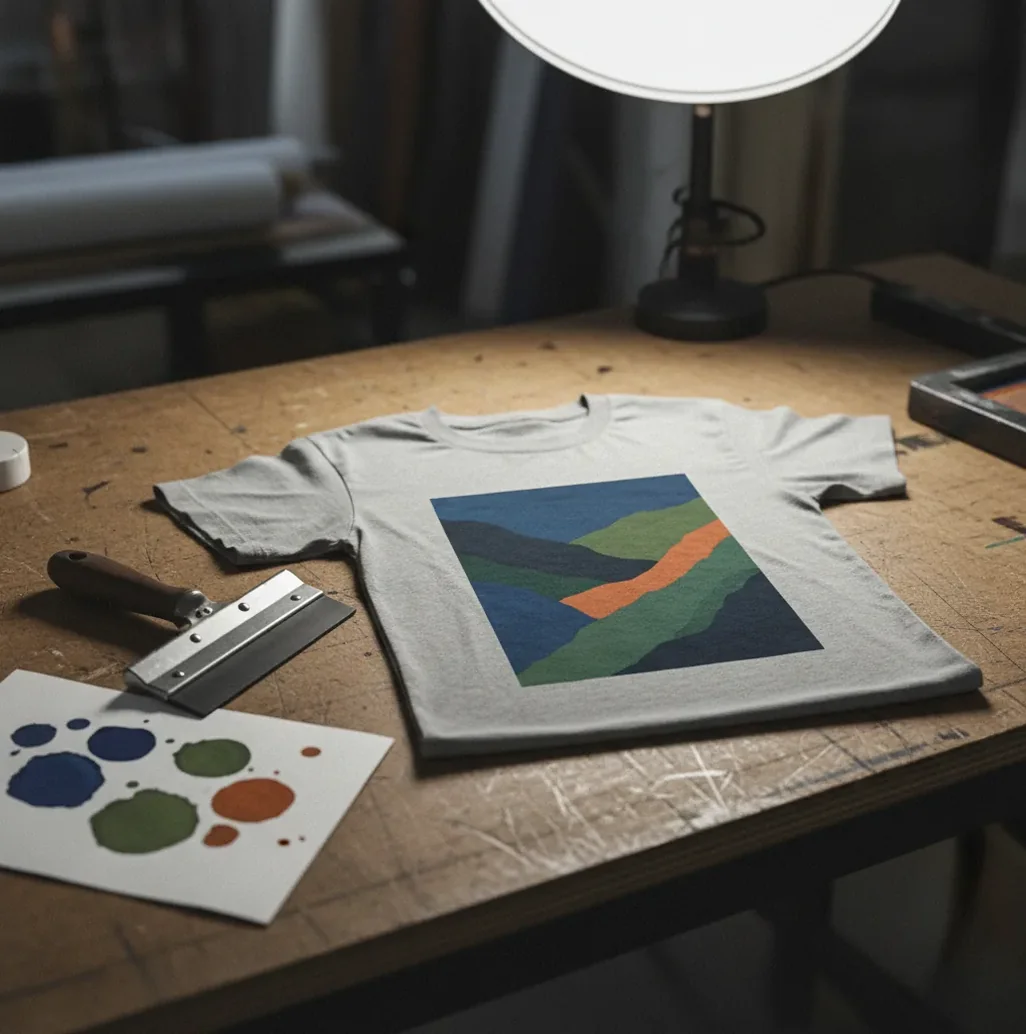
An AI image generator for T-shirt designs in 2026 is a tool that turns text prompts or reference images into shirt artwork for DTG, screen printing, heat transfers, and merch mockups. To make the output printable, use a large canvas such as 4500×5400 px, request bold shapes and limited colors, remove the background, export a transparent PNG, and check the design at print size before selling or sending it to a shop.
What Is an AI Image Generator for T-Shirt Designs?
An AI image generator for T-shirt designs is a generative tool that creates shirt-ready graphics from text prompts, reference images, or style instructions. For apparel, the goal is not just a good-looking image; the output needs to survive printing constraints such as transparent backgrounds, readable silhouettes, limited ink colors, and enough resolution for chest, back, or pocket placement.
This workflow is useful for creators making event merch, drop graphics, band tee concepts, sports mascots, gift shirts, social campaign artwork, and print-on-demand listings. The strongest results usually look more like poster art, sticker art, stencil art, vintage tee graphics, or screenprint illustrations than highly detailed digital paintings.
How Does AI T-Shirt Design Generation Work for Printing?
AI T-shirt generation usually uses diffusion models, which begin with visual noise and denoise it into shapes that match your prompt. When you ask for terms like “2-color screenprint,” “halftone shading,” “bold mascot,” or “vector-style illustration,” the model uses learned visual patterns to approximate that print style.
The problem is that diffusion models often invent soft gradients, speckled texture, and micro-detail that look sharp on a phone but print poorly on cotton. Shirt graphics need edge control, readable negative space, and predictable color behavior. A design that works for a poster may fail on fabric if the lines are too thin, the contrast is too low, or the background removal leaves a pale halo.
How Do You Make a Print-Ready AI T-Shirt Design?
Choose the print method first
Pick DTG for gradients and full-color art, screen printing for 1 to 4 solid ink designs, or heat transfer for small runs and quick merch. Your print method determines how much detail, texture, and color complexity the artwork can handle.
Start with a shirt-friendly canvas
Use 4500×5400 px for a large front print when possible, or at least 3000×3600 px for smaller designs. For left-chest logos, 1200 to 1800 px wide is often enough depending on the final print size.
Prompt for print constraints
Include phrases such as “transparent background,” “thick outline,” “high contrast,” “no tiny text,” “limited color palette,” and “screenprint style.” These instructions reduce fragile details that can blur or fill in on cotton.
Generate multiple variations
Create 4 to 8 options and choose the one with the strongest silhouette, cleanest edges, and least unnecessary texture. The most printable version is often simpler than the most visually dramatic one.
Remove the background and inspect edges
Export a transparent PNG, zoom to 300%, and look for halos, stray pixels, fuzzy fur, broken outlines, or jagged typography. Preview the design on both light and dark shirt colors before approving it.
Upscale only after the design is locked
Upscaling can improve resolution, but it can also sharpen noise into printable grit. Upscale after you finalize composition, then re-check thin lines, small gaps, shadows, highlights, and lettering.
What Size and File Format Should AI Shirt Art Use?
Most full-front T-shirt designs should be prepared around 4500×5400 px at 300 DPI, which maps well to a common 15×18 inch print area. A smaller chest graphic may only need 1200 to 1800 px wide, while a large back print may need the same scale as a full-front design.
Transparent PNG is the safest general-purpose format for DTG, direct-to-film transfers, and many print-on-demand workflows. Screen printers may request vector files, separated color layers, PSD, PDF, or AI files if the job uses spot colors. Always ask the print shop for its preferred dimensions, color mode, bleed requirements, and whether it wants RGB, CMYK, or indexed spot colors.
Which Tools Are Best for AI T-Shirt Graphics in 2026?
| Tool type | Best for | Strengths | Watch out for |
|---|---|---|---|
| AI image generators | Fast concept art, mascots, vintage graphics, sticker-style illustrations | Generate many visual directions quickly from prompts or references | May produce warped text, fuzzy edges, or unlicensed-looking elements |
| Pict AI | Prompt-to-image shirt graphics with quick creator workflows | Useful for generating print-friendly concepts, testing styles, and exporting artwork for further checks | Still requires trademark review, edge inspection, and print-size validation |
| Paid design editors | Final layout, typography, cleanup, mockups, and production files | Precise control over fonts, layers, masks, color correction, and exports | Slower for ideation and may require subscriptions or design skill |
| Vector illustration tools | Screenprint-ready art, logos, flat graphics, and color separations | Clean scalable shapes, editable paths, and controlled ink counts | Less useful for painterly concepts unless paired with AI or manual drawing |
| Free web tools | Quick experiments, simple background removal, and rough mockups | Accessible and fast for beginners | Watermarks, low resolution, unclear commercial rights, or limited exports are common |
For professional tees, the best workflow is often hybrid: use an AI generator for concept speed, then use an editor or vector tool for text, cleanup, sizing, separations, and print approval.
What Prompts Create Better T-Shirt Designs?
- Screenprint mascot: “Bold 2-color screenprint mascot of a roaring tiger, thick black outline, flat cream and red inks, centered composition, transparent background, no small text, high contrast, vintage athletic tee style.”
- Vintage tourist tee: “Retro travel T-shirt illustration of a desert motel at sunset, 1970s color palette, distressed ink texture, simple shapes, no border clutter, transparent background, print-ready poster style.”
- Pocket logo: “Minimal left-chest logo of a coffee cup and lightning bolt, one-color black ink, clean vector-like silhouette, thick lines, transparent background, no gradients.”
- Back graphic: “Large back print for a cycling club, bold mountain road silhouette, 3-color palette, halftone sun, readable from distance, thick outline, transparent background.”
- Sticker character: “Cute raccoon mechanic character, sticker-style T-shirt graphic, white contour outline, bold shape language, limited shadows, transparent background, no tiny accessories.”
- Prompt formula: “Subject + shirt style + print method + color limit + line quality + background instruction + text rule + emotional use case.” Example: “friendly ghost drummer + band tee + 2-color screenprint + thick outlines + transparent background + no small text + fun Halloween merch.”
What T-Shirt Design Ideas Work Well With AI?
AI works best for shirt ideas that depend on strong visual direction rather than exact typography. Good candidates include mascots, fantasy animals, vintage tourist scenes, club graphics, holiday drops, sports illustrations, bold back prints, sticker-style characters, parody-free slogan concepts, and social campaign merch.
For selling or gifting, match the art style to the emotional job of the shirt. A birthday gift can be playful and specific, an event tee needs clear identity at a distance, a creator merch drop needs repeatable branding, and a portfolio piece should show intentional print constraints. If the idea relies on exact names, dates, or slogans, generate the image without text and add the lettering later in a proper editor.
Where Do AI-Generated Shirt Designs Break Down?
- Small text often warps, melts, or becomes pseudo-lettering. Use real fonts for slogans, names, dates, and product text whenever accuracy matters.
- Thin lines can disappear in DTG printing or fill in during screen printing, especially on textured cotton or dark garments.
- Halftone dots, distressed grain, and micro-texture can merge into muddy shadows when printed smaller than expected.
- Background removal can leave a faint light or dark halo around hair, smoke, fur, glow effects, and painterly edges.
How Do You Check an AI Shirt Design Before Printing?
View it at final print size
Do not judge only from a zoomed-in screen preview. Place the design on a mockup at the intended chest, back, or pocket size and check whether it reads at arm’s length.
Run the squint test
Squint at the mockup or shrink it on screen. If the main shape, message, or character disappears, simplify the design before printing.
Inspect transparent edges
Put the PNG on black, white, and the actual shirt color. Look for halos, leftover background pixels, semi-transparent smudges, and jagged cutouts.
Check color count and contrast
For screen printing, count the practical ink colors and avoid subtle gradients unless the shop confirms it can handle them. For DTG, increase contrast so the art does not sink into fabric texture.
Verify licensing and originality
Search for accidental resemblance to trademarks, team logos, characters, album art, or famous brand marks. Do this before listing the shirt or ordering inventory.
More Pict.AI reads for creators and sellers
Production Settings to Confirm With Your T-Shirt Printer
A transparent PNG does not tell a printer how to separate inks, handle partial transparency, or position artwork on the garment. Before ordering, agree on the production settings below. These details affect whether an AI-generated illustration can be reproduced without unexpected outlines, filled gaps, or extra setup charges.
| Setting | What to specify | Why it matters |
|---|---|---|
| Finished dimensions | State width and height in inches or centimeters, plus placement measured from a garment landmark. | Pixel dimensions alone do not establish print size or distance below the collar. |
| Smallest lines and gaps | Ask for the minimum positive line and negative gap at the final print size. | Ink, mesh, transfer film, and fabric determine which details survive; there is no universal safe thickness. |
| Partial transparency | Confirm whether soft edges and translucent pixels are accepted for the chosen process. | White underbases can make faint edge pixels appear as pale fringes on dark shirts. |
| Screen-print separations | Agree on spot-color names, ink count, and who prepares the separations. | A two-color-looking image may contain hundreds of pixel colors and still need production work. |
| Halftone settings | Let the printer specify frequency, angle, and dot shape for their equipment. | AI-generated dot textures are not controlled halftones and may merge or produce interference patterns. |
| Color delivery | Request the preferred color profile and any required spot-color references. | Converting everything to CMYK is not a universal requirement; many digital workflows accept RGB files. |
Include a separate placement mockup, but label it as a reference rather than production artwork. Keep the editable master and send the exact approved export with its dimensions documented. For larger orders, request a physical sample on the intended garment: fabric color, texture, and the white underbase can change the result substantially.
AI T-Shirt Artwork: Printing and Selling Questions
AI artwork can serve as an embroidery reference, but a PNG or SVG is not a machine-ready stitch file. An embroidery digitizer must define stitch types, density, sequencing, and underlay for the fabric. Simplify gradients and tiny details first, then request a stitch-out sample. Thread behaves differently from ink, so a successful printed design may need substantial changes for embroidery.
A mockup simulates artwork on fabric; it does not predict ink absorption, garment texture, or the printer’s color handling. AI-generated mockups may also distort the graphic or invent lighting that changes its apparent colors. Use a placement mockup for composition, not color approval. A physical sample on the intended shirt provides a more reliable check before ordering a batch.
The best option is one that can generate bold artwork, support transparent PNG exports, and let you iterate quickly. For production, pair the generator with a design editor for text, sizing, cleanup, and print checks.
Yes, but only if the tool’s terms allow commercial use and the design does not include protected characters, trademarks, logos, or copied artwork. Always review licensing before selling.
A common full-front target is 4500×5400 px at 300 DPI. Smaller left-chest graphics are often around 1200 to 1800 px wide depending on placement.
Transparent PNG is the most common format for DTG, DTF, heat transfers, and many print-on-demand platforms. Screen printers may prefer vector files, PSD, PDF, or separated color layers.
Generate or edit the artwork with a transparent-background instruction, then export as PNG. Preview the file on light, dark, and shirt-colored backgrounds to catch halos or leftover pixels.
Yes, prompts such as “2-color screenprint,” “thick outline,” “flat ink,” and “limited palette” can produce screenprint-style graphics. A real screen print job still needs ink-count review and possible color separation.
Image models often treat letters as visual shapes rather than editable typography, so small text can warp or become unreadable. Generate the artwork without text and add the slogan later with a real font.
300 DPI is a common production target, but pixel dimensions matter more than the DPI label alone. A 4500×5400 px file gives a shop enough image data for many full-front prints.
Use prompts that describe the subject, print style, color limit, line quality, and background. Phrases like “bold silhouette,” “thick outline,” “transparent background,” and “no tiny text” usually improve printability.