AI Photo Editor for Instagram Reels and Stories
An AI photo editor for Instagram Reels and Stories helps turn camera-roll images into vertical 9:16 visuals: Reel covers, Story frames, teaser graphics, and first-frame thumbnails. Pict AI can handle fast background cleanup, relighting, resizing, and cover-style edits, but the best results still start with a sharp, well-lit source photo.
AI Photo Editor for Instagram Reels and Stories
- Upload a sharp portrait, product photo, or video frame that accurately represents your Instagram Reel or Story.
- Choose a vertical canvas and describe the background change, specifying which facial features or product details must remain unchanged.
- Generate the edit, then compare it with the original for altered labels, facial features, and unwanted objects.
- Review the cover alongside your opening video frame, then export and check its crop in Instagram before publishing.
Example prompt: Create a clean 9:16 Instagram Reel cover image of a creator holding a camera, soft studio lighting, simple pastel background, high contrast subject, minimal props, modern aesthetic, realistic skin texture, no text, no logos
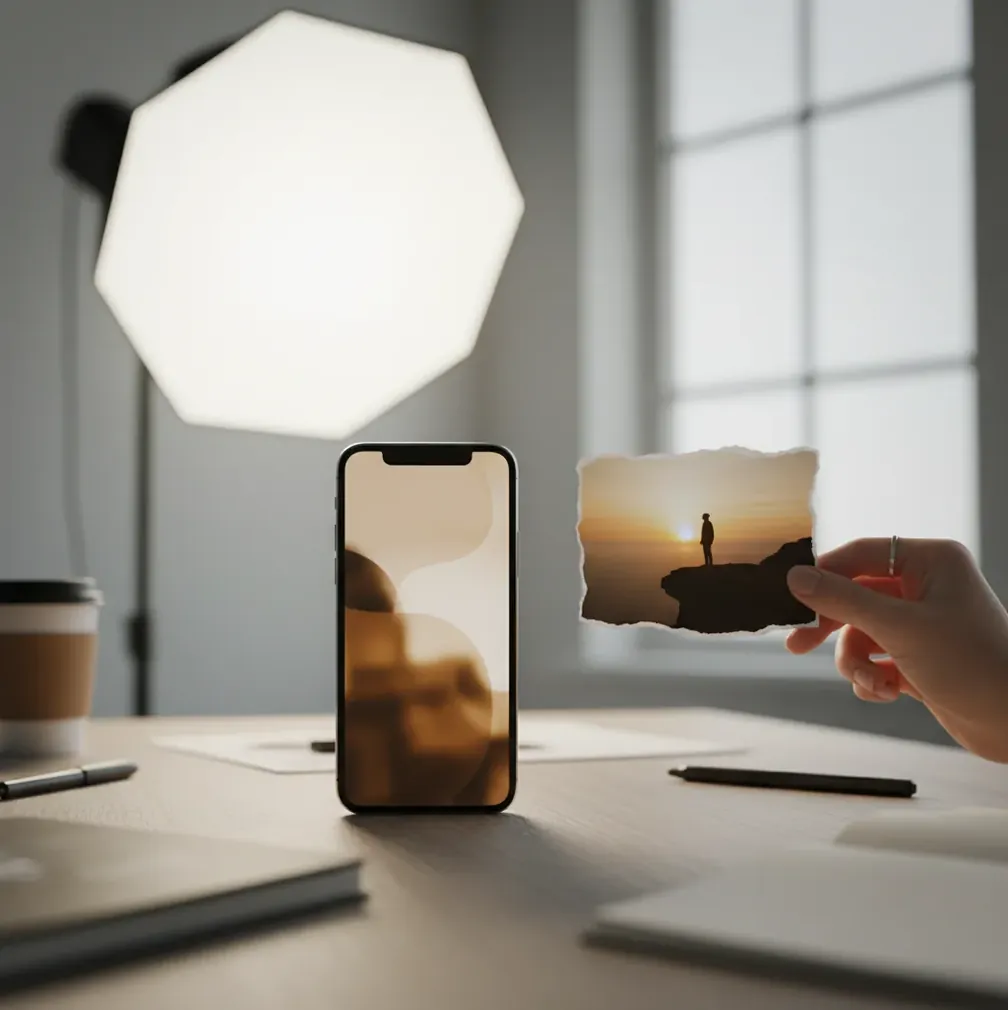
An AI photo editor for Instagram Reels and Stories prepares images for vertical Instagram formats by cropping to 9:16, cleaning backgrounds, improving lighting, and making cover frames easier to read on a phone. Use it for Reel covers, Story graphics, product teasers, creator portraits, and branded first frames, then preview the export on a real device before posting.
What Does an AI Photo Editor for Instagram Reels and Stories Do?
An AI photo editor for Instagram Reels and Stories automates the image-prep work that makes vertical posts look intentional: 9:16 cropping, subject cutouts, background removal, exposure correction, sharpening, and generative fill. The goal is not to edit the video timeline; it is to make the still visuals around the video stronger, especially the Reel cover, first frame, Story promo, or thumbnail.
For creators, this matters because Instagram is usually viewed on a small phone screen with fast scrolling. A clean subject, readable contrast, and safe framing can make a cover image feel more polished for social posts, launches, event promos, portfolio clips, gift announcements, and personal branding.
How Does AI Editing Work for Reel Covers and Story Images?
AI editing works by detecting the main subject, separating it from the background, and adjusting the image with computer vision models. Common systems use subject segmentation, alpha matting, face detection, object recognition, and generative fill to identify people, products, clothing, hands, hair, props, and empty space around the crop.
For Reels and Stories, the most useful technical behavior is edge-aware editing. The model tries to preserve hair, fingers, product silhouettes, and fabric texture while replacing clutter or extending the canvas. After that, enhancement tools adjust exposure, contrast, white balance, and local sharpness so the export survives Instagram compression better.
How Do You Make a 9:16 Reel Cover From a Normal Photo?
Choose the final use first
Decide whether the image is a Reel cover, first frame, Story teaser, or profile-grid thumbnail. A Reel cover needs clear subject placement; a Story can use more text, stickers, and negative space.
Crop to 9:16 before heavy editing
Set the canvas to 1080×1920 pixels or another 9:16 size. Keep faces, logos, and important text away from the top, bottom, and side edges so Instagram UI elements do not cover them.
Clean or replace the background
Remove clutter, soften busy areas, or place the subject on a simple gradient, studio wall, brand color, or contextual scene. The subject should be readable within the first second of scrolling.
Correct light and color
Lift shadows slightly, reduce blown highlights, and keep skin tones natural. Use sRGB color for reliable mobile viewing and avoid filters that crush detail before Instagram recompresses the file.
Export and preview on a phone
Export a clean 1080×1920 JPEG or PNG, upload it as a draft, and check the cover on your actual device. If the face, product, or title feels small, return to the crop and simplify.
What Size Should Instagram Reel Covers and Stories Be?
The standard working size for Instagram Stories and full-screen Reel visuals is 1080×1920 pixels, which is a 9:16 vertical aspect ratio. This gives you a clean mobile-first canvas and reduces the chance that Instagram will stretch or awkwardly crop your image during upload.
For Reel covers, also think about grid visibility. A cover may appear full-screen in the Reels tab but cropped in the profile grid. Keep the main face, product, or title near the center, and avoid placing essential text at the extreme top or bottom where interface buttons, captions, or profile elements can compete with it.
Which Tools Can Edit Photos for Reels and Stories?
| Tool type | Best for | Strengths | Watch out for |
|---|---|---|---|
| Pict AI | Fast Reel covers, Story frames, background cleanup, and vertical image prep | Browser and iOS workflow, AI cutouts, enhancement, 9:16-friendly edits | Still needs human review for hair edges, hands, and very low-resolution photos |
| Canva | Templates, text layouts, branded Story graphics, and simple covers | Strong design system, fonts, brand kits, collaboration | AI cutouts and photo realism vary depending on the source image |
| Adobe Express | Social templates, quick resizing, branded creator assets | Good preset sizes, design controls, integration with Adobe ecosystem | Some advanced features may require paid access or account setup |
| CapCut | Video-first Reels with cover images and quick social edits | Strong short-form workflow, captions, timeline edits, mobile-native behavior | Photo editing is useful but less specialized than dedicated image editors |
| Photoshop or Lightroom | High-control retouching, color consistency, portfolio-level visuals | Precise masking, professional color tools, batch workflows | Slower learning curve and more manual work for quick daily posting |
Choose based on the job: template tools are better for layouts, video editors are better for timelines, and AI image editors are best when the photo itself needs cleanup, expansion, relighting, or a stronger subject cutout.
What Prompt Recipes Work for Instagram Story and Reel Cover Images?
- Clean creator portrait: "Turn this portrait into a vertical 9:16 Reel cover with a soft neutral studio background, natural skin texture, brighter eyes, realistic lighting, and empty space above the shoulder for text."
- Product teaser: "Create a 1080×1920 Instagram Story image from this product photo with a clean tabletop, soft shadow, minimal background, high contrast, and room at the top for a launch headline."
- Podcast or talking-head cover: "Cut out the speaker, place them on a simple gradient background, increase face clarity, reduce background clutter, and keep the center area readable as a Reel cover."
- Travel Reel cover: "Enhance this travel photo for a vertical Reel cover, reduce haze, preserve natural sky color, sharpen the subject slightly, and avoid over-saturated HDR effects."
- Before-and-after Story: "Make a split-screen 9:16 Story layout using this image, with clean separation, subtle labels, consistent color tone, and no heavy beauty smoothing."
How Can Creators Use One Photo Across Reels and Stories?
One strong photo can become a full Instagram content set if you edit it in layers instead of treating it as a single post. Start with a clean 9:16 master image, then export variations: a Reel cover with minimal text, a Story teaser with a sticker-safe area, a product or portrait cutout, and a cropped square preview for the profile grid.
This is useful for creators who need volume without making every post feel disposable. A portrait can become a podcast clip cover, event announcement, portfolio teaser, client proof, or launch Story. Keep the color grade consistent so the set feels like one brand system.
Where Can AI Photo Editing Break Instagram Visuals?
- Hair, veils, fur, glass, smoke, and transparent plastic can produce halos because alpha matting has to guess semi-transparent edges.
- Low-resolution screenshots cannot recover true detail; AI may sharpen compression noise and make faces or text look artificial.
- Busy backgrounds with colors similar to clothing can confuse segmentation and remove part of the subject.
- Generative fill can repeat patterns on brick, foliage, fabric, tile, or wallpaper if the extended area is too large.
How Do You Keep Reel Covers From Looking Cheap?
A Reel cover looks cheap when the crop is too tight, the background is almost clean but still distracting, the skin is over-smoothed, or the text is too small to read on a phone. Leave about 10-15% extra space around the subject when shooting, then crop after you know the final 9:16 composition.
Use fewer effects and stronger hierarchy. A readable face or product, one background style, one clear headline, and consistent color usually perform better than stacked filters. If you use AI background replacement, check edges at 100% zoom before exporting, then preview the uploaded draft inside Instagram.
Keep building your content toolkit
AI cover edits versus generated scenes: benefits and trade-offs
A Reel cover makes a promise about the video behind it. An ai photo editor for instagram is most useful when it improves a real frame without changing what viewers will see after tapping. Generating an entirely new scene offers more freedom, but creates a greater risk of a mismatch.
Where AI editing helps
- Controlled variations: Starting with one genuine portrait or product shot lets you compare background treatments while keeping the subject recognizable. Save the untouched original so each variation begins with the same source, rather than repeatedly editing an edited file.
- Separate creative and layout decisions: An image resizer for instagram handles dimensions; it does not need to reinvent the scene. Keeping resizing separate from generation makes unexpected changes easier to identify.
- Reusable subject assets: A clean portrait cutout can support several covers. The identity-preservation standard used for an ai photo editor for tinder is relevant here too: changing surroundings should not mean changing facial features.
Where the trade-offs matter
- Invented product details: An ai image generator for instagram posts may produce attractive packaging with incorrect labels or proportions. The restraint expected from an ai photo editor for shopify sellers also applies to Reel promotions: preserve the actual item and its claims.
- Cover-to-video inconsistency: An ai filter for instagram reels can establish a visual style, but a heavily stylized still may clash with unfiltered footage. Match the cover's color treatment to the opening shot rather than treating it as a separate campaign.
Short verdict: Edit a real image when recognition or product accuracy matters. Generate backgrounds when the setting is illustrative, and keep factual subjects unchanged. A cover should clarify the Reel's content, not advertise a scene the video never delivers.
Instagram Reel cover and Story editing questions
A still-photo editor generally changes individual images, not every frame in a video. Editing a cover will not automatically apply that treatment to the Reel itself. For a consistent moving image, use a video editor with color adjustments or effects that work across the clip. Check faces, backgrounds, and exposure during playback, because effects can shift as subjects move.
AI-generated backgrounds can work for sponsored Reel covers when they do not misrepresent the product, location, or result being advertised. Keep packaging, logos, and product features accurate, and obtain brand approval before publishing. A fictional setting should not imply a real visit or endorsement. Follow applicable advertising disclosure rules and check Instagram's current requirements for labeling AI-created or altered content.
The best option depends on your workflow: use an AI image editor for background cleanup and 9:16 cover prep, a template tool for text layouts, and a video editor for the Reel timeline.
Yes. AI can crop a regular photo to 9:16, separate the subject, extend the background, improve lighting, and create a cleaner cover frame.
Use 1080×1920 pixels, which is a 9:16 vertical format. Keep important text and faces away from the edges because Instagram interface elements can cover them.
A 1080×1920 9:16 image works well for full-screen Reel covers. Keep the key subject centered so it also survives profile-grid cropping.
Yes. AI background removal uses subject segmentation and edge matting to cut out people, products, or objects, but hair, glass, and transparent items still need close review.
JPEG is usually fine for photographic covers, while PNG is useful for graphics, text-heavy designs, or transparent cutouts. Always check the uploaded result because Instagram recompresses files.
AI can improve perceived sharpness and contrast, but it cannot fully restore detail that was never captured. Start with the highest-resolution original whenever possible.
Darken or blur the background slightly, place text in an uncluttered area, and use high contrast. Avoid putting small text near the top or bottom where Instagram UI elements appear.
It can be safe for normal creative assets, but avoid uploading sensitive documents, private messages, unreleased materials, or personal IDs. Check each tool’s storage and commercial-use terms before client work.