Are AI Headshots Allowed on LinkedIn in 2026?
AI headshots are generally allowed on LinkedIn in 2026 when they show the real person behind the profile and do not create a false identity. The safest version looks like a polished studio portrait of you, not a synthetic face, exaggerated makeover, or misleading professional persona.
Are AI Headshots Allowed on LinkedIn in 2026?
- Upload a recent, sharp photograph of yourself that you have permission to edit and share.
- Choose a neutral background and describe lighting changes, explicitly preserving your facial features and current appearance.
- Generate the portrait with restrained edits, avoiding invented company logos, credentials, uniforms, or workplace details.
- Review likeness and circular cropping, then export a square image for your LinkedIn profile photo.
Example prompt: Create a realistic LinkedIn headshot of the same person: soft window light, neutral gray background, sharp eyes, natural skin texture, business-casual blazer, 85mm lens look, minimal retouching, no heavy blur, square crop.
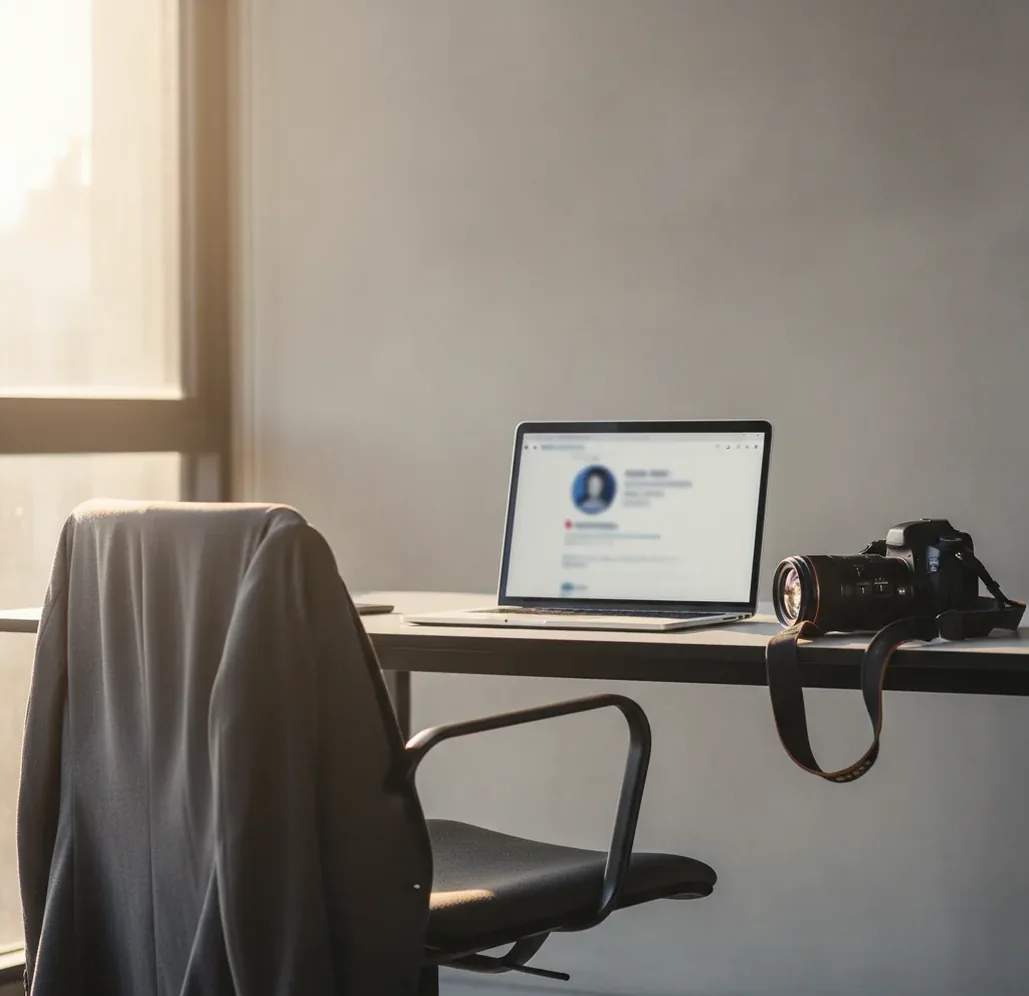
AI headshots are generally allowed on LinkedIn in 2026 if the image truthfully represents you and is not used for impersonation or deception. The lowest-risk approach is to start from a real photo of yourself, keep facial structure and age consistent, and use AI only to improve lighting, background, framing, and image quality.
What Does Allowed Mean for AI Headshots on LinkedIn?
Allowed means the image does not violate LinkedIn’s expectations around authentic identity, impersonation, deception, or misleading profile information. LinkedIn does not generally ban edited profile photos, but a headshot becomes risky when it presents someone who is not you, changes your age or appearance substantially, or supports a fake job history, company role, or credential.
A safe AI headshot is best understood as an enhanced portrait: better lighting, cleaner background, sharper crop, and professional styling while preserving your real face. If a recruiter, client, or colleague would recognize you on a video call after seeing the profile photo, the image is probably within the practical authenticity zone.
Why Is a Realistic AI Headshot the Safest Choice?
A realistic AI headshot is the safest choice because LinkedIn profile photos function as identity signals, not fantasy avatars. Recruiters, hiring managers, clients, and collaborators use the photo to confirm they are interacting with the same person they may later meet on Zoom, in an interview, or at an event.
The best LinkedIn-style AI portraits keep skin texture visible, preserve face shape, avoid dramatic beauty filters, and use simple backgrounds such as light gray, off-white, muted blue, or soft office blur. Think “well-lit portfolio portrait” rather than “AI model render.” The goal is trust at thumbnail size, especially in comments, search results, job applications, and connection requests.
How Do AI Headshot Tools Change a Portrait?
AI headshot tools usually change presentation details, not just pixels. Most workflows use face detection, facial landmark mapping, segmentation masks, background replacement, diffusion-based inpainting, denoising, sharpening, and super-resolution to make a casual image look closer to a studio portrait.
The tool may detect hair, shoulders, clothing, and face position, then rebuild the background, balance exposure, clean compression noise, and refine small details. The technical risk is identity drift: eyes, jawline, ears, hairline, teeth, or skin texture can shift if the model over-generates. For LinkedIn, the best output keeps biometric cues stable while improving lighting, framing, and polish.
How Should You Make an AI Headshot for LinkedIn?
Start With a Real, Sharp Source Photo
Use a recent image where your face is in focus, both eyes are visible, and lighting is even. A clean phone photo near a window is usually better than a blurry selfie with heavy shadows.
Keep Identity Features Consistent
Choose settings that preserve your face shape, age, hairstyle, skin tone, and expression. Avoid outputs that make you look significantly younger, more glamorous, or like a different person.
Use a Professional but Neutral Background
Pick a plain wall, soft studio gradient, or subtle office background. Avoid fake luxury offices, dramatic city skylines, or anything that implies a status or workplace you do not have.
Crop for LinkedIn’s Circular Frame
Export a square image, preferably at least 800 x 800 pixels, with room above the hair and around the shoulders. Preview it as a circle before uploading because LinkedIn will crop the corners.
Check the Image on Mobile and Desktop
Look for halo edges, warped collars, artificial skin smoothing, strange teeth, mismatched earrings, or hair cutout errors. Small artifacts often appear more obvious in LinkedIn’s thumbnail view.
Dial Back Anything That Looks Too Perfect
If the image looks like a wax figure, reduce smoothing, sharpening, background blur, and eye enhancement. Trustworthy professional photos still have pores, texture, asymmetry, and natural shadows.
Which AI Headshot Options Work Best for LinkedIn?
| Option | Best for | Strengths | Watch out for |
|---|---|---|---|
| Pict AI | Fast LinkedIn-style headshot generation and portrait cleanup | Useful for controlled lighting, background changes, square exports, and quick profile updates | Review outputs for realism, licensing terms, and identity consistency before publishing |
| Canva | Manual design control and light portrait editing | Good for cropping, background cleanup, brand colors, and social profile consistency | More design-focused than identity-preserving headshot generation |
| Adobe Express | Polished edits inside a broader creative workflow | Good for resizing, background removal, and preparing images for multiple platforms | Advanced portrait realism may require additional Adobe tools |
| Fotor | Quick browser-based headshot and retouch experiments | Accessible for casual users who want fast variations | Output quality, watermarks, and usage rights can vary by plan |
| Aragon AI | Batch-style professional headshot generation | Useful when someone wants many business portrait options from uploaded photos | Less ideal if you only need one subtle edit or want full manual control |
For LinkedIn, choose the option that preserves your real identity most reliably. The best tool is not always the most dramatic one; it is the one that produces a believable profile photo you would feel comfortable matching on a live call.
When Do People Use AI Headshots on LinkedIn?
People use AI headshots on LinkedIn when they need a credible professional image faster than scheduling a studio session. Common situations include job searching, refreshing a dated profile, preparing for speaking opportunities, launching a consulting page, aligning team photos, updating a portfolio, or creating consistent visuals across LinkedIn, email, resumes, and personal websites.
AI is especially useful when the original photo has good identity data but poor presentation: messy background, dim indoor lighting, low contrast, lens noise, or awkward crop. For creators and freelancers, the emotional utility is simple: look current, approachable, and prepared without making the image feel staged or disconnected from real life.
What Prompt Recipes Make AI Headshots Look Natural?
- LinkedIn neutral portrait: “Create a realistic professional headshot of the same person, preserving facial structure, age, skin tone, hairstyle, and expression. Use soft window lighting, a plain light gray background, natural skin texture, and a business-casual outfit. Avoid beauty retouching, facial reshaping, or exaggerated blur.”
- Founder profile photo: “Make this look like a modern founder headshot for LinkedIn. Keep the person recognizable, use relaxed confidence, soft contrast, natural eyes, visible skin texture, and a clean studio background. Do not change identity, age, jawline, or hairline.”
- Job seeker refresh: “Enhance this portrait for a LinkedIn profile photo. Improve exposure, remove background distractions, sharpen lightly, and crop for a circular profile frame. Keep clothing professional and realistic. Avoid plastic skin, artificial teeth, or corporate stock-photo backgrounds.”
- Team consistency prompt: “Match this headshot to a simple team profile style: neutral background, soft frontal lighting, shoulder-up crop, natural expression, consistent color temperature, and realistic detail. Preserve the original person’s appearance.”
- Artifact repair prompt: “Reduce AI-looking artifacts around hair, ears, glasses, collar, and shoulders. Restore natural texture, remove halo edges, and keep the portrait realistic at small thumbnail size.”
Where Can AI Headshots Backfire on LinkedIn?
- Blurry source photos can cause the model to invent eyelashes, teeth, hair strands, glasses rims, or ear shapes that do not match you.
- Heavy skin smoothing can remove pores and natural facial texture, creating the plastic look many users associate with generated portraits.
- Strong side lighting can produce uneven retouching because the model may brighten one side of the face while leaving shadows or color shifts on the other.
- Busy clothing patterns such as stripes, herringbone, plaid, and fine checks can warp near shoulders, collars, buttons, and lapels.
Should You Disclose That Your LinkedIn Headshot Used AI?
You usually do not need to announce that a profile photo was lightly AI-edited if it still represents you truthfully. People commonly use cameras, lighting, retouching, background removal, and sharpening without adding disclosure notes, and AI can be part of that same editing spectrum when used conservatively.
Disclosure becomes more relevant when the image is substantially generated, stylized, or likely to create a false impression. If you are using the image in a trust-sensitive context such as recruiting, executive branding, journalism, legal services, medical services, or public speaking, the safest standard is simple: the person in the photo should be recognizably you today.
What Is the Best Final Check Before Uploading?
The best final check is to compare the AI headshot against how you look in a current video call. Open the image at full size, then view it at small thumbnail size, then crop it into a circle. If it still reads as natural, recognizable, and professional in all three views, it is likely ready for LinkedIn.
Before publishing, inspect the hairline, ears, glasses, teeth, collar, shoulders, and background boundary. Export at a minimum of 800 x 800 pixels, avoid extreme compression, and keep a copy of the original image. If you hesitate because it feels too perfect, too young, or too unlike you, regenerate with stricter realism settings.
Related reads on AI editing and trust
Check privacy, employer rules, and photo reuse before sharing
LinkedIn suitability is only one part of choosing a portrait. Before commissioning ai headshots for business, check whether your employer has photography guidelines, whether the generator retains uploaded faces, and where the finished image will appear. A publicly visible profile picture can be copied; deleting your original upload from an editing service does not remove copies shared elsewhere.
| Check | What to establish |
|---|---|
| Source-photo permission | Confirm you have permission to upload the photograph, particularly if a professional photographer took it. |
| Upload retention | Look for separate controls covering source images, generated portraits, and account deletion. |
| Training use | Check whether uploaded images may train models and whether an opt-out is available. |
| Workplace branding | Get approval before adding company logos, uniforms, or a recognizable office setting. |
The answer to “are ai headshots good enough for linkedin” does not establish whether the same image suits every professional channel. Different uses have different expectations:
- For ai headshots for job applications, follow the application instructions first. If no photograph is requested, do not add one merely because you have generated it.
- With ai headshots for actors and models, distinguish a networking portrait from casting or agency submission images. Those submissions may require current, minimally edited photographs showing your actual appearance.
When deciding “what app makes ai headshots,” compare deletion controls and commercial-use terms alongside portrait quality. If your next question is “why ai headshots dont look like me,” pause before uploading more reference photos: extra uploads increase the amount of personal imagery shared without guaranteeing a better likeness. Keep the original photograph and a local copy of the final portrait so you can replace it without repeating the upload process.
LinkedIn AI photo rules: common questions
Do not assume LinkedIn will automatically label an AI-generated profile photo or that a missing label confirms compliance. Disclosure and truthful representation are separate issues: adding an AI label does not make a fabricated identity acceptable. Check any current upload notices, and answer honestly if someone asks whether the portrait was generated or substantially edited.
An employer may set photo standards for company directories, staff biographies, badges, or branded materials, including requiring an unedited photograph. Those requirements are separate from LinkedIn’s platform rules. Before reusing an AI portrait for work, ask which edits are permitted and whether approval is needed. A suitable personal profile image is not automatically suitable for every company use.
Yes, AI headshots are generally allowed if they represent the real account owner and are not used to impersonate or mislead. The safest version is a realistic enhancement of your own photo.
Using a fully generated face for a real-person profile can be risky because it may misrepresent identity. For professional networking, use your actual face and keep edits realistic.
Recruiters may notice if the image has plastic skin, warped hair, fake backgrounds, or facial features that do not match your video call appearance. Natural texture and accurate identity cues reduce suspicion.
The safest style is a shoulder-up portrait with soft lighting, a neutral background, natural expression, and minimal retouching. Avoid dramatic filters, fake offices, and major facial changes.
Not by default. Authenticity concerns usually arise when the photo creates a false identity, hides who you are, or supports misleading profile information.
A square image of at least 800 x 800 pixels is a practical minimum for a clean profile photo. Always preview it in a circular crop before uploading.
Yes, if the image accurately represents you and the tool’s usage terms allow it. A consistent headshot across LinkedIn, resumes, portfolios, and websites can strengthen professional recognition.
It should look like a polished photo of you on a good lighting day, not a different person. Keep pores, natural shadows, facial asymmetry, and recognizable features intact.
It can hurt if it looks fake, over-edited, or inconsistent with your real appearance. It can help when it makes a dated or low-quality photo look current, clear, and trustworthy.