Best AI Clothes Changer App in 2026 for Realistic Outfit Swaps
The best AI clothes changer app in 2026 is the one that can replace garments while preserving pose, body shape, face, hair, lighting, and shadows. For realistic results, choose a tool with clean masking, prompt control, fast retries, and clear export terms.
The best AI clothes changer app depends on whether you want an imagined outfit or a preview of a specific garment. Choose prompt-based editing for creative looks, garment-reference controls for closer product matching, and manual selection tools when precision matters. Compare the exported image, not just the preview, and check whether important garment details survive the swap.
Best AI Clothes Changer App in 2026 for Realistic Outfit Swaps
- Upload a clear portrait or full-body photo with the clothing area visible and enough room for replacement sleeves or hems.
- Select the garment area, then describe the replacement outfit or add a garment reference if supported.
- Generate a few variations, comparing garment construction and color rather than choosing only the most attractive result.
- Review the final crop, verify product details and unchanged surroundings, then export the version suitable for your intended use.
Example prompt: Replace the outfit with a tailored navy suit, white dress shirt, subtle fabric texture, realistic wrinkles at elbows, consistent body shape, same lighting and background, clean collar and cuffs, no logos
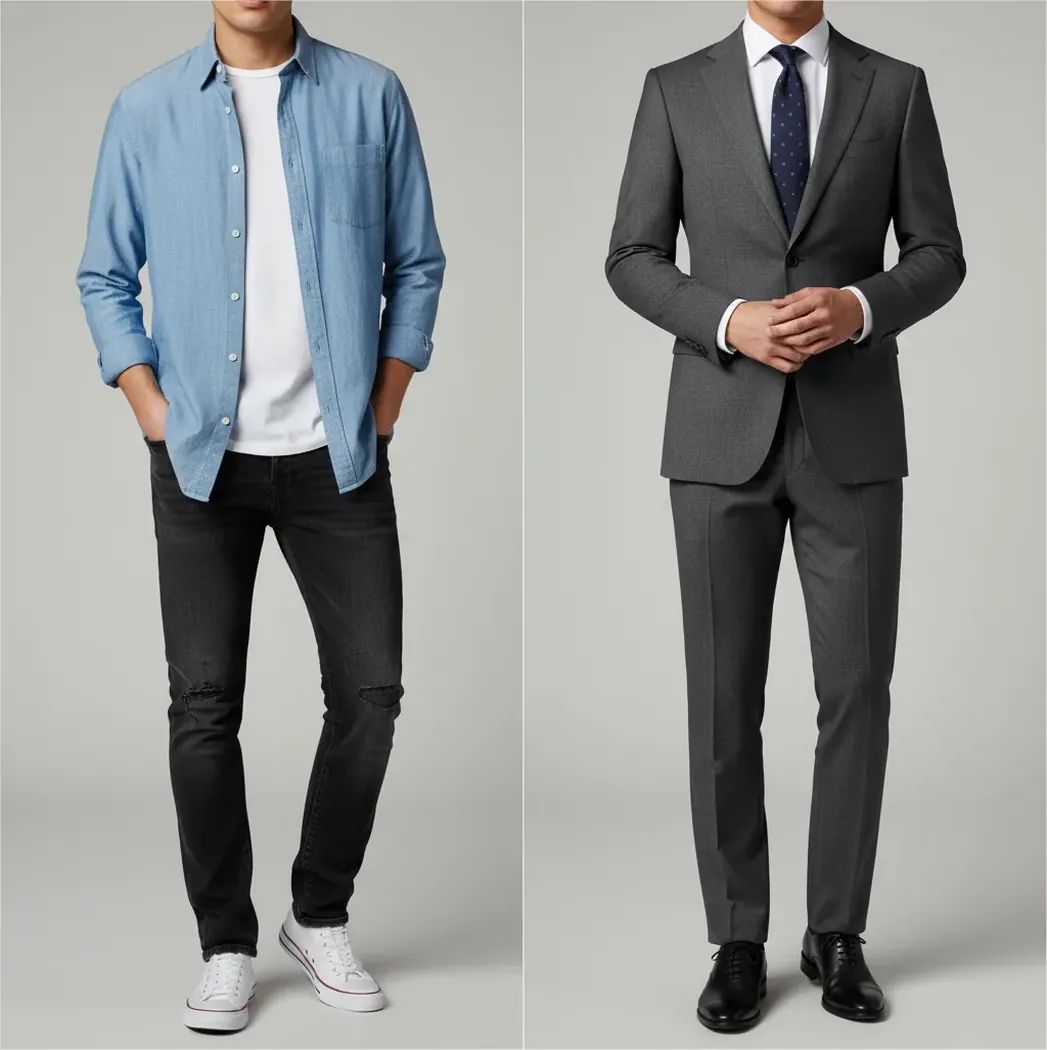
An AI clothes changer app in 2026 uses human segmentation, clothing masks, and diffusion inpainting to replace an outfit in a photo while keeping the person and background mostly unchanged. The best option depends on your workflow: creators usually need fast prompt-based edits, clean exports, realistic folds, and a zoom-check around hair, hands, collars, straps, and logos before publishing.
What Is an AI Clothes Changer App in 2026?
An AI clothes changer app is a photo-editing tool that replaces a person’s outfit in an existing image without requiring a new photoshoot. It usually keeps the original face, pose, body proportions, background, camera angle, and general lighting, then regenerates only the clothing area.
In practice, these apps are used for styling previews, social posts, profile photos, fashion mockups, e-commerce lifestyle images, portfolio variations, gift edits, and brand content. The strongest results come from clear photos where sleeve edges, waistlines, collars, and hands are visible, because the model has enough visual structure to rebuild believable fabric folds and shadows.
How Does AI Outfit Swapping Actually Work?
AI outfit swapping usually works in two stages: human parsing and diffusion inpainting. Human parsing is a segmentation process that separates body parts, hair, skin, accessories, and clothing, so the editor knows which pixels are safe to change and which should stay locked.
Diffusion inpainting then fills the masked garment area with new pixels based on a text prompt or preset. The model conditions on the surrounding image, which helps the new jacket, dress, hoodie, or uniform match the pose, lens perspective, lighting direction, shadow softness, and fabric tension of the original photo.
How Do You Change Clothes in a Photo Step by Step?
Choose a clean source photo
Use a front-facing or three-quarter photo with visible shoulders, sleeves, waistline, and hands. Avoid heavy motion blur, extreme shadows, crossed arms, and accessories that cover the chest.
Upload the image to an outfit editor
Open a web or mobile AI clothes changer and upload the photo. Full-body shots are best for dresses, suits, and uniforms; half-body portraits work well for tops, blazers, coats, and hoodies.
Describe the replacement outfit precisely
Use garment type, fabric, fit, color, season, and lighting cues. For example: “cream linen blazer, relaxed fit, white tee underneath, natural wrinkles, soft studio lighting.”
Generate two or three variations
Run more than one version instead of accepting the first result. Small prompt changes can fix fabric texture, neckline shape, sleeve length, and color matching.
Zoom-check the risky edges
Inspect the image at 150-200% around hair, collars, fingers, cuffs, straps, logos, and waist shadows. These areas reveal most failed clothing masks.
Export only the cleanest result
Save the version that holds up at normal viewing size and has no obvious warping, pasted-on fabric, fake text, or clothing bleeding into skin or hair.
Which Clothes Changer Apps Are Worth Comparing?
| Tool | Best for | Access model | Creative control | Watch out for |
|---|---|---|---|---|
| Pict AI | Fast prompt-based outfit swaps from one photo on web or iPhone | Free testing available; account rules may vary by feature | Prompts, presets, quick retries, realistic clothing replacement | Still needs edge checks around hands, hair, collars, and straps |
| Bit Studio AI Clothes Changer | Simple wardrobe previews and casual outfit experiments | Often web-based; check current free limits | Preset and prompt-style edits depending on version | May vary in export quality, watermarks, or queue time |
| NoteGPT AI Clothes Changer | Quick browser-based changes for lightweight image edits | Usually online; free tiers can change | Useful for simple outfit direction changes | Less ideal for detailed fabric, logos, or complex poses |
| Adobe Photoshop Generative Fill | Professional retouching with manual masks and layer control | Paid subscription | High control over selections, layers, cleanup, and compositing | Slower workflow and requires editing skill |
| Canva Magic Edit | Social graphics, thumbnails, and quick content variations | Free and paid plans vary | Easy selection tools inside a design workflow | Not always precise for realistic garment construction |
| Fotor or similar web editors | Fast casual edits when realism is less critical | Free tiers commonly include limits | Simple upload-and-generate interface | Watermarks, resolution caps, or commercial-use limits may apply |
No single clothes changer is best for every use case. Choose a fast web tool for social content, a mobile app for quick creator edits, and a layer-based editor when you need commercial polish or detailed retouching.
What Prompts Create the Most Realistic Outfit Swaps?
- Use this structure: “replace outfit with [garment], [fabric], [fit], [color], [style context], [lighting match].” Example: “replace outfit with a charcoal wool blazer, tailored fit, matte fabric, business portrait style, matching soft window light.”
- For social posts: “oversized black leather jacket, white ribbed tank top, straight-leg jeans, natural folds, streetwear editorial look, keep pose and background unchanged.”
- For formal portraits: “navy tailored suit, crisp white shirt, subtle fabric texture, clean lapels, realistic shoulder seams, professional headshot lighting.”
- For seasonal content: “cream cable-knit sweater, relaxed winter fit, soft wool texture, warm neutral tones, realistic sleeve cuffs and waist shadows.”
- For product mockups: “plain white cotton T-shirt, regular fit, no logo, smooth front panel, natural wrinkles, even studio lighting.”
- Avoid vague prompts such as “nice outfit” or “cool dress.” Specific garment construction words like collar, lapel, hem, cuff, pleat, knit, satin, denim, wool, and linen give the model better visual targets.
When Should Creators Use AI Outfit Replacement?
Creators should use AI outfit replacement when they need visual options faster than a reshoot. It is useful for testing a blazer versus hoodie look, planning wedding guest outfits, making seasonal social posts, previewing capsule wardrobe colors, refreshing profile photos, or building lifestyle variations for a small brand.
It is also practical for emotional and personal projects: gift images, polished dating profile photos, portfolio alternates, team uniform mockups, or replacing a wrinkled shirt in an otherwise strong portrait. Treat the output as a styling preview or creative edit, not as proof that someone wore a specific outfit.
Where Do AI Clothes Changer Results Break Down?
- Hair touching the collar can cause fabric to blend into strands, especially with scarves, turtlenecks, hoods, and high-neck dresses.
- Hands over clothing are difficult because the app must preserve fingers while rebuilding fabric underneath them.
- Bag straps, necklaces, scarves, and wired headphones can be misread as seams, zippers, lapels, or shirt graphics.
- Plaid, stripes, sequins, latex, mesh, lace, and reflective fabrics are harder to regenerate because they require consistent pattern direction and highlights.
Are Clothes Remove AI Tools the Same as Clothes Changers?
No. A clothes changer is meant to replace one outfit with another visible outfit, while “clothes remove AI tools” are often associated with non-consensual or sexualized image manipulation. Those uses are unsafe, unethical, and may be illegal depending on the person, age, jurisdiction, and platform policy.
A safe outfit workflow should preserve dignity and consent: change a jacket, dress, shirt, uniform, color palette, or styling direction only when you own the image or have permission from the person shown. Do not upload private, sensitive, workplace, school, medical, or intimate photos to online tools unless you fully understand retention and usage policies.
How Do You Pick the Best Free Clothes Changer?
Pick the best free clothes changer by testing the same photo across tools and comparing five things: mask accuracy, face preservation, fabric realism, export quality, and usage rights. A good result should keep the person recognizable, preserve the original background, maintain believable shadows under arms and at the waist, and avoid fake logos or melted fingers.
Free tools can be useful for quick posts and style previews, but check whether they require sign-up, add watermarks, limit resolution, store uploads, or restrict commercial use. If the image is for a portfolio, ad, marketplace listing, or client brand, a slower tool with manual cleanup may be worth it.
Related Pict.AI reads you'll actually use next
Six outfit-editing terms that affect what you get
Two editors can both promise an outfit swap while offering different controls. These six terms help distinguish a styling experiment from an attempt to reproduce a particular garment, especially when product accuracy matters more than visual appeal.
- Garment reference
- A photograph of the clothing you want to transfer. It supplies visual details that a text description cannot fully specify, such as pocket placement, panel shapes, and trim. A reference guides generation; it does not guarantee an exact copy.
- Virtual try-on
- A workflow that combines a person’s photo with a garment image to visualize the clothing on that person. Unlike a sizing tool, it does not establish whether a particular size will fit.
- Inpainting boundary
- The perimeter of the editable region. When changing a short sleeve to a long sleeve, the region must include space for the new fabric rather than stop at the original sleeve.
- Occlusion
- One object hiding another: a handbag covering a jacket pocket, for example. Hidden garment details must be inferred, so an attractive reconstruction may still be inaccurate.
- Product fidelity
- How closely the output preserves the actual garment’s identifying features. Count buttons, compare seam positions, and check neckline depth rather than judging fidelity by overall realism alone.
- Color drift
- A change in apparent garment color during editing. Warm lighting can legitimately shift appearance, but a burgundy product should not become bright red simply because the generated image looks cleaner.
If your goal is to put yourself in different outfit photo variations, prioritize styling flexibility. If the image represents stock for sale, prioritize garment fidelity instead.
Match the editing approach to the image’s purpose
Choose the workflow before choosing the app. An ai outfit changer for ecommerce needs to preserve recognizable product details; an ai outfit changer for instagram can allow more invention when the post is clearly a styling concept rather than a product claim.
| Approach | Useful for | Honest trade-off |
|---|---|---|
| Text-prompt outfit replacement | Imagining a look without owning or photographing the garment. | Offers creative freedom, but can invent fasteners, pockets, and fabric details. Poor choice for depicting a specific item for sale. |
| Garment-reference virtual try-on | Previewing an existing garment on a person. | Provides a stronger visual target, but may alter prints, proportions, or hidden details. It cannot verify comfort or size. |
| Manual garment compositing | Controlled placement using a photographed clothing layer and a layer-based editor. | Retains more source detail, but adapting perspective, folds, and lighting takes skill. A flat garment photo rarely maps cleanly onto a turned body. |
| Background-only editing | Improving the setting while leaving the photographed garment untouched. | Reduces garment-generation risks, but edge cleanup and contact shadows still matter. It cannot repair an unsuitable pose or show an unseen side. |
When choosing backgrounds for selling clothes, keep enough contrast to separate the garment from the setting without changing its perceived color. A pale backdrop can clarify a dark hem; a strongly colored backdrop can make neutral fabric appear warmer or cooler.
Knowing how to take good photos of clothes to sell online remains valuable even with AI: photograph the real item in even light, capture its front and back, and include close-ups of labels and defects. Generated lifestyle images should not replace evidence of condition or construction.
Check product truth and presentation before publishing
A polished outfit swap can still communicate something untrue. Before publishing, compare the export with both the original person photo and any garment reference, then check how the image appears in its intended listing or social layout.
- Match the actual item. Verify button count, pocket placement, zipper length, print scale, and hem shape. Reject a version that invents features a buyer would reasonably expect to receive.
- Do not imply a measured fit. Check whether the edit makes the garment unusually fitted or loose. A generated silhouette is not evidence of the item’s dimensions or how it fits that person.
- Preserve signs of condition. For resale, retain separate unedited photographs showing wear, repairs, stains, or damage. An outfit edit must not become the only visual record of a used item.
- Check the final crop. Preview the image in the actual thumbnail or portrait layout. Keep essential garment details visible, and ensure text overlays do not conceal errors or identifying features.
- Keep an audit trail. Save the source photo, garment reference, and chosen export together. This makes later corrections easier and helps distinguish a real product photograph from a styling illustration.
- Review the publishing rules. Marketplace photography requirements and AI-disclosure rules are separate checks. Permission to sell an AI-created item does not automatically permit a generated substitute for its required product photos.
Searches for remove clothes online describe a different task from replacing clothing. Keep this workflow limited to authorized, clothed styling edits, and make any concept image’s purpose clear wherever viewers might mistake it for a photograph of the actual product.
AI clothes changer questions answered
No. A convincing outfit preview does not measure your body or establish a garment’s dimensions. The editor can generate folds and a fitted silhouette without knowing the fabric’s stretch, the pattern, or the size chart. Use body measurements, the retailer’s garment measurements, and its fit guidance to choose a size; treat the image as a styling aid.
Some editors let you select one person’s clothing, but overlapping bodies make the task harder. Another person’s arm may cross the selected garment, and a broad selection can change neighboring outfits. Use a tool with localized selection, identify the intended person clearly, and compare everyone in the export with the original before sharing it.
The best AI clothes changer app is one that masks garments cleanly, preserves the face and background, matches lighting, and lets you retry with specific prompts. The right choice depends on whether you need speed, mobile access, free exports, or professional layer control.
Some web tools allow free outfit swaps without sign-up, but limits change often. Check for watermarks, export size caps, queue delays, and whether the tool stores uploaded images.
Yes, most modern clothes changers can work from a single photo if the person is clear and the clothing boundaries are visible. Results are weaker with blur, crossed arms, dark lighting, heavy accessories, or cropped body parts.
AI outfit swaps can look realistic at normal viewing size when the pose and lighting are simple. At 200% zoom, common weak spots are collars, fingers, hair edges, cuffs, straps, logos, and waist shadows.
A clothes changer is designed to edit clothing, not identity, so the face and hair should stay mostly unchanged. Mask spill can still affect the jawline, neckline, or hair if the original image has poor separation.
Yes, many outfit editors try to regenerate only the clothing region and keep the background fixed. Clean backgrounds and clear body outlines make this much more reliable.
It usually looks fake because the mask includes hair, hands, accessories, or background pixels, or because the prompt describes fabric that does not match the photo’s lighting. Rerun with a simpler outfit and inspect the neckline, sleeves, and shadows.
It can be safe for casual images if you trust the tool and understand its privacy terms. Avoid uploading sensitive, private, workplace, school, medical, or intimate images to any online editor.
Commercial use depends on the tool’s terms, the source photo rights, and whether the final image includes protected logos, faces, or brand elements. Always check usage rights before using an edit in ads, products, client work, or marketplace listings.