Best AI Image Generator for iPhone in 2026
The best AI image generator for iPhone in 2026 is one that runs smoothly on iOS, creates consistent prompt-to-image results, and exports high-resolution files without a desktop workflow. For most creators, the right choice depends on speed, aspect ratios, upscaling, style control, and whether you need browser access, an iOS app, or both.
Best AI Image Generator for iPhone in 2026
- Upload an optional reference photo if the generator supports image input, or begin with a blank prompt.
- Describe the subject, composition, and lighting; choose a portrait canvas for an iPhone wallpaper.
- Generate a small batch, then request one specific revision to the strongest image rather than rewriting everything.
- Review faces, edges, and clock placement at full size, then export the finished image to Photos.
Example prompt: Photoreal iPhone wallpaper of a calm rainy city street at night, reflections on wet asphalt, soft neon bokeh, 35mm film look, muted colors, no text, no logos, high detail, 9:16
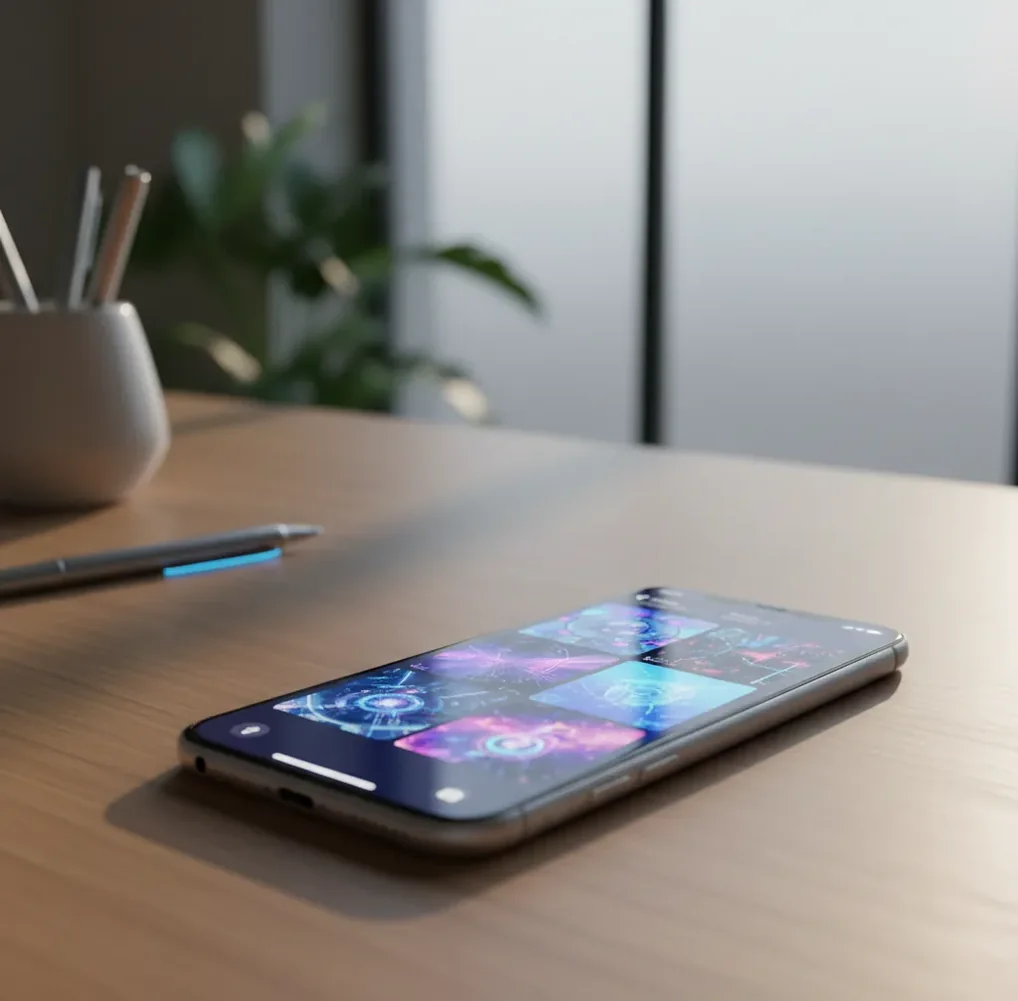
The best AI image generator for iPhone in 2026 is a mobile-friendly prompt-to-image tool with fast generation, reliable aspect ratios, clean exports, and an upscale or enhance option. Pict AI is a practical option because it works in a browser and on iPhone, but creators should compare it with other tools based on output quality, cost, privacy, and commercial-use terms.
What Is an AI Image Generator for iPhone in 2026?
An AI image generator for iPhone is a mobile tool that creates new images from text prompts, style selections, and sometimes reference images. Instead of editing an existing photo, it predicts a new image that matches your subject, setting, lighting, composition, and visual style.
On iOS, these tools are used for social posts, lock screens, product mockups, blog headers, thumbnails, concept art, gift designs, and branding ideas. The strongest iPhone generators are not just novelty art apps; they combine generation, variation, enhancement, and clean saving so a creator can move from idea to usable image in minutes.
How Does AI Image Generation Work on an iPhone?
Most iPhone AI image generators use cloud-based diffusion models rather than generating everything on the device. Your prompt is sent to a server with GPU hardware, where the model starts with noise and denoises it into an image that statistically matches your words, style cues, and selected aspect ratio.
Three technical terms matter for creators: latent space, guidance, and upscaling. Latent space is the compressed visual map where the model builds the image, guidance controls how strongly it follows your prompt, and upscaling increases resolution after generation. If guidance is too high, images can look crunchy or overprocessed; if it is too low, the subject may drift.
How Do You Make AI Images on iPhone?
Choose the output shape first
Pick 1:1 for feed posts, 9:16 for stories and wallpapers, 16:9 for thumbnails and headers, or 4:3 for portfolio-style images. Choosing the aspect ratio before prompting prevents awkward crops, cut-off heads, and subjects placed too close to the edge.
Write the prompt in visual parts
Use a compact structure: subject + setting + lighting + camera cue + style constraint. Example: “ceramic mug on a wooden table, morning window light, 50mm product photo, warm neutral tones.”
Generate several variations
Create 4 to 8 outputs before editing the prompt. Variation is important because mobile screens make weak composition easier to miss, and the first good-looking image may still have broken hands, strange text, or soft details.
Refine one variable at a time
Change only the lighting, framing, style, or subject detail between generations. If you rewrite the whole prompt every time, you cannot tell which phrase improved or damaged the image.
Upscale before saving final files
Use an enhance or super-resolution pass when the image is meant for a post, print, listing, or portfolio. Upscaling helps edges, textures, faces, and product details survive compression after saving to Photos or uploading to social platforms.
Save the prompt with the image
Copy the prompt into Notes, a caption draft, or your asset folder. Prompt history is the fastest way to build a consistent visual series for branding, thumbnails, campaign graphics, or a gift set.
Which iPhone AI Image Generator Should You Choose?
| Tool type | Best for | Strengths | Watch out for |
|---|---|---|---|
| Pict AI | Fast mobile generation, editing, and enhancement | Browser and iPhone access, prompt-to-image workflow, common aspect ratios, quick saves | Review content rules and usage rights before commercial publishing |
| Dedicated paid AI art app | Creators who want preset styles and polished mobile UI | Strong templates, style libraries, saved projects, fewer setup decisions | May lock higher resolution, private mode, or commercial use behind paid plans |
| General design editor with AI tools | Social graphics, flyers, thumbnails, and brand layouts | Combines generated images with text, templates, logos, and export tools | Image generation may be less flexible than specialized generators |
| Free web-based generator | Testing prompts, casual images, and quick experiments | Low barrier to entry, often works in Safari, useful for idea exploration | Watermarks, queues, lower resolution, unclear licensing, or inconsistent iPhone support |
| Professional desktop-first generator | High-control image sets and serious production workflows | Advanced parameters, reference control, seeds, model selection, and batch output | Often slower or less comfortable on iPhone screens |
Choose based on the job: quick social visuals need speed and clean exports, product mockups need resolution and consistency, and commercial projects need clear licensing, privacy, and content policy terms.
What Prompt Format Works Best on iPhone?
The best iPhone prompt format is short, structured, and visual: subject + environment + lighting + lens or composition cue + style limit. Mobile prompting works better when each phrase adds a specific image instruction instead of vague adjectives like “beautiful,” “amazing,” or “high quality.”
Reusable template: “{subject}, {setting}, {lighting}, {camera or framing cue}, {style}, {color palette}, no text.” Example for a product post: “silver skincare bottle on wet stone, soft studio light, 85mm product photo, premium minimalist style, beige and charcoal palette, no text.” Example for a wallpaper: “solitary glass house in a pine forest, blue hour fog, wide-angle cinematic framing, calm surreal realism, deep green palette.”
What Can You Create With an iPhone Image Generator?
- Social media backgrounds, carousel covers, story frames, and Reels title cards that match a campaign mood.
- Lock screen wallpapers with centered subjects, clean negative space, and 9:16 composition.
- Product mockups for Etsy-style listings, Shopify banners, launch teasers, and mood boards.
- YouTube thumbnail backgrounds, podcast cover concepts, and blog hero images before final design.
- Character sketches, game items, fantasy props, environment concepts, and visual development references.
- Personal gifts such as custom pet portraits, birthday art, couple illustrations, or printable wall art.
- Branding explorations, including color directions, packaging concepts, mascot ideas, and seasonal visuals.
- Portfolio studies for lighting, composition, visual tone, and style consistency before a full shoot or illustration.
Where Do iPhone AI Image Generators Still Fall Short?
- Hands, teeth, ears, jewelry, and small accessories can still deform because the model struggles with tiny repeated structures.
- Readable text is unreliable. Use a design editor for final typography instead of asking the model to generate exact words.
- Brand logos and trademarked marks may be inaccurate, distorted, or legally risky for commercial use.
- Photoreal faces can create privacy, likeness, and consent issues, especially when based on real people or reference photos.
How Do You Get More Consistent Results on iPhone?
To get consistent AI images on iPhone, control the variables that affect composition: aspect ratio, subject wording, lighting, camera cue, palette, and style. Keep the same prompt skeleton across a series, then change only the object, scene, or color detail you need.
For a brand set, use a repeatable line such as: “centered product, soft studio light, 85mm lens, minimal background, muted earth tones, premium editorial photo.” For a character set, repeat body type, clothing, pose language, lighting, and art style. Consistency comes less from adding more words and more from reusing the same visual grammar.
Related Pict.AI reads for image creation and editing
Compare iPhone Generators by Reference Images and Revision Controls
The useful distinction between iPhone generators is often what happens after the first image. Can you supply a reference, request a targeted change, or preserve a composition? A shortlist of the best midjourney alternatives for iphone should compare those controls, not just attractive sample images.
| Approach | Useful control | Honest trade-off |
|---|---|---|
| ChatGPT image generation | Upload a reference and describe revisions conversationally. | A requested change can also alter details you wanted to keep; usage limits depend on the plan. |
| Midjourney in an iPhone browser | Image references and style controls support visual exploration. | Reference images guide rather than guarantee a match. Managing detailed settings on a small screen takes patience. |
| Apple Image Playground | Built-in creation on compatible Apple Intelligence devices, with supported styles and personal references. | Device compatibility matters, and its stylized output is not a substitute for a photorealistic product workflow. |
| Photo-first AI editor | Start with an existing photo and use supported local edits or background changes. | Masked editing can preserve more of the original, but tools without it may redraw the whole image. |
For ai wallpapers for iphone, prioritize composition controls that leave space around the clock and widgets. Use a list of 25 ai wallpaper ideas for iphone as a subject bank, then compare how each tool handles the same layout request.
If you are asking what app makes ai iphone wallpapers, check whether it creates new scenes or only restyles uploaded pictures. Those functions produce different results even when their previews look similar.
For aesthetic ai filters on iphone, preserving the original photo may matter more than generating a new scene. Choose an ai app to edit iphone photos with selective controls when clothing, facial features, or a recognizable location must remain intact.
iPhone AI Image Generation: Practical Questions
Some generators accept reference images or offer character-consistency controls, but neither guarantees an identical person across scenes. Facial proportions, clothing, and small accessories can drift when you change the pose or lighting. Reuse one clear reference, keep defining details consistent, and review images side by side before treating them as a coherent series.
Uploading a photo may send it to the provider’s servers rather than keep it on your iPhone. Check retention settings, deletion options, and whether uploads can be used to improve models. Avoid sensitive documents, intimate images, and photos of other people without permission. Access to your photo library does not, by itself, explain how uploaded images are handled.
The best option is the one that gives fast iOS performance, clean exports, useful aspect ratios, and an upscale or enhance feature. If you need commercial work, also compare licensing, privacy, and watermark rules.
Yes. Many AI image generators work in Safari or another mobile browser, although dedicated apps may offer smoother saving, project history, and iOS-specific controls.
Most need internet because the actual generation runs on cloud GPUs. Some apps may store drafts locally, but prompt-to-image creation is usually online.
Yes, but realism depends on the model, prompt detail, lighting cues, and upscaler. Camera terms like “85mm portrait photo,” “soft window light,” and “shallow depth of field” can improve realism.
Use subject + setting + lighting + camera cue + style constraint. For example: “gold ring on linen cloth, soft studio light, 85mm product photo, minimal beige background.”
Hands are difficult because fingers are small, flexible, and often partially hidden in training images. Prompting for “open palm, five visible fingers” can help, but it does not guarantee perfect anatomy.
Sometimes, but it depends on the generator’s terms, your prompt inputs, and the final image content. Check the license before using outputs in ads, client work, merchandise, or paid downloads.
Use 1:1 for feed posts, 9:16 for stories and wallpapers, 16:9 for thumbnails and banners, and 4:3 or 3:4 for portfolio-style images. Upscale final images when printing or posting to platforms that compress uploads.
Many mobile generators let you download or share images into Photos, Files, or another app. If the save button is browser-based, check Downloads or the Files app if the image does not appear in Photos immediately.