AI Object Remover App in 2026: Best Options and Workflow
An ai object remover app in 2026 should remove unwanted objects, rebuild the background with AI inpainting, and export a clean photo without obvious smears. The best choice depends on your image type: simple skies, walls, sand, and grass are easy, while hair, fences, tiles, and reflections need careful masking and repeat passes.
AI Object Remover App in 2026: Best Options and Workflow
- Upload the original photo at full resolution so the remover has enough detail to rebuild the selected area.
- Brush over the unwanted object, or describe what to remove if the editor supports text instructions.
- Generate the replacement background, keeping nearby subjects and important details outside the selected removal area.
- Review the filled area at full size, retry visible errors, and export a separate copy at your preferred resolution.
Example prompt: Remove the person in the red jacket from the left side of the photo and reconstruct the sidewalk and storefront naturally, matching brick lines, shadows, and film grain; keep everything else unchanged.
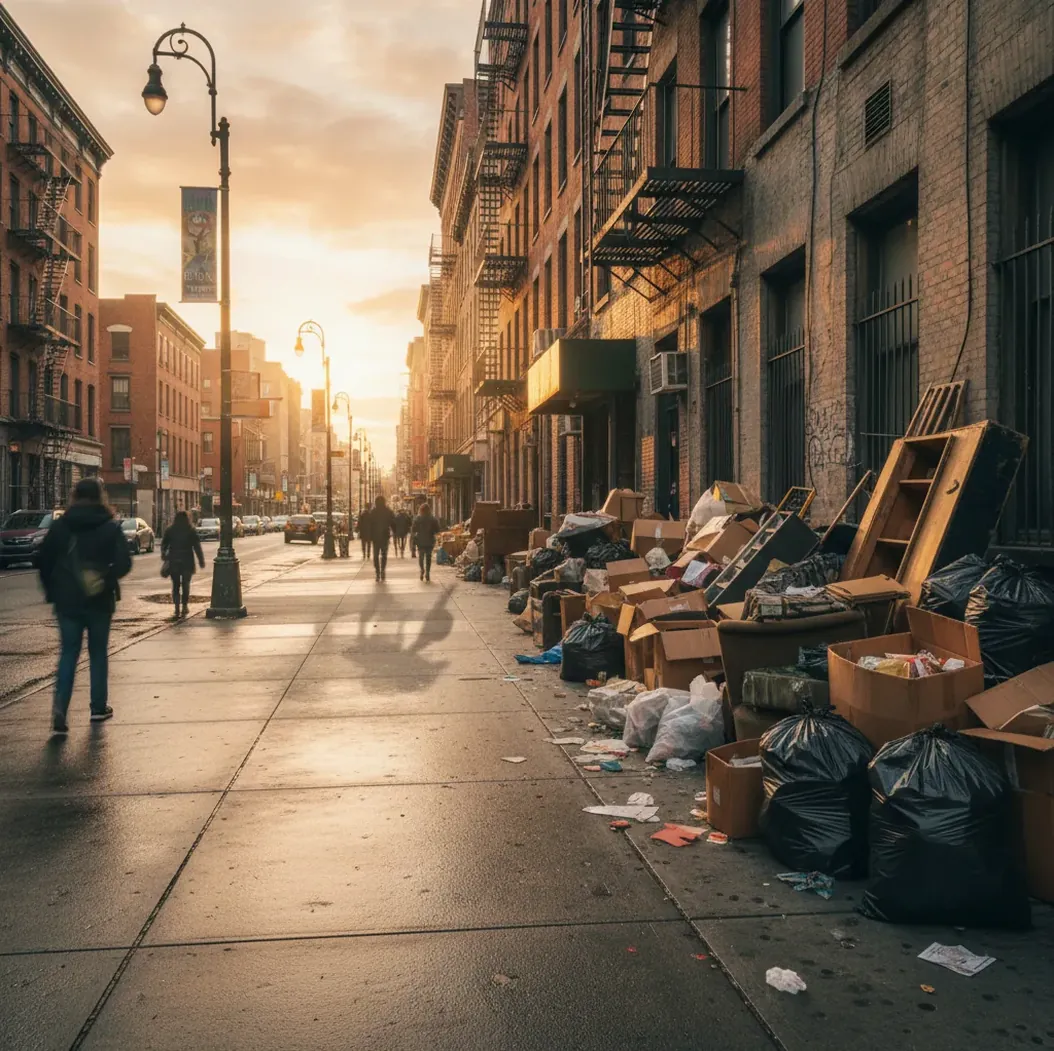
The best ai object remover app in 2026 is one that combines precise masking, diffusion-based inpainting, mobile-friendly editing, and high-resolution export. Object removal works best on clean or predictable backgrounds and becomes less reliable when the removed object covers fine details, repeating patterns, shadows, or important scene content.
What Is an AI Object Remover App in 2026?
An AI object remover app is a photo editor that lets you mark an unwanted person, object, logo, wire, text block, or piece of clutter, then replaces that selected area with generated background pixels. In 2026, most good removers use AI inpainting rather than simple blur, clone stamping, or patch tools.
A strong remover does three things well: it detects the object boundary, fills the masked area with believable texture, and blends lighting, grain, shadow, and perspective into the original image. The result should look natural at 100% zoom, not just acceptable on a small phone preview. This matters for social posts, product listings, travel prints, portfolio images, real estate photos, and brand visuals.
How Does AI Object Removal Rebuild the Background?
AI object removal works by combining a user-created mask with generative inpainting. The mask tells the model which pixels to remove, and the model predicts what should exist inside that missing region based on nearby color, texture, geometry, and lighting cues.
Modern apps often use diffusion-based inpainting or similar generative reconstruction systems. Instead of copying one nearby patch, the model iteratively generates a plausible fill that matches surrounding context: brick lines, wall gradients, grass texture, pavement grain, sky noise, and shadow direction. Some tools also use segmentation to understand object edges, which helps separate a person, bag, pole, wire, or sign from the background.
The key limitation is that the model is guessing, not recovering hidden truth. If a person covers a building number, a face, a patterned dress, or a product label, the app can invent a plausible replacement, but it cannot know the exact original content behind the object.
How Do You Remove People and Clutter Without Blurry Patches?
Zoom in before masking
Open the photo and zoom to at least 100% around the object. Clean masking starts with visible edges, especially around hair, bags, fingers, bicycle spokes, wires, and shadows.
Paint slightly beyond the object edge
Brush 2 to 5 pixels outside the object on phone photos so the app removes edge color contamination. If you mask too tightly, you may leave halos, outlines, or ghost pixels.
Include unwanted shadows and reflections
If the removed object casts a shadow, reflection, or glow that should not remain, include it in the same removal pass. Leaving a detached shadow is one of the fastest ways to make an edit look fake.
Remove complex objects in smaller passes
For crowds, fences, chairs, backpacks, or limbs overlapping a busy background, remove one section at a time. Smaller masks give the inpainting model more surrounding context and reduce smeared textures.
Inspect the edit at full size
Check for repeated bricks, warped tiles, soft blobs, broken horizon lines, duplicated grass, or cloudy patches. If anything looks wrong, undo and rerun with a tighter or smaller mask.
Export at the highest useful resolution
Use the best available export setting if the image is for print, product listings, client work, or portfolio use. Compression can make a good inpainted area look muddy after posting.
Which AI Object Remover Tools Are Worth Comparing?
| Tool | Best for | Strengths | Watch for |
|---|---|---|---|
| Pict AI | Fast web and iPhone cleanup edits | Simple mask-and-fill workflow for people, signs, wires, litter, and background clutter | Fine edges and repeating textures still need manual inspection |
| Adobe Photoshop / Photoshop Express | Professional retouching and layered workflows | Strong generative fill, selection tools, layers, and manual refinement options | More complex interface and usually tied to an account or paid plan |
| Google Photos Magic Editor | Casual mobile edits inside a photo library | Convenient for quick object moves, removals, and background edits on supported devices | Availability, resolution, and feature access can vary by device and account |
| Canva Magic Eraser | Social graphics, thumbnails, and branded content | Easy workflow when editing layouts, product images, and marketing posts | Best inside Canva projects; not always ideal for detailed retouching |
| TouchRetouch | Dedicated mobile object cleanup | Useful for wires, blemishes, small distractions, and repeatable phone edits | Large removals may need multiple passes or external finishing |
| Cleanup.pictures | Quick browser-based object removal | Fast upload-and-brush workflow for simple web edits | Free limits, export size, and privacy terms should be checked before use |
Choose based on workflow, not hype: mobile speed matters for social photos, layered editing matters for client work, and export resolution matters for prints, listings, and portfolio images.
What Types of Photos Work Best With AI Inpainting?
AI inpainting works best when the removed object sits on a simple, predictable, or naturally irregular background. Beaches, skies, grass, plain walls, pavement, shallow depth-of-field blur, and soft studio backdrops usually produce cleaner fills because the model can infer texture from nearby pixels.
Useful everyday edits include removing strangers from travel photos, clearing power lines from landscapes, deleting trash bins from street shots, cleaning product backgrounds, removing date stamps, erasing small text from screenshots, fixing photobombing, and simplifying portrait backgrounds. For creators, these edits can turn an almost-good image into a postable asset, a cleaner print, a marketplace photo, or a stronger brand visual.
The safest workflow is to treat object removal as visual cleanup, not evidence reconstruction. Use it to reduce distractions and improve composition, then verify the final image at the size where people will actually see it.
What Masking Recipes Make Object Removal Look More Natural?
- Person on a beach: mask the person, footprints, and hard shadow together; run once; then repair sand texture with a smaller second pass if patterns repeat.
- Power line in sky: use a thin brush slightly wider than the wire; remove in short segments near trees, rooftops, or clouds so edges stay clean.
- Street sign on brick: mask the sign and mounting hardware first; then fix brick seams separately with narrow masks that follow the horizontal mortar lines.
- Logo on product photo: remove the logo only if it is legally and ethically appropriate; keep the mask tight and inspect highlights because glossy surfaces reveal warped fills.
- Crowd behind a subject: remove background people one at a time, starting with the farthest or most blurred figures; avoid masking the main subject’s hair or shoulders unless necessary.
- Generative fill prompt template: “Fill this masked area with matching [background material], consistent [lighting direction], same camera grain, no new objects.”
- Negative prompt template, if supported: “No blur, no duplicate patterns, no extra limbs, no text, no warped edges, no new objects.”
When Will an AI Object Remover Look Wrong?
- Repeating patterns such as bricks, tiles, fences, railings, and fabric prints can create doubled lines, warped geometry, or visible pattern jumps.
- Fine edges like hair, fur, lace, plant leaves, bicycle spokes, and jewelry can leave halos if the mask is too tight or too soft.
- Large object removals force the model to invent too much background, which can produce mushy areas or imaginary details.
- Strong shadows, reflections, transparent glass, mirrors, and glossy products often need separate cleanup passes because light behavior is difficult to infer.
How Should Creators Choose the Best Object Remover in 2026?
Creators should choose an object remover based on output quality, control, export needs, and the type of images they edit most often. A travel creator may prioritize fast phone cleanup for passersby and signs, while a product seller needs clean edges, consistent backgrounds, and high-resolution exports. A designer may prefer a tool that sits inside a broader layout workflow.
For quick social edits, a simple browser or iPhone workflow is usually enough. For client retouching, print work, portfolio images, or commercial product photography, choose a tool with zoomed masking, redo control, high-quality export, and clear usage terms. Pict AI is one option in that lightweight cleanup category, while professional editors offer deeper control for complex retouching.
A practical test is to run the same photo through two or three apps: one person on a clean wall, one wire against a sky, and one object on a patterned background. The best tool is the one that needs the fewest reruns while still looking natural at full zoom.
More Pict.AI reads for editing and generation
Object Removal for Sellers, Creators, Hosts, and Families
The same removal can be harmless cleanup or a misleading change, depending on how the photo will be used. Choose what to erase by asking whether the missing detail would affect someone's purchase, expectations, or understanding of the scene.
- Secondhand sellers: Remove a laundry basket behind a used armchair, but keep stains, frayed upholstery, and scratches visible. If clutter overlaps the chair's edge, retaking the photo is safer than generating a replacement contour. Buyers need to see the actual condition and shape of the item, not a plausible reconstruction.
- Content creators: Erase a stray cable from a cooking tutorial thumbnail while preserving utensils and ingredients that appear in the video. An ai image generator for content creators can produce a separate illustrated backdrop when cleanup would require inventing most of the kitchen. Keep that artwork distinct from documentary frames of the recipe.
- Rental hosts: Remove a temporary cleaning bucket from an entryway photo, but retain permanent utility boxes, neighboring buildings, and visible wear. Erasing an obstruction outside a window can imply a view guests will not have. Photograph the room again after tidying when the unwanted object conceals a substantial part of the space.
- Families sharing event photos: Remove a discarded cup beside a birthday cake without changing names, candles, or guests' expressions. Before sharing publicly, use an exif remover if the exported file retains GPS coordinates or other sensitive metadata. Object removal changes visible pixels; it does not automatically sanitize the file's location data or prevent identification from landmarks.
AI Object Removal: Common Editing Questions
Some photo editors process object removal on the device, while others upload the image to a server. Offline availability depends on the specific feature, installed model, and device, not simply whether the app opens without internet. For sensitive photos, check whether the removal tool requires an upload and whether cloud copies are retained. Try a non-sensitive image in airplane mode to verify offline operation.
You can usually undo a removal while the editing session or an editable project remains available. A flattened JPEG or PNG does not normally preserve the erased pixels, so reopening that export will not restore the object. Save the edited image as a separate file and retain the original. Version history may help in some editors, but it should not replace an untouched backup.
The best ai object remover app in 2026 is one with precise masking, realistic AI inpainting, mobile-friendly editing, and clean export quality. The right choice depends on whether you edit social photos, product images, prints, or professional retouching work.
It uses a mask to identify the pixels you want removed, then generates a replacement area using surrounding texture, color, lighting, and perspective. Many modern tools use diffusion-based inpainting or related generative models.
Yes, AI removers can remove people from many photos, especially when the background is simple like sky, sand, grass, pavement, or a plain wall. Crowds, overlapping bodies, hair, and patterned backgrounds usually need smaller repeated edits.
AI can technically remove text and logos, but you should only do this when you have the right to edit the image. Removing watermarks or ownership marks from someone else’s work can violate copyright or platform rules.
Blurry patches happen when the mask is too large, the background lacks enough detail, or the model cannot infer the hidden texture. Try smaller masks, include shadows, and rerun problem areas separately.
It can reduce perceived quality if the fill area is large, the source image is compressed, or the export resolution is low. Always inspect the edit at 100% zoom before posting, printing, or using it commercially.
The easiest photos have simple backgrounds such as sky, grass, sand, pavement, blurred bokeh, or plain walls. The hardest photos include fences, tiles, brick, hair, reflections, transparent objects, and detailed patterns.
AI object removal is faster for casual cleanup and large distractions, while clone stamp tools give more manual control for precision retouching. Many professional workflows use both: AI for the first pass and manual tools for final cleanup.
Yes, it can clean dust, labels, props, background clutter, or small distractions in product photos. For marketplace or brand use, check the final image carefully so edges, shadows, reflections, and product details remain accurate.