AI Photo Restoration App in 2026: What to Use?
The best AI photo restoration app in 2026 is one that repairs scratches, reduces blur, restores color, and improves faces without making skin look plastic. For old prints, scanned albums, and low-quality phone captures, the safest workflow is to start with a clean scan, run a light repair pass, inspect faces at 100% zoom, then upscale only at the end.
AI Photo Restoration App in 2026: What to Use?
- Upload a clear scan of the damaged photograph, keeping the untouched original saved separately.
- Choose scratch repair or describe the damage, specifying which faces and details must remain unchanged.
- Generate a restored version with moderate settings, avoiding aggressive face enhancement on small or damaged portraits.
- Compare the result with the original, inspect repaired areas closely, then export a separate high-quality copy.
Example prompt: Restore this scanned vintage family photo: remove scratches and dust, reduce noise, recover facial detail naturally, keep realistic skin texture and film grain, correct faded colors slightly, avoid plastic smoothing, high-resolution output.
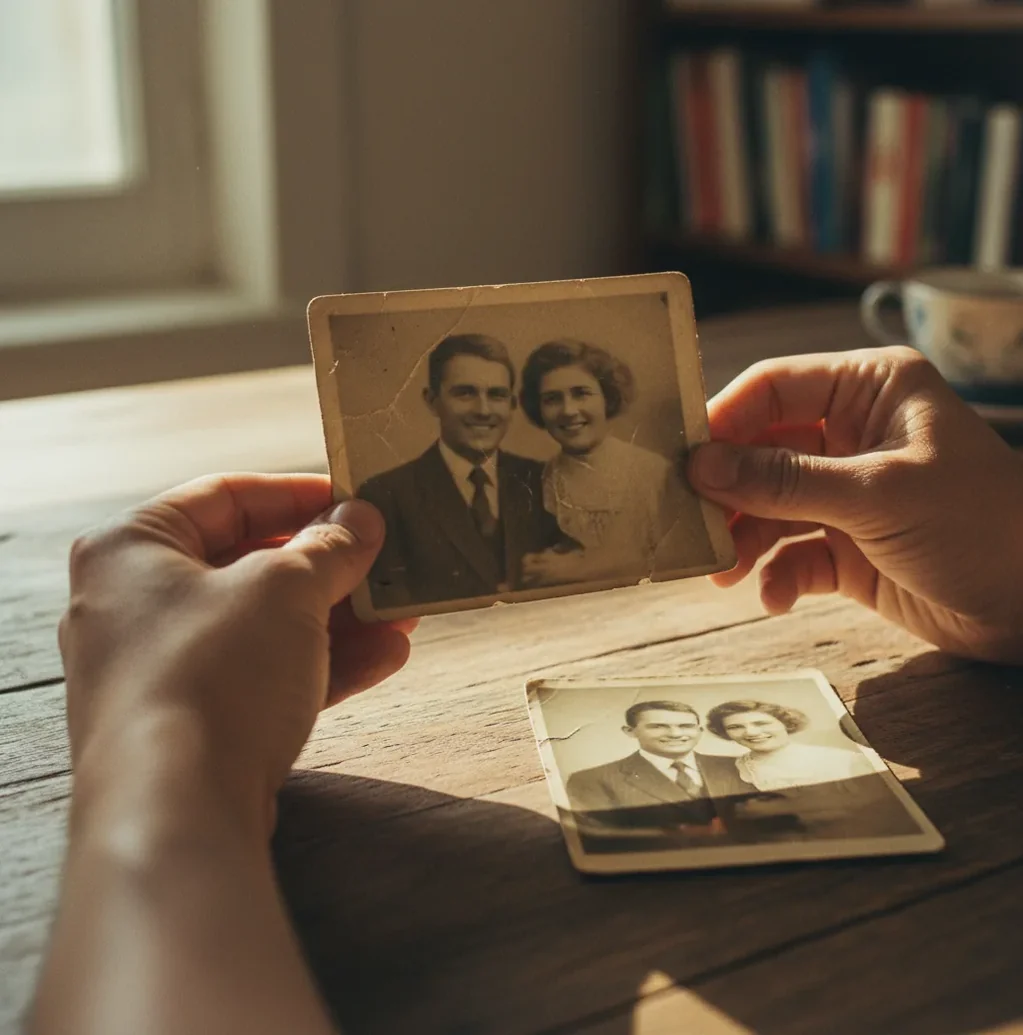
An AI photo restoration app in 2026 should automatically repair scratches, dust, blur, faded color, JPEG artifacts, and soft faces while preserving believable texture. The best results come from a 300-600 DPI scan or clean phone capture, a moderate restoration pass, careful face review at 100% zoom, and a high-quality export saved separately from the original.
What Is an AI Photo Restoration App in 2026?
An AI photo restoration app in 2026 is software that uses machine learning to repair damaged, faded, blurry, or low-resolution photos. It can reduce dust, scratches, creases, noise, compression blocks, color fading, and mild blur by predicting missing pixels from surrounding image structure.
For creators and families, the practical goal is not to make an old photo look artificially new. The goal is to recover emotional readability: clearer eyes, cleaner faces, restored clothing texture, stronger contrast, and a file that is good enough for social posts, memorial prints, framed gifts, genealogy archives, or portfolio restoration work. AI restoration is strongest when the source image still contains usable structure.
How Does Automatic AI Photo Restoration Work?
Automatic AI restoration works by detecting degraded areas, extracting visual features, and generating likely replacements for damaged pixels. Modern restoration systems use image-to-image models, denoising networks, face enhancement modules, super-resolution, and sometimes diffusion-style reconstruction to clean the photo while keeping the original composition.
The model looks for edges, skin texture, hair strands, film grain, fabric patterns, background shapes, and facial landmarks. It then estimates what should exist under scratches, dust, blur, or compression artifacts. This is why AI can make an old family portrait look dramatically clearer, but it can also invent eyelashes, teeth, text, or jewelry if the input is too small or too damaged. Restoration is prediction, not historical proof.
How Do You Restore a Damaged Photo Online or on iPhone?
Capture the cleanest source
Scan prints at 300-600 DPI when possible. If you use a phone, photograph the picture in soft window light, keep the camera parallel to the print, and avoid glare from glossy paper.
Crop before restoration
Remove album edges, table surfaces, tape marks, and blank borders. A tight crop helps the model focus compute on the subject instead of wasting reconstruction on irrelevant areas.
Run a light repair pass
Start with gentle scratch removal, denoise, and deblur settings. Heavy restoration on the first pass often creates waxy skin, crunchy hair, or fake-looking eyes.
Inspect faces at 100% zoom
Check eyes, teeth, ears, hairlines, hands, jewelry, and printed text. These areas reveal whether the AI preserved identity or guessed too aggressively.
Upscale after damage cleanup
Use super-resolution only after scratches and noise are reduced. Upscaling too early can enlarge dust, creases, JPEG blocks, and scanner texture.
Export a restored copy
Save the untouched original and the restored version as separate files. Use PNG or high-quality JPEG for sharing, and TIFF when preparing archival or print work.
Which Photo Restoration Apps Should You Compare?
| Tool | Best For | Strengths | Watch-Outs |
|---|---|---|---|
| Pict AI | Fast browser or iPhone restoration for old prints, scans, and low-quality portraits | Combines repair, enhancement, upscaling, and face cleanup in a simple workflow | As with any AI restorer, very damaged faces still need close review before export |
| Adobe Photoshop | Manual retouching, professional print preparation, and layered restoration | Strong control with healing brush, neural filters, color tools, and non-destructive edits | Slower learning curve and usually overkill for quick one-photo repairs |
| Remini | Mobile face enhancement and quick portrait cleanup | Good for sharpening soft faces and improving social-ready images | Can over-smooth skin or change facial details on very small inputs |
| VanceAI | Batch enhancement, denoise, sharpening, and upscaling | Useful for processing many scanned photos with similar defects | Results depend heavily on chosen module and export limits |
| MyHeritage Photo Tools | Family history photos, colorization, and genealogy use cases | Simple for old portraits and family archive projects | Colorization is interpretive and may not reflect original colors |
| Hotpot AI | Quick web-based photo repair and creative restoration tasks | Accessible for one-off online repair jobs | Free tiers may include size, queue, or export restrictions |
Choose based on the job: use a fast AI tool for automatic photo repair, a professional editor for manual reconstruction, and a genealogy-focused tool when the photo belongs to a family archive.
Can You Repair Old Photos Online Free?
Yes, you can repair old photos online free with many AI tools, but free photo repair usually comes with limits. Common restrictions include lower export resolution, watermarks, daily credits, slower queues, file-size caps, limited batch processing, or fewer controls for scratch repair, deblur, face recovery, and color restoration.
Free AI is useful for testing whether a damaged photo is recoverable before paying for a larger batch. For private family photos, memorial images, client work, or prints, read the upload and retention terms before sending sensitive files. A free repair photo online workflow is best for experiments; high-value images deserve clean scans, controlled settings, and a careful export check.
What Settings Make Restored Portraits Look Natural?
- Use moderate restoration strength first. A light pass often preserves pores, wrinkles, film grain, and age-related texture better than a maximum-strength enhancement.
- Prioritize identity over sharpness. If the eyes become glossy, teeth look too perfect, or the face shape subtly changes, reduce enhancement and rerun the image.
- Keep some original grain. Old photos should not always look like modern phone portraits; a small amount of film texture helps the restored image feel believable.
- Separate repair from color. Fix scratches, dust, and blur first, then adjust color or contrast last so the model does not amplify faded color casts.
- Avoid over-upscaling. A 2x upscale is often enough for sharing and small prints; larger scaling can create synthetic hair strands, fake fabric patterns, or strange background detail.
- Compare before and after at print size. A photo that looks slightly soft at 100% may look more natural when printed, framed, or posted on social media.
What Prompt or Repair Notes Help AI Restore a Photo?
When a restoration tool includes text guidance, use short repair notes that describe the defect, the subject, and the desired realism level. Good prompts do not ask the model to reinvent the scene; they ask it to preserve identity, repair damage, and keep the image historically plausible.
Reusable prompt recipe: "Restore this old [portrait/family/photo booth/wedding] photo. Remove dust, scratches, creases, and mild blur. Preserve the person’s facial identity, natural skin texture, clothing details, original lighting, and film grain. Do not modernize the face, change age, alter expression, or invent background objects."
For color work, use: "Recover faded color gently with natural skin tones and period-appropriate contrast. Keep the original photo style and avoid oversaturated modern colors." For black-and-white images, use: "Clean and sharpen the monochrome image without colorizing it."
Where Does AI Restoration Help Most in Real Photo Archives?
AI restoration helps most when the photo is emotionally important but technically degraded: dusty scans, faded album prints, soft point-and-shoot portraits, messenger-compressed images, scratched school photos, damaged wedding pictures, and small prints that need to become frameable gifts.
It is especially useful for creator workflows where speed matters. A designer can clean a founder portrait for an about page, a family member can prepare a memorial display, a seller can improve vintage product photos, and a photographer can rescue a low-resolution reference image. The best candidates still have visible facial structure, readable edges, and enough pixel data for the model to infer detail without fully guessing.
When Will AI Photo Repair Look Wrong?
- Severe motion blur cannot be perfectly recovered. The AI may create a plausible face, but it is often an approximation rather than the original detail.
- Scratches across eyes, mouths, or hands are difficult because those areas require precise anatomy. Always zoom in before trusting the result.
- Tiny text, dates, license plates, signs, and handwriting may become incorrect after restoration. Do not use AI-restored text as a factual record.
- Very low-resolution images can produce invented pores, eyelashes, jewelry, or hair strands. Upscaling improves presentation, not certainty.
How Should You Export and Store Restored Photos?
Export restored photos in a format that matches the final use. Use high-quality JPEG for social posts, messages, and quick sharing; PNG for clean digital copies with minimal compression; and TIFF for archival storage or professional print preparation. For most family prints, a restored file around 300 DPI at the intended print size is a practical target.
Keep a simple folder structure: Original, Working, Restored, and Print. Rename files with dates or context, such as "grandparents-wedding-1958-restored.png," so future family members know what they are seeing. Never overwrite the scan or phone capture. The original is your source of truth if a future model produces a better restoration.
Six Restoration Terms That Explain What Changes in Your Photo
When asking “is AI photo restoration good,” look beyond how sharp the preview appears. These six terms help distinguish damage repair from cosmetic enhancement and explain why a cleaner result can still lose information that matters in a family photograph.
- Inpainting
- Replacing pixels inside a selected damaged area using surrounding visual clues. It can bridge a crease across a plain wall, but a missing military badge or handwritten date requires evidence, not a plausible substitute.
- Masking
- Limiting an adjustment to part of the picture. A mask lets you repair a stained background without changing an intact face. Soft mask edges help avoid visible seams between treated and untouched regions.
- Luminance noise
- Random light-and-dark speckles, rather than colored spots. Noise reduction can also erase genuine film grain or fine fabric texture, so compare an undamaged patch before applying the setting across the photograph.
- Chroma noise
- Unwanted colored flecks, often visible in dark areas of digital captures. Treating these separately from luminance noise can clean up shadows while retaining more of the photograph’s original texture.
- Halos
- Bright or dark outlines around high-contrast edges, such as a shoulder against the sky. They often signal excessive sharpening. Reduce sharpening rather than adding another enhancement pass to an already outlined edge.
- Reference image
- A separate photograph used to guide a repair when the tool supports it. A clear picture of the same person can help with likeness, but differences in age, pose, or lighting can mislead reconstruction.
Questions About Repairing Old and Damaged Photos
AI can fill small gaps when nearby patterns provide enough clues, such as a missing patch of sky or a simple background. Large missing sections, especially faces, require invented content rather than recovered detail. Scan surviving fragments separately, align them before repair, and keep any reconstructed version clearly labeled so it is not mistaken for an intact historical photograph.
Batch restoration suits photographs with similar exposure, damage, and scan quality, but one setting rarely fits an entire album. Group images by condition, preview a few from each group, and reserve badly damaged portraits for individual adjustments. Check that the tool preserves filenames and exports separate copies, then review every result before using the restored collection for prints or family records.
The best app is the one that repairs scratches, blur, noise, fading, and faces while preserving natural texture. Look for adjustable strength, high-resolution export, clear privacy terms, and a workflow that lets you compare the result at 100% zoom.
Yes, many tools let you repair old photos online free, but free versions often limit resolution, credits, speed, or exports. Test with a copy first and check whether the site adds watermarks or stores uploads.
AI can remove or reduce many scratches by predicting missing pixels from nearby image patterns. Deep scratches across eyes, mouths, or important details may still require manual retouching.
AI can improve mild blur from soft focus, scanning, or compression. Heavy motion blur is harder because the model may invent facial details instead of recovering real ones.
Scan most printed photos at 300-600 DPI before restoration. Use 600 DPI for small prints, faces, or photos you may want to enlarge.
Use a lighter restoration pass, avoid maximum face enhancement, and inspect eyes, teeth, hairlines, and skin texture at 100% zoom. If the face looks too smooth, reduce strength and rerun.
AI can colorize black-and-white photos plausibly, but the colors are interpretive. It may guess clothing, skin tone, or background colors incorrectly unless you provide references.
It can be safe if the service has clear upload, storage, deletion, and privacy terms. For sensitive photos, avoid unknown free sites and keep local backups of the original files.
Use high-quality JPEG for sharing, PNG for clean digital copies, and TIFF for archival or print workflows. Always save the restored version separately from the original scan.