Best AI Wallpaper Generator App in 2026
The best AI wallpaper app is the one that generates at your screen ratio, keeps textures sharp after cropping, and gives you fast prompt-based variations. For phone lock screens, prioritize 9:16 output, clean negative space near the top, and enough resolution for your device. Pict AI is one option for generating wallpaper-ready images from text prompts without needing a full design workflow.
The best AI wallpaper generator app depends on how much control you need: a dedicated wallpaper app suits quick backgrounds, while a general image generator suits coordinated sets and detailed revisions. Prioritize usable export dimensions, adjustable composition, and clear usage limits. For phone wallpapers, the deciding factor is whether the finished image works on your screen, not how impressive its thumbnail looks.
Best AI Wallpaper Generator App in 2026
- Upload an optional reference image, or start with a text prompt for a new wallpaper.
- Choose your target screen and describe the palette, subject placement, and areas that should remain quiet.
- Generate a wallpaper, then request a focused revision if the composition needs fewer details or different placement.
- Review the image on your actual screen, adjust the crop, and export the highest suitable resolution.
Example prompt: Create a 9:16 phone wallpaper: soft dusk gradient (deep navy to plum), minimal texture, wide negative space at the top for clock, subtle bokeh lights near the bottom, cinematic lighting, clean edges, high resolution
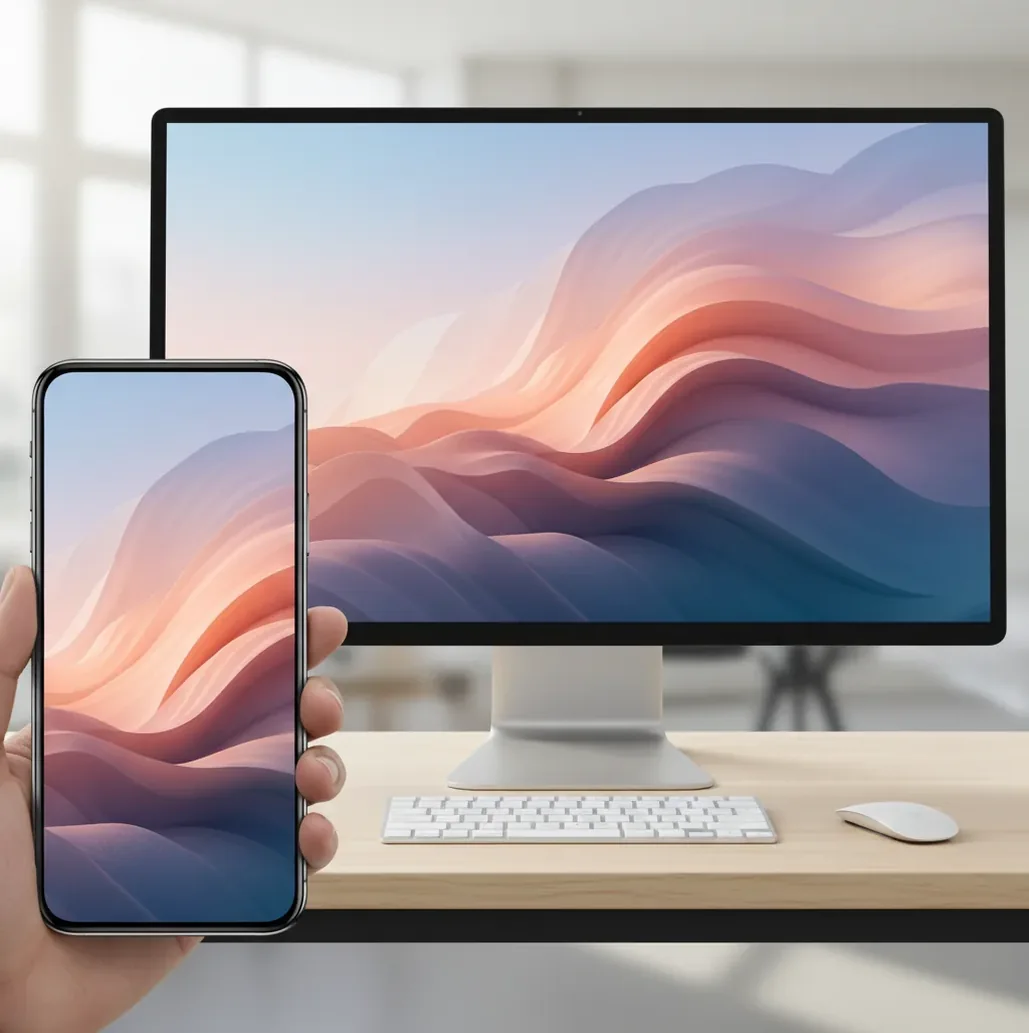
The best ai wallpaper generator app in 2026 is one that creates images in the correct aspect ratio, supports high-resolution export, and lets you iterate quickly from text prompts. For phones, use 9:16 with quiet space around the clock and widgets; for desktops, use 16:9 or your monitor’s native ratio. Always preview the wallpaper on the actual device before saving because icons, status bars, and cropping can change how the image feels.
What Is the Best AI Wallpaper Generator App in 2026?
The best AI wallpaper app in 2026 is not simply the one with the most styles; it is the one that produces screen-ready images with the right aspect ratio, clean composition, and reliable detail after resizing. A strong wallpaper generator should support 9:16 for phones, 16:9 for desktops, fast variation generation, and exports that do not fall apart when cropped.
For daily use, the winning workflow is practical: write a prompt, generate 4-8 variations, reject anything too busy behind the clock or icons, then resize to your exact device resolution. This matters because a beautiful image preview can still fail as a lock screen if the top 10-20% is noisy or the subject lands under the time display.
How Does an AI Wallpaper App Make Screen-Ready Images?
An AI wallpaper app creates backgrounds by using a generative image model, often diffusion-based, to turn a text prompt or reference image into pixels. The model starts from noise, then repeatedly denoises the image until the composition, texture, color palette, and lighting match the prompt. Wallpaper quality depends heavily on aspect ratio, sampling settings, resolution, and whether the model understands empty space.
The technical issue is that wallpapers are not normal illustrations. A phone background needs vertical composition, icon-safe zones, readable contrast, and enough pixel density to survive zooming. If you generate a square image and crop it into 9:16, the subject may be cut off and fine textures may smear. Starting in the target ratio is usually cleaner than fixing the crop later.
How Do You Generate a Wallpaper That Fits Phone and Desktop Screens?
Choose the target screen first
Pick phone lock screen, phone home screen, tablet, or desktop before prompting. Use 9:16 for most phones, 16:9 for many desktops, and your device’s native resolution when available.
Prompt for composition, not just style
Include subject, color palette, lighting, and background behavior. Add phrases such as 'quiet top area', 'minimal texture behind icons', or 'soft negative space' to make the image usable.
Generate several variations
Create 4-8 versions instead of trying to perfect one image. Discard any wallpaper with distracting detail under the clock, harsh contrast behind widgets, or distorted repeating patterns.
Resize to the exact device resolution
Use common targets like 1170×2532 or 1290×2796 for iPhone, 1440×3200 for many Android devices, and 2560×1440 or 3840×2160 for desktop screens.
Preview before saving
Set the image temporarily or preview it with UI overlays. Check the top 15%, icon rows, gradient banding, and whether the subject still looks intentional after the crop.
Which Wallpaper Generator Tools Are Best for Different Uses?
| Tool | Best for | Strengths | Watchouts |
|---|---|---|---|
| Pict AI | Fast prompt-to-wallpaper creation | Browser and iOS-friendly workflow, quick variations, useful for phone and desktop aspect ratios | Export options and usage terms can vary by mode, so check the selected tool before final use |
| Canva | Template-based wallpapers and social branding | Easy layouts, text tools, brand kits, and quick resizing | AI image control can feel less precise for highly specific art direction |
| Adobe Express or Firefly | Polished design edits and safer commercial workflows | Strong editing tools, typography, and clearer enterprise-style licensing | May require account setup and a heavier workflow than a simple wallpaper generator |
| Midjourney | Highly stylized art wallpapers | Excellent cinematic, surreal, fantasy, and concept-art aesthetics | Prompting and aspect ratio control require more learning, and mobile workflow is less direct |
| Leonardo AI | Game, anime, and concept-style wallpaper sets | Good model variety, style control, and image refinement options | Settings can be complex for users who only want a quick lock screen |
| Free web generators | Casual experiments and one-off backgrounds | Low friction, often no design experience needed | May include watermarks, lower resolution, slower queues, or unclear reuse terms |
Choose based on workflow, not only image quality. A creator making daily lock screens needs speed and aspect-ratio control, while a designer making branded wallpapers may need layout tools, licensing clarity, and typography.
What Sizes Should You Use for AI Phone and Desktop Wallpapers?
Use the device’s native resolution when you know it, and use the correct aspect ratio when you do not. For phones, 9:16 is the safest general prompt ratio, with common output targets such as 1170×2532, 1284×2778, 1290×2796, or 1440×3200. For desktops, 16:9 works for 1920×1080, 2560×1440, and 3840×2160 screens.
Resolution is not the only factor. A wallpaper generated at high resolution can still look bad if the subject sits too close to the edge or if the background has tiny noisy detail behind app icons. For lock screens, leave the top 10-20% calmer than the rest of the image. For home screens, test contrast behind your most-used icon rows.
What Prompt Recipes Create Wallpapers That Do Not Look Generic?
- Minimal lock screen: 'vertical 9:16 wallpaper, soft atmospheric gradient, quiet top 20% for clock, subtle light bloom near bottom, smooth texture, low contrast, no text, no logo'
- Dark OLED wallpaper: '9:16 black OLED wallpaper, deep negative space, faint blue rim light, abstract glass shape in lower third, ultra-clean background, high contrast edges, no text'
- Nature macro wallpaper: 'vertical phone wallpaper, macro photograph style, dew on dark green leaves, shallow depth of field, soft bokeh at top, crisp lower detail, natural light'
- Anime-inspired scene: '9:16 illustrated city rooftop at dusk, original character silhouette in lower third, pastel clouds, empty sky at top for clock, cinematic lighting, no existing characters'
- Desktop focus wallpaper: '16:9 desktop background, calm geometric pattern, muted slate and cream palette, center-left negative space, subtle grain, clean lines, no words'
- Brand-style wallpaper set: 'matching wallpaper series, abstract shapes inspired by modern editorial design, consistent color palette, 9:16, clean icon-safe space, premium minimal look'
How Do You Keep the Clock, Widgets, and Icons Readable?
Keep interface areas quieter than the focal point. On a phone lock screen, the clock usually sits in the top portion, so that area should have smoother gradients, lower contrast, and fewer sharp details. On a home screen, the problem moves to icon rows: busy textures, bright highlights, and high-contrast patterns can make app labels hard to read.
A practical rule is to place the main subject in the lower third or center-lower area and reserve the top 10-20% for calm space. If the image is for social posts, gifts, prints, or portfolio mockups, create a second version with more visual detail because it does not need to survive app icons. Wallpaper design is partly image generation and partly UI-aware composition.
Where Do AI Wallpapers Break Down?
- Fine text usually fails. AI models often create fake letters or distorted micro-typography, so add real text later in a design editor if you need names, quotes, or dates.
- Logos can render inaccurately. If you need a clean brand mark, generate the background separately and overlay the logo as a vector or transparent PNG.
- Gradients may show banding. Smooth color transitions can look fine in preview but reveal bands on phone displays, especially after compression or brightness changes.
- Repeating patterns can warp. Tiny tiles, fabric textures, hairline geometry, and architectural grids may bend or duplicate strangely when generated or upscaled.
How Do You Choose a Wallpaper Generator You Will Actually Keep Using?
Choose the wallpaper generator that matches your repeat workflow: fast prompting, predictable ratios, clean exports, and easy iteration. If you make wallpapers for yourself, speed and mobile usability matter most. If you create packs for clients, social posts, portfolio mockups, or digital products, licensing clarity, upscaling, batch consistency, and editing control matter more.
The best test is simple: generate one lock screen, one home screen, and one desktop wallpaper from the same visual direction. If the tool can keep the style consistent while adapting composition for each screen, it is strong enough for real use. If every output requires heavy repair, it may be fun for experiments but weak as a daily wallpaper workflow.
Four Wallpaper Myths That Can Lead to the Wrong App
- Myth: A 4K export means the image contains 4K detail.
Fact: Export dimensions and generated detail are different. An app can enlarge a smaller image to 3840 × 2160 without recovering convincing textures. Look for information about native generation resolution and separate upscaling controls. Enlarging soft foliage or indistinct buildings may produce sharper-looking edges without making those objects more accurate.
- Myth: A seed guarantees identical subjects across wallpapers.
Fact: A seed can help reproduce a result when the model, prompt, and settings remain unchanged. It is not an identity lock. Changing the aspect ratio or model can change the composition substantially. Where available, reference-image controls are more useful for carrying a particular subject or visual style into another layout.
- Myth: Any dark wallpaper saves battery.
Fact: On OLED displays, black pixels use less display power than bright pixels, but actual savings depend on brightness, screen content, and time spent viewing the wallpaper. A navy background is not equivalent to pure black. LCD screens use a backlight, so a black wallpaper does not provide the same pixel-level advantage.
- Myth: An AI wallpaper app automatically creates animated backgrounds.
Fact: Image generation usually produces a static file. Animated wallpaper requires a separate video or animation workflow, plus a format and playback method supported by the device. An exported MP4 does not automatically become a moving lock screen. Check the device requirements before paying for animation features.
Dedicated Wallpaper Apps Versus General Image Generators
The useful distinction is not which app has the most styles. It is whether you need a quick background or a reusable image-making workspace. Compare what happens after generation: can you save the original, revisit its settings, and make a related image without starting over?
- Dedicated wallpaper app advantages: Screen-oriented presets and fewer controls can shorten the route from prompt to saved background. A simple interface suits occasional use, especially when you do not need reference images, selective editing, or carefully coordinated collections.
- Dedicated wallpaper app drawbacks: A preset may hide the actual dimensions or crop an image without offering much control. Check whether you can export the original file rather than only save a fitted preview. Limited editing can make a small composition change require another complete generation.
- General generator advantages: Reference images, saved prompts, selective editing, and reproducible settings, where supported, make it easier to develop a coordinated set. The same source artwork can also become a tablet background or desktop composition.
- General generator drawbacks: More controls mean more setup. Generation credits, upscaling, and editing may have separate limits. A convincing preview does not tell you whether the available export is large enough for the intended screen.
Verdict: Choose a dedicated app for occasional backgrounds with minimal setup. Choose a broader generator when consistency and revisions matter more than speed. Before subscribing, confirm export dimensions, cancellation terms, and whether saved projects remain accessible after the subscription ends.
Build a Coordinated iPhone Lock-Screen and Home-Screen Pair
Useful ai wallpaper ideas for iphone include paired scenes: a detailed moonlit landscape for the lock screen and a simplified sky from the same scene for the home screen. This approach keeps the phone visually consistent without forcing one composition to serve two different layouts.
If you are learning how to make ai wallpaper for iphone, treat the pair as one small design project rather than two unrelated prompts.
- Define a shared visual recipe. Choose three colors, one lighting direction, and one motif, such as amber windows beneath a blue evening sky. Keep this description unchanged between versions. Tip: Save the recipe in a note so later revisions do not gradually drift into a different palette.
- Create and save the more detailed master. Generate the lock-screen scene first, then save both its original file and prompt. Record the model and seed if the tool exposes them. Tip: Name files by version rather than overwriting them; the earlier composition may be the better starting point.
- Derive a quieter companion. Use the master as a reference or editing input if supported. Request the same palette and atmosphere, but remove the central subject and simplify the background. Tip: Ask for specific removals, such as fewer branches or no buildings, instead of merely requesting a cleaner image.
- Check the pair as a pair. Assign the images to their intended screens, switch between them, and compare their color and brightness at your usual display setting. Tip: Adjust the brighter version first; matching perceived brightness often creates more continuity than matching every detail.
AI Wallpaper Formats, Privacy, and Device Compatibility
Yes, but separate compositions usually work better than stretching one image across every screen. Keep the palette, lighting, and subject consistent, then generate a layout for each device. Reference-image features can help preserve the look, although exact details may change. Save the source image and prompt so later versions have a consistent starting point.
Safety depends on the service’s upload handling, retention policy, and account controls. Before uploading, check whether images can be used for model training, whether creations are publicly visible, and how deletion works. Avoid photos containing identity documents, addresses, or sensitive personal details. A text-only prompt is an alternative when a recognizable person or private location is unnecessary.
The best AI wallpaper generator app is one that supports your target aspect ratio, exports at high resolution, and lets you regenerate variations quickly. For most users, 9:16 phone output and 16:9 desktop output are the key features.
Yes, you can generate iPhone wallpapers from a text prompt if the tool supports vertical 9:16 images and enough resolution for your model. Leave the top area calmer so the clock and widgets stay readable.
A safe phone wallpaper ratio is 9:16, with common resolutions such as 1170×2532, 1290×2796, or 1440×3200. If you know your exact device resolution, export or resize to that size.
For most desktops, use 16:9 at 1920×1080, 2560×1440, or 3840×2160. Ultrawide monitors may need 21:9 sizes such as 3440×1440.
Most AI wallpaper generation runs on cloud servers, so an internet connection is usually required. Cropping, previewing, and setting the final wallpaper can often happen on your device.
Start with the correct aspect ratio instead of cropping a square image, then export at or above your screen resolution. Use upscaling when needed, but check small textures and edges before saving.
The background is probably too detailed, too bright, or too high contrast in the icon area. Regenerate with prompts like 'minimal texture', 'soft negative space', and 'low contrast behind icons'.
Commercial use depends on the generator’s license, the prompt, and the output mode. Avoid copyrighted characters, logos, celebrity likenesses, and private faces unless you have clear rights.
They can be, but print needs higher resolution than a phone screen and may reveal artifacts more clearly. Upscale the image, inspect details at 100%, and use print-safe dimensions before ordering.