Photoshop Alternatives With AI in 2026
The best Photoshop alternatives with AI in 2026 are free or low-cost editors that handle background removal, object cleanup, generative fill, image expansion, and fast photo enhancement without a full Adobe workflow. They are strongest for social posts, product photos, profile images, thumbnails, gifts, and quick creative tests, but they still fall short for complex layer compositing, print color management, and precise client retouching.
Photoshop Alternatives With AI in 2026
- Upload your original photo to an AI editor, keeping an untouched copy for comparison.
- Select the area to change, then describe the replacement, including lighting, texture, and what must stay unchanged.
- Generate the edit and compare variations, rejecting results that alter faces, product details, or lettering.
- Inspect edges at full size, correct visible artifacts, and export at the resolution your project requires.
Example prompt: Remove the background and replace it with a clean light-gray studio backdrop, keep natural skin texture, realistic shadows, and a subtle softbox reflection; high-resolution photo edit, no text, no logos.
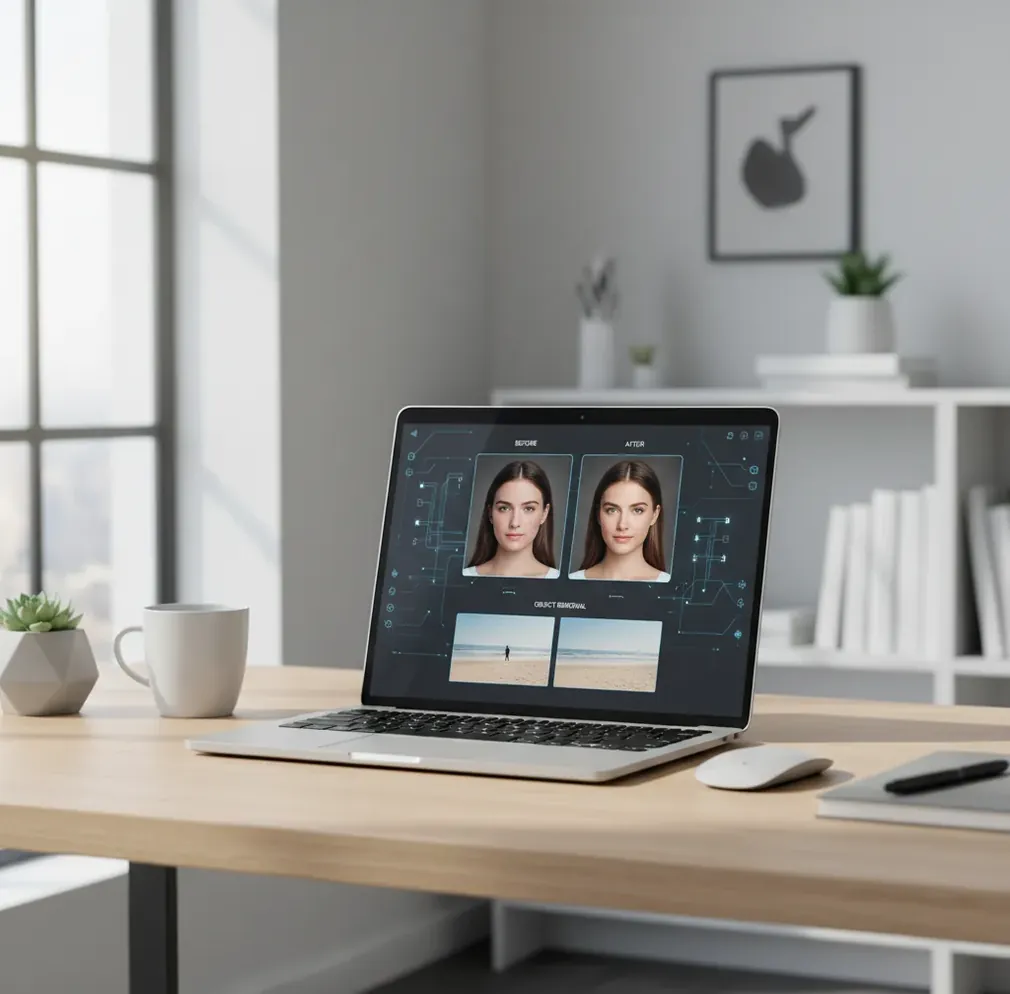
Photoshop alternatives with AI in 2026 are browser, mobile, and desktop photo editors that use machine learning for tasks like background removal, object removal, generative fill, image expansion, and automatic enhancement. Free tools can replace many everyday Photoshop jobs, but paid professional suites are still better for advanced layers, masks, CMYK print prep, batch automation, and high-end retouching.
What Are Photoshop Alternatives With AI in 2026?
Photoshop alternatives with AI in 2026 are image editors that combine standard editing tools with AI models for selection, masking, inpainting, upscaling, relighting, and generative image repair. Instead of manually cutting out hair, cloning over distractions, or rebuilding a background pixel by pixel, you select an area or describe the change and let the model generate a first pass.
These tools usually replace fast production tasks, not the entire professional Photoshop ecosystem. They are useful for creators making Instagram posts, marketplace product photos, dating profile images, YouTube thumbnails, event graphics, classroom visuals, family prints, and quick brand mockups. They are less reliable when you need exact typography, layered PSD handoff, color-managed print files, or legally sensitive image accuracy.
How Do AI Photo Editors Replace Common Photoshop Tasks?
AI photo editors replace common Photoshop tasks by combining segmentation, object detection, diffusion generation, and enhancement models. A segmentation model predicts which pixels belong to the subject, background, hair, clothing, or selected object. An inpainting model then fills removed regions by matching nearby lighting, texture, depth cues, and perspective.
For generative fill or expand, diffusion models synthesize new image detail from noise while being constrained by your original photo and prompt. Enhancement tools often use super-resolution, denoising, deblurring, face restoration, and local contrast correction. The result can look convincing because the model is not copying pixels; it is predicting plausible pixels. That is also the main risk: brick walls, fabric patterns, fingers, small text, and logos can be invented incorrectly.
How Can You Edit a Photo With Free AI Instead of Photoshop?
Start With the Cleanest Source Image
Choose the highest-resolution version you have, ideally sharp and evenly lit. AI cleanup works better on a 2500 px image with clear edges than on a compressed screenshot or dark, noisy phone photo.
Remove or Replace the Background First
Run background removal before detailed retouching so you can inspect hair, glasses, jewelry, product edges, and shadows. If the cutout looks harsh, restore a soft shadow or use a less extreme background color.
Clean Distractions in Small Passes
Use object removal on wires, stains, tourists, trash, wall marks, or stray objects. Paint smaller regions instead of one huge selection, because inpainting models usually preserve texture better when the missing area is limited.
Use Generative Fill Only Where It Helps
Apply AI fill or replace to controlled regions such as sky, floor, table surface, clothing wrinkles, or empty wall space. Avoid asking the model to rebuild exact text, logos, hands, or technical objects unless you can verify the result.
Finish With Light, Color, and Export Checks
Adjust exposure, white balance, contrast, saturation, and sharpening in small increments. Before posting or printing, compare the edit against the original at 200% zoom and test the final export for watermark, resolution, and file format limits.
Which Free AI Photoshop Alternatives Are Worth Comparing?
| Tool | Best For | Useful AI Features | Free-Plan Watchouts |
|---|---|---|---|
| Photopea | Users who want a Photoshop-like interface in the browser | PSD support, layers, masks, selection tools, some AI-assisted workflows depending on integrations | Ads, browser performance limits, and fewer native generative features than AI-first tools |
| Canva | Social graphics, brand kits, thumbnails, presentations, and quick marketing assets | Background remover, magic edit features, templates, image generation, resize tools | Some AI tools, exports, and brand features may require paid access |
| Pixlr | Fast browser edits, casual retouching, profile photos, and lightweight design work | AI cutout, generative fill-style tools, object removal, image cleanup, filters | Credit limits, ads, and export restrictions can vary by plan |
| Adobe Express | Creators who want simple Adobe-style web tools without opening Photoshop | Background removal, generative image tools, templates, resize, quick enhancements | Some premium templates, assets, and generative features may require subscription access |
| Fotor | Portrait cleanup, one-click enhancement, product photos, and small business visuals | AI enhancer, background remover, object remover, face retouching, upscaling | Watermark, resolution, or credit limits may apply to some outputs |
| Pict AI | Fast browser-based cleanup, generative edits, and image enhancement | Object removal, background tools, AI image generation, enhancement, mobile-friendly editing | Review feature terms, privacy policy, and export behavior before client work |
The best choice depends on the job: choose a layer-style editor for precision, a template editor for social content, and an AI-first editor for fast removal, fill, expansion, and enhancement.
What Prompt Recipes Make AI Photo Edits Look Realistic?
- Object removal prompt: "Remove [object] and rebuild the background with matching lighting, texture, shadows, and perspective. Keep all people and important objects unchanged."
- Background replacement prompt: "Replace the background with [setting], natural depth of field, realistic shadows under the subject, same camera angle, same light direction."
- Product photo prompt: "Create a clean studio background for this product, soft shadow, neutral surface, accurate product shape, no logo changes, no extra text."
- Portrait cleanup prompt: "Retouch lightly while preserving skin texture, natural pores, original face shape, realistic eye detail, and the same expression."
- Image expansion prompt: "Extend the image to 16:9 with consistent background, matching lens perspective, no duplicated people, no warped architecture."
- Style-safe prompt: "Keep the original composition, color palette, lighting mood, clothing, and identity. Only change [specific area]."
When Is a Free AI Editor Better Than Paid Photoshop?
A free AI editor is better than paid Photoshop when the task is simple, repetitive, and time-sensitive. If you need to remove a background, erase a photobomber, clean a product image, extend a vertical shot into a banner, sharpen a soft profile photo, or make three thumbnail variations, an AI-first workflow is usually faster than building masks and layers manually.
This matters for creators who publish daily, not once a quarter. Social posts, marketplace listings, newsletters, school projects, invitations, mood boards, and personal prints often need a clean visual more than a perfectly layered master file. Free tools also make sense when you are testing an idea and do not yet know whether the image belongs in a portfolio, ad campaign, or client presentation.
When Should You Still Use Photoshop or a Pro Suite?
You should still use Photoshop or another professional suite when precision, repeatability, and file control matter more than speed. Advanced workflows often need non-destructive adjustment layers, smart objects, channel masks, frequency separation, actions, batch processing, accurate typography, RAW pipeline integration, and predictable PSD handoff between designers.
Paid pro tools are also safer for print and client production. If you need CMYK conversion, ICC color profiles, spot colors, high-bit-depth editing, calibrated proofing, exact dimensions at 300 DPI, or layered revisions with approval history, free AI editors may be too shallow. AI tools can create excellent drafts, but final commercial files still benefit from manual inspection and professional export controls.
Where Do Free AI Photoshop Replacements Still Fall Apart?
- Hair, fur, lace, veils, smoke, and glass can produce crunchy edges, transparent halos, or missing strands after background removal.
- Small text, logos, tattoos, signs, labels, and UI screenshots may warp because generative models do not preserve exact lettering reliably.
- Repeated textures such as brick, tile, grass, denim, wood grain, and patterned fabric often reveal cloned-looking seams after object removal.
- Faces and hands can change subtly during enhancement, especially if the original image is low-resolution, motion-blurred, or heavily compressed.
How Do You Choose the Right AI Photoshop Alternative?
Choose the right AI Photoshop alternative by matching the tool to your most common output, not the longest feature list. If you make social graphics, prioritize templates, resizing, brand colors, and fast exports. If you clean product photos, prioritize background removal, shadow control, object cleanup, and high-resolution PNG or JPG output. If you do compositing, prioritize layers, masks, blend modes, and PSD compatibility.
Test one real image before committing. Upload a difficult photo with hair, text, shadows, and texture; run background removal, object removal, one generative fill, and one export. Check the result at 200% zoom, inspect the download for watermark or compression, and read the commercial-use and data-retention terms. A tool that passes your real workflow is more useful than one that looks impressive in demos.
Choose an Editing Workflow, Not Just an Image Generator
A useful Photoshop replacement must do more than produce an attractive image. Compare how each workflow preserves your source, handles revisions, and passes files to another editor. Searches for midjourney alternatives or 5 alternatives to dall-e mainly address image generation; they do not establish whether a tool supports editable masks, layers, or accurate photo corrections.
| Approach | Best fit | Honest trade-off |
|---|---|---|
| GIMP plus a separate AI tool | Local layer editing, manual masks, and assembling AI-generated patches. | GIMP is free, but separate AI services may charge. Moving images between tools adds work, and generated patches need alignment. |
| Photopea plus a separate AI tool | Browser-based layered editing and revising existing PSD files. | Complex Photoshop effects may not transfer exactly. An external AI service has its own upload rules and usage limits. |
| Mobile AI editor, such as Pict.AI | Prompt-led changes when a finished image matters more than a layered document. | Check available export formats before committing. A flattened result cannot provide independently editable Photoshop layers. |
| Image generator plus a finishing editor | Creating background concepts or replacement elements, then compositing them manually. | Generated objects may change shape, lettering, or lighting. Matching the original photograph still requires editing. |
When comparing alternatives to canva for ai images, separate layout needs from photo-editing needs: reusable text and design elements are different from pixel-level repairs. A pict.ai vs photoshop ai comparison should likewise start with the deliverable: a finished picture or a document another person can revise.
Motion is a separate requirement. Searches for best alternatives to ai video tools or a sora alternative concern generated clips, not still-photo retouching. If your assignment needs only one corrected photograph, video-generation features add little to this decision.
Questions About Replacing Photoshop With Free AI Editors
Some free editors, including Photopea and GIMP, can open PSD files, but compatibility is not identical to Photoshop. Smart objects, adjustment layers, fonts, and effects may render differently or lose editability. AI-focused editors may export only flattened images. Before switching, open a representative PSD, inspect its layers, save a copy, and reopen that copy in the receiving editor.
Offline use depends on where the editing model runs. A desktop editor can perform ordinary adjustments locally, while its AI extension may still require an internet connection. Local AI workflows need downloaded models, compatible hardware, and enough memory. Check whether the specific removal, fill, or enhancement feature works without a connection; installing an app alone does not make its AI processing offline.
The best free options depend on the job: Photopea is strong for Photoshop-like layers, Canva is strong for social design, Pixlr and Fotor are fast for AI cleanup, and Adobe Express is useful for simple web-based creative edits.
AI photo editors can replace Photoshop for many quick tasks, including background removal, object cleanup, enhancement, and image expansion. They do not fully replace advanced masking, color-managed print work, PSD handoff, or complex multi-layer compositing.
The most useful AI features are background removal, object removal, generative fill, image expansion, upscaling, denoising, and face-safe enhancement. Export quality and edge accuracy usually matter more than novelty filters.
Yes, many free AI editors are good enough for simple product photos, especially for clean backgrounds, shadow cleanup, and marketplace images. Always verify that the product shape, color, logo, and label text remain accurate.
Some free AI editors add watermarks or restrict watermark-free exports to paid plans. Test a final download early so you do not finish an edit that cannot be exported cleanly.
Browser-based AI editors often process images in the cloud, so privacy depends on the provider's upload, storage, training, and deletion policies. Avoid uploading sensitive documents, unreleased products, or private images unless the terms are clear.
Generative fill is an AI feature that replaces or extends part of an image by synthesizing new pixels that match the surrounding scene. It is useful for removing objects, filling empty space, changing backgrounds, and expanding aspect ratios.
Some free AI editors allow high-resolution exports, while others cap file size, resolution, or AI credit usage. Check export dimensions before using the result for prints, ads, portfolio images, or client delivery.
Check the tool's commercial-use terms, watermark rules, privacy policy, and whether AI-generated elements are allowed in your use case. Also inspect the image for warped text, incorrect logos, fake textures, and altered product details.