What App to Edit Photos on iPhone in 2026?
A good app to edit photos on iPhone in 2026 should handle crop, exposure, color, cleanup, background removal, and high-quality export without making the image look overprocessed. The best choice depends on whether you need fast AI fixes, social templates, or manual photo controls.
What App to Edit Photos on iPhone in 2026?
- Upload an iPhone photo from your library, choosing the original image rather than a screenshot.
- Choose a cleanup or background tool, or describe the specific change while identifying details to preserve.
- Generate the edit, then compare it with the original for altered faces, text, colors, and edges.
- Review the saved dimensions and export a separate copy, keeping your original available for future edits.
Example prompt: Edit my photo for a clean iPhone look: remove background clutter, correct warm indoor lighting to neutral, slightly lift shadows, keep skin tones natural, add mild sharpening, export high quality.
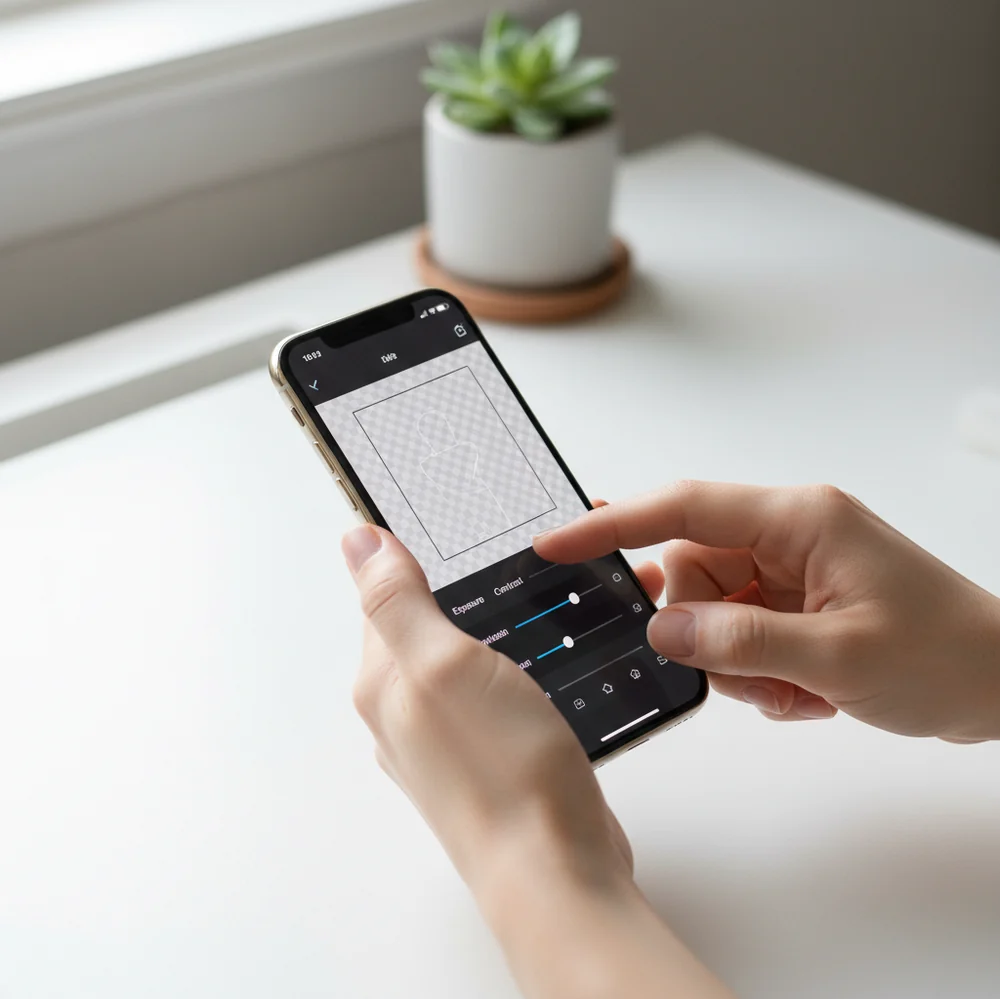
The best app to edit photos on iPhone in 2026 is one that combines basic photo controls with AI cleanup, subject masking, background removal, and clean export settings. Pict AI, Canva, Adobe Photoshop Express, Lightroom Mobile, and Snapseed are all strong options, but the right pick depends on whether you want quick object removal, design layouts, or more precise manual editing.
What is the best free app to edit photos on iPhone in 2026?
The best free iPhone photo editor in 2026 is usually the one that matches your edit type: AI cleanup, background changes, social design, or manual color correction. For everyday phone edits, look for object removal, subject cutouts, exposure correction, skin-tone-safe filters, and exports that do not heavily compress the image.
Pict AI is a practical choice for fast AI edits like background removal, cleanup, and simple style changes. Canva is better when the photo will become a social post, flyer, thumbnail, or branded layout. Adobe Photoshop Express, Lightroom Mobile, and Snapseed are stronger when you want more control over contrast, highlights, shadows, noise reduction, and selective adjustments.
What should a free iPhone photo editor include in 2026?
A free iPhone photo editor should include cropping, straightening, exposure, contrast, highlights, shadows, white balance, saturation, sharpening, and export controls. In 2026, the stronger apps also include AI segmentation for background removal, inpainting for object cleanup, portrait retouching, automatic sky or subject detection, and preset filters that can be adjusted instead of applied at full strength.
The most important detail is export quality. A useful free editor should let you save a clean JPEG or PNG without obvious watermarks, extreme downsizing, or muddy compression. If you edit photos for prints, Marketplace listings, profile images, portfolio posts, or brand content, check whether the app preserves resolution, metadata, and edge detail before relying on it for a full batch.
How do AI photo editing apps work on iPhone?
AI photo editing apps on iPhone usually use segmentation, detection, and inpainting models. Segmentation predicts a pixel mask around a subject, which lets the app separate a person, product, pet, or object from the background. Detection identifies areas like faces, eyes, skies, text, or unwanted objects. Inpainting fills in missing pixels after something is removed.
These models work best when the image has clear edges, good light, and predictable backgrounds such as sky, walls, fabric, or blurred greenery. They struggle more with hair, fur, glass, fences, reflections, motion blur, and repeated geometry like bricks or tiles. That is why AI edits often look convincing at phone size but still need a zoom check before posting, printing, or using the image professionally.
How do you edit an iPhone photo without making it look overdone?
Duplicate the original
Save a copy in the Photos app before editing. This keeps the original file safe and makes it easy to compare the edit against the real capture.
Crop and straighten first
Fix framing, horizon lines, and distracting edges before touching color. A clean crop often improves the photo more than a heavy filter.
Correct light and white balance
Adjust exposure, highlights, shadows, and temperature before adding style. Aim for natural whites and believable skin tones, especially in indoor iPhone photos.
Use AI cleanup selectively
Remove only the objects that distract from the subject, such as trash cans, wires, people in the background, or clutter on a desk. Zoom in after cleanup to check texture and edge artifacts.
Apply filters at low strength
Use presets as a starting point, not the final look. Reducing filter strength to 20-50% usually keeps skies, skin, food, and product colors more realistic.
Export once at high quality
Choose the highest practical resolution and avoid re-saving the same image repeatedly. Multiple exports can add compression, soften detail, and create color banding.
Which iPhone photo editor should you choose for cleanup, design, or manual controls?
| App | Best for | Free strengths | Watch out for |
|---|---|---|---|
| Pict AI | Fast AI cleanup, background removal, and simple visual edits | Quick object removal, subject cutouts, filters, and phone-first exports | Check edge quality around hair, fingers, glass, and detailed backgrounds |
| Canva | Social posts, thumbnails, stories, flyers, and branded layouts | Templates, text tools, resizing, stickers, and easy design sharing | Some templates, stock assets, and background tools may require paid access |
| Adobe Photoshop Express | Retouching, corrections, and stronger manual photo controls | Exposure tools, healing, blur, collage, and Adobe-style adjustments | Some features require an Adobe account or premium upgrade |
| Lightroom Mobile | Color grading, RAW-style adjustments, and consistent presets | Excellent light, color, curve, and detail controls for serious edits | Advanced masking, cloud features, or premium presets may be restricted |
| Snapseed | Free manual editing with selective adjustments | Curves, healing, perspective, details, brush tools, and no-frills editing | Interface feels less AI-native and may require more manual work |
For quick personal photos, choose an AI-first editor. For Instagram carousels, business posts, or thumbnails, choose a design-first app. For portfolios, prints, product shots, or color-critical edits, choose an editor with stronger manual controls.
What prompt recipes help create better iPhone photo edits?
Prompt-style editing works best when you describe the subject, the desired fix, and the visual constraint. Keep prompts specific and conservative: ask for natural lighting, realistic texture, clean edges, and no change to the main subject. This is especially useful for AI background swaps, object removal, product photos, profile pictures, and gift prints.
Cleanup prompt: “Remove the object on the left side of the photo and reconstruct the background naturally. Keep the person, lighting, shadows, and camera perspective unchanged.” Background prompt: “Replace the messy indoor background with a soft neutral studio backdrop. Keep realistic hair edges, natural skin tone, and the original subject shape.” Product prompt: “Create a clean white background for this item, preserve accurate color, keep the shadow subtle, and do not change the product design or text.”
What real-life iPhone edits are people doing in 2026?
Most iPhone photo edits in 2026 are practical, not dramatic. People remove strangers from travel photos, clean up kitchen or desk clutter, fix yellow indoor lighting, brighten faces in backlit shots, crop profile photos, sharpen low-light images, and create clean product photos for resale listings. These edits are small, but they make a photo feel intentional.
Creators also use iPhone editors for emotional and social utility: birthday posts, dating app photos, family prints, pet portraits, business headshots, portfolio refreshes, and consistent brand visuals. The goal is usually not to make the image look “AI-generated.” The goal is to keep the real moment while removing distractions that make the photo feel rushed, messy, or less shareable.
Where do free iPhone photo editors still fail?
- Hair, fur, smoke, lace, and transparent objects can produce jagged masks because the AI has to guess semi-transparent edges at the pixel level.
- Object removal can create warped bricks, bent window frames, broken tile lines, or repeated textures when the background has strict geometry.
- Low-light iPhone photos may show noise, waxy skin, or smeared detail after aggressive denoise and sharpening.
- Heavy filters can crush shadows, clip highlights, oversaturate reds and oranges, and make skin tones look artificial.
Related Pict.AI guides you’ll actually use next
Match the iPhone editing workflow to the image you need
Before choosing an editor, decide whether you need to preserve a photograph, combine existing images, or generate something new. Those tasks require different controls, and a convincing preview does not guarantee a useful saved file.
- If you want conversational edits: If you are asking “can chatgpt edit photos,” use an image-enabled chat to upload a picture and describe one change at a time. Ask it to preserve untouched areas, then compare faces, lettering, and small details with the original; generative edits can alter more than requested.
- If you want an AI portrait: When learning how to make ai photos of yourself, start with clear reference pictures and specify the setting, clothing, and framing. Choose an ai image generator for iphone that accepts reference images. A generated likeness is not a faithful record, so avoid using it where an authentic photograph is required.
- If you want a composite: Learning how to merge two photos into one with ai starts with choosing the right method. For a collage that preserves both photographs, use a layout editor. For a blended scene, match perspective and lighting first, then check whether generation has changed either subject.
- If you sell physical products: An app to help edit product photos should preserve labels, proportions, colors, and included accessories. Prefer masking and background replacement over full-image regeneration. Compare the result with the actual item so the listing does not imply a different finish or condition.
- If the photograph belongs to someone else: Before asking “is it legal to edit someone elses photo with ai,” identify who owns the image and how you plan to use it. Copyright, privacy, publicity rights, and platform rules may apply. Permission from the person pictured does not necessarily grant permission from the photographer.
Questions about editing photos on iPhone
Many third-party editors import only the still frame from a Live Photo and export a static image. Apple Photos supports adjustments while retaining Live Photo playback, although compatibility can change when you share or export. If motion matters, keep the original Live Photo and check the saved result in Photos before deleting anything. A JPEG or PNG will not retain the moving portion.
Yes. iOS lets you limit an app’s access to selected photos, and some editors use the system photo picker without requesting broad library access. Choose only the pictures needed for the edit. If an app cannot see a newly selected image, update its photo permissions in Settings. Limited library access does not prevent an editor from uploading a selected image for cloud processing.
The best app depends on the job: AI-first apps are best for cleanup and backgrounds, design apps are best for social posts, and manual editors are best for color, detail, and print-ready work.
Yes, many iPhone editors allow basic edits and standard exports without a watermark. Watermarks are more common on premium templates, paid effects, stock assets, or certain AI features.
The easiest method is to use an AI background remover that creates an automatic subject mask. After removal, zoom in around hair, fingers, glasses, and product edges to fix rough cutouts.
They can reduce quality if they downsize the image, compress the export, or apply strong denoise and sharpening. Use the highest available export setting and avoid repeatedly saving the same file.
Apple Photos is good for quick crops, exposure, color, and simple adjustments. A separate editing app is better for object removal, background replacement, design templates, selective retouching, and AI effects.
Yes, some iPhone models can capture ProRAW, and apps such as Lightroom Mobile and other advanced editors can adjust RAW-style files. RAW editing gives more control over highlights, shadows, color, and noise.
Export at the highest resolution available, avoid extreme sharpening, and check the image at 100% zoom before printing. For important prints, order a small test print first to check color, contrast, and detail.
Safety depends on the app’s privacy policy, cloud processing, storage settings, and account permissions. Avoid uploading sensitive personal images unless you understand how the app handles and stores files.