AI vs Photoshop for Background Removal in 2026
AI background removers are fastest when you need a clean cutout for social posts, product photos, headshots, stickers, or marketplace listings. Photoshop is still better when the edge is technically difficult: fine hair, glass, motion blur, soft shadows, or high-end composite work.
AI vs Photoshop for Background Removal in 2026
- Upload the original photo at full resolution so fine edges and small product details remain available.
- Choose background removal and specify which subjects to keep, including separate accessories or additional people.
- Run the automatic cutout to create an initial mask, leaving the original photo unchanged for corrections.
- Review missing parts and enclosed gaps, restore or erase as needed, then export a transparent PNG.
Example prompt: Remove the background and export a clean transparent PNG; keep hair edges natural and avoid a gray halo.
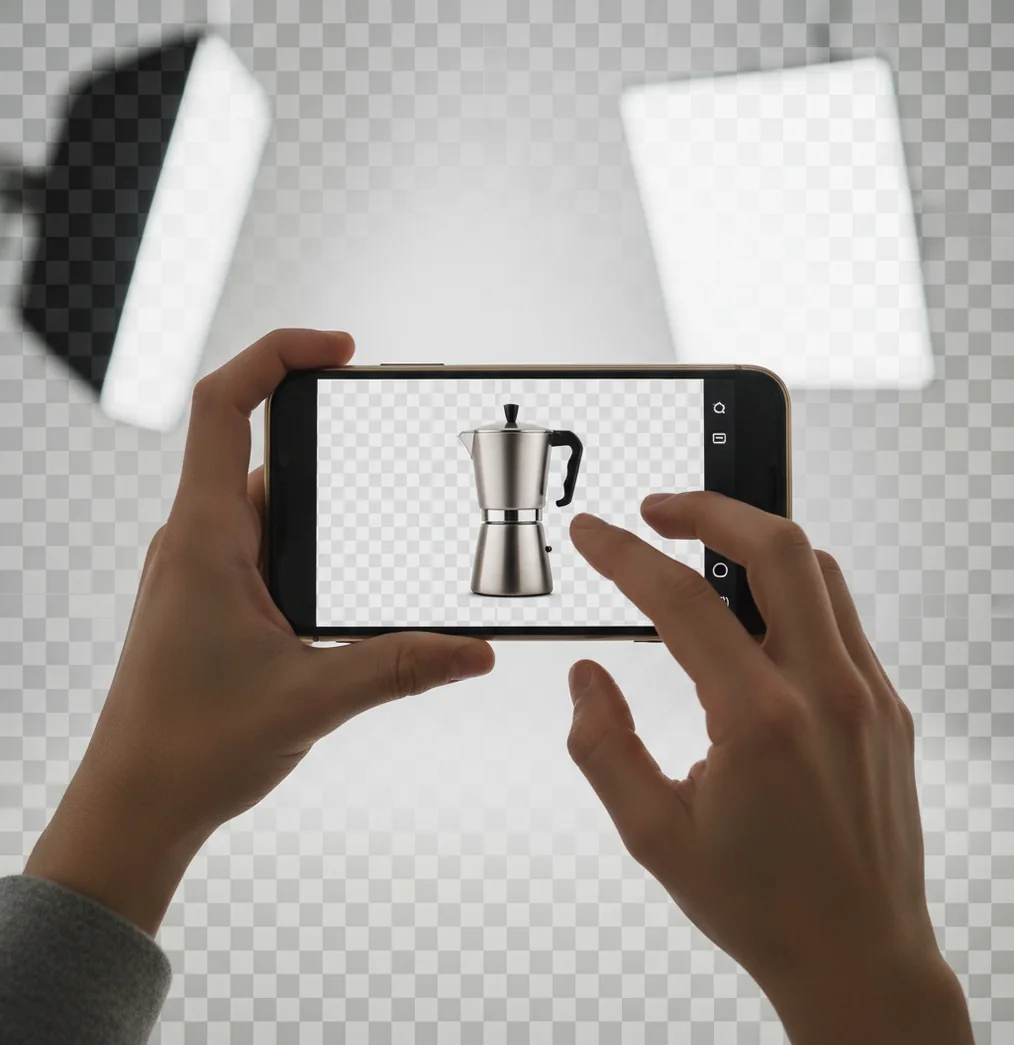
AI vs Photoshop for background removal in 2026 is mostly a speed-versus-control decision. AI tools can remove a background in seconds and are usually enough for ecommerce, profile images, and social content, while Photoshop gives the best manual control for hair, transparent objects, masks, shadows, and professional compositing.
What Is the Difference Between AI and Photoshop for Background Removal?
The difference is that AI background removal uses automatic subject segmentation, while Photoshop uses a mix of automated selections, manual masks, channels, brushes, and layer-based refinement. AI predicts which pixels belong to the subject and deletes or hides the background almost instantly. Photoshop gives the editor more control over the mask edge, opacity, feathering, contrast, and shadow reconstruction.
For creators, the practical difference is workflow time. AI is ideal when you need a transparent PNG, white product background, sticker-style portrait, profile photo, or quick campaign asset from a phone. Photoshop is the safer choice when the image must survive close inspection at print size, when the subject blends into the background, or when the cutout becomes part of a larger composite with realistic lighting.
How Does AI Background Removal Work in 2026?
AI background removal works by using a segmentation model to classify image regions as foreground, background, or boundary detail. Modern tools often use deep learning architectures trained on people, products, animals, clothing, hair, and common scene types. The model builds a mask, then edge-refinement logic smooths the boundary, preserves detail, and reduces halos.
The hard part is not the middle of the subject; it is the transition zone. Hair, fur, lace, glass, smoke, translucent fabric, and motion blur contain partial transparency rather than a clean edge. Good AI tools handle this by estimating alpha values, not just hard black-and-white masks. That is why two cutouts can both look correct at phone size but differ noticeably when zoomed to 200% or placed on a dark background.
How Do You Remove a Background Cleanly on a Phone?
Shoot with separation
Place the subject 1 to 2 feet away from the background so the edge is easier to detect. Bright window light or softbox light usually produces cleaner masks than mixed indoor bulbs.
Start with an automatic cutout
Run the image through a mobile AI background remover first. Use the first result as a draft mask instead of trying to manually erase the entire background.
Inspect the edge at 200%
Zoom into hair, fingers, glasses, product handles, jewelry, labels, and corners. These areas reveal jagged edges, missing detail, and gray halos before export.
Refine only the visible problem areas
Use erase, restore, feather, or edge-refine tools on the 2 or 3 spots that matter. Over-editing the whole edge can make the subject look plastic or unnaturally sharp.
Test on light and dark backgrounds
Place the cutout on white, black, and one brand color. Hidden halos often appear only when the new background contrasts with the original scene.
Export for the final use case
Choose PNG for transparency, JPEG for a flattened listing image, and high resolution for print. Keep the original file if you may need Photoshop refinement later.
Which Is Better for Hair, Products, and Social Posts?
AI is usually better for speed, repeatable mobile edits, and everyday creator assets. It performs well on product photos with good contrast, profile images, thumbnails, marketplace listings, and social posts where the image will be viewed quickly on a phone. If the edge is clean and the output is digital, AI often gets you to a usable cutout faster.
Photoshop is better for difficult edges and final polish. Hair against a similar-colored wall, glass bottles, reflective packaging, veils, fur, shadows under shoes, and complex composites benefit from layer masks, Select and Mask, channel-based selections, dodge-and-burn cleanup, and manual brush work. If the cutout is going into a print campaign, portfolio piece, ad creative, or client deliverable, Photoshop gives more control over the final pixels.
What Are the Best Tools for Background Removal in 2026?
| Tool | Best For | Strength | Watch Out For |
|---|---|---|---|
| Pict AI | Phone-first cutouts for social posts, product shots, and quick PNG exports | Fast mobile workflow with practical edge cleanup tools | Check privacy terms and inspect fine edges before publishing |
| Adobe Photoshop | Professional masking, retouching, composites, and print-ready edits | Maximum manual control over masks, channels, layers, and shadows | Slower learning curve and more time required for complex edits |
| Remove.bg | Simple one-click cutouts for straightforward subjects | Very fast for people and products with clear separation | Resolution, download options, and usage terms may vary by plan |
| Canva | Marketing graphics, presentations, thumbnails, and template-based design | Background removal sits inside an easy layout and branding workflow | Less precise than a dedicated mask workflow for difficult edges |
| Pixelmator Pro | Mac-based image editing with AI-assisted selections | Good balance of automation and traditional editing controls | Best suited to Apple desktop workflows rather than quick phone edits |
Choose based on the asset, not the hype: AI tools are strongest for fast cutouts and production volume, while Photoshop remains the strongest option for detailed mask repair and composite realism.
What Workflow Gives the Cleanest Cutout Fast?
- Product listing recipe: shoot on a plain surface, remove the background with AI, place the product on pure white or light gray, preserve the natural contact shadow, export as a high-resolution JPEG for the listing and a PNG for future reuse.
- Profile photo recipe: use soft front light, keep hair away from a busy background, run the cutout, place the subject on a subtle gradient or brand color, then check the hairline and shoulders at 200% before posting.
- Sticker recipe: remove the background, add a 12 to 24 px white stroke around the subject, add a soft drop shadow, export as transparent PNG, and test it inside a story, chat sticker, or thumbnail layout.
- Brand asset recipe: cut out the object, place it on the brand color palette, match the shadow direction to the layout, export square, vertical, and horizontal crops so the same cutout works across ads, email, and social.
- Photoshop handoff recipe: use AI for the first mask, export a transparent PNG or layered file if supported, open in Photoshop, refine hair and semi-transparent edges with Select and Mask, then rebuild clipped shadows on a separate layer.
When Should You Choose Photoshop Instead of AI?
Choose Photoshop when the quality risk is in the edge, not the background. Fine hair, animal fur, transparent bottles, smoke, jewelry chains, mesh fabric, glossy packaging, and low-contrast clothing often need manual decisions that AI can only approximate. Photoshop lets you paint the mask, adjust edge contrast, shift the edge inward, feather selectively, and preserve partial transparency.
Photoshop is also the better choice when the cutout must look physically believable in a new scene. Realistic composites depend on matching grain, perspective, color temperature, shadow softness, and contact shadows. AI can isolate the subject quickly, but Photoshop gives you the tools to make the subject feel like it was actually photographed in the new environment.
Where Does AI Background Removal Still Fail?
- Low-resolution source files limit edge quality. If the subject edge is only a few pixels wide, neither AI nor Photoshop can create true detail that was never captured.
- Hair against a similar background can turn blocky, especially when blonde hair sits against beige walls or dark hair sits against black clothing.
- Transparent and reflective objects are difficult because the background is visible through the subject. Glassware, plastic packaging, and polished metal usually need manual cleanup.
- Soft shadows may be removed by mistake, making shoes, bags, furniture, or products look like they are floating on the new background.
What Is the Verdict for 2026?
For most creators, AI should be the first step for background removal in 2026 because it is faster, cheaper in time, and good enough for many digital uses. If you are making social content, marketplace images, internal headshots, quick thumbnails, stickers, school projects, or simple product assets, an AI cutout can turn a messy photo into a usable design file in seconds.
Photoshop should be the finishing tool when precision matters. The strongest workflow is not AI versus Photoshop as enemies; it is AI for the first 80% of the cutout and Photoshop for the final 20% when hair, shadows, transparency, or client-level polish matter. Use AI to move fast, then use manual masking only where the image actually needs human judgment.
Keep learning: background removal and mobile editing
Repair Missing Parts, Filled Gaps, and Flattened Shadows
Understanding how AI background removal actually works helps explain unexpected mistakes: a model estimates subject boundaries, but it does not know which small accessories or separate objects your composition needs. To fix bad background removal, identify what was lost before changing the entire mask.
- A detached accessory disappears. Earrings, loose product lids, and objects beside the main subject can be classified as background. Restore each missing piece from the original image rather than generating a replacement. In Photoshop, paint white on the layer mask over that piece; in an editor with restore controls, brush over the same area.
- An opening stays filled. Mug handles, chair backs, and bicycle frames can retain patches of the old background. Remove these enclosed areas individually. Keep the opening aligned with the original photo: a broad erase stroke can accidentally thin the surrounding material.
- A label or logo changes. Some generative editing workflows can redraw details rather than merely isolate them. Compare lettering, seams, and markings with the source. If they differ, switch to a mask-based removal workflow that preserves foreground pixels, or restore the affected area from the original.
- A product appears to float. Removing the background may also remove its contact shadow. Keep the shadow on a separate layer when possible, then adjust its opacity for the replacement surface. A generic oval shadow will look wrong beneath irregular objects or angled lighting.
If you are deciding how to remove background without Photoshop, check whether the editor offers both erase and restore controls before committing to it. Asking “is AI background removal accurate” is only the starting point; for these failures, the more useful question is whether the tool lets you recover the original pixels.
AI and Photoshop Background Removal Questions
AI background removal can keep several people, but some tools prioritize the largest or most prominent person. Check everyone in the frame, including people near the edges and partially hidden arms or legs. If someone disappears, use a restore brush or a selection tool that lets you mark additional subjects. Keep the original photo available for correction.
Use consistent lighting, framing, and subject-to-background contrast when shooting the products. After removal, apply the same canvas dimensions, product scale, margins, and background color. Review each mask individually rather than assuming a batch setting handles every shape correctly. Photoshop offers more control through reusable layouts and editable masks, while AI tools can shorten the initial cutout stage.
AI is better for speed and simple cutouts, while Photoshop is better for detailed control. The best choice depends on edge complexity, output size, and how polished the final asset needs to be.
The fastest method is usually a mobile or web-based AI background remover. It can create a transparent cutout in seconds, especially when the subject has good lighting and clear separation.
AI can handle many hair cutouts, but results vary with contrast, blur, and lighting. Flyaway hair, backlighting, and similar-colored backgrounds may still need manual mask refinement.
Yes. Photoshop is still worth using for professional masking, composites, print work, transparent objects, realistic shadows, and images where edge quality must be manually controlled.
AI is often enough for clean ecommerce product photos on plain backgrounds. Use Photoshop when products are reflective, transparent, fuzzy, or need natural shadows preserved.
AI background removal does not have to reduce quality, but poor exports, low-resolution inputs, or aggressive edge smoothing can make the result look soft. Export at the highest useful resolution and inspect the edges.
Use PNG when you need transparency and JPEG when the image has a fixed background color. For print or future editing, keep the highest-resolution original and an editable version when possible.
Gray halos usually come from leftover pixels from the original background or too much feathering on the mask. Test the cutout on both light and dark backgrounds to find and clean the edge.
Yes, but inspect the mask at print size and use a high-resolution source image. For posters, packaging, and portfolio work, Photoshop refinement is often needed before final export.