Professional LinkedIn Photo Background Guide
A professional LinkedIn photo background is clean, neutral, evenly lit, and low-distraction so your face stays the focus. The safest options are light gray, off-white, soft beige, or a subtle real-office blur that matches the lighting on your face. You can create one with a plain wall, phone lighting, or an AI background editor if the edit stays realistic.
Professional LinkedIn Photo Background Guide
- Upload a sharp portrait with your full hairline and shoulders visible, leaving room for a square crop.
- Choose a replacement backdrop or describe its color and lighting, requesting that your face and clothing remain unchanged.
- Generate the background edit, then compare the result with your original portrait for unintended changes.
- Review hair and glasses edges, preview the circular crop, and export the finished LinkedIn profile photo.
Example prompt: Create a LinkedIn headshot background: neutral light gray, soft window light from left, subtle vignette, natural skin texture, no heavy blur, clean edges around hair and shoulders.
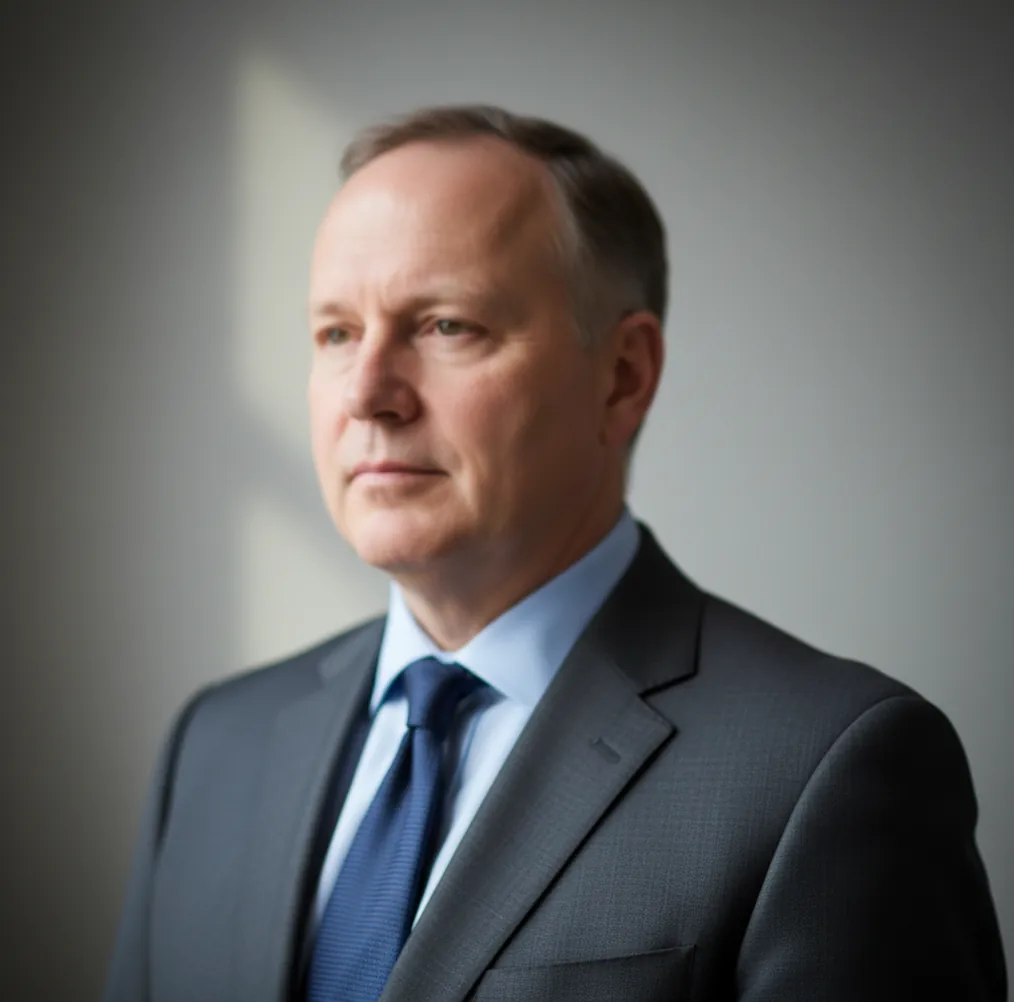
A professional LinkedIn photo background should be simple, neutral, and evenly lit, with no clutter, bright objects, or fake-looking cutout edges. Light gray, off-white, soft beige, and gentle office blur are the most reliable choices because they keep attention on your face. For a phone photo, use window light, stand a few feet from the wall, clean up distractions, and crop your head and shoulders to fill about 60-70% of the frame.
What Is a Professional LinkedIn Photo Background?
A professional LinkedIn photo background is a clean, low-distraction backdrop that makes your face look credible, visible, and approachable. It does not need to be a studio wall; it only needs to avoid visual noise such as laundry, cables, bright artwork, messy shelves, strong shadows, or objects intersecting your head.
The strongest LinkedIn backgrounds are usually light gray, off-white, soft beige, muted blue-gray, or a lightly blurred office setting. The background should support the portrait, not become the story. If someone notices the room before they notice your expression, clothing, and eye contact, the background is doing too much.
What Background Color Works Best for a LinkedIn Headshot?
Light gray is the safest background color for most LinkedIn headshots because it feels clean without the harshness of pure white. It also works with most skin tones, hair colors, jackets, shirts, and recruiter-facing profile layouts.
Off-white works well when your face is lit with soft daylight, while beige or warm gray can look more natural if the original photo was taken indoors under warm bulbs. Avoid neon white, saturated colors, heavy gradients, fake skyline scenes, and dramatic studio textures unless they match your industry and the lighting in the original image.
How Do You Make a Professional Background on Your Phone?
Start with a sharp portrait
Use a photo where your eyes are clear, your face is in focus, and there is no motion blur. AI cleanup cannot fully rescue a soft face or blurry hairline.
Use soft front-facing light
Stand near a window or in open shade, with the light facing you at a slight angle. Turn off harsh overhead lights if they create yellow casts or deep eye shadows.
Create distance from the wall
Stand about 3-6 feet from the background when possible. This reduces hard shadows, makes the backdrop easier to blur, and helps hair separate from the wall.
Remove or replace distractions
Use a mobile editor such as Pict AI, Canva, Adobe Photoshop Express, or another background tool to clean clutter, swap the wall, or apply a subtle blur.
Check edges at full zoom
Zoom in around hair, glasses, shoulders, collars, and earrings. A good LinkedIn edit should not show halos, jagged edges, missing hair, or sticker-like outlines.
Export a profile-friendly crop
Crop square, keep your face centered, and let your head and shoulders fill roughly 60-70% of the frame. Leave a little space above the head so the profile circle does not feel cramped.
How Do AI Background Editors Make LinkedIn Photos Look Clean?
AI background editors clean LinkedIn photos by segmenting the person from the background, refining the edge mask, and then replacing, blurring, or inpainting the backdrop. Segmentation models identify subject pixels, while matting algorithms preserve soft transitions around hair, shoulders, glasses, and clothing seams.
The edit looks realistic only when the new background matches the original image physics. Light direction, color temperature, shadow softness, and subject contrast all need to agree. If your face is warmly lit from the left but the replacement background is cool, bright, and shadowless, viewers may not know why the image feels wrong, but they will often read it as artificial.
Which Apps Are Best for LinkedIn Background Cleanup?
| Tool | Best for | Strengths | Watch for |
|---|---|---|---|
| Pict AI | Fast phone-based background cleanup | Simple background swaps, portrait-focused workflow, useful for neutral LinkedIn-style edits | Check feature terms and export settings before using for business profiles |
| Canva | Profile design, templates, and resizing | Easy square crops, brand templates, simple background removal on supported plans | Some assets, features, or exports may depend on account type or plan |
| Adobe Photoshop Express | More manual photo correction | Good for exposure, color, healing, sharpening, and controlled touch-ups | Can require more editing judgment than one-tap background apps |
| Apple Photos or Google Photos | Basic cleanup before editing | Useful for brightness, warmth, contrast, cropping, and portrait blur adjustments | Not designed for complex background replacement or edge repair |
Choose the tool based on the job: use a background editor for clutter removal, a design app for sizing and templates, and a photo editor for color correction. The most professional result usually comes from a realistic starting photo, not the most aggressive edit.
What LinkedIn Background Prompt Recipes Work Best?
- Neutral gray studio prompt: "Replace the background with a soft light-gray professional studio backdrop. Keep the original face, hair, clothing, shadows, and lighting natural. Do not change facial features."
- Office blur prompt: "Create a subtle blurred office background with neutral colors, shallow depth of field, and realistic daylight. Keep the subject edges clean and avoid visible logos or fake workplace details."
- Warm professional prompt: "Use a soft warm-gray or beige background that matches indoor lighting. Preserve natural skin texture, hair detail, collar shape, and realistic shoulder shadows."
- Team headshot prompt: "Apply a consistent off-white background to this portrait for a professional team page. Keep the crop, lighting, and subject scale natural across the set."
- Clutter cleanup prompt: "Remove background clutter, wall art, cords, and distracting objects. Keep the original wall tone or replace it with a simple neutral backdrop that does not look generated."
When Does an AI LinkedIn Background Look Fake?
- The background is much brighter than the light on your face, making the subject look pasted in.
- Hair edges show halos, missing strands, jagged pixels, or a hard outline against the new backdrop.
- Glasses, earrings, headphones, or collar edges are partially erased by the segmentation mask.
- The replacement scene has unrealistic depth, such as a luxury office, skyline, or boardroom that does not match the camera angle.
How Should You Crop and Export a LinkedIn Profile Photo?
A LinkedIn profile photo should be exported as a square image, with your face and shoulders filling most of the frame. A practical target is 60-70% subject coverage, with your eyes placed slightly above the vertical center and enough space above your head for the circular profile crop.
Use a high-resolution export when possible, ideally at least 800 x 800 pixels. Avoid extreme sharpening, heavy filters, and crushed shadows. Before uploading, preview the image as a small circle because many background problems only matter if they compete with your face at thumbnail size.
Related reads for background edits and headshots
Choose an AI Editing Scope That Preserves Your Identity
- Decide whether you need a new portrait. Ask “can AI replace a professional photographer” before choosing your approach. If you need a different pose, expression, or lighting setup, a new photograph offers more control than replacing the background of an unsuitable image.
- Separate background replacement from portrait generation. An AI LinkedIn photo generator may synthesize facial details as well as scenery. Choose background-only editing when your existing portrait already represents you accurately; this limits unnecessary changes to your appearance.
- Write a preservation instruction. Treat “how to create professional profile picture with AI” as a brief with boundaries: change the backdrop, but preserve facial proportions, expression, clothing, and accessories. Avoid requesting a younger face or a different body shape.
- Choose contrast using your clothing. A tool that adds professional background to photos should let you choose a backdrop that separates from your jacket and hair. Check the preview in grayscale: if your shoulders disappear, adjust the background brightness rather than adding an artificial outline.
- Keep a reference beside the result. When learning how to get professional headshots with AI, compare the edited portrait with the original at the same size. Reject versions that alter your eye shape, teeth, glasses, or recognizable facial marks, even if the backdrop looks convincing.
- Check selfie distortion before accepting the edit. To make selfies look professional with AI, assess the source image before spending time on the background. A close phone camera can exaggerate the nose and reduce the apparent size of the ears. Retake from farther away if those proportions look unfamiliar; backdrop replacement will not correct the camera perspective.
LinkedIn Photo Background Questions Answered
Your profile photo background does not need to match your LinkedIn banner exactly. Aim for compatible colors rather than identical scenery: a restrained portrait backdrop can sit comfortably beside a more detailed banner. Check them together on your profile, especially where the circular photo overlaps the banner. Keep enough contrast around your head so the two images do not visually merge.
A company logo usually works better in your LinkedIn banner than behind your face. In the small profile-photo circle, lettering can become unreadable or compete with your expression. Employer branding also dates the portrait when you change roles. If a logo appears in a real workplace photograph, check whether the crop creates an awkward partial word or suggests an affiliation you no longer have.
It is a clean, neutral, low-distraction backdrop that keeps attention on your face. Light gray, off-white, soft beige, and subtle office blur are the safest choices.
Yes, as long as it looks realistic and does not misrepresent your workplace, job, or credentials. Keep the background simple and match it to the original lighting.
White can work, but pure white often looks harsh or fake if your face is warmly lit. Light gray or off-white is usually more forgiving.
Plain neutral backgrounds are safest, while a soft office blur can work if it looks natural. Avoid heavy blur that makes hair edges look artificial.
Use a background remover, object eraser, or blur tool, then inspect hair, shoulders, and clothing edges at full zoom. If the edit looks obvious, switch to a simpler neutral backdrop.
Light gray is the best default for job seekers because it looks professional across industries and does not distract from the face. Off-white and soft beige are also safe.
Yes. Stand near a window, use a plain wall, keep the camera at eye level, and remove visible clutter before editing or cropping.
Start with a sharp photo, avoid dark hair against a dark wall, and choose a replacement background close to the original brightness. Always zoom in to check flyaway hair and shoulders.
A square image of at least 800 x 800 pixels is a practical export size. Crop so your head and shoulders fill about 60-70% of the image.