Pict.AI vs Canva AI: 2026 Head-to-Head Comparison
This comparison comes down to workflow: one tool is stronger when the image itself needs to be generated, repaired, enhanced, or upscaled, while the other is stronger when you need a finished design layout. For creators, the best choice depends less on the logo on the tool and more on whether the hardest part of the project is pixels or presentation.
Pict.AI vs Canva AI: 2026 Head-to-Head Comparison
- Upload the same source photo to each available editing workflow, keeping an untouched copy for comparison.
- Describe one specific change, then choose matching crop dimensions and comparable editing settings where available.
- Generate the edited images, then place each into the same Canva layout with identical text and spacing.
- Review both exports at full size, checking subject fidelity, crop boundaries, and readability before choosing your workflow.
Example prompt: Create a clean product-style hero image of a matte black water bottle on a light gray studio background, softbox lighting, subtle shadow, realistic texture, 4k detail, minimal composition, no text, no logo
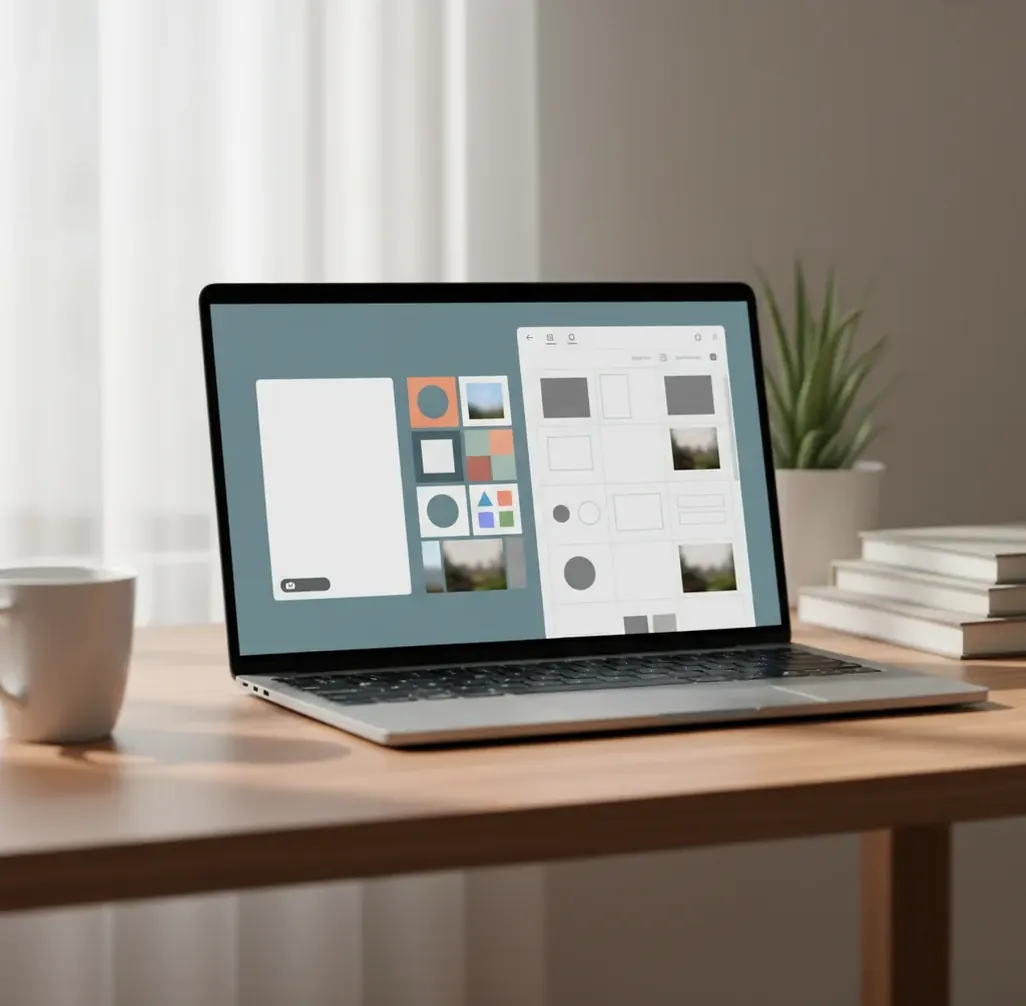
Choose an image-first AI editor when you need to generate, retouch, clean up, remove backgrounds, or upscale a source image before design work. Choose Canva AI when you need a finished poster, carousel, flyer, deck, or brand-template layout. Many creators use both: fix the image first, then place it into a polished layout.
What Is the Difference Between Image-First AI and Design-First AI?
The core difference is that image-first AI works on the pixels before the design, while design-first AI works inside a layout system. Image-first tools are built for text-to-image generation, photo enhancement, background removal, upscaling, inpainting, relighting, and subject cleanup. Design-first tools are built around templates, text boxes, grids, brand kits, slide formats, and social media dimensions.
This matters because a messy product photo, low-resolution portrait, or awkward background is not a layout problem. It is an image repair problem. A carousel, pitch deck, event poster, or branded Instagram Story is a layout problem. The faster workflow is usually the one that starts where the hardest visual problem actually lives.
Which Tool Should You Choose for Image Generation or Photo Editing?
Choose the image-first workflow when the asset itself needs work: generating a new visual from a prompt, fixing a bad photo, removing a distracting background, improving sharpness, or preparing a clean cutout for later design. This is the better starting point for ecommerce shots, thumbnails, profile images, concept art, moodboards, print assets, and social posts where the main image carries the message.
Choose the design-first workflow when the image is already usable and the main task is composition: adding text, resizing for platforms, building a campaign set, applying brand colors, or exporting a multi-page document. If you feel stuck zooming into stray pixels at 300%, start with image editing. If you feel stuck arranging text, spacing, and brand elements, start with design.
How Do AI Image Editors and Layout AI Tools Work Differently?
AI image editors typically rely on diffusion models, segmentation, detection, restoration models, and super-resolution. A diffusion model starts from noise and iteratively predicts pixels that match a prompt or reference image. Segmentation isolates subjects, hair, products, skies, or backgrounds so edits can be applied to specific regions instead of the whole canvas.
Layout AI tools usually wrap generation inside a design environment. They may create images, suggest copy, resize designs, or produce templates, but the output is constrained by frames, typography, brand kits, page sizes, and grid systems. That structure is helpful for marketing assets, but it can limit control when the real issue is edge quality, lighting, resolution, artifacts, or realism in the source image.
How Do You Pick the Right AI Tool for a Project?
Name the deliverable
Write one sentence: “I need a clean source image” or “I need a finished designed asset.” This prevents you from testing the wrong workflow.
Identify the hardest visual problem
If the issue is background, sharpness, lighting, subject quality, or image realism, solve that first. If the issue is layout, sizing, text, or brand consistency, start in a design environment.
Run one controlled test
Use the same subject, prompt, aspect ratio, and target export size in both workflows. Avoid judging from previews only.
Inspect the export at 100% zoom
Check hair edges, hands, jewelry, product labels, small text, banding, compression noise, and background halos before choosing a winner.
Choose the workflow with less rework
The best tool is the one that reduces repeat exports, manual cleanup, resizing, and format changes for your actual use case.
Which AI Tool Is Better for Common Creator Jobs?
| Creator job | Better starting point | Why it fits |
|---|---|---|
| Clean product photo for a listing | Image-first AI editor | The main work is background cleanup, edge control, lighting correction, and export quality. |
| Instagram carousel or event flyer | Design-first AI tool | The main work is typography, layout hierarchy, brand color, spacing, and platform sizing. |
| YouTube thumbnail image | Image-first first, design second | Generate or enhance the subject, then add title text, framing, and platform-safe spacing. |
| Pitch deck concept art | Image-first AI editor | The visual idea needs to be generated or refined before it is placed into slides. |
| Brand campaign set | Design-first AI tool | Templates, brand kits, and repeated formats matter more than pixel-level editing. |
| Print enlargement | Image-first AI editor | Upscaling, sharpness, compression cleanup, and resolution checks happen before layout. |
For hybrid projects, the most reliable workflow is often sequential: create or fix the image first, then design the final asset around it.
What Features Matter Most in a 2026 Comparison?
| Option | Primary strength | Best use | Watch for |
|---|---|---|---|
| Pict.AI | AI image generation, photo editing, enhancement, and browser or iOS image workflows | Fast source-image creation, cleanup, upscaling, and asset preparation | Final layouts may still need a separate design tool |
| Canva AI | Templates, layouts, brand assets, social formats, and document design | Finished posters, decks, carousels, flyers, ads, and campaign variations | Pixel-level repairs can feel constrained inside a template workflow |
| Adobe Express or Firefly | Brand-safe design workflows connected to Adobe’s creative ecosystem | Teams already using Adobe assets, fonts, libraries, or commercial design pipelines | Advanced retouching may still require a dedicated editor |
| Photoshop with generative tools | Precision compositing, layer control, masking, and professional retouching | High-control editing, complex composites, and print-sensitive production | More setup time and a steeper learning curve |
The strongest choice depends on whether you value generation speed, layout speed, precision control, mobile access, team collaboration, or export consistency.
What Prompt Recipes Work Best for Testing Both Workflows?
Use the same prompt structure when comparing tools so you are measuring the workflow, not just prompt quality. A good image test prompt includes subject, style, lighting, background, camera angle, aspect ratio, and output intent. A good design test prompt includes audience, format, hierarchy, brand mood, copy length, and platform.
Image prompt template: “Create a [subject] in [style], with [lighting], [background], [camera angle], [color palette], for [use case], in [aspect ratio]. Avoid [artifacts or unwanted elements].” Design prompt template: “Create a [format] for [audience] promoting [offer/message], using [tone], [brand colors], [headline], [supporting copy length], and a clear call to action.”
Where Can Both AI Workflows Disappoint?
- Small artifacts can appear in hands, teeth, jewelry, product labels, logos, buttons, and tight textile patterns.
- Background removal can struggle with hair, glass, smoke, transparent objects, motion blur, and low-contrast edges.
- Upscaling may sharpen JPEG noise, sensor grain, or compression blocks if the original file is already degraded.
- AI-generated text inside images is still less reliable than real editable typography added in a design tool.
What Is the Best 2026 Verdict for Creators?
The best 2026 verdict is simple: use an image-first AI workflow when the quality of the source image determines success, and use a design-first AI workflow when the final layout determines success. Photographers, ecommerce sellers, content creators, and visual artists often benefit from fixing the image before opening a template. Social media managers, educators, founders, and marketers often benefit from starting with the final format.
For many real projects, the winning answer is not either-or. Generate or repair the visual, export it cleanly, then build the final poster, thumbnail, slide, ad, or social asset in a layout tool. That hybrid workflow gives you stronger pixels and cleaner presentation.
Keep comparing: nearby head-to-heads
Six Editing Terms That Make This Comparison More Useful
Feature names can hide important differences in control. These six terms help distinguish a change to the underlying photo from a change to its presentation. Use them when comparing editing options in Pict.AI and Canva AI; a shared label does not guarantee identical controls.
- Reference conditioning
An image to image workflow uses an existing picture to guide a new result. Check whether the editor preserves the subject’s outline, pose, and colors. Stronger transformation can produce a fresh style while also changing details you meant to keep.
- Geometric warping
An ai liquify tool moves or stretches parts of an image rather than simply replacing colors. Straight background lines provide a useful check: bending tiles, doorframes, or product edges can reveal unintended distortion around the edited area.
- Identity preservation
A bald head filter illustrates this requirement clearly: removing hair should not unnecessarily alter someone’s eyes, ears, or face shape. For portrait edits, compare those landmarks with the original rather than judging only whether the requested effect appeared.
- Crop-safe composition
A pfp maker needs room around the face because many platforms display square uploads inside circular masks. Distinguish the image’s actual boundaries from the layout frame; important details can disappear when a design is cropped for an avatar.
- Visual provenance
A google lens online search may help locate similar images or earlier appearances of an asset. It does not establish ownership, permission, or originality. Keep the source file and any license information separate from the edited export.
- Temporal consistency
This means keeping subjects and details stable across video frames. The criteria in a best ai video generator comparison should include motion and flicker; neither can be assessed from a still-image comparison of Pict.AI and Canva AI.
Questions About Choosing Pict.AI or Canva AI
An AI-generated image is generally a raster asset, not a collection of independently editable objects. Placing it in Canva lets you arrange it alongside separate text, shapes, and other design elements, but objects inside the image do not automatically become layers. Keep headlines and logos separate when possible, and retain the original image so later revisions do not require rebuilding the entire design.
An image-first AI editor is usually better when the background has hair, glass, shadows, or low-contrast edges. A design tool is fine for simple cutouts used inside templates.
Use an image-first tool if the main visual needs generation or cleanup. Use a design-first tool if the image is ready and you mainly need captions, layout, sizing, and brand styling.
Yes. A common workflow is to generate, enhance, upscale, or remove the background first, then import the finished image into a layout tool for text, templates, and export sizes.
Start with image editing for product photos because edge quality, lighting, shadows, background consistency, and sharpness affect buyer trust. Use a design tool afterward for banners or listing graphics.
If you need custom visuals or concept art, create the images first. If you already have the visuals, a design-first workflow is better for slide structure, typography, and consistency.
They can replace simple edits for many marketing tasks, but they do not fully replace precision masking, color-managed print work, complex retouching, or layered compositing.
Review the tool’s license terms, your source-image rights, model usage policies, and whether the output resembles copyrighted characters, trademarks, celebrities, or protected brand assets.
Small previews hide halos, compression noise, warped details, fake text, and edge artifacts. Always inspect exported files at 100% zoom and at the final display size.
Design-first tools are often faster for finished templates, while image-first tools are faster for fixing or creating the main visual. The fastest choice depends on whether the project is a layout problem or a pixel problem.